Beyond TOC
 schemen328 downloads
Navigate long notes with a floating table of contents that hugs the text and tracks your position as you read.
- Overview
- Scorecard
- Updates3
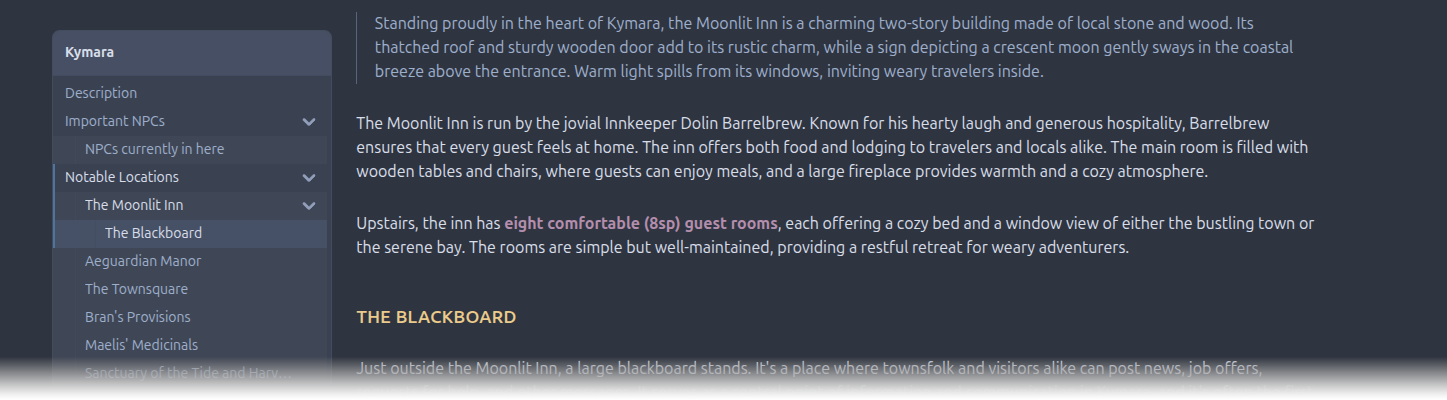
A floating table of contents for Obsidian, modelled on the navigation sidebar in D&D Beyond's sourcebooks.
It sits in the margin beside your note in both Reading view and Live Preview, tracks where you are as you scroll, and highlights the current heading along with the path to it. The card hugs the edge of the text rather than the edge of the pane, so it stays close to what you are reading and the empty space ends up on the outside. It takes its colours from your theme, and by default it never moves your note — Obsidian owns the width and centring of the text, and the plugin only ever reads them.
Using it
Navigate by clicking a heading. In Live Preview the cursor moves there too.
Fold a branch with the chevron at the end of its row, or
Ctrl/Cmd+ click anywhere on it. Scrolling into a folded branch opens it, and leaving closes it again - unless you opened it yourself, in which case it stays open.Show or hide it with the button in the note's header, the Toggle table of contents command (assign it a hotkey under Settings → Hotkeys), or an optional ribbon icon. Hiding is a full teardown, not a
display: none- a hidden table of contents costs exactly as much as a disabled plugin.Per note, override everything with frontmatter:
---
beyond-toc: false   # never show it in this note
beyond-toc: true    # always show it, even when hidden globally
---
When space is tight
In a narrow pane - or on a phone, or with readable line length off - there is no margin to sit in. The card
collapses to a small handle beside the text; clicking it floats the list over the note. Opening is always a
deliberate click, never a hover. It closes on Esc, on clicking away, on picking a heading, or when the pane
is resized.
Before it comes to that, Centre the text beside it (under Layout, off by default) buys the card some room.
Whichever way it is set, the card is what gives way first. Your text never loses width to make room for a table of contents - the card shrinks, and then collapses, before a single pixel comes off the column.
This is the one setting that writes your note's layout rather than only reading it. Switching the table of contents off, or turning the setting back off, puts the text back exactly where Obsidian had it.
Settings
Grouped under Settings → Beyond TOC, and searchable from Obsidian's settings search.
| Group | What you can change |
|---|---|
| Visibility | Global toggle, minimum headings before it appears, which view modes it shows in |
| Title | Whether to show the note title, and whether it comes from the file name, the first H1, or a frontmatter property |
| Structure | Which level to start folded at, and the deepest level to include |
| Layout | Side, gap from the text, top offset, minimum and maximum width, whether to centre the text beside it, what to do when space is tight |
| Tracking | How far down the screen a heading counts as current, and whether to keep it in view |
| Interaction | Cursor movement on click, tooltips, header button, ribbon icon |
| Colours | Accent, background, border and text - each empty by default, meaning follow the theme |
| Appearance | Font size, row height, indent step, truncation, fold arrows, shading, corners |
Colours
Colours live under Settings → Beyond TOC → Colours, as ordinary colour pickers. By default every one of them is empty, which means follow the theme — nothing is written, so the card matches whatever theme you are using and changes with it. Set one and it overrides just that colour; the others keep following.
Going further with a snippet
The pickers cover the four colours that define the look. Everything else — hover, the current row's wash, the active text colour — is available as a CSS variable, and a snippet can reach all of them. Because an unset picker writes nothing, snippets keep working for anything you have not overridden in settings.
Add any of these under Settings → Appearance → CSS snippets:
| Variable | Falls back to |
|---|---|
--beyond-toc-bg |
--background-secondary |
--beyond-toc-border |
--background-modifier-border |
--beyond-toc-text |
--text-muted |
--beyond-toc-text-active |
--text-normal |
--beyond-toc-row-hover-bg |
--background-modifier-hover |
--beyond-toc-row-active-bg |
--background-modifier-active-hover |
--beyond-toc-accent |
--interactive-accent |
body {
    --beyond-toc-accent: #d64550;
    --beyond-toc-bg: var(--background-primary-alt);
}
Each is referenced with its theme value as a fallback rather than declared, so anything you set on body
wins. There is no !important anywhere in the stylesheet to fight.
A colour left empty in settings writes nothing at all — the plugin removes the property rather than
writing your theme's current value into it. That is what keeps themes and snippets in control of everything
you have not deliberately overridden. Every style rule lives in styles.css keyed on a class; the plugin
only ever passes values through these variables.
Two more knobs, both used by the current-row highlight:
| Variable | Default | What it does |
|---|---|---|
--beyond-toc-active-strength |
18% |
How strongly the accent washes the current row |
--beyond-toc-shade-step |
0.02 |
Tint added per nesting level, when level shading is on |
Requirements
- Obsidian 1.13.0 or later.
- Readable line length enabled (Settings → Editor → Readable line length). This is what creates the margin the table of contents lives in. Without it the plugin falls back to opening over the text on demand.
Development
npm install
npm run dev     # esbuild watch
npm run build   # type-check + production bundle
npm run lint
Credits
Beyond TOC was primarily inspired by the navigation sidebar in D&D Beyond's digital sourcebooks. Its implementation also draws technical inspiration from obsidian-floating-toc.