
- Overview
- Scorecard
- Updates4
A better task management plugin for Obsidian. Organize your work with goals, tasks, and an at-a-glance dashboard—with optional notifications, analytics, and Student Mode for courses and exams.
What Better Task Does
- Goals — Define goals and track progress. Each goal can have daily or one-off tasks.
- Dashboard — One place to see today’s tasks, quick tasks, goals, and (if enabled) your units and upcoming exams.
- Notifications — Get reminded about due or overdue tasks (in-app and optional system notifications).
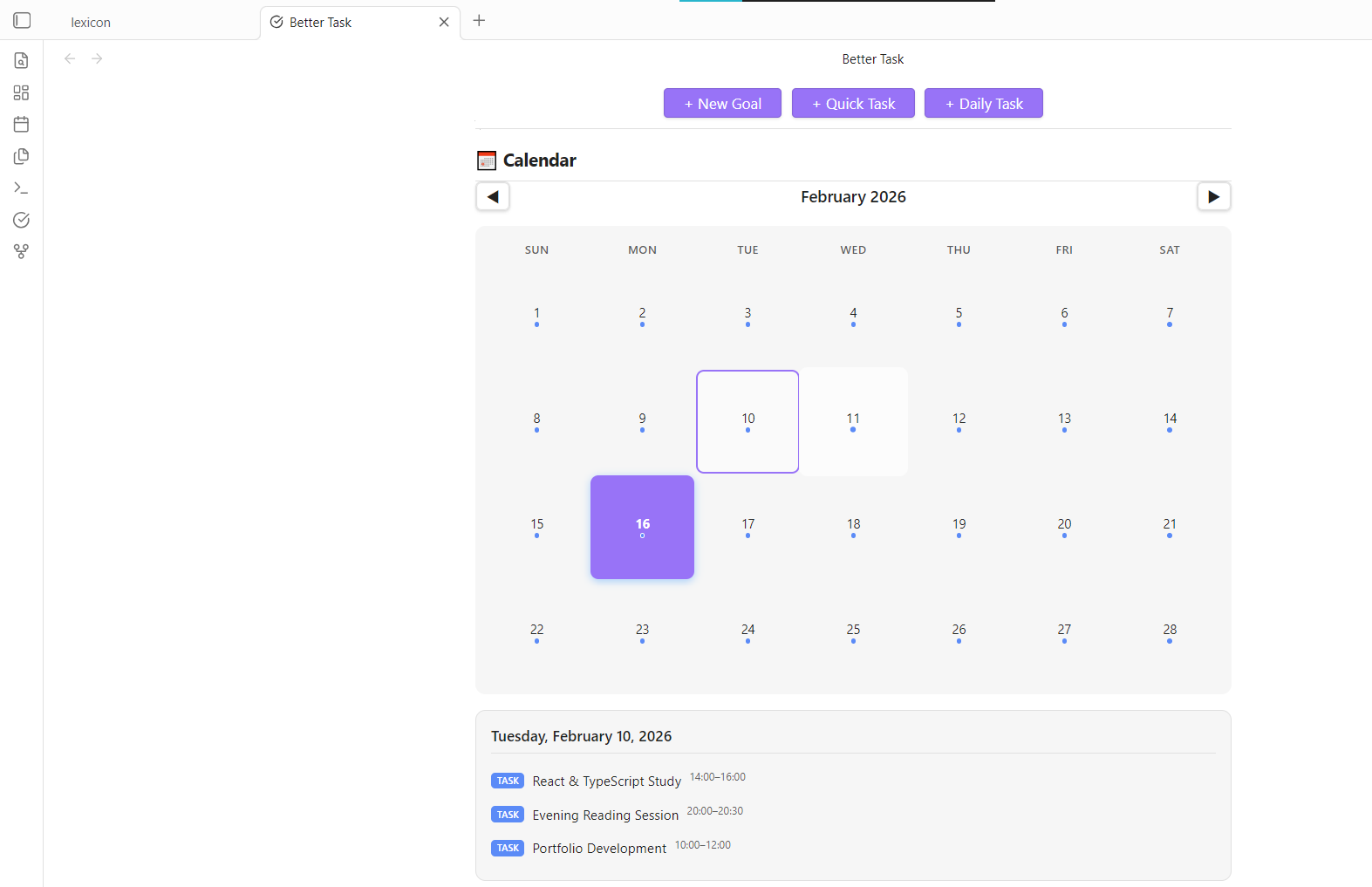
- Analytics — Weekly completions, streaks, a 30-day activity heatmap, and advanced insights (consistency, momentum, predictions).
- Student Mode — Add units/courses and exams, then generate study tasks automatically before exam dates.
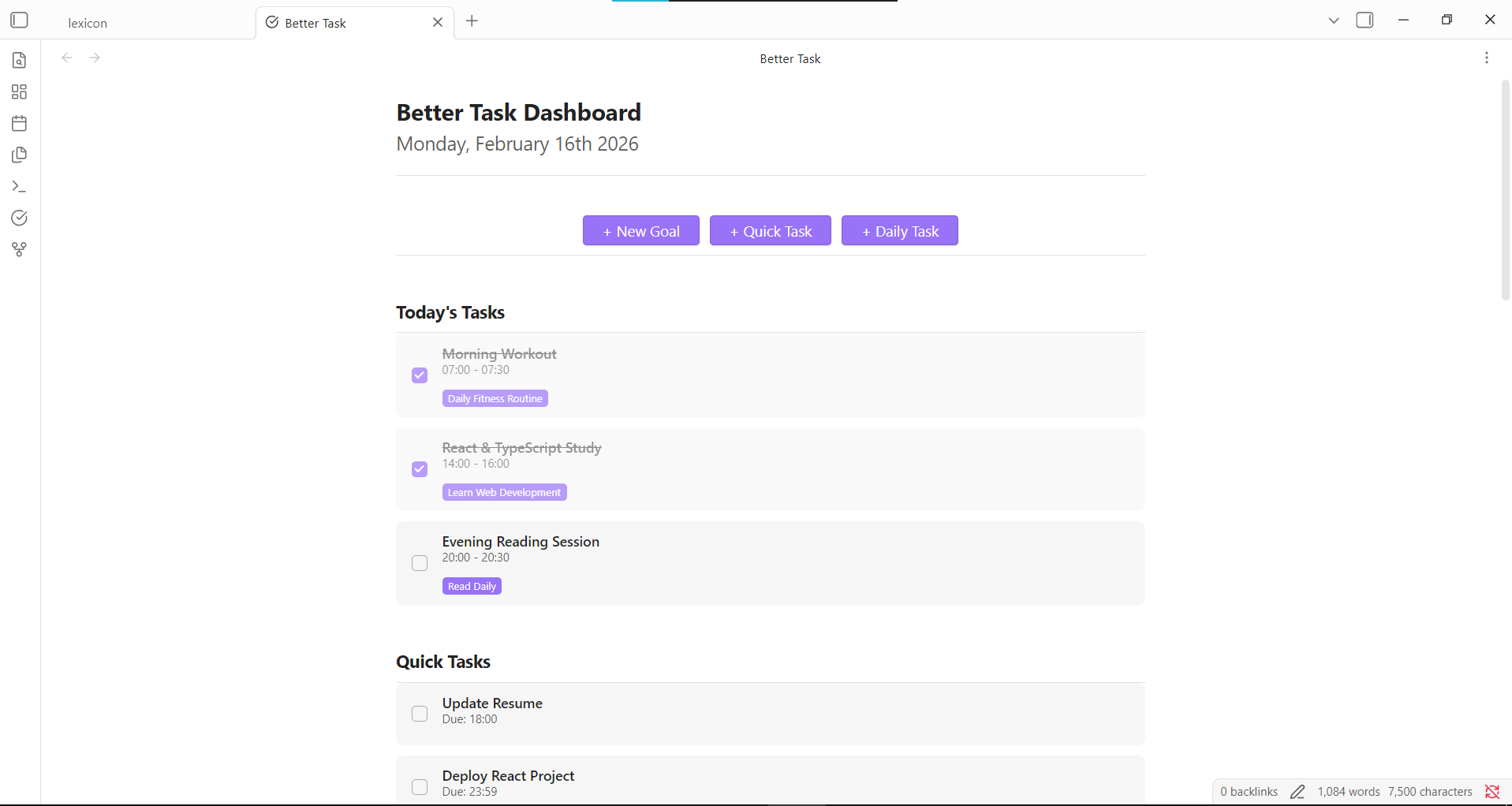 Screenshot of the main Better Task dashboard.
How to Use It
Opening the Dashboard
- Use Command Palette (
Ctrl/Cmd + P) → type “Open Dashboard” → run Better Task: Open Dashboard. - Or open the Better Task view from the right sidebar (ribbon icon, if enabled).
 Screenshot of Command Palette with “Open Dashboard” selected.
Creating Goals and Tasks
Create a goal
From the dashboard, click New Goal, or use Command Palette → Better Task: Create New Goal. Enter a name and optional details.Add tasks to a goal
- Daily tasks — Repeat every day (or on a schedule). Use Create Daily Task from the dashboard or Command Palette.
- Quick tasks — One-off tasks. Use Create Quick Task or the equivalent button on the dashboard.
Complete tasks
Check off tasks from the dashboard. Your completions feed into analytics and streaks.
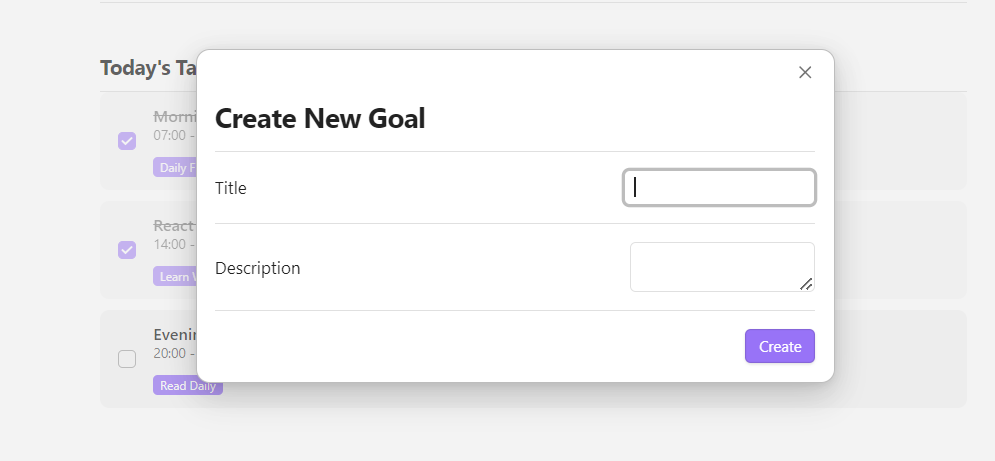 Screenshot of creating a goal and adding tasks.
Using Student Mode (Optional)
If you use Obsidian for study and exams:
Enable Student Mode
Go to Settings → Better Task and turn on Student Mode.Add units (courses)
Use New Unit on the dashboard or Better Task: Create Unit/Course. Enter unit name, code, semester, and other details.Add exams
For each unit, use Add Exam to set exam date, time, location, and topics.Generate study tasks
For an upcoming exam, click Generate Study Tasks. The plugin creates tasks for each topic, spread over the days before the exam.
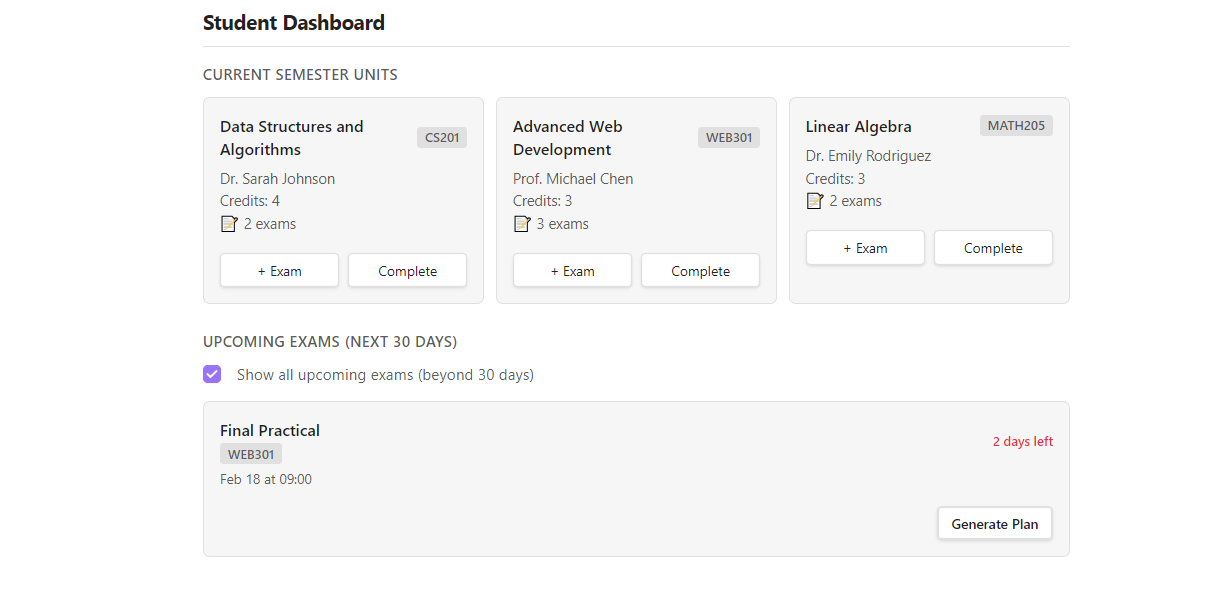 Screenshot of Student Mode section (units and upcoming exams).
Settings
In Settings → Better Task you can:
- Enable / disable notifications (in-app and system).
- Notification sound (when supported).
- Streak warning threshold — how many days before you get a streak warning (1–30).
- Student Mode — turn the units/exams and study-task features on or off.
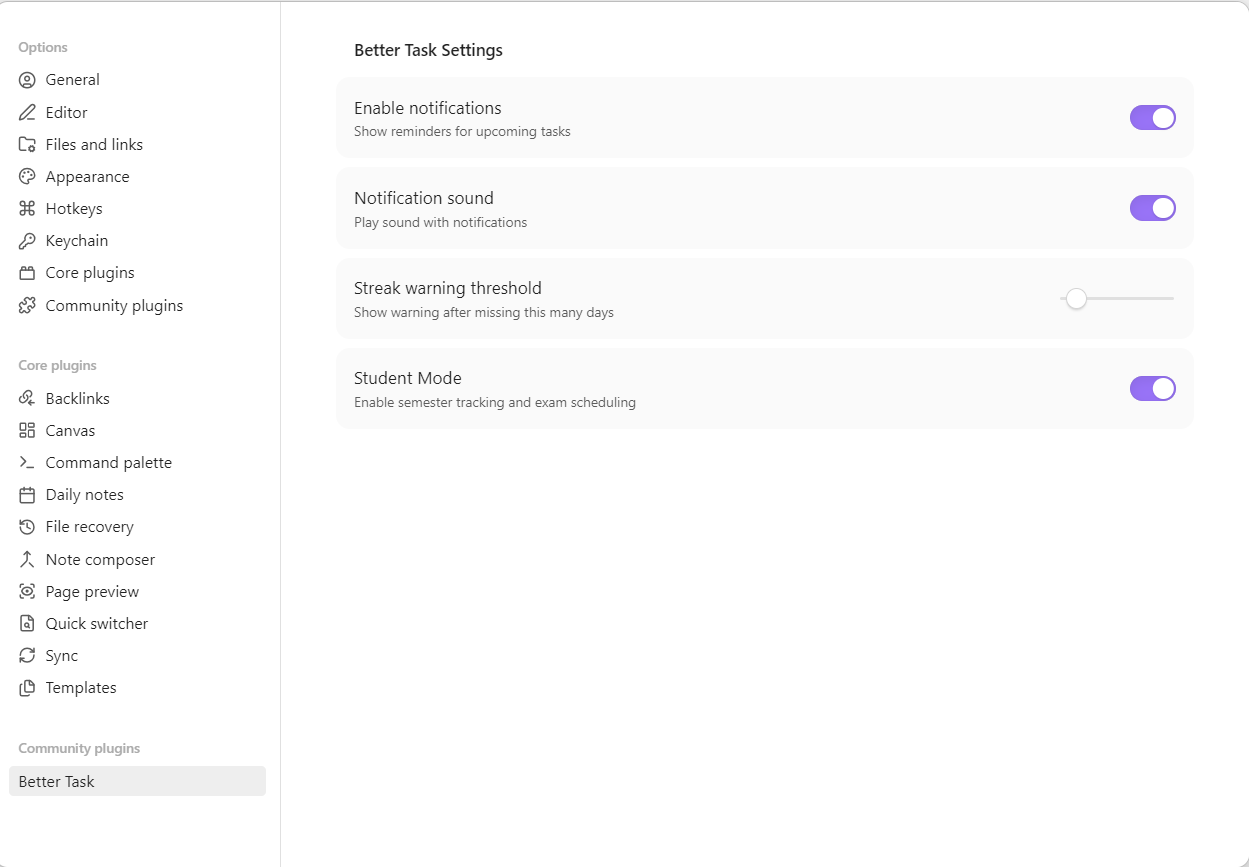 Screenshot of Better Task settings.
Undo and Redo
- Undo:
Ctrl/Cmd + Z - Redo:
Ctrl/Cmd + Shift + Z
Use these after creating or completing goals or tasks to step back or forward.
Summary
| What you want to do | How to do it |
|---|---|
| See everything at a glance | Open Dashboard (Command Palette or sidebar) |
| Create a goal | New Goal on dashboard or Create New Goal |
| Add a repeating task | Create Daily Task |
| Add a one-off task | Create Quick Task |
| Track courses and exams | Enable Student Mode → New Unit → Add Exam |
| Get reminders | Enable notifications in Settings → Better Task |
| View stats and streaks | Check the Analytics and Advanced Analytics on the dashboard |