Search...Search plugins and themes...
⌘K
Sign in
  • Get started
  • Download
  • Pricing
  • Enterprise
  • Account
  • Obsidian
  • Overview
  • Sync
  • Publish
  • Canvas
  • Mobile
  • Web Clipper
  • CLI
  • Learn
  • Help
  • Developers
  • Changelog
  • About
  • Roadmap
  • Blog
  • Resources
  • System status
  • License overview
  • Terms of service
  • Privacy policy
  • Security
  • Community
  • Plugins
  • Themes
  • Discord
  • Forum / 中文论坛
  • Merch store
  • Brand guidelines
Follow us
DiscordTwitterBlueskyThreadsMastodonYouTubeGitHub
© 2026 Obsidian

Better Figures

SunnyYYLinSunnyYYLin168 downloads

Add captions to images using native Markdown syntax even in LIVE PREVIEW.

Add to Obsidian
  • Overview
  • Scorecard
  • Updates1

Add captions to images using native Markdown syntax.
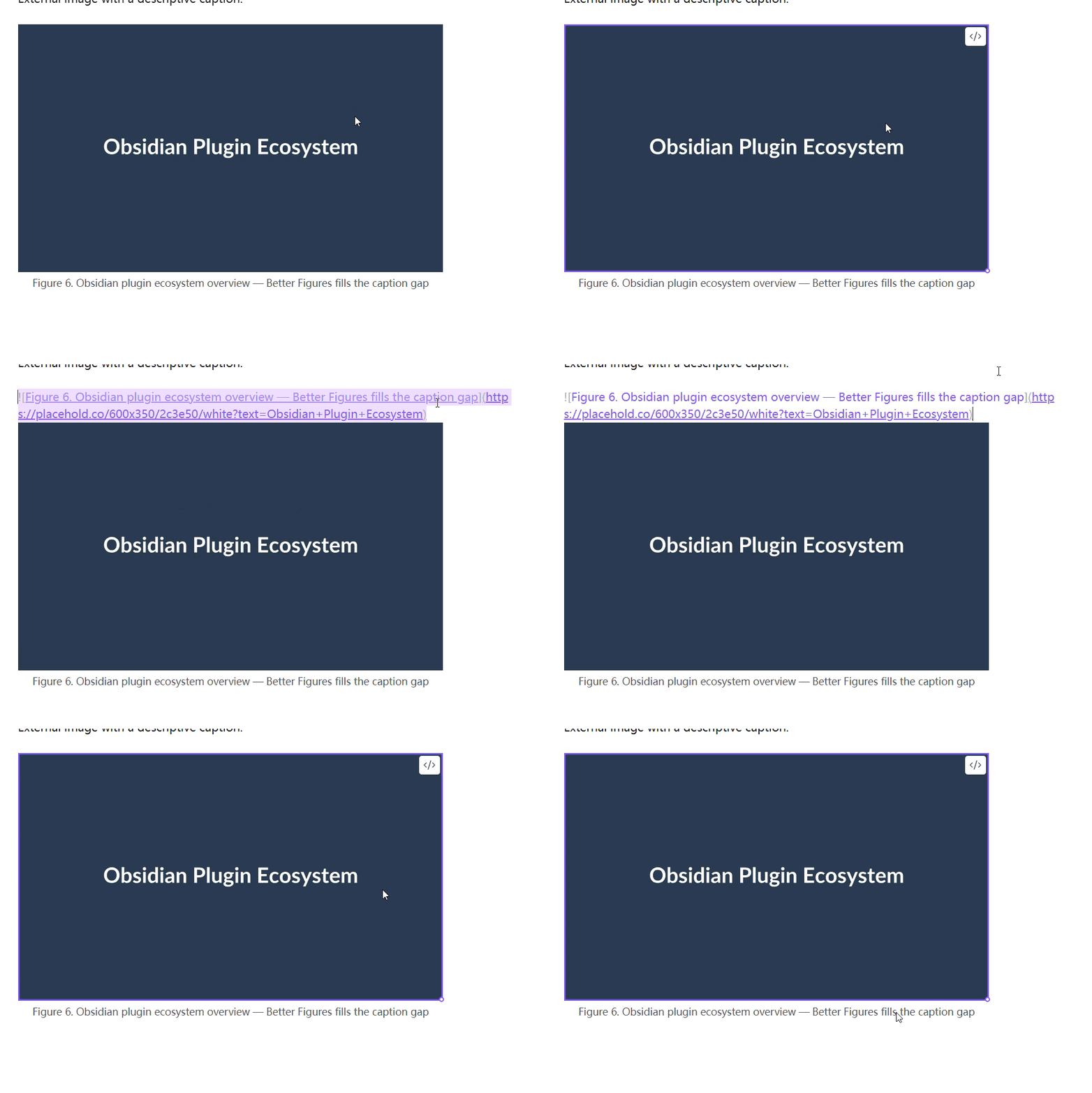
Demo

Features

  • Native Markdown syntax — write ![caption](image.png) and the alt text becomes a centered caption below the image.
  • Reading view — captions rendered via Obsidian's Markdown post-processor.
  • Live Preview — captions rendered with pure CSS, even while editing.
  • Empty alt text — images like ![](image.png) are left unchanged, so existing notes are unaffected.
  • Image embeds — works with both external images and internal ![[image]] embeds.
  • Lightweight — zero dependencies at runtime, no settings needed.

Usage

Write a standard Markdown image:

![Figure 1. Architecture overview](architecture.png)

In both Reading view and Live Preview, Better Figures renders the image with the caption centered below it.

Images with empty alt text are left as-is:

![](architecture.png)

Installation

From Community Plugins (recommended)

  1. Open Obsidian and go to Settings → Community plugins.
  2. Disable Restricted mode if prompted.
  3. Click Browse and search for "Better Figures".
  4. Install and enable the plugin.

Manual

  1. Download the latest release from GitHub Releases.
  2. Copy main.js, manifest.json, and styles.css into <vault>/.obsidian/plugins/better-figures/.
  3. Enable the plugin in Settings → Community plugins.

Development

bun install
bun run dev

Build for release:

bun run build

License

BSD-0-Clause License

HealthExcellent
ReviewSatisfactory
About
Add centered captions to images by using the Markdown alt text as the caption. Render captions in Reading view and Live Preview with pure CSS, leave images with empty alt text unchanged, and support external URLs and internal ![[image]] embeds without runtime dependencies or settings.
ImagesMarkdown
Details
Current version
0.0.2
Last updated
Last month
Created
Last month
Updates
1 release
Downloads
168
Compatible with
Obsidian 1.8.7+
Platforms
Desktop, Mobile
License
0BSD
Report bugRequest featureReport plugin
Author
SunnyYYLinSunnyYYLinsunnyyylin
GitHubsunnyyylin
  1. Community
  2. Plugins
  3. Images
  4. Better Figures

Related plugins

Image Captions

Add captions to images with inline Markdown and link support. The caption format is compatible with the Commonmark spec and other Markdown applications.

Importer

Convert your data to Markdown files you can use in Obsidian. Works with Apple Notes, OneNote, Evernote, Notion, Google Keep, and many other formats.

Outliner

Work with your lists like in Workflowy or Roam Research.

Ink

Handwriting and drawing directly between paragraphs using a digital pen, stylus, or Apple pencil.

Linter

Format and style your notes. Linter can be used to format YAML tags, aliases, arrays, and metadata; footnotes; headings; spacing; math blocks; regular Markdown contents like list, italics, and bold styles; and more with the use of custom rule options.

Custom Frames

Turn web apps into panes using iframes with custom styling. Also comes with presets for Google Keep, Todoist and more.

Various Complements

Complete words similar to auto-completion in an IDE.

Typewriter Mode

Typewriter scroll, writing focus, current line highlight, paragraph dimming, and more!

Chat View

Chat View lets you quickly and easily create elegant Chat UIs in your Markdown Files.

Featured Image

Automatically set a featured image property in your notes based on the first image.