Bases Task Rows
 theluckystrike3 downloads
Shows each checklist task in the notes a base selects as its own row, with due dates, tags and the source note, and ticks tasks from the view.
- Overview
- Scorecard
- Updates3
Bases Task Rows adds a "Task rows" view to Bases. It shows each checklist task in the notes that a base selects as its own row. A row has the done box, the task text, the due and scheduled dates, the priority, the tags, the source note and the heading above the task. Tick a box in the view and the plugin writes the change to that line of the note.
Core Bases reads note properties, not the lines inside a note. It understands the date format of the Tasks plugin (📅 2026-10-12) and Dataview fields ([due:: 2026-10-12]), so it works with the notes you already have.
The view, the done box, sorting, filtering and up to 200 tasks per view are free. Pro adds every task past 200, groups, due date editing in the row, and bulk actions. Pro costs $5 a month, or $15 once, through GitHub Sponsors. When you have paid $15 in total, Pro stays on.
Features
One row per task
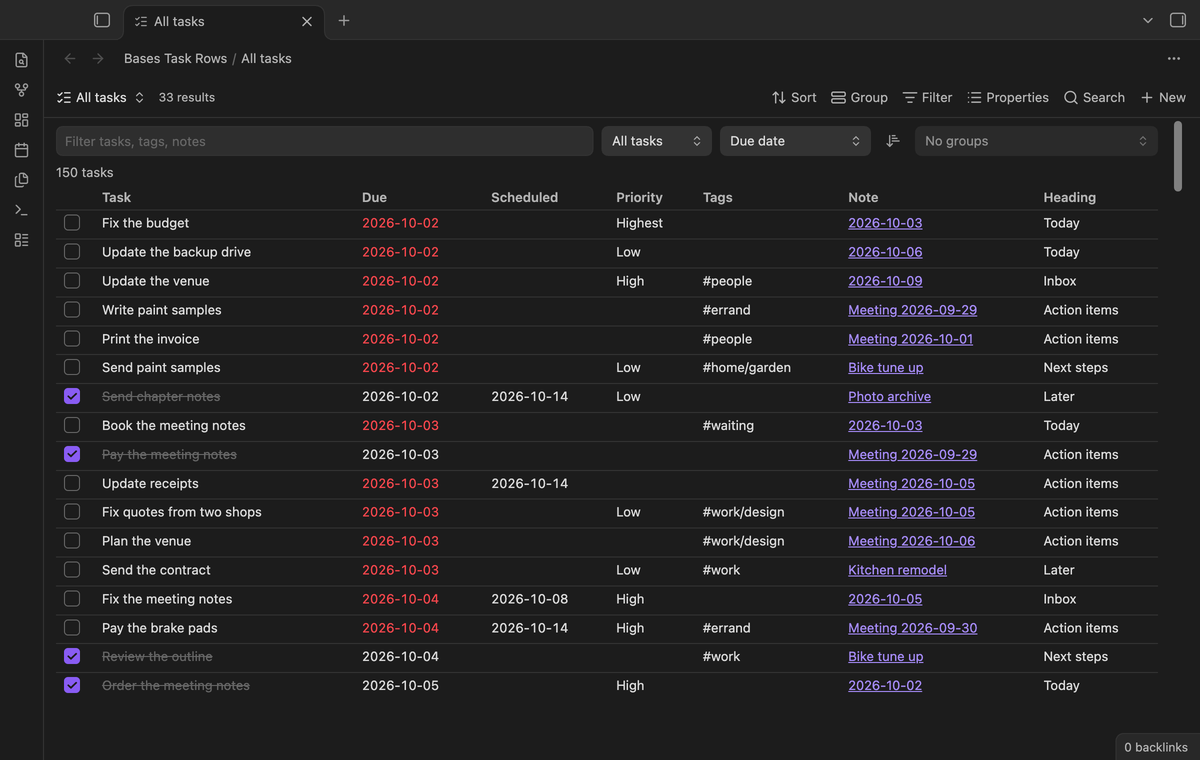
The base decides which notes count, with its normal filters, for example "in the folder Projects" or "has the tag #client". The view then lists every - [ ] and - [x] line in those notes. A task-like line inside a code block does not count, because the app does not treat it as a task.
Select the task text or the note name to open the note at that line.
Tick a task from the view
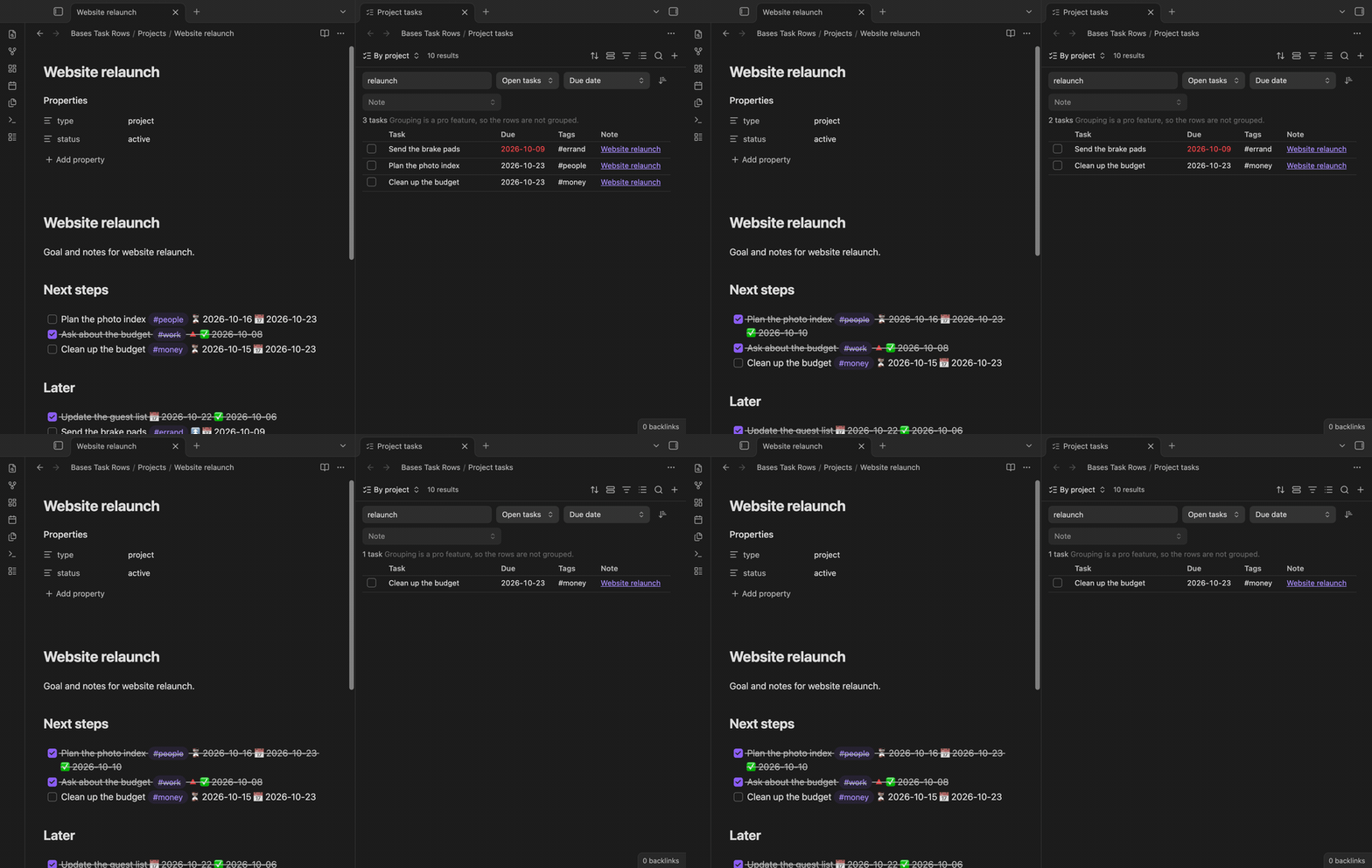
Tick the box and the plugin changes [ ] to [x] in the source line. If the line already has a date, it also adds a done date (✅ 2026-10-10, or [completion:: 2026-10-10] on a Dataview line), the same way the Tasks plugin does. Untick and it goes away.
Before it writes, the plugin checks that the line in the note is still exactly the line it read. If that line changed in the meantime, nothing is written. A notice tells you, and the view reads the note again. All other lines of the note keep every character, including Windows line ends.
Sort and filter
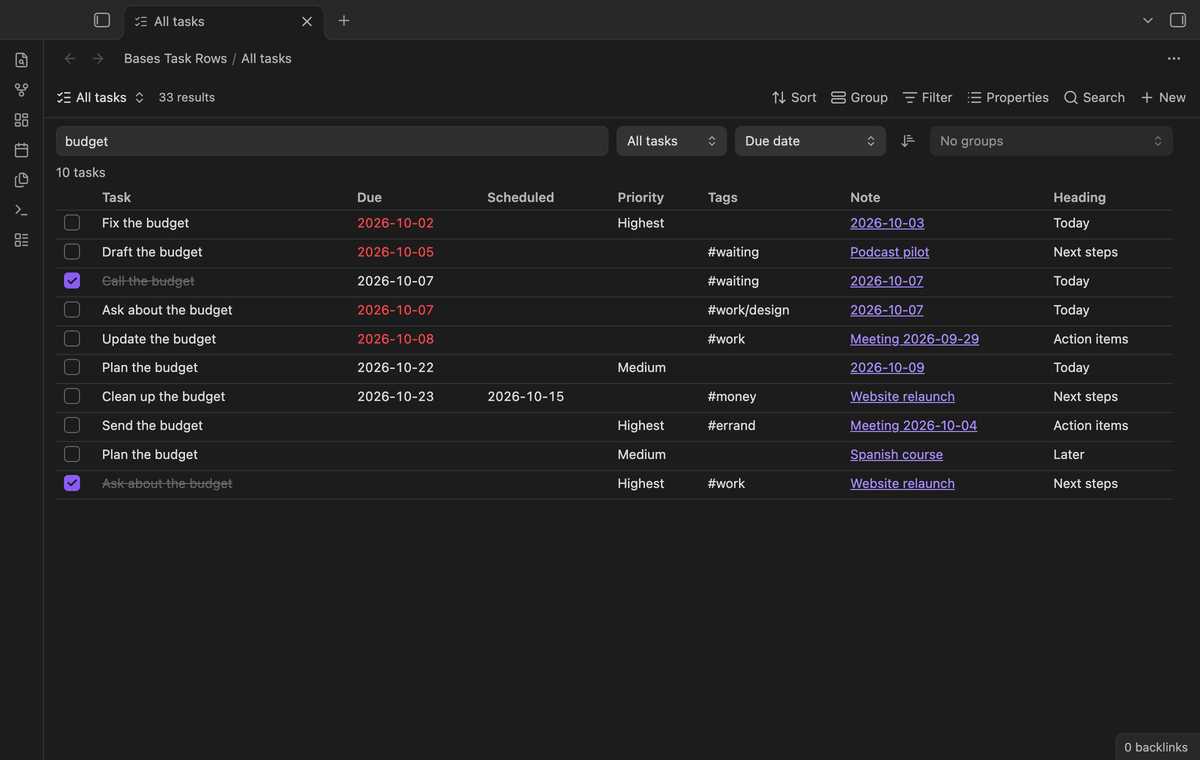
The toolbar has a filter box, a Show menu (open tasks, done tasks or all tasks), a Sort menu and a button that reverses the sort. Sort by due date, scheduled date, priority, task text, note name or the order in the notes. Tasks without a date always come last.
The filter box matches words in the task text, tags, note name and heading. The view saves the Show and Sort choices in the base file, one set for each view.
Tasks emoji and Dataview fields
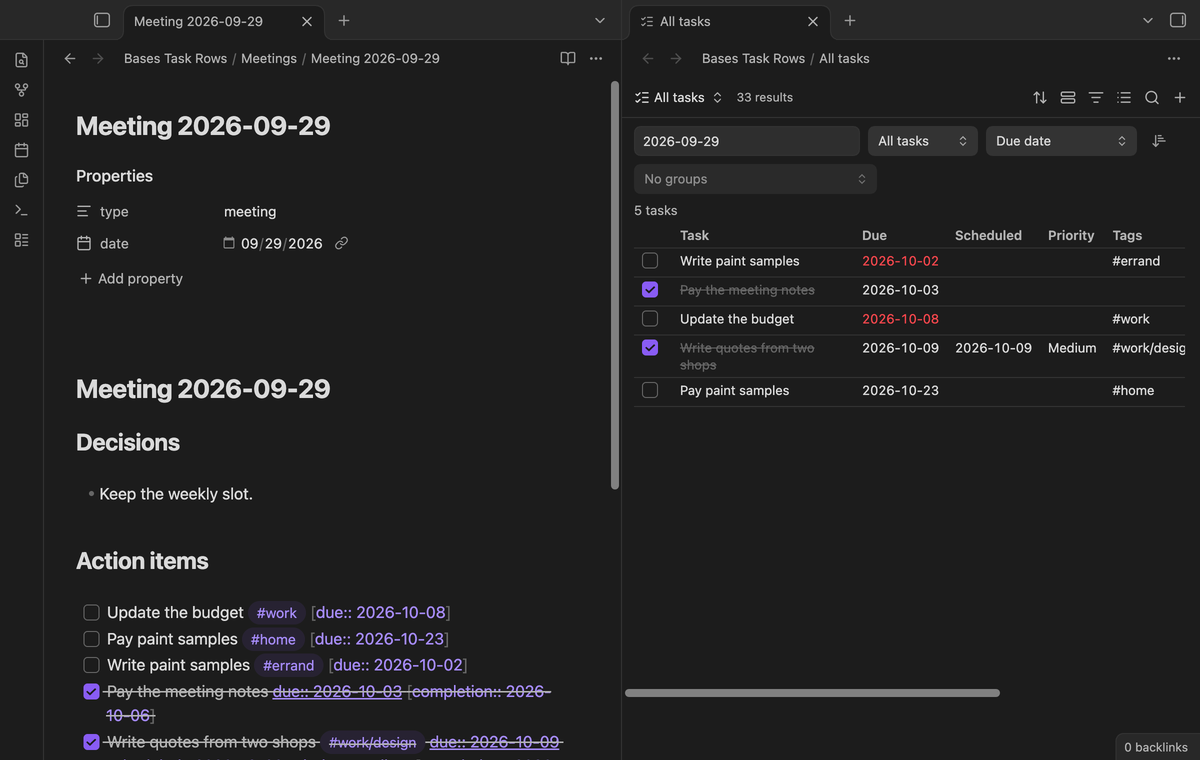
The plugin reads these parts of a task line:
- Dates in Tasks format:
📅due,⏳scheduled,🛫start,✅done,➕created,❌cancelled. - The same dates as Dataview fields in square or round brackets:
due,scheduled,start,completion,created,cancelled. - Priority:
🔺 ⏫ 🔼 🔽 ⏬, or[priority:: high]. - Tags, but not
#123and not tags in code.
The Task column shows the text without these parts. A new date uses the format the line already has. For a line without dates, the setting "Format of new dates" decides.
Groups by date, note, heading or tag (Pro)
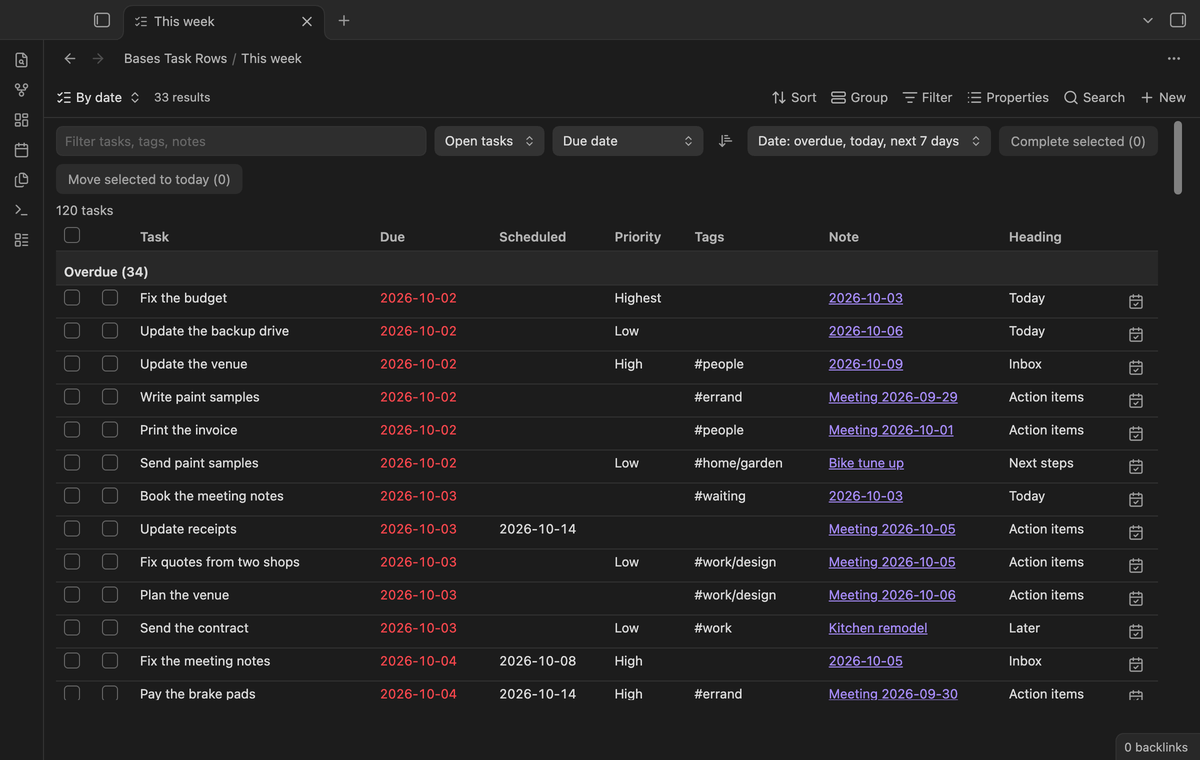
Group by date puts each open task under Overdue, Today, Next 7 days, Later or No date, by its due date, or by its scheduled date when there is no due date. Done tasks go under Done. You can also group by note, by heading, or by tag. A task with two tags shows under both tags.
Edit due dates, move to today, complete many (Pro)
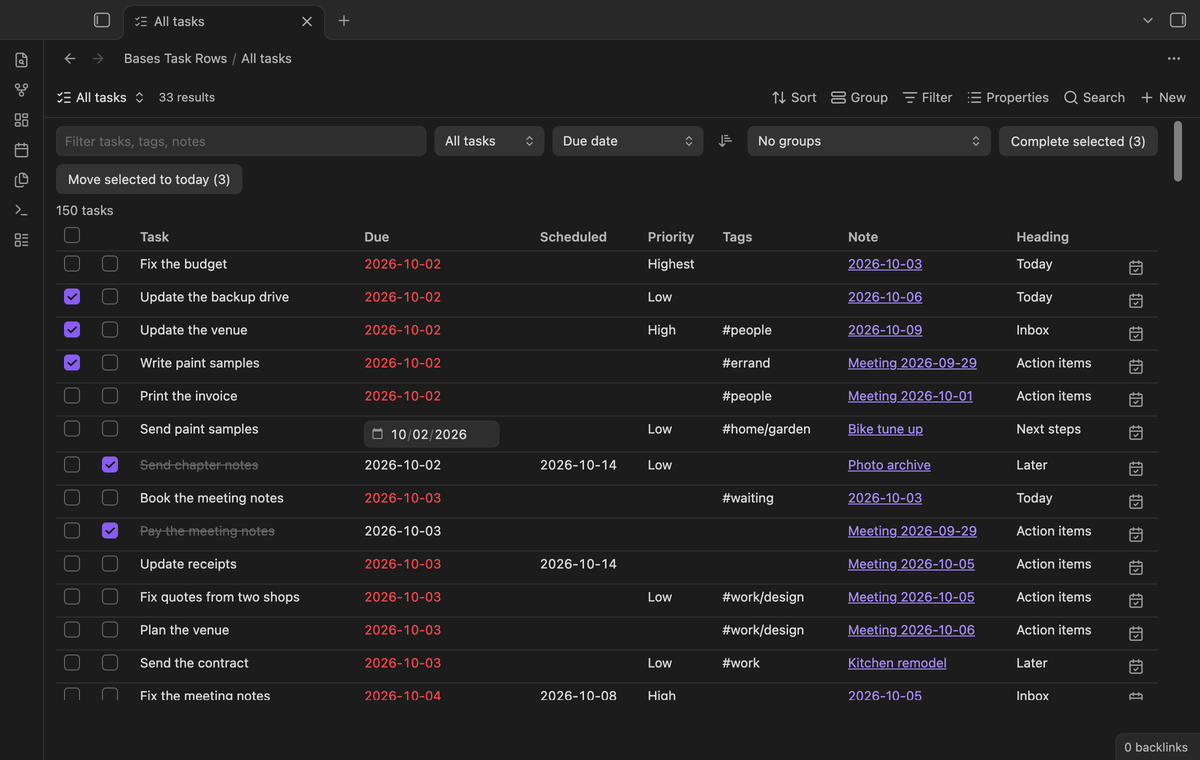
With Pro you can:
- Select a due date to change it. Press Enter to save, Escape to cancel. An empty date removes the due date.
- Select the calendar button of a row to move the task to today. This changes the due date, or the scheduled date when the task has no due date. A task with no date gets a due date of today.
- Select rows with the boxes on the left, then select "Complete selected" or "Move selected to today".
Install
When Bases Task Rows is listed in the community directory, open Settings, then Community plugins, then Browse, and search for "Bases Task Rows". Select Install, then Enable.
To install by hand, download main.js, manifest.json and styles.css from the latest release. Put the three files in <vault>/.obsidian/plugins/bases-task-rows/. Reload the list of community plugins, then turn on Bases Task Rows.
The plugin needs Obsidian 1.13.4 or newer with the Bases core plugin on. It was tested on desktop with Obsidian 1.13.4 and 1.14.4.
Usage
- Open a folder of notes with tasks and run the command "Create a task base for the current folder". The plugin creates
Tasks.basein that folder with a Task rows view and opens it. - Or open any base, select the view menu, add a view, and choose the layout "Task rows".
- Change the base filters to choose the notes. Change Show, Sort and the columns in the toolbar or in the view options.
- For Pro, sponsor on GitHub, then open the settings and select "Sign in with GitHub".
The view updates by itself when a note changes.
Pro
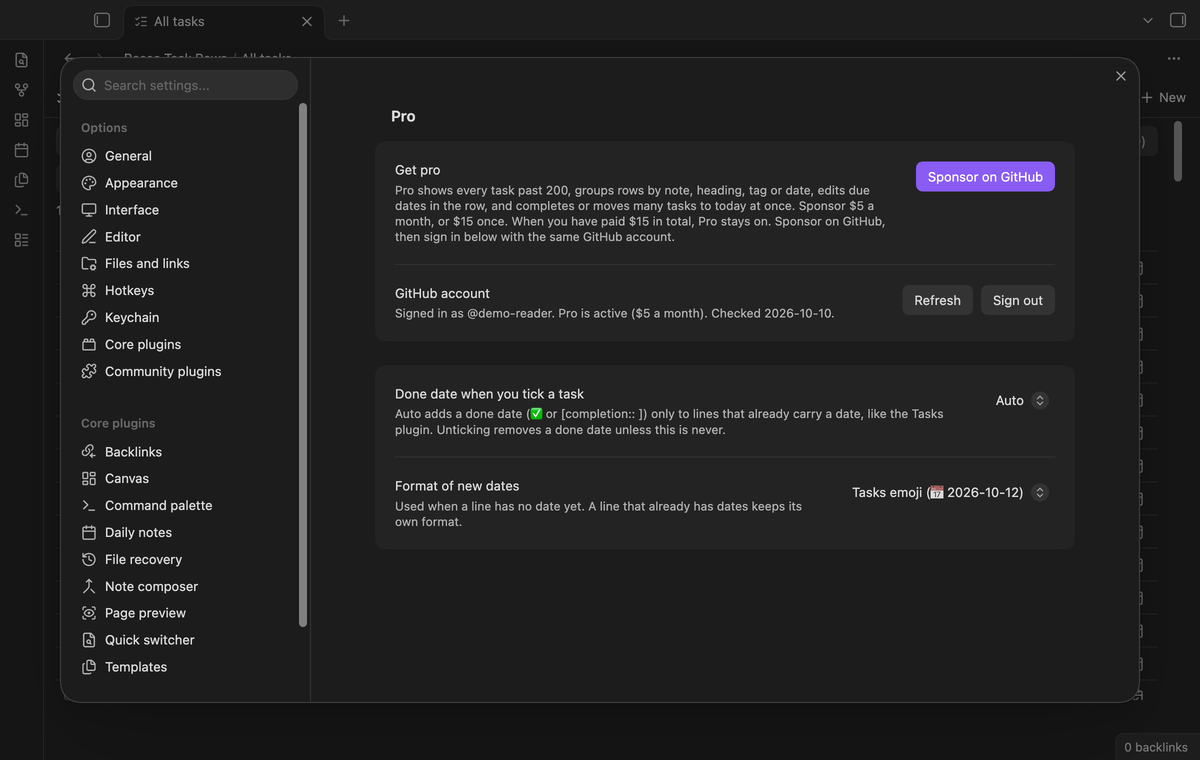
To get Pro:
- Sponsor theluckystrike on GitHub Sponsors with $5 a month, or $15 once. When you have paid $15 in total, Pro stays on.
- In Obsidian, open the settings of Bases Task Rows and select "Sign in with GitHub".
- The plugin copies a code and opens github.com/login/device. Paste the code there and approve.
If you sponsor after you sign in, select Refresh. If a monthly sponsorship ends before you have paid $15 in total, Pro turns off at the next check, within 7 days.
Settings
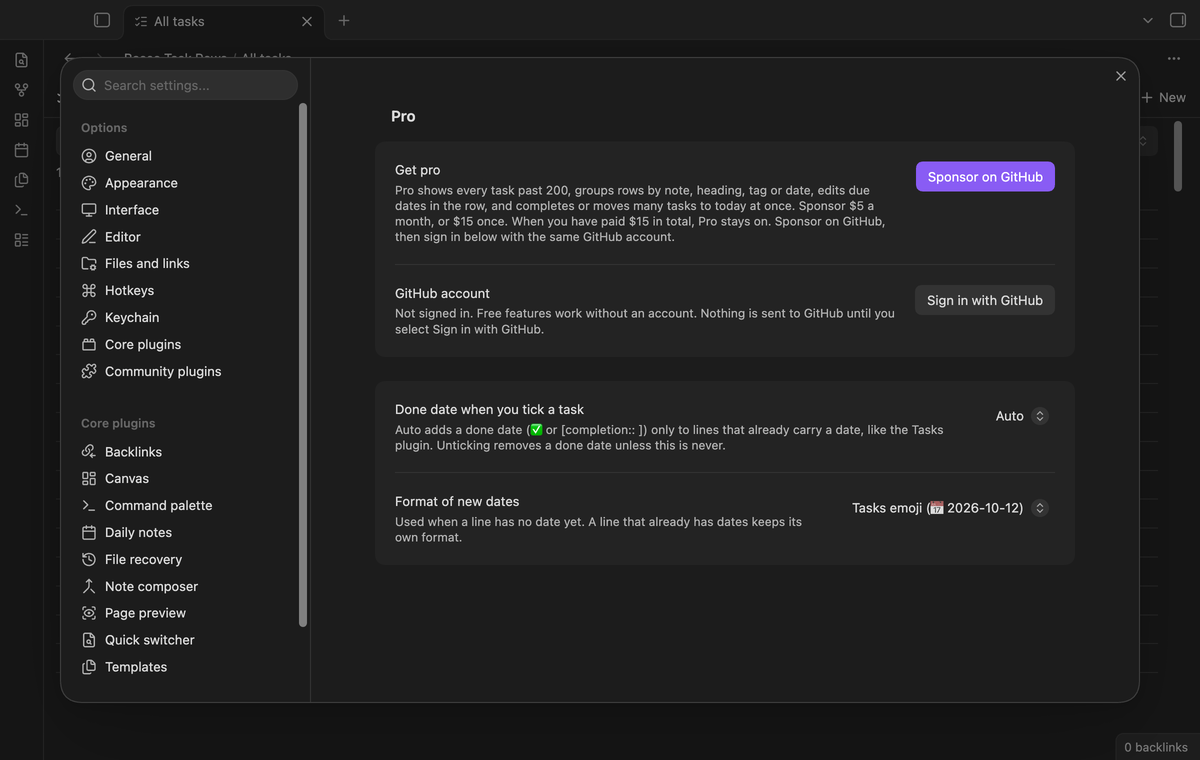
| Setting | Default | Allowed values |
|---|---|---|
| Done date when you tick a task | Auto | Auto, Always, Never |
| Format of new dates | Tasks emoji | Tasks emoji or Dataview field |
Auto adds a done date only to lines that already have a date. Each view also has options in the view menu of the base: Show, Sort by, reverse sort, Group by (Pro), and the Scheduled, Priority, Tags and Heading columns.
FAQ
Does it change my notes?
Only when you tick a box or use a Pro action. Then it changes that one line, and in that line only the box or one date. Nothing else in the note changes.
What about recurring tasks?
The plugin ticks a recurring task like any other task. It does not create the next one. If you use the Tasks plugin for repeats, tick those tasks in the note or in a Tasks query.
Why does a base with many notes take a moment?
The plugin reads each note with tasks once and keeps the result until the note changes. In our test, 2,000 tasks from 100 notes take less than 300 ms.
Which statuses count as done?
x, X and - (cancelled). Any other symbol in the box counts as open.
Payment, account and network
The core features are free and stay free. Pro features need a GitHub Sponsors sponsorship of theluckystrike: $5 a month or more, or $15 once. When you have paid $15 in total, Pro stays on. Your notes stay readable and editable with or without Pro.
GitHub handles the payment. Sponsor at https://github.com/sponsors/theluckystrike. You need no account for the free features. Pro needs the GitHub account that sponsors.
Until you select "Sign in with GitHub" in the settings, Bases Task Rows makes no network requests. Sign in uses the GitHub device flow. Bases Task Rows sends its public client ID and the scope read:user to https://github.com/login/device/code and shows you a code. While you enter the code at https://github.com/login/device, it asks https://github.com/login/oauth/access_token every few seconds whether sign in is done. The scope read:user is read-only access to your profile, which GitHub needs to show the sponsorship tier. It gives no access to repositories and no write access.
After sign in, Bases Task Rows sends one query to https://api.github.com/graphql: does the signed-in account sponsor theluckystrike, at which tier, and how much it has paid theluckystrike in total. It asks again at most once every 7 days, or when you select Refresh. It sends no note content, file names or other vault data, and it has no telemetry.
Pro keeps working for 14 days without a successful check. The GitHub token stays in the secret storage of Obsidian on this device. It is not written to data.json or other vault files, so it does not sync or reach a git repository. The local storage of this device keeps your GitHub login, the tier and the time of the last check. Sign out deletes the token. You can also revoke the access in your GitHub settings, under Applications.
Support
Report a bug or ask for a feature in the issue tracker of this repository. Please include your Obsidian version and a sample task line that shows the problem.
To build from source:
npm ci
npm run build
npm test
The tests check golden cases for reading and changing task lines in both formats. An end-to-end test ticks rows in a real Obsidian and compares the notes byte for byte.
License
MIT