Auto Close Oldest Tabs
 usero2-endofday304 downloads
Automatically close the oldest tab when a maximum tab limit is reached.
- Overview
- Scorecard
- Updates3
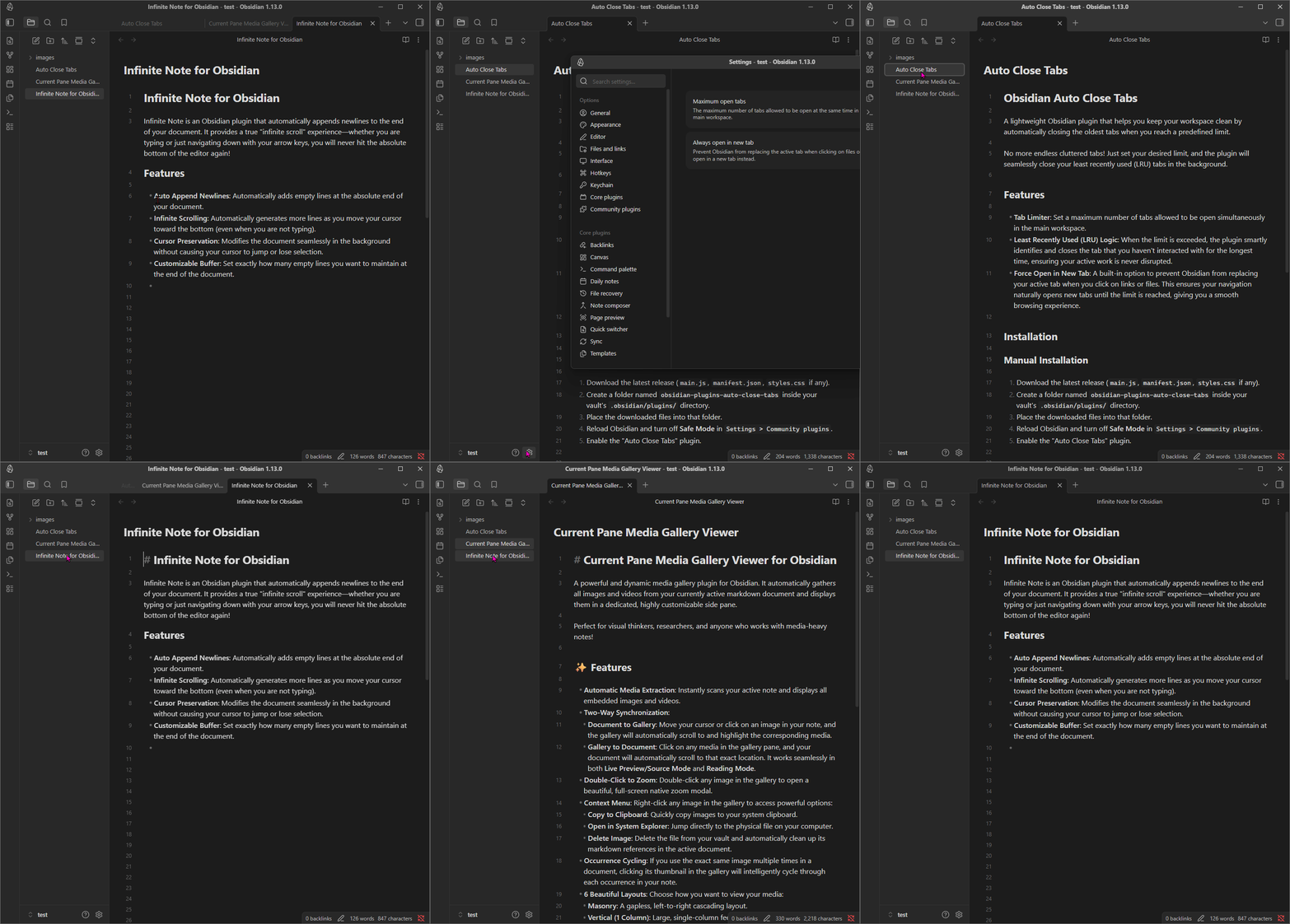
A lightweight Obsidian plugin that helps you keep your workspace clean by automatically closing the oldest tabs when you reach a predefined limit. No more endless cluttered tabs! Just set your desired limit, and the plugin will seamlessly close your least recently used (LRU) tabs in the background.
Features
- Tab Limiter: Set a maximum number of tabs allowed to be open simultaneously in the main workspace.
- Least Recently Used (LRU) Logic: When the limit is exceeded, the plugin smartly identifies and closes the tab that you haven't interacted with for the longest time, ensuring your active work is never disrupted.
- Force Open in New Tab: A built-in option to prevent Obsidian from replacing your active tab when you click on links or files. This ensures your navigation naturally opens new tabs until the limit is reached, giving you a smooth browsing experience.
Installation
Manual Installation
- Download the latest release (
main.js,manifest.json,styles.cssif any). - Create a folder named
obsidian-plugins-auto-close-oldest-tabsinside your vault's.obsidian/plugins/directory. - Place the downloaded files into that folder.
- Reload Obsidian and turn off Safe Mode in
Settings > Community plugins. - Enable the "Auto Close Oldest Tabs" plugin.
Usage & Settings
Once the plugin is enabled, you can configure it via Settings > Auto Close Oldest Tabs:
- Maximum open tabs: Enter the maximum number of tabs you want to keep open (Default is
3). Once you open the 4th tab, the oldest tab will automatically close. - Always open in new tab: Toggle this ON if you want clicks on internal links and files to always open in a new tab instead of replacing the one you are currently reading.
Changelog
v1.0.1
- Bug Fix: Fixed a critical logic bug where newly opened tabs were incorrectly identified as the oldest tabs and closed immediately when the tab limit was reached.
v1.0.2
- New Feature: Added an optional
Ignore pinned tabssetting. When enabled, pinned tabs will no longer count towards your maximum tab limit and will be safely ignored from being automatically closed.
❤️ Support & Donate
If this plugin has improved your Obsidian workflow, saved you time, or you just want to support its continued development, please consider donating!
Your support is incredibly appreciated, helps fix bugs, and keeps this project alive and growing. 🙏
https://buymeacoffee.com/endofday
Built with ❤️ for the Obsidian Community