Search...Search plugins and themes...
⌘K
Sign in
  • Get started
  • Download
  • Pricing
  • Enterprise
  • Account
  • Obsidian
  • Overview
  • Sync
  • Publish
  • Canvas
  • Mobile
  • Web Clipper
  • CLI
  • Learn
  • Help
  • Developers
  • Changelog
  • About
  • Roadmap
  • Blog
  • Resources
  • System status
  • License overview
  • Terms of service
  • Privacy policy
  • Security
  • Community
  • Plugins
  • Themes
  • Discord
  • Forum / 中文论坛
  • Merch store
  • Brand guidelines
Follow us
DiscordTwitterBlueskyThreadsMastodonYouTubeGitHub
© 2026 Obsidian

Annotations

Aru GyaniAru Gyani39 downloads

Highlight passages and add notes to selections, blocks, sections, or entire files.

Add to Obsidian
  • Overview
  • Scorecard
  • Updates5

Highlight text and add comments to your Obsidian notes.

Mark a word, a passage, a block, a section, or a complete note. Keep a highlight without a comment. Read your comments in the Annotations side panel.

Selection toolbar and animated highlight reveal.

Highlight text

  1. Open a note in Live Preview or Source mode.
  2. Select the text.
  3. Select a color from the toolbar.

The toolbar opens above or below the selected text. The highlight saves immediately. A comment is optional. The five colors are yellow, blue, green, purple, and red.

In Live Preview, selecting rendered math annotates the whole equation.

Add a comment

  1. Select the text.
  2. Select the speech-bubble icon in the toolbar.
  3. Write your comment.
  4. Select Save note.

You can also save with Cmd+Enter on macOS or Ctrl+Enter on Windows and Linux.
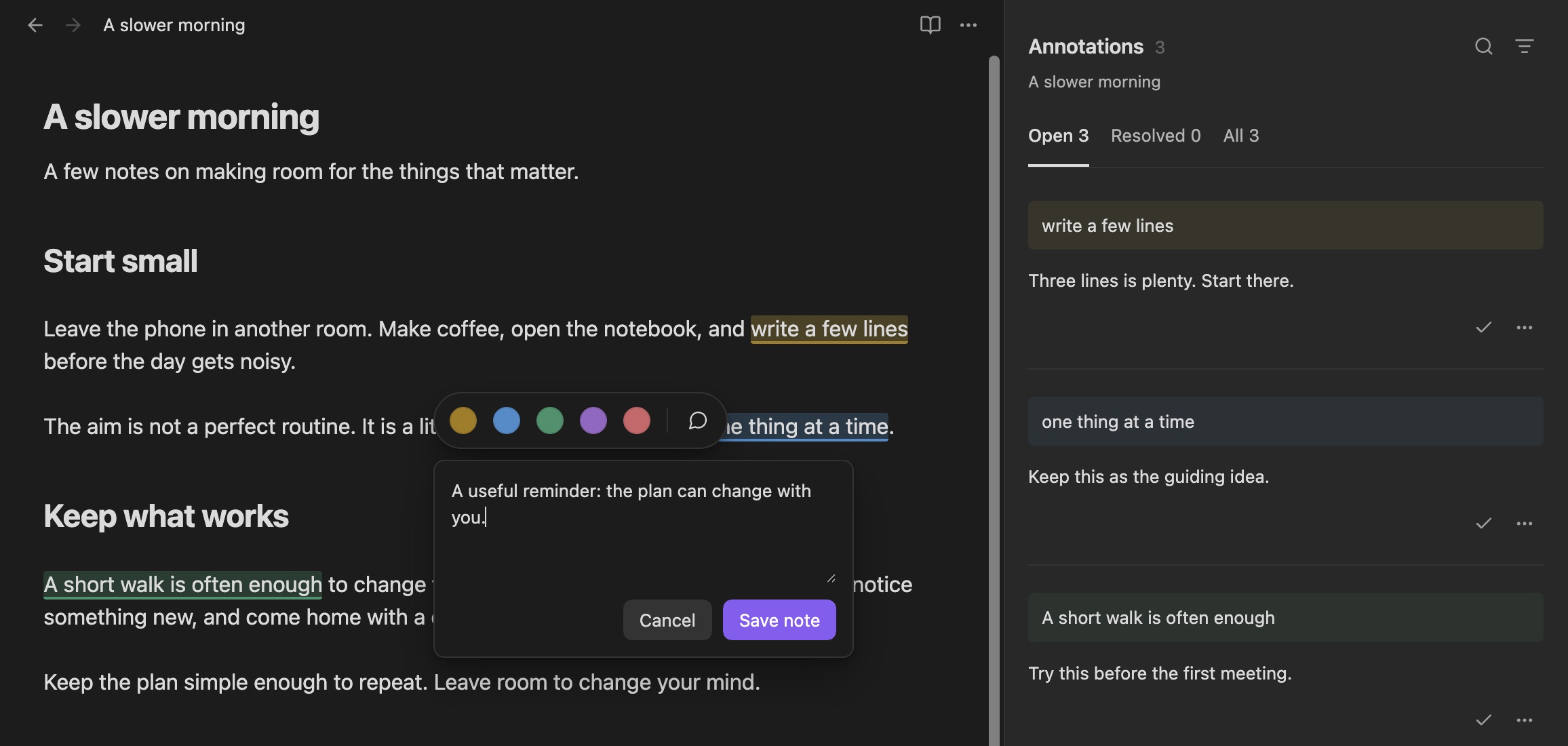
The comment editor below the color toolbar, with existing comments in the side panel.

Read your comments

Select a highlight to open its comments. To open the panel from the command palette, use Annotations: Open sidebar.

  • Select a quotation to go to its text.
  • Select the search icon to find a comment.
  • Select the filter icon to show one highlight color.
  • Select the check mark to mark a comment as resolved.
  • Select Open, Resolved, or All to change the list.
  • Select a comment’s … menu to edit or delete the comment.

If you move or delete text, its comment can show Needs reattachment. The comment remains available in the panel.

Comment on a larger area

Put the cursor in the area you want to comment on. Then use one of these commands:

  • Annotations: Comment on current block
  • Annotations: Comment on current section
  • Annotations: Comment on current file

A section starts at a Markdown heading. The file command applies to the complete note.

Use the keyboard

For keyboard shortcuts, open Settings → Hotkeys. Search for Annotations.

Use Escape to close the comment editor. Use the standard Obsidian commands to undo or redo changes.

Your workspace

Annotations uses your light or dark theme. On a small screen, the panel opens in a full tab. Animations use your reduced-motion settings.

No account or internet connection is necessary. Annotations does not collect data about how you use it. It does not access files outside your vault.

Use Obsidian 1.8.7 or later.

Report a problem · Developer guide · MIT license

HealthExcellent
ReviewPassed
About
Highlight text and add annotations to your notes!
AnnotationSidebarReview
Details
Current version
1.0.11
Last updated
56 minutes ago
Created
4 days ago
Updates
5 releases
Downloads
39
Compatible with
Obsidian 1.8.7+
Platforms
Desktop, Mobile
License
MIT
Report bugRequest featureReport plugin
Author
Aru GyaniAru Gyaniaru
gyani.dev
GitHubarugyani
Xgyaniaru
arugyani
  1. Community
  2. Plugins
  3. Annotation
  4. Annotations

Related plugins

Track Changes

Review CriticMarkup suggestions in a side panel. Accept, reject, or reply.

HiNote

Add comments to highlighted notes, use AI for thinking, and flashcards for memory.

Document Comments

Notion-style margin comments stored inline in your markdown, so agents and other tools can read them too.

Sidebar Highlights and Tasks

View and manage text highlights, comments on highlights, native comments, and collections for your highlights.

Annotation Marker

Add colored highlights, inline comments and ruby (phonetic) annotations to notes while keeping original Markdown untouched

Notebook Navigator

A better file browser and calendar inspired by Apple Notes, Bear, Evernote and Day One.

Admonition

Admonition block-styled content.

Tag Wrangler

Rename, merge, toggle, and search tags from the tag pane.

Vertical Tabs

Offer an alternative view that displays open tabs vertically, allowing users to group and organize tabs for a better navigation experience.

Flexplorer

Enhance the file explorer with custom sorting, pinning, and hiding.