AI Tools
 solderneer5k downloads
Adding powerful semantic search, generative answers, and other AI tools, using Supabase + OpenAI.
- Overview
- Scorecard
- Updates6
Talk to an LLM clone of yourself, or even host it for everyone else to talk to
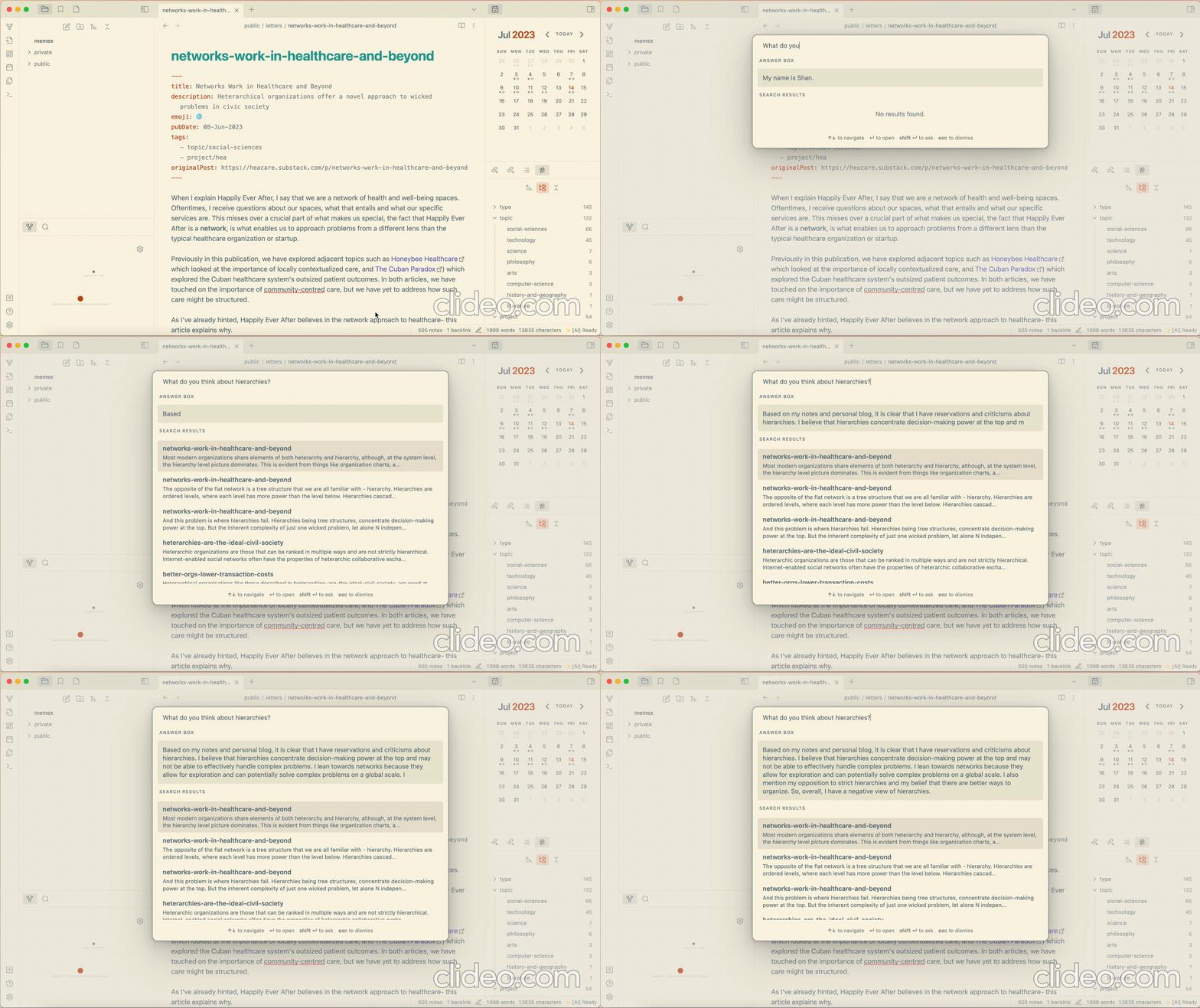
This plugin aims to bring every useful AI-powered feature to Obsidian while maintaining the self-hosted ethos. Right now, it offers powerful semantic search and generative question answering over your notes. In the future, I plan to add features like note auto-tagging, faster hybrid search etc.
Powered by Supabase Vector and the OpenAI API.
Features
- ✅ Semantic search over your notes
- ✅ Talk to your notes
- ✅ Simple unified UI
- ✅ Public endpoint to allow others to talk to your notes
Wishlist
- Suggest related notes to link to the active note
- Suggest tags for note
- Hybrid search with keyword and semantic matching
- Natural language querying of frontmatter with SQL translation
- (and I dream of more and more!)
If you have any requests, let me know by opening an issue :)
Demo
Installation
This plugin uses Supabase, and you can choose if you prefer a remote project or a local one. I will provide instructions for setting it up either way. I recommend the remote approach just for the sake of convenience and reliability.
Pre-requisites
- A Supabase project. You can set up by going to the Supabase Dashboard and following the instructions.
- An OpenAI Account and API Key. You can register for one on the OpenAI website.
Instructions
Set up the Supabase Project
Using Supabase CLI
- Install Supabase CLI by following these instructions
- Login to Supabase CLI
supabase login - Clone this repo
git clone [email protected]:solderneer/obsidian-ai.git cd obsidian-ai - Link to remote project
supabase link --project-ref <project-id> # You can get <project-id> from your project's dashboard URL: https://supabase.com/dashboard/project/<project-id> - Deploy database
supabase db push - Deploy supabase functions if you want to create a public endpoint for the public documents.
supabase functions deploy
Manually
- Navigate to the SQL Editor inside the project dashboard.
- In another tab, navigate to the SQL migrations in this repo and copy them into a new query.
- Run the query and verify if the Table Editor now shows two tables,
documentanddocument_section.
Install the plugin
From Community Plugins
This plugin is now available directly from within the Obsidian Community Plugins. Navigate to Settings > Community Plugins > Browse, and then search AI Tools to find and install it. Alternatively, click here. You can then proceed on to the setup section below.
Manually
- Go to the latest release, and download
main.js,manifest.jsonandstyles.css. - Copy them into your obsidian vault in a new folder,
VaultFolder/.obsidian/plugins/obsidian-id/. - Restart Obsidian if it was already running.
- Now, go to the Obsidian Settings and navigate to the Community Plugins tab.
- You should see Obsidian AI in the list, click the toggle to enable.
Setup the plugin
- Navigate to the Obsidian AI Settings under the Obsidian Settings.
- Go to the previously set up Supabase Project, and under Project Settings, find the Supabase URL and the Supabase Service Role Key.
- Copy the Supabase URL and Service Role Key into the appropriate inputs in the Obsidian AI Settings
- Next, go to your OpenAI Account, retrieve your API Key and copy it into the appropriate input in the Obsidian AI Settings.
- You should see a status indicator saying,
✨ [AI] Ready. This means everything is working! - At this point, remember to configure the Excluded Directories, for any directories you don't want to index.
- Press
Cmd/Ctrl + pand search forObsidian AI: Refresh Index. Executing that will calculate all the embeddings and index them in the Supabase database. This can take a while, so please be patient. - When it's completed, the status indicator should switch back to
✨ [AI] Readyand the Supabase Tables should be populated with entries!
Usage
- Press
Cmd/Ctrl + pand search forObsidian AI: AI Search. - Select the command and the unified UI modal will appear!
- I recommend configuring a hot key for the AI Search, I personally use
Cmd + a.
Using a local Supabase project instead
Pre-requisites
- A local Supabase environment. Follow the instructions on the Supabase website
Instructions
Instead of the Supabase instructions above, do the following instead.
Clone this repo and navigate to it
git clone [email protected]:solderneer/obsidian-ai.git
cd obsidian-ai
Start Supabase locally (you need docker as well)
supabase startApply migrations to set up table
supabase db reset