AI Annotate
 sds-mode160 downloads
Annotate markdown with inline instructions that Claude processes into suggested edits.
- Overview
- Scorecard
- Updates1
An Obsidian plugin for inline LLM-powered editing. Write natural language instructions directly in your notes — as inline markers or text selections — and Claude proposes changes that you review, accept, or reject in a track-changes style interface.
No API keys required. The plugin uses the Claude CLI with your existing Claude subscription.
Network usage: This plugin spawns the Claude Code CLI as a local process, which sends your note content to Anthropic's API servers for processing. No data is transmitted except through the CLI — the plugin itself makes no network requests. See Anthropic's privacy policy for how data is handled.
Requirements
- Obsidian v1.5.0 or later (desktop only)
- Claude Code CLI installed and authenticated
Installation
Manual install
- Download or clone this repository
- Copy the
ai_annotatefolder into your vault's.obsidian/plugins/directory - Run
npm install && npm run buildinside theai_annotatefolder - Restart Obsidian
- Go to Settings > Community plugins, disable Restricted mode, and enable AI Annotate
Development install (symlink)
cd ai_annotate
npm install
npm run build

# Symlink into your vault
ln -s "$(pwd)/main.js" "/path/to/vault/.obsidian/plugins/ai-annotate/main.js"
ln -s "$(pwd)/manifest.json" "/path/to/vault/.obsidian/plugins/ai-annotate/manifest.json"
ln -s "$(pwd)/styles.css" "/path/to/vault/.obsidian/plugins/ai-annotate/styles.css"
Configuration
Open Settings > AI Annotate to configure. In most cases the defaults work out of the box — you only need to set the CLI path if claude isn't on Obsidian's PATH.
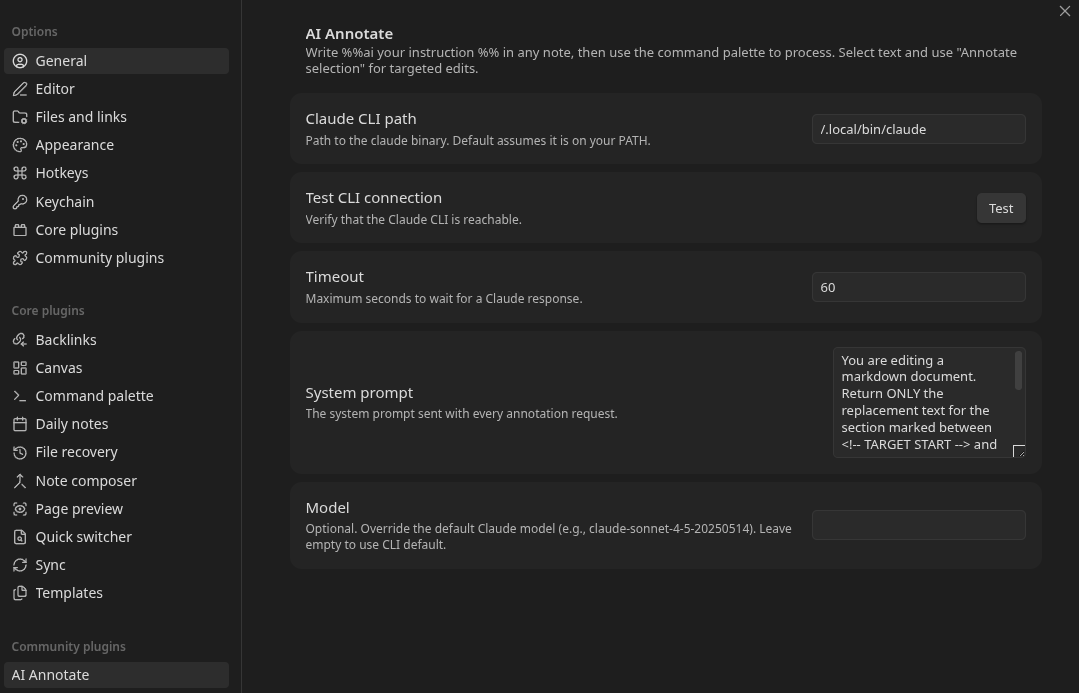
- Claude CLI path — Full path to the
claudebinary (e.g.,/home/user/.local/bin/claude). Required ifclaudeis not on Obsidian's PATH. Use the Test button to verify the path works. - Timeout — Maximum seconds to wait for a Claude response (default: 60).
- Model — Optional. Override the default Claude model (e.g.,
claude-sonnet-4-5-20250514). Leave empty to use the CLI default. - System prompt — The instruction sent to Claude with every request. The default tells Claude to return only the replacement text for the targeted section.
- Context sent to Claude — Controls how much of the document is included in each prompt. Options:
- Section ± neighbors (default) — the heading section containing the target plus adjacent sections. Balances context awareness with token cost.
- Target section only — just the heading section containing the target. Lowest token usage.
- Full document — the entire note. Maximum context but highest token cost.
- Extra CLI arguments — Additional arguments appended to the
claudecommand (e.g.,--max-turns 5). See the CLI reference. - Environment variables — One
KEY=VALUEper line, merged into the CLI process environment.
Usage
Inline markers
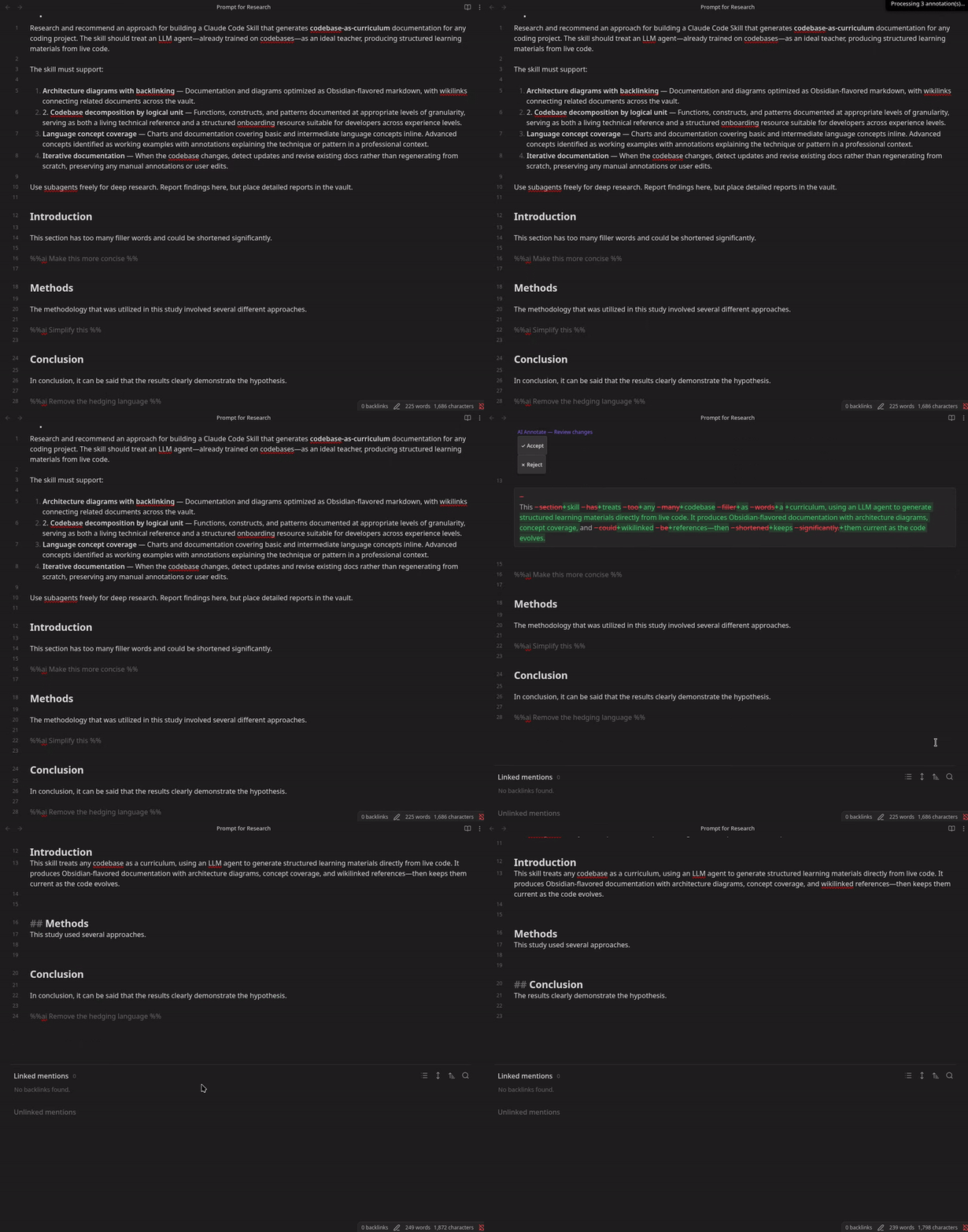
Write %%ai <instruction> %% on its own line in your note. The text between the preceding heading (or start of document) and the marker becomes the target that Claude will edit.
## Introduction

This paragraph has too many filler words and could benefit from
being more concise and direct in its language.

%%ai Make this more concise %%
To process: Place your cursor on or near the %%ai line (within 3 lines, or anywhere in the target section) and run "Process annotation at cursor" from the command palette (Ctrl+P / Cmd+P). You can also right-click and select "Process this annotation" from the context menu.
The status bar shows progress as Claude processes your request. Claude's proposed changes appear as an interleaved inline diff — deletions in red with strikethrough (prefixed −), additions in green (prefixed +), shown adjacent at each change point. A notification appears and the editor scrolls to the diff when it's ready.
Click Accept to apply the changes (the %%ai marker is also removed) or Reject to keep the original text. You can also use the keyboard commands "Accept change at cursor" / "Reject change at cursor", or right-click for context menu options. Accepting a change is a single undo step — press Ctrl+Z / Cmd+Z to revert it.
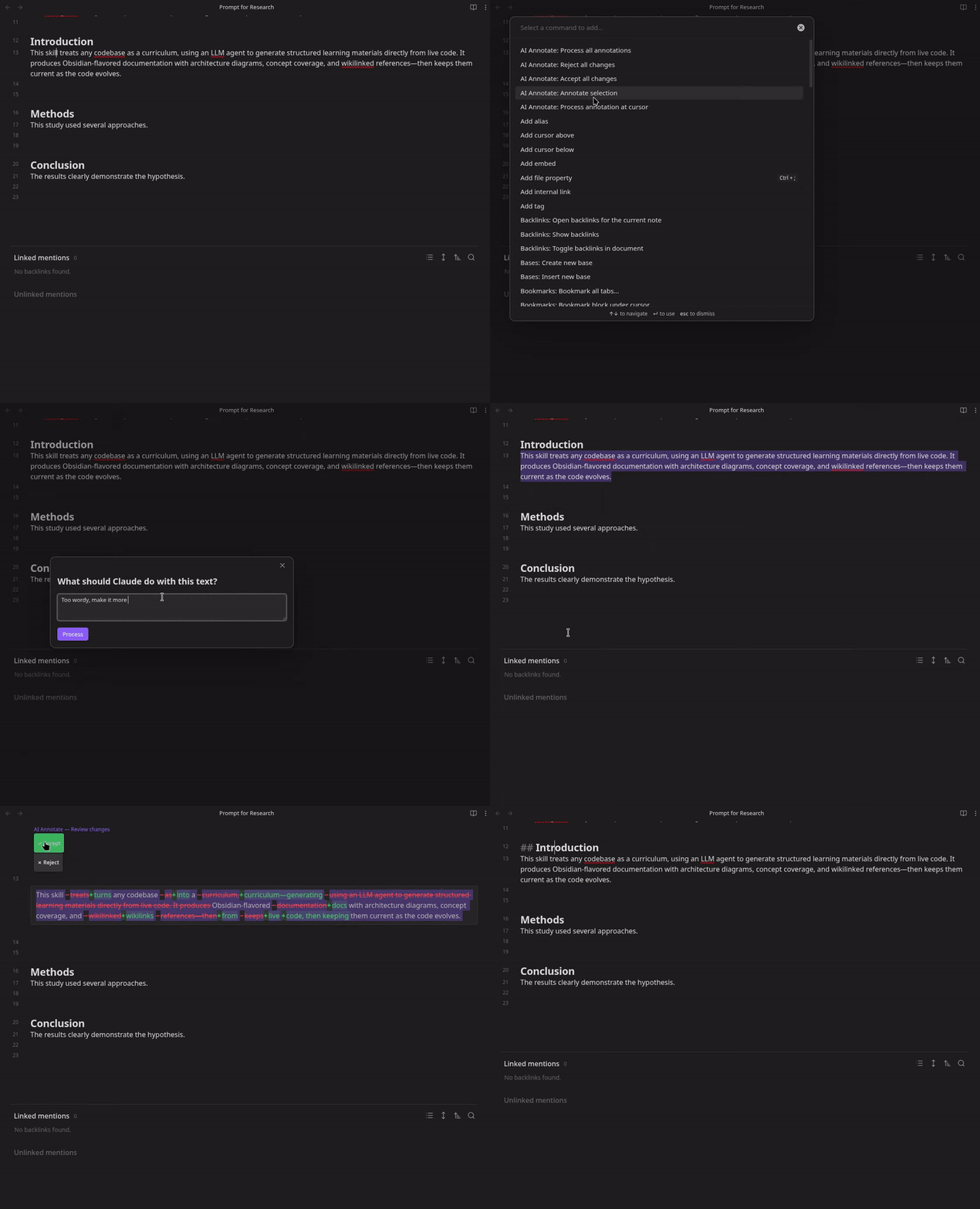
Selection-based annotations
- Highlight any text in your note
- Run "Annotate selection" from the command palette or right-click and select it from the context menu
- Type your instruction in the modal — recent instructions appear as clickable suggestions
- Press the Process button or
Ctrl+Enter/Cmd+Enter
The diff appears inline over the selected text with the same accept/reject controls.
Batch processing
Scatter multiple %%ai markers throughout a document, then run "Process all annotations" from the command palette. Each annotation is processed sequentially, and you can accept or reject each one individually — even while others are still being processed.
Per-annotation model override
Override the Claude model for a single annotation by adding a model: prefix:
%%ai model:claude-haiku-4-5-20251001 Fix grammar %%
The model name must match a valid Claude model ID. If omitted, the global model setting is used.
Reviewing changes
Use "Go to next change" and "Go to previous change" to navigate between pending diffs. Accept or reject each with the keyboard commands, context menu, or the inline buttons. The status bar shows how many changes are pending review.
While a diff is in review, the target region is protected from edits to prevent position corruption. Accept or reject the change first.
Accept all / Reject all
After processing multiple annotations, use "Accept all changes" or "Reject all changes" from the command palette to resolve them all at once.
Commands
| Command | Description |
|---|---|
| Process annotation at cursor | Process the %%ai marker at the current cursor position |
| Process all annotations | Find and process every %%ai marker in the document |
| Annotate selection | Open instruction modal for the currently selected text |
| Accept all changes | Accept all pending proposed changes |
| Reject all changes | Reject all pending proposed changes |
| Accept change at cursor | Accept the proposed change at the current cursor position |
| Reject change at cursor | Reject the proposed change at the current cursor position |
| Go to next change | Navigate to the next pending change |
| Go to previous change | Navigate to the previous pending change |
No default hotkeys are assigned. Bind them in Settings > Hotkeys to your preference.
Tip: Right-click in the editor to access annotation commands from the context menu — annotate a selection, process a nearby marker, or accept/reject a change.
Note:
%%aimarkers inside fenced code blocks and inline code are ignored, so you can safely document the syntax without triggering processing.
How it works
- You create an annotation (inline marker or selection)
- The plugin assembles a prompt containing document context (scoped by the context strategy setting) with line numbers, the target section marked with delimiters, and your instruction
- The prompt is sent to Claude via the CLI (
claude -p --output-format stream-json) - Claude's response is diffed against the original text
- The diff is rendered inline using CodeMirror 6 decorations
- You accept (document updated) or reject (original preserved)
The document is never modified until you explicitly accept a change.
Architecture
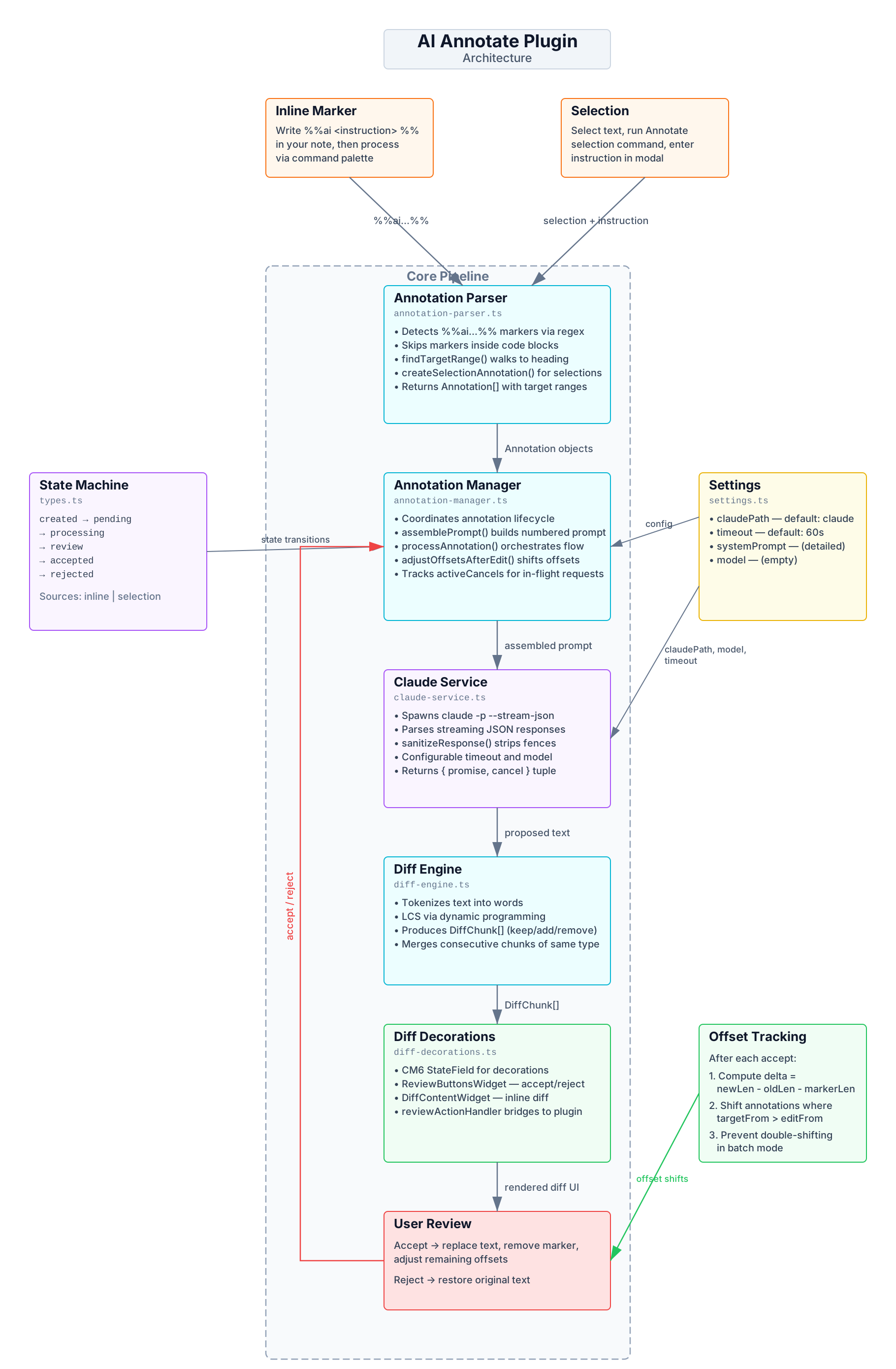
The diagram maps the full pipeline — from user trigger through parsing, prompt assembly, CLI invocation, diffing, and the review UI — along with the state machine, settings, and offset tracking. An interactive version is also available as architecture.canvas in Obsidian.
License
MIT