Advanced Mindmap
 junhuihuang163 downloads
Edit your Markdown notes as an interactive mindmap, with every change written straight back to the note.
- Overview
- Scorecard
- Updates10
Turn any Markdown note into a mindmap you can edit.
Advanced Mindmap renders your notes with Markmap and writes every change — adding, renaming, moving and deleting nodes — straight back to the Markdown file.
English | 简体中文
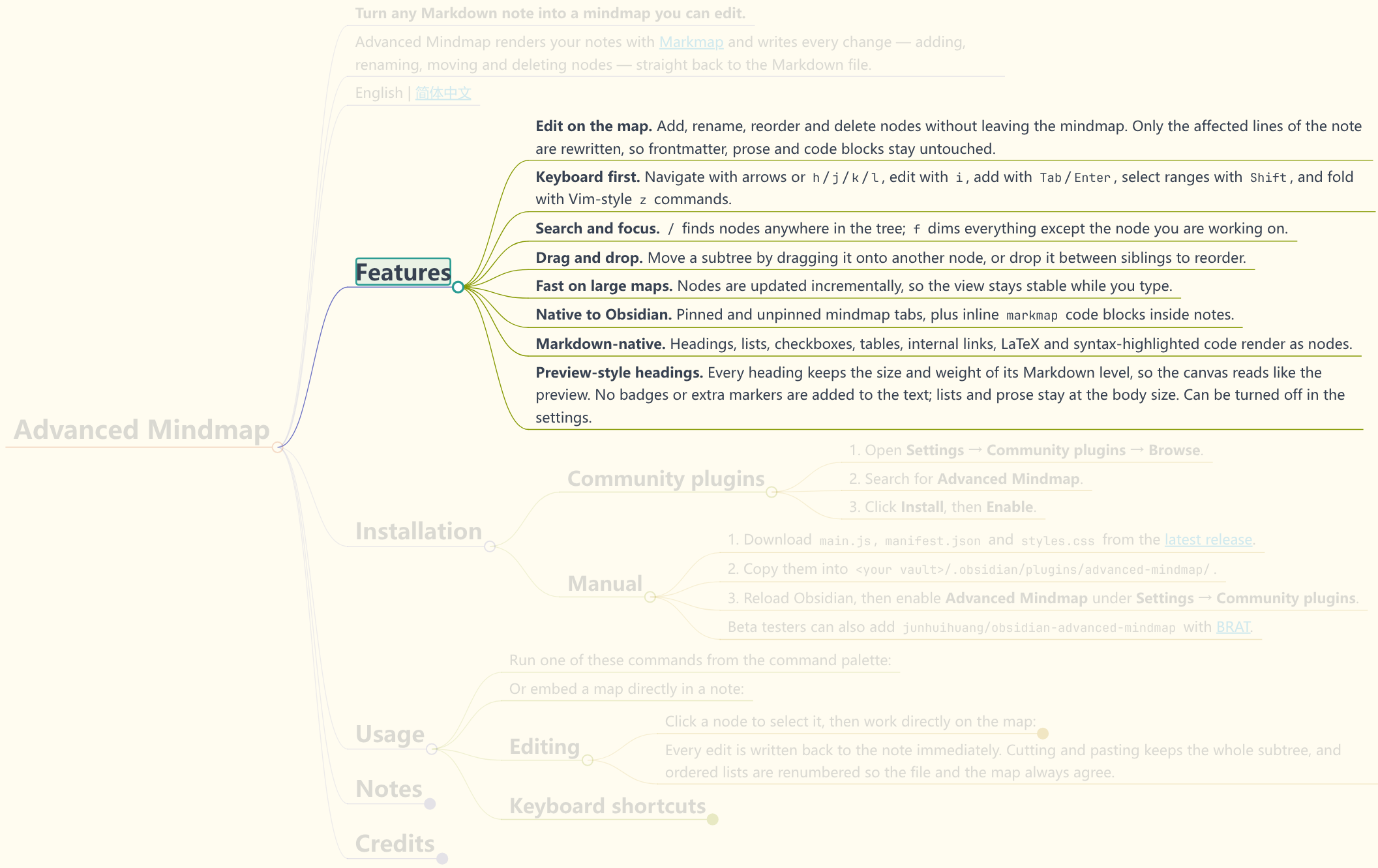
Features
- Edit on the map. Add, rename, reorder and delete nodes without leaving the mindmap. Only the affected lines of the note are rewritten, so frontmatter, prose and code blocks stay untouched.
- Keyboard first. Navigate with arrows or
h/j/k/l, edit withi, add withTab/Enter, select ranges withShift, and fold with Vim-stylezcommands. - Search and focus.
/finds nodes anywhere in the tree;fdims everything except the node you are working on. - Drag and drop. Move a subtree by dragging it onto another node, or drop it between siblings to reorder.
- Fast on large maps. Nodes are updated incrementally, so the view stays stable while you type.
- Native to Obsidian. Pinned and unpinned mindmap tabs, plus inline
markmapcode blocks inside notes. - Markdown-native. Headings, lists, checkboxes, tables, internal links, LaTeX and syntax-highlighted code render as nodes.
- Preview-style headings. Every heading keeps the size and weight of its Markdown level, so the canvas reads like the preview of the same note. No badges or extra markers are added to the text: lists and prose stay at the body size. The header button left of Fit window size flattens the headings of the current canvas, for maps that need to fit a lot of nodes.
- Prose nodes, three modes. The header button left of Headings at preview size decides how much of the note's plain text the canvas draws — always (every paragraph is a node, so prose gets the same map as headings and lists), smart (the default: only the paragraphs that introduce a list, a table or a code block — the line before
1./-is not prose, and the block would lose its context without it), or never (only headings, lists, tables and code blocks, for a note whose substance is in its headings). The button shows the mode it is in; the choice is per canvas and never touches the note.
Installation
Community plugins
- Open Settings → Community plugins → Browse.
- Search for Advanced Mindmap.
- Click Install, then Enable.
Manual
- Download
main.js,manifest.jsonandstyles.cssfrom the latest release. - Copy them into
<your vault>/.obsidian/plugins/advanced-mindmap/. - Reload Obsidian, then enable Advanced Mindmap under Settings → Community plugins.
Beta testers can also add junhuihuang/obsidian-advanced-mindmap with BRAT.
Usage
Run one of these commands from the command palette:
- Advanced Mindmap: Open pinned mindmap — a mindmap bound to a single note.
- Advanced Mindmap: Open unpinned mindmap — follows the note you last opened.
Or embed a map directly in a note:
```markmap
# Project
## Goals
- Ship 1.0
- Write docs
```
Editing
Click a node to select it, then work directly on the map:
- Shift-click another node to select everything between them, or drag on empty canvas to draw a selection box.
- Drag a node onto another to move it; drop it between two siblings to reorder it.
- Drag the right edge of the selected node — or press
Ctrl+Shift+/-— to make that node wider or narrower. - Press
ito rename,Tabto add a child,Enterto add a sibling. - Right-click a node for the same actions in a menu.
Backspacedeletes the selection,Ctrl+Z/Ctrl+Uundo and redo.
Every edit is written back to the note immediately. Cutting and pasting keeps the whole subtree, and ordered lists are renumbered so the file and the map always agree.
Keyboard shortcuts
| Key | Action |
|---|---|
Arrows or h j k l |
Move the selection |
Shift + move |
Extend the selection from its anchor |
i |
Edit the selected node |
Tab / Enter |
Add a child / sibling node |
Backspace / Delete |
Delete the selected nodes |
J / K |
Move the selected node down / up among siblings |
Ctrl+X / Ctrl+V |
Cut / paste nodes |
Ctrl+Z / Ctrl+U |
Undo / redo |
f / F |
Focus the selected node / its siblings |
Shift+M |
Center the selected subtree |
Shift + / - |
Zoom in / out (hold to zoom smoothly) |
Ctrl+Shift + / - |
Widen / narrow the selected node |
z c / z o |
Fold / unfold one level |
z C / z O |
Fold one level of a subtree / unfold all |
z a |
Toggle fully collapsed / expanded |
z 0…9 |
Show only that many levels of the whole map (z0 = root only) |
/, then n / p |
Search nodes, jump to next / previous match |
Escape |
Clear the selection or close the search |
? |
Show all shortcuts |
Press ? on the map at any time to see the full overlay.
Notes
Advanced Mindmap writes directly to your Markdown notes. Only the lines belonging to the node you edit are rewritten, and edits can be undone with Ctrl+Z while the map is open. Even so, keep backups or version your vault (Git, Obsidian Sync, etc.) before editing large or important maps.
Credits
Advanced Mindmap is built on Markmap and is an independent fork of Mindmap NextGen by James Tindal, which grew out of obsidian-mind-map by James Lynch.
Released under the MIT License.