About Blank
 ai-jani1k downloads
Customize the empty file (New tab) itself a little bit by adding "Commands" or "Open files". And edit these: Grouping, Set icon, Ask before execution, Register as a new command.
- Overview
- Scorecard
- Updates3
This is a community-plugin for Obsidian.
- Customize the empty file view (new tab) itself a little bit by adding Actions:
- Command
- Open file
- Grouped action
- Features for convenient use of these actions:
[!WARNING] The empty file view (new tab) feature relies on undocumented Obsidian behavior and may stop working in future versions. However, the command-related features should remain usable as it is designed independently.
See MaintenanceReport for compatibility with Obsidian versions.
Features
Customize the empty file view
- When there are no tabs to display, this plugin just shows the default empty file view. So, it does NOT provide "Custom view" or other notes.
- This means a truly empty file. For example, if you open a new file in this state, the empty file view will automatically disappear.
- In exchange, the customization options are somewhat limited. You can assign Actions.
- There is also a function to hide messages and buttons that are displayed by default.
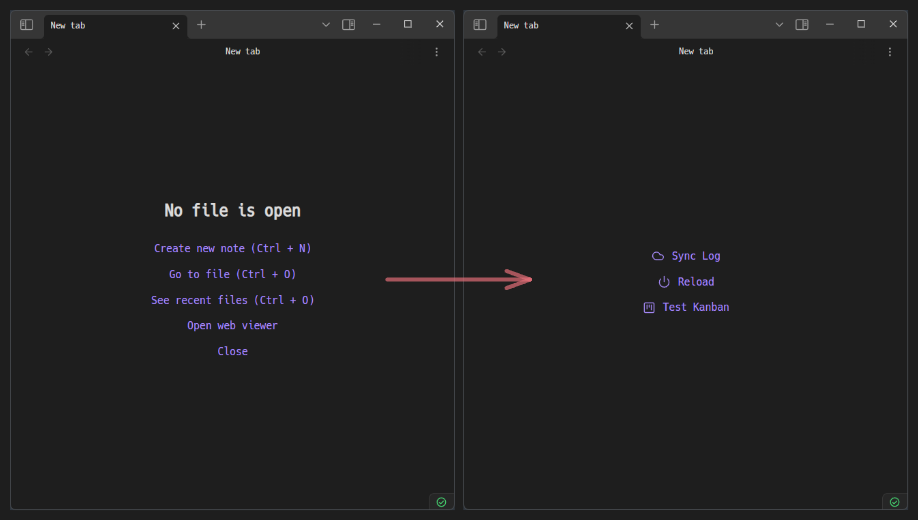
Actions
"Actions" can be configured to execute existing "Commands" or to "Open files" that you specify. And you can group multiple actions into a single action.
Grouped action
- A grouped action contains multiple actions, which can also contain other grouped actions.
- When triggered, this grouped action will display a suggester with a list of all included actions, allowing you to select which specific action you want to execute.
- This feature is intended to prevent the empty file view from being cluttered with "Actions".
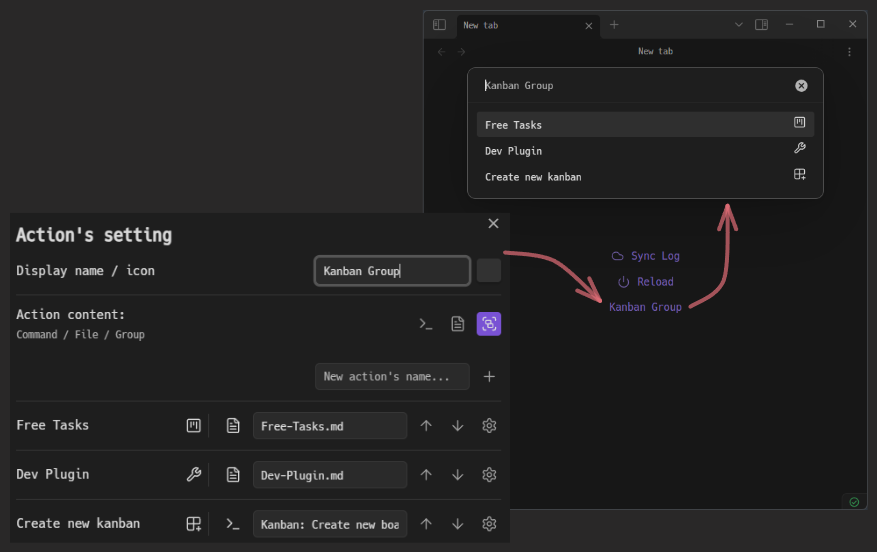
Settings per action
Setting - Set icon
- Set a custom icon to make the action more recognizable.
- This is reflected in the empty file view, Grouped action, mobile toolbar, etc.
Setting - Ask before execution
- Displays a confirmation dialog before executing the action (Excluding Grouped action).
- This helps prevent unfortunate incidents when you perform an action by mistake.
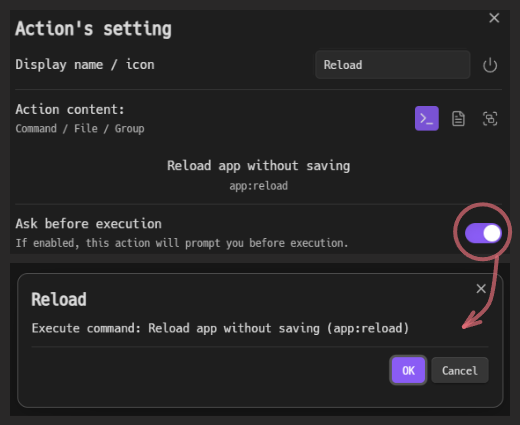
Setting - Register as a command
- Register the action as a new command in Obsidian.
- In addition to registering "Open file" and "Grouped action" as commands, you can also register existing commands with slight modifications (e.g., Rename, Set icon, Ask before execution).
Setting - Display
- Display the action in the empty file view or not.
- This corresponds to the case where you want to register it as a pure command without displaying it in the empty file view.
Quick Actions
- This feature groups actions added to the empty file view as a suggester and registers them as a new command
About Blank: Quick actions.- This means that the empty file view actions are converted into Grouped actions and Registered as a command.
- You can call these actions without accessing the empty file view.
Notes
- If you are using a community-theme that changes the empty file view style, the display may be distorted.
- If commands are not properly reflected after registering or unregistering them, please reload Obsidian.
- This plugin applies CSS by default to hide the messages and buttons on the empty file view. If the processing for the empty file view fails to work properly, nothing may be displayed on the empty file view.
- You can disable the empty file view and "Quick actions" features by turning off the "Add actions to the empty file view (new tab)" setting. This is useful if you only want to use the command-related features or if these features stop working in future versions.
ToDo
- Setting how opens the file.
- Improve dialog usability.
- Add a method to display actions on the empty file view.
- Implementing copy/move action functionality.
Dependencies
This project uses the following open-source libraries:
- uuid - MIT License
License
This project is licensed under the MIT License, see the LICENSE file for details.