Keyline
 Cha X.129 downloads
Make Obsidian feel ready to use with coordinated light and dark styling, clear typography and quiet navigation. Add optional companions for editing and grouped references.
- Overview
- Scorecard
- Updates3
Obsidian, ready to use.
Spend less time assembling your interface and more time using your notes. Keyline gives Obsidian a coordinated reading and writing space out of the box: clear typography, considered light and dark colours, and navigation that leaves room for your content. Select the theme to get the complete visual foundation, without first assembling a collection of CSS snippets.
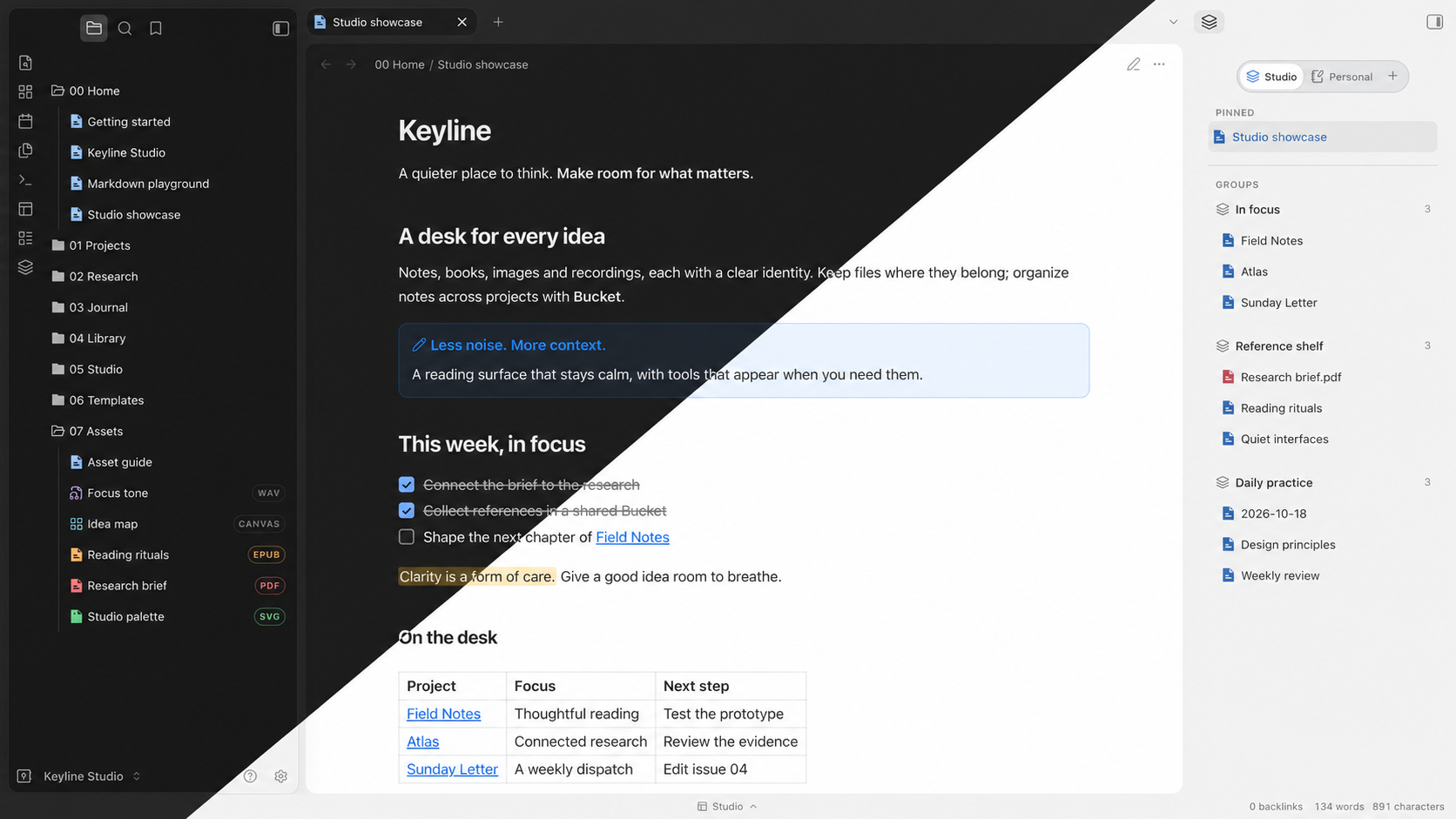
Light screenshot · Dark screenshot


The showcase pairs the theme with two optional companions: Keyline interactions supplies the editing tools, file-type icons and workspace switcher; Bucket Sidebar supplies the grouped panel on the right. The theme works without them. The cover is a presentation composite; the full light and dark images are native application screenshots.
Designed for everyday writing
- Ready from the first note. Navigation, writing surfaces, tables and callouts share one visual language. Start with the supplied defaults instead of tuning each part of the interface separately.
- Clear emphasis without a rainbow. Heading hierarchy, restrained accents and distinct highlights help you find the important parts of a page without making every element compete for attention.
- More room for your content. Floating navigation panels and quiet split-pane boundaries separate work areas without surrounding every pane with visible lines.
- Details that work together. Reading surfaces, spacing, rounded controls and themed menus form a consistent workspace in both light and dark mode.
With the companions enabled, this same approach extends to interaction: file names use the available sidebar width until action buttons are needed, common editing controls appear beside your selection, and references can be grouped around the work at hand. Use the theme for an immediately usable visual setup; add the plugins for the full editing and organising experience.
Try the example Vault
Download Keyline-Studio-Demo-0.8.23.zip from Releases, unzip it, and use Obsidian’s Open folder as vault. Start at 00 Home/Studio showcase.md.
Explore 27 linked English notes, project pages, research material and original PDF, EPUB, image, audio and Canvas samples. All content is fictional. The prepared workspace demonstrates the theme, file-type icons, Bucket groups and workspace navigation together, so you can explore the setup before configuring your own Vault. Review and enable the bundled optional plugins to use their features. EPUB reading itself needs a separate reader.
Recommended companions
For the complete experience in the screenshots, pair the theme with Keyline interactions and Bucket Sidebar. Choose only the parts you need.
| Component | What you get |
|---|---|
| Keyline theme — this repository | The ready-to-use light and dark visual foundation. |
| Keyline interactions | Edit in context, recognise file types at a glance and switch saved workspaces. Named Keyline in Obsidian’s plugin list. |
| Bucket Sidebar | Organise references into spaces and groups without moving or duplicating the originals. |
The three repositories are one theme and two separately installable plugins. Neither plugin is mandatory, they do not require each other, and installing the theme does not install them automatically. Each companion has its own English and Chinese guide and feature screenshots.
Install in an existing Vault
Use Add to Obsidian on the Keyline Community page, or install manually:
- Back up the Vault’s
.obsidianfolder and close that Vault’s window. - Create
.obsidian/themes/Keyline/and copytheme.cssandmanifest.jsonfrom the theme release into it. KeepLICENSEandTHIRD_PARTY_NOTICES.mdwith redistributed copies. - Reopen Obsidian and select Settings → Appearance → Themes → Keyline.
- Install the companion plugins separately if desired. Do not overwrite your existing workspace or plugin
data.jsonfiles with files from the example Vault.
The theme is listed on Community. Companion availability is separate: Bucket has its own listing, while Keyline interactions remains a manually installed GitHub preview.
Language and compatibility
The theme does not replace Obsidian’s own language. Companion menus, settings and notices support English and Chinese and follow Obsidian’s interface language; restart after changing it. Your notes and saved names are never translated.
Current theme release: 0.8.24. Minimum declared Obsidian version: 1.7.7. This update improves mobile note layouts: aligned property cards without boxed labels, touch-sized property rows, wrapping long titles and spacing that follows the note font size. Native navigation and keyboard handling remain with Obsidian.
The release screenshots and bilingual interface checks were made in Obsidian 1.13.7 on macOS. The new mobile CSS was checked in that native renderer with phone/tablet-sized viewports and mobile CSS states; physical iOS/Android devices and their keyboards have not yet been acceptance-tested. Previous theme regressions also exercised 1.7.7; this does not certify every older Mac or third-party plugin combination. Keyline interactions remains desktop-only; this theme update does not make its editing tools available on mobile. See release verification for coverage and limits.
Feedback
Report an issue with the Obsidian version, Keyline version, light/dark mode, reproduction steps, and a screenshot without private note content. For conflicts, also try with other themes/snippets and unrelated plugins disabled in a test Vault.
License
MIT. See LICENSE and third-party notices. Companion repositories retain their applicable notices and licenses.