Yonxao Mind Map
 yonxao812 downloads
Obsidian mind map / mindmap plugin for visual thinking and knowledge management. Create interactive SVG maps from yxmm code blocks with layouts, themes, shortcuts, export, and fullscreen editing.
- Overview
- Scorecard
- Updates13
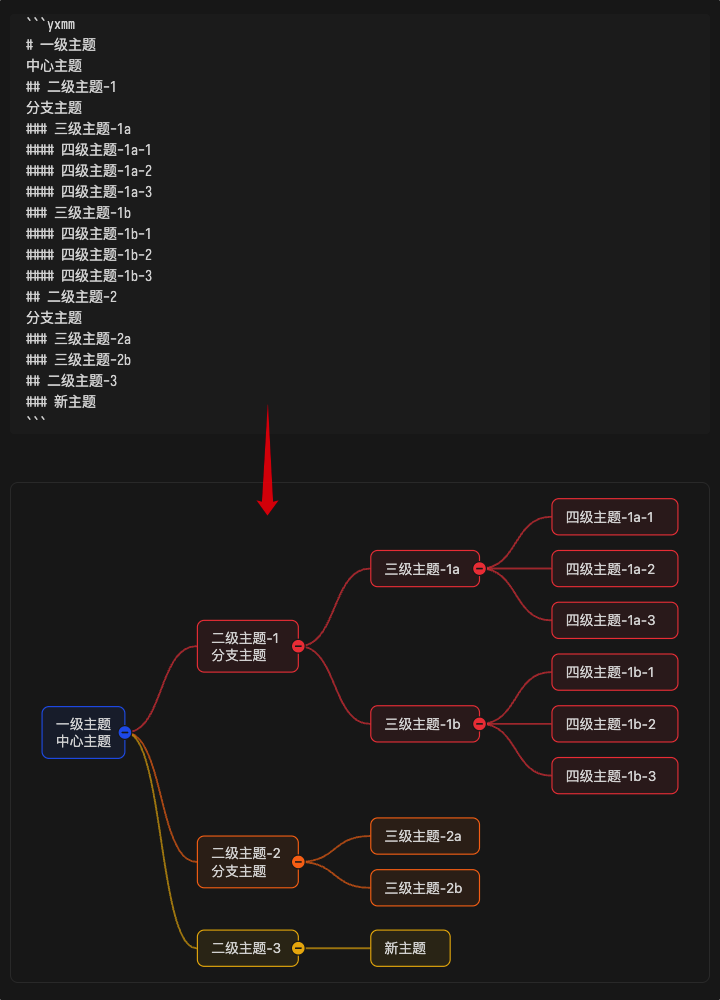
A feature-rich Obsidian mind map plugin that renders yxmm code blocks in Markdown documents as interactive SVG mind maps and various structural diagrams.
Demo screenshot:
✨ Core Features
- 🎨 20 Layout Types: 7 categories with 20 layouts, including mind maps (right/left/bidirectional/up/down/vertical), tree diagrams, organization charts, timelines, radial maps, fishbone diagrams, and tree tables
- 🎯 Intuitive Topic-Level Syntax: Use
#,##,###markers for hierarchy; plain text lines automatically merge into multi-line topic content - 🖱️ Full Interactive Editing: Double-click editing, drag-and-drop sorting, right-click menus, collapse/expand, keyboard navigation
- 🎨 8 Theme Color Schemes: default, ocean, forest, sunset, mono, rainbow, pastel-rainbow, neon-rainbow
- 🔗 Flexible Connector Styles: Curve, straight, and elbow connectors — freely switchable in mind map layouts
- 📝 Inline Topic Content Styles: Bold, italic, strikethrough, underline, text color, plus lists, code blocks, and equations
- ⌨️ Full Keyboard Navigation & Shortcuts: Arrow key navigation, quick create/delete/copy topics, zoom, fullscreen, and more
- 📋 Internal Clipboard & Undo/Redo: Copy/cut/paste topics with attributes, up to 80-step undo history
- 📐 Visual Topic Editor Panel: Floating panel for editing content, color, icon, font, and max width with rich text toolbar
- 🔧 7-Tab Visual Configuration: Display, Structure, Color, Font, Interaction, Shortcuts, Advanced (YAML editing)
- 🖼️ Dual Fullscreen Modes: Window fullscreen and physical fullscreen with automatic crash recovery
- 📄 Source Code Editor: Integrated syntax highlighting, YAML config editing, dirty state detection
- 🖼️ Export & Copy: Export PNG image or copy to clipboard; copy plain text, source code, or config
- 🌐 Multi-language Support: 16 languages, automatically follows Obsidian language settings
- 📱 Responsive Design: Adapts to different screen sizes and Obsidian themes
🚀 Quick Start
Basic Usage
Create a
yxmmcode block in your Markdown document:Moving the cursor out of the code block will display it as a mind map.
```yxmm

```
Right-click menu
Right-click in an Obsidian note: click
Insert Mind Map.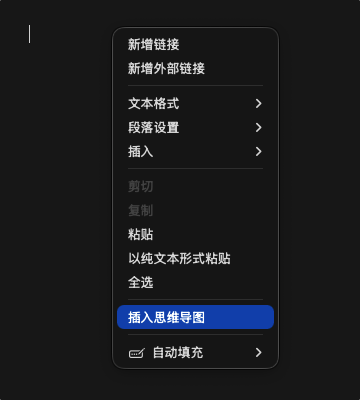
Complete Example
```yxmm
---
structure:
  layout: mindmap-right
  connectorStyle: curve
color:
  scheme: ocean
---

# Central Topic
## Branch Topic A
### Subtopic A1
### Subtopic A2
## Branch Topic B
### Subtopic B1
```
📝 Syntax Reference
Topic Hierarchy
- Use topic-level markers to represent hierarchy:
#is a level-1 topic,##is a level-2 topic,###is a level-3 topic, and so on. - Only topic-level marker lines like
#,##,###create new topics; ordinary text lines merge into the nearest previous topic as multi-line content.
| Marker | Meaning |
|---|---|
# |
Level-1 topic (central / root) |
## |
Level-2 topic (branch topic) |
### |
Normal topic (level-3 and deeper) |
Multi-line Topics
Ordinary text lines merge into the nearest previous topic as multi-line content:
```yxmm
# Central Topic
## Multi-line Topic Example
This is the second line
This is the third line
### Subtopic
```
Inline Topic Content Styles
Topic content supports lightweight inline style markers, links, tags, tasks, images, notes, attachments, and block-level formatting:
```yxmm
# Central Topic
## **Bold**, *italic*, ~~strikethrough~~, ++underline++
## {red|Semantic color text} and {#3b82f6|Hex color text}
## Lists, tasks, media, notes, equations, and code blocks
- Unordered list item
- Nested list item
- [ ] Todo item
- [x] Done item
1. Ordered list item
2. Second item

![[vault-image.png|Cover image]]
This is a #tag and [link](https://example.com)
[[Internal note|Open note]]
> This note is shown from an icon after the topic
> It can span multiple lines
@[Spec](docs/spec.pdf)
@[[design.fig|Design file]]
$$
E = mc^2
$$
~~~js
const topic = 'yonxao-mindmap';
~~~
```
Inline styles:
| Syntax | Effect |
|---|---|
**Text** |
Bold |
*Text* |
Italic |
~~Text~~ |
|
++Text++ |
++Underline++ |
{red|Text} |
Semantic color text |
{#3b82f6|Text} |
Hex color text |
#tag |
Tag |
[Text](url) |
External link |
[[Note]] |
Obsidian link |
Block-level formats:
| Syntax | Effect |
|---|---|
- List item |
Unordered list |
- [ ] Task |
Unchecked task |
- [x] Task |
Checked task |
1. List item |
Ordered list |
 |
Image |
![[image.png]] |
Obsidian attachment image |
> Note |
Note icon with hover/click popover |
@[Text](path) |
Attachment icon with open/copy actions |
@[[file|Text]] |
Obsidian-style attachment link |
$$ ... $$ |
Equation (MathJax rendered) |
~~~lang ... ~~~ |
Code block (monospace font) |
Link syntax:
| Syntax | Description |
|---|---|
[Text](https://...) |
External link with a ↗ marker; opens in the browser |
[Text](mailto:...) |
Mail link, handled as an external link |
[Text](Note name) |
Markdown-style internal target; opens via Obsidian when the vault resolves it |
[[Note]] |
Obsidian internal link with a ◇ marker |
[[Note|Alias]] |
Obsidian internal link with custom display text |
[[File#Heading]] |
Obsidian anchor link; opening depends on the current vault metadata resolver |
Image syntax:
| Syntax | Description |
|---|---|
 |
Markdown image; Alt is rendered as the caption below the image |
 |
External image URL |
![[image.png]] |
Obsidian attachment image |
![[image.png|Caption]] |
Obsidian attachment image with caption |
 |
Requested width in px; height uses the natural or fallback ratio |
 |
Requested width and height, still constrained by topic text width |
 |
Percent of the image's natural width, still constrained by the topic width cap |
 |
Enables original-size preview behavior; in-topic rendering is still constrained by layout |
![[image.png|50%|Caption]] |
Obsidian syntax can combine percent and caption; parameter order is flexible |
Attachment syntax:
| Syntax | Description |
|---|---|
@[Label](path/to.pdf) |
Markdown-style attachment; Label is shown in the popover |
@[Label](https://...) |
External attachment URL; icon click or Open uses the browser |
@[Label](obsidian://...) |
Obsidian URI; opened as an external protocol |
@[[file.pdf]] |
Obsidian attachment link; opens in Obsidian when the target exists |
@[[file.pdf|Label]] |
Obsidian attachment link with custom display text |
- Semantic colors:
red,green,blue,yellow,orange,purple,pink,gray,black,white - List indentation uses 2 spaces per level
- Tags use a stable color palette: the same tag text renders with the same color in the current map, without relying on the default accent color
- Links show a compact marker before the label:
↗for external links and◇for Obsidian/internal links - A topic can contain multiple image lines; each line renders as a separate image block
- Image parameters are separated with
|and support width, width x height, percent,original, and captions. Explicit pixel widths participate in topic width measurement and can expand image topics up to the topic width cap; percentages use the natural image width and remain capped by the topic width. Before the natural size is known, percent widths temporarily fall back to the current topic's available text width and relayout after the image loads. The default topic image width ismin(220px, available topic text width)with the natural image ratio or a 0.62 fallback aspect ratio. Obsidian attachment images are resolved through the vault when possible - Missing local images render as a compact placeholder instead of a large broken image
- Double-click an image to open a floating preview; the preview fits the window by default, and double-clicking the preview toggles original image size
- Notes render as yellow hint icons after the topic. Hover or click the icon to show the note text
- Attachments render as icons after the topic. Click the icon to open the attachment; hover to show the attachment label, address, and Open / Copy actions. External URLs open in the browser, while Obsidian attachments are checked against the current vault first and missing targets do not create files
- Multiple attachments use multiple attachment lines, with each line creating one independent attachment button. Commas are not split into multiple attachments
- External links open in a browser window; Obsidian links use the current vault link resolver and do not create a new note when the target does not exist
- Equations are rendered asynchronously via Obsidian/MathJax; source text is shown as fallback
- Code blocks use monospace font with independent background color and auto-width
- The topic edit panel and large text editor include visual toolbar buttons and can clear inline styles
- These markers are part of topic content, not topic attributes
Topic Attributes
Add attributes in [key=value] format at the end of a topic-level marker line:
```yxmm
# Central Topic [color=#3b82f6]
## Branch Topic [icon=book layout=mindmap-right]
### Subtopic [fontSize=14 fontWeight=700]
### Note [align=center]
```
Supported attributes:
| Attribute | Example | Description |
|---|---|---|
color |
[color=#3b82f6] |
Topic color |
icon |
[icon=book] |
Topic icon (Lucide icon name) |
layout |
[layout=mindmap-right] |
Local layout type, overrides code block config |
fontSize |
[fontSize=16] |
Font size override (9-96px) |
fontWeight |
[fontWeight=700] |
Font weight override (100-900) |
fontFamily |
[fontFamily="..."] |
Font family override |
lineHeight |
[lineHeight=20] |
Line height override (12-160px) |
align |
[align=center] |
Text alignment: auto/left/center/right |
maxWidth |
[maxWidth=300] |
Max width override (120-2000px) |
id |
[id=t-123] |
Stable ID generated when advanced structures reference a topic |
Advanced Structures: Relations, Summaries, and Boundaries
Right-click a topic in map mode to create structures beyond the normal parent-child hierarchy:
- Relation: Connects two topics with a curve, straight line, or elbow line. Select a relation to reveal eight fixed anchors on each endpoint topic and drag either endpoint to the top-left, top, top-right, left, right, bottom-left, bottom, or bottom-right anchor. Curves also expose two draggable control points. Relation text supports manual line breaks and follows the adjusted path.
- Summary: Groups consecutive sibling topics and their visible descendants with a bracket and a framed, multi-line label.
- Boundary: Wraps selected topics and their visible subtrees. Its label appears as a tab outside the upper-left corner, and surrounding topics reserve space for it.
When a boundary title avoids a topic above it, the renderer reserves vertical space across the remaining layout so tree parents stay aligned with their children and top-level branches remain visually separated.
Summary and boundary creation uses a draggable, translucent action bar at the bottom of the canvas. It shows the selected topic count and complete validation message; drag the text area to uncover topics underneath. Use Create / Cancel, press Enter to create, or press Esc to cancel. The original context-menu finish action remains available. The action bar also works in window and physical fullscreen modes.
Structures are stored in a dedicated block at the end of the body. Map operations generate three-digit IDs automatically:
# Feature List
## Editing [id=t-101]
### Add Topic [id=t-102]
### Delete Topic [id=t-103]
## Export [id=t-104]

@structures
@relation [id=r-101 from=t-101 to=t-104 text="Edit then export" fromAnchor=right toAnchor=left]
@summary [id=s-101 topics=t-102,t-103 text="Topic actions"]
@boundary [id=b-101 topics=t-101 text="Editing scope"]
@end
Default relation options (direction=forward and lineStyle=curve) are omitted when config trimming is enabled and written explicitly when Save all config items is enabled. Manually dragged endpoints are persisted as fromAnchor / toAnchor; supported values are top-left, top, top-right, left, right, bottom-left, bottom, and bottom-right. A structure-level color attribute overrides the code-block and global advanced-structure colors. Source mode provides basic highlighting for structure keywords, attributes, IDs, and values.
Config Block
Add a YAML config block wrapped in --- at the top of the code block to override plugin global defaults:
```yxmm
---
display:
  viewFit: fit
  fitViewNoUpscale: true
  saveFullConfig: true
structure:
  layout: mindmap-right
  connectorStyle: curve
  topicMaxWidth:
    global: 240
color:
  scheme: rainbow
  buttonColorMode: topic
  advancedStructure:
    relation: "#526b8a"
    summary: "#705b8f"
    boundary: "#477970"
font:
  family: "var(--font-text)"
  size: 16
  weight: 400
  lineHeight: 20
  align: auto
interaction:
  toolbar:
    corner: top-right
    placement: outside
  topicControlVisibility: toggle-always
  wheelZoom: false
  tabIndent: true
---

# Central Topic
## Branch Topic
```
🎨 Layout Types
Mind Maps
| Layout | Description |
|---|---|
mindmap-right |
Rightward mind map (default) |
mindmap-left |
Leftward mind map |
mindmap-bidirectional |
Bidirectional mind map |
mindmap-up |
Upward mind map |
mindmap-down |
Downward mind map |
mindmap-vertical |
Vertical bidirectional mind map |
Mind map layouts support switching connector styles (curve/straight/elbow) and branch expansion modes (side/hanging).
Tree Diagrams
| Layout | Description |
|---|---|
tree |
Tree diagram |
tree-right |
Rightward tree diagram |
tree-left |
Leftward tree diagram |
Organization Charts
| Layout | Description |
|---|---|
org |
Organization chart |
org-right |
Rightward organization chart |
Timelines
| Layout | Description |
|---|---|
timeline |
Timeline |
timeline-up |
Upper-side timeline |
timeline-down |
Lower-side timeline |
Radial Maps
| Layout | Description |
|---|---|
radial |
Radial map |
Fishbone Diagrams
| Layout | Description |
|---|---|
fishbone-right |
Rightward fishbone diagram: fish head on the left, spine and content expand right |
fishbone-left |
Leftward fishbone diagram: fish head on the right, spine and content expand left |
Tree Tables
| Layout | Description |
|---|---|
tree-table |
Tree table |
tree-table-stepped |
Stepped tree table |
🖱️ Usage Guide
Basic Operations
| Operation | Description |
|---|---|
| Double-click a topic | Quickly edit topic content |
| Click collapse button | Collapse/expand subtopics |
| Drag a topic | Rearrange sibling order or move to another position |
| Right-click a topic | Open context menu |
Keyboard Shortcuts
| Windows | macOS | Function | Context |
|---|---|---|---|
↑ ↓ ← → |
↑ ↓ ← → |
Navigate topics | All layouts |
Tab |
Tab |
Add child topic | Edit mode |
Enter |
Enter |
Add sibling topic below | Edit mode |
Shift + Enter |
Shift + Enter |
Add sibling topic above | Edit mode |
Delete |
Delete / Cmd + Backspace |
Delete topic | Edit mode |
Space |
Space |
Open inline editor | Edit mode |
` |
` |
Open topic edit panel | Edit mode |
Alt + / |
Option + / |
Toggle collapse/expand | Always available |
Ctrl + C / X / V |
Cmd + C / X / V |
Copy/cut/paste topic | Edit mode |
Ctrl + Alt + C |
Cmd + Option + C |
Copy topic with attributes | Edit mode |
Ctrl + Alt + V |
Cmd + Option + V |
Paste topic with attributes | Edit mode |
Ctrl + Z / Y |
Cmd + Z / Shift + Z |
Undo/redo | Edit mode |
Alt + + / - |
Option + + / - |
Zoom in/out | Always available |
Alt + 0 |
Option + 0 |
Fit view | Always available |
Alt + 1 |
Option + 1 |
Original size (100%) | Always available |
Alt + 2 |
Option + 2 |
Window fullscreen | Always available |
Alt + 3 |
Option + 3 |
Physical fullscreen | Always available |
Alt + , |
Option + , |
Open config panel | Always available |
Ctrl + S |
Cmd + S |
Save source | Source mode |
Ctrl/Cmd+Xcuts the selected topic together with its attributes and all subtopics. UseCtrl/Cmd+Vto restore the complete subtree under the target topic. RegularCtrl/Cmd+Cstill copies topic text only.Arrow key navigation logic: In horizontal layouts, left/right navigates parent-child relationships and up/down navigates siblings; vertical layouts are the opposite; other layouts navigate by spatial proximity.
Context Menu
Topic context menu:
| Action | Description |
|---|---|
| Edit Topic | Open inline text editor |
| Topic Edit Panel | Open full attribute editing panel |
| Copy Topic Content | Copy topic plain text |
| Cut Topic | Cut the topic, attributes, and subtopics |
| Paste Topic | Paste content under the selected topic |
| Copy Subtree Content | Copy subtree as plain text |
| Copy Indented Subtree Content | Copy subtree as indented text |
| Copy Topic with Attributes | Copy the topic, its attributes, and all subtopics |
| Paste Topic with Attributes | Paste the topic tree under the selected topic |
| Add Subtopic | Add child topic under selected topic |
| Add Previous Sibling | Add sibling before the selected topic |
| Add Next Sibling | Add sibling after the selected topic |
| Collapse/Expand Subtopic | Toggle collapse state |
| Expand All Subtopics | Recursively expand all descendants |
| Collapse All Subtopics | Recursively collapse all descendants |
| Create Relation | Create a relation between two topics |
| Create Summary | Create a summary for consecutive siblings |
| Create Boundary | Create a boundary around selected topics |
| Delete Topic | Confirm and delete (shows count if has children) |
Canvas context menu (on blank area):
| Action | Description |
|---|---|
| Undo | Undo the previous operation |
| Redo | Restore the undone operation |
| Copy Text | Copy topic tree as plain text |
| Copy Indented Text | Copy topic tree as indented format |
| Copy Source | Copy full code block content |
| Copy Config Section | Copy the YAML config section only |
| Export PNG | Download as PNG image |
| Copy PNG | Copy image to clipboard |
| Fit View | Auto-adjust viewport to fit the entire map |
| Original Size | Restore 100% zoom |
| Delete Mind Map | Delete the entire yxmm code block |
Topic Edit Panel
Press ` (backtick) while a topic is selected, or use the context menu to open the topic edit panel — a floating panel with:
| Field | Description |
|---|---|
| Content | Multi-line text input with rich text toolbar |
| Color | Topic color (swatches + hex color picker) |
| Icon | Icon picker (Lucide icons) |
| Max Width | Override global/level configuration |
| Font Family | Dropdown: inherit / Obsidian variables / system fonts / custom |
| Font Size | 9-96px |
| Font Weight | 100-900 |
| Line Height | 12-160px |
Rich text toolbar:
| Button | Insert / edit content | Rendered behavior |
|---|---|---|
| B | **text** |
Bold selected text; inserts placeholder text when nothing is selected |
| I | *text* |
Italic selected text |
| U | ++text++ |
Underline selected text |
| S | ~~text~~ |
Strikethrough selected text |
| A | {color|text} |
Opens the color menu with semantic colors and custom Hex colors |
| Tag | #tag |
Same tag text keeps the same color in the current map |
| Link | [text](url) |
External links show ↗; Obsidian/internal links show ◇ |
| Eraser | Clear inline style markers | Clears the selection, or the whole content field when nothing is selected |
| List | - List item |
Inserts an unordered list item; indent with 2 spaces for nesting |
| Number | 1. List item |
Inserts an ordered item; same-level numbering increments visually |
| Task | - [ ] Task |
Inserts an unchecked task; write - [x] for checked tasks |
| Σ | $$ ... $$ |
Inserts an equation block rendered via Obsidian/MathJax when possible |
</> |
~~~lang ... ~~~ |
Inserts a code block with monospace font and background |
| Image |  |
Inserts an image block; supports |WxH, |percent, and |original hints |
| Note | > Note |
Adds a yellow note icon after the topic with a dynamic popover |
| Attach | @[label](path) / @[[file|label]] |
Adds an attachment icon; click to open, popover offers Open / Copy |
- Select text and click a style button to wrap it with markers; inserts placeholder text when nothing is selected
- Click the text color button to open the color picker: 10 predefined semantic colors + native color picker
- Clicking an attachment icon opens external URLs in the browser or existing Obsidian attachments in the current vault. Missing targets show a notice and do not create files
- These buttons only edit inline content style markers; they do not write topic attributes
Large text editor:
- Click the "expand" button next to the content field to open a standalone floating editor
- Supports drag-to-move, ideal for editing large amounts of content
Cmd/Ctrl + Enterto save,Escapeto cancel- Includes the same full rich text toolbar as the topic edit panel
Source Code Editor
Click the "Source/Map Toggle" button in the toolbar or double-click the code block area to enter source editing mode:
- Config tab (YAML): Syntax highlighting (key/value/comment/string/number), line numbers
- Content tab (topic-level markers): Line numbers,
Tabkey inserts level markers - Real-time validation: Parses before saving; rejects invalid content with error message
- Dirty state detection: Shows
dirty/syncedstatus indicator - Auto height: Adapts to line count
Cmd/Ctrl + Sto save
Fullscreen Modes
- Window fullscreen: Expands the map container to fill the browser viewport (does not use Fullscreen API)
- Physical fullscreen: Uses the browser Fullscreen API
- Crash recovery: Edited content is automatically saved to localStorage (7-day validity); on recovery, a new code block is appended or content is copied to clipboard
- Toolbar auto-repositions into the fullscreen container
- Reading view uses body-level overlay for fullscreen
Toolbar Operations
| Button | Description |
|---|---|
| Source/Map Toggle | Switch between source editor and map view |
| Config Panel | Open visual configuration interface |
| Fit View | Auto-adjust viewport to fit the entire map |
| Window Fullscreen | Expand to browser viewport |
| Physical Fullscreen | Use Fullscreen API |
| Zoom In | Zoom in |
| Zoom Out | Zoom out |
| Reset Collapse | Expand all topics |
| Drag Handle | Drag toolbar to any position (auto-snaps to nearest corner) |
- Toolbar can be placed at 4 corners (top-left/right, bottom-left/right), inside or outside
- Toolbar auto-hides during scrolling or middle-click, reappears when idle
- Dragging the toolbar auto-snaps to the nearest corner and persists to config
Canvas Control
- Drag the bottom edge of the canvas: Manually adjust canvas height
- Double-click the resize handle: Restore auto height
- Map mode and source mode save independent height values
- Mouse wheel zoom (can be disabled in config)
⚙️ Configuration
Configuration Priority
Topic attributes > Code block config > Plugin global defaults > Plugin built-in defaults
Global Default Configuration
Open the visual config panel in Obsidian Settings → Community plugins → yonxao-mindmap. There are 8 tabs:
1. Display
- Canvas height settings (map mode / source mode, saved independently)
- Initial zoom: original size / fit view
fitViewNoUpscale: Don't upscale when fitting viewfitViewMaxScale: Maximum zoom multiplier (1-6)saveFullConfig: Config trimming toggle
2. Structure
- Layout selector (7 categories, 20 layouts)
- Connector style (mind map layouts only: curve/straight/elbow)
- Branch expansion mode (elbow connector only: side/hanging)
- Topic max width: global + level1/level2/level3 overrides (120-2000px)
- Inheritance linkage: Level fields auto-update when global value changes
3. Color
- Color scheme selector (8 color schemes)
- Default topic color (hex / color picker)
- Rainbow theme override warning: shown when both default color and rainbow theme are set
- Button color mode:
inherit-accent/subtle/topic/custom - Custom button color (10 presets + color picker)
- Advanced structure colors: separate defaults for relations, summaries, and boundaries
4. Font
- Global font: family / size / weight / lineHeight / align
- 3-level font overrides: level1 / level2 / level3
- Font family dropdown: inherit (empty) / Obsidian variables (interface/text/monospace) / system fonts (sans/serif/monospace) / custom input
- Level font inheritance linkage: Auto-syncs when global field changes
- One-click clear level overrides button
5. Interaction
- Toolbar position: 4 corners
- Toolbar placement: inside / outside
- Topic control visibility:
always/toggle-always/hover - Wheel zoom toggle
- Tab indent toggle
6. Shortcuts
- Read-only display listing all shortcut groups:
- Topic create/delete
- Topic editing
- Topic navigation/collapse
- Clipboard/history
- View control
- Map control
7. Watermark
- On first use, open the GitHub support entry, then return to self-confirm the unlock; no GitHub account is read or verified
- Signature watermark: corner signature or top/bottom watermark bar
- Standard watermark: text or image, arranged as a single item or tiled
- Image sources: URL, vault file, or a local image imported into the vault
- Configurable position, color, size, opacity, rotation, spacing, and offset
- Appears immediately on the map canvas, in fullscreen view, and in exported images
8. Advanced
- YAML raw text editing
- Real-time parse validation (shows valid/invalid status)
- Syntax highlighting
- Auto-trim inactive config
Config panel common features:
- Drag-to-move: Drag the title bar to reposition the panel
- Inherited value display: Gray text shows inherited values, blue text shows explicit values
- Status bar: Shows configuration state
- Apply / Save & Close / Cancel buttons
Language Support
A language option is also available in preferences. The initial default language follows Obsidian's current language; if the Obsidian language is not yet supported, it falls back to English. Currently supported:
- English (fallback)
- 中文(简体)
- 中文(繁體)
- 日本語
- 한국어
- Français
- Deutsch
- Español
- Português (Brasil)
- Русский
- Italiano
- Bahasa Indonesia
- Türkçe
- Tiếng Việt
- ไทย
- हिन्दी
Config Trimming
When display.saveFullConfig is false (the default), values that match the effective global or built-in defaults are omitted when saved to keep the config section concise.
Additional trimming rules:
- Non-elbow connector layouts: removes
branchExpansionfield - Non-fit view: removes
fitViewNoUpscale/fitViewMaxScale - Non-custom button color mode: removes
buttonColor - Radial / tree-table layouts: removes
branchExpansion
🖼️ Export
| Feature | Description |
|---|---|
| Export PNG | Download as PNG image file |
| Copy PNG | Copy PNG image to system clipboard |
| Copy Text | Copy topic tree as plain text |
| Copy Indented Text | Copy as indented format text |
| Copy Subtree | Copy subtree plain text (with/without indentation) |
| Copy Source | Copy full code block content |
| Copy Config Section | Copy the YAML config section only |
- Automatically inlines all CSS color values before export for color consistency
- Automatically removes interactive controls (collapse buttons, etc.) during export
- Enabled watermarks are exported directly with the current map, matching the canvas appearance
- Export resolution is automatically optimized based on pixel ratio
📋 Clipboard & Undo/Redo
Internal Clipboard
The plugin maintains an internal clipboard for topic-level copy/cut/paste:
- Copy topic: Copies the topic content and its entire subtree
- Cut topic: Cuts the topic and its entire subtree
- Paste topic: Pastes the clipboard topic as a child under the target topic
- Copy topic with attributes: Full copy including color, icon, font, etc.
- Operations are also written to the system clipboard
Undo/Redo
- Full source snapshot-based undo/redo system (not incremental diff)
- Up to 80 history snapshots retained
- 30-minute in-memory expiry for auto-cleanup
- Snapshots are buffered during fullscreen editing and committed on exit
- Snapshots are indexed by
sourcePath + sectionInfo
📦 Installation
Install from Obsidian Plugin Market
- Open Obsidian Settings
- Click
Community plugins - Click
Browse - Search for
yonxao-mindmap - Click
Install, then clickEnable
Manual Installation
- Download the latest
yonxao-mindmap.zip - Extract to your Obsidian plugins directory (
.obsidian/plugins/) - Enable the plugin in Obsidian settings
📄 License
This project uses AGPLv3 + Commercial dual licensing:
- AGPLv3: See LICENSE
- Commercial license: See COMMERCIAL-LICENSE.md
🤝 Contributing
Issues and Pull Requests are welcome!
📚 Documentation
- Development Context (Chinese): Development collaboration memo including architecture, terminology, workflows, and FAQs
- Regression Test Checklist (Chinese): Regression test checklist
- Example Gallery (Chinese): Collection of various layout examples
⭐ If this plugin helps you, please give it a star!