Weekly Task Calendar
 AFOMALE David28 downloads
Fill your weekly tasks and hours from a calendar: click a day, and everything is written into your Markdown task file.
- Overview
- Scorecard
- Updates5
🇬🇧 English · 🇫🇷 Français
An Obsidian plugin to fill in your weekly to-do list from a big calendar. Click a day, type your tasks, tick them off and enter the hours when you are done. Everything is written straight into one Markdown file, in a format you can still read and edit by hand:
#### Week of 26/10/2026

Monday 26/10/2026
- [x] Unblock two platform services 6h
- [x] Polish the project report 3h

Tuesday 27/10/2026
- [x] Training notebook 2h
- [x] Data corpus 7h
- [ ] Follow up with the team
No more copying last week's template and re-typing the headings.
Features
- Monthly calendar with, for each day,
done/total ✓ · hours, and a weekly total column. - Day panel next to the calendar: checkbox, text and hours field for every task. Ticking a task with no hours moves the cursor to its hours field, so you quantify as you finish.
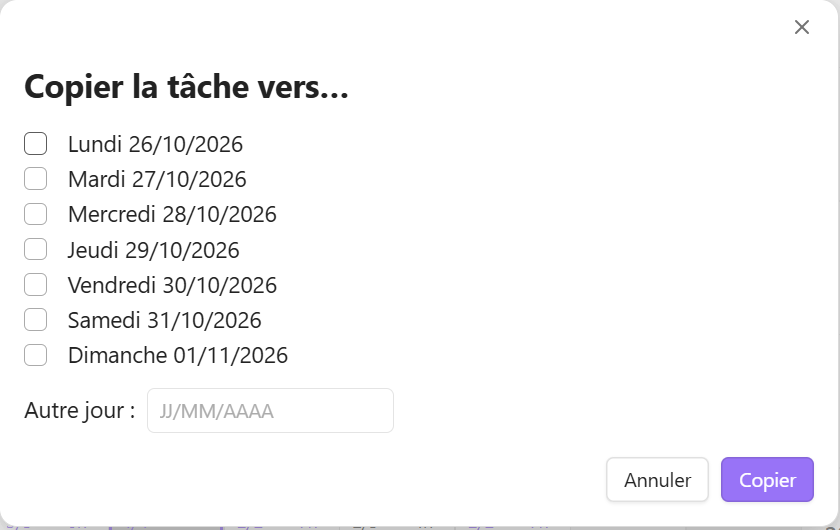
- Sub-tasks, move a task to tomorrow or any day, copy a task to several days at once.
- Two-way: edit the Markdown file by hand and the calendar follows; use the calendar and the file follows.
- English and French: the interface follows Obsidian's language, and the words written in your file ("Week of" / "Semaine du", weekday names) can be English or French. Both are always understood when reading.
- Diagnostic command listing inconsistencies in the file, without changing anything.
Screenshots
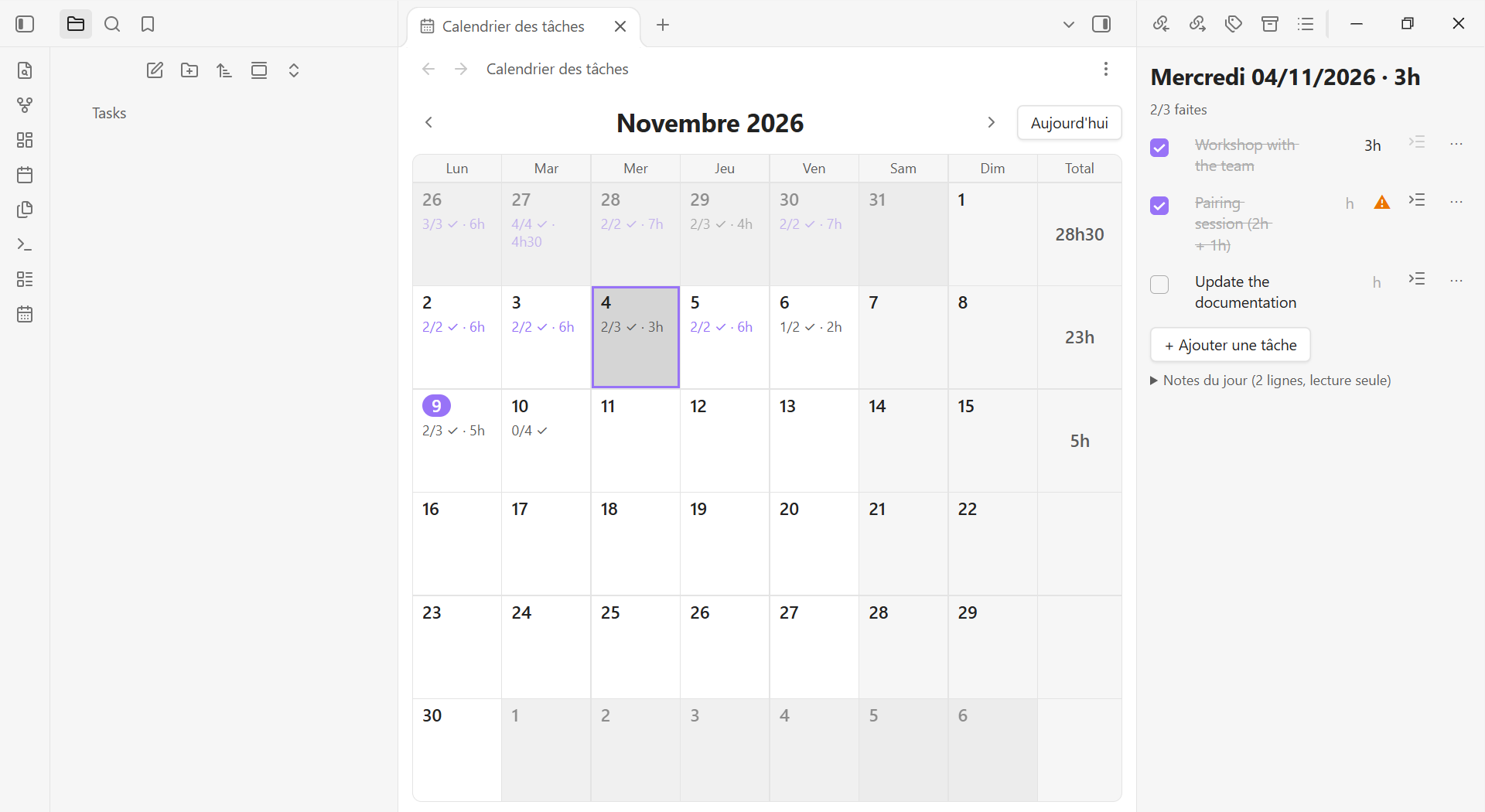 The monthly calendar shows, for each day, tasks done / total and hours, plus a weekly total column. The panel on the right is the selected day.
| Day panel | Sub-tasks |
|---|---|
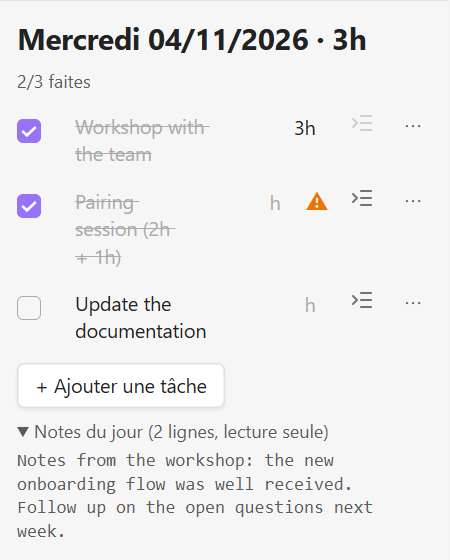 |
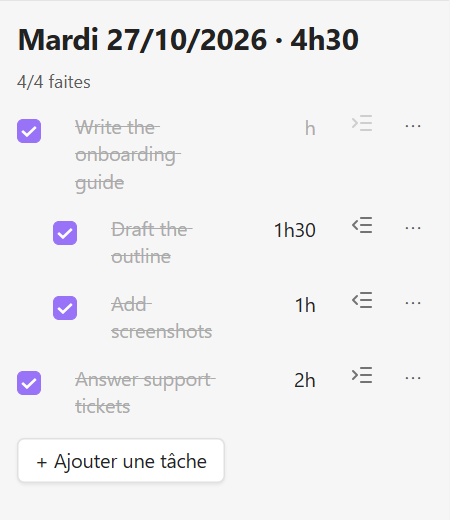 |
| Tick tasks, edit text and hours; free text of the day stays read-only. ⚠ flags hours the plugin could not read. | Sub-tasks are indented; their hours count in the totals. |
| Task menu | Copy to several days |
|---|---|
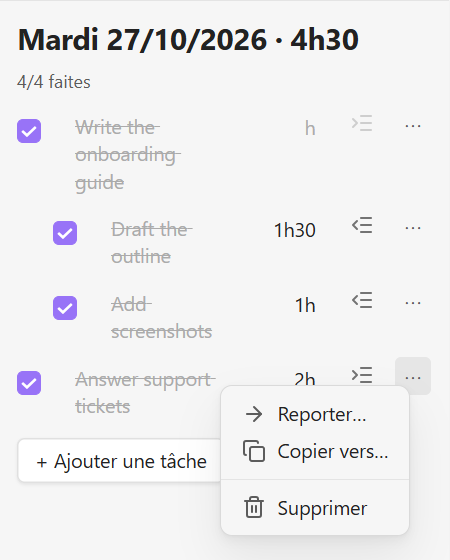 |
 |
And the same data as a plain Markdown file, in reading mode:
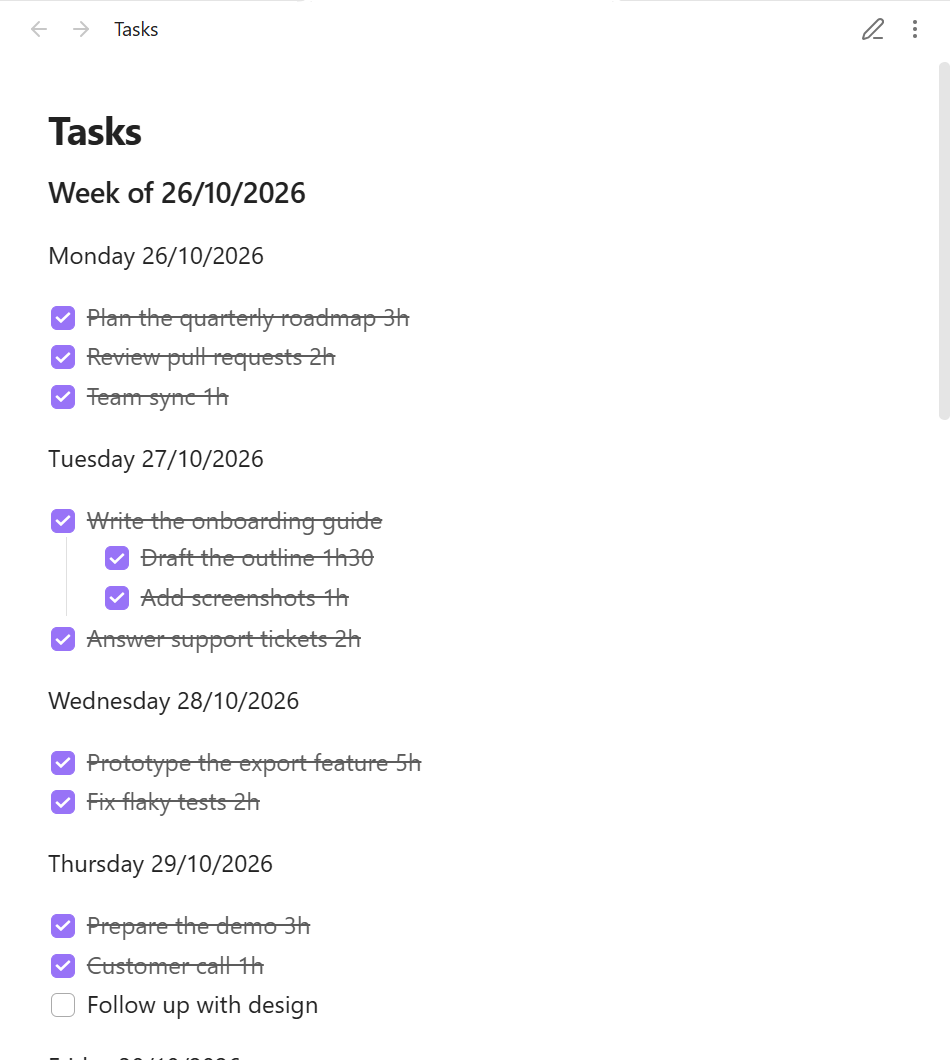
Screenshots use fictional data (docs/demo/Tasks.md) and Obsidian's French interface; the plugin follows Obsidian's language.
Install
Requires Obsidian 1.15.0 or later.
From Obsidian: open Settings → Community plugins → Browse, search for Weekly Task Calendar, then Install and Enable.
Manually:
- Download
main.js,manifest.jsonandstyles.cssfrom the latest release. - Put them in
<your vault>/.obsidian/plugins/weekly-task-calendar/. - In Obsidian: Settings → Community plugins, reload the list, enable Weekly Task Calendar.
Usage
- Click the calendar icon in the ribbon, or run the command Open task calendar.
- Click a day: the day panel opens on the right.
- Add tasks, type hours like
6h,2h30,1.5or45min, tick them off. - ⋯ on a task: Move… (tomorrow or another day), Copy to… (several days), Delete.
By default the plugin reads and writes Tasks.md at the root of your vault. Change it in
Settings → Weekly Task Calendar → Task file. If the file does not exist, the calendar offers to create it.
How your data is protected
- Only week headings, day headings and checkbox lines are read and written. Notes, links and paragraphs in the same file are kept untouched, in place.
- A task you do not edit is never rewritten. Ticking or unticking only changes the checkbox.
- Every write starts from the latest version of the file (
vault.process), so a simultaneous manual edit is not overwritten. If a line moved between what you saw and your action, the action is cancelled. - A copy of the task file is saved in the plugin folder (
backup/) the first time the plugin runs.
Reading rules
- A week is a heading like
#### Week of DD/MM/YYYY(alsoWeek …orSemaine du …). - A day is a line containing only a weekday name, with an optional date:
Monday,Tuesday 27/10/2026. A line such asMonday: call back Alex 3his a normal note, not a day. - A day's date comes from its position (week start + weekday), not from the date typed on its line, so typos in the file do not misplace tasks. If a weekday appears twice in one week, only the first one opens a day; the repeat is treated as a note and reported by the diagnostic command.
- Hours are recognised only at the end of the line:
6h,2h30,1h55,30min,2.5h,(3h),: 4h. Ambiguous cases (2 + 5h,8h-10h20, a lone4) and durations over 12 h (usually a meeting time such as17h30) stay in the text and are left out of the totals; the panel shows ⚠. - Empty tasks (
- [ ]) are kept but not counted.
Settings
| Setting | Description |
|---|---|
| Task file | Path of the Markdown file, relative to the vault root. Default Tasks.md. |
| Language of headings in the file | Auto follows the existing file, then Obsidian's language; or force English / French. |
Limitations
- Dates are written as
DD/MM/YYYYand weeks run Monday to Sunday. Other date formats are not supported yet. - The user interface code (focus handling, modals) is not covered by automated tests; the parser, edit operations and view models are.
Development
npm install
npm test            # unit tests (Vitest)
npm run typecheck
npm run build       # produces main.js
npm run install-plugin   # copies the build into your vault (set OBSIDIAN_VAULT to change it)
The round-trip test reads the author's real task file when present (set TASK_FILE to point to another one)
and skips itself otherwise. Releases are built by GitHub Actions: pushing a tag equal to the version in
manifest.json publishes main.js, manifest.json and styles.css.