Visit History
 Nickolay Kondratyev673 downloads
Records the visit history of notes and canvases, and visualizes vault activity as a treemap heatmap.
- Overview
- Scorecard
- Updates16
Ever wonder which notes you actually spend time in? Visit History quietly records how long you focus on each note, canvas, and Excalidraw drawing, then shows your whole vault as a colourful activity heatmap — so you can see, at a glance, what's hot, what's gone cold, and what you've never touched.
Everything runs fully offline and local: no network calls, no accounts, no telemetry. Your history never leaves your machine.
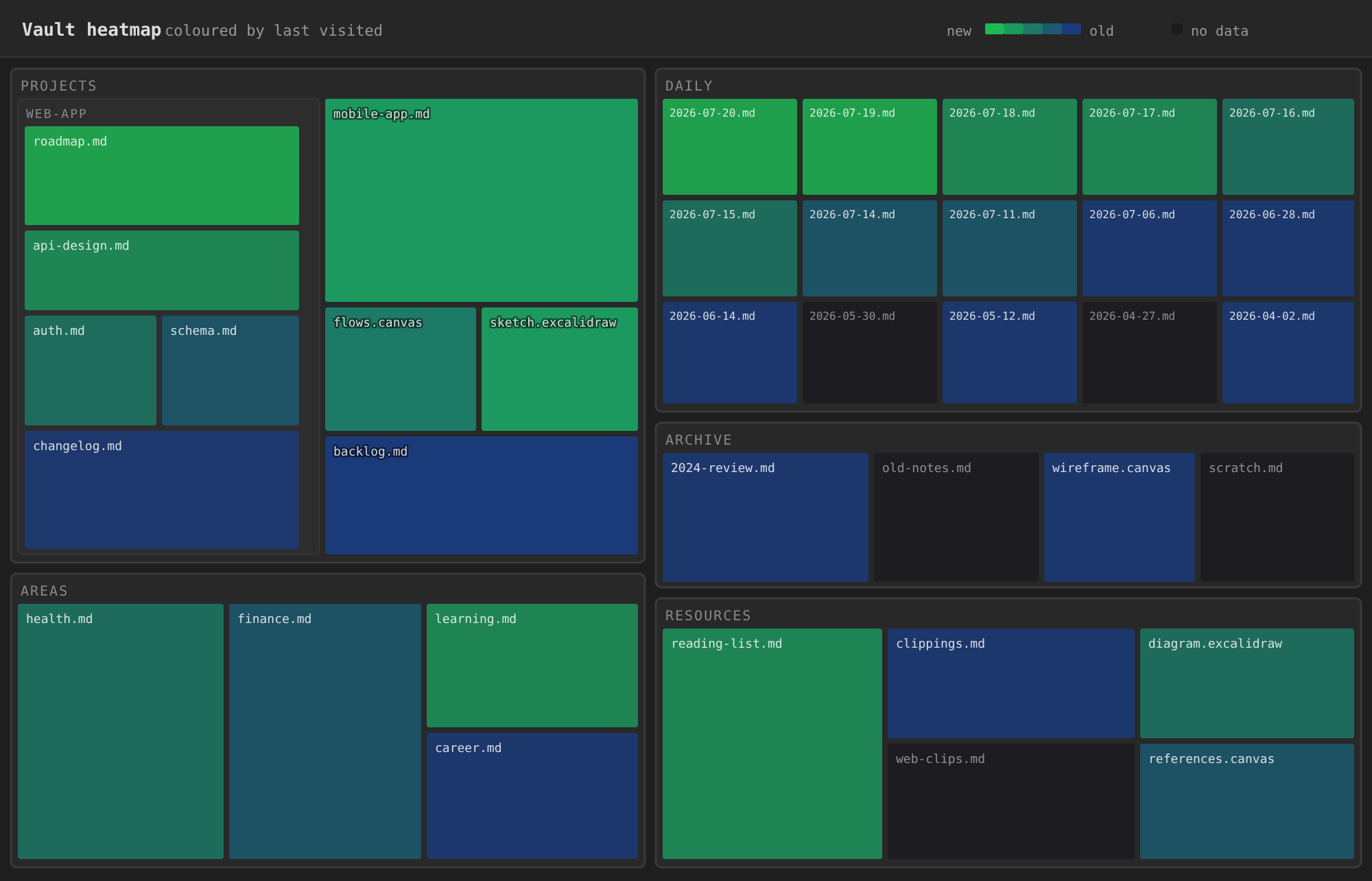
Vault activity coloured by how recently each file was visited (illustrative). Brighter green = recent, deep blue = long ago, dim = no data yet.
See your vault's activity, from day one
The heatmap is a zoomable treemap of your entire vault: every file is a rectangle nested inside its folders, sized by file size. Colour is where it gets interesting — you pick which timestamp drives it:
- Visited — where your attention actually goes, based on recorded focus time.
- Modified — what you've been editing lately.
- Created — what's new in the vault.
Switch between them and the same vault tells three different stories. Recent files glow; stale ones fade. Created and modified work immediately on install — no waiting, no setup. Visit-based colouring layers on top as you use the plugin, and that's when it gets genuinely revealing: the notes you think matter versus the ones you keep returning to are rarely the same set.
Tune the gradient and the hot/cold thresholds to your vault's rhythm. A vault you touch daily wants a different scale than a decade-old archive.
Files can also be coloured by type (note / canvas / Excalidraw) when you want a structural view instead of a temporal one.
Getting around
- Drill down — click a folder to zoom in, step back up the trail, click a file to open it. Pan and zoom with the mouse.
- Filter — narrow the view to files matching a path or their text content. Filters combine with OR: a file shows if it matches any term.
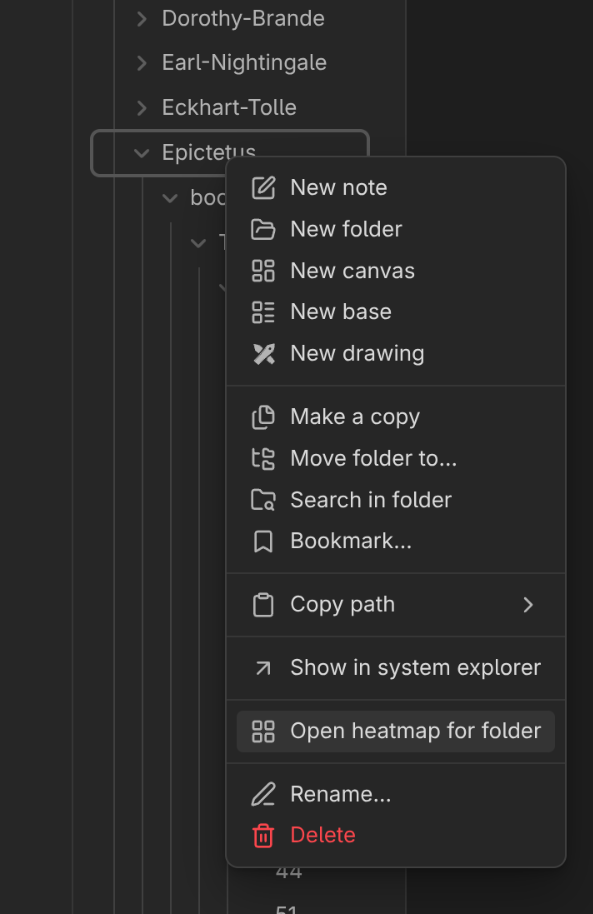
_archivefolders are hidden by default (open one from its folder menu to look inside).- Open the heatmap for a specific folder straight from the
Filesview:
Heatmap options (colouring mode, gradient, timestamp field, hot/cold thresholds) live in the heatmap's own config panel and are saved automatically — your setup is exactly as you left it.
How visit recording works
Open a note, canvas, or Excalidraw drawing and Visit History times how long it stays in focus. When you move on — navigate away, switch windows, or go idle — it saves that session (start time + duration). Over time you get an honest picture of where your attention goes.
Your history survives renames
Notes get renamed; folders get reorganised. The first time you open a note or canvas, the plugin assigns it a small, permanent id (in the note's frontmatter, or the canvas's metadata) and files history under that id — not the path. Move or refactor freely; every second of history follows.
Where your data is saved
All of it lives inside your vault, in __visit_history/ — one small text
file per document, organised per user and per device. Nothing is uploaded.
- Per user keeps people who sync the same vault from mixing histories.
- Per device avoids sync conflicts between your machines.
Being plain files, it syncs wherever your vault syncs, and you can back it up or delete it like any note. Curious about the exact layout and line format? See The files it writes below.
Installing & enabling
Install it from Settings → Community plugins → Browse, search for Visit History, and enable it. Open the heatmap and colour by modified — you'll have something useful to look at before you've recorded a single visit.
The first time you open a note, the plugin asks you to confirm a short user name (only used to keep histories separate in shared vaults) — pick an existing one or type a new one, and you're set.
Settings
Under Settings → Visit History:
- Idle timeout (seconds) — how long without interaction before the current session is considered finished (default 180). Applies immediately.
- Add ids to all eligible files — assigns the persistent id to every note and canvas at once, instead of waiting until you next open each. Modifies files, so it's behind a confirmation.
On the roadmap
Recording your visits unlocks tooling beyond the heatmap. Not built yet, but what the history enables:
- Journey visualization — replay how you moved between notes over a session or a day, seeing the path your attention took through the vault.
- Nearby search — find the notes you visited around the same time as a given note, surfacing related work you touched together even when it isn't linked.
The files it writes (and their format)
Your history is just plain text — nothing proprietary, nothing locked away. You can open it, read it, sync it, back it up, or delete it like any other note. Here's exactly what gets written and where, so there are no surprises.
Everything lives under __visit_history/ at the root of your vault, organised by
user and then by device:
__visit_history/
  user/
    <your-name>/                       # keeps people who share a vault separate
      v3/
        README__generated__vh_v3_format.md   # a copy of this format, written by the plugin
        focus_duration_per_device/
          <device-name>/               # one folder per machine — no sync conflicts
            <doc-id>.vh_v3             # one file per document you've visited
- The file name is the document's permanent id — the same id stored in the note's frontmatter or the canvas's metadata. That's why your history follows a file through renames and moves.
- One file per document, per device. Each device writes only its own folder, so two synced machines never fight over the same file.
Inside each .vh_v3 file, every line is one completed focus session — the
moment it started plus how long you stayed, in milliseconds:
<ISO 8601 UTC start time> D:<milliseconds in focus>
For example, a 5.6-second visit that began on 9 July 2026 looks like:
2026-07-09T22:02:15.745Z D:5600
That's the whole format. The plugin also drops a README__generated__vh_v3_format.md
next to your data describing the same thing, so it's documented right where it lives.
Note:
__visit_history/is intentionally not a hidden (dot-prefixed) folder — Obsidian Sync skips dot-folders, and your history should sync with the rest of your vault. The plugin excludes it from its own tracking and heatmap.
Appendix: fixing file times after a git clone (git-restore-mtime)
The created and modified heatmap colouring reads each file's timestamp
from your operating system. Git does not store or restore these times, so
after you git clone or git pull, the OS stamps every checked-out file with
the moment you pulled — making your whole vault look freshly modified and washing
out the recency heatmap.
git-restore-mtime fixes this: it
walks the git history and resets each file's modified time to the last commit
that actually changed it, restoring meaningful recency.
# From your vault (a git repo) — run after cloning or a big pull:
git restore-mtime
Install it from the git-tools project
(e.g. pipx install git-tools, or your package manager). Visit-based colouring
is unaffected — it comes from __visit_history/, not the filesystem.
License
Released under the Kondratyev Source Available License (KSAL-3.0). See LICENSE.md.
In short:
- Use it anywhere. Personal vaults, work vaults, client work, companies of any size. No restrictions on what you do with the notes and data you produce.
- Free features are free. Some features may be gated behind a license key in the future and require a payment. You may not remove, disable, or bypass those checks.
- Source is available, not strictly open. You may read, study, and modify the code for noncommercial purposes. You may not sell it, distribute it commercially, ship it inside a product, or run it as a hosted service.
For commercial licensing, reach out.