Vimium++
 potydon24 downloads
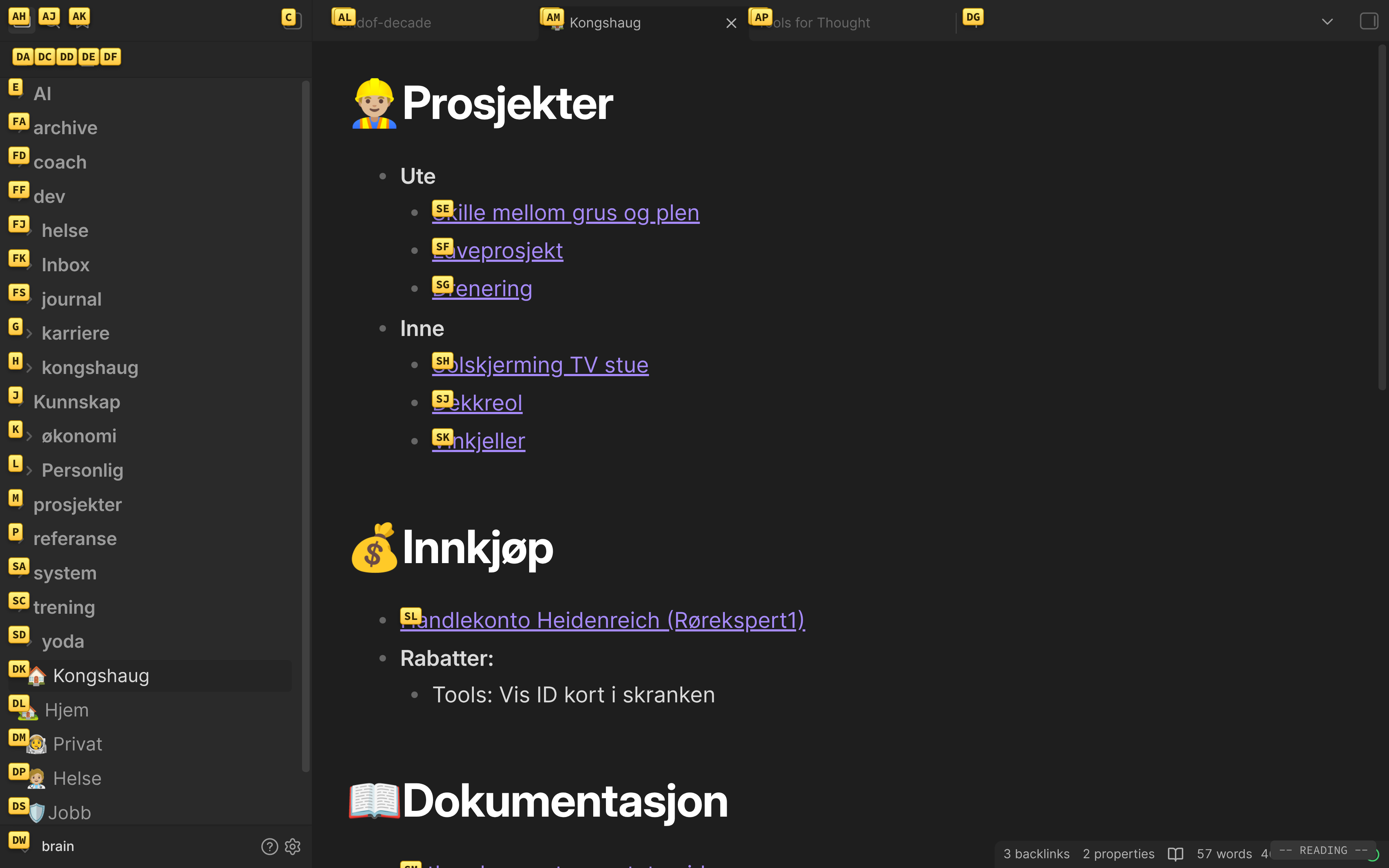
Click on ui elements using hint just like the vimium browser extension. Also packed with QoL features.
- Overview
- Scorecard
- Updates3
A Vimium-FF–style keyboard layer for Obsidian. It gives you two modes:
- Reading mode (the Vimium layer — the default): every note opens in Reading view. Scroll with
j/k, jump around withfclick-hints, and never touch the mouse. - Editing mode: press
ito drop into the editor, where Obsidian's built-in Vim key bindings take over.Escapefirst returns Vim to normal mode (from insert/visual/replace);Escapein normal mode comes back to Reading mode. The leader key also works here, but only in Vim normal mode.
Not affiliated with the Vimium browser extension or the existing Vimium community plugin — this is an independent reimplementation of the Vimium idea for Obsidian.
Keybindings (Reading mode)
| Key | Action |
|---|---|
f |
Show click hints; type the letters to click that element (links, buttons, tabs, ribbon, file tree, checkboxes…). |
Shift+F |
Same hints, but open the chosen link in a new tab. |
j / k |
Scroll down / up. |
d / u |
Scroll a half-page down / up. |
g g / Shift+G |
Jump to top / bottom. |
Shift+J / Shift+K |
Switch to the next / previous tab. |
b / Shift+B |
Fuzzy-search your bookmarks; open the pick in the current / a new tab. |
Shift+O |
Omnibar: open a bookmark, recent file, or typed URL in a new tab. |
Shift+H / Shift+L |
Go back / forward in history. |
/ |
Search the current file. |
t |
Open a new tab. |
x / Shift+X |
Close the current tab / restore closed tabs. |
e |
Toggle the file explorer (focus it, revealing the active note). |
i |
Enter editing mode (focus the editor; native Vim active). |
Esc |
(In editing mode) leave Vim insert/visual/replace for normal mode; in normal mode, return to Reading mode. |
Any key — or a multi-key sequence like gT — can be bound under Settings → Vimium++ → Reading Mode Bindings. Each row picks Command (any command-palette command) or Terminal (a shell command), so both kinds share one list and one drag handle for reordering. Type the keys as plain text; each character is one keypress. Two command bindings ship by default: o (quick switcher) and p (command palette) — remap or remove them as you like. Terminal commands substitute {{path}} (active note), {{folder}} (the note's folder), and {{vault}} (vault root) with quoted absolute paths, and run from the note's folder, e.g. kitty --directory {{folder}}. Custom bindings take priority over the built-in keys above; the settings dialog asks for confirmation before you shadow a built-in (or start a sequence with one, which delays it by the chord timeout).
While hints are showing: type the label to activate, Backspace to correct, Esc to cancel. Holding Shift on the last letter of a label opens that target in a new tab (even if you started with plain f).
Leader keys and which-key
Press Space (the leader key) and a which-key popup lists the sequences that can follow. The default map is:
| Sequence | Action |
|---|---|
Space f f |
Quick switcher |
Space f p |
Command palette |
Space f s |
Search in the vault |
Space f b |
Bookmarks |
Space q q |
Close the current tab |
Space q n |
New tab |
Space q s |
Save the current note |
Space w v |
Split right |
Space w h |
Split down |
The f, q, and w prefixes are named groups (find, quit, workspace) and appear as +find, +quit, and +workspace in the popup. Esc cancels a pending sequence and Backspace steps back one level; by default the sequence waits until you press a key, or you can set a pending timeout to cancel it automatically.
Everything is editable under Settings → Vimium++:
- Leader key — one key in Vim notation, e.g.
<Space>or<C-Space>. - Activate on leader key —
Enabledstarts the leader from any pane where you are not typing, not just Reading mode, the editor's Vim normal mode, and the file explorer.Markdown onlyrestricts that to Markdown views.Disabled(the default, like Spacekeys) keeps it to those usual panes. The leader never starts in Web viewer, Canvas, or the bookmarks, outline, and tag sidebars. - Ignore leader in file explorer — on by default, so
Spacekeeps expanding and collapsing folders in the file explorer instead of starting a leader sequence. Turn it off to allow leader sequences there. - Leader keys — groups and bindings live in one list. A group names a prefix so the popup shows
+name; a binding pairs a key sequence with a description and an action (any command-palette command, or a note by name or vault path). Sequences use Vim notation for special keys:<Space>,<CR>,<Esc>,<BS>,<Tab>,<C-x>. Drag the handle on a row to reorder groups or bindings. - Which-key popup / delay and Pending sequence timeout — turn the popup off or tune its timing.
Leader bindings work in Reading mode and in the editor's Vim normal mode. With Ignore leader in file explorer on (the default), the file explorer keeps its native Space behavior; turn it off to allow leader sequences there. With Activate on leader key enabled they also start from any other pane where you are not typing; Markdown only limits that extra activation to Markdown views. They never fire in insert or visual mode, when a count/operator/motion is in progress, in Web viewer or Canvas, or in the bookmarks, outline, and tag sidebars. A leader sequence takes priority over the built-in keys and custom bindings when its first key matches, so if you previously bound Space to another leader plugin, remove that custom binding.
Vim enhancements in the editor
These features extend Obsidian's native Vim mode while editing a note. They follow the same rules as the leader: they never run in insert mode, and a pending Vim prefix or operator belongs to Vim.
| Keys | Action |
|---|---|
ys + text object |
Surround: yss) surrounds the line, ysiw" surrounds the word, ysi( surrounds the inner parentheses. w/W, and i/a with brackets, quotes, backticks, *, _, ~ are supported; aliases b → (, B → {, r → [. |
ds + pair |
Delete the surrounding pair. |
cs + old pair + new pair |
Change the surrounding pair. |
S + pair (visual) |
Wrap the visual selection. |
Mod-Alt-↑ / Mod-Alt-↓ |
Add a cursor one line up/down. |
| Motion keys with multiple cursors | h j k l w W b B e E $ ^ move every cursor; Esc collapses to the main one. |
Mod-D |
Select the word under the cursor; press again to add the next match, wrapping at the end. Disable Obsidian's own Mod-D hotkey first. |
gd |
Open the wiki-link under the cursor. |
gx |
Open the URL under the cursor in a new browser tab. |
o |
Open a new line, keeping the Markdown list continuation that default Vim o breaks. |
h j k l in a table cell |
Navigate cells in Obsidian's native Live Preview table editor. Counts work; Tab wraps to the next cell; moving past the first/last row exits the table. |
gg / G in a table cell |
Jump to the first / last row of the current table, keeping the current column. |
0 / ^ / $ in a table cell |
Jump to the first column, first non-empty cell, or last column of the current row. |
H / M / L in a table cell |
Jump to the top / middle / bottom visible row of the current table, keeping the current column. |
i in a table cell |
Open the highlighted cell in Vim normal mode, cursor at the front. |
a in a table cell |
Open the highlighted cell in Vim normal mode, cursor at the back. |
I / A in a table cell |
Open the highlighted cell in insert or append mode. |
dd in a table cell |
Empty the highlighted cell and stay in table navigation. |
cc in a table cell |
Empty the highlighted cell and enter insert mode. |
s in a table cell |
Substitute: empty the highlighted cell and enter insert mode. |
dr / rd in a table cell |
Delete the highlighted row. |
dc / cd in a table cell |
Delete the highlighted column. |
ra / ro in a table cell |
Add a new row below the current row. |
ri / rO in a table cell |
Add a new row above the current row. |
ca / co in a table cell |
Add a new column to the right of the current column. |
ci / cO in a table cell |
Add a new column to the left of the current column. |
Enter in a table cell |
Open the highlighted cell in Vim normal mode. |
Escape in a table cell |
Leave the cell editor and return to cell navigation, or exit the table. |
Obsidian keeps a blank source line above every table because Markdown tables cannot directly follow a paragraph. Make table's empty line invisible (on by default) hides that line visually without removing it from the note. With it enabled, j/ArrowDown from the text above steps straight into the table, and k/ArrowUp from the first row steps back to the text above.
Use gj/gk for j/k installs native Vim normal-mode mappings j → gj and k → gk, the same way vimrc-support does. Counts and pending prefixes stay with Vim. Inside Markdown tables the display-line motion keeps the current cell column and skips the |---| separator row, and the option also applies per cursor. Table navigation is a separate modal layer for native Live Preview tables; it takes priority over the j/k mapping while a cell is active, and the status pill shows TABLE while it owns the keyboard. Scrolloff keeps a configurable number of lines visible above and below the cursor. Register system clipboard mirrors Vim's unnamed register to the OS clipboard (yanks/deletes write to it, p reads from it); named registers are unchanged. All are under Settings → Vimium++ → Vim enhancements, along with the Mod-D toggle.
Saving and closing (:w / :q)
A default : binding opens Obsidian's command palette, which makes a Vim-style workflow possible. Two commands are registered without the usual Vimium++: prefix so their names really start with the letter, and typing that letter in the palette selects them first:
| Command | Action |
|---|---|
w: Save note |
Save the active note the same way Ctrl/Cmd+S does. In Reading view there is usually nothing pending, so it acts as a no-op rather than doing something unexpected. |
q: Close current tab |
Close the active tab (same as workspace:close). |
So : then w then Enter saves, and : then q then Enter closes the tab — the Vim :w / :q muscle memory, without a modal command line.
File explorer
The built-in file explorer gets a neo-tree-style key layer while it has focus. Press e in Reading mode (or run Toggle file explorer from the command palette) to focus it, then:
| Key | Action |
|---|---|
j / k |
Move down / up. |
h / l |
Collapse the folder / open the file or expand the folder. |
Enter |
Open the file. On a folder it opens the folder note (when enabled), expands it, or toggles it, depending on the settings below. |
Ctrl/Cmd+Enter, Shift+Enter |
Always open the focused folder's folder note. |
gg / Shift+G |
Jump to the first / last item. |
z |
Collapse all folders. |
a / Shift+A |
Create a file / folder (end a file name with / to create a folder). |
d / r / m |
Delete / rename / move. |
c |
Copy to a path. |
x / y / p |
Cut / copy / paste. |
u |
Undo the last file operation. |
s / Shift+S / t |
Open in a vertical split / horizontal split / new tab. |
q / Esc |
Close the explorer / focus the editor again. |
File operations use Obsidian's own vault and file-manager APIs, so links are updated on rename/move and deletes follow your trash settings. Deletes can be undone from the plugin's in-memory snapshot (up to 50 operations / 50 MB).
If you use the Folder Notes plugin, folder-note files that it hides from the explorer are skipped by j/k, gg/G, and folder expansion, so navigation only lands on rows you can actually see. Folder notes you have chosen to show in the explorer still work normally. For the same reason, files whose type Obsidian does not support (for example .txt, .yml, .js) are skipped while Show unsupported files is off in Obsidian's settings.
Two settings control folder notes on Enter: Open folder note on Enter (on by default) makes plain Enter open a folder's note; turn it off to require Ctrl/Cmd+Enter or Shift+Enter. Expand folder on Enter makes Enter expand a folder instead of toggling it, and expands the folder before opening its note.
Web viewer tabs
The vim keys also work inside pages opened with Obsidian's core Web viewer plugin. Web pages render in a separate Electron webview that the plugin can't reach directly, so a small self-contained script is injected into each page instead (toggleable in settings as Web viewer integration).
Inside a page: j/k/d/u/gg/G scroll, f/F show hints over the page's links and controls (F opens the link in a new Web viewer tab), H/L go back/forward in the page's history, and J/K/t/x switch/open/close Obsidian tabs. Typing in a page's text field passes keys through as usual; Esc blurs the field, and Esc again hands focus back to Obsidian.
Limitations: custom reading-mode bindings don't fire while the page itself has focus (the page-to-Obsidian channel is intentionally restricted to a small fixed set of actions, since a malicious page could forge it) — press Esc first, then they work as normal. Hints cover the page's top frame only, and some pages (PDFs, error pages) refuse script injection entirely.
How the modes map to Obsidian
The plugin ties "command mode" to Obsidian's Reading view rather than a fragile focus heuristic. It forces every note to open in Reading view (toggleable in settings) and turns on Obsidian's native Vim key bindings, so i lands you in a real Vim editor. Both overridden settings are restored when you disable the plugin.
Escape is mode-aware: in Vim insert, visual, or replace mode it is left for Vim to return to normal; in Vim normal mode Esc flips the note back to Reading view. That normal-mode exit can be turned off with the Escape returns to Reading mode setting, leaving Esc entirely to the editor.
Settings
Hint characters, hint font size, scroll step, force-Reading-view toggle, Escape-returns-to-Reading toggle, native-Vim toggle, mode-indicator toggle, system-clipboard register, scrolloff, Mod-D select-word toggle, gj/gk-for-j/k toggle, table-navigation toggle, make-table's-empty-line-invisible toggle, Web viewer integration toggle, file-explorer keys, Enter/folder-note behavior, delete confirmation, the list of CSS selectors that become hint targets, Reading Mode Bindings (commands and terminal commands in one reorderable list), and the leader key, leader activation, ignore-leader-in-file-explorer, leader bindings, leader groups, which-key, and pending-timeout settings.
Build
Requires Node.js (18+).
npm install
npm run dev      # esbuild watch → main.js
npm run build    # type-check + production bundle
Releasing
- Commit your work first.
npm versionrefuses to run with uncommitted changes. - Run
npm version patch(orminor/major). This bumpspackage.json, updatesmanifest.jsonandversions.json, commits the changes, and creates a bare-version tag such as0.3.1(the repo sets npm'stag-version-prefixto empty). - Run
npm run release. This builds the plugin and pushes the commit and tag. - The Release Obsidian plugin workflow builds on GitHub and publishes a release titled with the version, with generated notes and the
main.js,manifest.json, andstyles.cssassets attached directly to the release.
npm version patch
npm run release