
- Overview
- Scorecard
- Updates5
Usher is an Obsidian plugin for managing customisation files across multiple configuration directories.
It is designed as a companion tool for Self-hosted LiveSync users who use Hidden File Sync to replicate Obsidian configuration folders. Instead of blindly applying every synced .obsidian change to the current device, Usher lets you inspect plugin, theme, snippet, and JSON setting candidates from other configuration directories and selectively apply the version you want.
Usher is not a synchronisation engine. It does not replicate files between devices by itself. Use Self-hosted LiveSync Hidden File Sync, Git, file sync, or another transport to make the configuration folders available in the vault. Usher only helps you compare, choose, and apply already available candidates.
What Usher manages
Usher scans hidden configuration folders in the vault, such as .obsidian, .obsidian-mobile, or .obsidian-work, then groups supported files by their customisation role:
| Folder or file | Role |
|---|---|
plugins/<plugin>/manifest.json |
Plugin main file |
plugins/<plugin>/main.js |
Plugin main file |
plugins/<plugin>/styles.css |
Plugin main file |
plugins/<plugin>/data.json |
Plugin data |
Other files under plugins/<plugin>/ |
Plugin extra file |
themes/<theme>/... |
Theme |
snippets/<snippet>.css |
Snippet |
Root-level *.json in the config folder |
Setting |
This scope follows the same customisation categories used by Self-hosted LiveSync's Customisation Sync: config JSON, themes, snippets, plugin main files, plugin data, and optional plugin extra files.
Safety model
Usher assumes each configuration directory can represent a different device or profile. The current Obsidian config directory is the destination. Other hidden configuration directories are treated as candidates.
Applying a candidate may copy files into the current config directory. JSON files can be merged unless they match the non-mergeable file patterns. Review the selected candidates before applying them, and keep a backup of your vault and configuration folders before using Usher on important setups.
Apply behaviour
When you click Apply, Usher applies the selected candidate from another configuration directory to the current Obsidian config directory.
- Non-JSON files are copied from the candidate directory to the current config directory.
- If the destination file already exists, Usher moves the existing file to Obsidian's local trash before copying the candidate file.
- JSON files are merged when Usher detects that the merged JSON would differ from the current file.
- If JSON merging fails, Usher falls back to copying the candidate file.
- Files matching the non-mergeable file patterns are not merged as JSON.
The current config directory is never treated as a candidate source for itself. Usher is intentionally manual: it shows candidates, lets you select them, and applies only the selected entries.
How to use
- Install this plugin from BRAT
- Type
Show Usherin the command palette - The Usher pane will be displayed!
Features
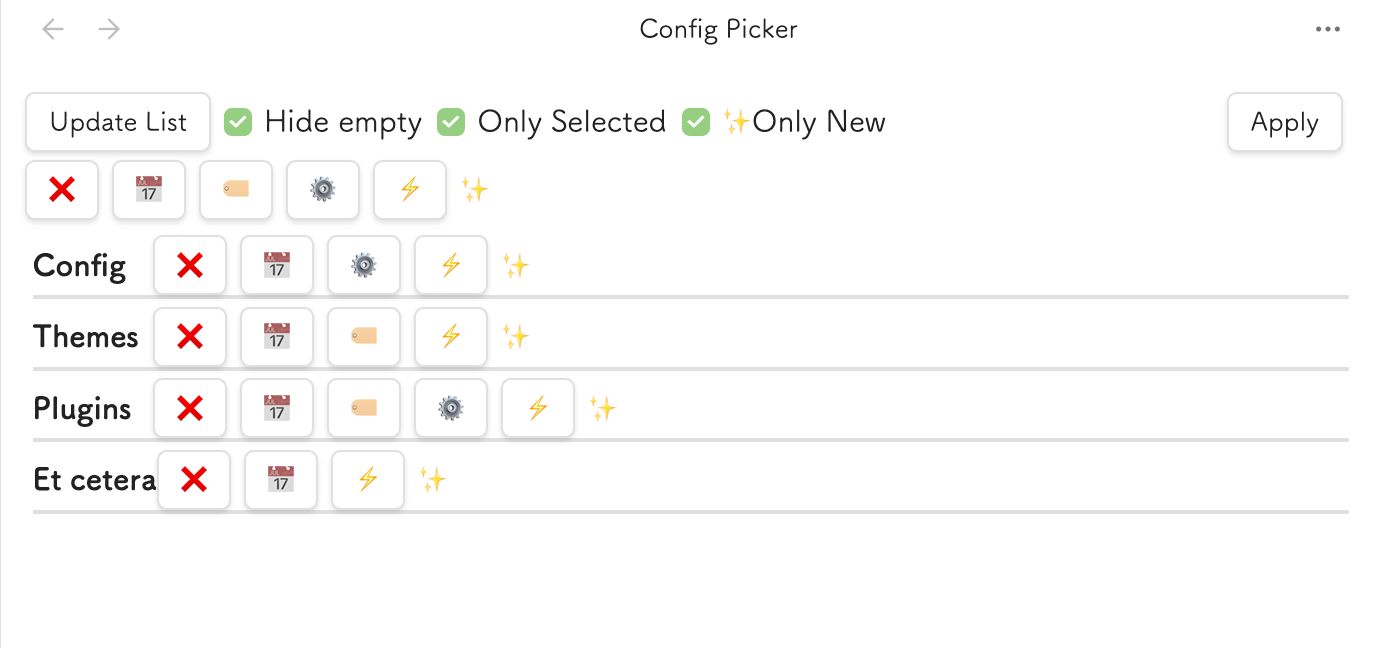
Buttons and checkboxes
| Name | Behaviour |
|---|---|
| Update List | Update the list |
| Hide empty | Hide entries with no candidates |
| Only Selected | Show only the selected entry (Used with Automatic Selection Buttons) |
| Only New | Limit automatic selection only to newer entries than the current device's one |
| Apply | Apply the selected entry to the current device |
Automatic Selection Buttons
These buttons are automatically selected to apply to the current device. They are also displayed by category. They only affect the selected category.
| Name | Behaviour |
|---|---|
| ❌ | Clear the selection |
| 📅 | Select the most recently modified |
| 🏷️ | Select latest version (Theme and Plugins only) |
| ⚙ | Select different content (JSON only, after merged) [^1] |
| ⚡ | Select modified and latest file (Mostly for snippets) |
| 🔒 | Exclude from Automatic Selection |
[^1]: JSON files will be merged with the current one.
How to read the difference report
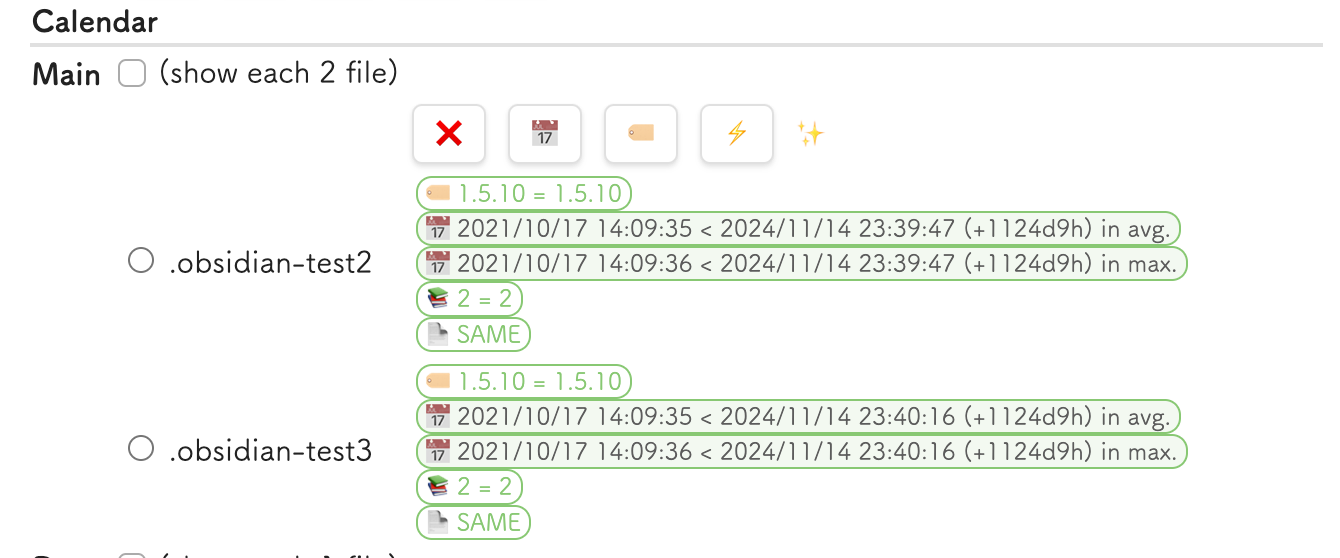
- When it is thin coloured, it means the file will not be valuable to be applied.
- For example, the file is the same as the current one, or it is older in version or modification date than the current one.
- When it is thick coloured (like tags), it means the file will be valuable to apply.
- For example, the file is newer (version or modified) than the current one.
- Automatic selection will follow your preference from the thick coloured files.
- If you want to include the thin coloured file, you should uncheck the
Only Newcheckbox. - On default, only the selected entry will be displayed. If you want to see all entries, you should uncheck the
Only Selectedcheckbox. - Once you have made a selection and are ready to apply it, you should click the
Applybutton.
Configuration
Ignore files
We can configure the files to be ignored by the Usher in regular expression.
The default value is /node_modules$ and /.git$.
Non-mergeable files
We can configure the files to be non-mergeable by the Usher in regular expression.
The default value is /bookmarks.json$.
Utility
- Duplicate Config folder
- Duplicate the current config folder to the new folder.
- Very useful when you want to create a new config folder based on the current one.
- Delete Other devices' config folder
- This action is tremendously dangerous, but sometimes useful. This action will delete the selected config folders.
- We cannot select the current device's folder.
- Deleted files will be moved to the trash.
Development
Install dependencies:
npm install
Run the unit tests:
npm run test
Run tests with coverage:
npm run test:coverage
Build the plugin:
npm run build