Type to Remember
 Anthirayas1 downloads
Practise recall by typing your own notes, with spaced repetition and a progress heatmap.
- Overview
- Scorecard
- Updates1
Learn your own notes by typing them. Pick a note, type it out, and let spaced repetition bring it back just before you would forget it.
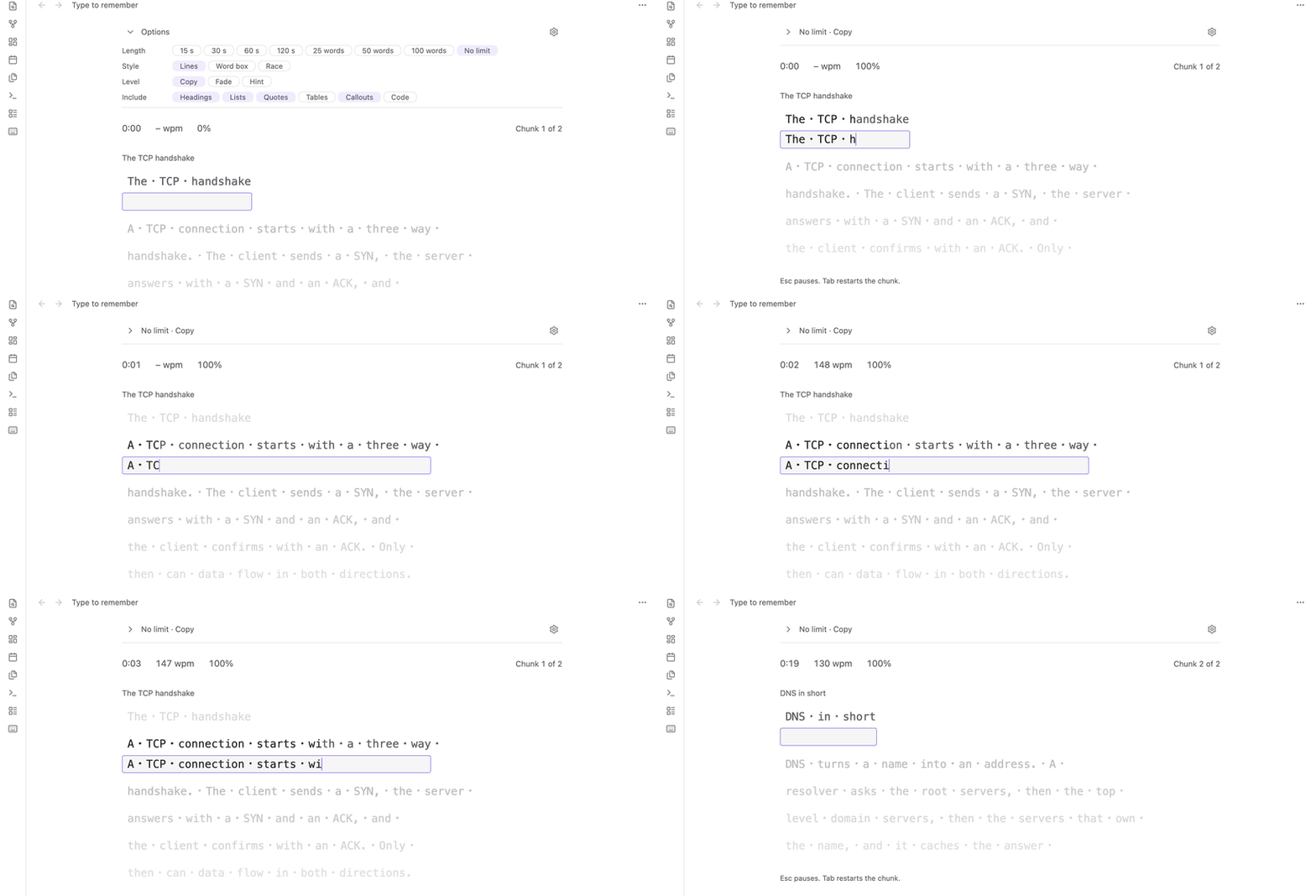
Type to Remember is an Obsidian plugin that turns your notes into typing practice, in the spirit of Monkeytype, keybr and TypeRacer. Typing a note out, line by line, is active recall: you retrieve and rewrite what you wrote instead of just re-reading it.
- Three typing styles: Lines, Word box and Race
- Spaced repetition, with harder levels that hide the text (Fade and Hint)
- A calendar heatmap, streaks and weak-key tracking
- Random practice across the folders and tags you choose
- A queue of notes to work through, controlled from a note's properties (frontmatter)
- Desktop only (Obsidian 1.13.4 or later). No network access, no account, no telemetry. Your notes are never changed unless you ask.
Install
Until the plugin is in the community directory:
- Download
main.js,manifest.jsonandstyles.cssfrom the latest release. - Put them in
<your vault>/.obsidian/plugins/type-to-remember/. - In Obsidian, open Settings > Community plugins, reload, and turn on Type to Remember.
Or install it with BRAT using jrayas/type-to-remember.
Quick start
- Open a note and run Start on current note from the command palette (or use the note's three-dot menu and choose Type to remember).
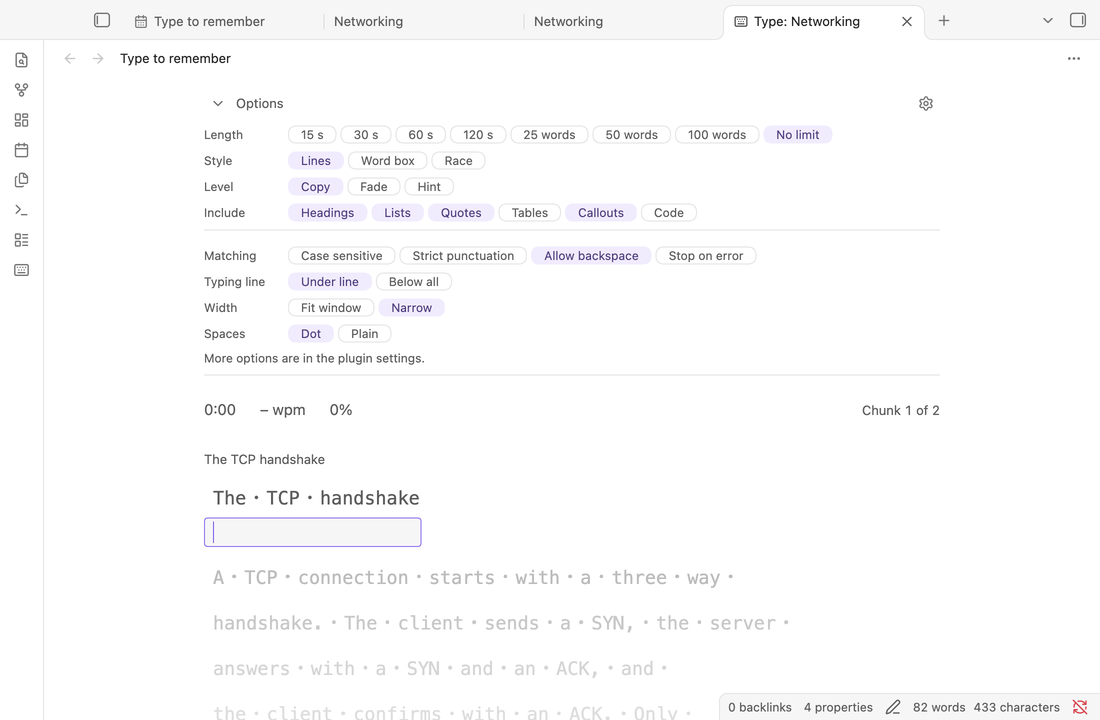
- Pick a length and what to include (headings, lists, quotes, tables, callouts, code) in the options bar.
- Type the grey text. The timer starts on your first keystroke. Spaces are shown as a dot.
- Esc pauses and Tab restarts the current chunk. At the end you see your net and raw WPM, accuracy and the words you mistyped.
A tour
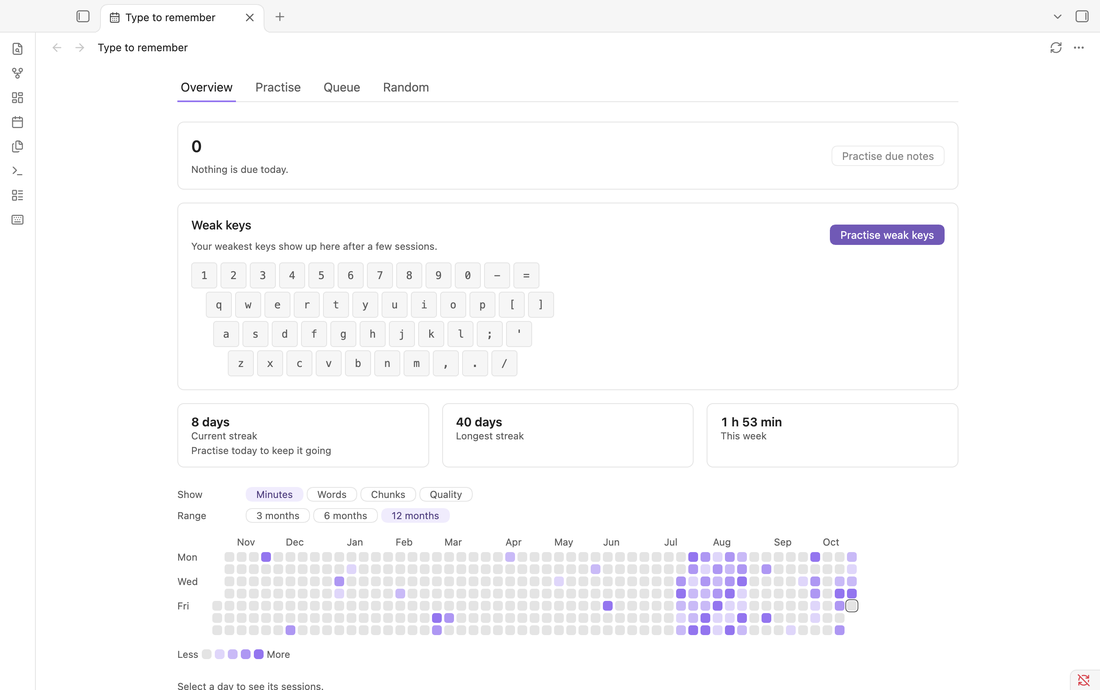
Overview shows what is due today, your queue (to do, overdue and coming up), your weakest keys, your streak and a calendar of the last 3, 6 or 12 months, by minutes, words, chunks or quality.
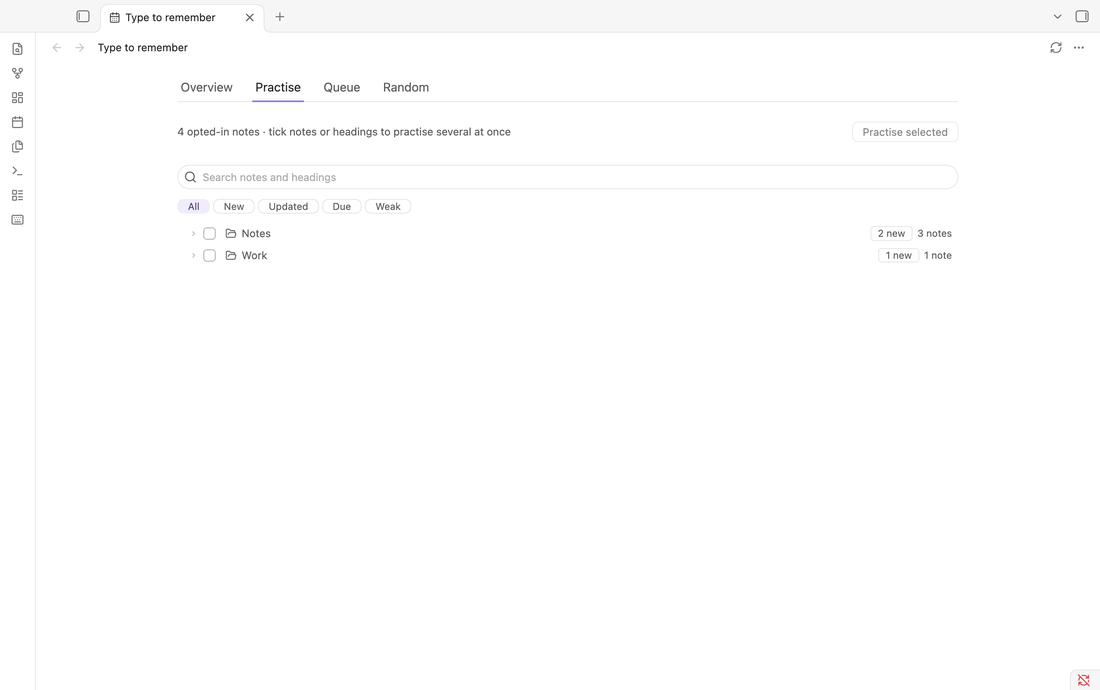
Practise lists your opted-in notes with their headings and a strength bar. Click a note or a heading to practise just that, or tick several (even from different folders) for one combined session.
Queue is a to-do list of notes to practise, with a table view you can sort, search and filter.
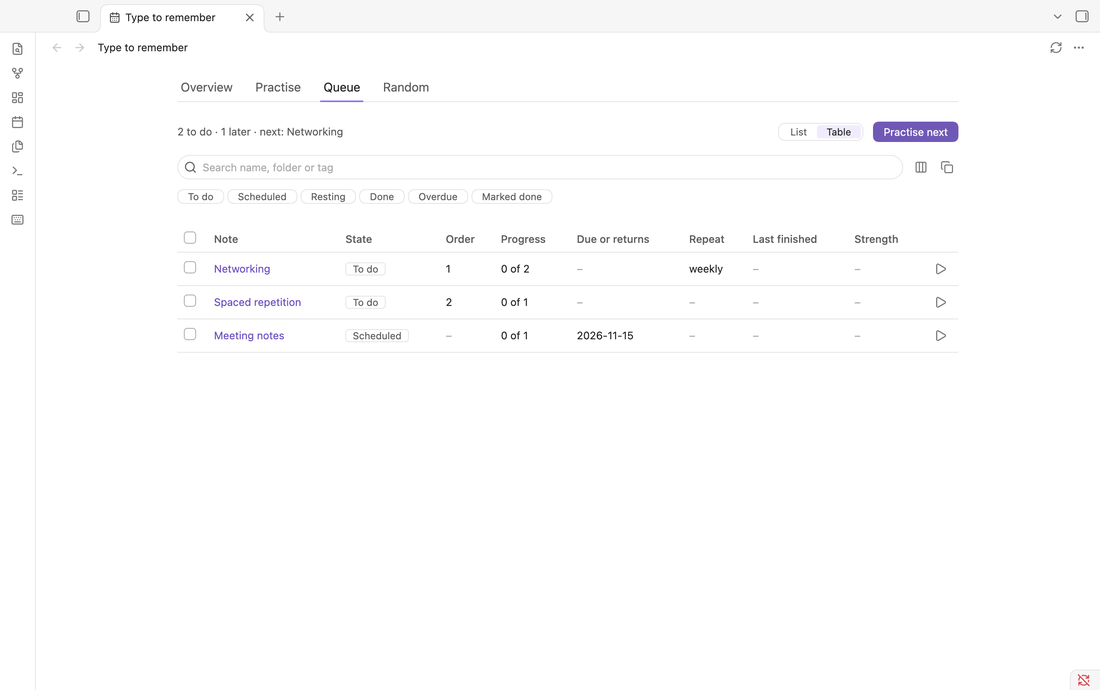
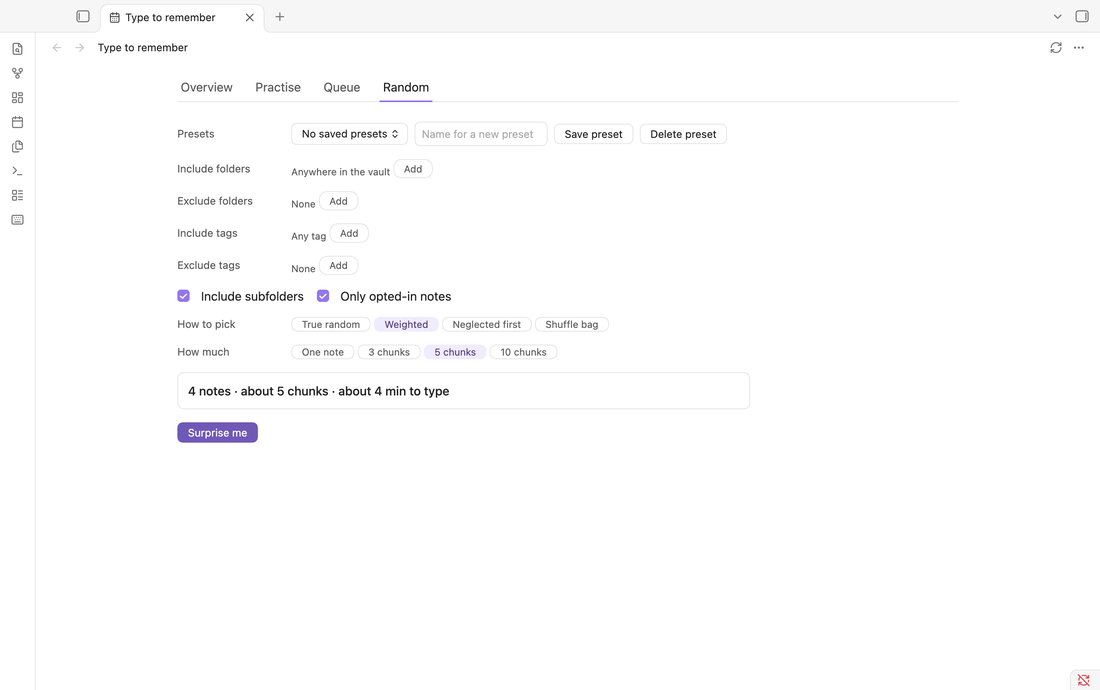
Random draws notes for you from the folders and tags you pick.
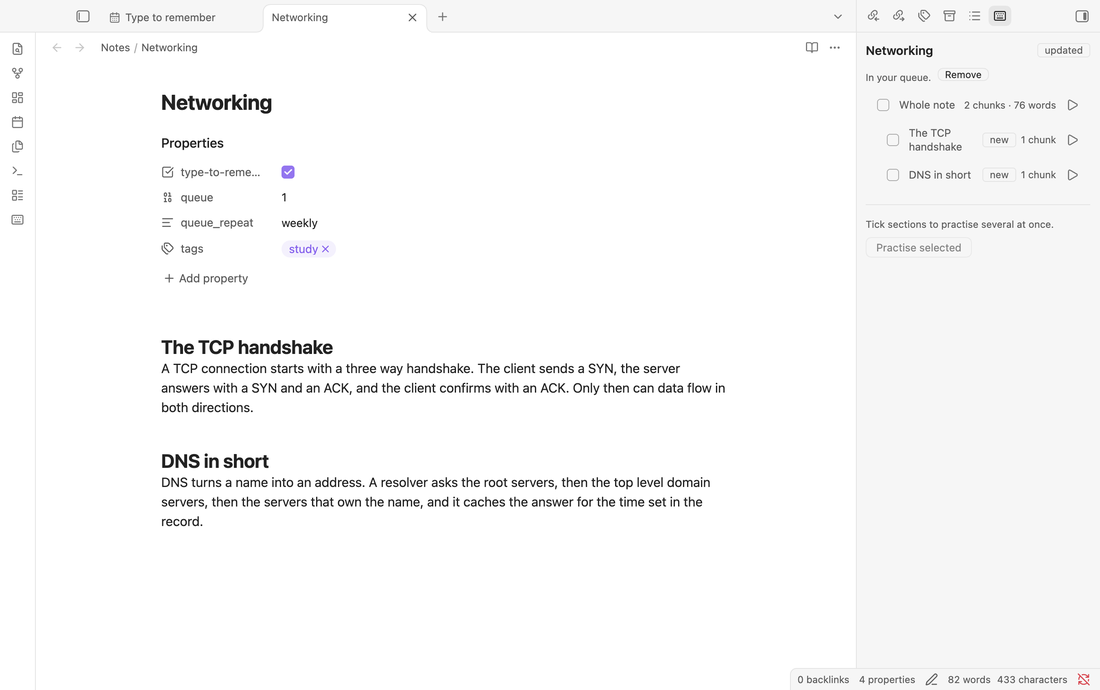
The note panel in the right sidebar follows the note you are reading, with a play button for each heading.
Frontmatter (note properties)
Everything the plugin reads from a note lives in its properties. Add them in Obsidian's Properties view or in the YAML block at the top of the note.
---
type-to-remember: true     # opt this note in to the Practise tab and random pools
queue: 1                   # put the note in the queue (see below)
queue_repeat: weekly       # bring it back every week
queue_due: 2026-11-15      # not before this date
---
| Property | Values | What it does |
|---|---|---|
type-to-remember |
true |
Opts the note in, so it shows in the Practise tab and in random pools. You can practise any note without it. The tag #remember does the same. |
queue |
true, a number, or [typing, recall] |
Puts the note in the queue. A number is the order (1 comes first). |
queue_repeat |
never, daily, weekly, monthly, a number of days, or auto |
When a finished note comes back. auto brings it back on the earliest day any of its chunks is due. |
queue_due |
a date, such as 2026-11-15 |
A fixed date: the note waits until then, and counts as overdue after it. |
queue_typing_done |
true / false |
Marks the note finished (true) or starts a new round (false). Works both ways: finishing a note in the plugin can also write it. |
queue_typing_last, queue_typing_next |
dates | Written only if you turn on Write queue status to notes. Handy for Bases and Dataview. |
All the property names can be changed in the settings. The queue convention is not specific to typing: another plugin can follow the same queue and queue_repeat properties and keep its own queue_<name>_* results.
The details of how a note is finished, rests and returns are in Queue below.
Reference
More options are in Settings > Type to Remember: where the typing line sits (under the active line or below all lines), matching rules (case, punctuation, backspace, stop on error), what counts towards streaks, and when your day starts.
Typing the text with the prompt in view builds fluency; it is not a test of recall.
Note panel (right sidebar)
Open it with the Open note panel command. It follows the note you are reading: its headings with a checkbox and a play button each, the note's status, and buttons to add it to the queue or opt it in. Tick several headings and choose Practise selected.
Home page
Open it from the ribbon icon or the Open home page command. It has three tabs.
- Overview: your current and longest streak, minutes this week, and a calendar of the last 3, 6 or 12 months by minutes, words, chunks or quality (minutes multiplied by accuracy). Choose a day to see its sessions and jump to the notes. Only sessions that meet the accuracy and length thresholds count.
- Practise: your opted-in notes in a tree with their headings. Click a note or heading to practise just that; tick several (even in different folders) and choose Practise selected for one combined session. Search finds notes and headings; New and Updated show what you have not practised yet and what you have edited since. It follows renames, moves and deletions.
- Queue: the notes you put in your queue, in the order to practise them (see below).
- Random: draws notes for you (see below).
Typing styles
Choose a Style in the options bar (or the settings):
Lines (the default): a few lines of the text, with the line you type directly beneath the active one. Every line ends with the space that separated it from the next, shown as a dot and typed like any other.
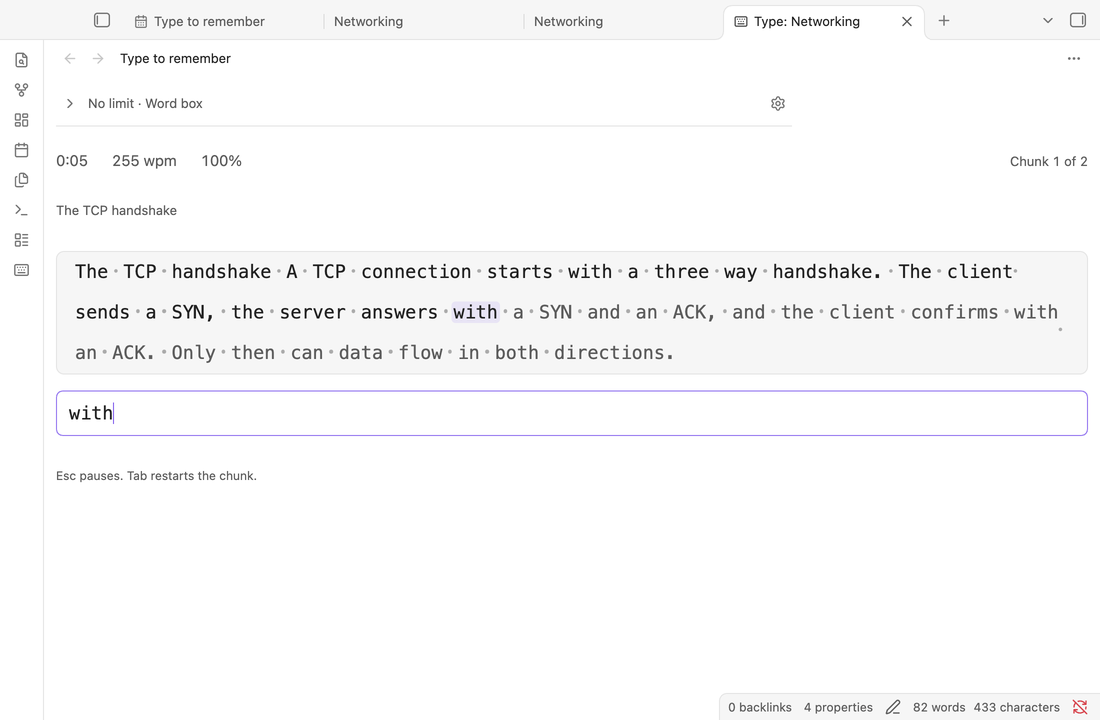
Word box: a block of your note's words, in order, with the current word highlighted. You type one word at a time in a single input and press space to commit it, right or wrong; Backspace works inside the current word only. Words you got right turn normal, wrong ones red. Choose how many lines the box shows (2 to 5) in the settings.
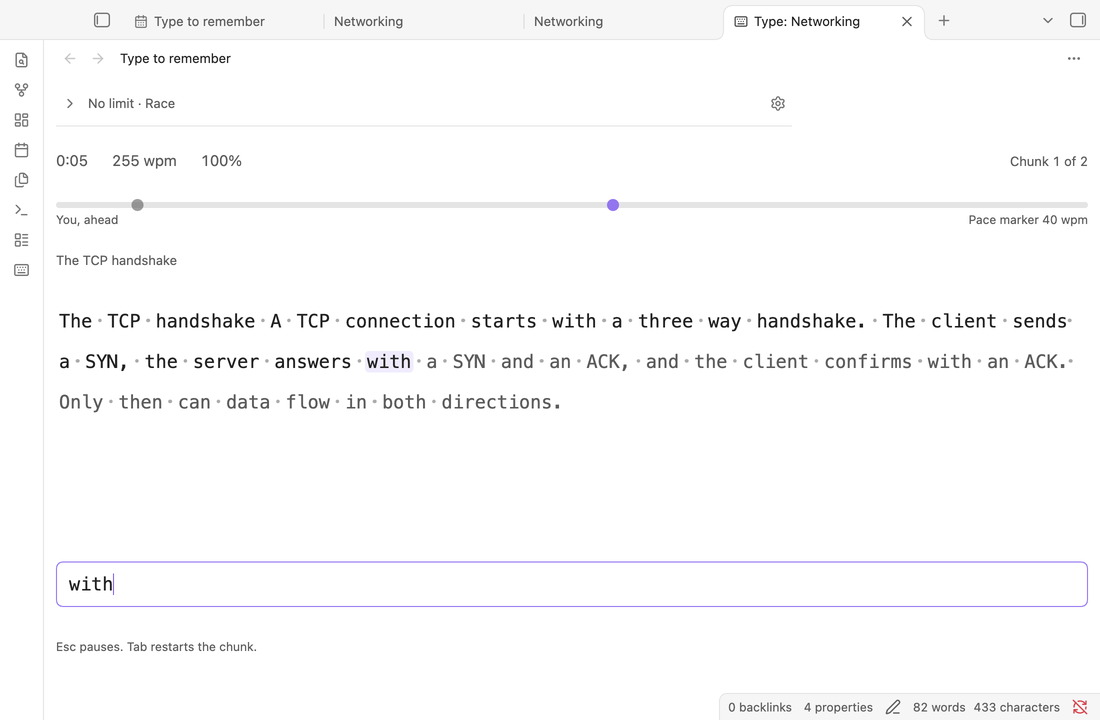
Race: a flowing paragraph with a lane above it, you against a pace marker, a little like a typing race. A space only moves you on when the word is exactly right, so a mistake has to be fixed first (the input turns red while it is wrong); Backspace always works. The marker moves at the speed in the settings, or at your average from your last ten races (40 wpm until you have some). The results say how far ahead of or behind the marker you were. There is no network racing: the plugin never goes online.
Defaults: the settings page has a Default style, session length, level and width, which are what a new session starts with (the options bar changes the same values). Show spaces as lets you choose a centre dot or a plain space.
Width is one choice for every style: Fit window uses the whole pane for the text, and Narrow keeps a reading column (and, in the Lines style, lines of a few words). Options that only one style uses, such as the typing line position, are shown only for that style.
All three styles record the same session summary, count towards the calendar, streaks and the schedule, and keep their speed figures apart (WPM is never mixed between styles). The recall levels (Fade, Hint) belong to the Lines style.
Key drill and weak keys
Every session notes, for each key you needed, how often it was wrong and how fast it came, and keeps the ten weakest (the most often wrong, then clearly slow ones). Only that small summary is saved, never your keystrokes. The Weak keys card on the Overview shows a keyboard tinted by how weak each key is, and Practise weak keys (or the command Key drill) starts a drill: 50 words taken from your own notes that give those keys the most practice, typed in whichever style you have chosen. A drill belongs to no note, so it never moves a review date or a note's practised status; it counts towards the calendar and streaks like any session, and the day panel marks it. After any session, "Keys to watch" lists the keys that went worst.
Spaced repetition and recall levels
Every chunk you type to the end gets a review date, and chunks come back when they are due. The Overview tab shows how many are due today, with a list of notes that have due or weak chunks and a Practise due notes button (also a command). The Practise tab shows a strength bar for each note and Due and Weak filters.
- How dates are set: by accuracy (below 80% is Again, 80 to 92% Hard, 92 to 98% Good, above 98% Easy). A chunk climbs 1 day, 3 days, then longer; a bad session sends it back to a day. A chunk counts once a day (a bad result always counts). Chunks you have never typed are new, not due. Nothing is stored for this: the dates are worked out from your session history, so every device that has synced agrees.
- Levels (a chip in the options bar, or the settings): Copy shows the text. Fade hides lines you have finished and fades the letters you have typed correctly. Hint shows only the first letter of each word, and the session is scored on how much you recalled. Copy and Fade cap a review at Good, because the text is in view.
- Suggestions: after two good sessions on a note you may be offered the next level; after a poor one, the level below. Never forced.
- Weighted random practice and the queue's
queue_repeat: autonow follow this schedule.
Random practice
Open the Random tab (or run Random practice), choose where to draw from, and press Surprise me. The Surprise me command starts one straight away with your last choices.
- Where from: include folders and exclude folders (exclude wins, with or without subfolders), include and exclude tags (a tag also matches its nested tags), and whether only opted-in notes count. Notes too short to practise are left out. The pool size, an estimate of the typing time and how many notes were left out update as you change things.
- How to pick: true random; weighted (default), which favours notes you have not practised for a while or typed badly last time, while every note can still come up; neglected first, the longest since you last practised; shuffle bag, which never repeats a note until every note has come up.
- How much: one whole note, or 3, 5 or 10 chunks (any number up to 50 in the settings). Several chunks come from several notes where the pool allows.
- Presets: save your folders, tags, mode and count under a name. Presets follow folders that are renamed and drop folders that are deleted.
- Random sessions count towards the calendar and streaks like any other, and the results screen has Another one. "Weighted" favours weak notes and notes with due chunks (never reviewed notes come up often); "neglected first" uses when you last practised each note.
One session at a time
There is one practice tab. Starting a session anywhere reuses it, and what you had typed so far is saved as a partial session. A running session pauses by itself when its tab or the window is hidden, so the timer only counts time you can see.
Queue
Put a note in the queue with a property (or the Add current note to queue command):
queue: true          # or a number to set the order (1 comes first), or [typing, recall]
queue_repeat: weekly # never | daily | weekly | monthly | a number of days | auto
queue_due: 2026-11-15 # optional fixed date: the note waits until then
A queued note is finished when every chunk of it has been typed in sessions that count, after it entered the queue. Edited chunks must be typed again. A finished note with a repeat rests until its day comes round, then returns; without one it is marked done until you choose Queue again. Practise next in queue picks the first note waiting, and Skip moves one to the back. queue_repeat: auto brings a finished note back on the earliest day any of its chunks is due (never on the day you finished it); a note with no schedule is simply done.
Table view. On the Queue tab, switch from List to Table to browse the queue like a small database. Click a column header to sort (click again for descending, again to clear); hold Shift to add a second sort. Search by name, folder or tag, show only some states (To do, Scheduled, Resting, Done, Overdue, Marked done), and choose the columns under Columns (note, folder, tags, state, order, progress, due or returns, repeat, last finished, times finished, strength, due chunks). Click a note to open it, press play to practise it, or tick several rows to Skip, Queue again or Remove from queue. Copy as CSV puts the rows you see on the clipboard. Your sort, filters and columns are remembered.
Fixed dates. With queue_due, a note is Scheduled until that day (listed greyed, left out of "Practise next"), then To do, and Overdue once the day has passed. Only typing from the due day on counts towards finishing it. Without a repeat it is a one-time note: finishing makes it done. With a repeat, the repeat takes over from the day you finish. Setting a later date on a finished note schedules a new round.
Marking done yourself. queue_typing_done: true in a note finishes it (shown as "marked done"); changing it back to false, or deleting it, starts the round again. This works whether or not "Write queue status to notes" is on. The plugin remembers the last value it saw, so a true left over from an earlier round does not finish a new one: set it to false and true again to mark a new round done. Queue again clears it for you.
Finished notes are recorded in the plugin's own folder, not in your notes. If you want the status in your notes (for Bases or Dataview), turn on Write queue status to notes in the settings (off by default). A finished note then gets queue_typing_done, queue_typing_last and queue_typing_next. The property names are typing-specific so another plugin can follow the same queue and queue_repeat convention and keep its own queue_<name>_* results.
Hotkeys
The plugin does not set any default hotkeys. Bind your own in Settings > Hotkeys by searching for "Type to remember". Useful commands: Start on current note, Start on current heading (the section under your cursor), Practise next in queue, Open note panel, Open home page.
Opting notes in
Notes you want in the Practise tab and in random pools can be opted in three ways: the frontmatter property type-to-remember: true, the tag #remember, or the three-dot menu item Add to type to remember (or the command Opt in current note), which adds the property. You can practise any note without opting it in.
Privacy and what it touches
- No network requests, accounts, payments, ads or telemetry.
- Practice reads your notes and never changes them. The exceptions are actions you choose: the opt-in property, adding or removing the queue property, and, only if you turn it on, the queue status properties described above.
- It stores settings and one summary per session (no keystrokes) in its own plugin folder inside your vault's configuration folder. Nothing is written outside the vault.
Development
npm install
npm run build        # type-check and production build
npm test             # Vitest
npm run lint         # ESLint and stylelint
npm run vault:create # throwaway test vault in dev/testvault
npm run debug:launch # isolated Obsidian on a scratch copy, then: npm run debug -- status
Licence: MIT.