ThoughtSpace Whiteboard
 ancher360 downloads
Visual research workspace with mind maps, linked Markdown cards, writing and optional standalone calendar integration.
- Overview
- Scorecard
- Updates38
English · 简体中文
Prerelease 1.3.36-beta.2. Choose Handwriting board (手写白板) as the third type in New board or brain board (新建白板或脑图…). This beta adds phone/tablet layouts, touch reading and navigation, draft preservation during resize, and saving recovery. See the mobile guide (Chinese), handwriting guide (Chinese) and validation report. Acceptance uses isolated desktop tests and simulated mobile input/loading; physical iOS/Android, Pencil, system IME and WKWebView remain untested. Stable latest remains 1.3.35; use the explicit beta link to try this prerelease.
Collect material, connect ideas, and shape an article inside Obsidian. Notes, boards, and generated drafts stay in your vault.
1.3.35 · Obsidian desktop 1.13.7+ · MIT
完整中文教程 · Install or update · Ten-minute start · Complete English guide · Latest release
From material to a draft
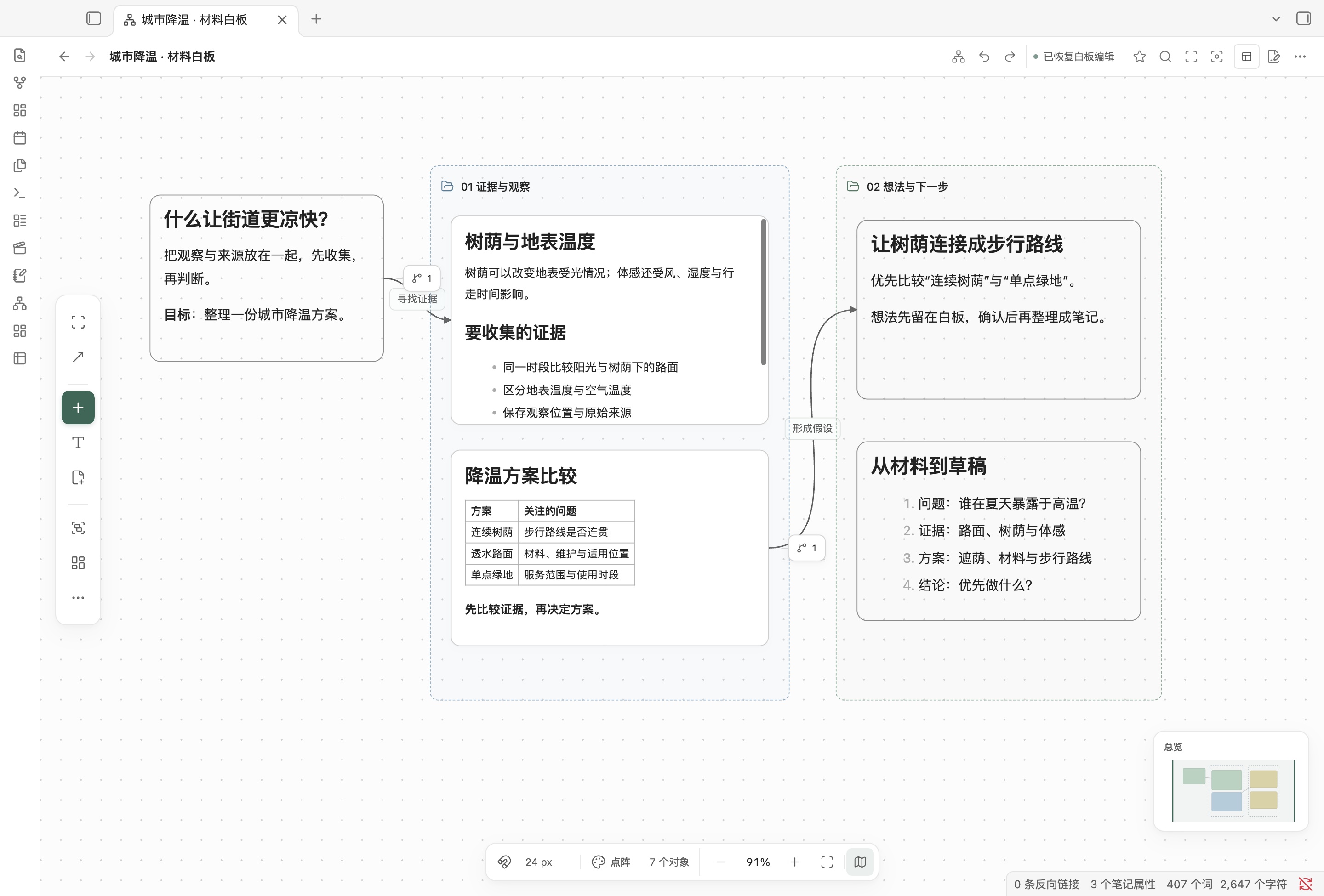
1. Collect on a whiteboard
Bring notes, PDFs, images, audio, and video together. Group evidence, keep excerpts and ideas nearby, and retain links to source files.
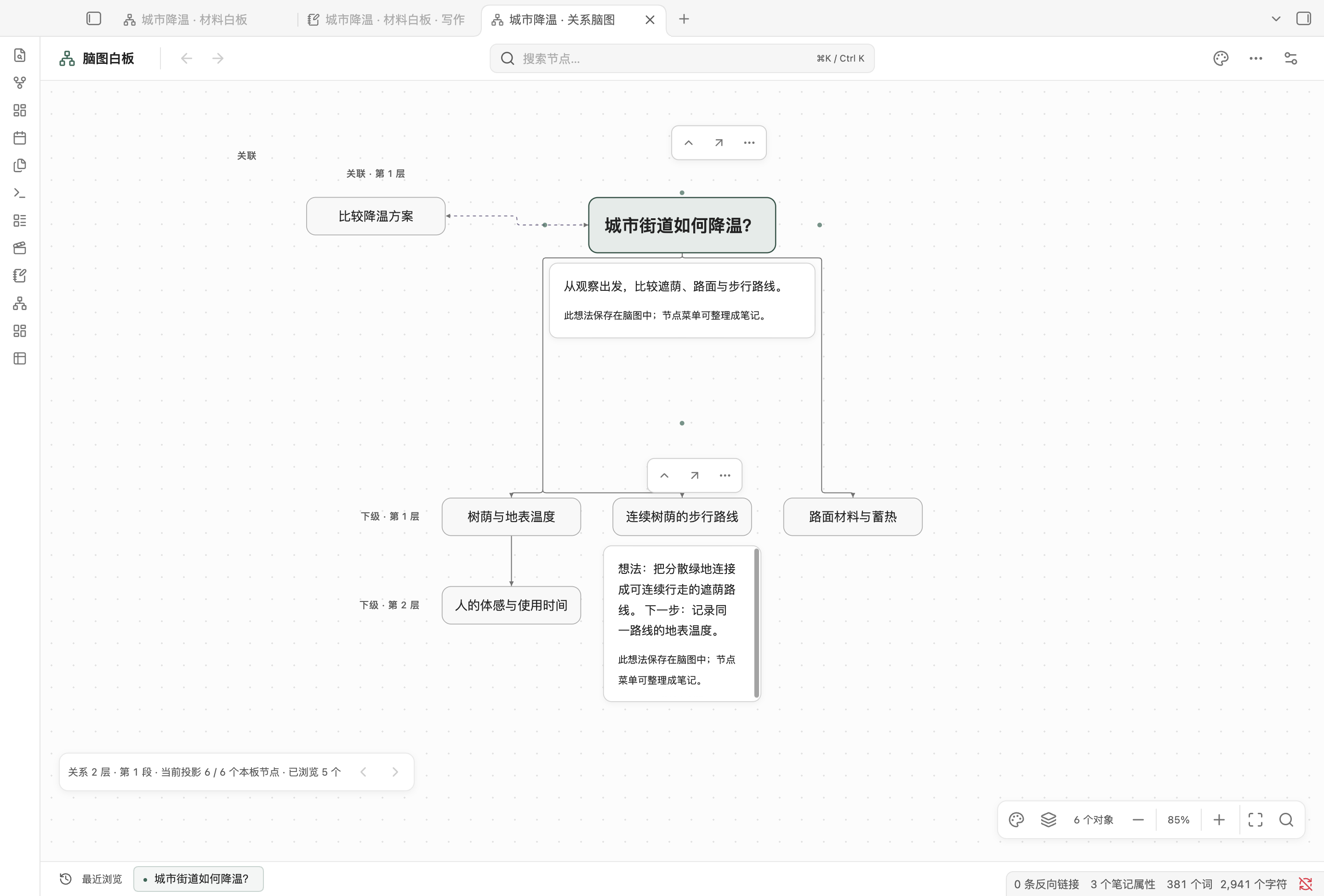
2. Connect ideas in a brain board
Build parent/child branches and left/right bidirectional associations around a current center. Keep an idea in the graph, then create a note or link an existing note while preserving the idea. Show 1–5 relationship hops, search, and page through larger graphs.
3. Arrange and write
Open the writing workspace, order cards, groups, and chapters, pin references, write or preview, and generate a separate Markdown draft. Arrangement and draft generation do not automatically rewrite source notes.
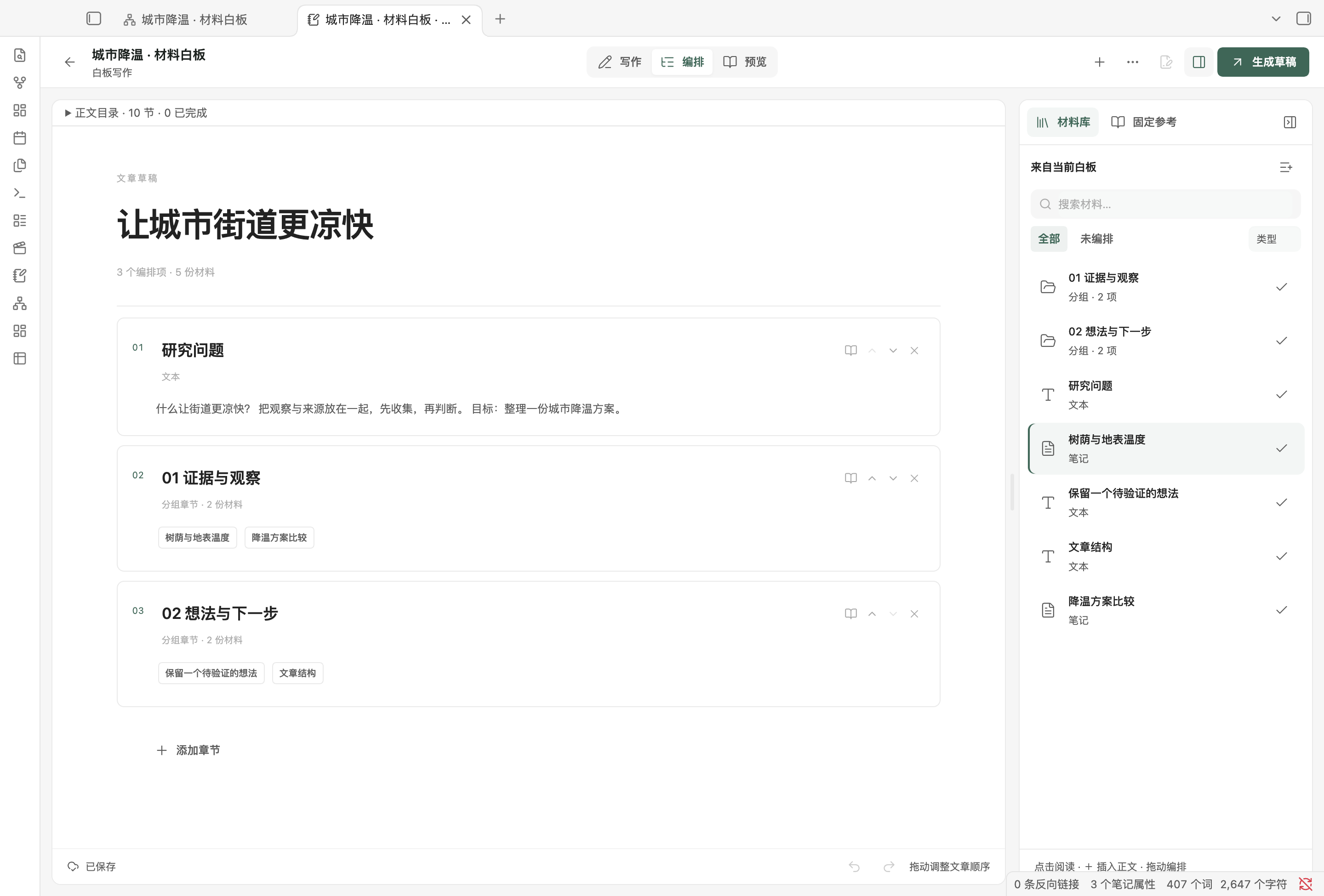
Actual 1.3.35 interfaces in a dedicated synthetic vault. “Urban cooling research” is a teaching example, not research data.
Choose a starting point
| Your goal | Guide |
|---|---|
| Create an ordinary or brain board and choose its file format | Boards and files |
| Insert notes, PDFs and images; edit cards and groups | Board objects |
| Organize relationships and fold or expand reading | Mind maps and brain boards |
| Read sources, take excerpts and find unread material | Reading · Search and material lists |
| Watch, capture frames and follow timestamps to a source | Audio and video |
| Order an outline, pin references and generate a draft | Writing |
| Find commands, set hotkeys or resolve saving problems | Controls · Troubleshooting |
Everyday conveniences in 1.3.35
- New board or brain board (新建白板或脑图…) chooses presentation and legacy/Markdown format in one dialog, remembering successful choices. Four explicit format commands remain available.
- Native Properties round trips use Obsidian's own Properties and Markdown view for valid Markdown boards. Open it from the ordinary title menu or brain menu, then return in the same tab. The toggle command 切换白板与原生属性 can be bound to a hotkey.
- Saving feedback explains read-only, pending native saves, and conflicts. Context actions locate an actual native page or open an existing recovery draft.
- Ideas and existing notes: 整理成笔记 can create a note or preserve the full idea and its relationships while linking an existing note. 关联已有笔记… opens the native file picker directly, followed by a left/right confirmation.
- Resume the last board (继续上次白板) opens the latest valid recent record or the space hub, restoring saved state.
- Four relationship commands add a parent, child, left-associated or right-associated node in a dedicated brain board. They have no default hotkeys and keep text-input, locking and save protection.
See the guide for steps and the Markdown board guide (Chinese) for file structure, copies between formats, and Properties limits.
Install or update
- In Obsidian Settings → Community plugins, search for ThoughtSpace Whiteboard, install, and enable it. The community directory and GitHub releases can update at different times.
- For manual installation, download
main.js,manifest.json, andstyles.cssfrom the Release, and place them in your vault's.obsidian/plugins/thoughtspace/. Use the corresponding folder if you have a custom configuration directory. - To update, replace only those three runtime files, retain
data.json, and reload the plugin. ZIP and checksums are manual download, extraction and verification aids; Obsidian installs the three runtime files. - Open the command palette and run 新建白板或脑图…. For the tutorial, choose an ordinary Markdown board and name it “Urban cooling research”.
Files and saving
Existing .thoughtspace boards remain supported and are not automatically migrated. 另存为 Markdown 白板 creates a separate copy, keeping the original file and existing links. A Markdown board contains real Properties, regular prose, and a plugin-managed layout section. Do not edit the layout JSON directly.
Note cards reference source files; in-place editing saves to that note. Built-in text and layout stay in the current board. Dynamic material lists belong to the ordinary board's full search dialog: they save filters and recalculate when reopened. Saved camera views retain position and zoom. Neither is a prose backup.
Save protection does not automatically merge whole-document copies or unlock read-only content. Unsaved native input may be lost on forced exit. IME composition guards have been checked, but a complete trusted IME-end flow was not confirmed through CDP. No claim covers every input method, theme, plugin, or a general speedup. See saving and recovery, 1.3.35 validation limits, and security and data access.
Project
Issues · Changelog · Contributing · MIT license · Third-party licenses
Settings support Chinese and English; most other interfaces remain Chinese. Calendar/journal integration uses an optional separate plugin. Development uses Node.js 22: npm ci → npm run lint → npm test → npm run build. The repository workflow builds release assets and provides artifact attestations.