Tabula Rasa
 Jeremiah Beatham199 downloads
Draw in your vault! Then embed sketched in notes, save them as standalone files, or export them.
- Overview
- Scorecard
- Updates35
Simple sketching for Obsidian. Draw directly in your vault — then export your sketches, embed them in notes or keep them as standalone, re-editable files.
Status: available in the Obsidian community plugins directory — install it from Settings → Community plugins in Obsidian, no BRAT required. See where we are and where we're going in docs/PHASES.md.
Screenshots
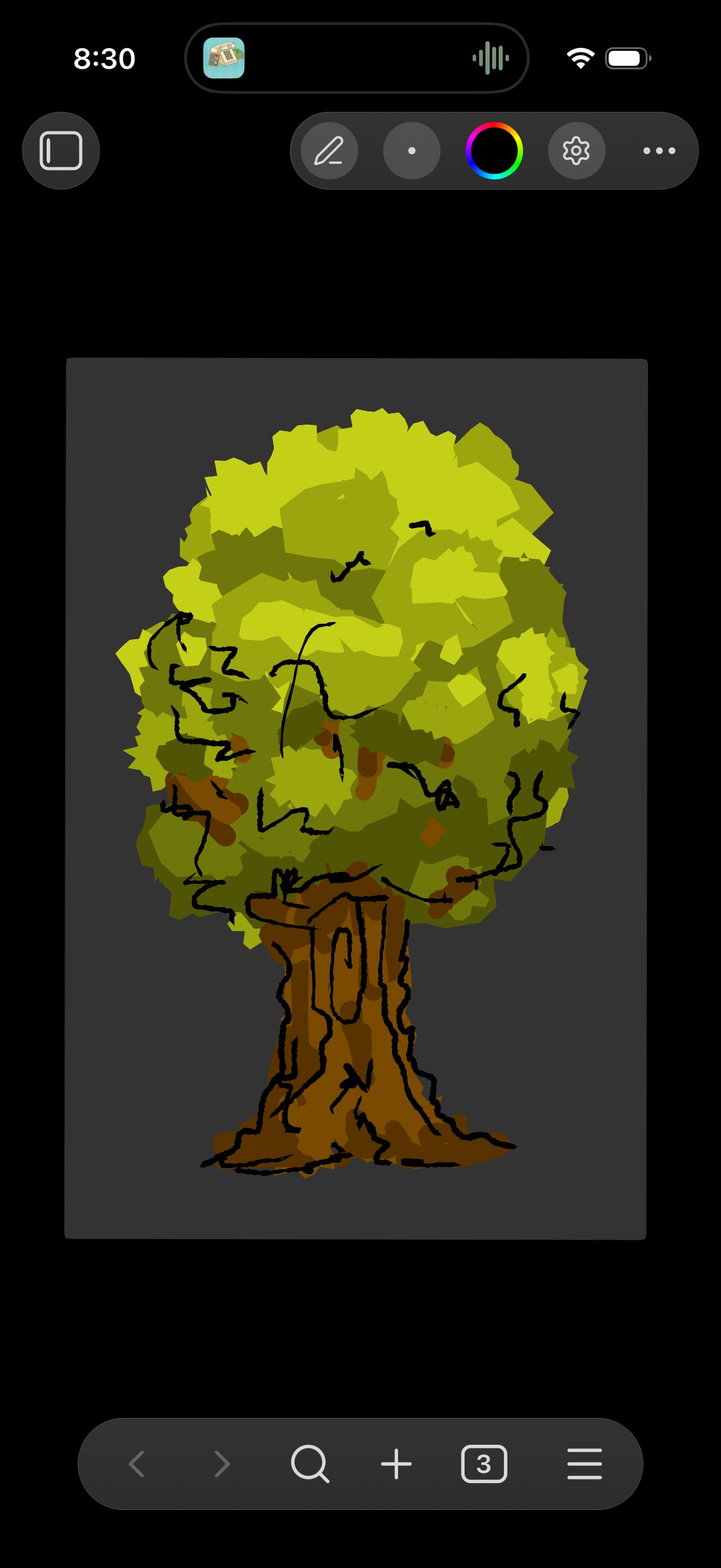
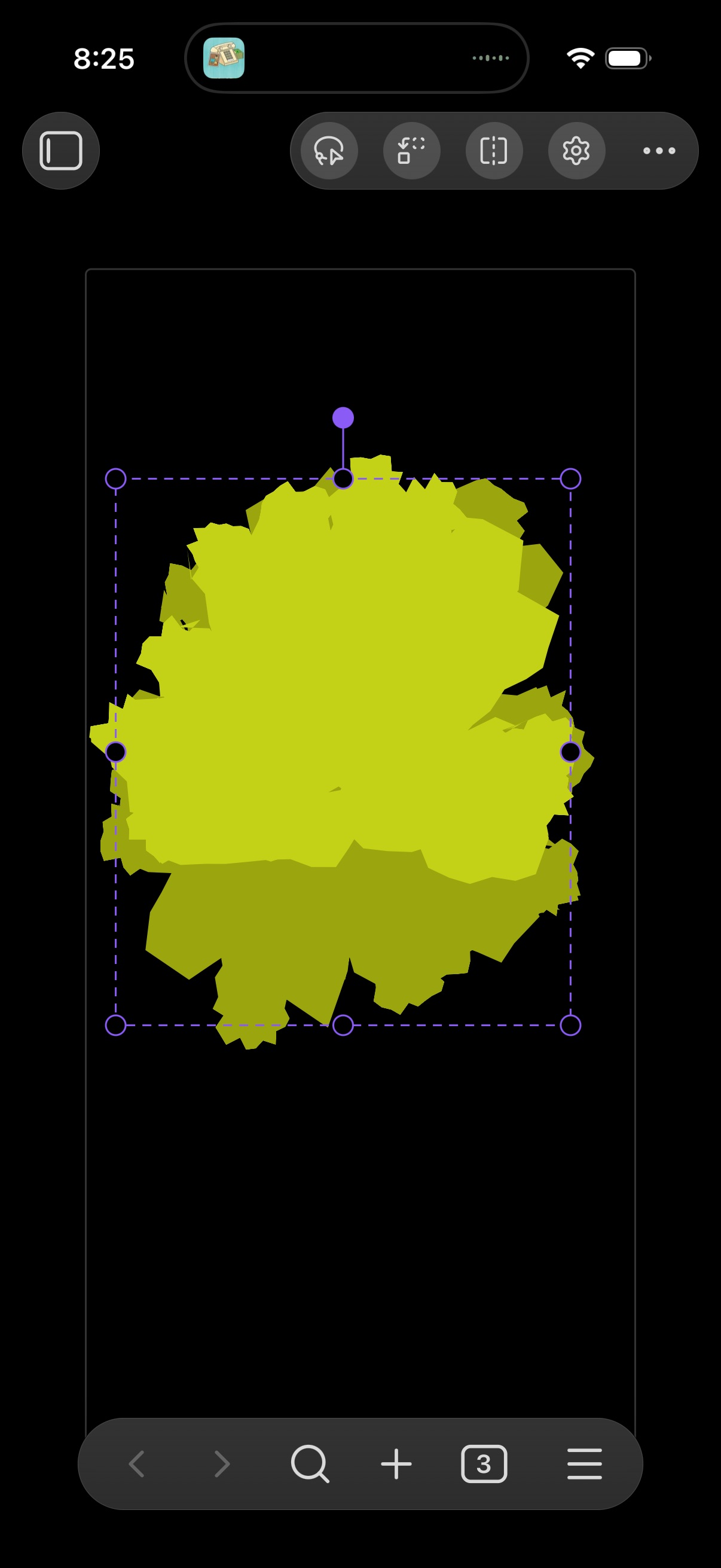
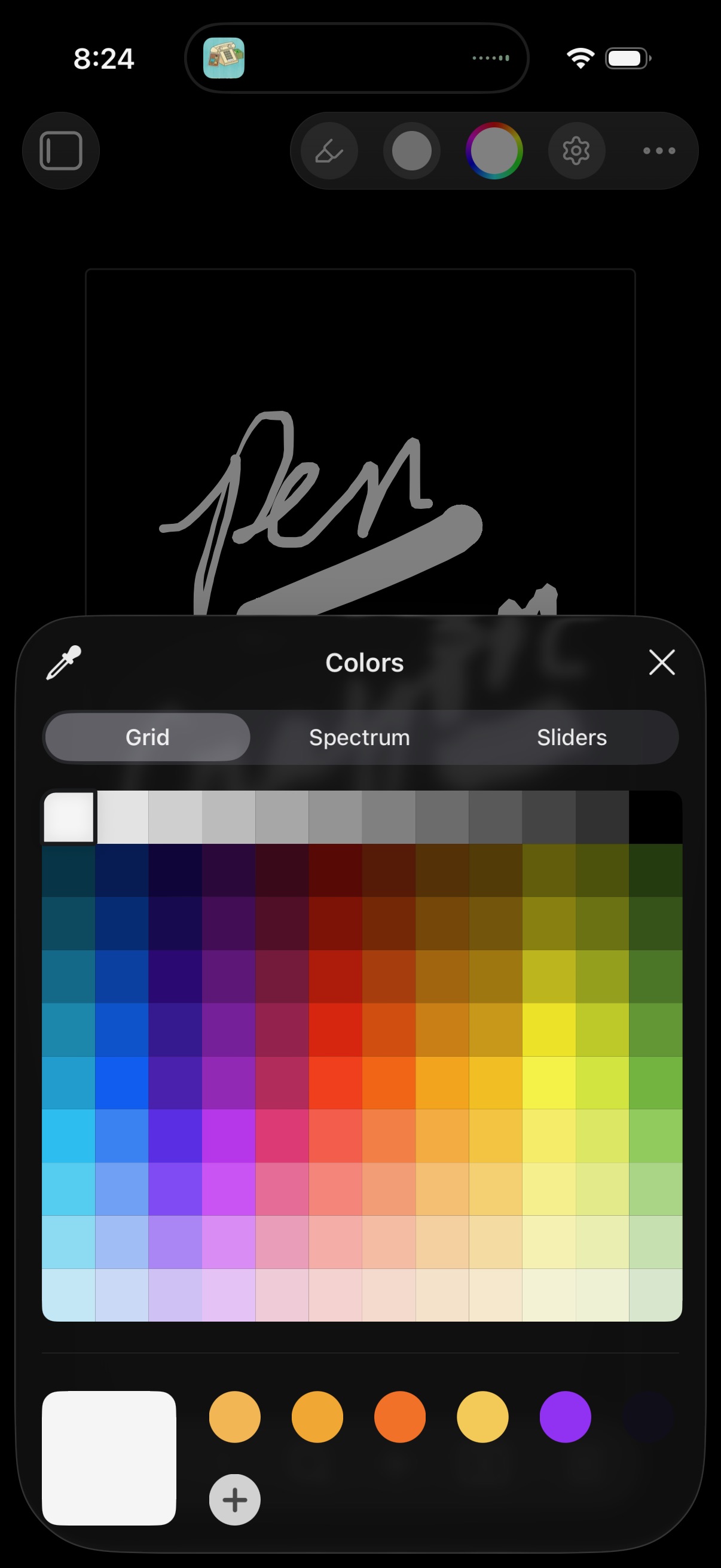
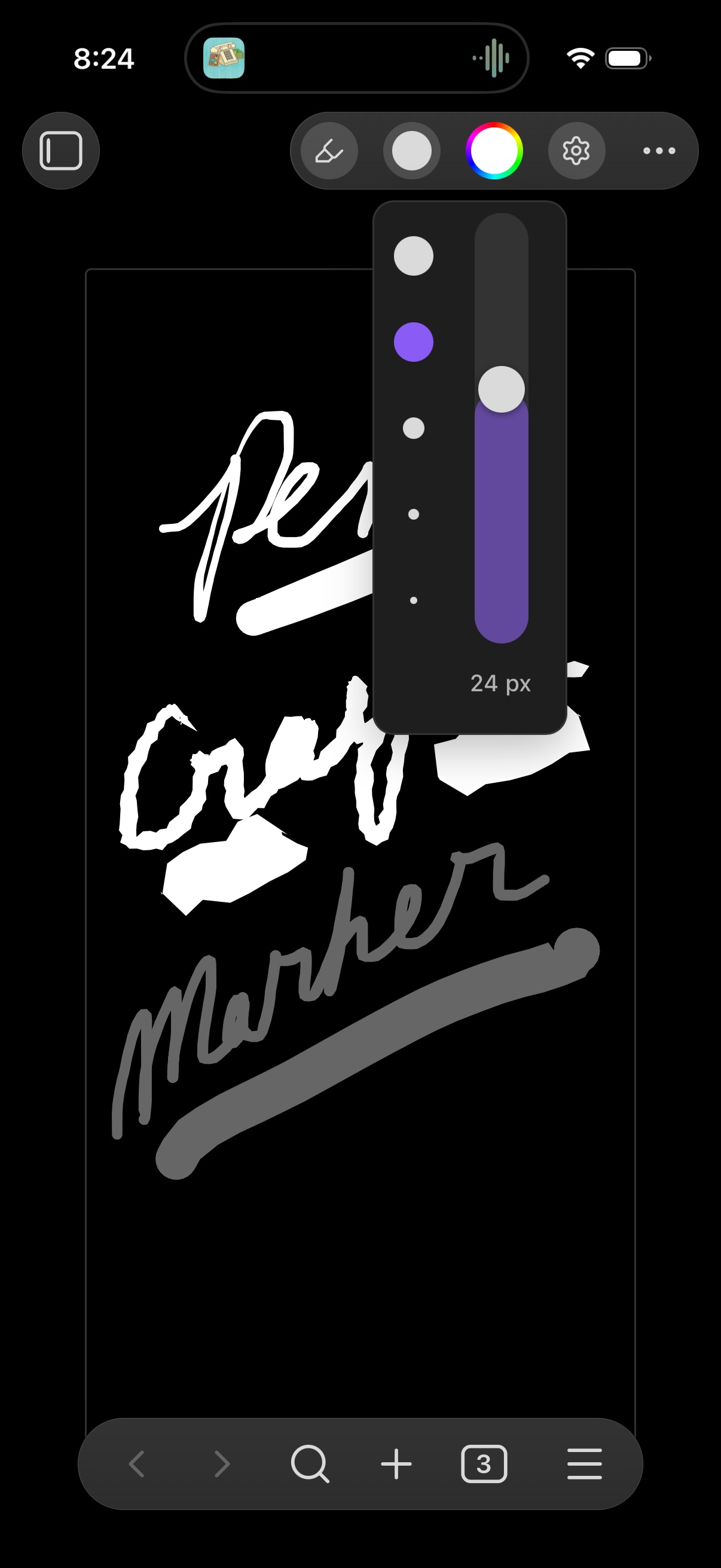
Features
- ✏️ Natural drawing with pressure-tapered strokes (perfect-freehand) using finger, Apple Pencil, mouse, or any stylus. Finger and mouse strokes taper from drawing speed, so lines look hand-drawn even without real pressure.
- 📱 Mobile-first — works on iPhone and iPad. Smooth Pointer-Event handling with coalesced events, no accidental page scrolling, and optional palm rejection when using a stylus.
- 🤏 Pinch to zoom, pan, and twist to rotate the canvas so you can draw from any angle; wheel-zoom on desktop, plus a Fit to screen button that recenters and returns the page to upright.
- 🫙 Almost no UI — four small circular buttons (tool, size, colour, settings) sit in Obsidian's own view header, so the sketch adds no chrome of its own. Their size is adjustable (24 / 32 / 40 px) and the tap area stays comfortable either way.
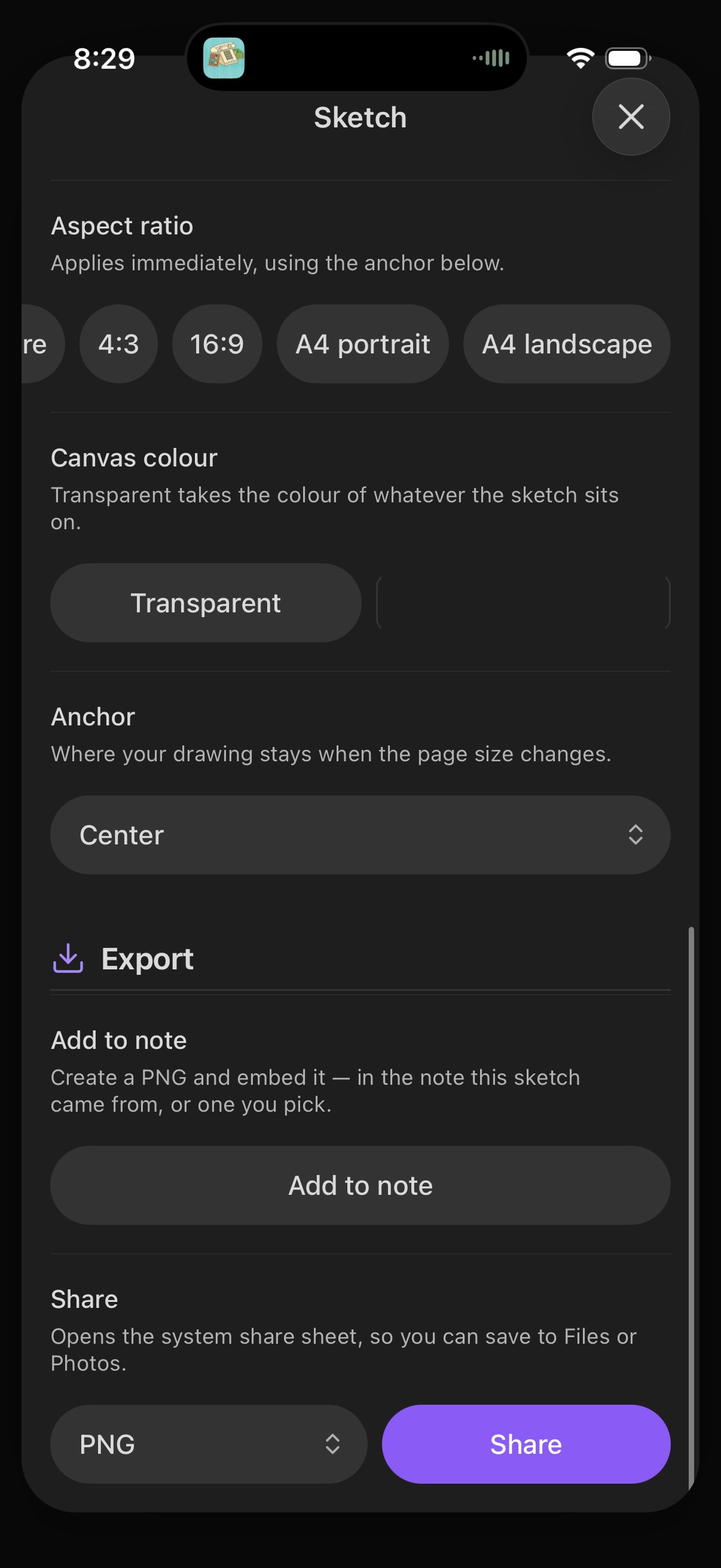
- 📐 Resizable canvas — change the page size or aspect ratio from the settings sheet (square, 4:3, 16:9, A4, or custom). Choose an anchor or scale your drawing to the new size, or Fit to drawing to wrap the canvas around your strokes. Resizing is undoable. The page colour is editable per sketch too.
- 🎨 Theme-aware pen — starts white on dark themes and black on light themes so your strokes are always visible (toggleable in settings).
- 🧰 Tools in one tap — pen, brush (soft and pressure-led), highlighter, and erasers for whole objects or just the pixels you touch. Adjustable brush size with presets, a slider, and a typed-in exact value.
- 🌈 The system colour picker — tapping the colour wheel opens iOS's own Colors sheet, with its spectrum, sliders, eyedropper and swatches. Nothing half-rebuilt in-plugin to compete with it.
- 👌 Double-tap gestures — two fingers to undo, three to redo. Dragging two fingers still pans and zooms; only taps that stay put count as gestures. Both actions are in the settings sheet too, so they're never hidden.
- 💾 Re-editable format — sketches are saved as
.sketchfiles (compact JSON of strokes) and autosave as you draw. Reopen any sketch and keep drawing. - 👁️ Live inline previews — create a sketch from a note and the canvas renders right inside the note (no image file), staying in sync as you edit. Prefer a plain link instead? Flip a toggle in settings.
- 🖼️ Images on demand — a PNG is created only when you export. Export asks whether to embed it in a note or just save the image to your vault, so you don't accumulate image files you didn't ask for. SVG export is also available.
- 🎯 Selection tool — lasso a freehand boundary and it snaps closed on lift; anything inside becomes a scalable, rotatable selection you can move, flip, copy, cut, paste, or delete. No extra toolbar — size and colour become selection mode and transform while a selection is active.
- 🧲 Hold to snap shapes — pause at the end of a stroke without lifting and a rough line, circle, rectangle, or triangle becomes a clean one, matching the orientation and proportions you drew. Off by a setting if you'd rather keep every line freehand.
Usage
- New standalone sketch: click the brush ribbon icon, or run the command
"Create new sketch". It stands on its own as a
.sketchfile. - Sketch inside a note: run "Create new sketch in current note". This
creates the sketch, inserts a reference to it at your cursor, and opens the
editor. No image file is made — the sketch itself is shown. By default the note
gets a live inline preview of the canvas (an
![[Sketch …]]embed rendered by the plugin); switch to a plain link in settings ("Insert sketches into notes as"). Either way the sketch remembers which note it came from. Click an inline preview to open the sketch for editing. - Pick a tool: tap the tool button to choose pen, brush, highlighter, an eraser — objects (removes a whole line) or pixels (rubs out just the part you touch) — or the selection tool.
- Select, transform, and copy strokes: with the selection tool, drag a boundary around what you want — it closes itself when you lift. Drag the box to move it, or its handles to scale or rotate. The size button becomes selection mode (Replace / Add / Remove) and the colour button becomes transform (flip horizontal, flip vertical, rotate 90°); long-press for copy, cut, paste, and delete.
- Snap a rough shape: finish a line, circle, rectangle, or triangle and hold your finger still for a moment without lifting — it straightens into a clean version of what you drew. Toggle "Hold to snap shapes" in settings to turn this off.
- Undo / redo: double-tap with two fingers to undo, three to redo. Both are also in the settings sheet.
- Edit later: open the
.sketchfile from the file explorer or its link. - Zoom, pan & rotate: pinch with two fingers to zoom, drag to pan, and twist to rotate the canvas (or scroll-wheel to zoom on desktop). Tap Fit to screen to recenter and straighten the page.
- Canvas size and colour: open the settings button to change the page dimensions or aspect ratio (presets or custom), choose an anchor or scale your drawing to fit, Fit to drawing to wrap the canvas around your strokes, or set the page colour.
- Rename: the filename is hidden to make room for the tools, so rename the sketch from the settings sheet. Links to it in your notes follow the rename.
- Save: sketches autosave — there's nothing to press. Saving never creates an
image; your
.sketchis the source. - Export to an image: open the settings sheet and choose PNG. You're asked
whether to add it to a note (embeds
![[…]].png— defaults to the note the sketch came from, otherwise pick one) or just save the image to your vault. SVG export is there too, as is the "Export current sketch as SVG" command.
Settings let you choose the sketch folder, default colour/brush size, toolbar button size, gestures, palm rejection, default canvas size and background, and PNG export resolution.
Installation
From the community plugins directory (recommended)
- In Obsidian, open Settings → Community plugins and select Browse.
- Search for Tabula Rasa and select Install, then Enable.
Via BRAT
To track pre-release builds ahead of the community directory, install with
BRAT: add the beta plugin
JeremiahBeatham/TabulaRasa, then enable Tabula Rasa in
Settings → Community plugins. BRAT keeps it updated as new releases ship.
Manual
- Build the plugin:
npm install && npm run build. - Copy
manifest.json,main.js, andstyles.cssinto<your-vault>/.obsidian/plugins/tabula-rasa/. - Reload Obsidian and enable Tabula Rasa in Settings → Community plugins.
To use it on iPhone, sync the plugin folder to your mobile vault (e.g. via Obsidian Sync or a git client) and enable it there.
Roadmap
Tabula Rasa is an actively evolving MVP. See docs/PHASES.md for the full shipped feature set. Next up: a text tool, adding images to a sketch, and layers.
Development
npm install
npm run dev     # watch build
npm run build   # type-check + production bundle
License
MIT