Tabletop Clocks
 Walker Brown38 downloads
Segmented progress clocks for tabletop games, drawn from plain text in a note. Click a segment to tick it, race two clocks, and the note keeps the count.
- Overview
- Scorecard
- Updates2
Segmented progress clocks for tabletop games, drawn from plain text in your note. Track the alarm, the plan, the faction that wants you dead. Click a segment to tick it, race two clocks against each other, and the note keeps the count. Counters and stopwatches sit beside them, for arrows, torches and the ritual that finishes in ten minutes.
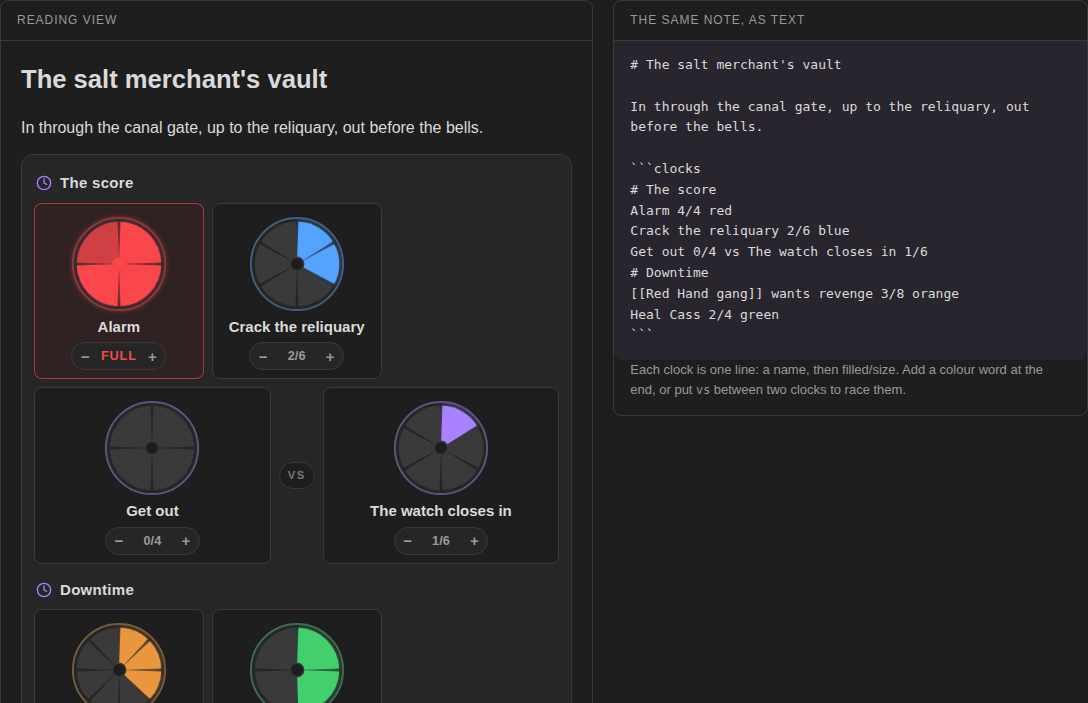
Try it in your browser before installing: https://bulkhead.bananafest-destiny.com/press/tabletop-clocks/ runs the real plugin code over a sample note and shows the note's text changing as you click.
Write a clock
Write a clocks block, one clock per line:
```clocks
# The score
Alarm 1/4 red
Crack the vault 2/6
Get out 0/4 vs The watch closes in 1/6
# Factions
[[Red Hand gang]] wants revenge 3/8 orange
```
Switch to reading view (or live preview) and each line becomes a clock.
| Write | Meaning |
|---|---|
Alarm 1/4 |
a clock named Alarm, 1 of 4 segments filled |
Alarm |
a new clock with the default size from settings |
red, orange, yellow, green, cyan, blue, purple, pink at the end |
the clock's colour |
Get out 0/4 vs The watch 1/6 |
a racing pair, side by side; when one fills, the other fades |
# Factions |
a heading that starts a new group |
[[Note]] in the name |
click the name to open that note |
Clocks run from 2 to 12 segments.
The command Insert clocks drops a starter block at the cursor.
At the table
| Do | How |
|---|---|
| Fill up to a segment | click it |
| Clear the last segment | click it again, or press − |
| Tick one segment | press + |
| Use the keyboard | click a clock (or tab to it) and use the arrow keys |
| Add a clock | type in the box under the clocks: Rumours, Ritual 0/8 purple, or a racing pair |
A full clock glows and shows Full, and a short notice says so (you can turn that off).
Every change is written back into the line, so the note always reads fine as text, syncs like any note, and still makes sense if you ever uninstall the plugin.
Counters and stopwatches
A line with a colon and a number is a counter. A colon and a time is a stopwatch. They go in the same block as the clocks:
```clocks
# Supplies
Arrows: 18 of 20
Torches: 3 orange
# The ritual
Ritual: 4:12 of 10:00 purple
Session: 0:00
```
| Write | Meaning |
|---|---|
Arrows: 18 |
a counter at 18; − and + step it, and it can go below 0 |
Arrows: 18 of 20 |
a counter that stays between 0 and 20, with a bar |
Ritual: 4:12 |
a stopwatch at 4 minutes 12 seconds (1:04:12 past an hour) |
Ritual: 4:12 of 10:00 |
a stopwatch that stops at 10 minutes, with a bar |
A colour word at the end and a [[Note]] in the name work as they do for clocks. The arrow keys step a counter you have clicked or tabbed to.
A stopwatch has play/pause and reset. While it runs the line in the note doesn't change; pausing writes the time into it, and reset writes 0:00. A running stopwatch keeps running when you switch notes or close Obsidian: the plugin remembers when it started (in its own data, by note and name) and counts from then. One with a time to reach shows time's up with a short notice when it gets there (the same setting turns that off).
For other plugins
Each change fires a workspace event:
this.registerEvent(
    this.app.workspace.on('tabletop-clocks:change', (e) => console.log(e.name, e.filled, e.size, e.full)),
);
The event carries sourcePath, name, link, filled, previous, size and full.
Counters fire tabletop-clocks:count with sourcePath, name, link, value, previous and max. Stopwatches fire tabletop-clocks:stopwatch when they start, pause or reset, with sourcePath, name, link, seconds, running and limit (in seconds).
Session Log listens for clock changes, so with both installed every tick lands in your session note's log: - 21:02 The watch closes in: 3/6.
Credit
Progress clocks come from John Harper's Blades in the Dark. This plugin is not made by or affiliated with its publisher; it just draws the clocks.
Privacy
Tabletop Clocks does not use the network, has no accounts, collects nothing and sends nothing. It only edits the clocks block it is drawing, and keeps the start times of running stopwatches in its own settings file.
Install
From Obsidian: Settings → Community plugins → Browse → search "Tabletop Clocks".
By hand: copy main.js, manifest.json and styles.css from the latest release into <your vault>/.obsidian/plugins/tabletop-clocks/, then enable it under Community plugins.
Also from this maker
- Dice Tray: rolls dice, random tables and note sections inline, and reads Dice Roller's
dice:syntax. - Quick Initiative: a light initiative tracker that lives as plain text in your note.
- Session Log: a quick log for game night. Fights, rolls and clock ticks log themselves.
- Encounter Builder: plan fights against the 5E XP budget, then start them in Quick Initiative.
Source
On your players' phones
DM Screen, from the same maker, shows these clocks on your players' phones, ticking as you tick them. They open a link or a QR code in any phone browser, with nothing to install. DM Screen is paid ($12 once, on itch.io) with a free one-hour trial. Tabletop Clocks stays free.
Playing alone
Solo Oracle, from the same maker, is for games with no GM: ask it yes or no, frame scenes, keep threads and people, and roll on your own tables, with every answer written into the note. It's free.
https://github.com/walkertbrown/tabletop-clocks
Build
npm install
npm test
npm run build
MIT licensed.