Slipbox Desk
 John Gargalionis251 downloads
A paper-like Zettelkasten: addressed cards, a browsable sequence, and a desk to lay them out on.
- Overview
- Scorecard
- Updates8
Slipbox Desk is a paper-like Zettelkasten for Obsidian: addressed cards, a browsable sequence, and a Desk to lay them out on.
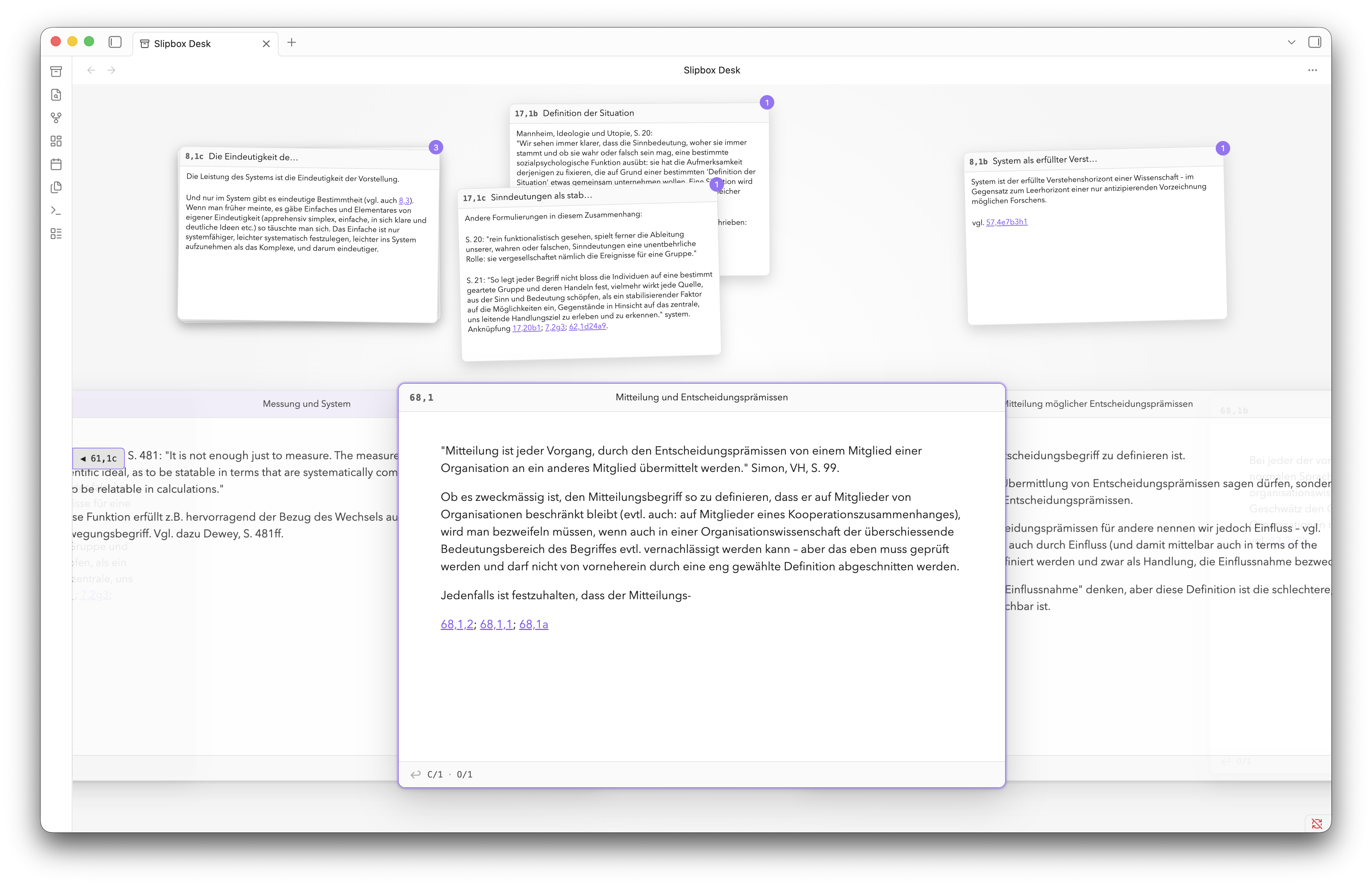
Warning! Slipbox Desk is under active development. If you find a bug, please open a GitHub issue and include the steps to reproduce it, your Obsidian version, and your operating system. See the changelog for release history.
Notes become cards, organised into a single sequence by addresses that mark out lines of thought. Browse with a mouse, trackpad, or vim-like keys. Pull cards out of the Deck and stack them in piles on the Desk, where you can work out how notes connect and begin structuring your writing. The Deck map and Branch View help you find your way around and remember where ideas live.
A note becomes a card when it has the configured address property. The default is slipbox-id:
---
slipbox-id: "68/1a"
---
The address on each note determines its place in the linear sequence of cards that constitute the Deck.
Philosophy
My proposal is that the customary niceties of digital note-taking like search, folders, tags, following links, infinite scroll, etc. can ultimately detract from the serendipitous resurfacing of old, forgotten ideas, which is the whole point of Zettelkasten.
The strictest paper-like experience might be too extreme for some users. For this reason, some of the more surprising constraints can be toggled in the settings, including deleting text, pasting text, and following links. These constraints apply only while editing in the Slipbox Desk view; ordinary Markdown editing elsewhere in Obsidian is never restricted.
Deck and Desk
| Surface | Purpose | Persistence |
|---|---|---|
| Deck | Browse filed cards in address order | Derived from Markdown frontmatter |
| Desk | Work with unfiled cards and temporary piles | Current Obsidian session |
The Deck is the canonical sequence, while the Desk is a temporary working area beside it. Cards on the Desk keep their filed address and remain in the Deck. Slipbox Desk integrates with Obsidian Canvas, and piles can be moved easily to an existing or new canvas.
Installation
Slipbox Desk requires Obsidian 1.13.0 or later and is available on desktop only.
The preferred installation method is Settings → Community plugins → Browse. Slipbox Desk can also be installed manually from a GitHub Release:
- Download
manifest.json,main.js, andstyles.cssfrom the same release. - Put the files in
<Vault>/.obsidian/plugins/slipbox/. - Reload Obsidian.
- Enable Slipbox Desk under Settings → Community plugins.
Use the archive ribbon icon or run Slipbox Desk: Open from the command palette.
A source checkout does not include the generated main.js. Run npm run build before loading a checkout directly in Obsidian.
Quick start
- Enter Slipbox Desk with Slipbox Desk: Open.
- Right-click anywhere to create a new note.
- Double-click the note body to write your note.
- Double-click the empty address field to file the card.
- Navigate the Deck by scrolling.
- Drag Deck cards onto the Desk to make new piles.
Cards can also be added to the Deck by adding a slipbox-id property to the Markdown note. This can also be done using Slipbox Desk: Make active Markdown note a card.
Any trimmed, nonempty, single-line string without control characters is a valid address. Slipbox cards accept addresses such as 1/2b1, A/1, Project-17, and α/12.
Natural address ordering is the default, so A/2 comes before A/10. Lexicographic ordering is also available. Duplicate addresses are allowed by default, but they can be optionally reported. Slipbox Desk never rewrites an existing address automatically.
Deck map
The Deck map is an ordinal rail across the top of the view. The complete filed Deck runs from its first card at the left edge to its last card at the right edge. Clear dividers and labels mark top-level address sections, and a prominent vertical cursor marks the active card.
Ordinary cards do not produce individual marks. Coloured cards appear as small, subdued colour ticks; bookmarks use taller accent-coloured ticks, while Desk membership remains a sparse secondary outline. The active cursor and bookmarks render over colour marks. Move the pointer along the rail to see the nearest card's signature and its configured title when one is present. Clicking any position jumps to the nearest filed card even when there is no visible landmark; when the rail is focused, the arrow, Home, and End keys navigate the same complete Deck.
Card colours
Run Slipbox Desk: New card with options or its Desk variant and choose a card colour.
The selected value is stored in the fixed slipbox-card-color property:
---
slipbox-id: "68/1a"
slipbox-card-color: yellow
---
The colour tints the card header and adds a subdued tick to the Deck map; edit or remove the property directly in Markdown to change it later.
Branching and structural navigation
In Communication with Zettelkastens, Luhmann described free internal branching as one of the main advantages of his method, while lamenting that later card insertions could obscure an earlier sequence.
For this reason, the same branch types and navigation inspired by the Niklas Luhmann Archive can be used to navigate the Slipbox. Again, this feature can be toggled in the settings.
- Supplementary branches or ergänzende Stränge are created by explicit links in the Zettelkasten. See this example from Luhmann.
- Inserted branches or eingeschobene Stränge are inferred from the card address.
The Recognise supplementary branch links setting treats a link alias beginning with the + symbol, such as [[Child card|+a]], as a supplementary branch. With Show supplementary branch labels on cards enabled, its remaining alias, a in this example, appears beside the child card's address.
The separate Derive inserted branches from addresses setting derives structural relationships from address extensions. With natural ordering, 2a can be a child of 2, while 20 is not.
With either relationship type enabled, Show local Branch View displays an Archive-inspired diagram beneath the active Deck card. Turning it off hides the diagram and its controls; branch navigation commands remain available.
Essential keys
There are some actions that are very quick to do in the real world, but take time in the digital world. For this reason, a default set of vim-inspired keybindings tries to streamline the process of all such card actions. (Here, a strand is any linear sequence of cards, including the root strand, while a branch is a departure or relationship that leads from one strand to another.)
| Key | Action |
|---|---|
← / k |
Move to the previous Deck card |
→ / j |
Move to the next Deck card |
n / N |
Move forward/backward on the current strand |
^ |
Move to the current strand's beginning |
> / < |
Enter an inserted branch or move to a higher strand |
+ |
Enter a supplementary branch |
b |
Toggle Branch View |
p |
Put the focused card on the Desk, or return it |
i |
Edit the focused Desk or viewed card |
v |
View a Desk card, or return a viewed card |
{ / } |
Cycle focus through the Deck and Desk piles |
% |
Swap focus between the Deck and the last pile |
Space |
Expand or collapse the focused pile |
m |
Toggle the focused Deck card's bookmark |
O |
Toggle the Deck map |
zt / zz / zb |
Position the Deck near the top, centred, or near the bottom |
y |
Copy a link to the focused card |
o |
Open the focused card as a Markdown note |
These shortcuts apply only while a Slipbox Desk view is active. You can change them under Settings → Slipbox Desk. Obsidian hotkeys take priority when bindings conflict.
Data and privacy
Slipbox Desk works locally and offline. It makes no network requests, collects no telemetry, and does not load remote code.
Development
Development requires Node.js 20 or newer and npm.
npm ci
npm run check
npm run check runs TypeScript checking, tests, ESLint, a production build, and release validation. npm run build produces the ignored main.js used by Obsidian.
See the release candidate smoke test for the manual verification checklist.
Feedback and contributions are welcome.
Feedback and license
Report bugs and request features through GitHub Issues.
Slipbox Desk is available under the MIT License.
Support
If you find Slipbox Desk useful, you can support its development by buying me a coffee.