Search...Search plugins and themes...
⌘K
Sign in
  • Get started
  • Download
  • Pricing
  • Enterprise
  • Account
  • Obsidian
  • Overview
  • Sync
  • Publish
  • Canvas
  • Mobile
  • Web Clipper
  • CLI
  • Learn
  • Help
  • Developers
  • Changelog
  • About
  • Roadmap
  • Blog
  • Resources
  • System status
  • License overview
  • Terms of service
  • Privacy policy
  • Security
  • Community
  • Plugins
  • Themes
  • Discord
  • Forum / 中文论坛
  • Merch store
  • Brand guidelines
Follow us
DiscordTwitterBlueskyThreadsMastodonYouTubeGitHub
© 2026 Obsidian

SideBrace

Henry LoHenry Lo138 downloads

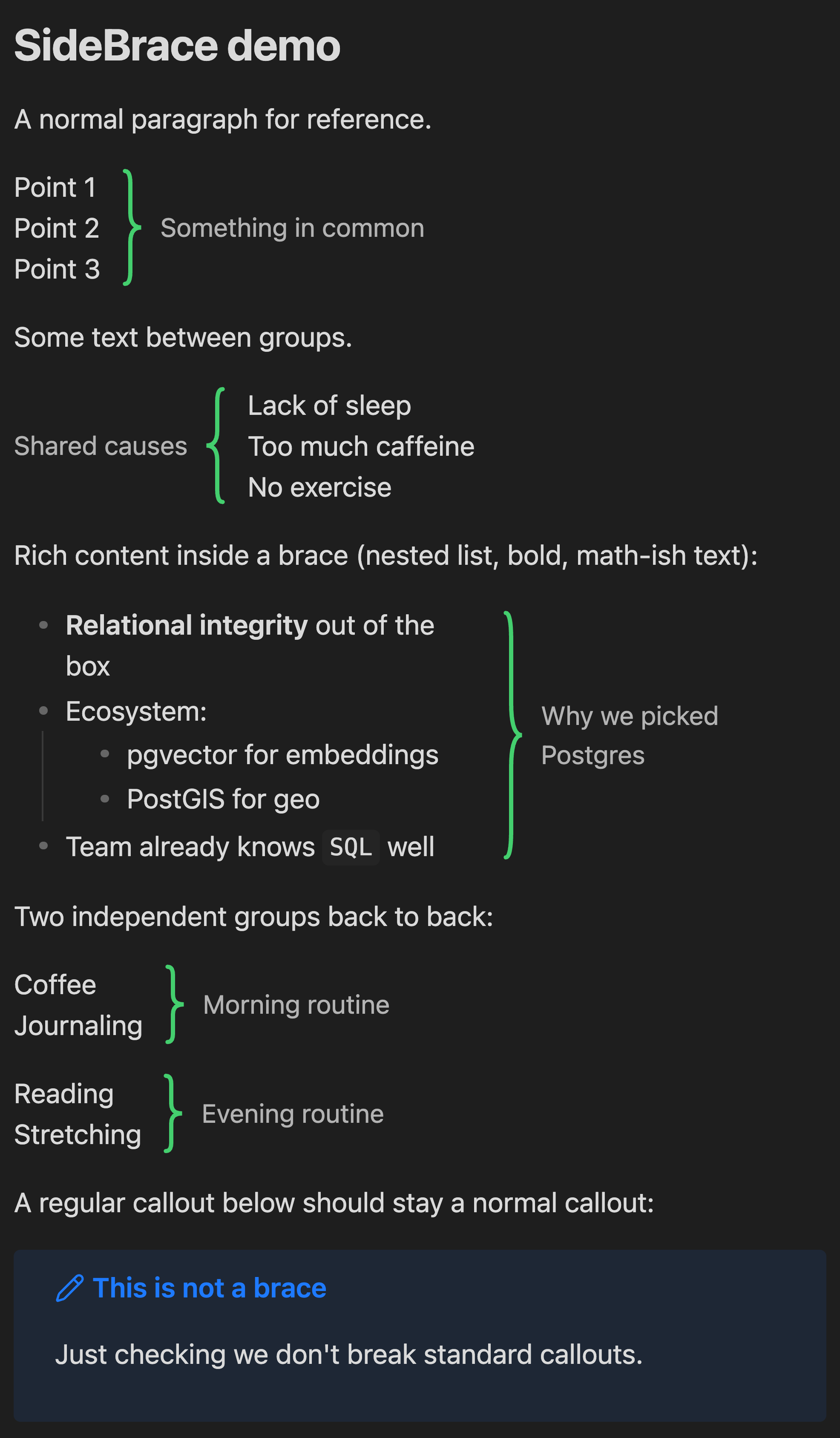
Group a few lines of related text with a large curly brace and a side note, using familiar callout syntax (> [!brace]).

Add to Obsidian
  • Overview
  • Scorecard
  • Updates2

Group a few related lines with a big curly brace and a side note — without reaching for a heading or a callout box. Say "these 3–5 lines have something in common" with a brace on the side and a short label.
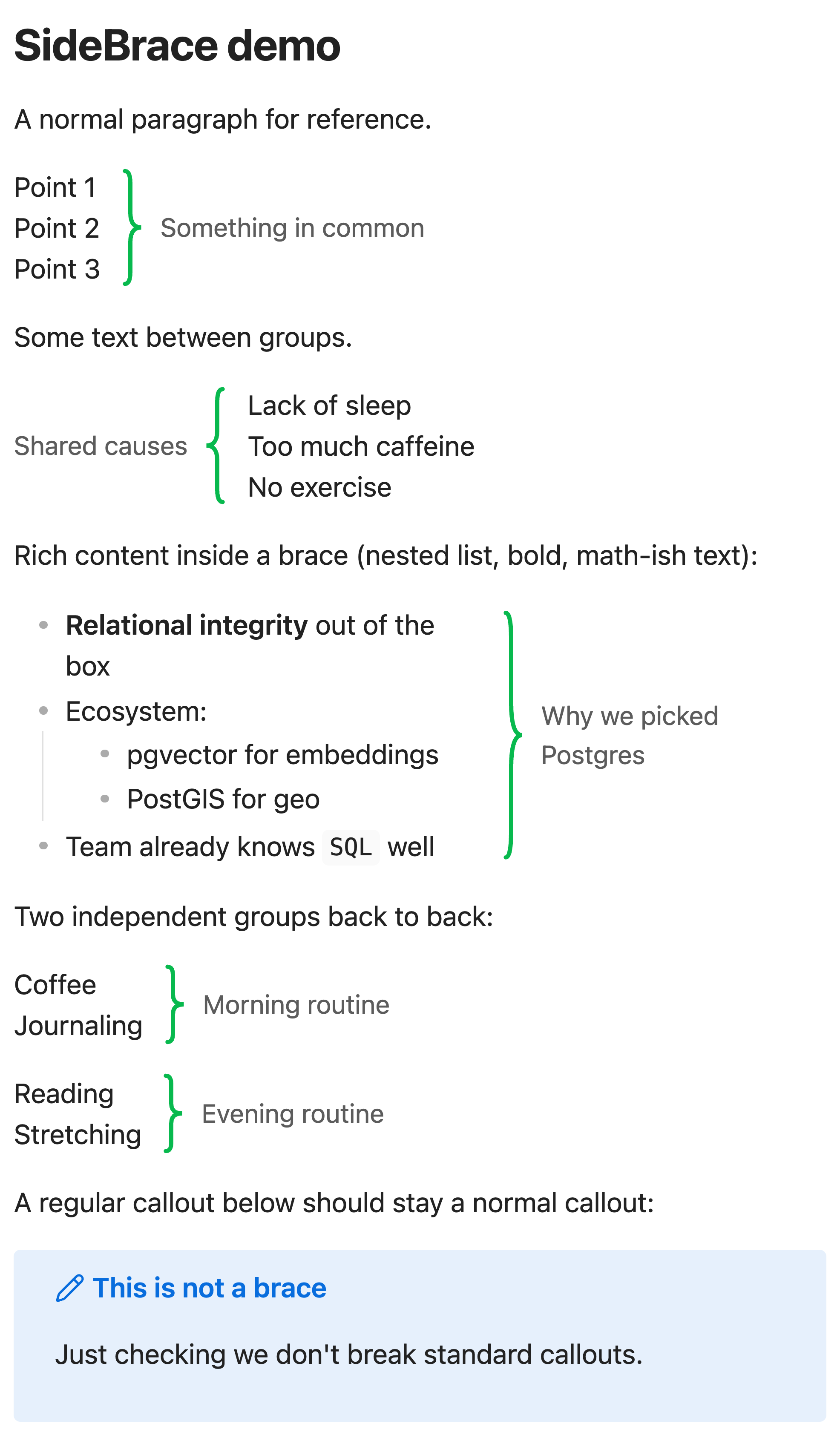
SideBrace in light mode

SideBrace in dark mode

Usage

SideBrace reuses the callout syntax you already know. The callout title becomes the label, the body becomes the braced content:

> [!brace] Something in common
> Point 1
> Point 2
> Point 3
  • > [!brace] (alias: > [!bracer]) — brace on the right of the content, label beside it.
  • > [!brace-left] — mirrored: label and brace on the left.

Graceful degradation: without the plugin, these render as ordinary callouts, so your notes stay readable everywhere.

Works in both Reading mode and Live Preview. In Live Preview, click into a brace block to edit the raw markdown; move the cursor away and it re-renders. Regular callouts ([!note], [!warning], …) are untouched.

Installation

Community plugins

SideBrace is listed in the Obsidian community plugin directory: https://community.obsidian.md/plugins/sidebrace

In Obsidian: Settings → Community plugins → Browse, search for SideBrace, then Install → Enable.

Manual

  1. Download main.js, manifest.json, and styles.css from the latest release.
  2. Copy them into <your-vault>/.obsidian/plugins/sidebrace/.
  3. Reload Obsidian and enable SideBrace under Settings → Community plugins.

Customization

Everything is styled with CSS variables, so themes and snippets can override them:

.sidebrace-container {
    --sidebrace-color: #e0564b;        /* brace stroke (default: theme's --color-green) */
    --sidebrace-stroke-width: 3;       /* brace line width */
    --sidebrace-width: 1.2em;          /* brace column width */
    --sidebrace-label-color: #888888;  /* label text (default: --text-muted) */
    --sidebrace-label-size: 1em;       /* label font size */
}

License

MIT © 2026 Henry Lo. See LICENSE.

HealthExcellent
ReviewSatisfactory
About
Group a few related lines with a side curly brace and a short label using the callout syntax you already know. Render braces on the left or right in Reading view and Live Preview, reuse the callout title as the label, and fall back to ordinary callouts when the plugin is absent.
AppearanceFormatting
Details
Current version
0.1.1
Last updated
2 weeks ago
Created
2 weeks ago
Updates
2 releases
Downloads
138
Compatible with
Obsidian 1.4.0+
Platforms
Desktop, Mobile
License
MIT
Report bugRequest featureReport plugin
Author
Henry LoHenry Lorealhenrylo
GitHubrealhenrylo
  1. Community
  2. Plugins
  3. Appearance
  4. SideBrace

Related plugins

Heading Level Indent

Indenting content under headers based on their level.

Better Bullets

Improves readability of bulleted notes.

Multi-Column Markdown

Create Markdown documents with multiple columns of content viewable in reading mode.

Minimal Theme Settings

Control the colors and fonts in Minimal Theme.

Hider

Hide interface elements such as tooltips, status bar, titlebar, and more.

Style Settings

Adjust theme, plugin, and snippet CSS variables.

Admonition

Admonition block-styled content.

Note Toolbar

Add customizable toolbars to your notes.

Linter

Format and style your notes. Linter can be used to format YAML tags, aliases, arrays, and metadata; footnotes; headings; spacing; math blocks; regular Markdown contents like list, italics, and bold styles; and more with the use of custom rule options.

Sort and Permute lines

Sort and Permute lines in whole file or selection.