side Thing
 k0ccc178 downloads
Add marginal (sidebar) comments to selected text in your notes. (google doc vibe)
- Overview
- Scorecard
- Updates2
An Obsidian plugin for adding marginal (sidebar) comments to selected text in your notes (google doc vibe).
Features
- Add comments to any selected text fragment via command palette or right-click context menu
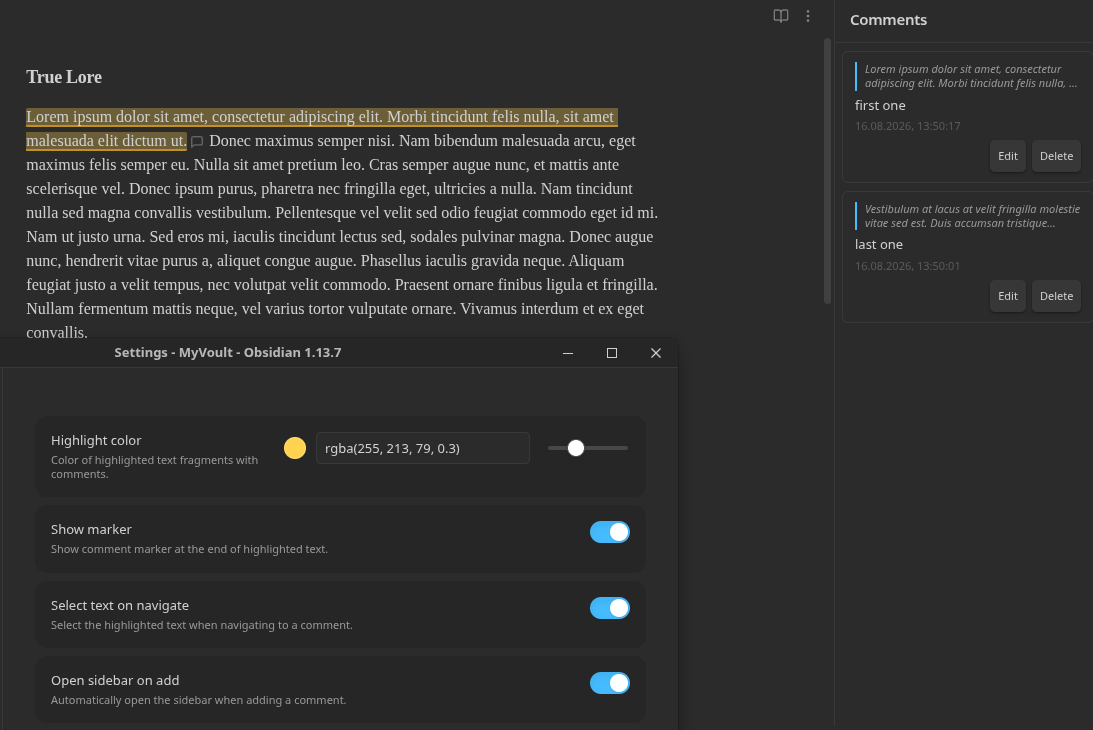
- Visual highlighting of commented text directly in the editor (Live Preview mode)
- Comment markers — optional SVG icons at the end of each highlighted fragment
- Sidebar panel with a list of all comments in the current note
- Navigation — click a comment in the sidebar to scroll to its location in the document
- Edit and delete comments through a popover or sidebar
- Overlap prevention — prevents creating duplicate comments on the same text
- Localization — automatically detects Obsidian's interface language (English / Русский)
- Customizable — highlight color with color picker and opacity slider, marker visibility, text selection on navigate
How to use
- Open a note and select a text fragment
- Add a comment using one of these methods:
- Command palette (Ctrl/Cmd+P) → "Add side comment"
- Right-click on the selection → "Add side comment"
- Write your comment in the popover and press Save (or Ctrl/Cmd+Enter)
- The selected text is now highlighted in the editor
- Open the sidebar via the ribbon icon (💬) or command palette → "Open comments sidebar"
- Click any comment in the sidebar to navigate to its location
- Edit or delete comments via the sidebar buttons or by clicking the marker in the editor
Settings
| Setting | Description | Default |
|---|---|---|
| Highlight color | Color of highlighted text (with color picker and opacity slider) | rgba(255, 213, 79, 0.3) |
| Show marker | Show a comment marker icon at the end of highlighted text | true |
| Select text on navigate | Select the highlighted text when navigating to a comment | true |
| Open sidebar on add | Automatically open the sidebar when adding a comment | true |
Installation
Manual installation
- Download
main.js,manifest.json, andstyles.cssfrom the latest release - Copy them to your vault:
VaultFolder/.obsidian/plugins/side-thing/ - Reload Obsidian
- Enable the plugin in Settings → Community plugins
Development
# Install dependencies
npm install

# Start development build with watch mode
npm run dev

# Production build
npm run build

# Lint
npm run lint
How it works
- Comments are stored in the plugin's
data.json, keyed by file path - Highlighting is implemented via CodeMirror 6
ViewPluginwithDecorationSet - The sidebar is an Obsidian
ItemViewregistered in the right sidebar - The comment editor is a
Modalstyled as a floating popover
File structure
src/
  main.ts                 # Plugin lifecycle, command/view registration
  settings.ts             # Settings interface and settings tab UI
  types.ts                # SideComment and CommentsStore interfaces
  store.ts                # Comment storage (loadData/saveData wrapper)
  i18n.ts                 # Localization (English / Russian)
  editor/
    extension.ts          # CodeMirror 6 ViewPlugin for highlighting
  ui/
    comment-popover.ts    # Floating popover for create/edit comment
    sidebar-view.ts       # Sidebar ItemView with comment list
  commands/
    register.ts           # Command and context menu registration
Compatibility
- Requires Obsidian 1.7.2 or later
- Works on desktop and mobile (
isDesktopOnly: false) - Highlighting works in Live Preview mode
API Documentation
License
0-BSD
HealthExcellent
ReviewSatisfactory
About
Add marginal sidebar comments to selected text and highlight fragments directly in the editor. Open a sidebar list to navigate, edit, or delete comments and click any entry to jump to its location. Show optional SVG markers. Full google doc vibe.Details
Current version
1.0.1
Last updated
Last month
Created
Last month
Updates
2 releases
Downloads
178
Compatible with
Obsidian 1.7.2+
Platforms
Desktop, Mobile
License
0BSD
Author