Shortcuts Bridge
 theluckystrike1 downloads
Runs an Apple Shortcut from a note or a command and passes text to it. Works on iPhone, iPad and Mac.
- Overview
- Scorecard
- Updates1
Runs an Apple Shortcut from a note or a command and passes text to it. Works on iPhone, iPad and Mac.
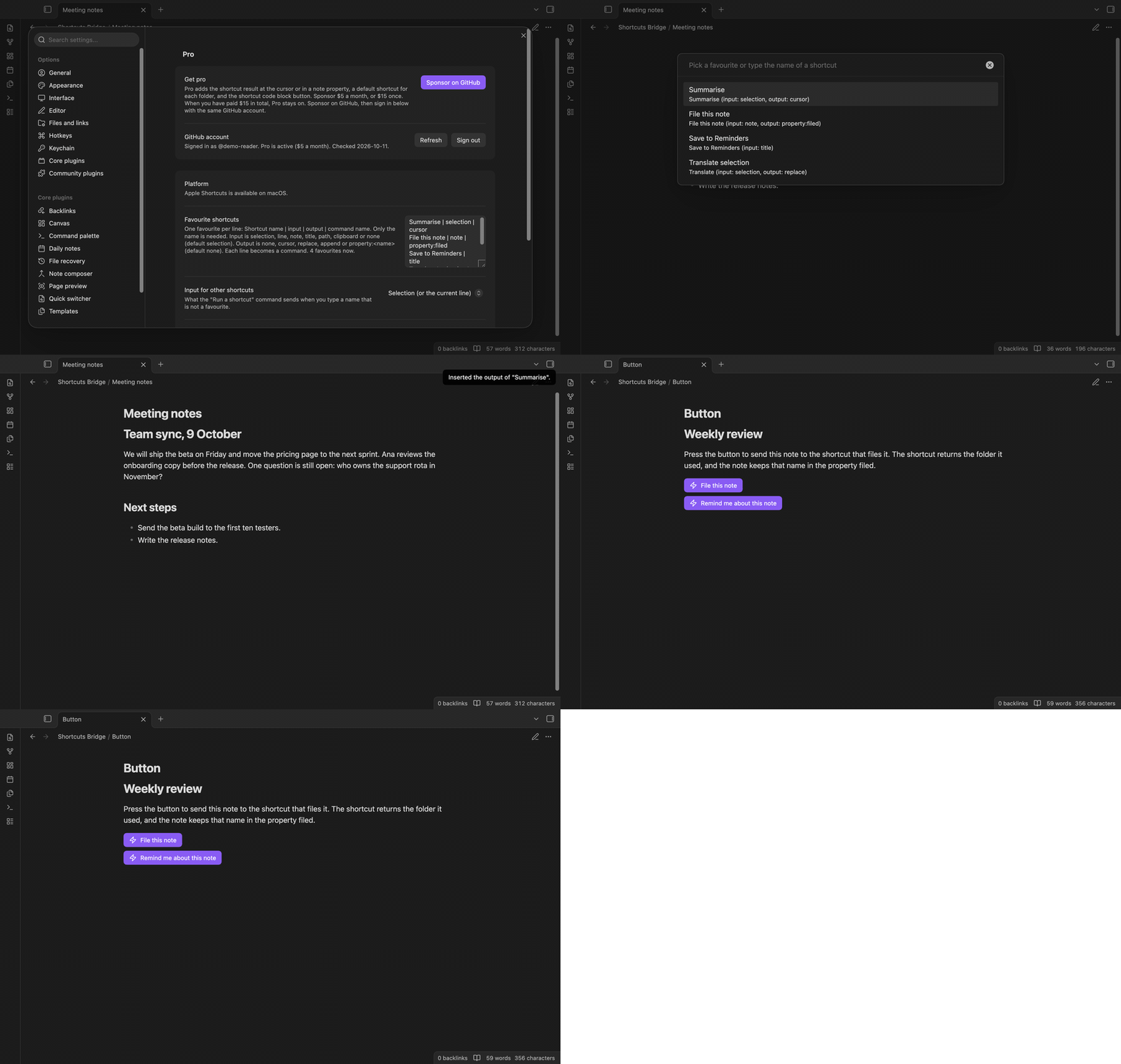
Shortcuts Bridge starts a shortcut from the Shortcuts app with the text that you choose: the selection, the current line, the whole note, the title or the path. You give the name of the shortcut and Shortcuts Bridge builds the shortcuts:// link and opens it. With Pro, the output of the shortcut comes back to Obsidian and goes into the note.
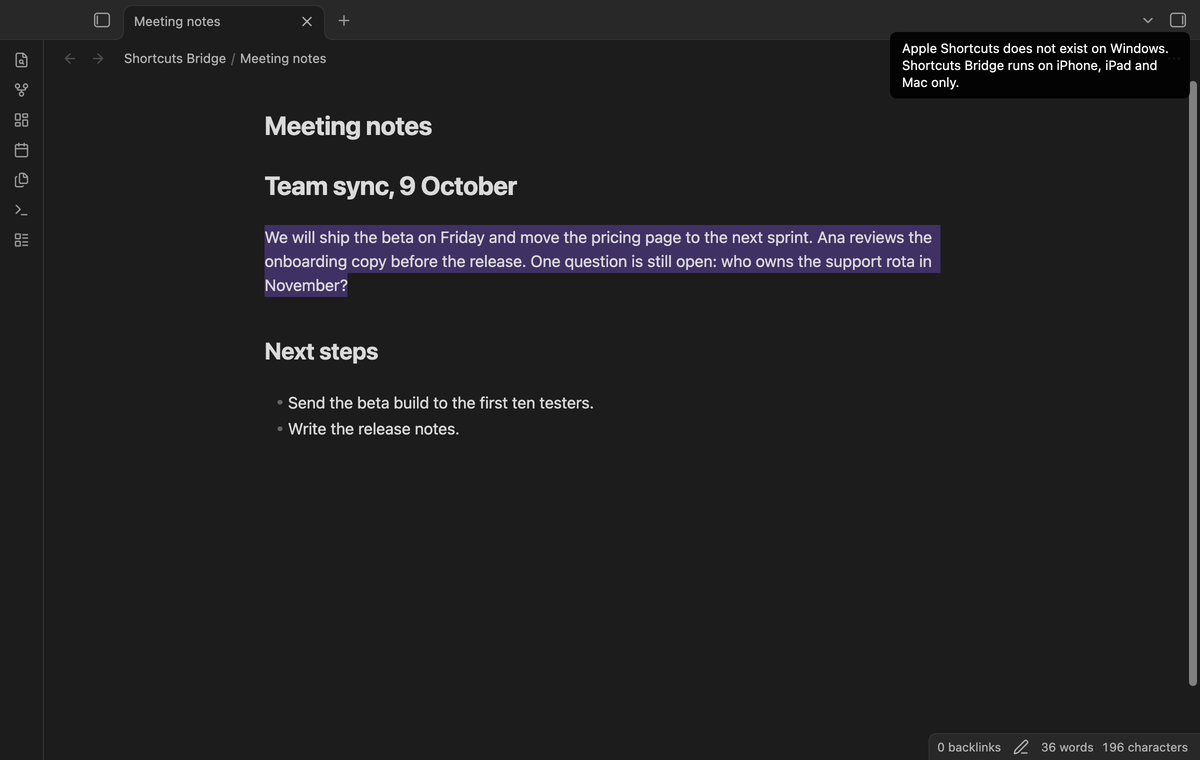
Apple Shortcuts exists on iOS, iPadOS and macOS only. On Windows, Android and Linux the plugin sends nothing and shows a notice that says so.
How far this was tested: the links that the plugin builds, and the way it handles the answer, were tested in the Obsidian desktop app on a Mac (versions 1.13.4 and 1.14.4) with a stand-in that records the link instead of opening it. The Shortcuts app did not run in those tests. An iPhone and an iPad were not used. The screenshots show a simulated answer, not a real shortcut.
Features
Run a shortcut with your text
Run the command "Run a shortcut". Pick a favourite, or type the name of any shortcut and press Enter. The list shows the input and the output of each favourite.
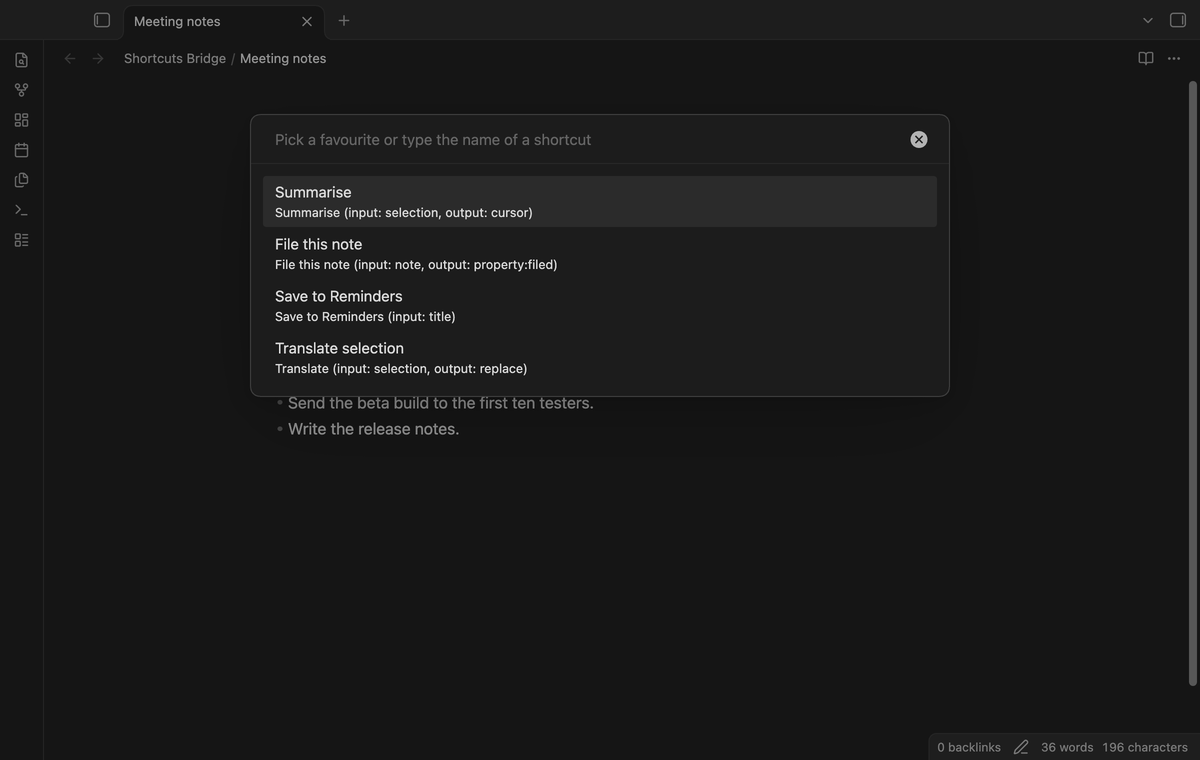
The input is one of these: selection, line, note, title, path, clipboard or none. Selection uses the current line when nothing is selected. Clipboard tells Shortcuts to read its own clipboard. Example: the favourite Summarise with a selection of Hello, world! opens shortcuts://run-shortcut?name=Summarise&input=text&text=Hello%2C%20world%21.
Favourites as commands
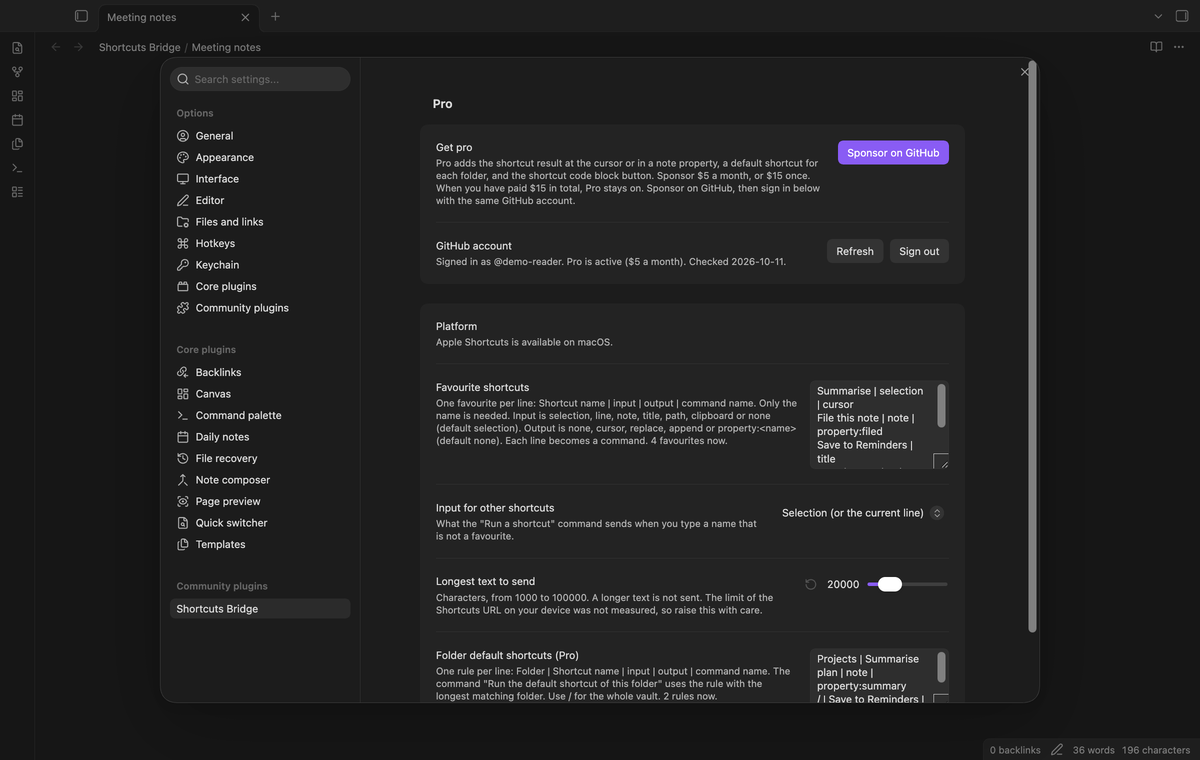
Each line in the settings is a favourite, and each favourite is a command in the command palette. You can give it a hotkey. The command ids come from the shortcut name, so a hotkey stays when you change the order of the list.
A clear notice on other platforms
On Windows, Android and Linux, every run stops before it sends anything.
Output at the cursor, over the selection or at the end (Pro)
Add an output to a favourite: cursor, replace or append. Shortcuts Bridge then uses the x-callback-url form of the link. It adds x-success, x-cancel and x-error links that open obsidian://shortcuts-bridge. Shortcuts adds the output to the success link, and Obsidian passes it to the plugin. cursor inserts the text at the cursor. replace writes over the selection when the selection is still there, and inserts at the cursor when it is not. append adds the text on a new line at the end of the note.
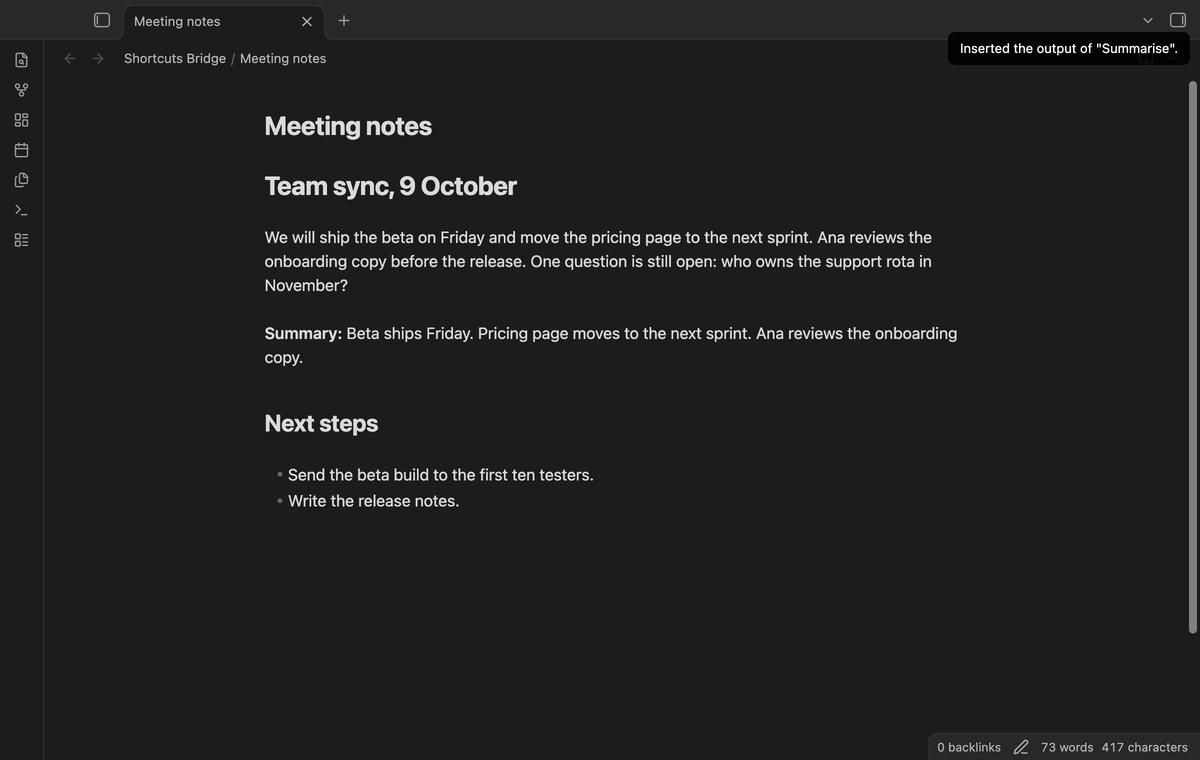
Output in a note property (Pro)
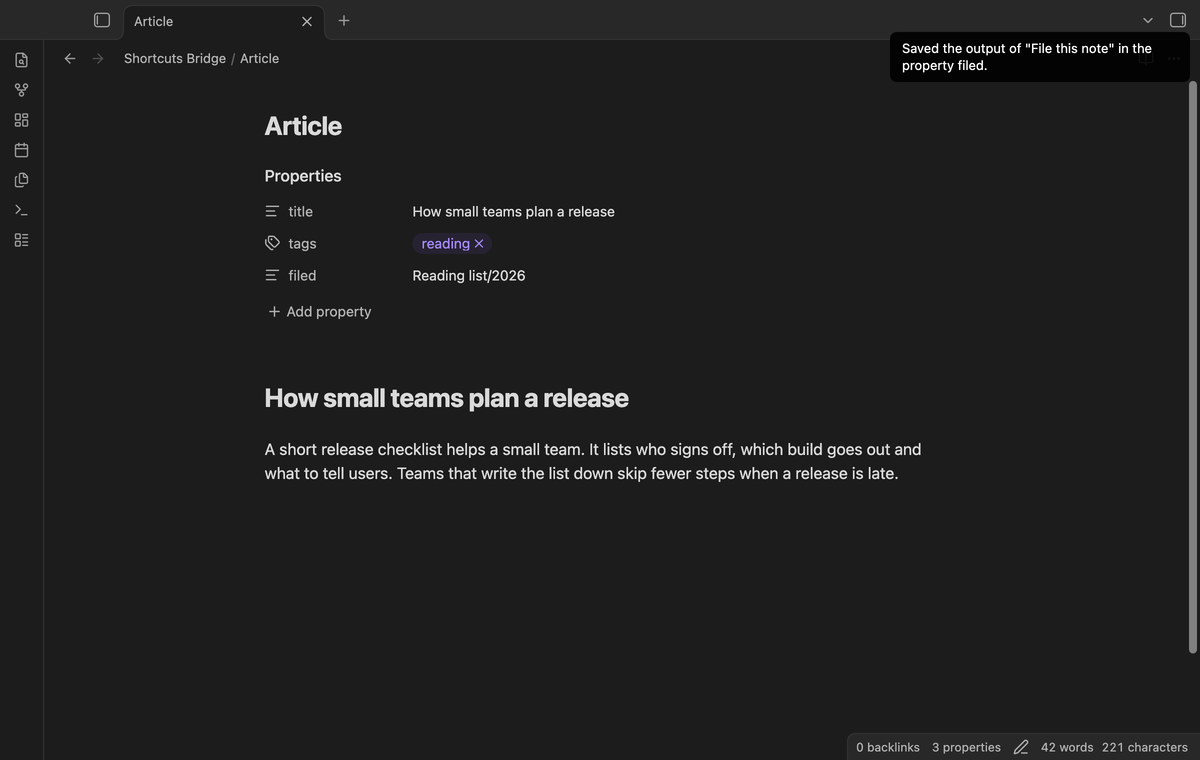
Use property:summary as the output to save the trimmed text in the property summary of the note that you started from.
A default shortcut for each folder (Pro)
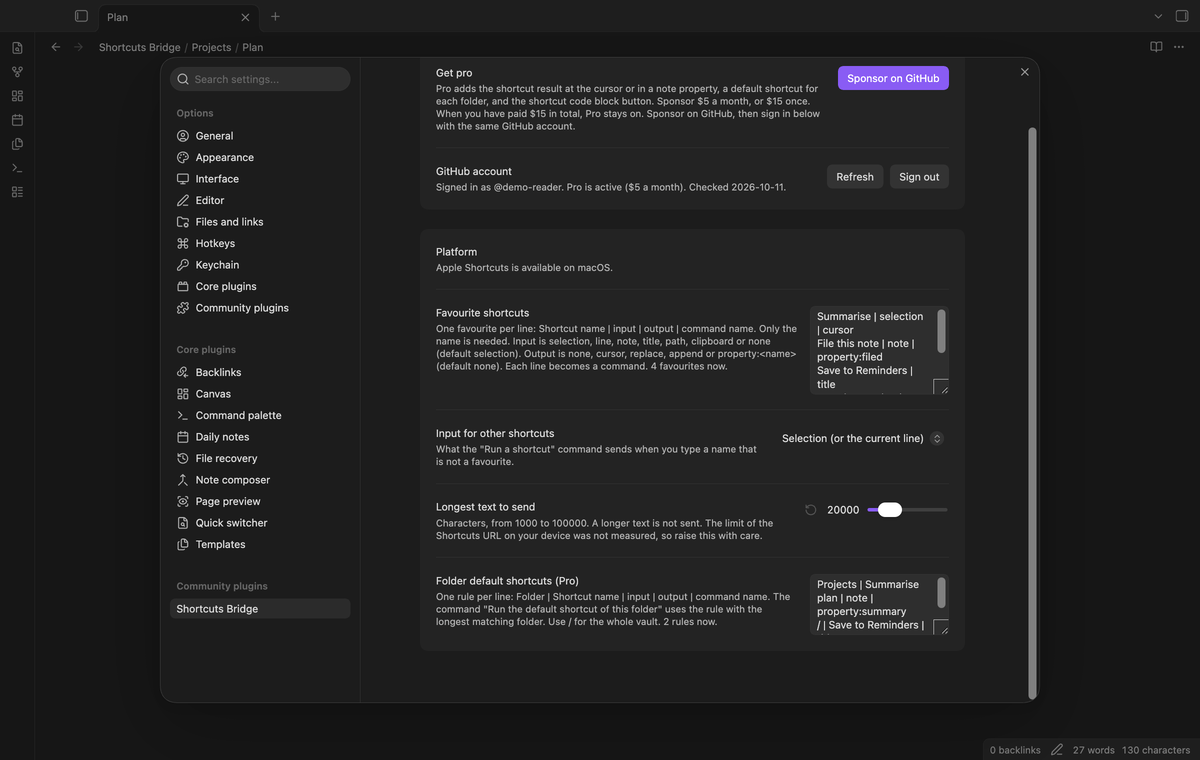
Write one rule for each folder in the settings. The command "Run the default shortcut of this folder" uses the rule with the longest folder that holds the open note. A folder matches whole names: Projects does not match Projects2/Plan.md. A rule with / as the folder matches the whole vault.
A button in the note (Pro)
Write a code block with the language shortcut. The first line is the name of the shortcut. The lines input:, output: and label: are optional. The input of a button is the note by default, and cannot be the selection or the line, because a button has no selection.
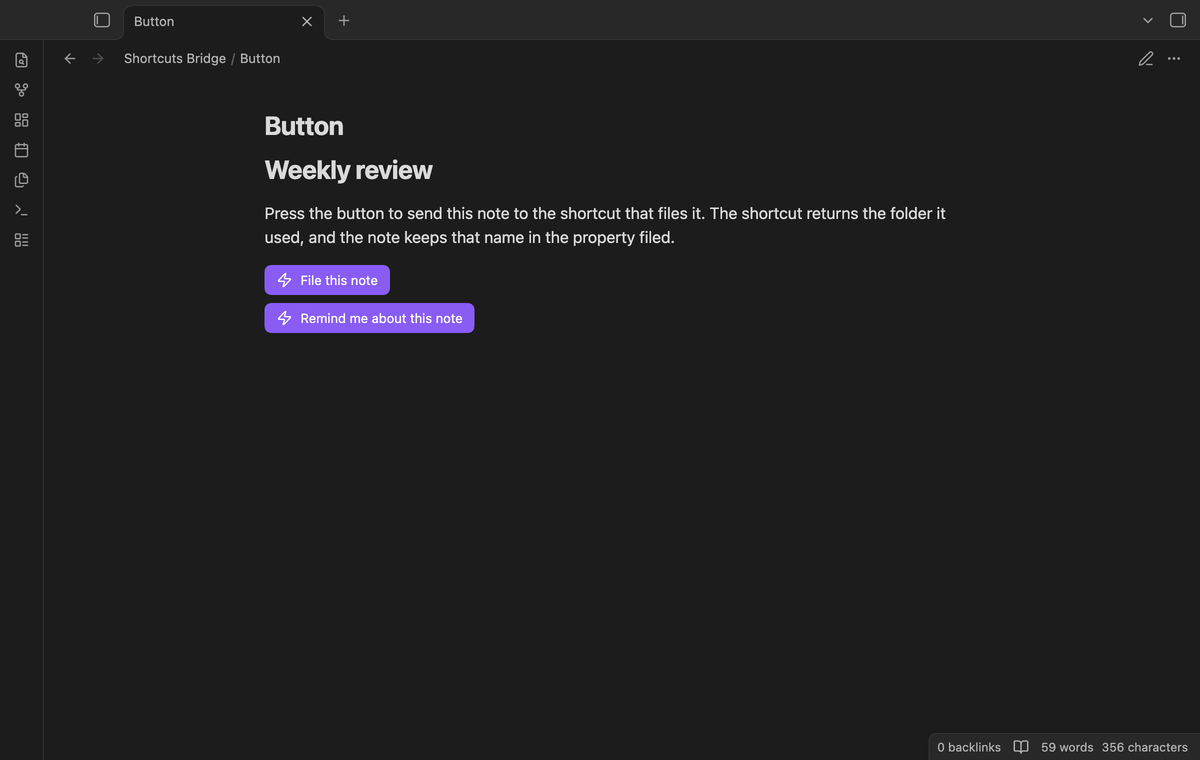
Without Pro, the block shows one line that says the button is a Pro feature.
Install
When Shortcuts Bridge is listed in the community directory, open Settings, then Community plugins, then Browse, and search for "Shortcuts Bridge". Select Install, then Enable.
To install by hand, download main.js, manifest.json and styles.css from the latest release. Put the three files in <vault>/.obsidian/plugins/shortcuts-bridge/. Restart Obsidian or reload the list of community plugins, then turn on Shortcuts Bridge.
You need the Shortcuts app and at least one shortcut. Shortcuts Bridge cannot list your shortcuts, because the Shortcuts link scheme has no call for that. Type each name exactly as it shows in the Shortcuts app.
Usage
- Open Settings, then Shortcuts Bridge. Write one favourite on each line:
Name | input | output | command name. Only the name is needed. - Open a note and select some text.
- Open the command palette and run your favourite, or run "Run a shortcut" and pick it.
- The Shortcuts app opens and runs the shortcut with your text.
- With Pro and an output on the favourite, the output comes back and goes where the favourite says.
Examples of lines:
Summarise | selection | cursor
File this note | note | property:filed
Save to Reminders | title
Translate | selection | replace | Translate selection
A line that starts with # is a comment. A line with a problem shows in the settings and as a notice, with its line number. The other lines still work.
Settings
| Setting | Use |
|---|---|
| Favourite shortcuts | One favourite for each line. Each one becomes a command. |
| Input for other shortcuts | The input that "Run a shortcut" uses for a name that is not a favourite. Default: selection. |
| Longest text to send | From 1,000 to 100,000 characters. Default 20,000. A longer text is not sent. The limit of the link on a real device was not measured. |
| Folder default shortcuts (Pro) | One rule for each line: `Folder |
| Pro | Sign in with GitHub to turn Pro on. |
FAQ
What happens if Obsidian closes while the shortcut runs?
Before the shortcut starts, the plugin saves the request in its data.json. A request is valid for 30 minutes and works once. That the file holds the request was tested. A real restart of the iPhone app during a shortcut was not tested.
Can another link write into my notes?
A callback works only with the random 16 character id of a request that this plugin made. An unknown id, an id that was used, and an id older than 30 minutes write nothing and show a notice. These cases were tested.
Why must I type the names?
Shortcuts has no public call to list shortcuts for another app. The plugin does not guess them.
How is this different from other plugins?
The Actions URI plugin works the other way: Shortcuts calls Obsidian. The Shell commands plugin can start the shortcuts command line tool on a Mac, but iPhone and iPad have no shell. Shortcuts Bridge uses the link scheme, so it runs on all three. It is a new plugin and shares no code with any other.
Does it work in the background?
The link scheme opens the Shortcuts app. Expect that app to come to the front. This was not tested on a device.
Payment, account and network
The core features are free and stay free. Pro features need a GitHub Sponsors sponsorship of theluckystrike: $5 a month or more, or $15 once. When you have paid $15 in total, Pro stays on. Your notes stay readable and editable with or without Pro.
GitHub handles the payment. Sponsor at https://github.com/sponsors/theluckystrike. You need no account for the free features. Pro needs the GitHub account that sponsors.
Until you select "Sign in with GitHub" in the settings, Shortcuts Bridge makes no network requests. Sign in uses the GitHub device flow. Shortcuts Bridge sends its public client ID and the scope read:user to https://github.com/login/device/code and shows you a code. While you enter the code at https://github.com/login/device, it asks https://github.com/login/oauth/access_token every few seconds whether sign in is done. The scope read:user is read-only access to your profile, which GitHub needs to show the sponsorship tier. It gives no access to repositories and no write access.
After sign in, Shortcuts Bridge sends one query to https://api.github.com/graphql: does the signed-in account sponsor theluckystrike, at which tier, and how much it has paid theluckystrike in total. It asks again at most once every 7 days, or when you select Refresh. It sends no note content, file names or other vault data, and it has no telemetry.
Pro keeps working for 14 days without a successful check. The GitHub token stays in the secret storage of Obsidian on this device. It is not written to data.json or other vault files, so it does not sync or reach a git repository. The local storage of this device keeps your GitHub login, the tier and the time of the last check. Sign out deletes the token. You can also revoke the access in your GitHub settings, under Applications.
Support
Report a bug or ask for a feature in the issue tracker of this repository. To support the work, use GitHub Sponsors.
npm ci
npm run build
npm test
License
MIT