Secret Notes
 Kasukabe Tsumugi438 downloads
Encrypt and preview editable secret code blocks.
- Overview
- Scorecard
- Updates12
Save private content in Obsidian with a secret code block. The plugin renders the block as a clickable secret card; after encryption, only ciphertext JSON is stored in your note, and plaintext is shown temporarily only after the correct password is entered.
- 🔒 Local encryption: your password never leaves your device and is never stored.
- 🧩 Minimal card UI: plaintext blocks show an unlock icon, encrypted blocks show a lock icon, and clicking the card starts the next action.
- ✍️ After decrypting, you can edit the title, password hint, and body, then re-encrypt the block in place.
- 🔎 Built-in editor search: click the search icon in the plaintext editor, or select text and press
Ctrl+Fto search quickly. - ⚙️ The processed code block name is configurable in plugin settings. The default is
secret.
Quick start
Create a secret code block in any note:
```secret
Put private content here
```
```secret
{"v":1,"title":"","hint":"","encrypted":"::","date":"2026-07-04T00:00:00.000Z"}
```
These two blocks will be rendered like:
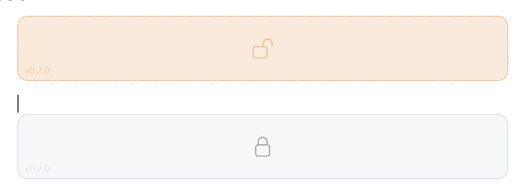
Click the locked card again and enter the password to view or edit the plaintext.
- The unlock icon means the block is still plaintext. Click it to start encryption.
- The lock icon means the block is encrypted. Click it to enter the password and view/edit the content.
Password input
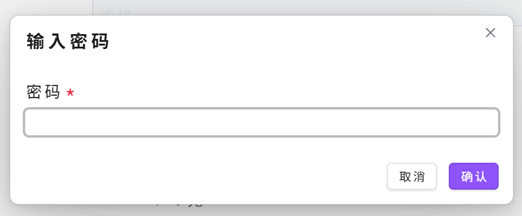
After clicking an encrypted card, a password modal opens:
- Enter the correct password to open the plaintext editor.
- If a password hint was saved during encryption, it appears in the password input placeholder.
- Plaintext is never shown when the password is incorrect.
Plaintext editor
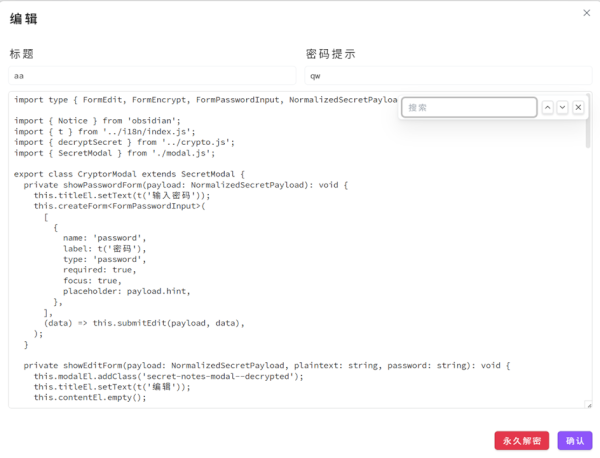
After verification, the plaintext editor opens:
- Use the search bar in the upper-right corner to search the body; previous/next navigation is supported, and jumped matches flash for easier positioning.
- Click Decrypt permanently and confirm the second-click prompt to write plaintext back into the
secretcode block. You can encrypt it again later by clicking the plaintext card.
Operations
| Action | Entry point | Result |
|---|---|---|
| Encrypt | Click a plaintext card | Enter password and confirmation password, then encrypt and write back to the current block |
| View / Edit | Click an encrypted card | Enter password to open the plaintext editor, where title, hint, and body can be changed |
| Save again | Confirm in the plaintext editor | Re-encrypt with the current password and overwrite the original block |
| Decrypt permanently | Decrypt permanently in the plaintext editor | After second-click confirmation, write plaintext back into the secret code block |
| Search body | Search in the upper-right of the plaintext editor, or press Ctrl+F in the body |
Find, navigate, and flash-highlight matches inside the text area |
Write-back behavior: in source / Live Preview editing state, the current editor block is replaced directly; in Reading view, the file is modified through the Obsidian vault API.
Settings
Open Settings → Community plugins → Secret Notes to change Block name.
The default block name is secret. If you change it to private, for example, the plugin will process:
```private
Private content
```
Encryption details
- Algorithm: AES-256-GCM, executed locally through the Web Crypto API.
- Key: derived from the password with SHA-256. It is not stored or uploaded.
- Storage format: encrypted block content is JSON containing version, title, password hint, ciphertext, and encryption date.
⚠️ Passwords cannot be recovered. If you forget the password, the ciphertext cannot be restored. The password hint should be only a reminder; do not put the actual password in it.
Installation
Manual install
- Download
main.js,manifest.json, andstyles.cssfrom this repository's build output or Release. - Place them into your Obsidian vault:
<vault>/.obsidian/plugins/obsidian-secret-notes/ - In Obsidian, open Settings → Community plugins and enable Secret Notes.
Development
The entry point is src/main.ts, and build artifacts are written to dist/.
pnpm install
pnpm build      # build into dist/
pnpm dev        # watch mode
Build output includes:
dist/main.jsdist/manifest.jsondist/styles.css
Copy these three files into .obsidian/plugins/obsidian-secret-notes/ in your vault to load and debug the plugin in Obsidian.
License
MIT © 2026 Kasukabe Tsumugi