Scene Subtree Mover
 theluckystrike6 downloads
Move a chapter and its child scenes together in a manuscript index.
- Overview
- Scorecard
- Updates2
Move a chapter and its child scenes together in a Longform manuscript index. Select a destination parent and final position, check the resulting order, and apply the change with a full source backup.
A Longform child array follows its parent scene name. Moving the name alone can leave the scenes under the wrong chapter. Scene Subtree Mover treats the name and that array as one unit. It reads the active index and keeps nested descendants with their parent.
Features
Read the manuscript tree
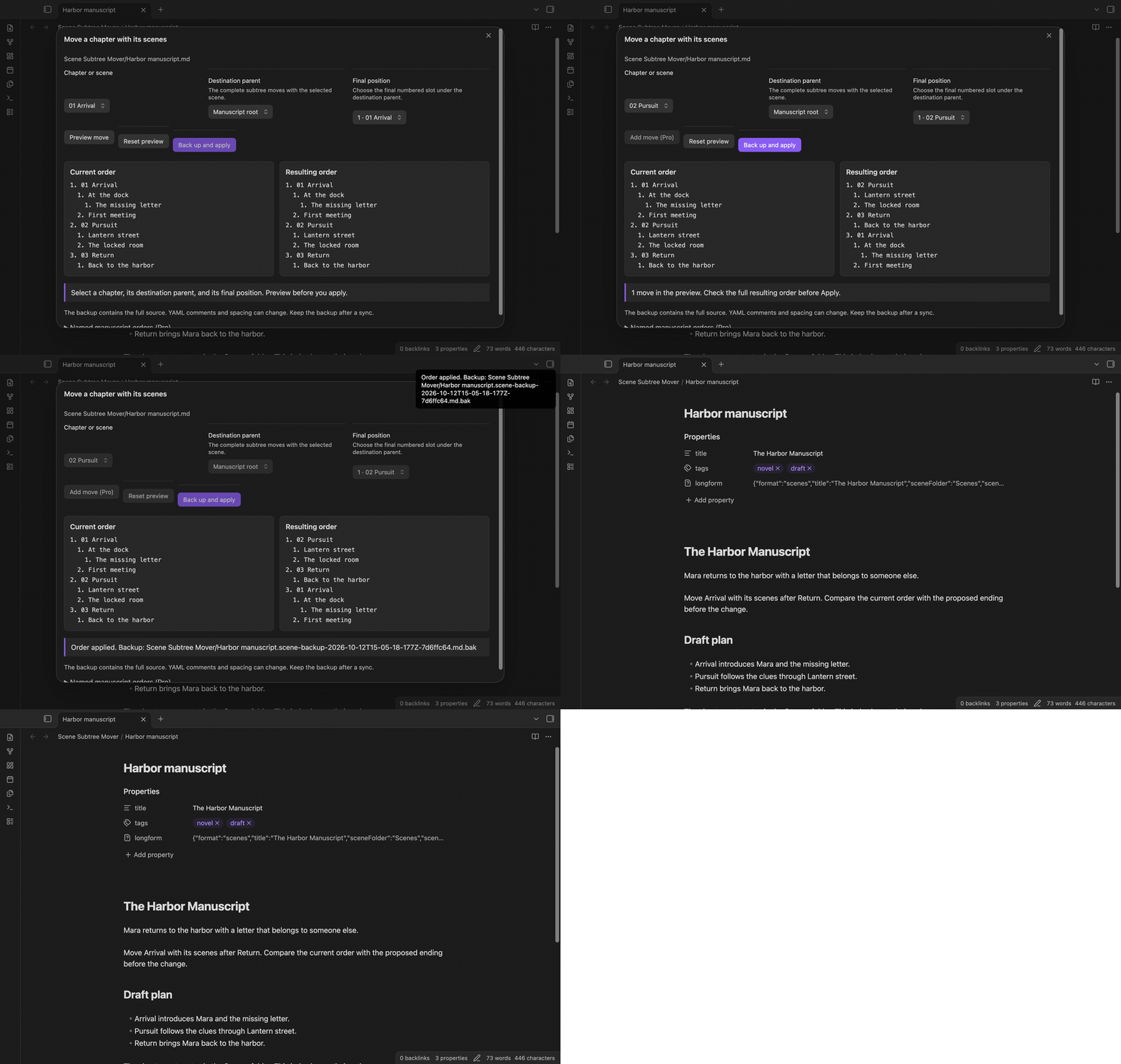
Run the command from a Markdown index with a longform.scenes array. The modal shows the current order with numbered siblings and indented descendants. The chapter selector includes nested scenes with their parent names. Scene text appears as plain text in the preview.
The reader rejects a child array before a parent, consecutive child arrays, and values other than scene strings or arrays. The reader keeps an empty child array with its parent. Invalid input does not change the index.
Preview one complete move
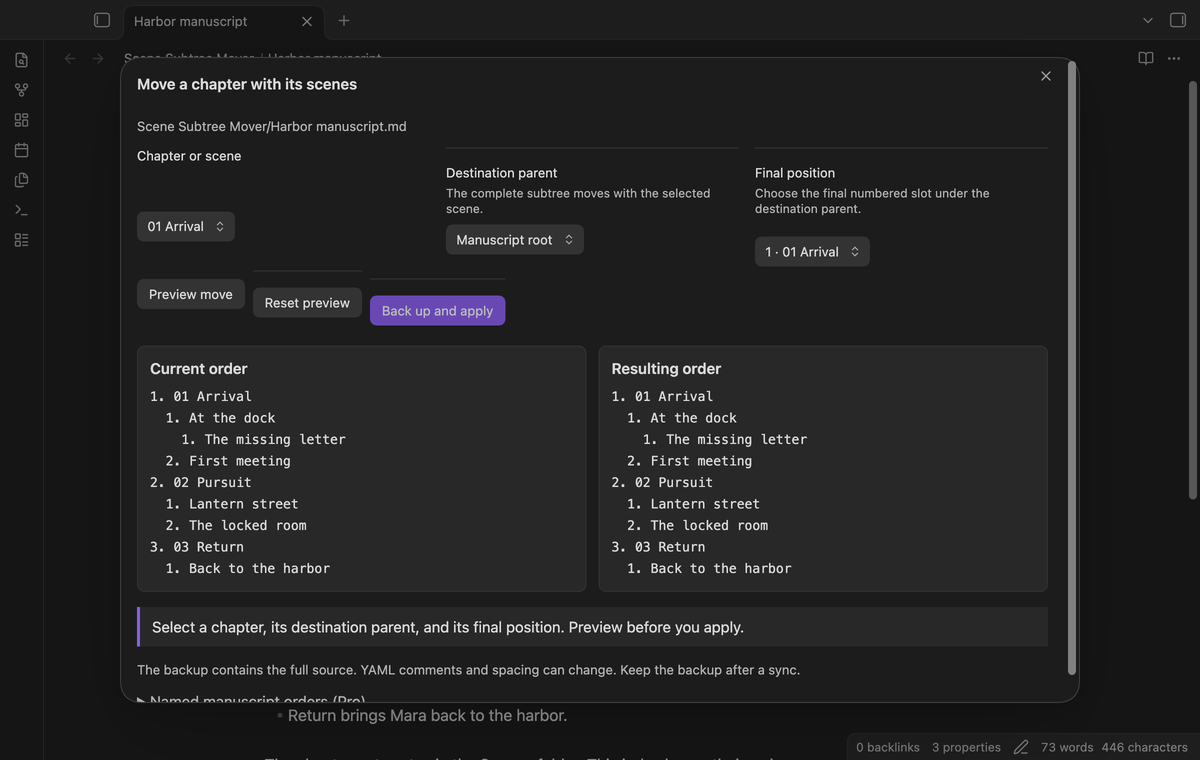
Select a chapter, keep its current destination parent, and choose its final position among its siblings. Select Preview move to see the complete proposed order next to the current order. The chapter takes its children and their descendants with it. A scene inside a chapter can also move within its own sibling group.
The position is the final numbered slot. For example, position three places the selected chapter third. Reset preview returns to the order read when the modal opened. Before the first move, choosing the current position reports an unchanged order and leaves Apply disabled. After a staged move, this choice keeps the proposed changes.
Move a subtree to another parent
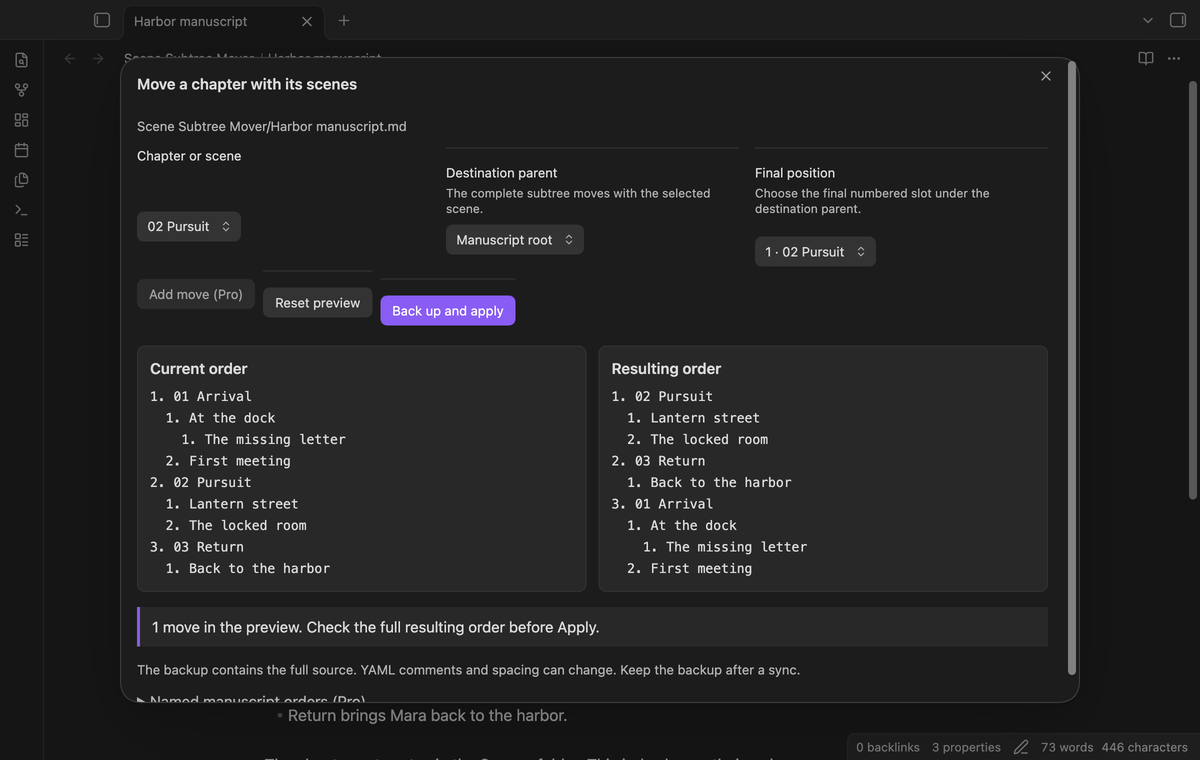
Select a chapter or scene, then choose Destination parent. Select another chapter to place the subtree under it. Select Manuscript root to promote a nested scene. Choose the final numbered position in that group and select Preview move. The selected scene keeps all its children and descendants. A single move is free.
The destination list excludes the selected scene and its descendants. This prevents a scene from becoming its own parent. The preview rejects moves that exceed the tree limits. Empty child arrays remain valid after the last child moves out. Apply uses the existing source backup and conflict check.
Back up and apply a checked update
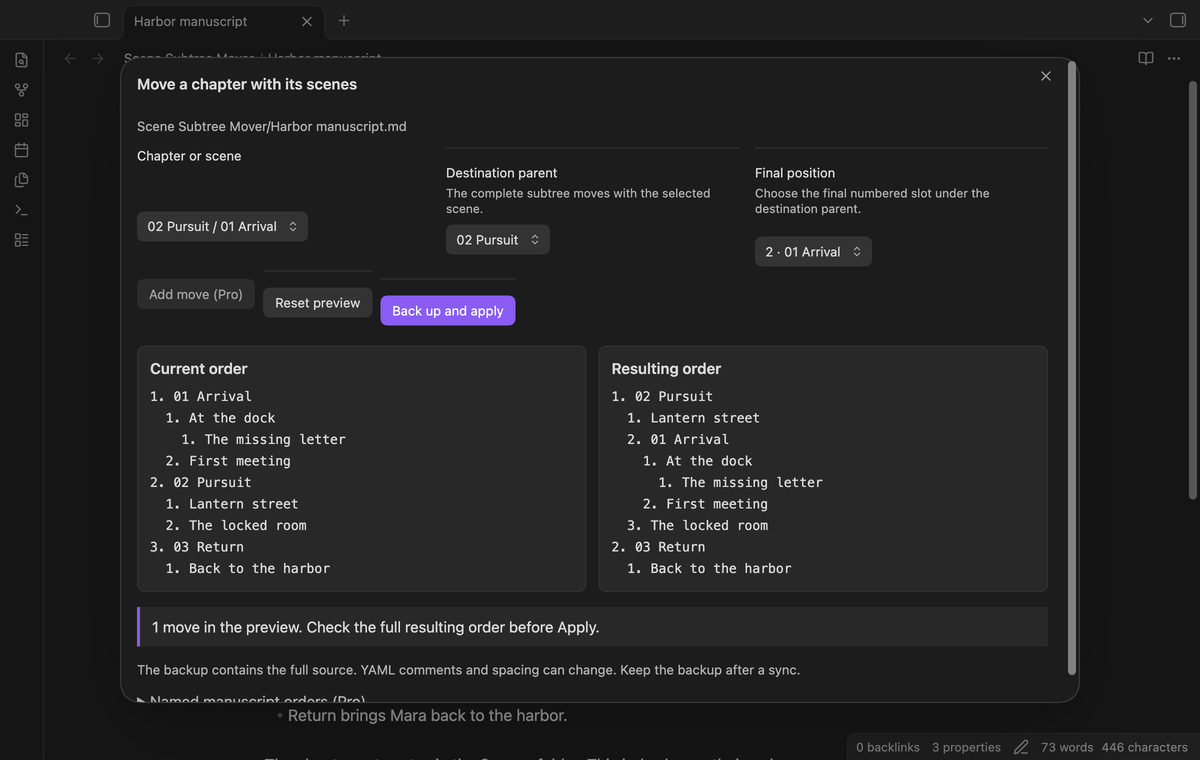
Select Back up and apply after you review the result. The plugin creates a .md.bak source backup beside the index. Its extension keeps it out of Markdown index discovery. The backup contains the complete source text, including its original YAML comments and body. The modal and notice show the backup path after a successful update.
If backup creation fails, the index stays as it was. The write compares the full source with the preview source. If the source differs when the checked write starts, it reports a conflict. Later sync writes are outside this check. Keep the backup until you have checked the manuscript after a sync.
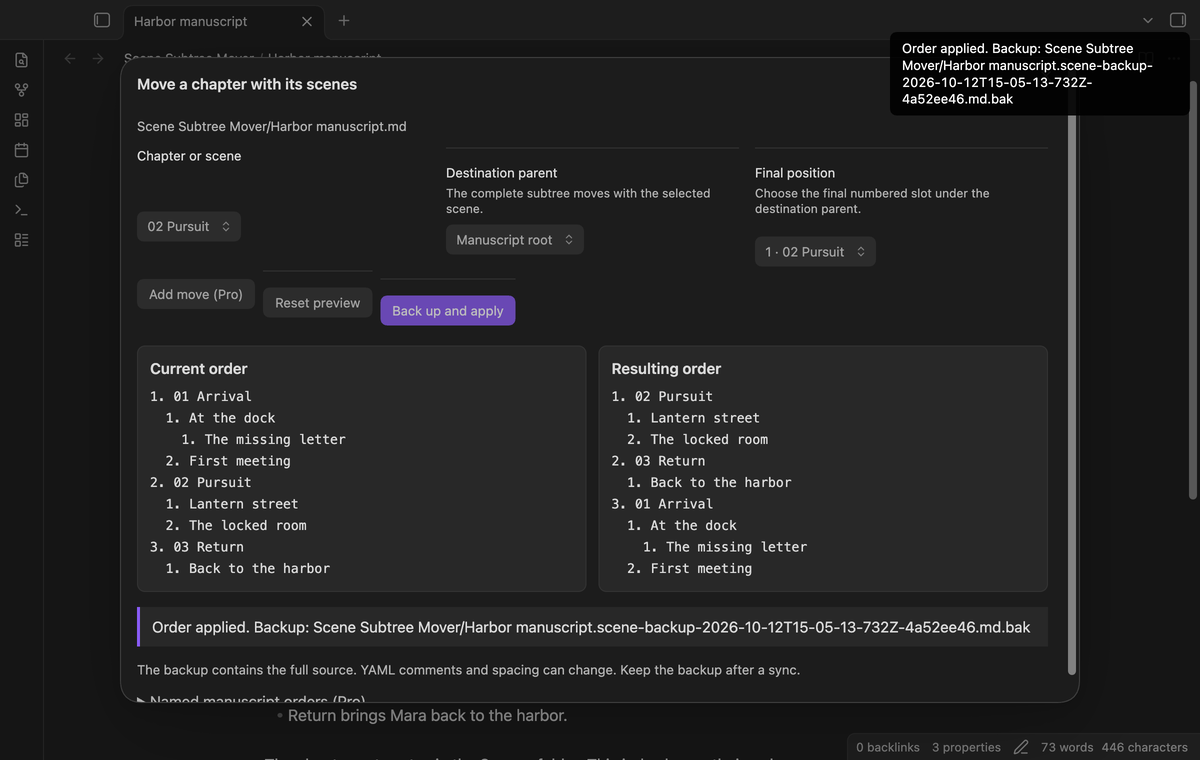
Several moves in one preview (Pro)
With Pro, the preview button becomes Add move after the first move. Select the next chapter from the proposed tree, choose its new sibling position, and add the move. The current order panel stays at the source order. The resulting order panel shows the combined changes.
Apply uses one backup and one checked index update for the combined preview. Reset discards the proposed changes. A change in Pro access before Apply prevents a combined update.
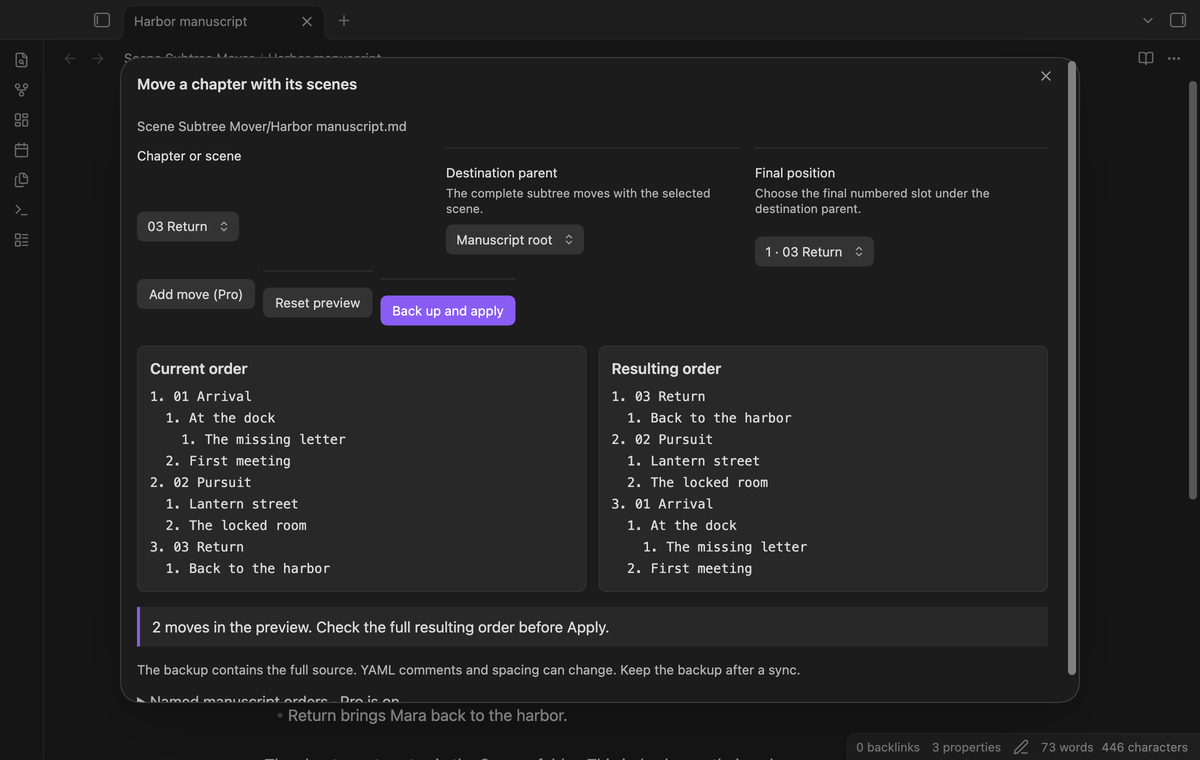
Named orders and checked restore (Pro)
Open Named manuscript orders, enter a name, and select Save named order. It saves the resulting preview in local plugin data. Saving does not change the index. Using a matching name for that index replaces the stored order.
Select a saved order and Preview saved order to restore its sequence. The check requires matching scenes and parent relationships. Added scenes, removed scenes, and scenes assigned to a different parent cause a conflict. Reordered siblings can match. Apply then makes a new source backup and checks the current text before writing.
Install
The plugin requires Obsidian 1.13.4 or later. For manual installation, put main.js, manifest.json, and styles.css in <vault>/.obsidian/plugins/scene-subtree-mover/. Enable it under Settings → Community plugins after you review the source.
When the plugin has a community listing, use Browse in Community plugins and search for Scene Subtree Mover. Longform need not be enabled to read the index, but the file must use its nested scene-array format.
Usage
- Open the manuscript index.
- Run Scene Subtree Mover: Move a chapter with its scenes from the command palette.
- Select the chapter, destination parent, and final position.
- Select Preview move and check both order panels.
- Select Back up and apply. Keep the reported backup.
The operation changes longform.scenes. It does not rename scene notes or move folders. The body text stays outside the YAML replacement. The update keeps unrelated frontmatter data. YAML serialization can change comments, spacing, quotes, and the form of aliases.
For a conflict, close the modal and inspect the current index. Run the command again to read a fresh source. Do not use an old preview to recover an external edit.
Settings
The settings tab contains the source backup explanation, the number of saved orders, and the GitHub Sponsors controls. There is no backup-disable setting. The backup folder is the folder that contains the index.
Saved orders belong to the index path. A renamed index does not use orders saved under its former path. Stored order names accept 1 to 120 characters. The plugin keeps named orders in its data.json. Include that file in your backup plan if you need those variants.
FAQ
Can I move a chapter into another chapter?
Yes. Choose the other chapter in Destination parent, then choose the final position. The preview keeps all descendants with the selected chapter. You can also choose Manuscript root to promote a scene. The selected scene and its descendants cannot be destination parents.
How do I recover the original source?
Open the reported .scene-backup-…md.bak file in a text editor and compare it with the index. To recover the complete original text, copy the backup content into the index after you check for later edits. Saved orders change only the sequence; they do not restore body edits or comments.
What are the input limits?
The reader rejects more than 10,000 array entries or more than 64 child levels. The reader rejects cycles in scene arrays. Tests cover nested descendants, duplicate labels, empty child arrays, Unicode names, and Windows line endings.
What was not tested?
The tests did not cover mobile devices, Linux, live GitHub payments, live device sign-in, the Longform interface, or multi-device sync. Pro UI tests use a local test response. The runtime uses public Obsidian and browser APIs, with no Node or Electron calls. A mobile device check is still needed.
Payment, account and network
The core features are free. Pro features need a GitHub Sponsors sponsorship of theluckystrike: $5 a month or more, or $15 once. A total payment of $15 meets the payment requirement for Pro without further payment. Sign-in and the checks below still apply. Your notes stay readable and editable with or without Pro.
GitHub handles the payment. Sponsor at https://github.com/sponsors/theluckystrike. You need no account for the free features. Pro needs the GitHub account that sponsors.
Until you select "Sign in with GitHub" in the settings, Scene Subtree Mover makes no network requests. Sign in uses the GitHub device flow. Scene Subtree Mover sends its public client ID and the scope read:user to https://github.com/login/device/code and shows you a code. While you enter the code at https://github.com/login/device, it asks https://github.com/login/oauth/access_token every few seconds to check the sign-in status. The scope permits profile reads only. GitHub needs this access to show the sponsorship tier. It grants no repository scope and no write access.
After sign in, Scene Subtree Mover sends one query to https://api.github.com/graphql. It checks if the signed-in account sponsors theluckystrike. It asks for the tier and the total payment to theluckystrike. The plugin reuses a successful check for 7 days. Failed checks can retry after 6 hours. Select Refresh to request an earlier check. It sends no note content, file names or other vault data, and it has no telemetry.
After a successful check, Pro can work offline for up to 14 days. Sign out or a negative sponsorship answer turns Pro off. The plugin stores the GitHub token through the secret storage API of Obsidian. It does not put the token in its saved settings or its local sponsorship data. The local storage of this device keeps your GitHub login, the tier and the time of the last check. Sign out clears the token. You can also revoke the access in your GitHub settings, under Applications.
Support
Use the repository issues to report a problem. Include the Obsidian version, the error text, and a small sample index with private text removed. Keep your source backup. The source is under the MIT license.