Scene Notes to Fountain
 theluckystrike1 downloads
Convert planning notes into an ordered Fountain outline with scene headings and summaries.
- Overview
- Scorecard
- Updates1
Scene Notes to Fountain turns a folder of planning notes into a Fountain outline. Each note becomes one scene: a forced scene heading and its synopsis lines. You choose the notes, set their order, read the preview and save a new .fountain file. The plugin reads your notes and does not change them.
Fountain is a plain text format for screenplays.
Features
Select the notes of one folder
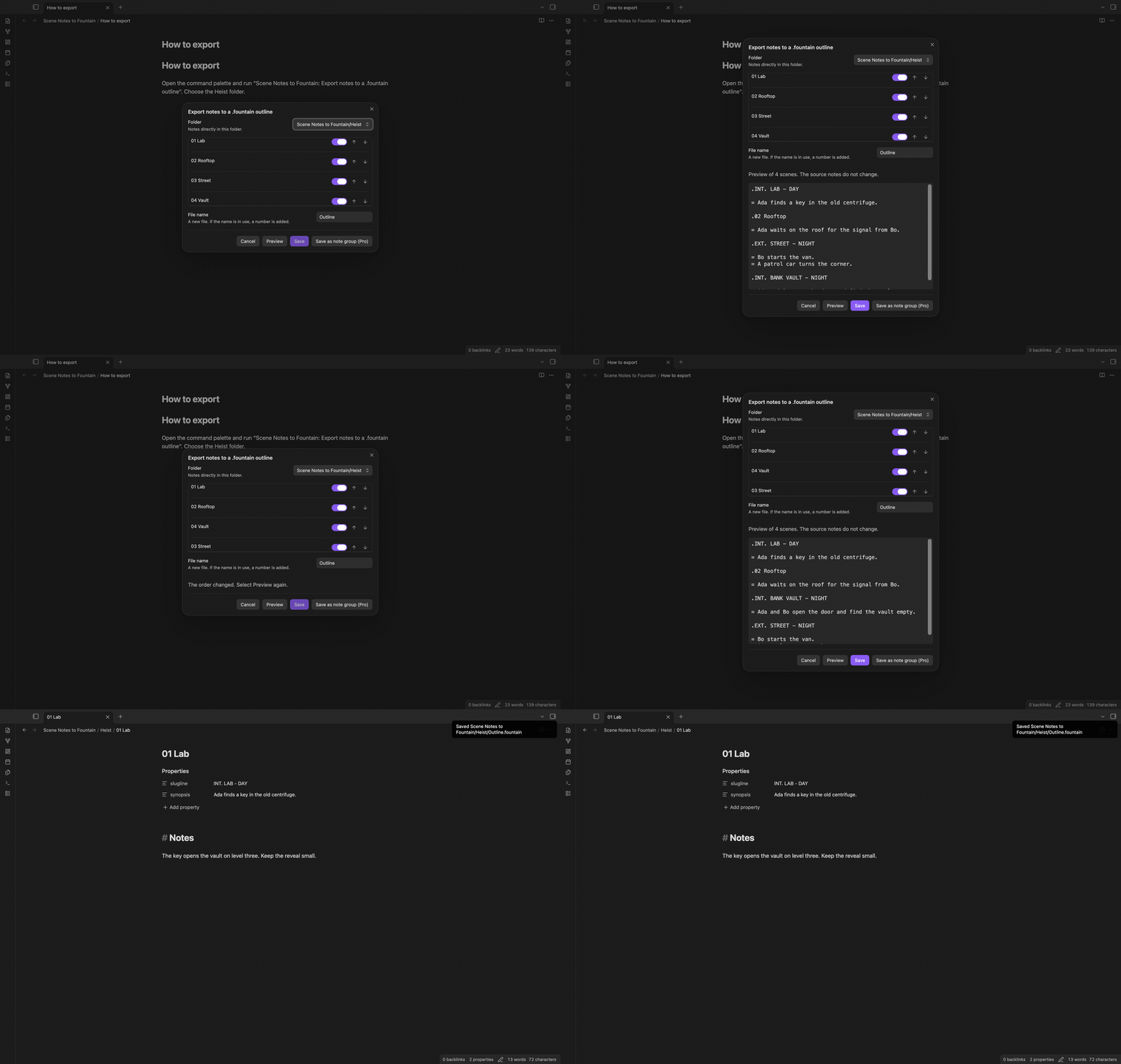
Run the command "Export notes to a .fountain outline". The export window opens on the folder of the active note. Choose a different folder from the Folder menu. The window lists the Markdown notes directly in that folder, sorted by file name, with numbers in natural order. Notes in subfolders are not in the list. Each note has a switch. Turn it off to leave that note out of the outline.
Set the order with Move up and Move down
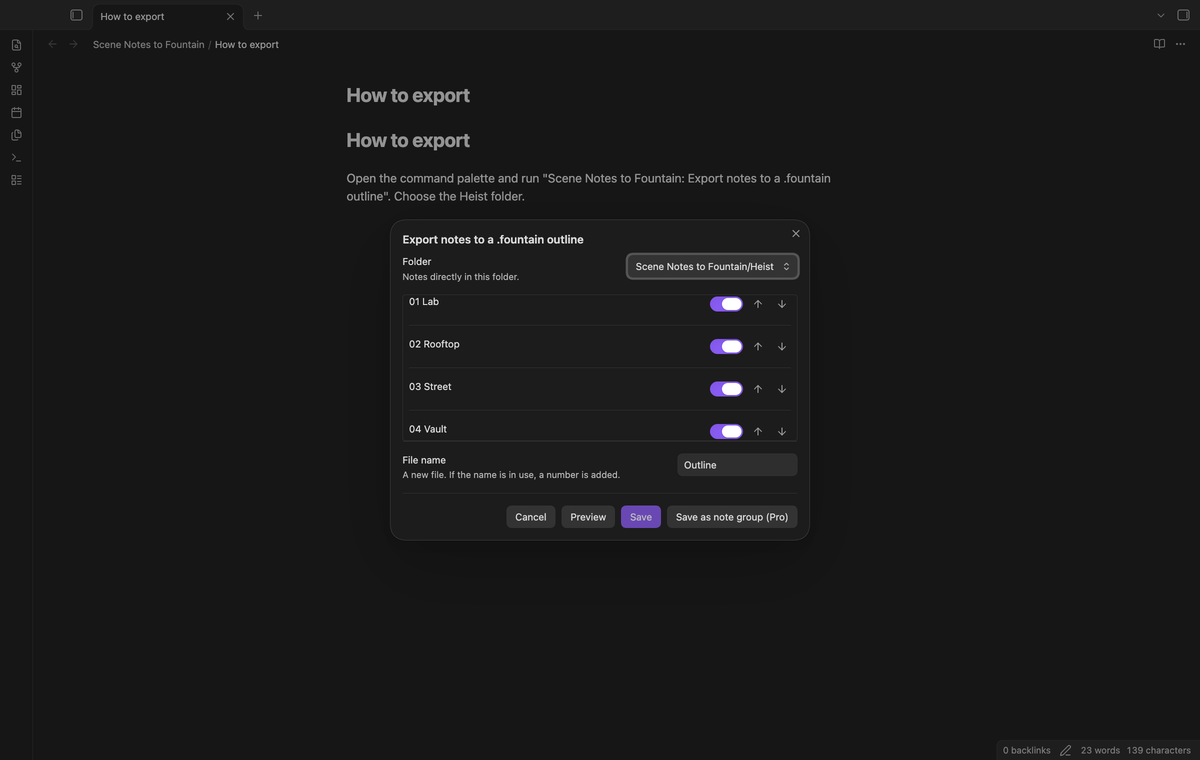
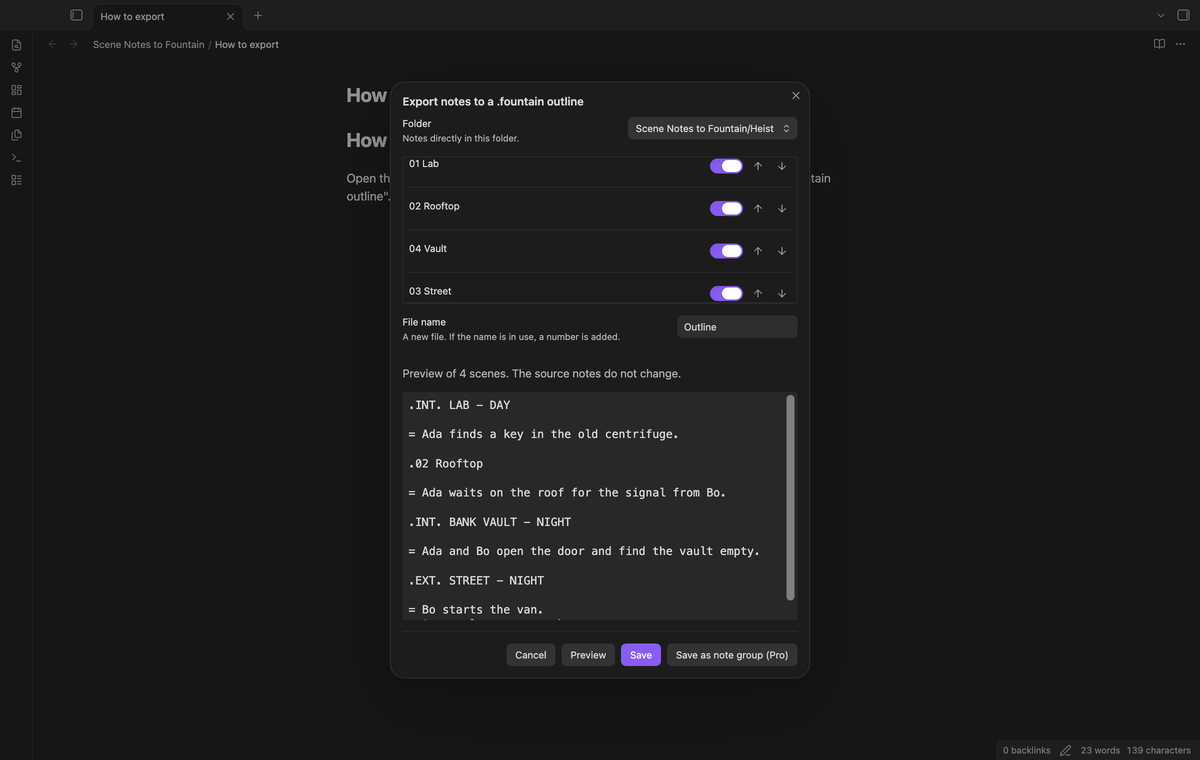
Each note has a Move up and a Move down button. The order in the list is the order of the scenes in the outline. When you change the order or the selection, the old preview goes away and Save turns off until you select Preview again. The order does not go into your notes.
Scene headings and synopses from properties
For each note, the plugin reads two text properties:
sluglinegives the scene heading, for exampleINT. LAB - DAY.synopsisgives the synopsis. Each nonempty line becomes one synopsis line.
If a note has no slugline, the file name is the scene heading. If a note has no synopsis, the first plain paragraph of the note is the synopsis. To find that paragraph, the plugin skips the properties block, headings, list items, fenced and indented code, block quotes, tables, comments and math blocks. The lines of the paragraph join into one line. A note with no plain paragraph gives a heading with no synopsis.
The output for one note looks like this:
.INT. LAB - DAY

= Ada finds a key in the old centrifuge.
The leading period forces a scene heading in Fountain, so a heading such as Rooftop is also a scene heading. A line that starts with = is a synopsis line. A two-line synopsis gives two = lines, not dialogue or a new scene.
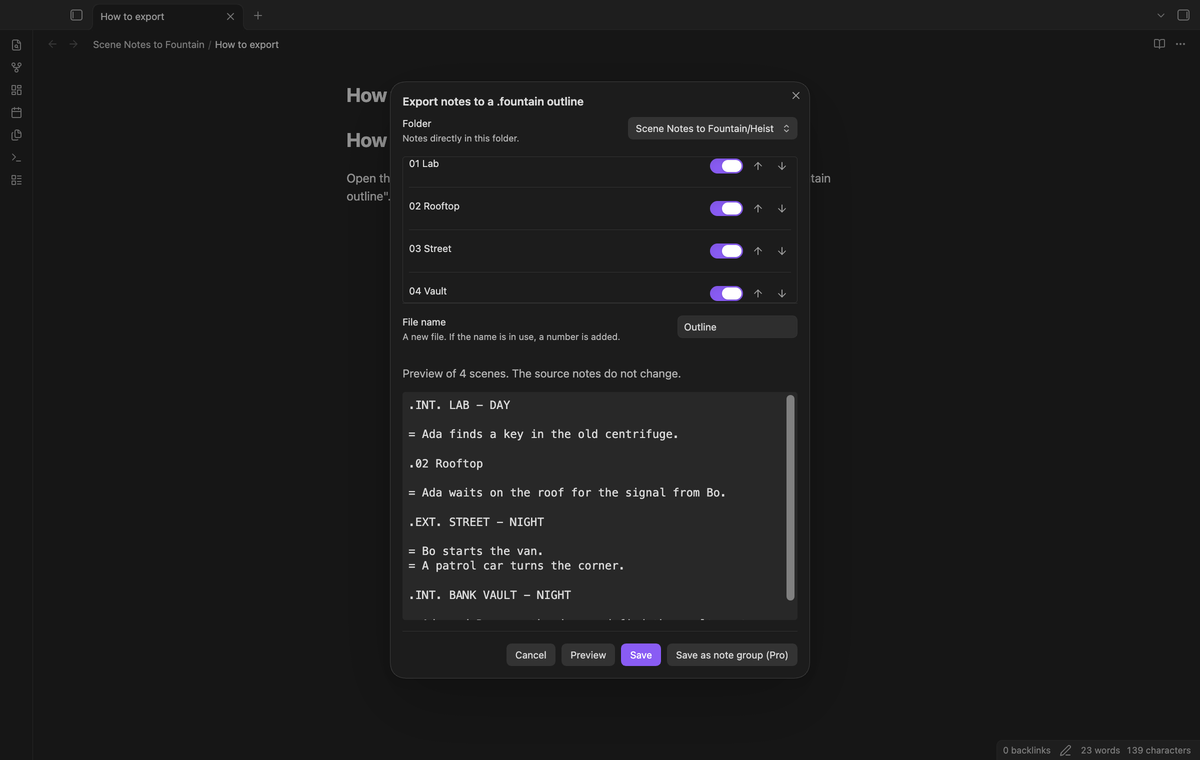
Select Preview to see the outline, then Save to write a new .fountain file next to the notes. The default name is Outline, and you can type a different one. If that file exists, the plugin adds a number, for example Outline 2.fountain. It does not write to an existing file.
Checks before save
The plugin stops the export and shows one line for each note that has a problem:
- A
sluglineorsynopsisproperty that is not text, for example a YAML list. The plugin does not convert the list to text. - A heading with a line break.
- Text with
[[,]],/*or*/. Fountain reads these as notes and boneyard, so the text would be hidden in the screenplay app. An Obsidian wikilink in the fallback paragraph gives this error too. - A heading that does not start with a letter or a digit, or that ends with
#...#. Fountain would read these as a different element or as a scene number.
When a check fails, Save stays off. Correct the note, then select Preview again.
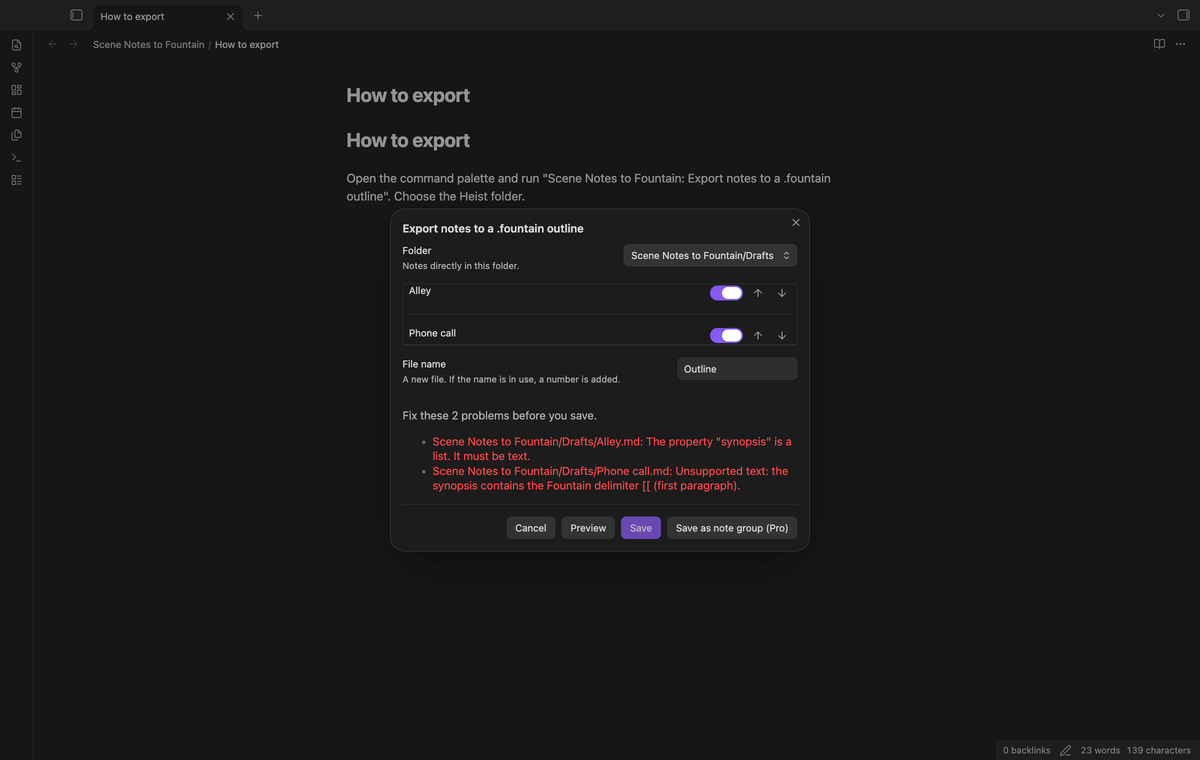
If you edit a selected note while the window is open, the plugin drops the old preview and makes a new one. Save also reads the notes again. If a note changed after the preview, it saves nothing and shows the new preview.
Saved mappings, output settings and note groups (Pro)
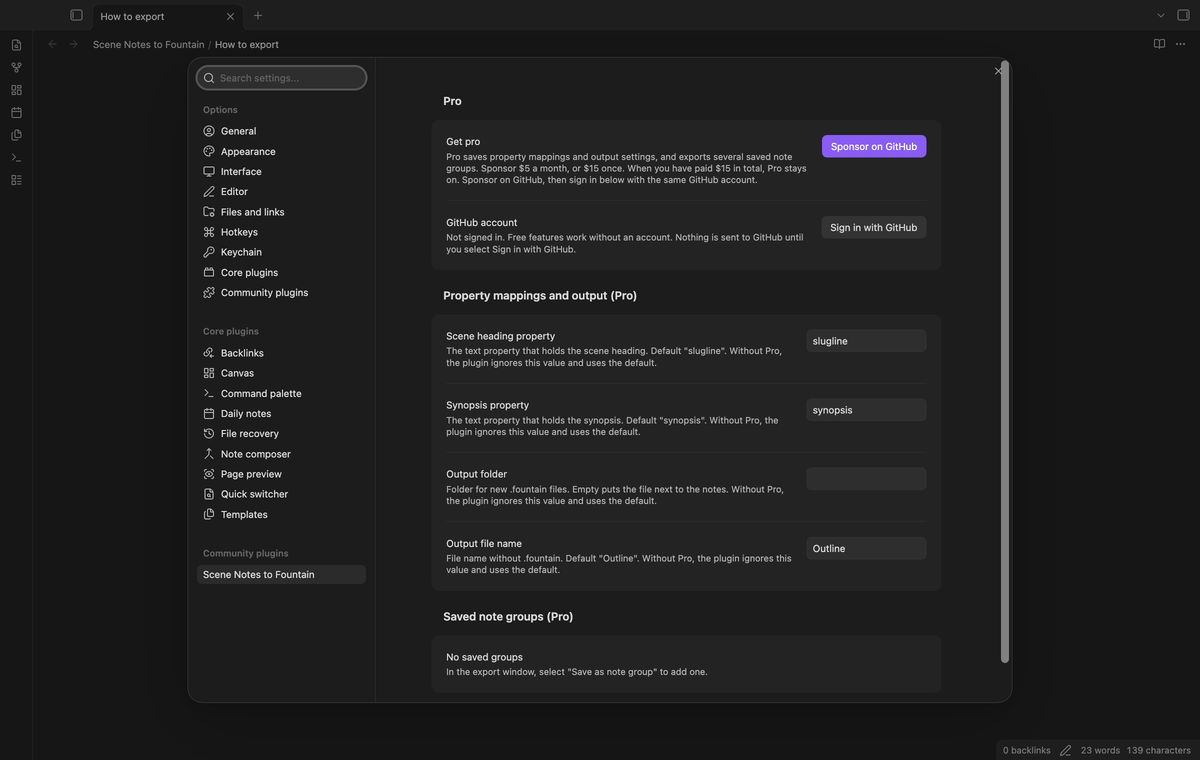
With Pro, the settings tab keeps your own property names for the heading and the synopsis, an output folder and a default file name. The export window can save the selected notes and their order as a note group, named after the file name. The command "Export saved note groups" writes each group to its own new .fountain file. Without Pro, the plugin uses slugline, synopsis, the folder of the notes and Outline.
Install
For manual installation, copy the built main.js, manifest.json and styles.css into <vault>/.obsidian/plugins/scene-notes-to-fountain/. Open "Settings → Community plugins" and enable the plugin. You need Obsidian 1.13.4 or later.
Usage
- Put one note for each scene in a folder. Add the
sluglineandsynopsisproperties, or use the file name and the first paragraph. - Open one of the notes, open the command palette and run "Scene Notes to Fountain: Export notes to a .fountain outline".
- Check the folder. Turn off the notes that you do not want.
- Use Move up and Move down to set the order.
- Select Preview. Read the outline, or correct the notes that show an error.
- Select Save. A notice shows the path of the new file.
Select Cancel or close the window to stop without a file.
Settings
The settings tab has three parts.
| Setting | What it does |
|---|---|
| Pro | Sponsor on GitHub, sign in with GitHub, refresh the check or sign out. |
| Scene heading property (Pro) | The text property for the scene heading. Default slugline. |
| Synopsis property (Pro) | The text property for the synopsis. Default synopsis. |
| Output folder (Pro) | The folder for new files. Empty puts the file next to the notes. The plugin creates the folder if it is not there. |
| Output file name (Pro) | The default file name in the export window. Default Outline. |
| Saved note groups (Pro) | The list of groups, with a button to delete a group. |
Without Pro, you can type values in the Pro fields, but the plugin uses the defaults.
FAQ
Does the plugin change my notes?
No. It reads the notes with the vault API and creates a new file. The unit tests and the end-to-end test compare the source notes before and after a save.
Why does a wikilink give an error?
In Fountain, [[ and ]] mark a note that screenplay apps hide. If the plugin wrote your wikilink, the text would not show in the script. Remove the brackets, or put the synopsis in the synopsis property.
Can I drag notes to order them?
No. This version has Move up and Move down buttons. Drag and drop and linked cards are not in this version.
What did you not test?
We have not tested the plugin on a phone or a tablet. The code uses no desktop-only API, but no device test was run. We have not opened the output in a screenplay app. We have not measured the speed with large folders. Emphasis characters such as * and _ in a synopsis go into the file as you wrote them.
Payment, account and network
The core features are free. Pro features need a GitHub Sponsors sponsorship of theluckystrike: $5 a month or more, or $15 once. A total payment of $15 meets the payment requirement for Pro without further payment. Sign-in and the checks below still apply. Your notes stay readable and editable with or without Pro.
GitHub handles the payment. Sponsor at https://github.com/sponsors/theluckystrike. You need no account for the free features. Pro needs the GitHub account that sponsors.
Until you select "Sign in with GitHub" in the settings, Scene Notes to Fountain makes no network requests. Sign in uses the GitHub device flow. Scene Notes to Fountain sends its public client ID and the scope read:user to https://github.com/login/device/code and shows you a code. While you enter the code at https://github.com/login/device, it asks https://github.com/login/oauth/access_token every few seconds to check the sign-in status. The scope permits profile reads only. GitHub needs this access to show the sponsorship tier. It grants no repository scope and no write access.
After sign in, Scene Notes to Fountain sends one query to https://api.github.com/graphql. It checks if the signed-in account sponsors theluckystrike. It asks for the tier and the total payment to theluckystrike. The plugin reuses a successful check for 7 days. Failed checks can retry after 6 hours. Select Refresh to request an earlier check. It sends no note content, file names or other vault data, and it has no telemetry.
After a successful check, Pro can work offline for up to 14 days. Sign out or a negative sponsorship answer turns Pro off. The plugin stores the GitHub token through the secret storage API of Obsidian. It does not put the token in its saved settings or its local sponsorship data. The local storage of this device keeps your GitHub login, the tier and the time of the last check. Sign out clears the token. You can also revoke the access in your GitHub settings, under Applications.
Support
Report bugs and feature requests in this repository's issues. Add your Obsidian version and a small sample note.