- Overview
- Scorecard
- Updates13
Let's run JavaScript easily and simply in Obsidian.
RunJS is a plugin for running JavaScript code in Obsidian. You can directly run trivial(?) code snippets without having to create a separate plugin. But, like any other plugin, you can run code that manages Obsidian and notes. Codes is written as codeblocks (.md) in Obsidian Notes or as separate files (.js, .mjs). You also have the option to break down your code into executable code and module to give you better organization.
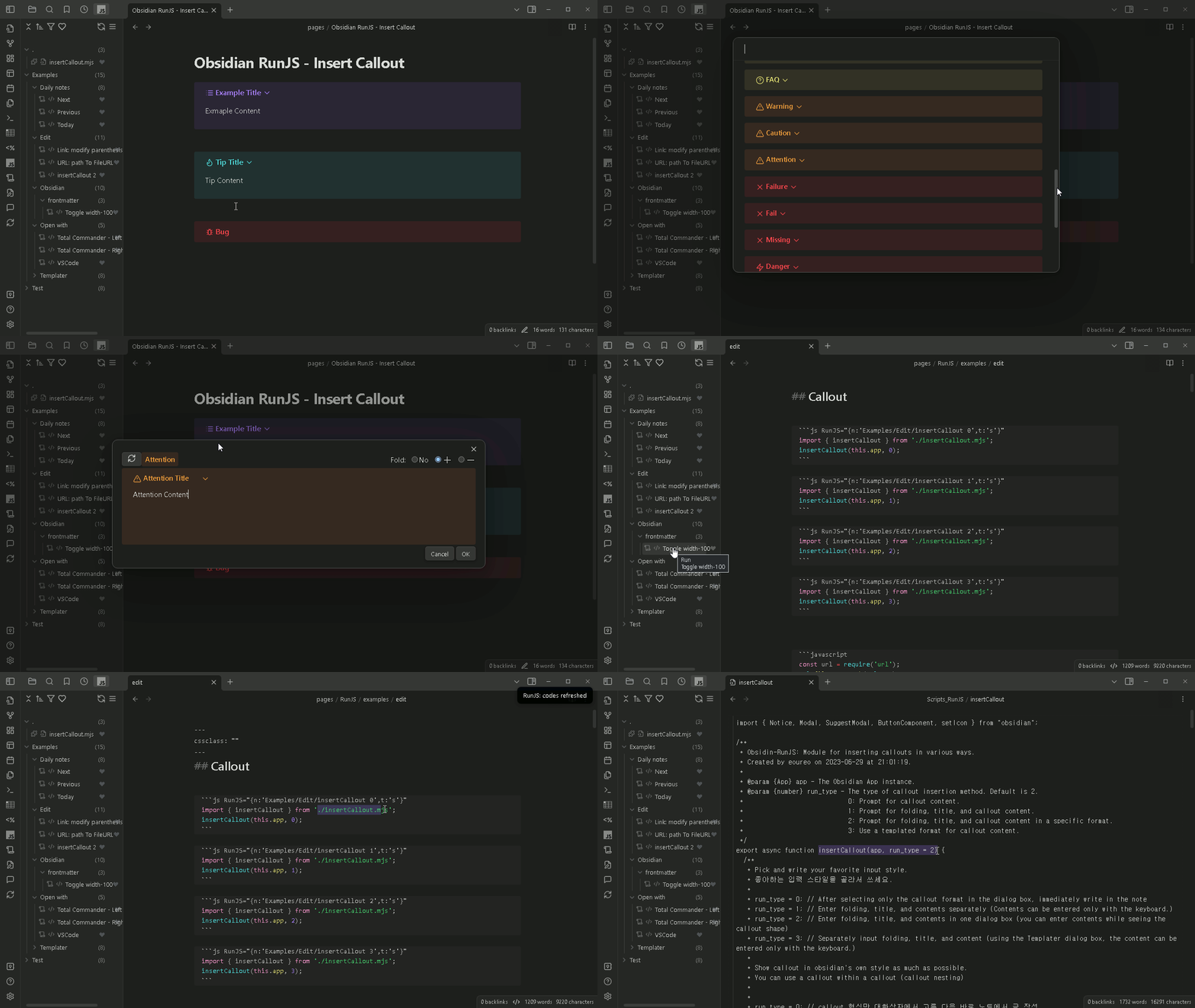 In this example, the Insert Callout and width-100 commands are executing. You can view and modify the source code with the Open code file menu.
Features
Runs: There are multiple ways to run code.
- Codelist View: You can view all code lists. Then run code or view code with one click.
- Run Code Modal: Select a code in a hierarchical structure of code groups and then run it.
- Autostart: Run code automatically when RunJS is loaded.
- Add command: Add a command to be executed to command palette. Then you can additionally set a Hotkey on it.
- Add Ribbon icon: Add an icon to Ribbon to run code right away.
Code types: JavaScript module system is available.
- script:
- code set to t:"s" (default) in codeblock of note
- js file in RunJS Scripts folder
- module:
- code set to t:"m" in codeblock of note
- .mjs file in RunJS Scripts folder
- script:
Coding: When developing other plugins, the code can be used directly without modification.
Start - Hello, World!
JavaScript codeblock(js, javascript) must have the following directive format to be recognized as code in RunJS.
- RunJS="name"
- RunJS="group/name"
- RunJS="{n:'name'}"
- RunJS="{n:'group/name',t:'s'}"
In .js and .mjs files, use as follows.
/**
 * @RunJS group/name
 * @RunJS {n:'group/name'}
 */
If your code is in a .js file (executable) or .mjs file (module), you can simply put it in the RunJS scripts folder without any directives.
```js RunJS="Test/Hello, World!"
new Notice("Hello, World!");
```
or
```js RunJS="{n:'Test/Hello, World!',t:'s'}"
new Notice("Hello, World!");
```
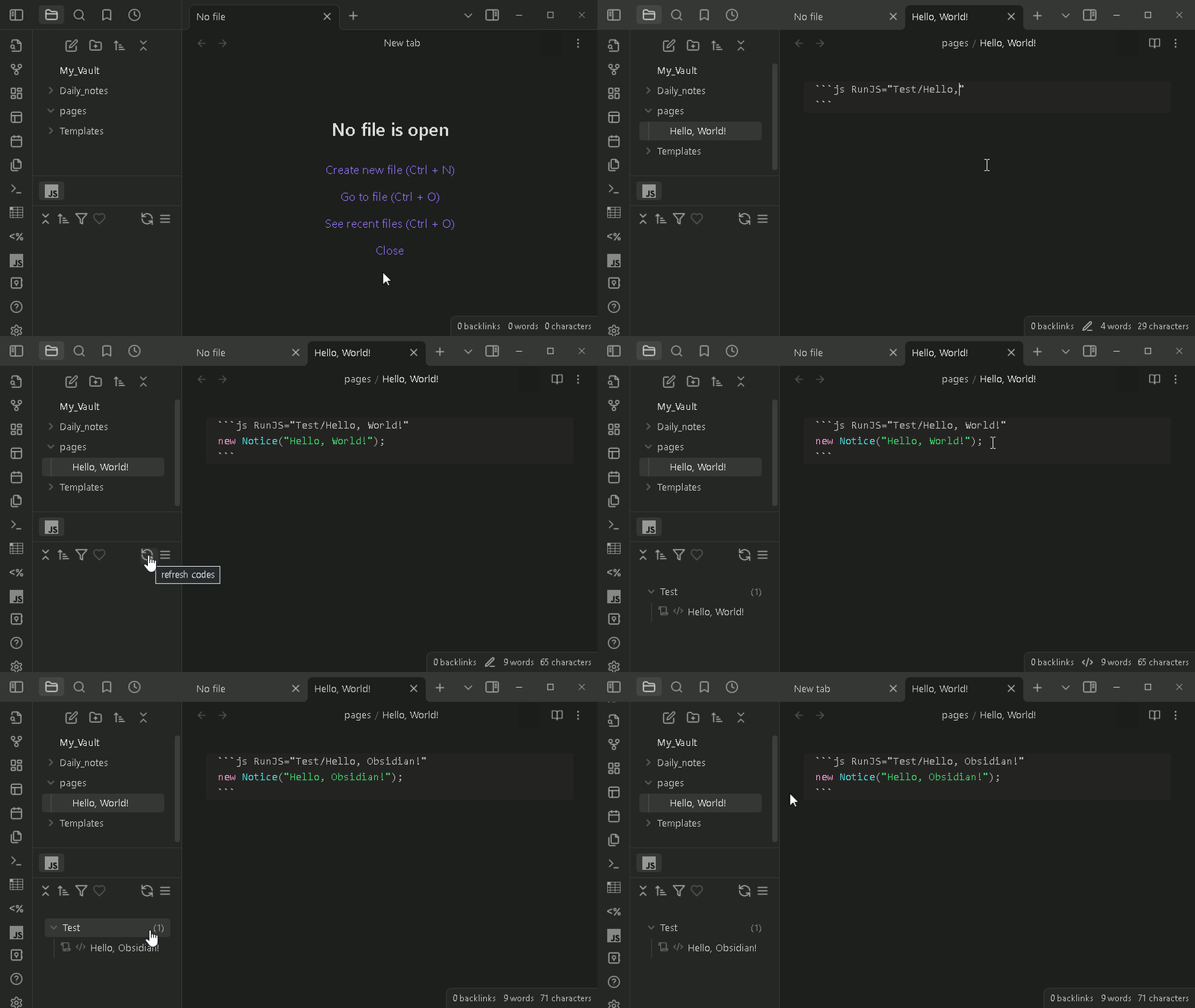
You can see more at the link below.
Hello, World! : Discussions - Codes https://github.com/eoureo/obsidian-runjs/discussions/2
How to get code
The code in the codeblock in the following link is just pasting the codeblock itself into a note file. If the code is in a .js file or .mjs file, you can put the file in the folder set as the RunJS script folder.
Some of the code may need to be modified to suit your environment. Settings that need to be changed are usually at the top of the code.
- Codes of RunJS: You can see some useful code in Discussions - Codes of RunJS. I'll keep posting the codes here.
- Open with - VSCode, Total Commander
- Mange Frontmatter: width-100, modified date
- Use internal plugin - Daily notes: today, previous, next
- Use plugin - Templater: tp, append_template_to_active_file
- Edit note: Path to File url, JS Comment
- Module - RunJS-Utils.mjs: getSelection(), setSelection(text)
- Insert Callout (Module for inserting callouts in various ways and Codes)
- Event handler - file-menu, editor-menu - Copy file path, Open with VSCode - selection
- Event handler - code-menu (RunJS) - Copy code name, Open object modal
- Codes Share: Please share and introduce your code to Discussions - Codes Share.
[!caution] Codes can do the same thing as other plugins. So bad code can potentially disrupt Obsidian or corrupt notes. It is important to ensure that the code is safe before executing it.
Useful starter codes
// Using obsidian
import * as obsidian from 'obsidian';

// this plugin
const runJS = this;

// Using other plugins
const dailyNotes = runJS.app.internalPlugins.plugins["daily-notes"];
const dataviewAPI = runJS.app.plugins.plugins["dataview"].api;
const templater = runJS.app.plugins.plugins["templater-obsidian"].templater;

// Using other module
const url = require('url');
References for writing codes
- Home - Developer Documentation
https://docs.obsidian.md/Home - obsidianmd/obsidian-api: Type definitions for the latest Obsidian API.
https://github.com/obsidianmd/obsidian-api - Obsidian Plugin Developer Docs | Obsidian Plugin Developer Docs
https://marcus.se.net/obsidian-plugin-docs/
Examples
Obsidian Icon list
Continuing from the example above ("Hello, World!"), write the following code in another code block. Then refresh the code list and you will see the new code. Then click it to run.
```js RunJS="{n:'Obsidian/Open icon modal',t:'s'}"
// const runJS = this.app.plugins.plugins["runjs"];
const runJS = this;
runJS.openIconModal();
```
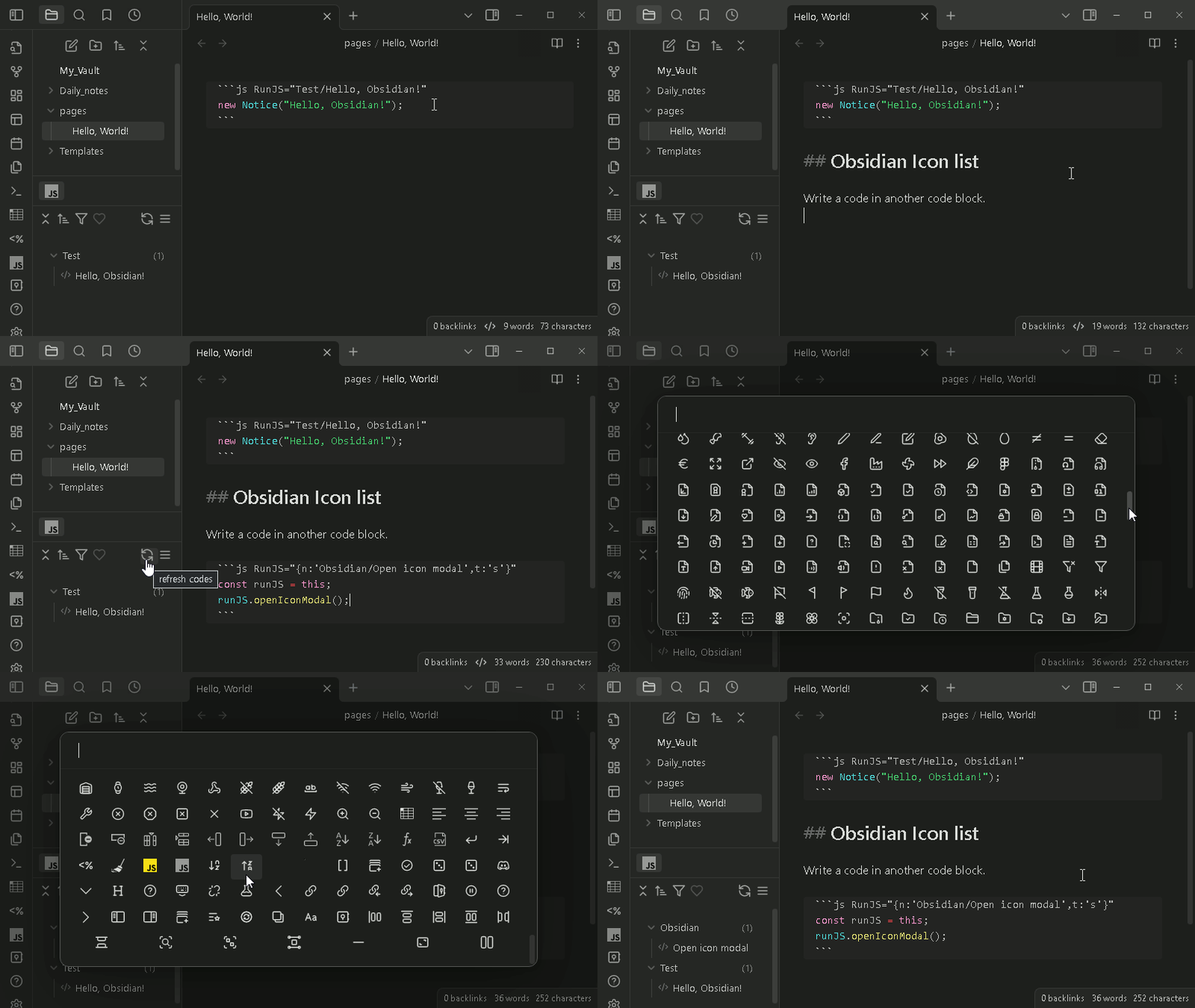
You can see more at the link below.
Open icon modal : Discussions - Codes https://github.com/eoureo/obsidian-runjs/discussions/3
Scripts & Modules
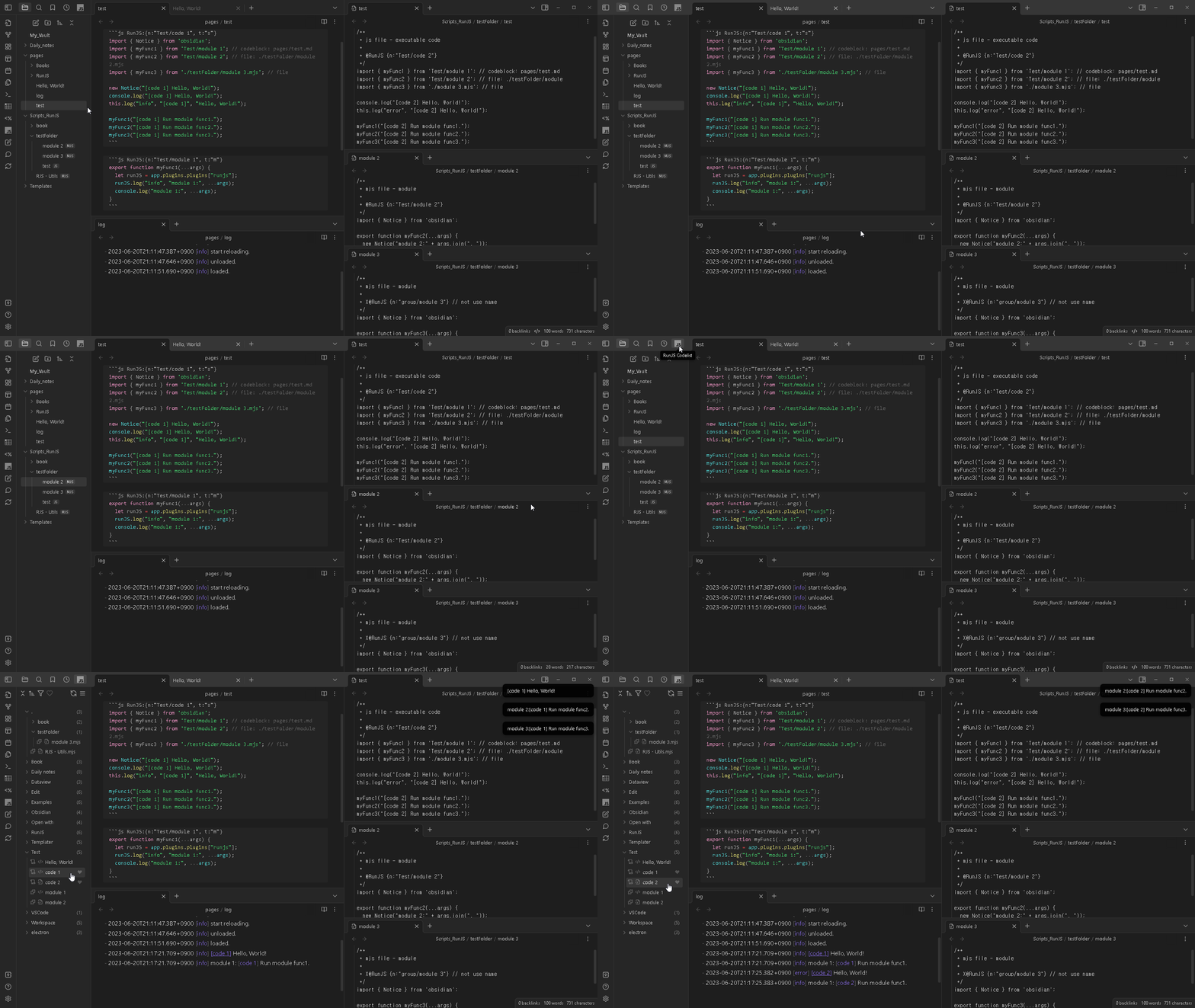
The following shows examples of creating and using code with scripts and modules. Scripts named "code 1" and "code 2" are shown in the list. In addition to its own executable code, this script uses functions from "module 1", "module 2", and "module 3". The execution result is written in the log file(the file set in the plugin settings).
test.md - Scripts and modules can be put in a code block, either together in a single file or split into multiple files.
```js RunJS="{n:'Test/code 1', t:'s'}"
import { Notice } from 'obsidian';
import { myFunc1 } from 'Test/module 1'; // codeblock: pages/test.md
import { myFunc2 } from 'Test/module 2'; // file: ./testFolder/module 2.mjs
import { myFunc3 } from './testFolder/module 3.mjs'; // file

new Notice("[code 1] Hello, World!");
console.log("[code 1] Hello, World!");
this.log("info", "[code 1]", "Hello, World!");

myFunc1(this.app, "[code 1] Run module func1.");
myFunc2("[code 1] Run module func2.");
myFunc3("[code 1] Run module func3.");
```

```js RunJS="{n:'Test/module 1', t:'m'}"
export function myFunc1(app, ...args) {
  let runJS = app.plugins.plugins["runjs"];
  runJS.log("info", "module 1:", ...args);
  console.log("module 1:", ...args);
}
```
Scripts_RunJS/testFolder/test.js - Script(.js file) saved in the script file storage folder set in the plugin settings
/**
 * js file - script. executable code
 *
 * @RunJS {n:'Test/code 2'}
 */
import { myFunc1 } from 'Test/module 1'; // codeblock: pages/test.md
import { myFunc2 } from 'Test/module 2'; // file: ./testFolder/module 2.mjs
import { myFunc3 } from './module 3.mjs'; // file: ./testFolder/module 3.mjs

console.log("[code 2] Hello, World!");
this.log("error", "[code 2] Hello, World!");

myFunc1(this.app, "[code 2] Run module func1.");
myFunc2("[code 2] Run module func2.");
myFunc3("[code 2] Run module func3.");
Scripts_RunJS/testFolder/module 2.mjs - module file
/**
 * mjs file - module
 *
 * @RunJS {n:'Test/module 2'}
 */
import { Notice } from 'obsidian';

export function myFunc2(...args) {
  new Notice("module 2:" + args.join(", "));
  console.log("module 2:",...args);
}
Scripts_RunJS/testFolder/module 3.mjs - module file
/**
 * mjs file - module
 *
 * X@RunJS {n:'group/module 3'} // not use name
 */
import { Notice } from 'obsidian';

export function myFunc3(...args) {
  new Notice("module 3:" + args.join(", "));
  console.log("module 3:",...args);
}
You can see the above codes running in the image below.
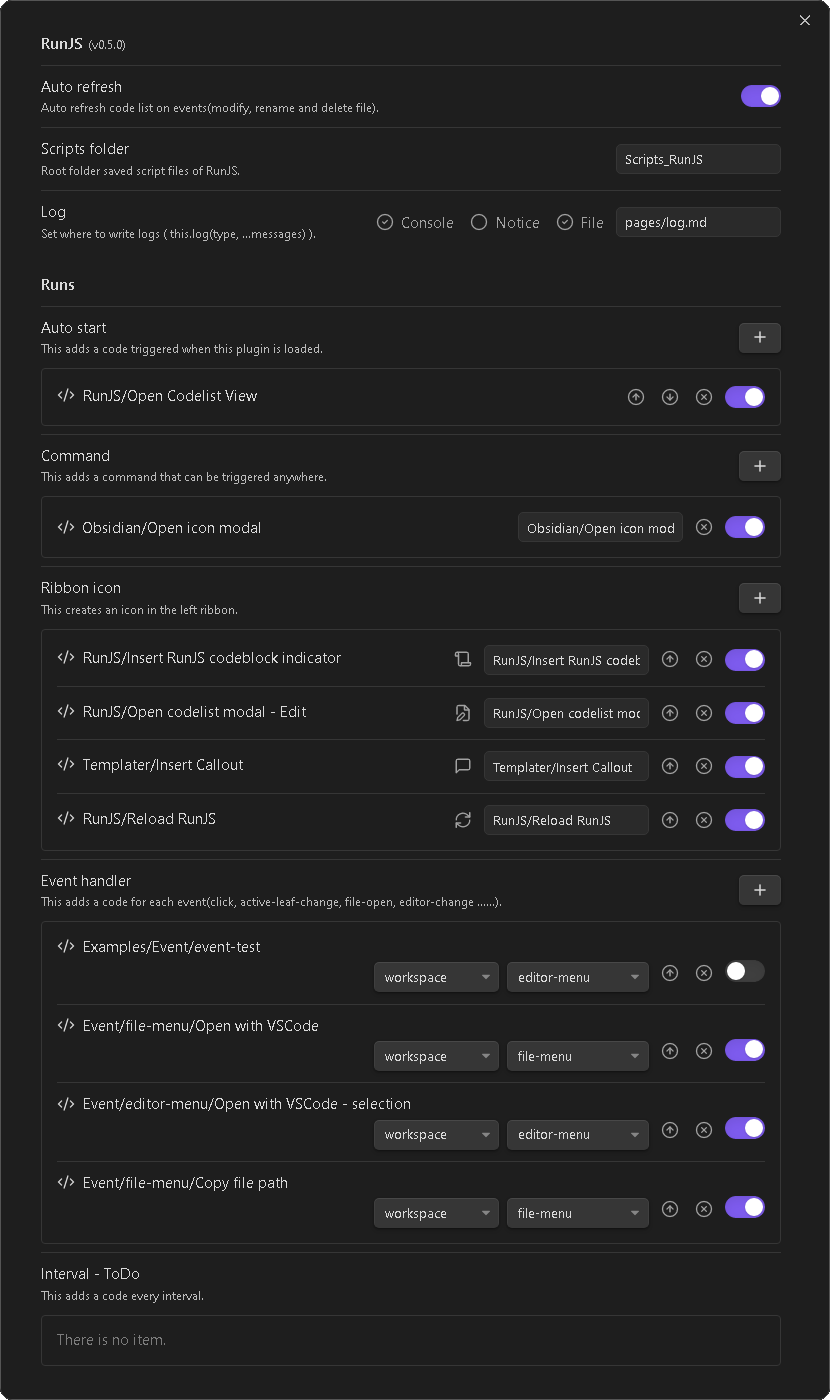
Settingtab
Here is the RunJS settings dialog.
API
- openCodeListModal(groupRoot?: string)
- openObjectModal(object?: { [key: string]: any }, callback?: (key: string) => void) https://github.com/eoureo/obsidian-runjs/discussions/7
- openIconModal(callback?: (icon: string) => void) https://github.com/eoureo/obsidian-runjs/discussions/3
- runCodeByName(name: string)
- dialogs https://github.com/eoureo/obsidian-runjs/discussions/20:
- alert(message: string)
- confirm(message: string)
- prompt(message: string, messagDefault: string = "", placeholder: string = "", multiLine: boolean = false)
- suggest(message: string, list: string[], placeholder: string = "")
Donate
If you like this plugin, consider donating to support continued development.