Rule Engine
 jackcarey835 downloads
Run commands and create custom HTML views for your notes based on filter rules. Transform how your vault behaves and how notes are displayed.
- Overview
- Scorecard
- Updates40
A plugin for Obsidian that lets you define rules to automate commands and render HTML views for your notes. Transform how your notes behave and are displayed by defining custom rules that match specific files.
Expands on anuwup/obsidian-custom-views (MIT license).
Features
- render HTML templates on individual markdown files.
- render HTML templates on canvas nodes.
- render HTML templates on each
.baseitem. - automatically run list of commands against individual files.
- automatically run lists of commands against each
.baseitem.
Permissions & behavior
- Vault enumeration: the plugin lists vault files (
vault.getFiles()/getMarkdownFiles()) so it can match them against your configured rules - this is core to how rule matching works. - Dynamic code execution:
<script>tags inside templates are opt-in and run vianew Function()(see Script Support). Scripts with asrcattribute are always ignored, so templates can't load remote code. - On-demand ML model download: the
Generate semantic tagscommand downloads a small (MiniLM) model from Hugging Face the first time it's used, then caches it locally so later runs (and future Obsidian sessions) work offline - see Tag generation commands. - File deletion: the
Delete current file without confirmationcommand trashes the active file immediately, with no confirmation prompt - it's disabled by default like all provided commands, but enable it deliberately.
Commands
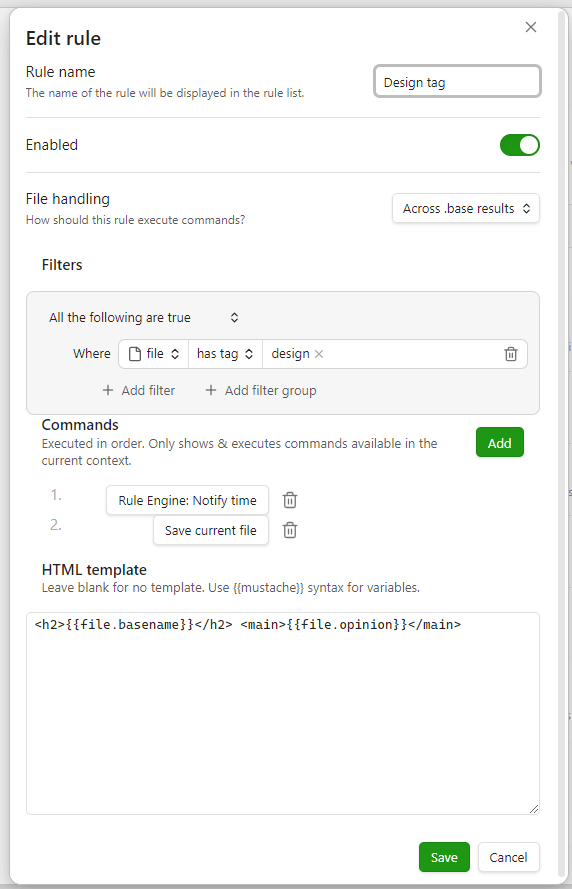
Any command available in the current Obsidian context will be available to include in rules. When rules execute, only commands available in that context will run.
Rules are checked on individual files when they open. They are checked on .base results when they change. You can also use the 'process now' command to run rules on demand.
Commands from all matching rules wll execute in order.

Provided commands
By default, commands provided by this plugin are disabled. You can enable them in the plugin settings.
Force template- Apply a template to the current file regardless of rule automations and conditions.Restore view- Remove any applied templates from the current file.Process now- Check and execute automations as if the file has just been opened.Fill task due dates- Add a due date (📅 emoji or Dataview[due:: ]format) to unchecked task lines in the current file that don't already have one. See Task due dates.Generate TF-IDF tags- Score the current file's words against other notes and append the most distinctive terms to a frontmatter field. See Tag generation commands.Generate semantic tags- Match the current file's content against tags already used in your vault, using a small embedding model (downloaded on first use), and append the closest matches to a frontmatter field. See Tag generation commands.Generate automatic MOC- Build a "map of content" list of notes sharing tags with the current file, under a heading. See Automatic MOC.Delete current file without confirmation- ⚠️ Immediately trashes the active file with no confirmation prompt. There's no undo through the plugin itself.
Third party commands
Any command available in the current Obsidian context will be available to include in rules. When rules execute, only commands available in that context will run. This means you can use commands from Obsidian itself or any other plugin. Avoid automating commands that require input when they run as these parameters cannot be selected.
Task due dates
Fill task due dates scans the current file's unchecked task lines (- [ ] ...) and appends a due date to any that don't already have one. Tasks that already have a 📅 emoji or a Dataview due:: field ([due:: x], (due:: x) or bare due:: x) are skipped.
- Frontmatter field - an optional frontmatter field to read the due date from (default: none).
- Format -
Emoji(default) appends📅 YYYY-MM-DD, the Tasks plugin's format.Dataviewappends[due:: YYYY-MM-DD]. - Parse from title - if enabled and the frontmatter field is empty or unset, falls back to a
YYYY-MM-DDdate found in the file's title. - If neither source yields a date, it falls back to the file's last-modified time.
Unlike the other provided commands, this one only works on the note currently open in the editor, so it can't be triggered automatically through rule automations - run it manually from the command palette or a hotkey.
Tag generation commands
Both commands write to the same kind of frontmatter list field (tags by default) and share the same append/limit logic:
- They append, never overwrite - your existing tags are always kept in full; the commands only ever add to them, never remove or replace them.
- A max tags setting is a ceiling on the field's total tag count, not a target to hit. It only limits how many new tags get added - e.g. with max tags set to 10, a file with 6 existing tags gets up to 4 new ones added, while a file that already has 11 gets 0 added (and still keeps all 11 - the limit never trims what's already there).
- Values are normalized before being written (no
#prefix, spaces become dashes,/hierarchy separators are preserved).
Generate TF-IDF tags scores the words in the current file against a corpus of other notes (TF-IDF: term frequency × inverse document frequency) and appends the highest-scoring terms.
- Frontmatter field - which list field to write to (default
tags). - Max tags - the ceiling described above.
- Compare against -
Whole vault(most accurate, scans every note) orLinked notes(faster on large vaults - only the current file's forward links and backlinks).
Generate semantic tags uses a small (~23 MB) embedding model (Xenova/all-MiniLM-L6-v2, quantized) to find new tags for the current file, up to the max tags ceiling. Inference runs entirely locally - nothing about your notes is ever sent anywhere.
- Frontmatter field and Max tags - same as above.
- Existing vault tags vs invented tags - a 0-100% slider. Whenever there's room to add tags, this controls where they come from: at 100%, every new tag is one already used elsewhere in your vault (keeps your tagging vocabulary consistent, never invents new words - this is closer to how
Generate TF-IDF tagssources its candidates, though scored differently); at 0%, new tags are instead invented from the current file's own distinctive content (the same TF-IDF scoringGenerate TF-IDF tagsuses), even if nothing like them exists elsewhere in the vault yet. Values in between blend the two. - The very first run downloads the model (~35 MB, including its WASM runtime) from Hugging Face and caches it locally - it needs network access just that once. Every run after that, including in future Obsidian sessions, loads from the local cache and works fully offline.
Automatic MOC
Generate automatic MOC builds a live "map of content" - a bullet list of links to other notes sharing tags with the current file - under a heading in the current file's body.
- Mode - how notes are matched against the current file's tags:
any- notes sharing at least one tag.all- notes that have every one of the current file's tags.percentage- notes that share at least Minimum percentage of the current file's tags (e.g. 50% of 4 tags means at least 2 shared).count- notes that share at least Minimum count of the current file's tags.
- Minimum percentage - 1-100, default 50. Only used by
percentagemode. - Minimum count - at least 1, default 2. Only used by
countmode. A count larger than the current file's tag count will not match. - Heading - which heading to place the list under, matched case-insensitively. If it doesn't exist yet, it's created automatically at the end of the file, one level deeper than the file's last heading (or
##if the file has no headings at all).
Unlike the tag generation commands above, this list is fully regenerated every run, not appended to - since it's entirely derived from the vault's current tags rather than anything you typed, keeping it always up to date matters more than preserving history. Two things follow from that:
- Links to notes that no longer match are dropped automatically the next time it runs.
- Everything else under that heading gets overwritten too. Don't write your own notes in the same section as the generated list - put them elsewhere in the file, or under a different heading.
If the current file has no tags, the command does nothing (silently - no heading gets created, nothing gets touched).
Base files
When opening or updating a Base that uses the 'Rule Engine' view, rules with the 'base' or 'both' file handling will execute commands and apply templates.
Table layout
Execute commands against results.

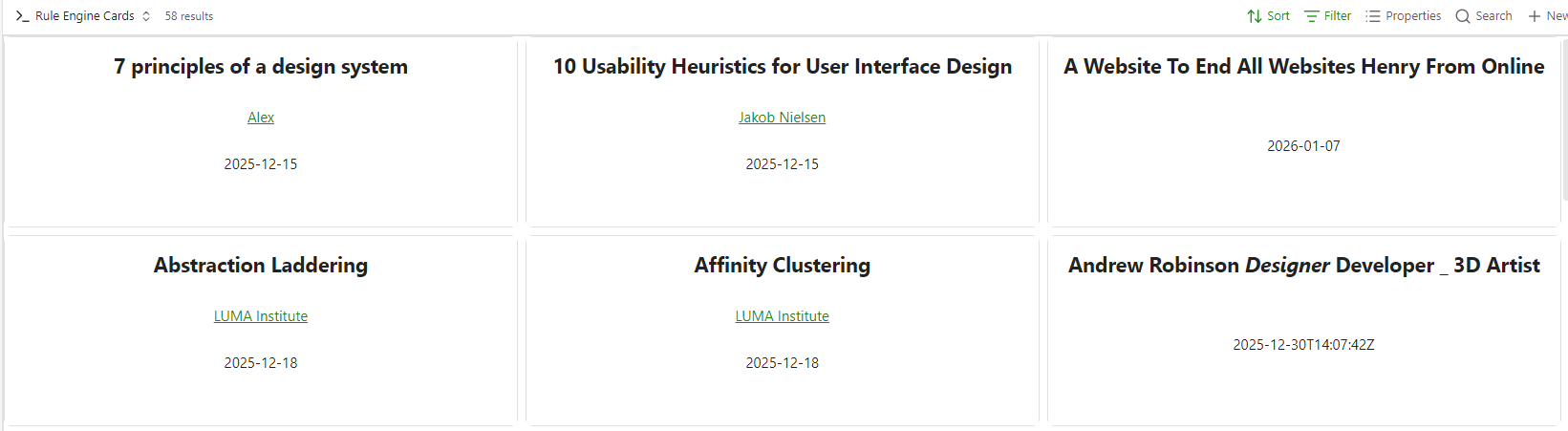
Card layout
Using the card layout you can apply matching templates to each item automatically. Since base and rule filters can differ, you can apply different templates to each card.
Settings
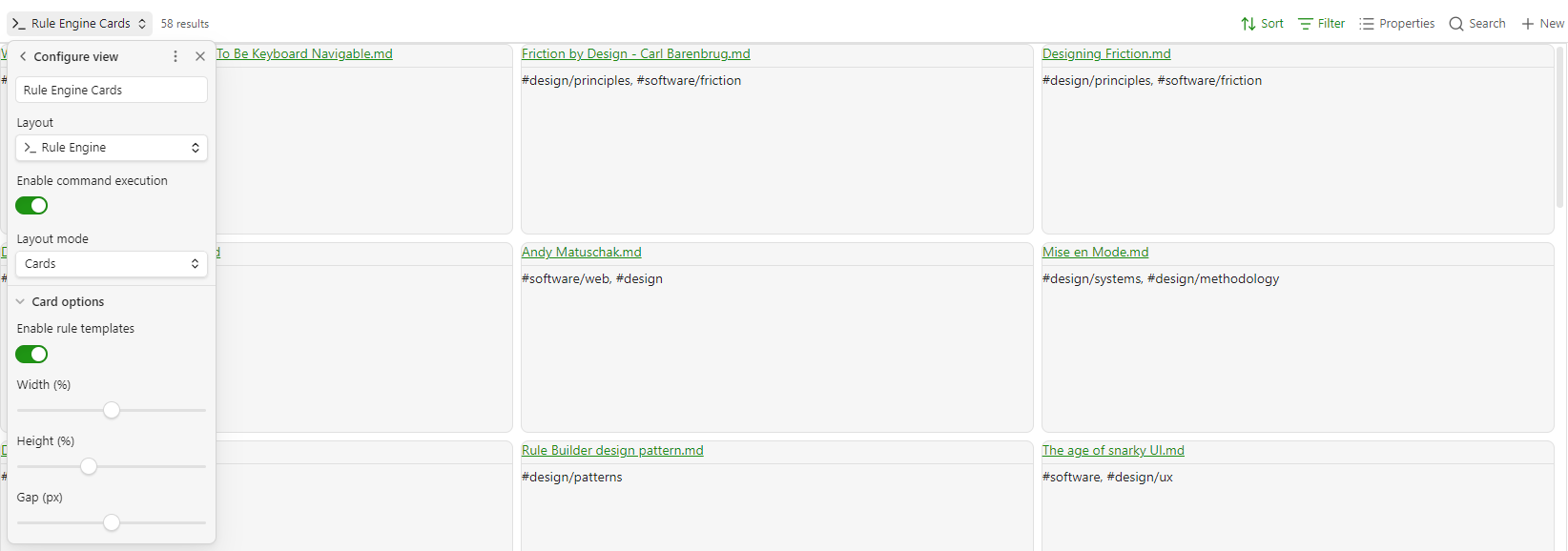
Configure the layout mode, toggle command execution and templates.
Custom Views
Use the HTML template field in rules to render notes using custom HTML templates. If the template field is blank, no template will be used. The first matching template from the list of rules will be used.
Custom views allow you to:
- Create beautiful, custom HTML templates for specific notes
- Match files using powerful filter rules (file properties, frontmatter, tags, etc.)
- Transform data using filter chains (date formatting, text transformations, etc.)
- Render note content as markdown within your custom templates
- Render templates within base cards, to give you a customized overview.
Perfect for creating card views, dashboards, or any custom presentation of your notes!
Usage
Getting Started
Basic Example
Let's create a simple view for movie notes. First, add a filter rule:
- Property:
file.folder - Operator:
contains - Value:
Movies
Then, create a template like this:
<div class="movie-card">
    <h1>{{title}}</h1>
    <p>Year: {{year}}</p>
    <p>Rating: {{rating}}/10</p>
    <div>{{file.content}}</div>
</div>
Now, any note in a folder containing "Movies" will be displayed using this custom template instead of the default markdown view!
Features
Filter Rules
Match files using powerful filter rules based on file properties or frontmatter. You can combine multiple conditions using AND, OR, or NOR logic.
Available Properties:
- File properties:
file.name,file.basename,file.extension,file.path,file.folder,file.size,file.ctime,file.mtime - Links:
file.outlinksandfile.inlinks(counts), andfile.links,file.backlinksandfile.embeds(lists of paths) - Frontmatter: Any property from your note's frontmatter (e.g.,
title,tags,status,date) - Tags: The
tagsproperty (automatically detected as a list)
Operators:
- Text:
contains,does not contain,is,is not,starts with,ends with,is empty,is not empty - Numbers:
=,≠,<,≤,>,≥,is empty,is not empty - Dates:
on,not on,before,on or before,after,on or after,within past N <unit>,within future N <unit>,is empty,is not empty- Relative date units:
minutes,hours,days,weeks,months(e.g.within past 7 days,within future 2 weeks) - Works on
file.ctime,file.mtime, and frontmatter date string fields
- Relative date units:
- Lists/Tags:
contains,does not contain,is empty,is not empty - Checkboxes:
is(true/false)
Click a rule's property field to see every property. Each filter row also shows an example value under it, taken from the open note, or the most recently opened note that still exists, then any other note that has the property.
Import and export rules
Use the buttons in the rules header to share rules or move them between vaults.
- Export lets you pick which rules to include and saves them as
rule-engine-rules-YYYY-MM-DD.jsonin the vault root. Existing files are never overwritten. - Import lists the
.jsonfiles in your vault, previews the rules found, and lets you add them to your existing rules or replace all of them. Imported rules get new ids, and invalid rules are skipped.
To import a file from outside the vault, copy it into the vault first.
HTML Templates
Write custom HTML templates using a simple placeholder syntax. Access file properties using {{file.property}} and frontmatter properties using {{property}}.
Basic Placeholders:
{{file.name}}- The full filename (e.g., "My Note.md"){{file.basename}}- The filename without extension (e.g., "My Note"){{file.path}}- The full file path{{file.folder}}- The folder path{{file.size}}- File size in bytes{{file.ctime}}- Creation timestamp{{file.mtime}}- Modification timestamp{{file.content}}- The note body rendered as markdown{{file.tags}}- File tags (from both body and frontmatter){{property}}- Any frontmatter property (e.g.,{{title}},{{cover}},{{rating}})
Array Access:
{{file.tags[0]}}- First tag{{file.tags[1]}}- Second tag- etc.
Filter Chains
Transform values using filter chains. Chain multiple filters together using the pipe (|) operator.
Example:
<h1>{{title | capitalize}}</h1>
<p>Published: {{date | date:"MMMM DD, YYYY"}}</p>
<p>Tags: {{file.tags | join:", " | wikilink}}</p>
Available Filters:
Date Filters
date:"FORMAT"- Format a date (e.g.,date:"YYYY-MM-DD",date:"MMMM DD, YYYY")date:"FORMAT":"INPUT_FORMAT"- Parse and format a date with custom input formatdate_modify:"+1 year"- Modify a date (e.g.,"+1 year","-2 months")
Text Transformation
capitalize- Capitalize first letterupper- Convert to uppercaselower- Convert to lowercasetitle- Title casecamel- Convert to camelCasekebab- Convert to kebab-casesnake- Convert to snake_casetrim- Remove leading/trailing whitespacereplace:"search":"replace"- Replace text (supports regex:replace:"/pattern/flags":"replace")
Markdown Formatting
wikilink:"alias"- Convert to wikilink[[value|alias]]link:"text"- Convert to markdown link[text](value)image:"alt"- Convert to markdown imageblockquote- Convert each line to blockquote
Array Operations
split:","- Split string into arrayjoin:", "- Join array into stringfirst- Get first elementlast- Get last elementslice:0:5- Slice array or stringcount- Get length of array or string
HTML Processing
strip_tags- Remove HTML tags
Math
calc:"+10"- Perform calculation (+,-,*,/,^)
View Modes
The plugin works in different view modes based on your settings:
- Reading Mode: Custom views always work in reading mode (preview mode).
- Live Preview: Optionally enable custom views in live preview mode via Settings → Custom Views → Work in Live Preview.
- Source Mode: Custom views are disabled in pure source mode (true editor mode).
Multiple Views
You can create multiple custom views. The plugin will use the first matching view for each file. This allows you to have different templates for different types of notes.
Example:
- View 1: Movie cards (matches
file.folder contains "Movies") - View 2: Book cards (matches
file.folder contains "Books") - View 3: Project dashboards (matches
file.status is "active")
Script Support
You can include <script> tags in your templates for dynamic behavior. Scripts are executed when the template is rendered, allowing you to add interactivity to your custom views.
<div class="interactive-card">
    <h2>{{title}}</h2>
    <button onclick="toggleDetails()">Show Details</button>
    <div id="details" style="display: none;">{{file.content}}</div>
</div>

<script>
    function toggleDetails() {
        const details = document.getElementById("details");
        details.style.display =
            details.style.display === "none" ? "block" : "none";
    }
</script>
[!WARNING] Scripts in templates are executed when the view is rendered. Be careful with scripts from untrusted sources.
Examples
Movie Card View
Filter Rule:
file.foldercontainsMovies
Template:
<div
    class="movie-card"
    style="max-width: 600px; margin: 0 auto; padding: 20px; border: 1px solid var(--background-modifier-border); border-radius: 8px;"
>
    <h1 style="margin-top: 0;">{{title}}</h1>
    <div style="display: flex; gap: 20px; margin-bottom: 20px;">
        <div><strong>Year:</strong> {{year}}</div>
        <div><strong>Rating:</strong> {{rating}}/10</div>
        <div><strong>Genre:</strong> {{genre | join:", "}}</div>
    </div>
    <div style="margin-top: 20px;">{{file.content}}</div>
</div>
Project Dashboard
Filter Rule:
file.statusisactive
Template:
<div class="project-dashboard">
    <h1>{{file.name | replace:".md":"" | title}}</h1>
    <div class="metadata">
        <p><strong>Status:</strong> {{status | capitalize}}</p>
        <p><strong>Due Date:</strong> {{due_date | date:"MMMM DD, YYYY"}}</p>
        <p><strong>Progress:</strong> {{progress}}%</p>
    </div>
    <div class="tags">Tags: {{file.tags | join:", " | wikilink}}</div>
    <hr />
    <div class="content">{{file.content}}</div>
</div>
Book Review Card
Filter Rule:
file.tagscontainsbook
Template:
<div
    style="display: grid; grid-template-columns: 200px 1fr; gap: 20px; padding: 20px;"
>
    <div>
        <img
            src="{{cover_image}}"
            alt="{{title}}"
            style="width: 100%; border-radius: 4px;"
        />
    </div>
    <div>
        <h1>{{title}}</h1>
        <p><strong>Author:</strong> {{author}}</p>
        <p><strong>Published:</strong> {{published | date:"YYYY"}}</p>
        <p><strong>Rating:</strong> {{rating}}/5 ⭐</p>
        <div style="margin-top: 20px;">{{file.content}}</div>
    </div>
</div>
Settings
Access settings via Settings → Rule Engine.
Global Settings
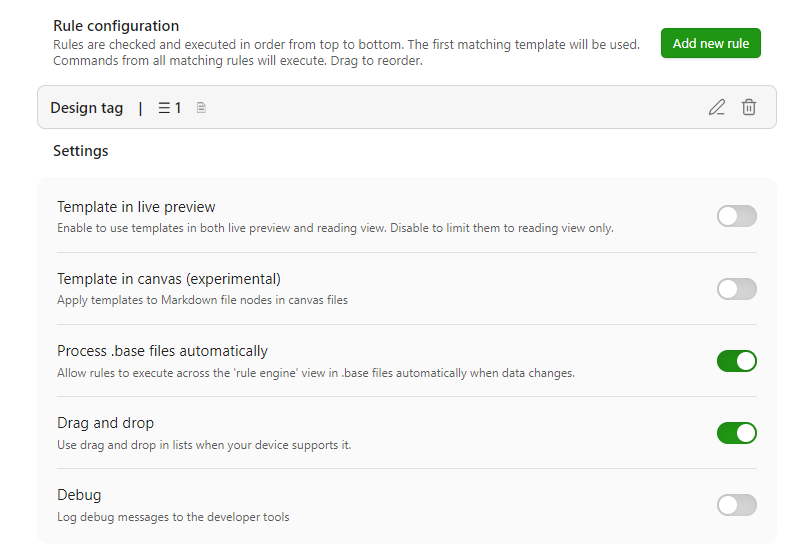
- Template in Live Preview - If enabled, custom views work in both reading mode and live preview mode. If disabled, custom views only work in reading mode.
- Template in canvas (experimental) - Apply templates to Markdown file nodes in canvas files.
- Process .base files automatically - Allow rules to execute across the 'rule engine' view in
.basefiles automatically when data changes.
Rule Configuration
Each rule has:
- Name - A descriptive name for the view
- Filter Conditions - Conditions that determine which files match this view
- Base file handling - Whether the rule runs against individual files, base file results, or both.
- Commands - An ordered list of commands to run when a file matches the filter conditions
- HTML template - The HTML template to render for matching files
- Enable for file - Apply the template when the file is rendered as a normal Markdown note
- Enable for base views - Also apply the template when the file is rendered inside a
.basequery - Enable for canvas - Also apply the template when the file is rendered as a Canvas node
Per-file Command Overrides
You can override command settings for individual files using frontmatter keys in the format ore:[command-id]:[setting].
ore:[command-id]:enabled: false- disable a specific command for this fileore:[command-id]:params: {key: value}- pass custom parameters to a command for this file
Example:
---
ore:apply-task-due-date:enabled: false
---
This disables the apply-task-due-date command for this specific file, regardless of the rule's command list.
Template Reference
Placeholder Syntax
For file properties:
{{file.PROPERTY[INDEX] | FILTER1:ARG1,ARG2 | FILTER2:ARG3}}
For frontmatter properties:
{{PROPERTY[INDEX] | FILTER1:ARG1,ARG2 | FILTER2:ARG3}}
PROPERTY- The property name (file property withfile.prefix, or frontmatter key without prefix)[INDEX]- Optional array index (e.g.,[0]for first element)| FILTER:ARGS- Optional filter chain
Special Placeholders
{{file.content}}- Renders the note body as markdown. This is always rendered as markdown, regardless of context.
Context-Aware Rendering
Placeholders are rendered differently based on context:
- Inside HTML attributes (e.g.,
href="{{file.path}}"orsrc="{{cover}}"): Returns raw string value - In HTML body: Renders as markdown if the value contains markdown syntax (like
[[links]])
Filter Chain Syntax
Filters are chained using the pipe (|) operator:
{{date | date:"YYYY-MM-DD" | upper}}
Filter arguments can be:
- Simple values:
date:"YYYY-MM-DD" - Multiple arguments:
replace:"old":"new"(comma-separated, or use quotes for strings with commas) - Regex patterns:
replace:"/pattern/flags":"replace"
Updating the semantic model
The Generate semantic tags command's model is fetched from Hugging Face on first use via @huggingface/transformers's normal remote-model loading, and cached locally (Cache Storage API) from then on - it isn't embedded into main.js. If you're changing which model is used:
- Change
MODEL_IDat the top ofsrc/semanticModel/semanticModel.tsto point at a different Hugging Face repo. It needs to publish a quantized ONNXfeature-extractionexport compatible with@huggingface/transformers- check the model card'sonnx/folder. - Run the E2E suite (
npm run test:e2e) -tests/e2e/tagging.spec.tsruns real inference inside a real Obsidian window, which is the only way to actually confirm a new model loads and runs correctly (unit tests mock the model out entirely).
All of the model-loading logic (and the workaround for Electron's renderer confusing the library's environment detection - see the comment at the top of loadExtractor in src/semanticModel/semanticModel.ts) is isolated in src/semanticModel/semanticModel.ts. Everything else calls its embedTexts() export and doesn't know or care how the model was loaded.
Contributing
Any contributions and PRs are welcome! Feel free to open an issue or submit a pull request.