Rich View
 sdking27 downloads
Render draw.io and Visio diagrams inline in your notes — zoom, pan, multi-page tabs, shape links, a magnifier, and third-party shape libraries. More file formats planned.
- Overview
- Scorecard
- Updates2
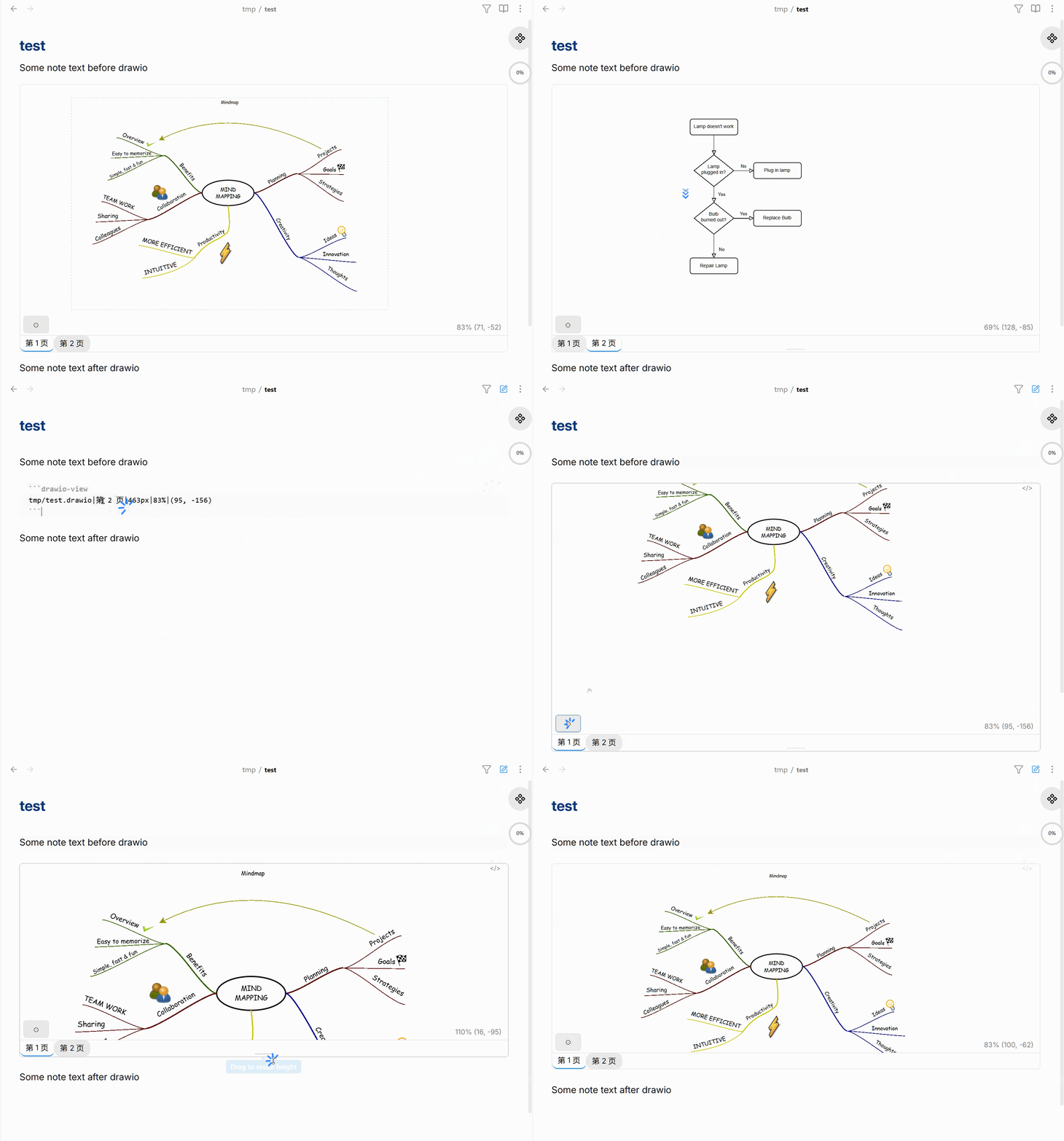
🔍 Zoom · 🖱️ Pan · 📄 Multi-page · 🔗 Shape links · 🔎 Magnifier · 📦 Third-party libs · 🌙 Dark mode
中文文档 · Usage · Shape Libraries · Controls · Settings · Installation

Follow on WeChat for more Obsidian plugins & tools
🧩 Also check out Rich Table — interactive tables with merges, typed columns, styles, and wikilinks: GitHub · Install from Store
Render rich file formats inline inside your Obsidian notes — with smooth zoom, pan, multi-page tabs, shape links, and full support for third-party shape libraries. Today that means draw.io .drawio and Visio .vsdx files; more formats (PPT, Word, CAD, ...) are planned.
Usage
Place your diagram file anywhere in the vault, then embed it with a fenced rich-view code block:
```rich-view
file=my-diagram.drawio
```
Every other field is an explicit key=value pair, separated by |, in any order:
```rich-view
file=my-diagram.drawio|page=my_page|height=600|zoom=80|offset=190,34
```
| Key | Format | Example | Description |
|---|---|---|---|
file |
key=value |
file=my-diagram.drawio |
Required. Vault-relative path or bare name. |
page |
key=value |
page=my_page |
Which page to display, by exact name. Default: first page. |
page-index |
key=value |
page-index=2 |
Which page to display, by 1-based position. Ignored if page= is also set. |
height |
key=value |
height=600 |
Viewer height in pixels. Default: 400. |
zoom |
key=value |
zoom=80 |
Initial zoom level (%). Default: auto-fit. |
offset |
key=value |
offset=190,34 |
Initial pan position. Default: centred. |
Only file= is required; the rest can appear in any order.
Shape Libraries
If your diagram uses extended shape libraries (AWS, Azure, GCP, Cisco, Electrical, IBM, and many more), the plugin will detect this automatically and show a download banner the first time you open it.
Click Download — the missing libraries are fetched from draw.io's official repository, saved locally, and reused for all future diagrams. The banner also has a Settings shortcut if you prefer to manage libraries manually.
Go to Settings → Rich View → Shape Libraries to:
- Browse and download official libraries by category
- Use Auto-detect from vault to find all libraries needed by your existing diagrams
- Set a custom folder for your own shape files
Controls
| Action | Result |
|---|---|
| Scroll wheel | Zoom in / out |
| Drag | Pan the diagram |
| Two-finger pinch | Pinch-zoom (touch / mobile) |
| Double-click | Reset to initial view |
| Drag bottom edge | Resize viewer height |
| ↗ | Open file in system default editor |
| ⛶ | Auto-fit to the viewer's current size |
| 🔍 | Toggle the magnifier |
| ⊙ | Save current view back into the code block |
| Page tabs | Switch pages (multi-page diagrams) |
Tip: pan and zoom to the view you want, then click ⊙. The code block updates in-place and that view is restored every time you open the note. Once a specific zoom/offset is saved this way, double-click restores that saved view rather than auto-fitting — click ⛶ to get back to a fresh auto-fit (e.g. after resizing the viewer), then ⊙ again to save it.
Shape links
Hover any shape to see a ✎ button. Click it to attach a link to a vault note or external URL. To follow the link, click the shape (exact key depends on the Click behavior setting).
Magnifier
Click 🔍 to inspect fine detail without changing your zoom/pan. A circular loupe follows the cursor at a fixed magnification; + / - change its size. Scroll wheel still zooms the main view as usual. Press Esc or click anywhere else to exit.
Dark mode
The viewer automatically adapts to Obsidian's dark theme — no configuration needed.
Settings
| Setting | Description |
|---|---|
| Zoom modifier key | Plain scroll or Ctrl+scroll to zoom. |
| Click behavior | Whether a plain click or Ctrl+click follows a shape link. |
| Custom library folder | A vault folder for your own shape files. |
| Shape Libraries | Download official libraries; auto-detect from vault. |
Installation
Community plugin marketplace (recommended)
- Settings → Community plugins → Browse
- Search Rich View → Install → Enable
Manual
Download main.js, manifest.json, and styles.css from the latest release and copy them to <vault>/.obsidian/plugins/rich-view/.
Known limitations
- Some shapes from draw.io's table or extended shape sets may not render perfectly.
![[file.drawio]]wiki-embed syntax is not supported — use the code block instead.- In Live Preview, exiting the code block editor can cause a small scroll shift (under investigation).
Star History
License
MIT © 2026 sdking.xing