Reading Vault
 John Hesch62 downloads
Read EPUB and PDF books in your vault with highlights, notes, bookmarks and read-aloud. Pro adds 28 natural voices, Ask the book with your own AI key, summaries and highlight review.
- Overview
- Scorecard
- Updates4
Read EPUB and PDF books inside your Obsidian vault. Everything you highlight becomes a real note, and with Pro you can link it to your own Topic notes, so your reading ends up in the same place as the rest of your thinking.
I built Reading Vault because I wanted my books, my highlights and my notes in one place, as plain files I own. No separate app, no account, no hidden database: every book, highlight and saved word is an ordinary Markdown note in your vault.
New here? The user manual has a short page for every feature.
Reading Vault is free. Some features need a one-time Reading Vault Pro purchase ($19 founding price, $29 later). See Free and Pro below.
What it does
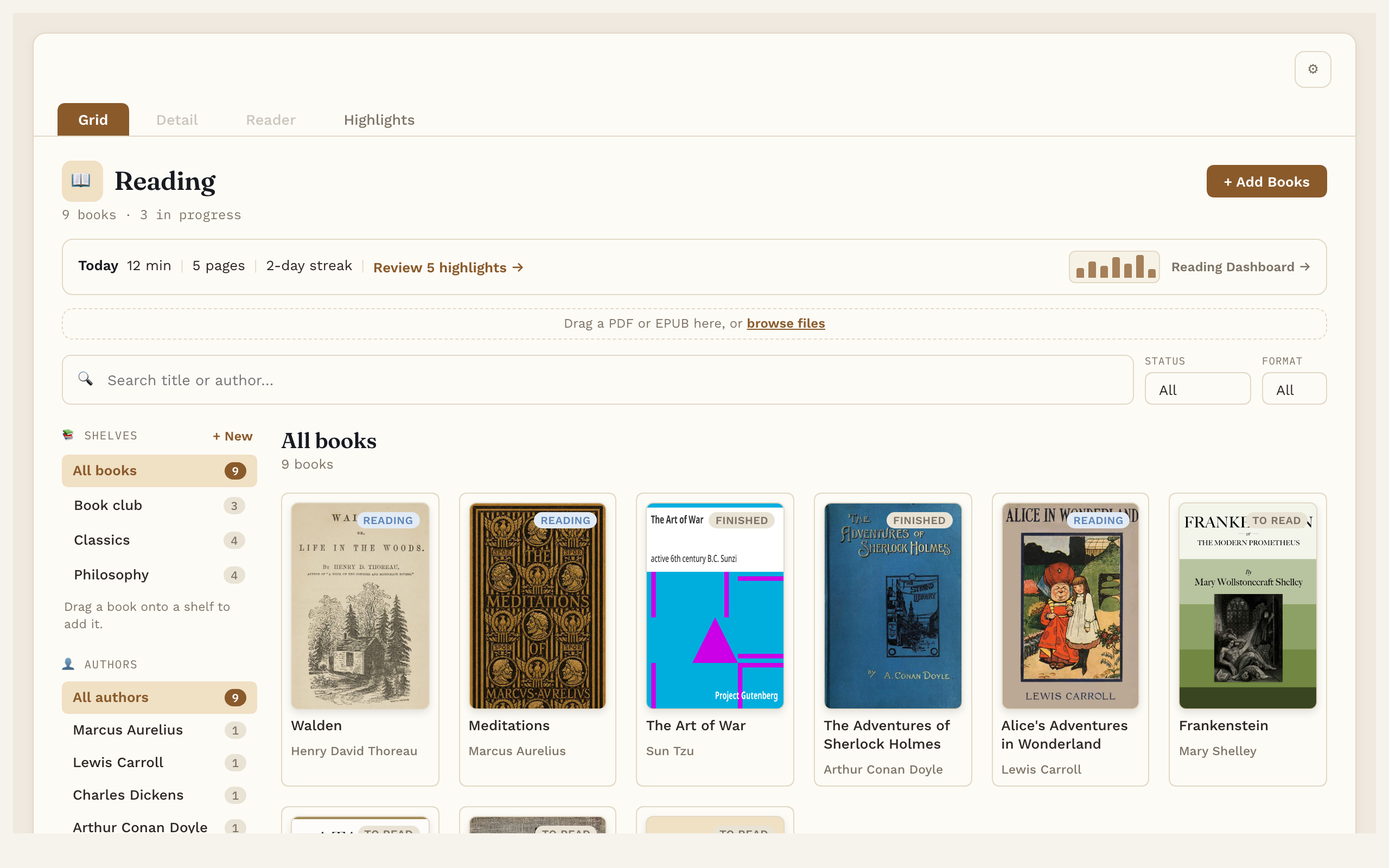
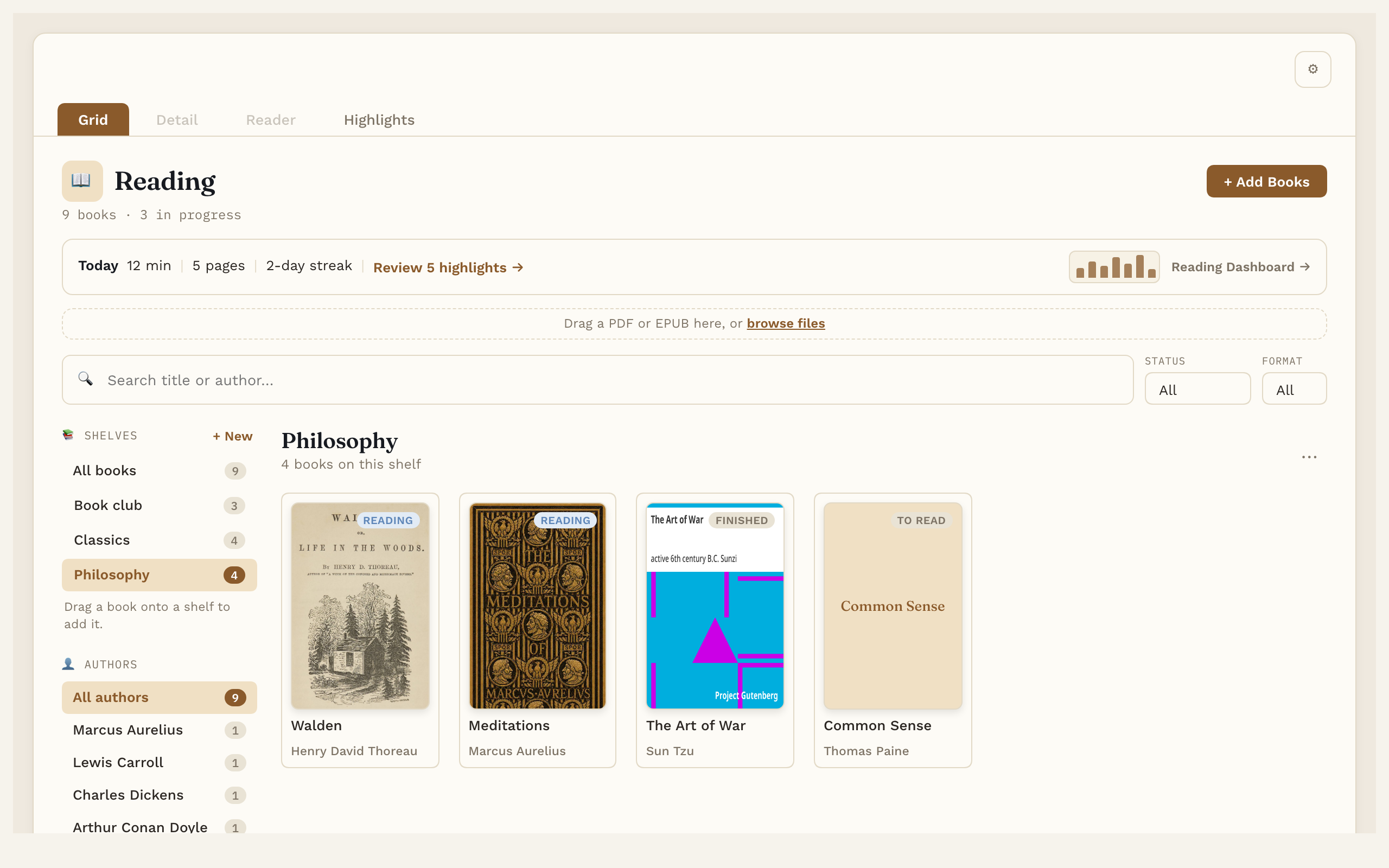
- A library for your books. Add EPUB and PDF files by dragging them in. Title, author and cover fill in on their own. Search, filter by status or format, browse by author, and sort books onto your own shelves.
- Add sample books. Nothing in your Library yet? One button adds four free classics (Meditations, Pride and Prejudice, The Adventures of Sherlock Holmes, Walden), so there's something to read, highlight and listen to right away. Free for everyone.
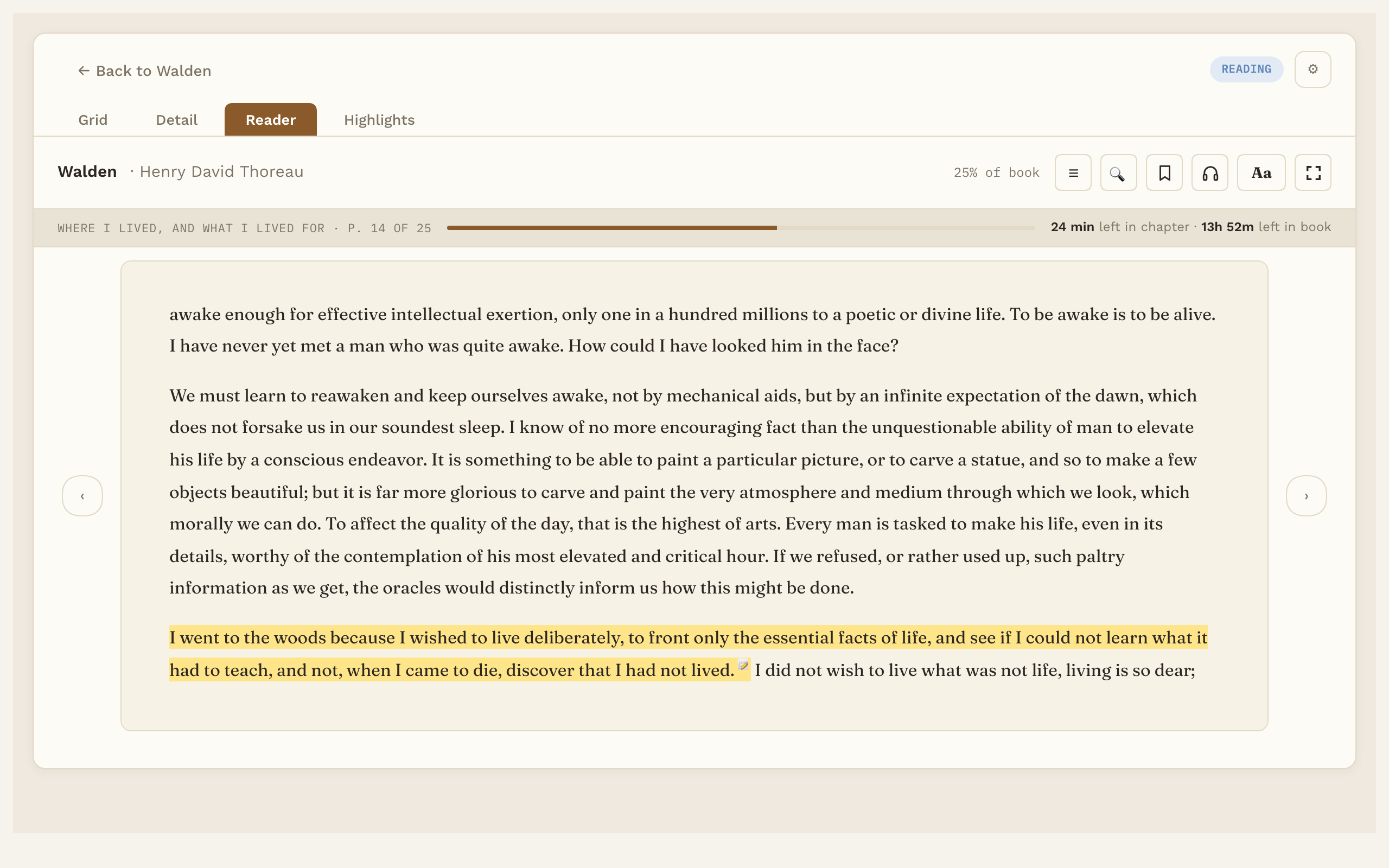
- One reader for EPUB and PDF. Real pages, a table of contents, search inside the book, bookmarks, and it opens where you left off. Choose the font, text size, line spacing and margins, with a light, dark or automatic page.
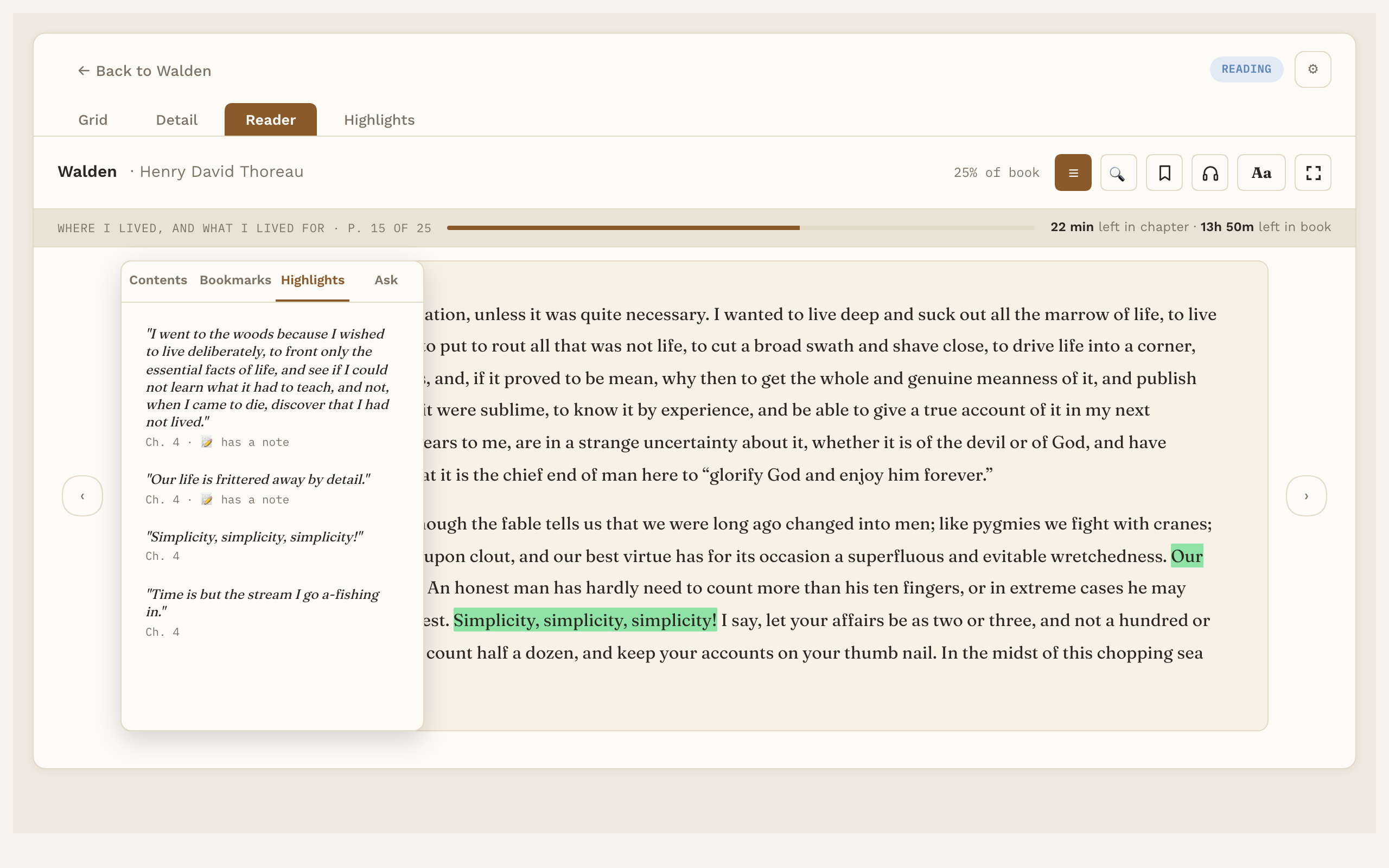
- Highlights that become notes. Select text, pick one of five colors, add a note. Each book's own note lists its highlights, with links that jump straight back to the exact spot.
- Listen. Have the book read aloud with your computer's built-in voices, sentence by sentence, with the sentence being read underlined and the page turning as it goes. Works for PDFs too.
- Natural voices (Pro). 28 natural-sounding English voices (American and British) that sound much closer to a person reading. They're off until you switch them on, and need a one-time download of about 325 MB. After that they run on your own computer, offline.
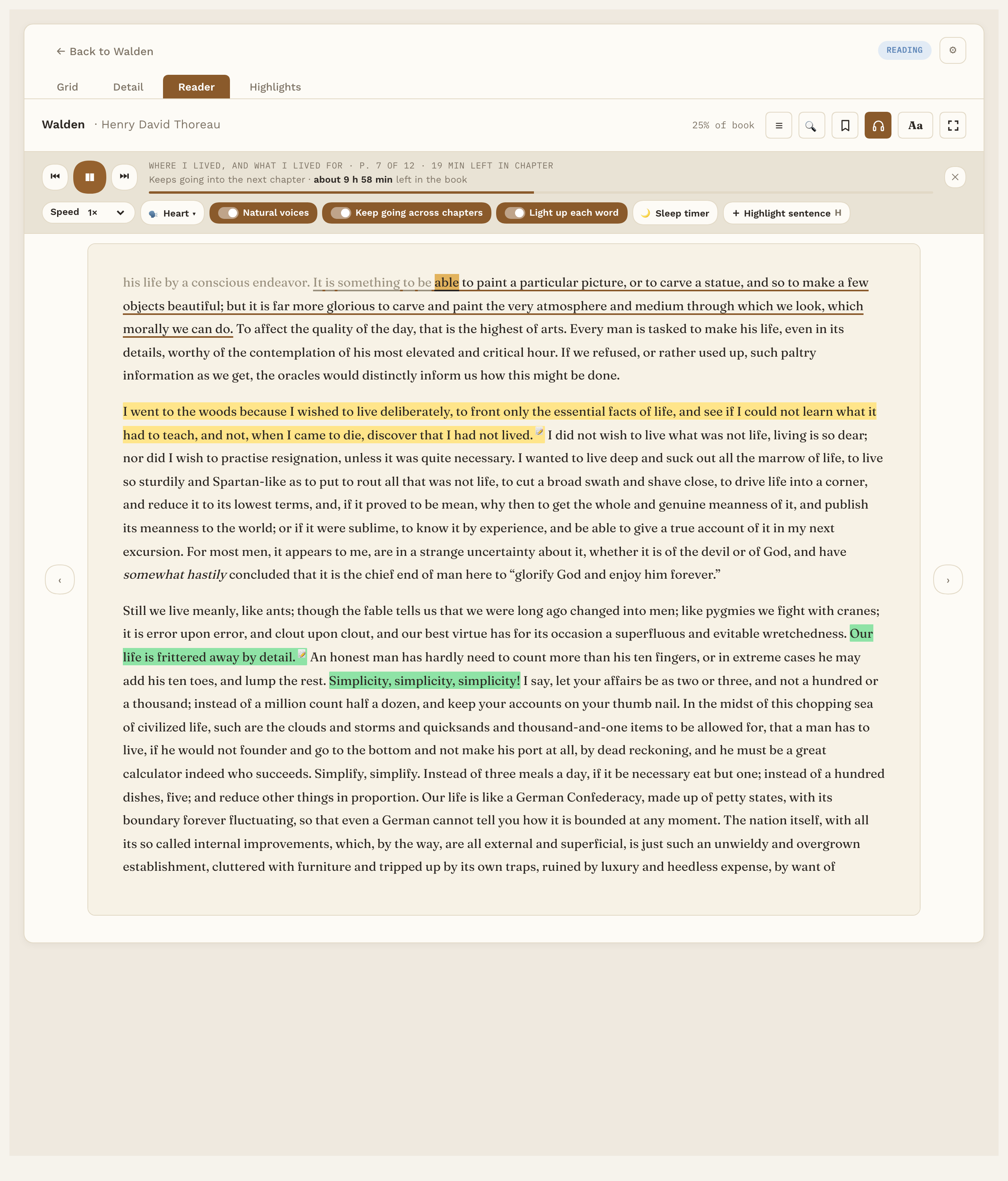
- Audiobook mode (Pro). Turn any book into an audiobook: listening keeps going past the end of a chapter instead of stopping there, each word lights up as it's read (in EPUB books), and a sleep timer pauses it and keeps your place.
- Word lookup. Select a word for its meaning, from an English dictionary (about 5.5 MB) you download once and use offline. With Pro, "Explain in this sentence" asks your own AI service what the word means right there.
- Book summaries (Pro). A short summary on each book's page, from the book's description, your own words, or AI.
- Export highlights. Preview a book's highlights and notes as Markdown; with Pro, save them to a file or copy them.
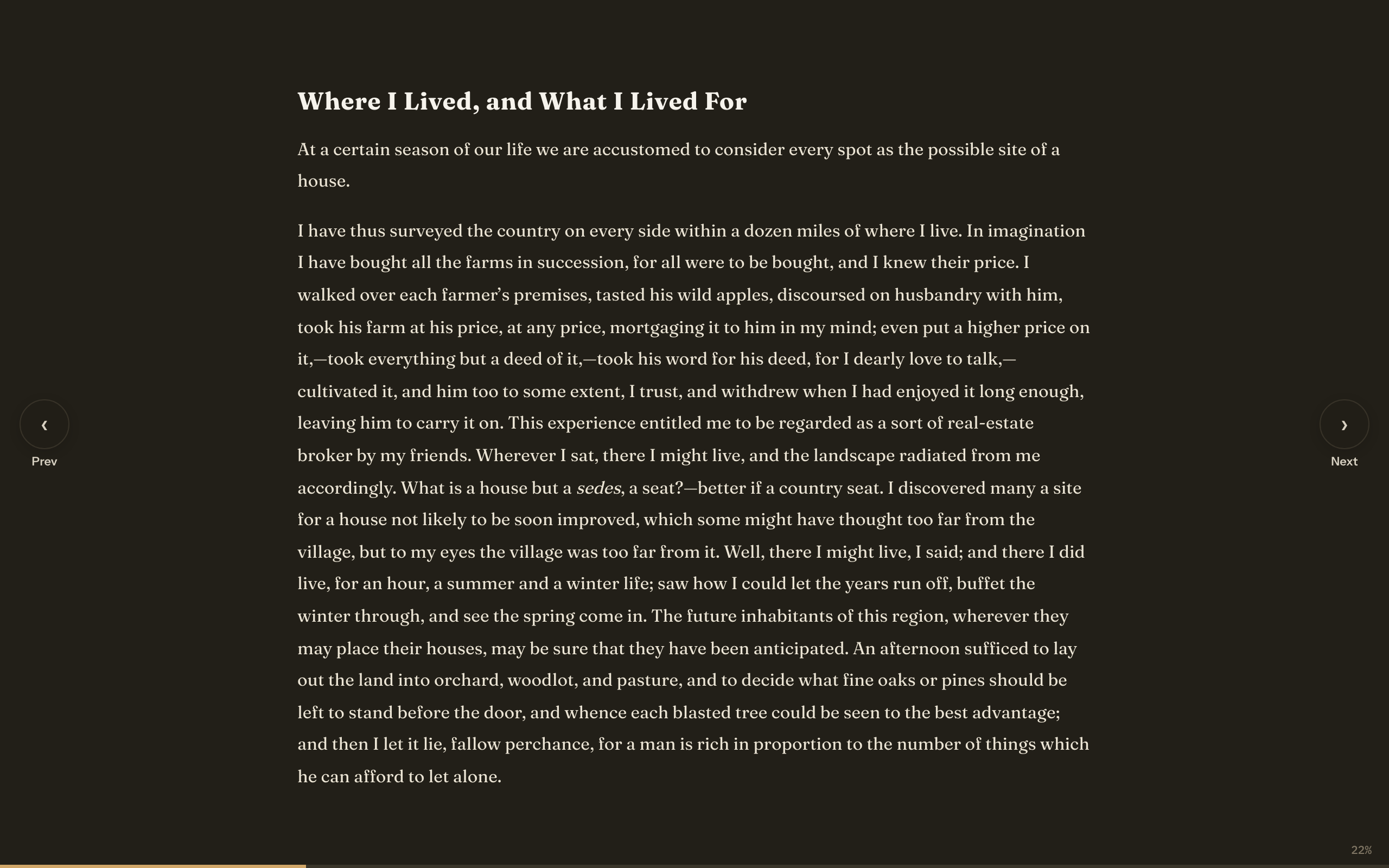
- Full screen reading. Just the page, nothing else on screen.
- Your files stay yours. Choose which folders it uses. Uninstall it and every note is still there, readable in Obsidian or any text editor.
Screenshots
The reader, with a highlight and the progress strip (time left in the chapter and the book):
Highlights for the book beside the page:
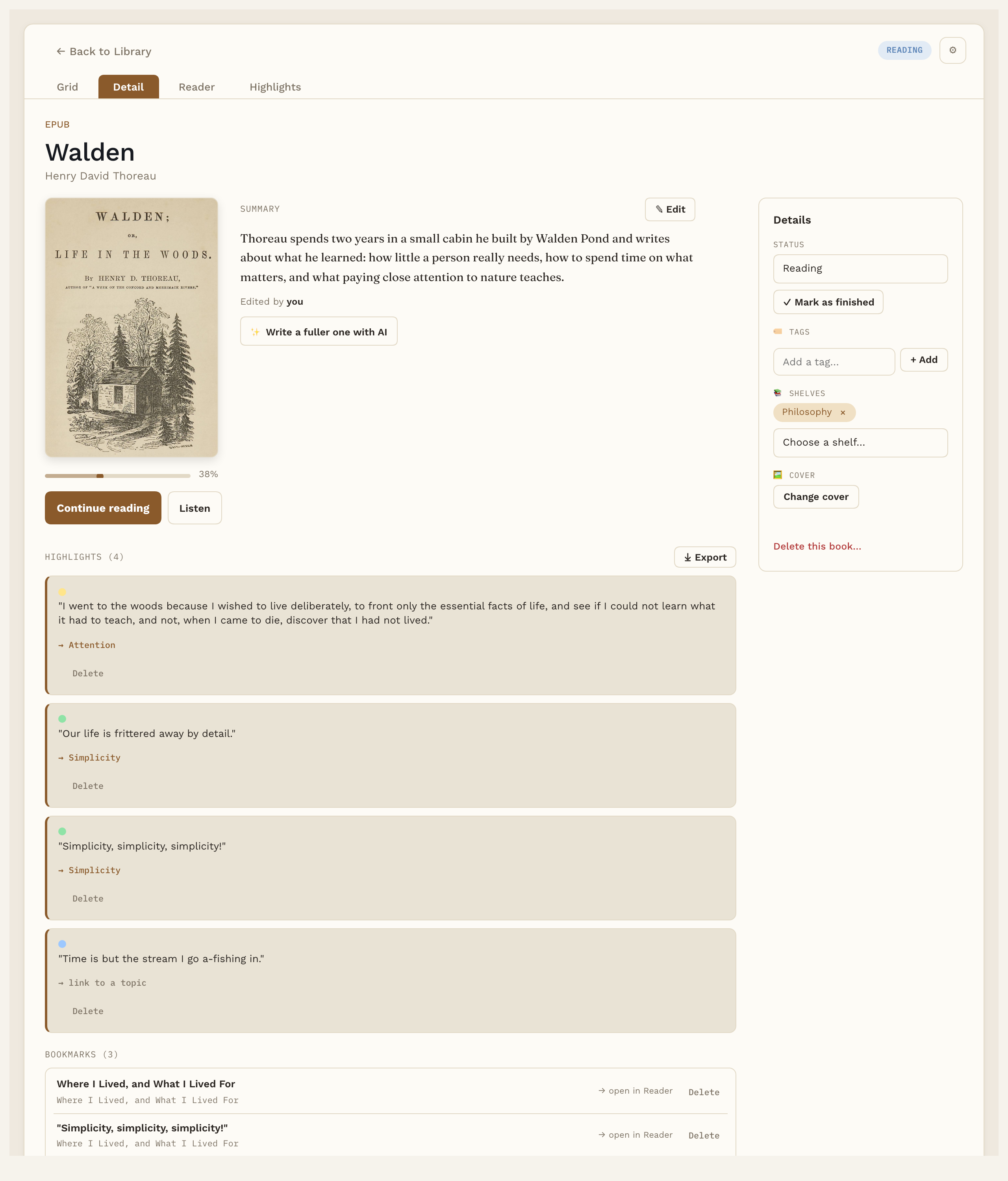
A book's page: cover, shelves, and every highlight with its note (summary and linked Topic are Pro):
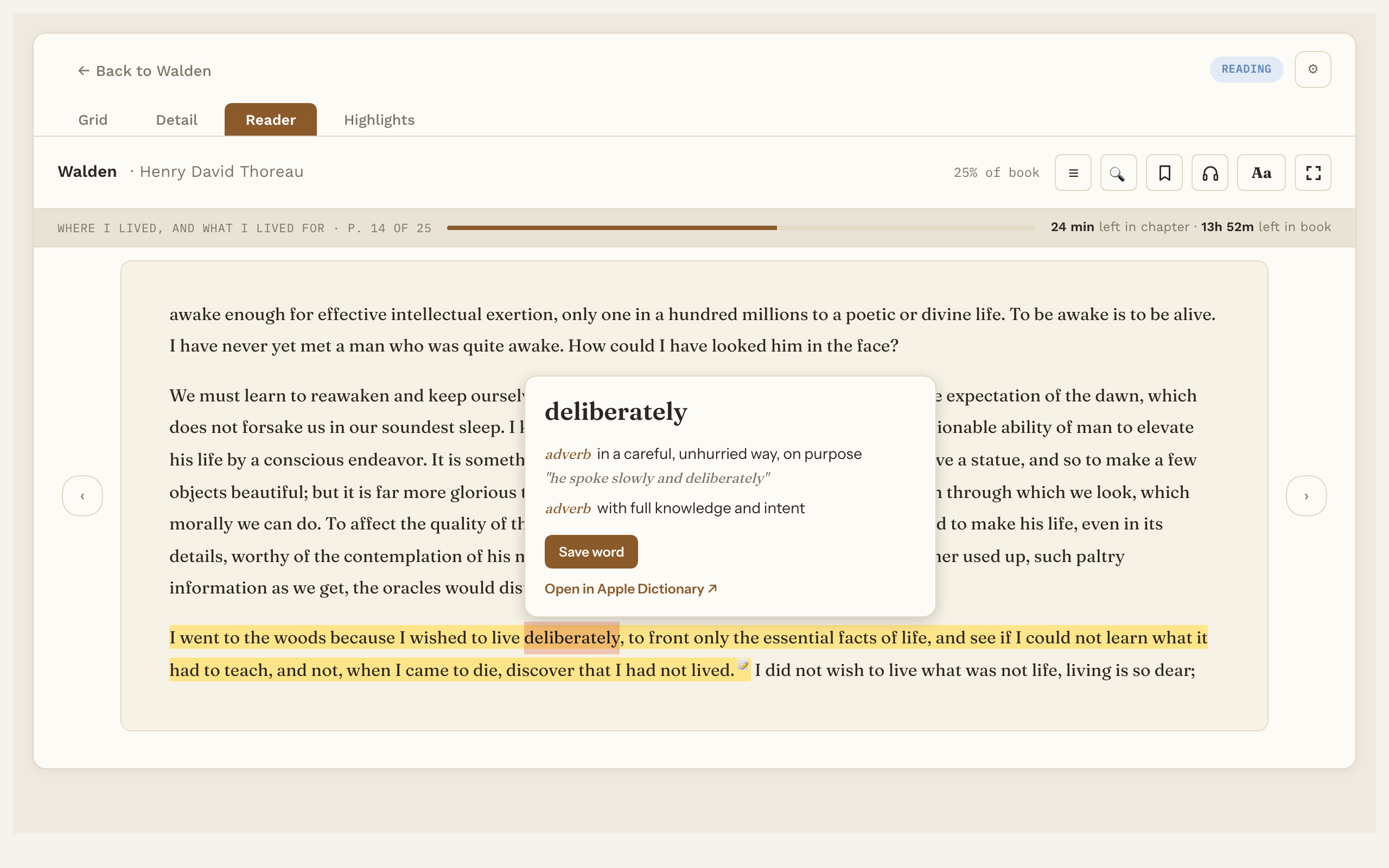
Word lookup, from an offline dictionary:
Shelves:
Full screen reading, here with a dark page:
Listening with a natural voice (Pro): the listening bar with its three switches, the sentence being read underlined and, in EPUB books, each word lit up as it's read:
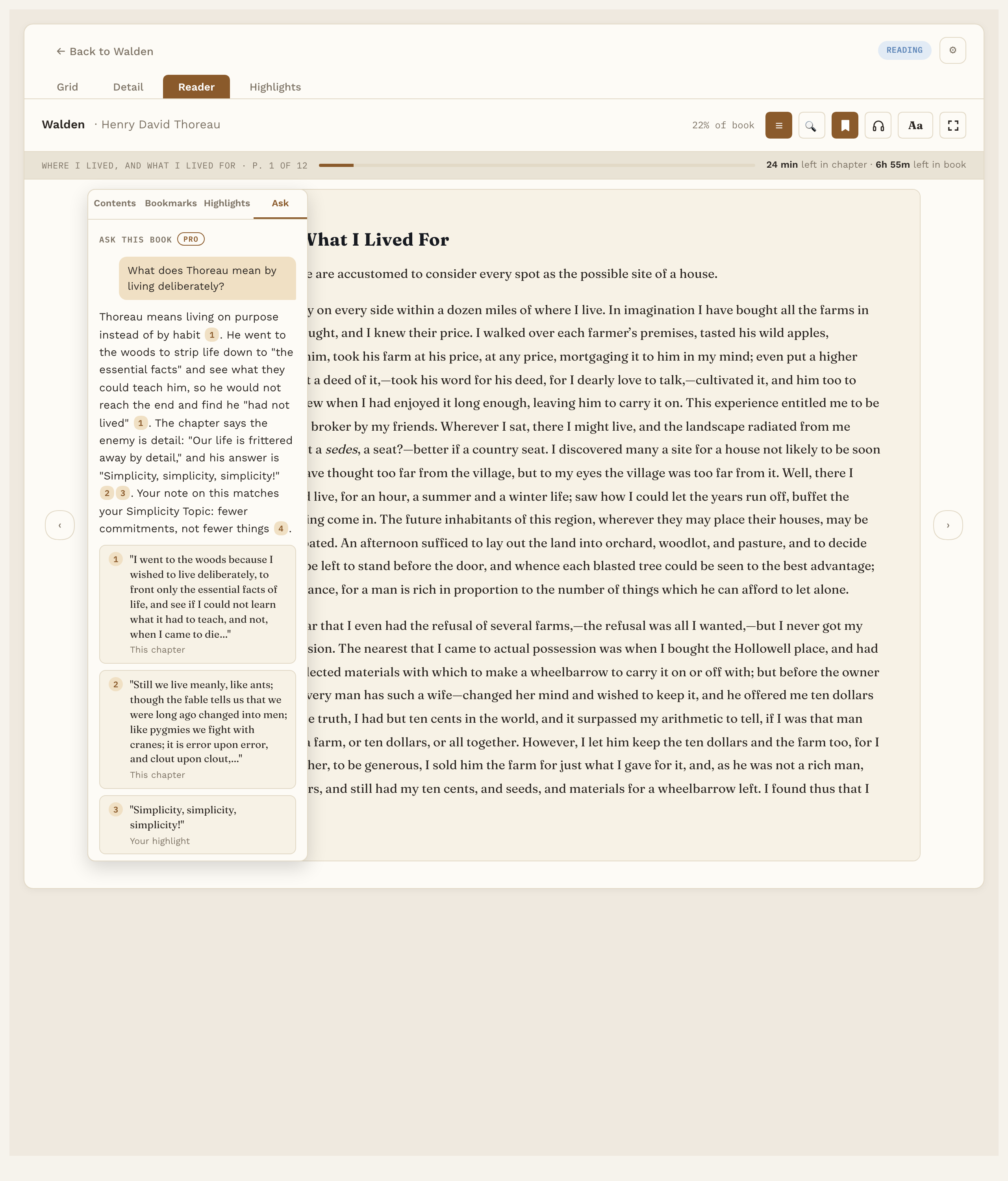
Pro: ask a question about the book you're reading, answered from your own highlights, notes and the current chapter, with numbered sources:
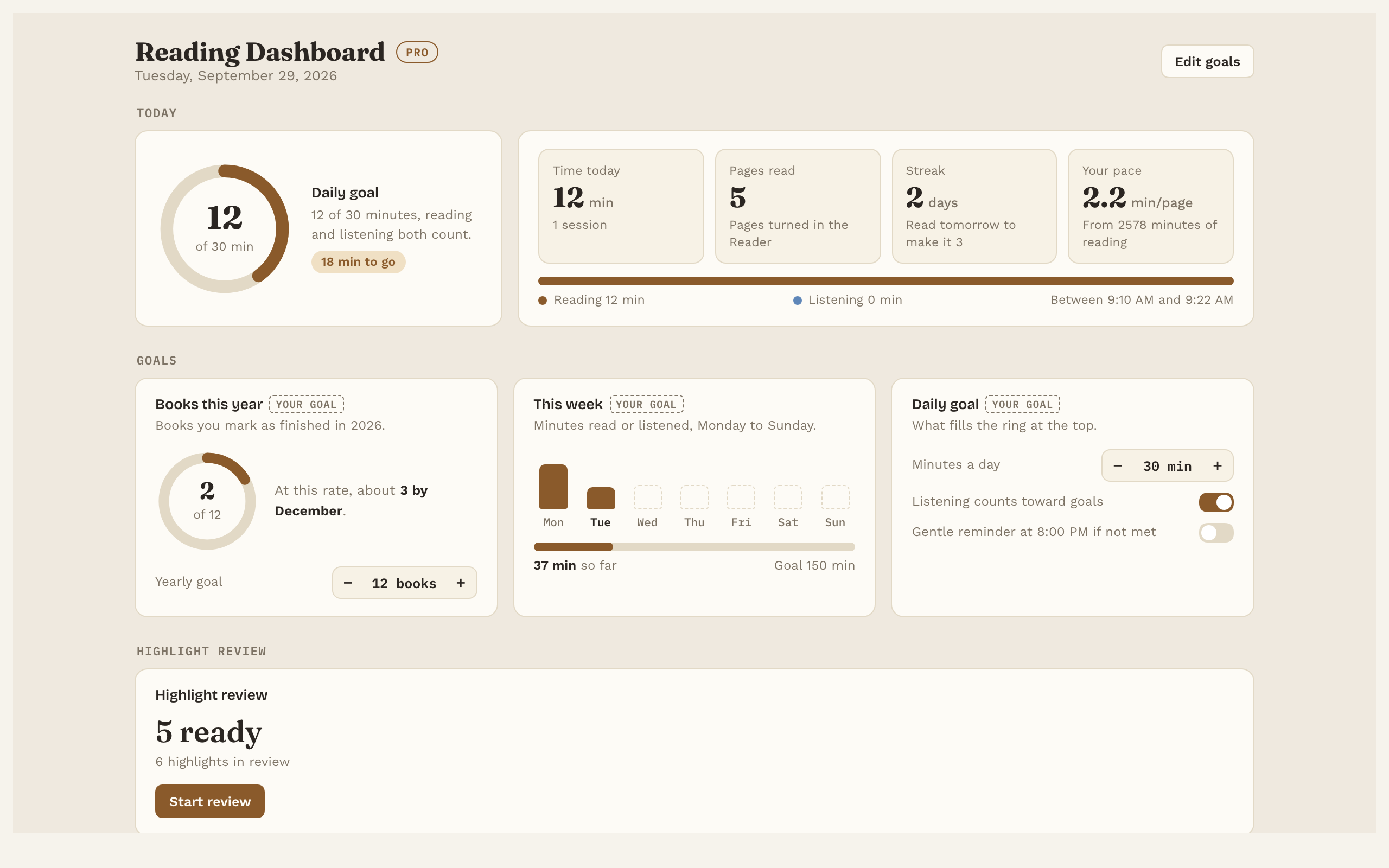
Pro: the reading dashboard, with goals, streaks and charts:
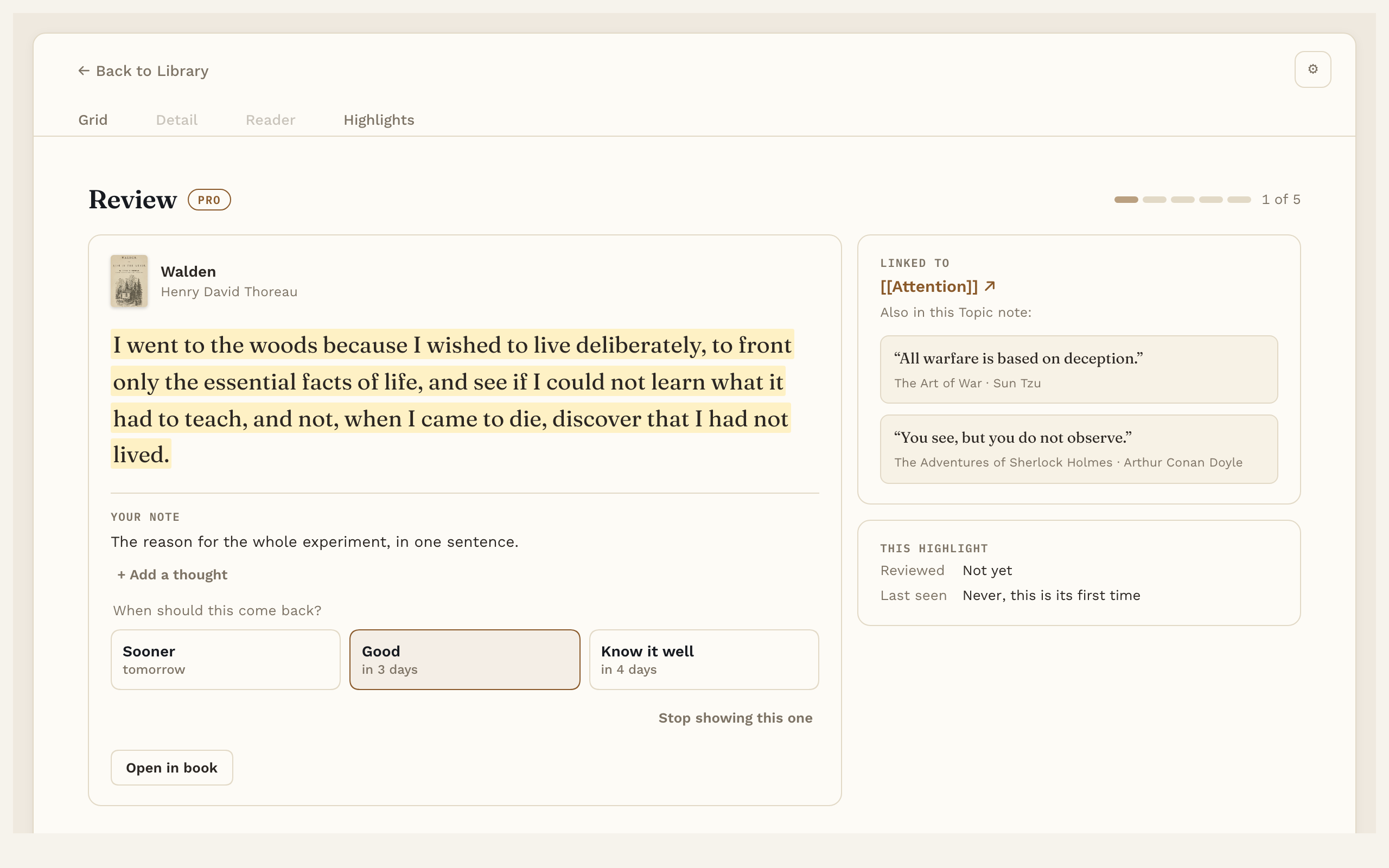
Pro: highlight review brings a few of your linked highlights back each day:
Everything also works with a dark theme:
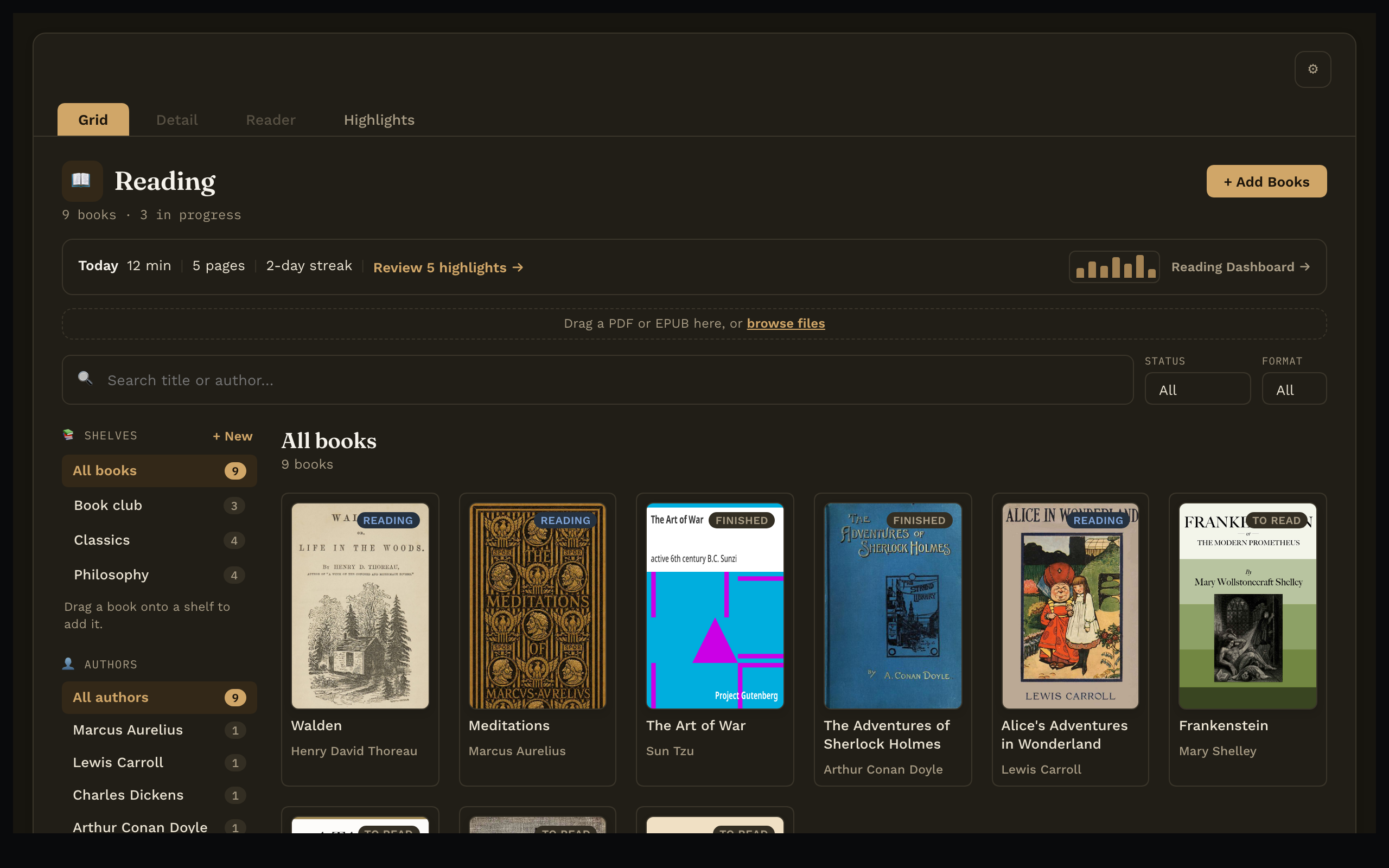
The books in these screenshots are public-domain books from Project Gutenberg. The notes, highlights and reading history are made up for the pictures, and the "Ask" answer shown is a written example, not a live AI reply.
Free and Pro
Payment is required for full access: the features marked Pro below unlock with a one-time Reading Vault Pro key. Everything else is free, with no time limit.
| Feature | Free | Pro |
|---|---|---|
| Library: covers, search, filters, authors | ✓ | ✓ |
| Shelves | ✓ | ✓ |
| Add sample books (four free classics, for trying it out) | ✓ | ✓ |
| Choose your own folders | ✓ | ✓ |
| EPUB and PDF reader, contents, search, bookmarks | ✓ | ✓ |
| Text settings and light, dark or automatic page | ✓ | ✓ |
| Reading progress and time left | ✓ | ✓ |
| Full screen reading | ✓ | ✓ |
| Highlights in five colors, with notes | ✓ | ✓ |
| Highlights listed in each book's note | ✓ | ✓ |
| Listen with your computer's built-in voices | ✓ | ✓ |
| Natural voices: 28 English voices, offline after one download (about 325 MB) | ✓ | |
| Audiobook mode: keeps going past a chapter's end, word-by-word lighting (in EPUB books), sleep timer | ✓ | |
| Word lookup (offline dictionary) | ✓ | ✓ |
| Today's reading line in the library | ✓ | ✓ |
| Export highlights: preview | ✓ | ✓ |
| Export highlights: save to a file or copy | ✓ | |
| Link highlights to Topic notes | ✓ | |
| Save looked-up words as notes | ✓ | |
| Book summaries: from the book's description, your own words, or AI | ✓ | |
| Ask the book (AI, uses your own AI account) | ✓ | |
| "Explain in this sentence" in Word lookup (AI, uses your own AI account) | ✓ | |
| Reading dashboard: goals, streaks, charts | ✓ | |
| Highlight review | ✓ |
Inside the plugin, Pro features carry a small "Pro" tag, and Settings has a "Get Pro" section with a Buy Pro button that opens the store page. That's the only promotion in the plugin, and nothing in it is loaded from the internet.
Buy Pro
Buy Reading Vault Pro ($19 founding price, $29 later; one-time).
- One payment, no subscription. Every future update is included.
- Your key arrives by email right after purchase. Paste it into Settings → Reading Vault → Pro license.
- The key is checked on your own computer, offline. Nothing is sent anywhere to check it.
- The AI features (Ask the book, "Write with AI" summaries, "Explain in this sentence") are off until you add a key for your own account with Anthropic, OpenAI or OpenRouter. That provider bills you separately for what you use.
Refunds: if Reading Vault Pro doesn't work for you, email me at [email protected] within 14 days for a full refund. Refunded keys are switched off in the next update.
What goes online, and why
Reading Vault works offline. It never sends anything about you or your reading anywhere on its own, and it has no tracking or analytics. These are the only times it connects to the internet, all started by you:
- Ask the book, "Write with AI" summaries and "Explain in this sentence" (Pro). These are off until you switch them on in Settings and add a key for the AI service you choose: Anthropic (api.anthropic.com), OpenAI (api.openai.com) or OpenRouter (openrouter.ai). Your key is kept in Obsidian's own secure storage, not in the plugin's settings file. Only then, and only when you ask, the plugin sends that service:
- for Ask: your question, the book's title and author, the highlights and notes from this book, the Topic notes they link to, and the text of the chapter you're on (never the whole book). Each of these can be switched off in Settings, and "What was sent" under every answer shows exactly what went.
- for a summary: the book's title, author, the description inside the book file, and its chapter titles (not the book's text).
- for "Explain in this sentence": the word, the sentence it's in, and the book's title and author.
- The "Test" button next to a key, and the list of models to choose from, also ask that service to check your key and list its models.
- Word lookup dictionary. When you press Download in Settings → Word lookup, the English dictionary (made from Princeton WordNet, about 5.5 MB) is downloaded once from the public GitHub repository B0xfan/a4-reading-dictionaries, checked, and saved on your computer outside your vault. After that, lookups are offline.
- Buy Pro. The Buy Pro button opens the store page in your web browser.
- Natural voices (Pro). When you press Download in Settings → Reading Vault, the voice model (about 325 MB, once) and each voice you use (about half a megabyte) are downloaded from Hugging Face (huggingface.co, the public Kokoro-82M files, Apache-2.0 license), together with English pronunciation lists (about 3 MB) from the public GitHub repository B0xfan/reading-vault-voices. Each file is checked against a fingerprint built into the plugin, then saved on your computer outside your vault, in
Library/Application Support/a4-reading-kokoroin your home folder on a Mac, orAppData\Roaming\a4-reading-kokoroon Windows (so it doesn't sync or get backed up with your notes). After that, listening is offline and your books' text never leaves your computer. The voice engine itself is inside the plugin; it is never downloaded. - Voice samples. Pressing ▶ next to a natural voice in Settings plays a short sample clip (about 30 KB) from the same public repository, B0xfan/reading-vault-voices. It's checked the same way and kept in that same folder, so it plays without the internet next time. This works with or without Pro, and doesn't need the voice model.
- Add sample books. When you press "Add sample books" (in an empty Library, or the first-run welcome), four EPUB files (about 3 MB total) are downloaded once from the public GitHub repository B0xfan/a4-reading-sample-books, checked, and added to your Library as regular books. They're free, public-domain editions from Standard Ebooks. Free for everyone.
"Open in Apple Dictionary" (on a Mac) opens the dictionary app on your computer; it doesn't go online.
Files kept outside your vault
Everything you make with Reading Vault (books, highlights, notes, saved words, reading history) lives inside your vault. Only these things are kept outside it, and only because you asked for them:
- Natural voices. The voice model and voices you download (Pro), and the short voice samples you play in Settings, are saved in a folder called
a4-reading-kokoro: inLibrary/Application Supportin your home folder on a Mac, or inAppData\Roamingon Windows. They stay outside the vault on purpose: at about 325 MB they would fill up Obsidian Sync, iCloud or any backup of your notes, and one download serves every vault on your computer. To remove them, quit Obsidian and delete that folder. - Word lookup dictionary. The dictionary you download (about 5.5 MB) is saved in a folder called
a4-reading-dictionariesin the same place, for the same reasons. Settings → Word lookup → Remove deletes it. - Export highlights, "Save file…" (Pro). Your computer's own save window opens, and the file goes where you choose, which can be outside the vault.
The plugin only reads and writes those two folders and the file you save; it never looks anywhere else on your computer.
Copying to the clipboard
The Copy buttons in Export highlights (Pro) and under an Ask the book answer (Pro) put that text on your clipboard, only when you press them. Reading Vault never reads your clipboard.
Install
Reading Vault is desktop only: it needs Obsidian on a computer and doesn't run on phones or tablets. Tested on Mac; Windows is untested. Obsidian 1.4 or later; the AI features need Obsidian 1.11.4 or later for its secure key storage.
From Obsidian (once it's listed): Settings → Community plugins → Browse, search for "Reading Vault", then Install and Enable.
By hand:
- Download
main.js,manifest.jsonandstyles.cssfrom the latest release. - Put them in a folder called
reading-vaultinside your vault's.obsidian/plugins/folder. - In Obsidian: Settings → Community plugins, turn on Reading Vault.
Then click the book icon in the left ribbon, or run "Reading Vault: Open library" from the command palette, and drag a book in.
User manual
Every feature has its own short page, with pictures: the Reading Vault user manual. Start with Getting started.
Where your things go
By default, book notes go in a Reading folder (with Highlights and Words inside), Topic notes in Topics, and the book files and covers in Reading/Files. You can change all three in Settings → Reading Vault → Folders; if a folder already has things in it, the plugin asks before moving anything, and links are kept up to date.
Support
Questions, problems or ideas: email me at [email protected].
License
Reading Vault's source is public so you can read exactly what it does. It's licensed under the PolyForm Shield License 1.0.0. In plain words:
- You can use it for anything, including at work and for commercial purposes.
- You can read the code and change your own copy.
- You can't use the code to offer a product that competes with Reading Vault or Reading Vault Pro. That includes publishing a copy with Pro unlocked, even for free.
The license text is the part that counts; this summary isn't legal advice.
Reading Vault includes some open-source parts (the natural-voice engine) under the Apache 2.0 and MIT licenses; they're listed, with their license texts, in THIRD-PARTY-NOTICES.md. None of them is under the GPL.
The fonts bundled in styles.css (Fraunces, Work Sans, IBM Plex Mono, Atkinson Hyperlegible) are under the SIL Open Font License 1.1; see fonts/.