Print Section
Print just part of a note — the selection, or the section under the cursor — to paper or PDF through the system print dialog, rendered as in Reading view, with page numbers.
- Overview
- Scorecard
- Updates1
Print just part of a note — the text you selected, or the section the cursor is in — to paper or to PDF.
Obsidian can export a whole note to PDF, but it cannot print, and it cannot print part of a note at all. This plugin renders exactly the part you choose the way Reading view does — callouts, tables, code, images, embeds, diagrams — and hands it to the system print dialog, where you pick a printer, or save it as a PDF.
What it prints
| You have… | It prints |
|---|---|
| A selection in the editor | The selected lines. Within a single line, exactly the words selected. |
| No selection | The section the cursor is in: its heading and everything under it, down to the next heading of the same or a higher level. |
| A selection in Reading view | The blocks the selection touches — paragraphs, lists, tables, callouts — whole. |
| No selection in Reading view | The section at the top of the window. |
| Print note | The whole note, without its properties. |
Above the first heading, "the section" is the text there; at the very top of a note that starts with a heading, it is the whole note.
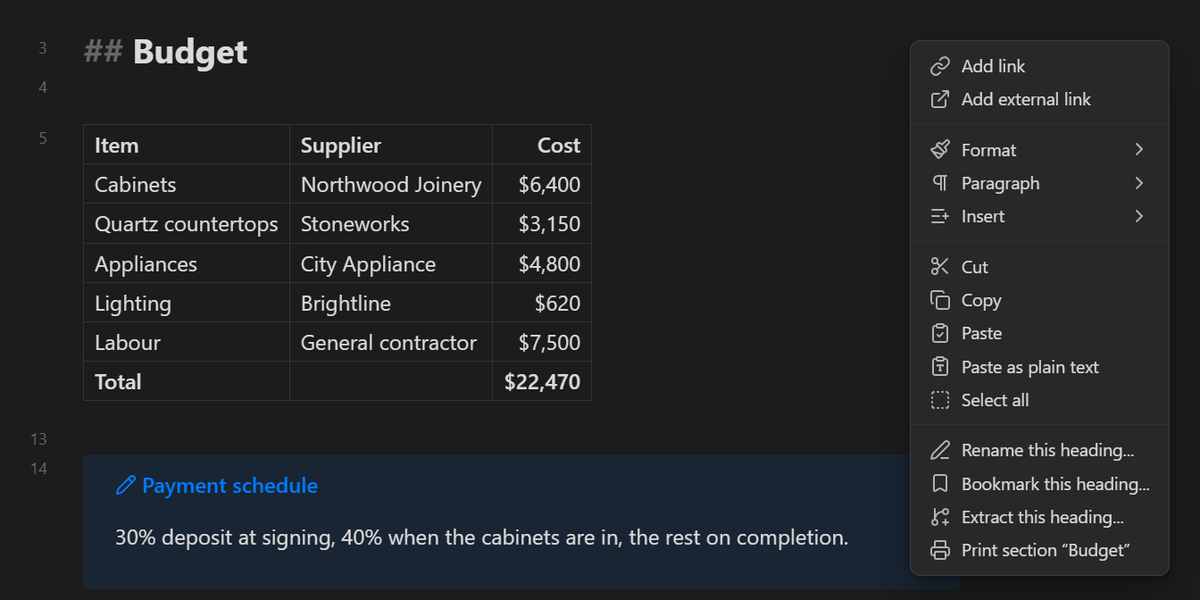
Command palette: Print selection or current section and Print note — bind either to a hotkey in Settings → Hotkeys (search "Print Section"). Right-click in the editor: the menu names what it is about to print — Print selection, or Print section "Budget 2026". File menu: Print note, in the file explorer and in a note's ⋯ menu, for notes that are not even open. Ribbon: a printer icon, same as the first command. Right-click the ribbon to hide it if you prefer the keyboard.
Want it as a button by your text? Toolbar plugins such as Editing Toolbar or Commander can host any command — add Print selection or current section to one.
A selection prints the way it looks
A run of lines cut out of a note does not always make sense on its own as Markdown. The plugin repairs the cut before rendering, so what prints is what you see:
- Rows from the middle of a table keep the table's header row.
- Lines from inside a code block stay a code block, with their language — and a
# commentin a shell script never becomes a heading. - Lines from inside a callout keep the callout's title line, so they print as the callout and not as a plain quote.
- Items from a nested list lose the shared indentation that would otherwise turn them into a code block.
- A selection that starts or ends mid-line widens to whole lines, so half of a
**bold**or a link never prints as stray punctuation.
Sections are found from the note's live text, not from Obsidian's metadata cache, which only catches up after a save. A heading you typed a second ago is already a section boundary.
On paper
- Light colours. Working in a dark theme? The printout uses Obsidian's light theme anyway, exactly as Export to PDF does, so a page is not filled with ink. While the printout is prepared, a cover keeps the theme switch from flashing across your screen.
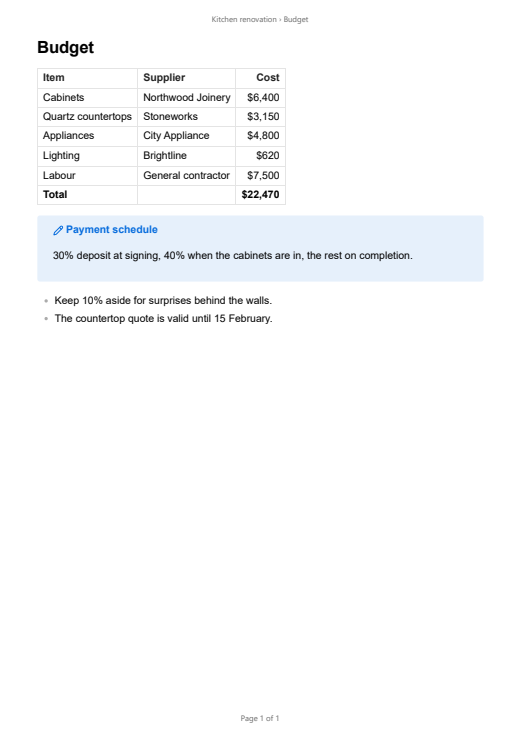
- Page numbers and a header.
3 / 7,Page 3 of 7or just3at the foot of each page, and optionally the note's name — or the note and section — at the top. - Sensible page breaks. Headings stay with the text after them; callouts, code blocks, images and table rows are not split across pages; a table's header row stays with the rows below it, and long Markdown tables repeat it on each page; over-long code lines wrap instead of running off the edge.
- Nothing that only works on screen. Folded callouts print open, and fold arrows and copy buttons are left off.
- Named after the note. The print job carries the note's name, and the section's, so that is what the print queue shows and what a PDF records as its title.
- Your CSS still applies. The printout is built the way Obsidian's own PDF export builds one, so themes and snippets written for PDF export style it too, and a note's
cssclassescarry over.
The Budget section from the screenshot above, as it comes out of the printer, with the note and section at the top and the page number at the foot:
Settings
| Setting | Default | |
|---|---|---|
| Include subsections | On | Off stops a section at the next heading of any level. |
| Note name as title | Off | Starts the printout with the note's name, as Export to PDF can. |
| Light colours | On | Off prints the theme you see on screen. |
| Background colours | On | Off lets the printer leave out shading to save ink. |
| Text size | 100% | Relative to your editor's text size. |
| Margins | 15 mm | On every side; the header and page numbers sit inside the margin. |
| Header | None | Note name, or note name › section. |
| Page numbers | 3 / 7 | Or Page 3 of 7, 3, or none. |
| Editor menu / File menu | On | Whether the right-click entries appear. |
Good to know
- Desktop only. Printing goes through the operating system's print dialog, which Obsidian's mobile apps do not offer.
- The dialog is your system's. Printer, copies, page range, paper size and orientation are chosen there. To get a PDF, choose Microsoft Print to PDF on Windows, or the PDF button on macOS.
- Obsidian waits for the dialog. While the print dialog is open, Obsidian does not respond and shows Preparing to print…. If the dialog is nowhere to be seen, it is behind another window: bring it forward (Alt+Tab on Windows), then print or cancel.
- Diagrams, queries and embeds that draw themselves after the note renders are waited for — until the page has been still for a moment, or five seconds at most.
- Reading view selects whole blocks. A selection there is traced back to the note's text, so every paragraph, list, table or embed it touches prints complete, even one it only starts or ends inside.
Installation
From Obsidian (recommended): Settings → Community plugins → Browse → search for "Print Section".
Manual: download main.js, manifest.json and styles.css from the latest release into <vault>/.obsidian/plugins/print-section/, then enable the plugin in Settings → Community plugins.
Also from Charette AI Group
HTML Table Toolbar and HTML Font Toolbar — Word-style toolbars for HTML tables and inline text styling. Print Section needs neither, and they need nothing from it; their tables and styled text print as they appear on screen.
Development
No build step — main.js is plain CommonJS, loaded by Obsidian as-is.
node --test "tests/*.test.js"
powershell -File scripts/syncToVault.ps1
then Ctrl+P → Reload app without saving in Obsidian.
Tests come in two layers: the note-structure engine — front matter, headings, sections, and the repairs that make a fragment render on its own — through module.exports.__internals; and whole printouts run against a fake window and document, checking what reaches window.print() and that the theme, title, page settings and DOM are all put back afterwards, however the printout ends.
Support
If this plugin is useful to you, consider supporting development:
Made by Charette AI Group.
License
MIT © 2026 Charette AI Group, LLC