pfpdf Export
 umiyosh42 downloads
Export notes to print-quality PDF with pfpdf, including embedded and remote images.
- Overview
- Scorecard
- Updates2
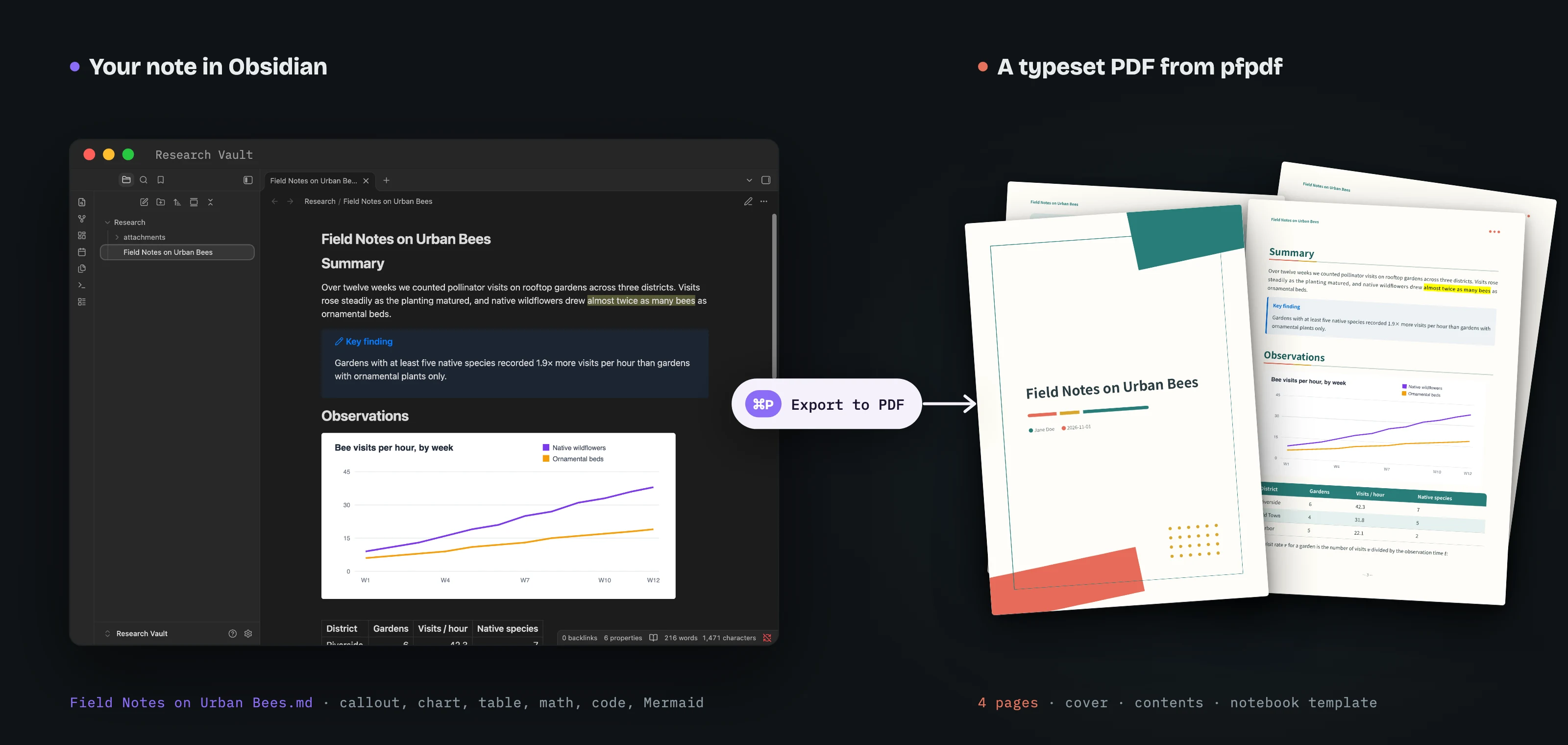
This plugin exports Obsidian notes to PDF. pfpdf lays out the pages, and can add a cover page and a table of contents. Images embedded in the note go into the PDF, including images with a set size, images written as HTML <img> tags, and images on the internet.
The plugin starts pfpdf as a separate program, so it works only in the desktop app (Windows, macOS and Linux).
Requirements
- Obsidian 1.13.0 or later (desktop app)
- Node.js 22.12 or later, which pfpdf runs on
- pfpdf 0.3.0, installed by you (see the next section). The plugin does not download or install pfpdf.
Install pfpdf
Run this command in a terminal to install pfpdf with npm:
npm install -g @pfnet-research/[email protected]
The first time you export a PDF, pfpdf downloads Chromium (several hundred megabytes), which it uses to render PDFs. Later exports reuse that download, so only the first export takes longer.
On Linux, Chromium also needs some system libraries. Run pfpdf --doctor to see which ones are missing. For details, see pfpdf's troubleshooting guide.
Install the plugin
Open Settings → Community plugins → Browse, search for pfpdf Export, select Install, then select Enable.
To install it manually:
- Download
main.jsandmanifest.jsonfrom the latest release. - Put both files in
<your vault>/.obsidian/plugins/pfpdf-export/. - Reload Obsidian, then enable pfpdf Export under Settings → Community plugins.
Usage
Open the note you want as a PDF, then do one of the following:
- Run Export current note to PDF from the command palette.
- Right-click the note in the file explorer and select Export to PDF with pfpdf.
Before exporting, the plugin runs pfpdf --version to check that pfpdf starts. If it does not start, the plugin does not export and shows the reason in a notice. If pfpdf is not found, the notice also shows how to install it. Check pfpdf in the plugin settings runs the same check.
Set options in the front matter
You can set the template and the table of contents in the note's front matter (the block between --- lines at the top of the note):
---
title: Quarterly report
author: Jane Doe
template: technical
toc: true
---
The plugin passes only the following keys to pfpdf. It ignores other keys, such as tags.
title: If you leave it out, the note name is used.author,series,template,toc,date,page_size,lang,dir,confidentiallogo,bibliography: Paths to files in the vault.
If a key has a value of the wrong type, the plugin shows a warning and ignores the key. For example, toc must be true or false. If template names a template that does not exist, the plugin shows a warning and uses the default template.
How Obsidian syntax is converted
pfpdf typesets GitHub Flavored Markdown, so the plugin converts Obsidian-specific syntax before exporting:
| Syntax | In the PDF |
|---|---|
![[image.png]], ![[image.png|300]], ![[image.png|300x200]] |
Image, at the given size |
,  |
Image. The path is resolved from the note's folder |
<img src="relative/path.png"> |
Image |
 |
Downloaded and embedded. If the download fails, the URL is kept and a warning shown |
![[Note]], ![[Note#Heading]], ![[Note#^block]] |
The embedded note's content. Notes that embed each other are not repeated |
![[drawing.excalidraw]] |
The SVG or PNG that the Excalidraw plugin exported automatically |
[[Link|alias]], Markdown links to notes |
The displayed text only, because pfpdf does not accept links outside the document |
> [!note] Title (callouts) |
A coloured box |
==highlight== |
Highlight |
%%comment%%, ^block-id |
Removed |
^[inline footnote] |
Footnote |
| Code blocks, inline code, math | Unchanged |
Things to know when exporting
- A line with only
___(three or more underscores) is a page break in pfpdf. Use---for a horizontal rule. - Content that another plugin renders, such as a Dataview query, appears as the code block you wrote, not as the rendered result. The PDF is typeset from the note's Markdown, not from what Obsidian shows.
- Chromium cannot render HEIC or TIFF images. Convert them to PNG or JPEG.
- If a formula contains a syntax error, pfpdf fails without producing a PDF. To write a dollar sign in text, write
\$.
Settings
| Setting | Default | Description |
|---|---|---|
| Default template | default |
Template used when the front matter has no template |
| Table of contents | On | Whether to add a table of contents when the front matter has no toc |
| Save location | Ask every time | Where to save: a save dialog, the note's folder, or a folder in the vault |
| Open after export | On | Opens the exported PDF in your default app |
| Pfpdf command | pfpdf |
Command that starts pfpdf. Check pfpdf shows whether it starts |
| Extra arguments | None | Arguments passed to pfpdf on every export, for example --host-fonts |
| Additional search path | None | Folders to add to PATH if Node.js or pfpdf is not found |
| Timeout in seconds | 600 | Time limit for one export, in seconds |
| Keep work directory | Off | Keeps the generated Markdown and copied images, for troubleshooting |
When you start Obsidian from the Dock or the Start menu, its PATH (the list of folders searched for commands) contains only system folders, so Node.js and pfpdf are not found. The plugin therefore adds the PATH of your login shell and the folders where Node.js is commonly installed (Homebrew, Volta, nodebrew, mise, asdf).
You may set Pfpdf command to another command, such as npx @pfnet-research/[email protected]. The plugin runs the command exactly as you set it. If you choose a command such as npx that downloads packages, the download is your choice.
Disclosures
Network use
- If the note you export contains images on the internet (
httporhttpsURLs), the plugin downloads them with Obsidian'srequestUrlto embed them in the PDF. Each download times out after 30 seconds. Apart from downloading these images, the plugin sends nothing. - If such a download fails, the plugin passes the URL to pfpdf, and pfpdf's browser (Chromium) may load it. The same browser may also load internet resources that HTML written directly in the note refers to.
- The plugin itself never downloads pfpdf or any other program. Chromium is downloaded by the pfpdf you installed (see Install pfpdf).
Files outside the vault
- Each export creates a work folder in your system's temporary folder and copies the note's images there. The folder is deleted when the export finishes, unless Keep work directory is on.
- With Save location set to Ask every time, you can save the PDF anywhere, including outside the vault.
- With Open after export on, the exported PDF opens in your system's default PDF viewer.
External programs
- The plugin starts pfpdf (the command in Pfpdf command) as a separate process: with
--versionto check it, and with--inputand--outputto export. - On macOS and Linux, the plugin runs your login shell (
$SHELL -ilc) once while Obsidian is running, to read your PATH. This loads your shell's startup files.
Other
- No telemetry. No account or payment is needed.
Security note
pfpdf renders HTML written directly in notes, and runs <script> elements too (see pfpdf's security policy). Do not export notes from sources you do not trust.
Credits
- pfpdf by pfnet-research (MIT License) does the typesetting. It is not included in this plugin; you install it yourself.
main.jsincludes cross-spawn and the packages it depends on (MIT and ISC licenses). Their full license texts are at the top ofmain.js.
Contributing
See CONTRIBUTING.md.