Personal Assistant
 edonyzpc22k downloads
AI-powered workflows to streamline the management of records, callouts, frontmatter, graph view, themes, and plugins.
- Overview
- Scorecard
- Updates119
An Obsidian plugin which help you to automatically manage Obsidian.
中文手册
·
Manual
💯Tips: If you are not a developer, please refer to the manual for optimal use.
NOTE: Newest beta feature: Pagelet — a quiet review assistant for your notes (produces structured suggestions, saves as review notes). Also supports LLM chat with Memory. When Memory is enabled and an AI provider is configured, the first Chat can prepare Memory in the background without a blocking prompt: eligible note text is sent to the configured embedding provider and may use API credits. You can turn Memory off in Settings; recovery, settings-change, and manual rebuilds still ask before costly work.
v2.7 guide: Before trying the release, read the v2.7 user guide. It explains AI Insights, Memory, Pagelet, Research, safe save flows, best practices, and a short release-video script from a user workflow perspective. Chinese version: v2.7 用户指南.
Project docs: Use the documentation index for repo-local requirements, decisions, product/architecture contracts, active development, backlog, and historical records.
Personal Assistant demos
macOS demo: AI Chat with Memory, note understanding, visual relationships, and Pagelet review workflows.
iOS demo: Mobile Chat, Mermaid rendering, featured images, and connection discovery.
AI Chat in 60 seconds
Three steps to get talking to your notes:
- Click the Personal Assistant icon on the left ribbon — it opens the AI Chat view directly. (Right-click the same icon for the older plugin controls modal.)
- If AI is not configured, the Chat banner lets you choose Qwen China, Qwen International, or OpenAI and add a token without leaving Chat. If only the token is missing, it preserves your existing provider settings and asks only for the token.
- Select Start to save and continue. Use Advanced setup for a custom endpoint or model; the first Settings visit keeps AI Provider open and the other groups folded so the required fields stay in focus.
See the AI Chat chapter in the Manual for prompts, citations, web search, and Memory tips.
Supporting featured image generation by AI according to the content of the note.
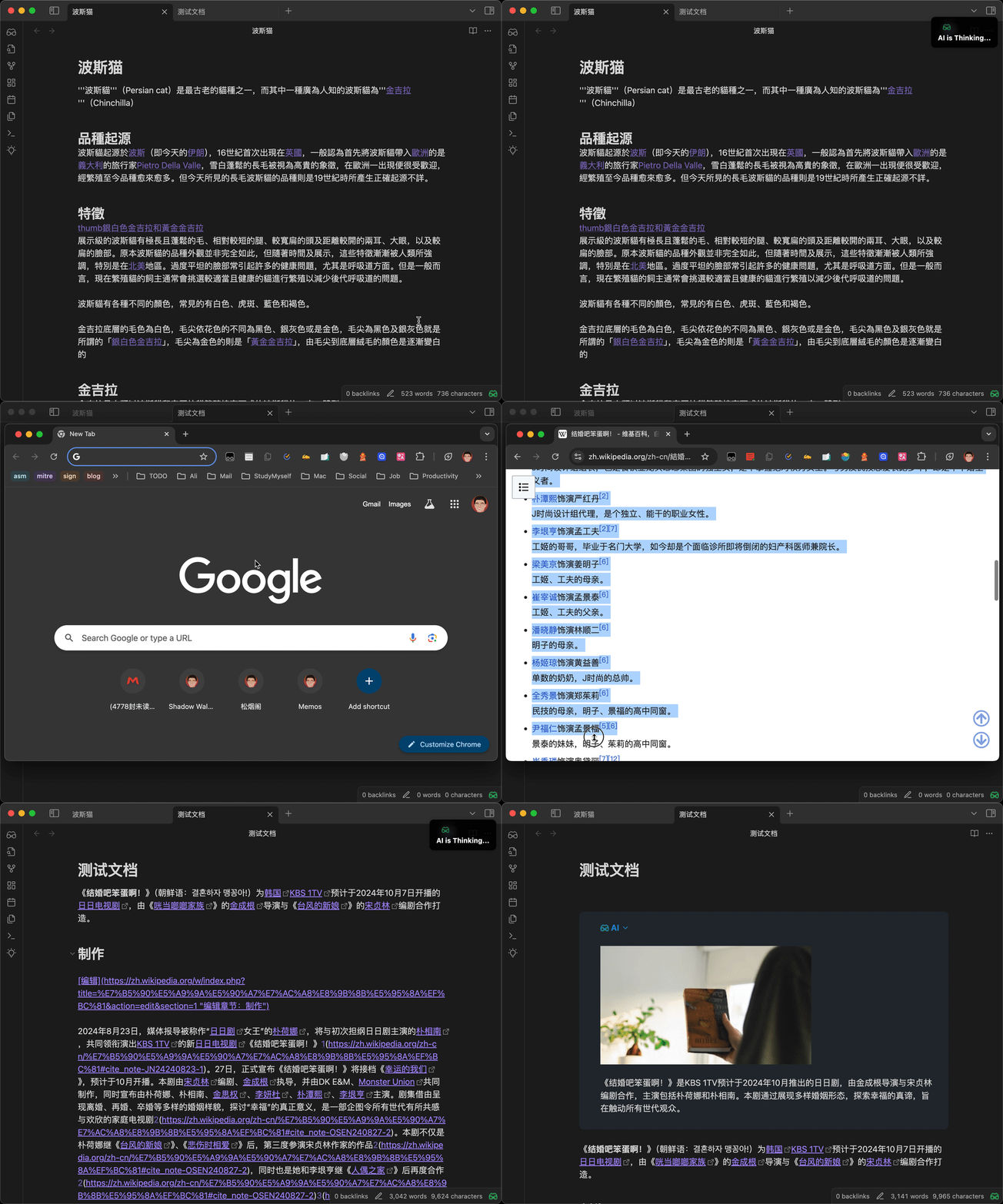
AI Helper to improve your Obsidian notes management
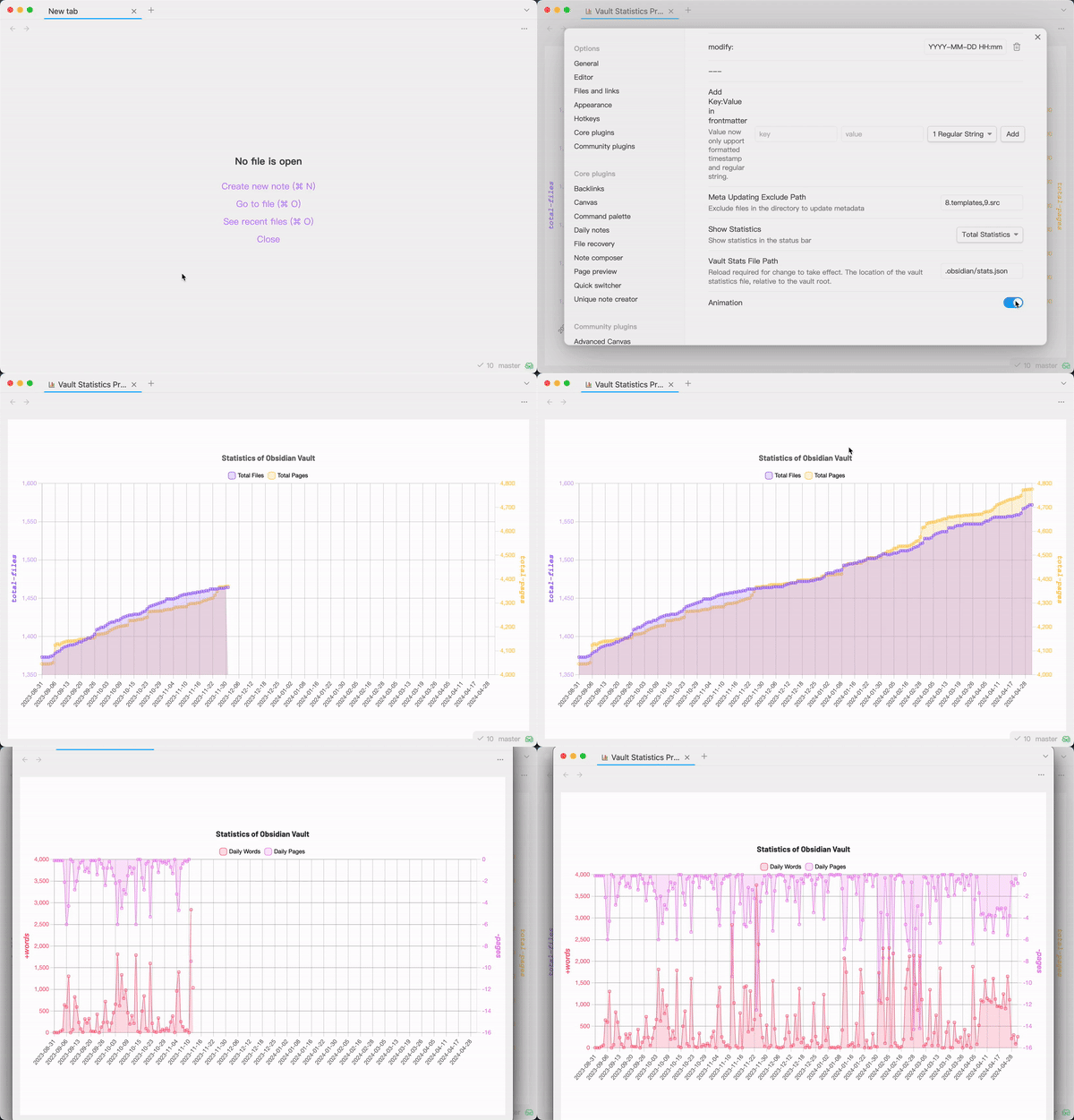
Animation rendering statistics
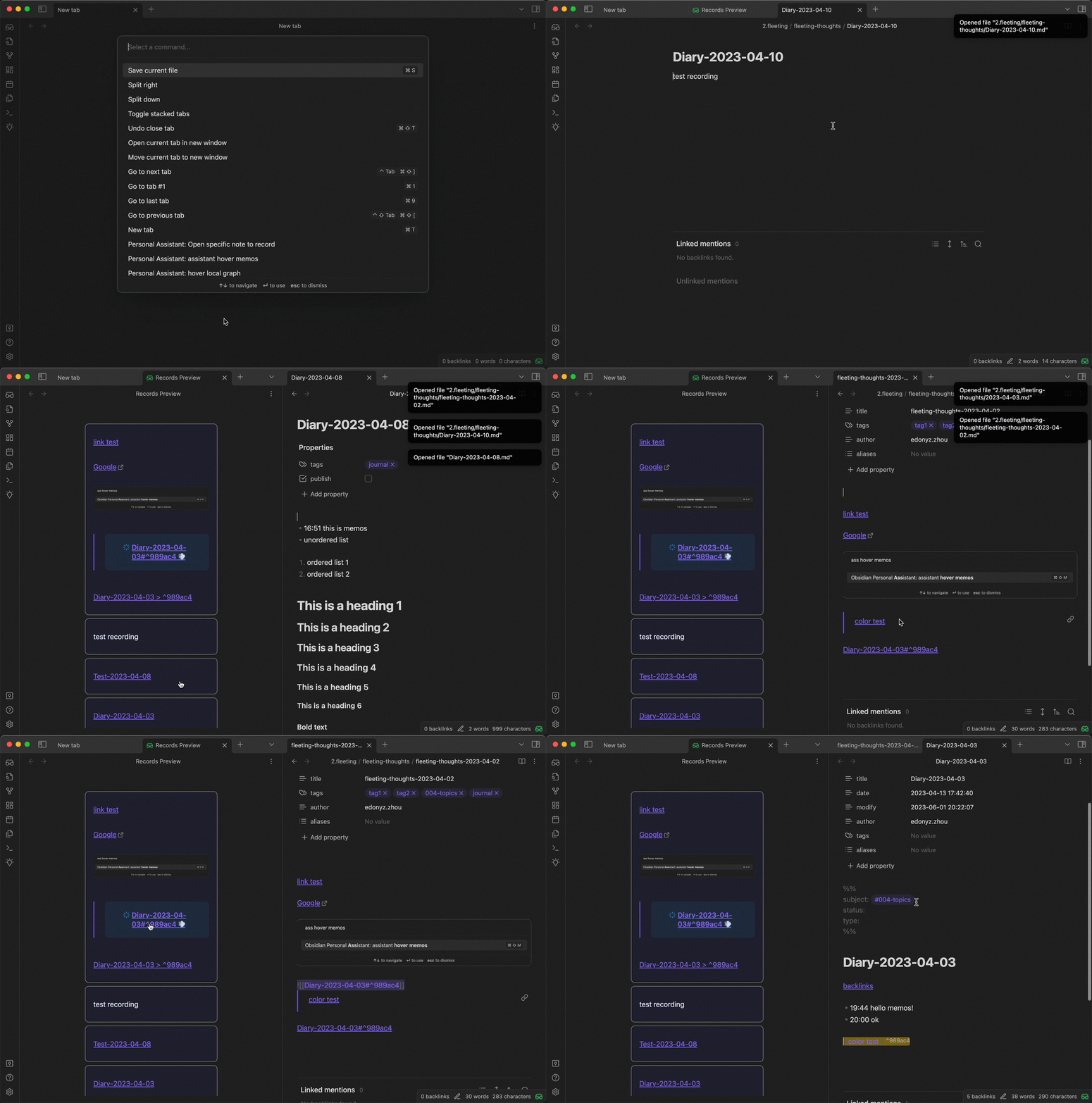
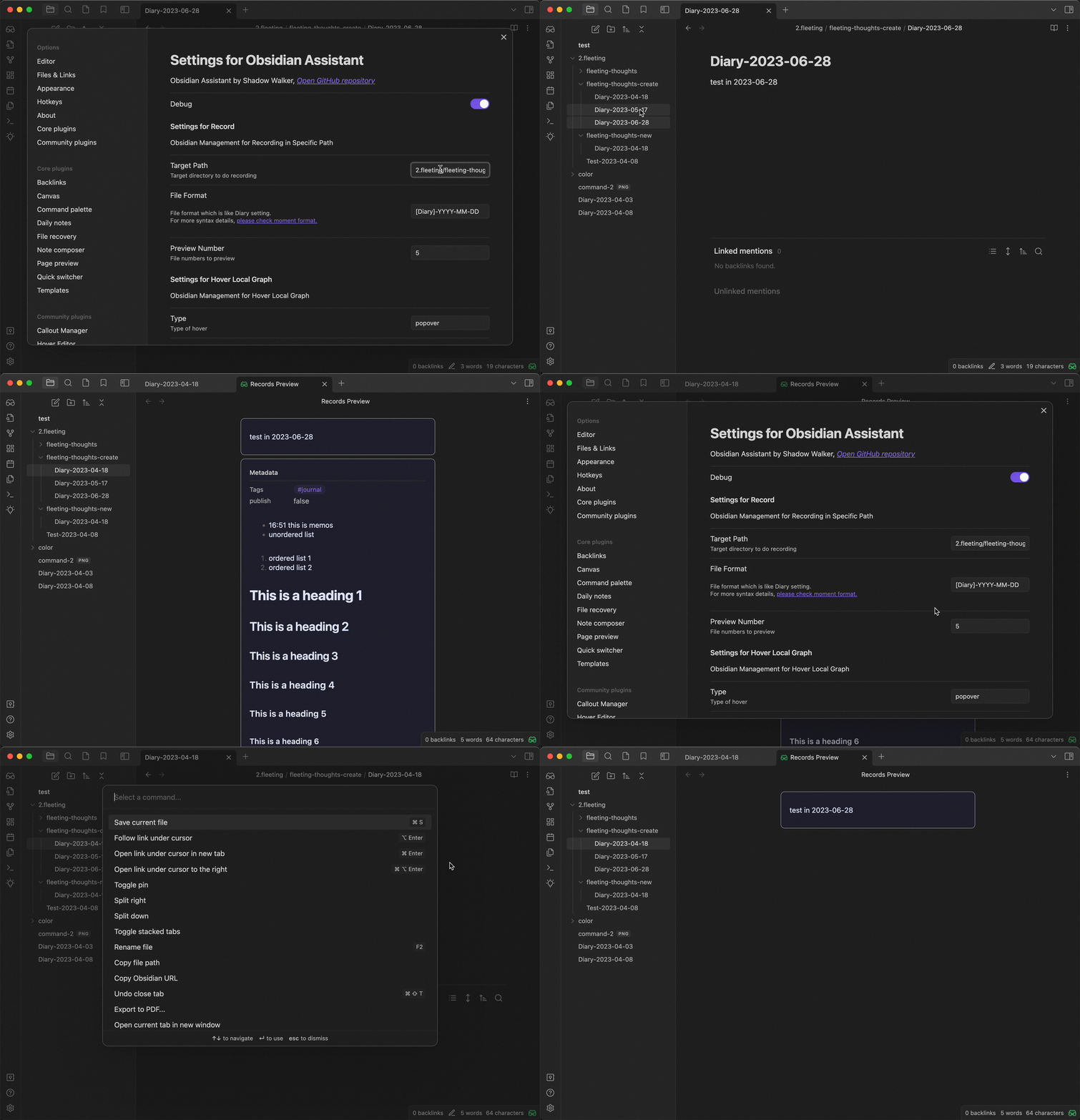
Preview records
List callout
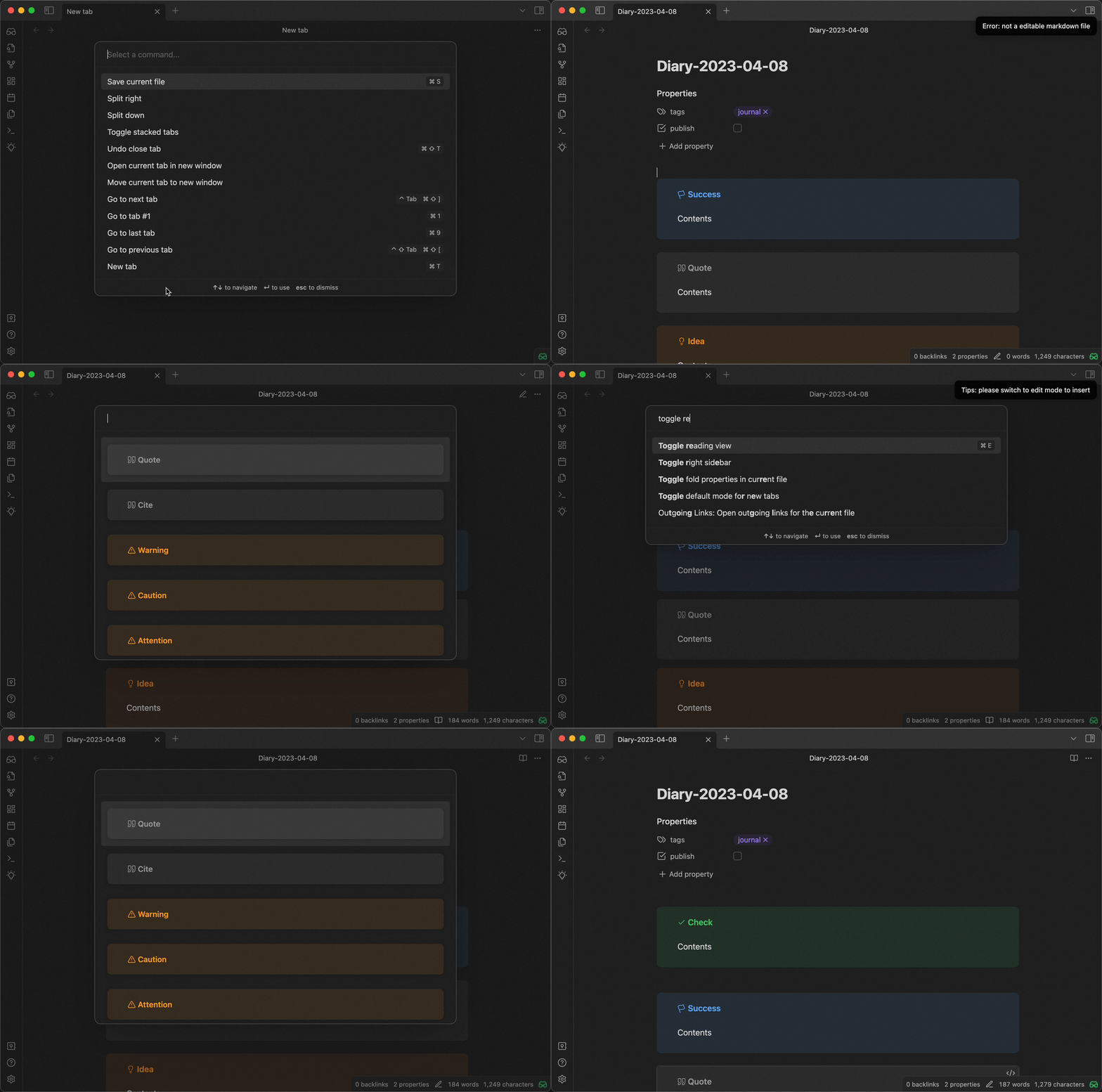
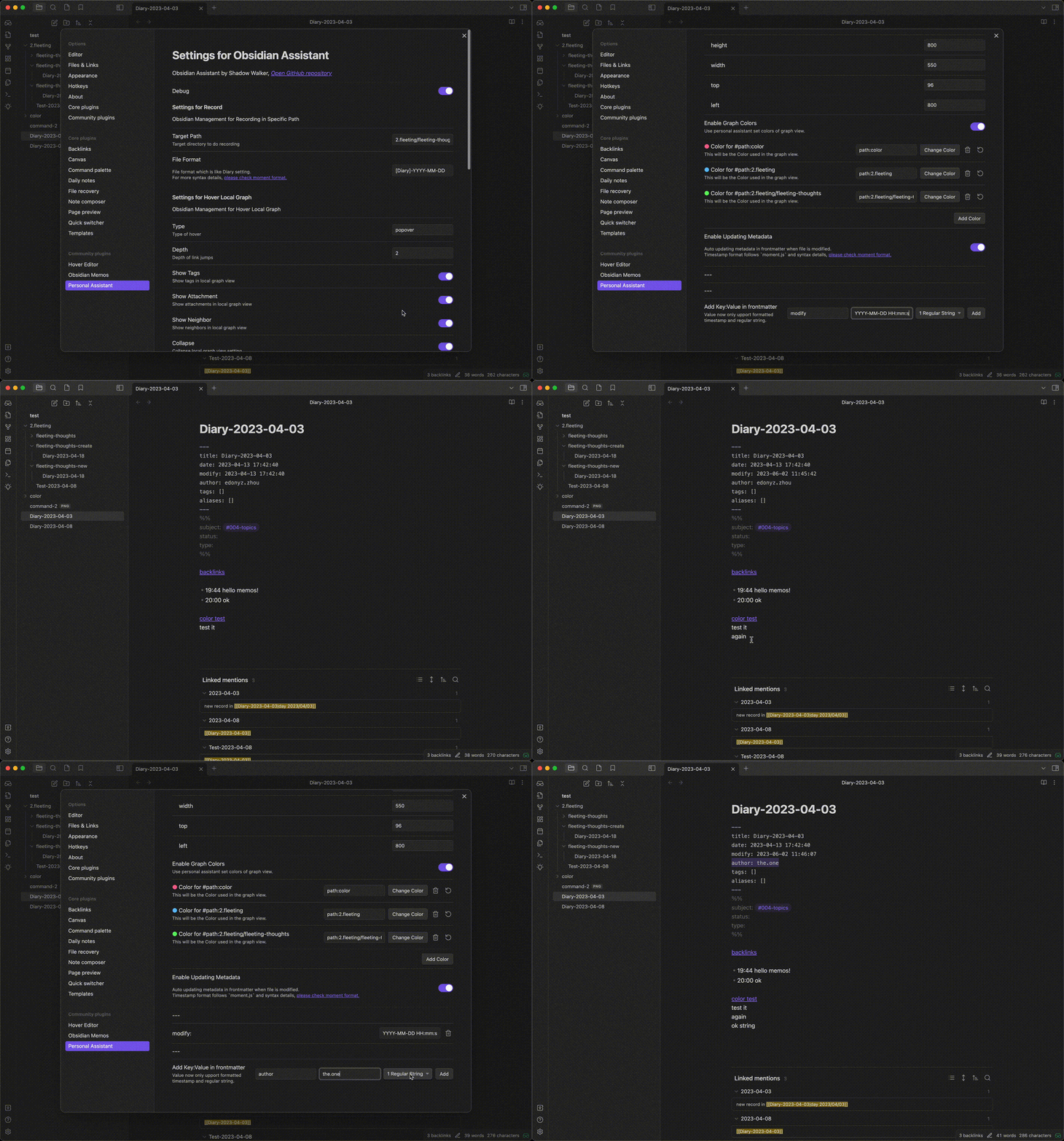
Update metadata
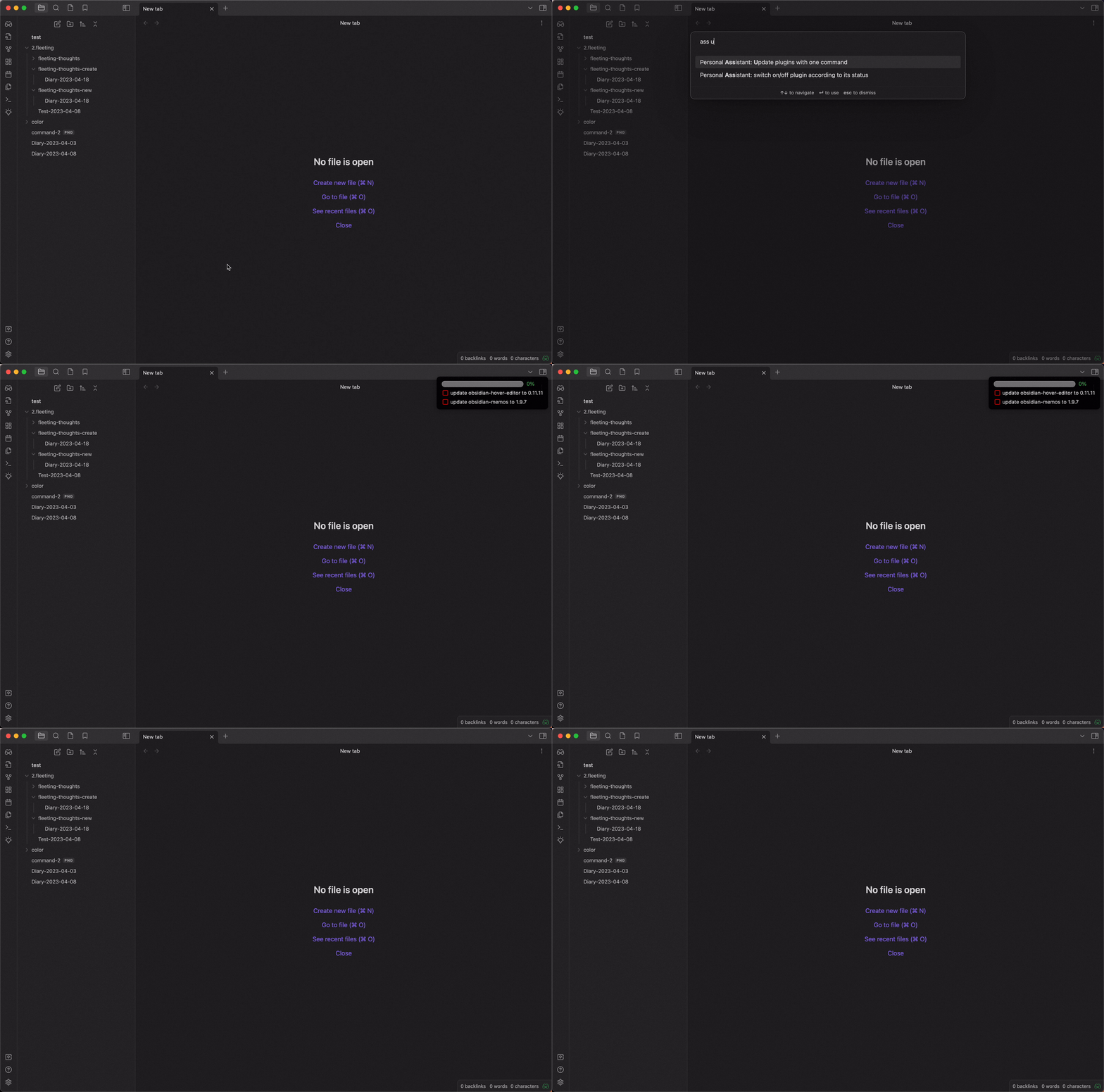
Update Plugins and Themes
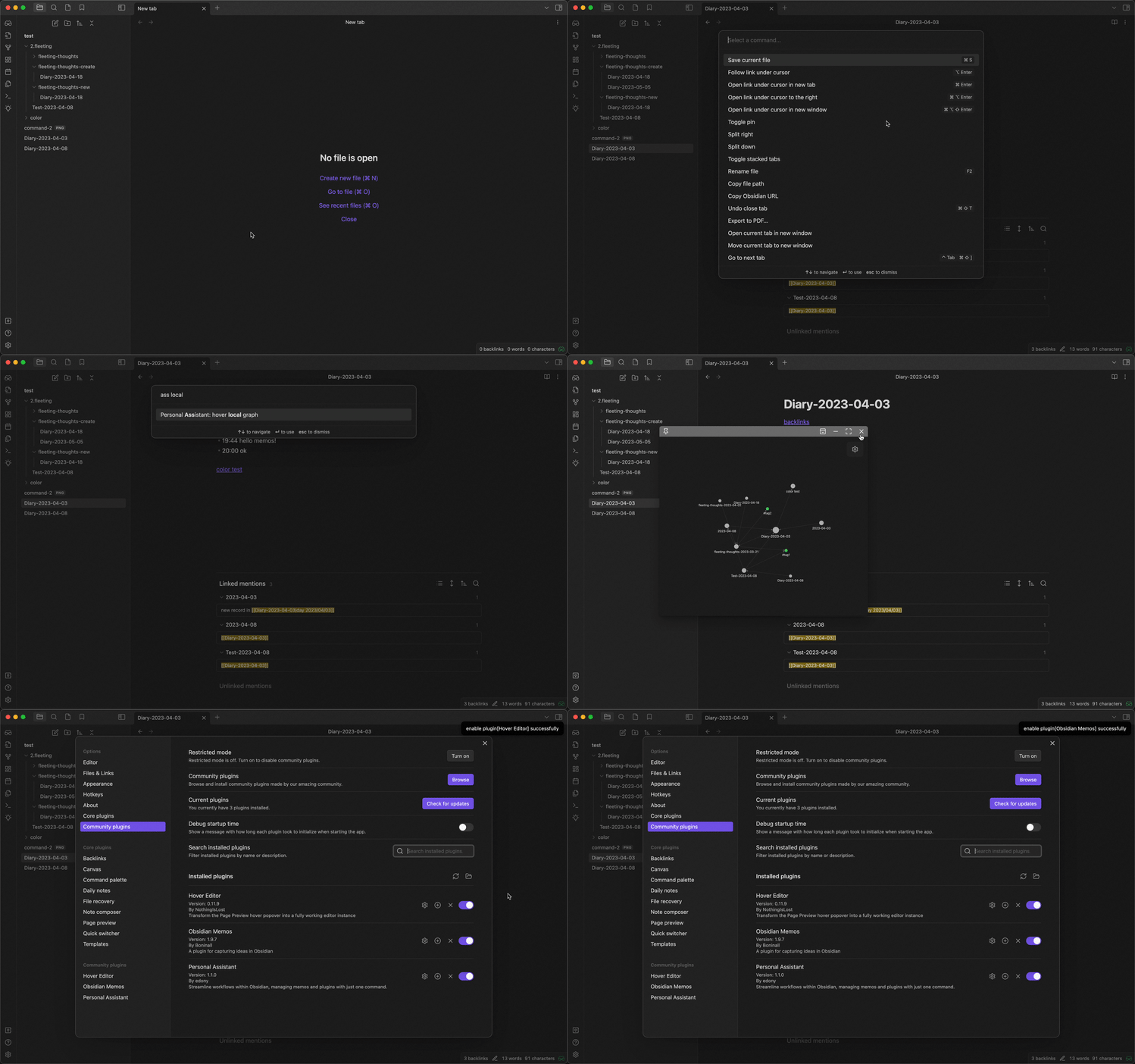
Basic Usage
Features
NOTE: The currently supported features are all from my personal needs, feature request is welcome by submitting issues.
- automatically create note in the specified directory with the configured file name
- automatically open current note related graph view
- automatically open Memos like quick note in macOS
- open Personal Assistant controls from the command palette
- automatically update plugins with one command
- automatically update themes with one command
- automatically set color of graph view
- list all callouts css configuration for quickly inserting
- chat with AI using Memory from your notes, or answer immediately without reading memory
- (beta) Pagelet — a quiet review assistant that reads selected notes, produces structured suggestions, and lets you save them as review notes without modifying originals
Develop
Please reference HERE.
Memory preparation performance note
Since 1.6.4, rebuilding Memory batches note chunks across files and uses provider-aware embedding limits instead of a fixed per-file delay. Qwen text-embedding-v4 / text-embedding-v3 rebuilds send up to 10 chunks per request with token-aware throttling and retry feedback. The long-running Memory notice now reports live progress such as scanning notes, embedding chunks, writing the index, retrying, and ready.
Manual "Update memory" keeps the safer per-file refresh path for now, but it also reports file-level progress and still skips unchanged notes before calling the embedding provider. Sharing the global rebuild batching pipeline with refresh is planned as a later large-vault optimization.
Background memory maintenance note
After the first background preparation or an approved recovery/manual preparation succeeds on a device, changed notes can be maintained automatically while Obsidian is open. Chat no longer waits for a refresh when the local SQLite/WASM Memory index is ready; it can answer with the last prepared Memory while a background reconcile/refresh updates changed notes.
Automatic maintenance writes Memory embedding data to the device-local SQLite/WASM OPFS backend and keeps VSS maintenance state in local Obsidian app storage. It does not create new vss-index-state/, vss-index-state/<deviceId>/manifest.json, or vss-cache/dirty.json files in the vault.
Network and privacy note
Personal Assistant does not include telemetry or analytics. By default, Statistics history is stored in local Obsidian app storage on the current device and is not uploaded by the plugin. If you enable cross-device Statistics history, the plugin creates vault-visible Statistics history files so your normal vault sync can carry them; Git users will see those files change.
| Feature | Trigger | Data sent | Destination | Background? | User control |
|---|---|---|---|---|---|
| Chat | You send a message | Prompt; when enabled, selected note/tool context, Memory search query, and selected Memory excerpts or note snippets used in the final answer prompt | Configured AI provider | No | Provider, chat, and Memory settings |
| AI note tools | You run summary or note AI actions | Current note content and the generated prompt | Configured AI provider | No | User action and AI settings |
| Memory prepare/update | First Chat while Memory is enabled and the AI provider is configured; or an approved recovery/manual action | Eligible note text and Memory search data | Configured embedding provider | First-use preparation runs in the background; manual actions block on progress; after success, changed notes may update in background | Memory on/off, Data Boundary exclusions, provider settings, and background toggle |
| Memory changed-note maintenance | Memory has been prepared and background updates are enabled | Changed note text | Configured AI provider | Yes | Memory background setting |
| Qwen web search | You enable web search for Qwen responses | Question and final prompt context | DashScope/Bailian | No | Qwen response setting |
| Featured image generation | You run image generation | Current note content for prompt generation, then image prompt and task requests | Configured AI provider and DashScope/Bailian | Polls task status after your request | User action and AI settings |
| Plugin/theme updater | You run the updater/install flow | Plugin or theme IDs and download requests | GitHub and jsDelivr | No | User action |
VSS SQLite/WASM dependency note
The local VSS SQLite backend uses the official @sqlite.org/sqlite-wasm package pinned to 3.53.0-build1. Before publishing a release with this backend, review the upstream package license and release terms for your distribution scenario.
License and commercial boundary
Starting with version 2.8.0, the Personal Assistant client source is licensed under AGPL-3.0-only. Historical releases are not relicensed retroactively; previous tags and artifacts retain the license notices and metadata published with those releases. For the current release, use the exact GitHub tag, source archive, LICENSE, NOTICE, and THIRD_PARTY_NOTICES.md files as the source and legal reference.
Version 2.8.0 is a license and compliance migration release. It does not introduce an account system, license key, checkout flow, feature lock, hosted commercial service, or paid entitlement check. Future hosted services, support, warranty, privacy, or trademark terms may be separate, but they must not restrict AGPL rights to use, modify, and redistribute the client.
The Personal Assistant name, personal-assistant plugin ID, icons, logos, and marketplace identity are not licensed to forks by the AGPL client license. See TRADEMARKS.md, NOTICE, and THIRD_PARTY_NOTICES.md.
Mobile VSS validation note
The local VSS SQLite/WASM backend has been smoke-tested on Obsidian Desktop and Obsidian iOS with the test vault, including rebuild, refresh, reload persistence, chat, and Memory references. Android has not been fully validated on a physical device yet because no Android test device is currently available, so Android VSS support should be treated as pending verification.
Install
Now Personal Assistant plugin is available in plugin market, you can install this plugin directly within Obsidian App, please check this mannual to get more details.
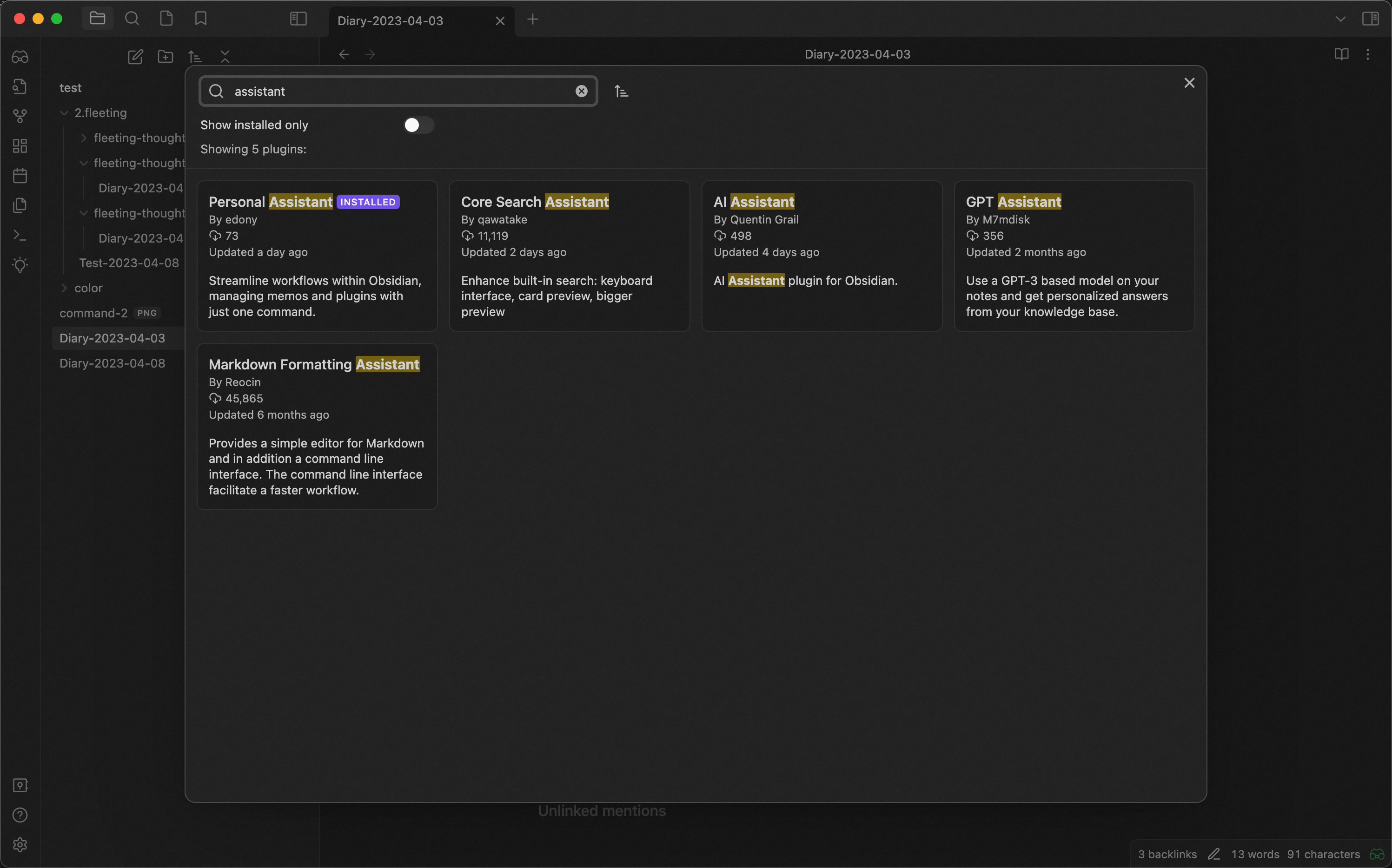
Install
- Download from the release
Install with BRAT
- Install BRAT from the Community Plugins in Obsidian
- Open the command palette and run the command BRAT: Add a beta plugin for testing
- Copy
https://github.com/edonyzpc/personal-assistantinto the modal that opens up - Track the latest release, or freeze a specific beta tag if you are testing a targeted build
- Click on Add Plugin -- wait a few seconds and BRAT will tell you what is going on
- After BRAT confirms the installation, in Settings go to the **Community plugins ** tab.
- Refresh the list of plugins
- Find the beta plugin you just installed and Enable it.
Maintainers should use the repository BRAT release workflow before inviting beta testers: docs/operations/brat-beta-testing.md.
Manually Install
- Build with commandline:
npm install && npm run buildor download from release page - Copy over
main.js,styles.css, andmanifest.jsonto your vault config folder, usually{VaultFolder}/.obsidian/plugins/personal-assistant/. If your vault uses a custom config folder, use that folder instead of.obsidian.
Use
1. Create note in specificed directory
- Open the command palette and find the command
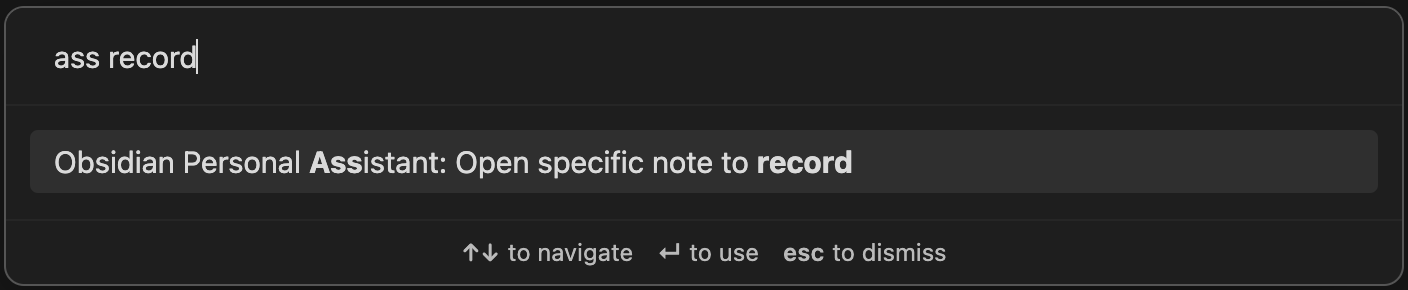
- New note is created and start your recording
- [Recommendation] Use
Folder Templatesof plugin Templater to format the created notes by the command above, the example is as following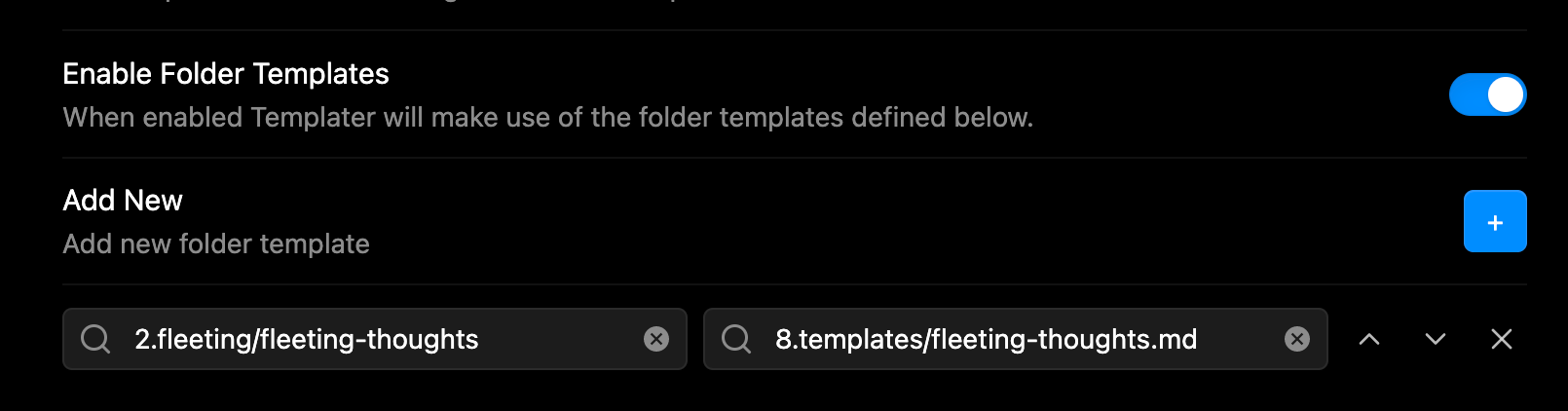
2. Open memos in hover editor
- Open the command palette and find the command
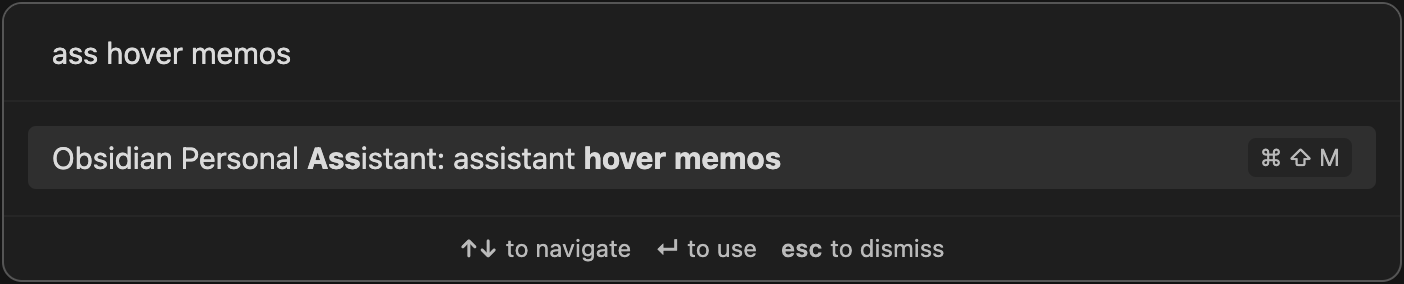
- Do anything you like in memos
3. Open graph view of current note
- Open the command palette and find the command
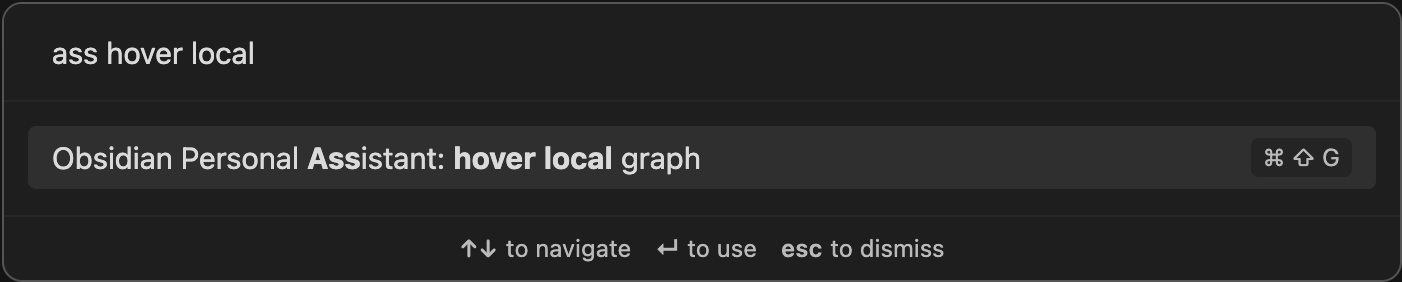
- Open setting tab for more customize
- Navigate your current note graph view with backlink and outgoing link
- configure color of graph view
4. Enable/Disable plugins for obsidian with one command
- Open the command palette and find the command
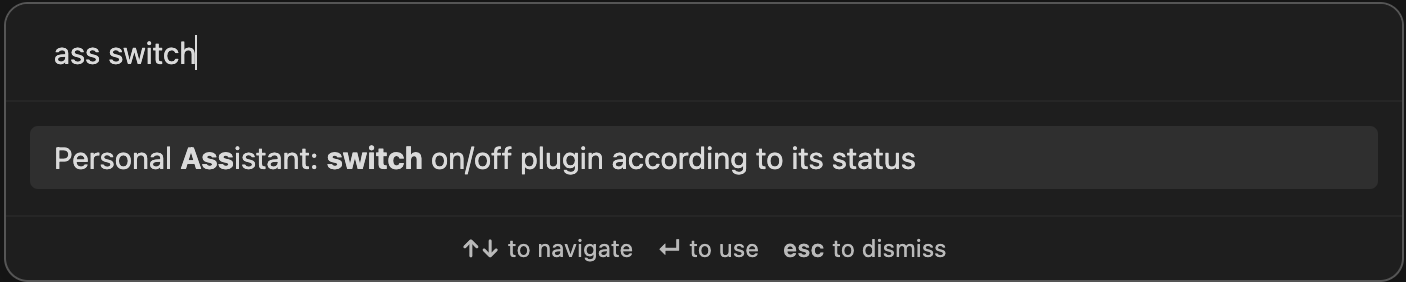
- Select the suggestion to enable/disable plugin(or you can search the plugin by its name)
- [Note] In suggestion tab, the green checkbox means plugin is already enabled and the red uncheckbox means plugin is already disabled
5. Update plugins for obsidian with one command
- Open the command palette and find the command
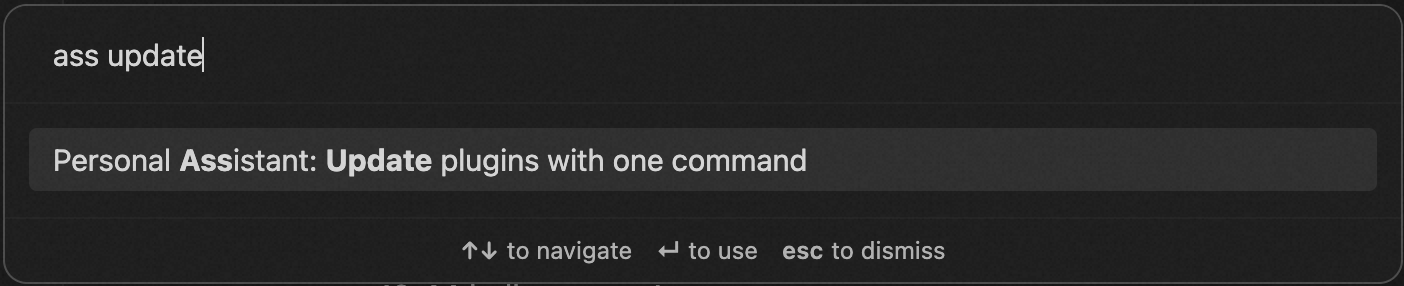
- Trigger the command to update plugins
- See the updating result which is displayed in the right corner
Attribution
- Best thanks for project obsidian-advanced-new-file for the code of
createNote,createDirectory - Best thanks for project obsidian-callout-manager for the
class CalloutPreviewComponentandcolor.ts - Best thanks for project better-word-count for the
package stats
Contact
If you've got any kind of feedback or questions, feel free to reach out via GitHub issues.