
- Overview
- Scorecard
- Updates40
Generates a gallery view of selected pages based on images found in them.
[!CAUTION] Obsidian now has a built-in Bases feature that accomplishes what this plugin was intended to do. While it's still somewhat limited (e.g. only displays images in page properties, not from page content), I doubt it will remain that way for long. As a result, I am unlikely to extend or enhance the Page Gallery plugin beyond its current capabilities, and encourage current users to switch to Bases if they're able to. I will continue to make bug fixes to this plugin in its current state for the time being, but don't expect any major changes or new functionality.
Warning: This plugin is in development and should be considered unstable! Always make a backup of your vault before testing out a new plugin.
Prereqs
Depends on obsidian-dataview to list pages and page metadata.
Usage
Create a code block with type page-gallery:
```page-gallery
# Any options given at the root level of the configuration
# will be used as defaults for all views (but can be overridden
# in any individual view).
fields: [file.name]
columns: 3
orientation: landscape

# If you don't include an explicit `views` option (which needs
# to be an array), then page-gallery will just use all the root
# level options as a single unnamed view.
views:
  - name: Yosemite
    from: '"Images" AND #yosemite'
  - name: Yellowstone
    from: '"Images" AND #yellowstone'
    columns: 4
    orientation: portrait
```
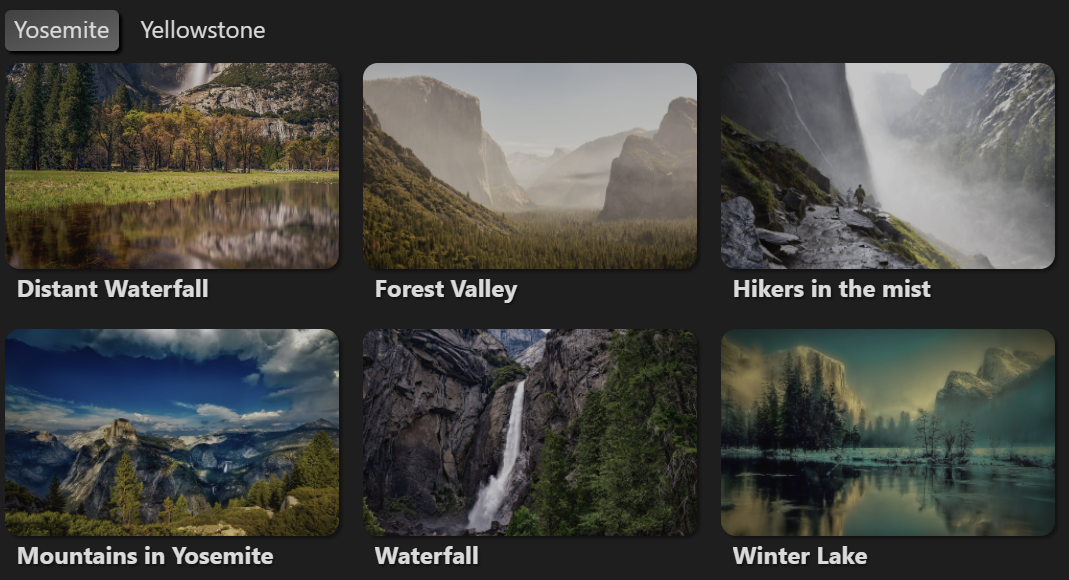
Photos from Unsplash and Pixabay
Settings
Options in the page-gallery block are parsed using YAML.
| Option | Type | Default | Description |
|---|---|---|---|
title |
string |
null |
An optional title for the page gallery. |
filter |
boolean |
true |
Whether or not to show the filter bar. |
count |
boolean |
true |
Whether to show view and group counts. |
debug |
boolean |
false |
Whether or not to display debug information. Useful primarily for development. |
views |
ViewConfig[] |
[] |
A list of individual view configuration blocks (see below). |
View Settings
A page gallery consists of a list of views (or tabs), each with its own view settings. Valid view settings are listed below. Any of this view settings can be set in the root of the configuration as well, in which case they act as defaults for all defined views.
If no views are defined, the page gallery will have a single view, based on the values defined in the root configuration.
| Option | Type | Default | Description |
|---|---|---|---|
name |
string |
"View #" |
Optional name or title for the view. |
mode |
"auto","image","content" |
"auto" |
Whether to show the first image found in the page ("image"), the rendered markdown content of the page ("content"), or automatically fall back to content only if an image isn't found ("auto"). |
from |
string |
- | Query for pages to include in the gallery. Uses the same query syntax as obsidian-dataview. |
where |
string |
- | Additional expression to filter out pages that you want to omit from the gallery. |
fields |
string[] |
[] |
List of fields to display in the gallery, under the image. Supports both frontmatter and inline fields. |
limit |
number |
100 |
Limit on the number of pages that will be displayed in the gallery. Set this to null to display all of the pages matched by the from query. |
groupBy |
string |
- | Groups pages by a particular field (or obsidian-dataview expression). |
sortBy |
string[] |
['file.path'] |
One or more fields/expressions to sort the pages by. Prefix with a - sign (e.g. -file.path) to reverse the sort order. |
columns |
number |
4 |
Number of columns to display at full width. |
orientation |
"portrait","landscape","square" |
"portrait" |
Whether to display tiles in portrait, landscape, or square mode. |
Advanced View Settings
The following settings directly modify the CSS style attributes that are
generated for the page gallery in order to allow fine-tuning of image sizes and
positioning (overriding the "orientation" and "columns" settings). They should
be used with caution, as they will likely conflict or overlap with other applied
styles; and may be removed in the future in order to simplify gallery styles and
make it easier to keep things working across devices with different screen sizes
(requiring you to use custom CSS snippets instead if you want to customize the
page gallery styling to this degree).
| Option | Type | Default | Description |
|---|---|---|---|
gutterSize |
string |
"0.5em" |
Size of the gutter between images. |
radius |
string |
"10px" |
Radius of the corners of each tile. |
width |
string |
Calculated from columns. |
Display width of each image in the gallery. Overrides columns. |
height |
string |
Calculated from columns and selected orientation. |
Display height of each image in the gallery. |
size |
string |
cover |
How the image should be scaled to fit within the gallery tile. See CSS background-size for available options. |
position |
string |
center |
Positioning of each image in the gallery. Try top, center, or bottom (etc) to change what parts of the images are visible. See CSS background-position for available options. |
repeat |
string |
no-repeat |
Whether to repeat (i.e. tile) the image in each gallery item. See CSS background-repeat for available options. |
Additionally, the size, position, repeat and imageSrc values can be
overridden on a specific page via YAML frontmatter:
---
pageGallery:
  size: contain
  position: left
  repeat: repeat-x
  imageSrc: different-image.png
---
Caution: This will override those settings for any page gallery that the page appears in.