OZ Calendar
 ozntel22k downloads
View your notes in Calendar using any YAML key with a date.
- Overview
- Scorecard
- Updates39
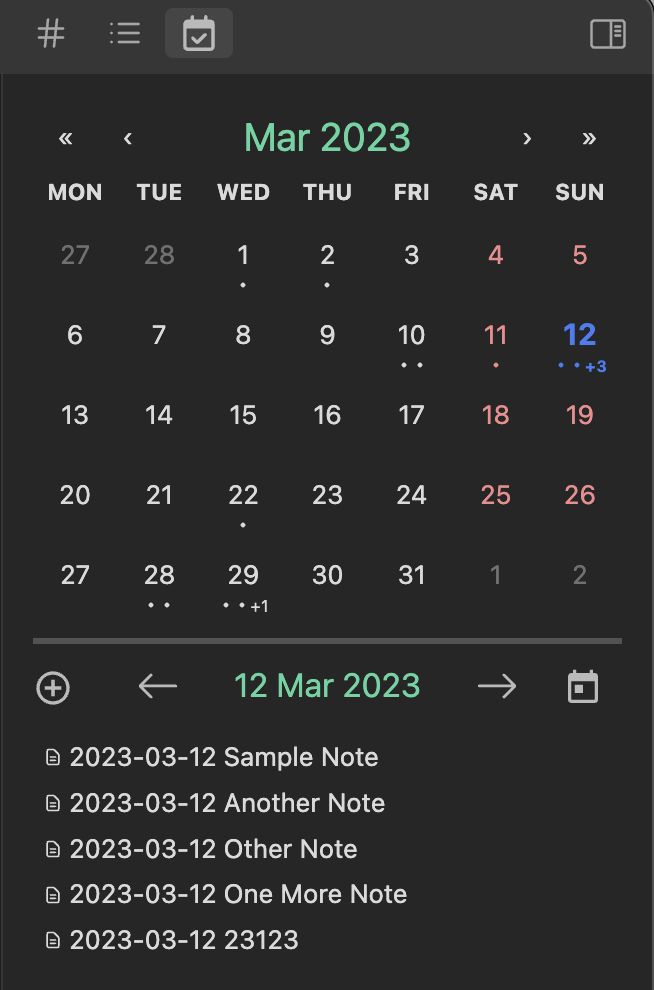
If you like the see your notes on a Calendar and easily find them using a certain date, you are at the right place. This plugin is created to help users easily view notes on Calendar using any YAML key or File Name with a custom date value. You define the YAML key and Date Format to be used. Or you can simply use the file name with your custom date format. Follow the Configure steps depending on your choice and you are ready to go.
Sample View
Configure
IMPORTANT: Please make sure that you check the date format tokens supported by the plugin following Moment.js Date Format Link (e.g.
YYYY-MM-DD,D MMMM YYYY,HH:mm).
Dates in Your Language
By default, month and weekday names (e.g. MMMM, ddd) follow the language set in Obsidian (Settings → General → Language). This applies to the calendar view, new note titles, the YAML date and the dates read from your notes. If you prefer English names regardless of the Obsidian language, disable Use Obsidian Language for Dates in the plugin settings.
If your date format contains month or weekday names and your existing notes use English names, keep Use Obsidian Language for Dates disabled, otherwise those notes won't be recognised.
01 YAML Option as Date Source
- Go to the plugin settings
- Define the YAML key you want to use as a date field. The default key is created
- Define the Date Format you are using within YAML. The default date format is YYYY-MM-DD HH:mm:ss
Changes are applied right away, there is no need to reload the plugin.
For the ones that don't know how to add a YAML key, see the following:
---
created: 2023-03-10 09:48:22
---
You can use any YAML key instead of "created" and any date format value for the key.
02 File Name Option as Date Source
The default date source is the YAML Key ("created") as mentioned above. If you want to use the file name as date source that feeds the calendar:
- Go to the plugin settings
- Change Date Source from YAML to File Name since the plugin has YAML key as a default date source
- Make sure that you adjust the default date format (Important: The default date format has special characters that is not supported for file name like colon that needs to be adjusted for File Name option)
Changes are applied right away, there is no need to reload the plugin.
Both YAML and File Name options can include additional characters. For the YAML option, the date needs to be at the beginning of the value. For the File Name option, the date can be anywhere in the file name and the first date matching the custom date format is used. For instance, with the date format YYYY-MM-DD, file names like '2023-03-10 This is the file', 'My file, 2023-03-10' or 'Book 1, 2023-03-10' will all be parsed just fine in the calendar. The date in the file name needs to match the date format exactly (e.g. '2023-3-10' won't match YYYY-MM-DD).
Create File Option
You can use the Plus(+) icon within the calendar view to add a new note with the default YAML key and date format.
You can define this in the plugin settings:
- The Default Folder the plugin is supposed to save the new file. The plugin also gives you an option to enable/disable destination folder selection during each note creation. The destination folder is always going to default to the one defined in the plugin settings but can be adjusted for single notes.
- And the File Prefix Date Format in case you prefer your file names to start with a certain date format
- You can right-click any date in the calendar view to create a note for a certain date
- The plus icon is defaulted to create a note for today
- An optional New Note Template (see Templates)
Templates
You can set a template file for the new notes (New Note Template), the daily notes (Daily Note Template) and the weekly notes (Weekly Note Template) under the Templates section of the plugin settings. Which syntax is processed depends on whether the Templater plugin is enabled. The settings page shows which one applies to your vault and warns you if a template can't be fully processed.
{{date}}, {{title}}, {{time}}, {{date:FORMAT}} |
<% ... %> Templater commands |
|
|---|---|---|
| Templater enabled | Filled in by OZ Calendar (first) | Run by Templater |
| Templater not enabled | Filled in by OZ Calendar | Left as plain text |
The {{...}} syntax is the same as the core Templates plugin, but it is filled in by OZ Calendar, so it works without the core Templates plugin and doesn't depend on its settings.
- Core Templates variables are always replaced:
{{title}},{{date}},{{time}},{{date:FORMAT}}and{{time:FORMAT}}(e.g.{{date:dddd, D MMMM YYYY}}). The date is the date of the note (the day you create the note for, or the first day of the week for weekly notes), not today. - If the Templater plugin is enabled, Templater commands (
<% ... %>) are processed as well. Note thattp.date.now()is the current date. To use the date of the note, use{{date}}(it is replaced before Templater runs), e.g.<% tp.date.now("YYYY-MM-DD", 7, "{{date}}", "YYYY-MM-DD") %>for a week after the note date. - If the date source is YAML, the YAML key with the date is added to the note's frontmatter, unless the template already has it.
Periodic Notes
Daily and weekly notes are saved in the Periodic Notes Folder. Set a separate folder for them: then they can use the same date format as your other notes without mixing with them. If you leave it empty, the default folder of the new notes is used.
Notes/
  261101 Meeting.md     ← regular note
Periodic/
  261101.md             ← daily note
  2026-W44.md           ← weekly note
Daily Notes
Enable Daily Notes in the plugin settings:
- The selected date above the note list shows the daily note of that day: a filled icon and a solid underline if it exists, a plus icon and a dashed underline if it doesn't. Click the date to open the daily note, or to create it. Use Cmd/Ctrl + Click to open it in a new tab.
- Days with an existing daily note are underlined in the calendar. You can also open or create it from the right click menu of a day.
- Daily Note Format: leave it empty to use the Default File Name Prefix Date Format of the new notes, so a daily note is named like a new note without a title (e.g.
YYMMDD→261101). - Daily Note Template: optional template file, see Templates. Leave it empty to use the New Note Template.
If the date source is YAML, the YAML key with the date is added to new daily notes, so that they show up as dots on their days.
Weekly Notes
Enable Weekly Notes and Show Week Numbers in the plugin settings to use the week numbers of the calendar:
- Click on a week number to open the weekly note of that week. If it doesn't exist yet, it will be created. Use Cmd/Ctrl + Click to open it in a new tab.
- Week numbers with an existing weekly note are shown bold and underlined.
- Weekly Note Format: leave it empty to use the format matching the Calendar Type (ISO 8601:
GGGG-[W]WW→2026-W44, US:gggg-[W]ww). - Hide Weekly Notes from Days: weekly notes in the Periodic Notes Folder are not shown as dots on the days, even if their name or YAML contains a date.
- Weekly Note Template: optional template file, see Templates.
{{date}}is the first day of the week.
Commands: Open Today's Note, Open Yesterday's Note, Open Tomorrow's Note, Open This Week's Note, Open Previous Week's Note and Open Next Week's Note.
File List Badges
Set File List Badge Property in the plugin settings to a frontmatter key, e.g. type, to see its value as a colored badge next to each note in the file list. This way you can tell at a glance what kind of notes were created on a day.
- Each value always gets the same color, e.g. every
meetingbadge looks the same. - List values show a badge per item (up to 3), and
[[Link|Alias]]shows asAlias. - Leave the setting empty to hide the badges.
Filter Notes
Click the funnel icon next to the create note button to open the filter bar, or use the Toggle Filter Bar command. Write a query like in Obsidian Search and press Apply or Enter: the calendar dots and the file list then only show matching notes. The filter is kept when you close the bar, and the funnel icon shows a dot while a filter is applied.
| Query | Shows notes where |
|---|---|
meeting, "weekly review" |
the file name contains the word or the exact phrase |
file:standup, path:Work/ |
the file name / file path contains the text |
tag:#work |
the note has #work or a nested tag like #work/client |
[status] |
the status property exists |
[type:meeting], [type:"1:1"] |
the type property contains the value (any item, for list properties) |
[due:null] |
the due property exists but is empty |
/regex/, file:/^2024-/ |
the regular expression matches |
a b, a OR b, -a, (a OR b) -c |
both match, either matches, not, grouping |
Matching ignores case. Note content is not searched. Click the info icon in the filter field to see these examples and add them to your filter with a click.
Plugin Commands
Day Navigation
You can use directly Go to Previous Day, Go to Next Day and Go to Today commands to navigate between dates. You can also assign hotkey to these commands to change the active date easily from your keyboard.
New Note Creation
You can use the Create a New Note command to trigger the create a new note action customized for the plugin. Same as day navigation, you can assign hotkey to this command for easy keyboard navigation.
Filter
You can use the Toggle Filter Bar command to show or hide the filter bar, see Filter Notes.
Style Settings Plugin Support
You can customize some of the calendar style settings using the Style Settings Plugin.
Contact
If you have any issues or you have any suggestions, please feel free to reach me out directly using the contact page of my website ozan.pl/contact/ or directly to [email protected].
Support
If you are enjoying the plugin then you can support my work and enthusiasm by buying me a coffee: