Outline Mindmap
 CH645 downloads
Minimalist & Intuitive Outline Mind Map: Pure Markdown syntax with zero code pollution in your note files; click-to-navigate with real-time bi-directional sync between mind map and notes.
- Overview
- Scorecard
- Updates5
English · 中文 · 插件介绍(可在 Obsidian 里直接打开的演示笔记)
Render the heading outline of a Markdown note as a mindmap, with two-way live editing — colour it by level, drive it entirely from the keyboard, and never let it touch a byte of your Markdown it shouldn't.
Edit a node in the map and you are editing that line of the note; type a character in the note and the map follows immediately. They are two views of one piece of data — there is no third copy of the state.
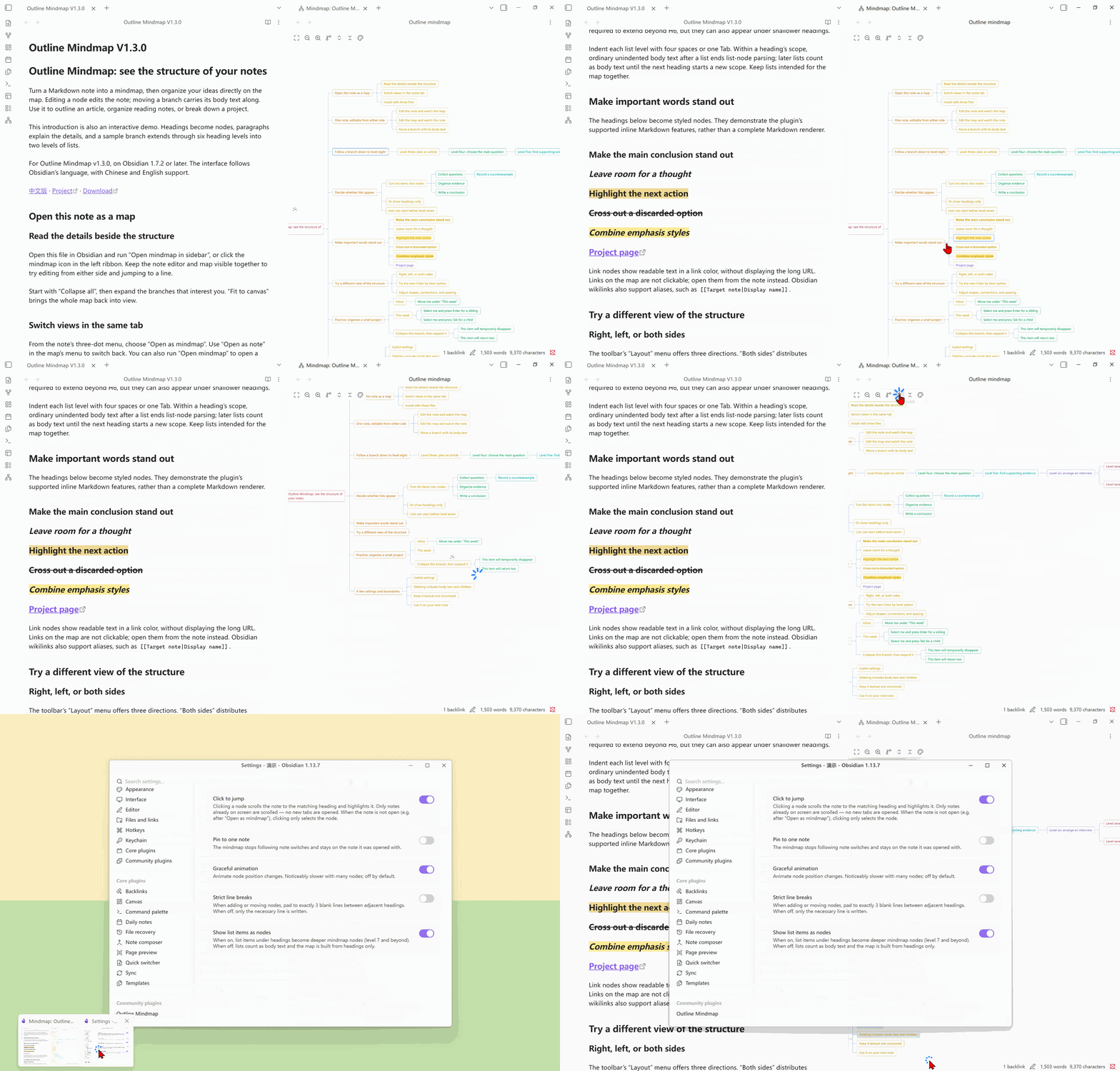
- Obsidian 1.7.2+ · desktop and mobile · v1.3.1
- The interface follows Obsidian's language: 中文 / English, no setting to touch.
Features
- Plain Markdown in, clean Markdown out: Headings and lists become a mindmap on their own — no YAML, no injected properties, no hidden comments. Every setting lives in the plugin's own
data.json. Your Markdown stays Markdown, and stays usable anywhere. - Two-way live sync: Edit the note and the map follows; drag a node and the note updates. Write-back replaces only that line — every byte outside it is untouched — and one action is one undo, so the two sides never drift apart.
- Click to locate: Click a node and the visible note scrolls to the matching line and highlights it in both Editing and Reading view; double-click to rename. After you add, rename or drag a node, the note stays right where you were working — outline and prose, no seam in between.
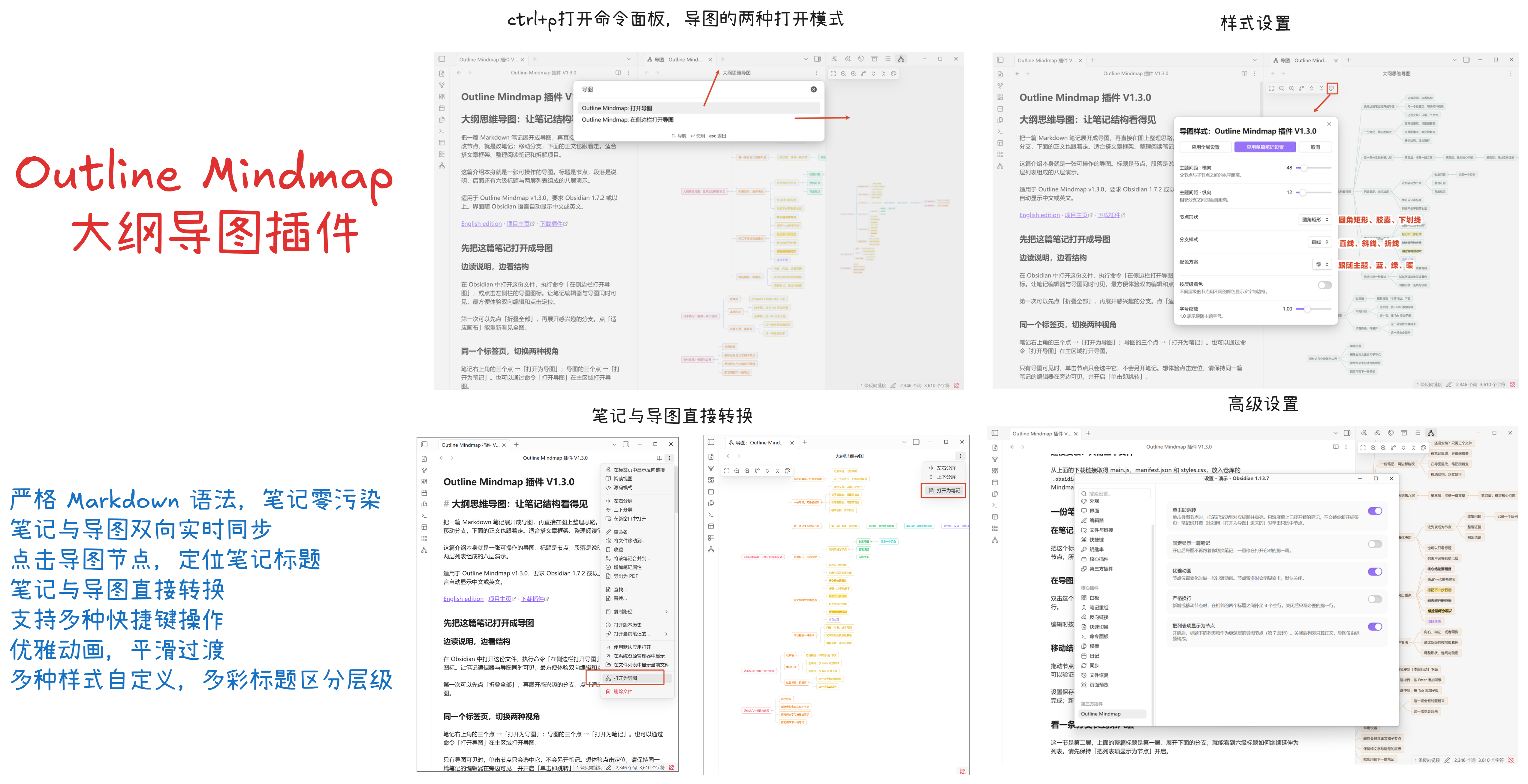
- Note ⇄ map, in place: 打开为导图 (Open as mindmap) turns the current tab into a map; 打开为笔记 (Open as note) turns it back. Same tab, no extra tabs piling up.
- Drag to rearrange: Drop on a node's top or bottom edge to insert before or after, drop in the middle to make it a child, drop on empty space to start a new root. Cross the 6th level and headings and list items convert automatically — with the body text underneath moving along.
- Keyboard-first:
Enterfor a sibling,Tabfor a child, arrow keys to move around,Deleteto remove a whole subtree,Escto abandon anything without writing a byte. Your hands never leave the keys. - Styles worth looking at: Shape, colours, font size and spacing are all yours to tune; edges can be straight, diagonal or elbow; branches can grow right, left, or split evenly to both sides; and each level can get its own colour (colour by level — text and border, palette taken from the theme so light and dark both look right). Global and per-note levels, live preview as you drag a slider, and Cancel puts it all back.
- Smooth animation, if you want it: Node movement, layout changes and expand/collapse can all glide. It ships off — that smoothness is your call. What never changes: after a collapse, the node you just clicked is still dead centre.
- Headings only, when you want that: The setting 把列表项显示为节点 (Show list items as nodes) turns list items off — the map shows headings only, the lists go back to being body text, and the note itself is not changed by one byte. Flip it back and every list node is exactly where it was.
Three lines that will never be crossed
- Never writes frontmatter, never writes tags. Every setting and style lives in the
plugin's own
data.json. Not one extra byte goes into your note. - Never rewrites a file wholesale. Every write-back is a minimal replacement of a specific line range; every byte outside that range stays identical — your hand-made blank lines, indentation and line endings (LF / CRLF) are preserved exactly.
- One action = one undo. All writes go through editor transactions, so
Ctrl+Ztakes you straight back.
Install
Not in the community plugin browser yet, so install manually:
- Download
main.js,manifest.jsonandstyles.cssfrom the Releases page — those three files are the whole plugin, and each release carries a GitHub build provenance attestation so you can verify they really were built from this repository. - Put them in
<your vault>/.obsidian/plugins/outline-mindmap/ - Enable Outline Mindmap under Settings → Community plugins
main.js is a build artifact and is not committed here, so cloning the repository is not a
shortcut to installing — build it, or take the release.
Building from source:
npm install
npm run build     # type-check + bundle into main.js
Usage
Four ways to open the map:
- The mindmap icon in the left ribbon → opens in the right sidebar
- Command palette → 打开导图 (Open mindmap) → opens as a tab in the main area
- Command palette → 在侧边栏打开导图 (Open mindmap in the sidebar)
- A note's ⋯ menu → 打开为导图 (Open as mindmap): the current tab turns into a map in place (right-clicking a note in the file explorer offers the same item)
Going back, a map's ⋯ menu has 打开为笔记 (Open as note), turning that same tab back into a note. The two are exact inverses; switching back and forth never opens an extra tab.
After 打开为导图 you are in pure-map mode: that tab no longer holds an editor, so clicking a node only selects it — the plugin will not dig the note out for you. To read the note and edit the map side by side, open the map in the sidebar or split the pane.
The main-area and sidebar forms can be open at the same time without interfering. The map follows the active note by default (including when you come back from a background tab or a collapsed sidebar). To keep it parked on one note, turn on 固定显示一篇笔记 (Always show one note) in the settings — once pinned, it stays on that note even across an Obsidian restart.
If the map ever stops following, the command 跟随自检 (Follow self-check) reports the active note, the note the map is showing, both toggles, and a timestamped trail of every sync event the view received — and copies the whole thing to the clipboard.
How a note becomes a map
| In the note | Level in the map |
|---|---|
# Heading … ###### Heading |
Levels 1–6 |
- list item (one level = 4 spaces or one tab of indent) |
Level 7 and deeper (can be turned off — see Show list items as nodes) |
| Body paragraphs under a heading | Not shown, but move together with their heading |
A # inside a fenced code block |
Not a heading, never appears in the map |
Inline markup in node text — **bold**, *italic*, ***bold italic***, ==highlight==,
~~strikethrough~~ — is rendered as such and nests freely. An unpaired * (as in 2 * 3) is
plain text and is never swallowed.
Inline math written as $...$ is rendered by Obsidian's own MathJax engine. Math can sit next
to ordinary text and other inline markup; malformed expressions fall back to their editable
source instead of breaking the map. Display-math blocks ($$...$$) remain note body content.
Links show only the readable part, so paths and URLs cost no node width:
| In the note | Shown in the map |
|---|---|
[[Some note]] |
Some note |
[[folder/target|alias]] |
alias |
[[note#section]], [[#section]] |
section |
[text](https://…) |
text |
Link text is tinted with the theme's link colour but is not clickable — a click in the map already means "jump to the matching line in the note", and competing for the same click would only make it unpredictable.
Keyboard
| Key | Action |
|---|---|
↑ ↓ |
Previous / next node: siblings first, then out to the enclosing level |
→ (the "go in" direction) |
Expand a collapsed branch, or enter its first child if already expanded |
← (the "go back" direction) |
Collapse an expanded branch, or go to the parent if already collapsed |
Enter |
Add a sibling after the current node |
Tab |
Add a child to the current node |
F2 / double-click a node |
Rename |
Delete / Backspace |
Delete the selected node and its whole subtree |
Ctrl/⌘ + Z |
Undo (forwarded to the editor) |
Esc |
Abandon the current edit or drag — not a single character is written |
| Double-click empty space | Create a new free root node |
Ctrl/⌘ + click |
Add to / remove from the selection (for deleting a batch) |
| Drag a node | Reorder: drop on a node's top/bottom edge = insert before / after, drop in the middle = become its child, drop on empty space = become a new root |
| Wheel | Pan; hold Ctrl/⌘ to zoom around the pointer |
Left and right on the arrow keys are interpreted relative to the direction the node grows:
when a branch runs leftwards, ← is the key that takes you into its children.
Toolbar
Fit to canvas · Zoom out · Zoom in · Layout (branches right / left / both sides) · Expand all · Collapse all · Style settings.
Branches on both sides splits the root's branches into two balanced columns by subtree size.
Settings
| Toggle | Default | What it does |
|---|---|---|
| 单击即跳转 (Click to jump) | On | Clicking a node scrolls the visible note to the matching heading or list item and highlights it in both Editing and Reading view (focus stays on the map); after you create / rename / delete / drag a node, the note also stays at that node. It only scrolls a note that is already visible on screen — it never opens a tab, never splits a pane, never pulls a background tab to the front. Turn it off and a click only selects |
| 固定显示一篇笔记 (Always show one note) | Off | The map stops following the active note and stays on the one it was opened with |
| 优雅动画 (Smooth animation) | Off | Smooth transitions for node movement, layout switching and the viewport follow on expand/collapse. Noticeably slower with many nodes |
| 严格换行 (Strict blank lines) | On | When adding / moving nodes, pad adjacent headings to 3 blank lines apart |
| 把列表项显示为节点 (Show list items as nodes) | On | Turn it off and the map shows headings only: list items go back to being body text under their heading. The note itself is not touched; switching back restores every list node. While it is off, adding or dragging past level 6 is blocked with a notice — a level-7 heading has no visible syntax to write |
Styles — shape, colour scheme, colour by level, font size, horizontal and vertical gaps, branch style (straight / diagonal / elbow) — come in two levels, global and per-note: a note with no style of its own uses the global one. While the style window is open, dragging a slider previews live, and Cancel restores. Per-note styles are keyed by file path and are migrated or cleaned up automatically when you rename, move or delete a note.
Performance
Every stage is designed for 1000 nodes: text measurement goes through an offscreen canvas
(never a per-node offsetWidth read), node DOM is claimed and released rather than rebuilt, all
edges are merged into a single <path>, pan and zoom write one container transform, and every
event is delegated to the layer (17 DOM listeners for the whole view, independent of node count).
The repository ships a 1000-node stress note (bench/1000节点压力测试笔记.md — 1000 nodes over
8 levels: 6 heading levels plus 2 list levels, with long headings, inline markup, body text and
code blocks), generated deterministically by node scripts/gen-stress-note.mjs.
npm test runs the pure-computation part against that corpus (measured on Windows 11 / Node 22):
| Stage | 1000 nodes |
|---|---|
Parse (parse) |
≈ 0.6ms |
Reconcile (reconcile, keeps ids and collapsed state) |
≈ 0.3ms |
| Layout (each of the three directions) | ≈ 0.2–0.3ms |
| Opening a note end to end | ≈ 0.6–1.3ms |
| Building 1000 edges (straight / diagonal / elbow) | ≈ 0.2–0.3ms |
Ten Enter presses in a row (each on the previous text) |
≈ 2ms each |
The DOM half can only be measured for real inside Obsidian: open the stress note as a map and run the command 性能自检 (Performance self-check), which reports how many milliseconds layout, first render (rebuilding all DOM) and redraw actually took.
Known limitations
- Text-only maps: no summaries, no free-form connections, no images, no notes.
- Collapsed state is not persisted; switching notes resets it.
- Task list items
- [ ]are treated as plain text; ordered lists are read fine but written back as-. - Multi-select (
Ctrl/⌘ + click) is for batch deletion only, not batch drag. - All of the above are deliberately deferred to v2, not oversights.
Development
npm run dev        # watch build
npm run typecheck  # strict type-check
npm test           # 490 unit tests
The directory layering is a hard constraint: core/ (parsing, serialisation, structural
operations) and layout/ (the layout algorithm) must not import any Obsidian API — they are
pure functions with unit tests. Only doc/DocumentBridge.ts touches file I/O, and only view/
touches the DOM.
To install a dev build into a vault without copying three files by hand every round:
npm run deploy "D:\your vault"   # remembers the target in deploy.json (git-ignored)
npm run deploy                   # afterwards: build + install into the remembered vaults
It overwrites only main.js, manifest.json and styles.css — never data.json, never a note.
If the vault already has this plugin under a differently-named folder, it reuses that folder
rather than creating a second copy with the same plugin id.
Releases are cut by tag: bump the version in manifest.json, package.json and versions.json,
then git tag 1.3.1 && git push origin 1.3.1. The workflow runs the tests, builds, checks the
tag against the manifest, attests provenance and uploads exactly those three files.
The tag carries no v prefix — Obsidian looks releases up by the bare version number.
The full specification (data mapping, serialisation rules, the list of traps) lives in 操作手册.md, in Chinese.
What's new
v1.3.1
- Click-to-locate now works in Reading view: heading and list nodes are resolved from their source line and rendered-section range, so virtualized long notes, duplicate headings, inline formatting and formulas still land on the correct rendered block. The visible block is centred and highlighted without changing view mode or stealing focus.
- Inline math in nodes:
$...$expressions are rendered with Obsidian's MathJax engine, with source fallback for invalid formulas and sizing that keeps complex formulas inside nodes. - 517 automated checks cover the pure logic and Obsidian-facing math integration.
v1.3.0
- Chinese / English interface: The interface now follows Obsidian's language — no setting, no restart. English covers the whole UI: menus, commands, settings, the style window and every notice. (Internal error messages from the pure-logic core stay Chinese.)
- Show list items as nodes (new setting, on by default): turn it off for a headings-only map. The option works at parse time, so moving a heading still carries its list body along — nothing is lost, and flipping it back restores the list nodes. While off, operations that would push a node past heading level 6 (where nothing visible could be written) are blocked with a notice.
- Colour by level (new style option, off by default): each level gets its own colour for text and border. The palette comes from Obsidian's built-in colours, so light and dark themes both look right; list levels deeper than 6 cycle the palette. Works at the global and per-note levels with live preview, and selection / hover / drop states stay clearly visible on top.
- 12 new unit tests (490 in total).
Earlier changes are in the Releases page.
License
MIT — see LICENSE.