One-way Backlinks
 theluckystrike32 downloads
Lists the backlinks of the current note that the note does not link back to, with a toggle for paired backlinks.
- Overview
- Scorecard
- Updates2
One-way Backlinks shows the notes that link to the current note, but that the current note does not link to. The core Backlinks pane lists every note that links here, also the notes that you already link to from this note. This plugin adds a pane with two lists: One-way and Paired. Use the One-way list to find the connections that you have not written yet, for example the notes that a map of content still needs.
This answers the forum request Option to show only non-reciprocal backlinks: "only show backlinks to notes that AREN'T linked from the current note."
Features
One-way backlinks
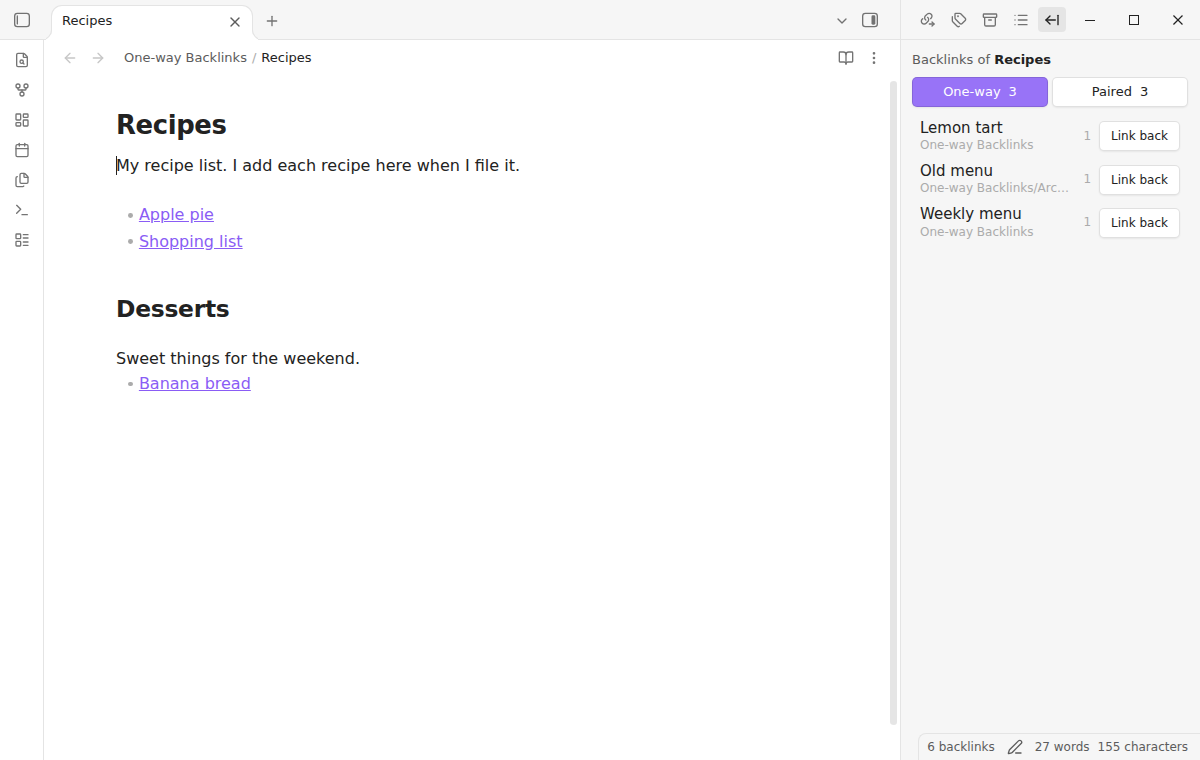
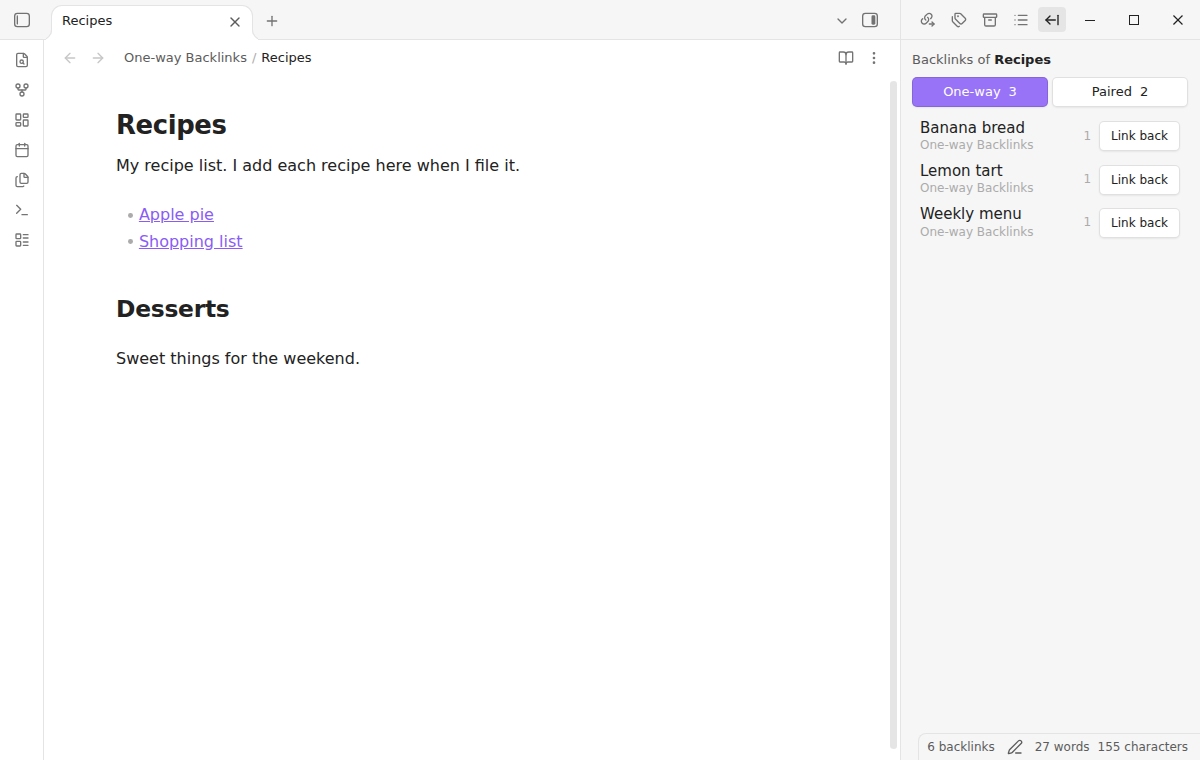
Open a note. The pane in the right sidebar lists each note that links to it and that it does not link to. The animation shows the note Recipes. Banana bread links to Recipes, but Recipes does not link to Banana bread, so Banana bread is in the One-way list. Then Recipes gets the line - [[Banana bread]], and after Obsidian saves and indexes the note, Banana bread moves to the Paired list.
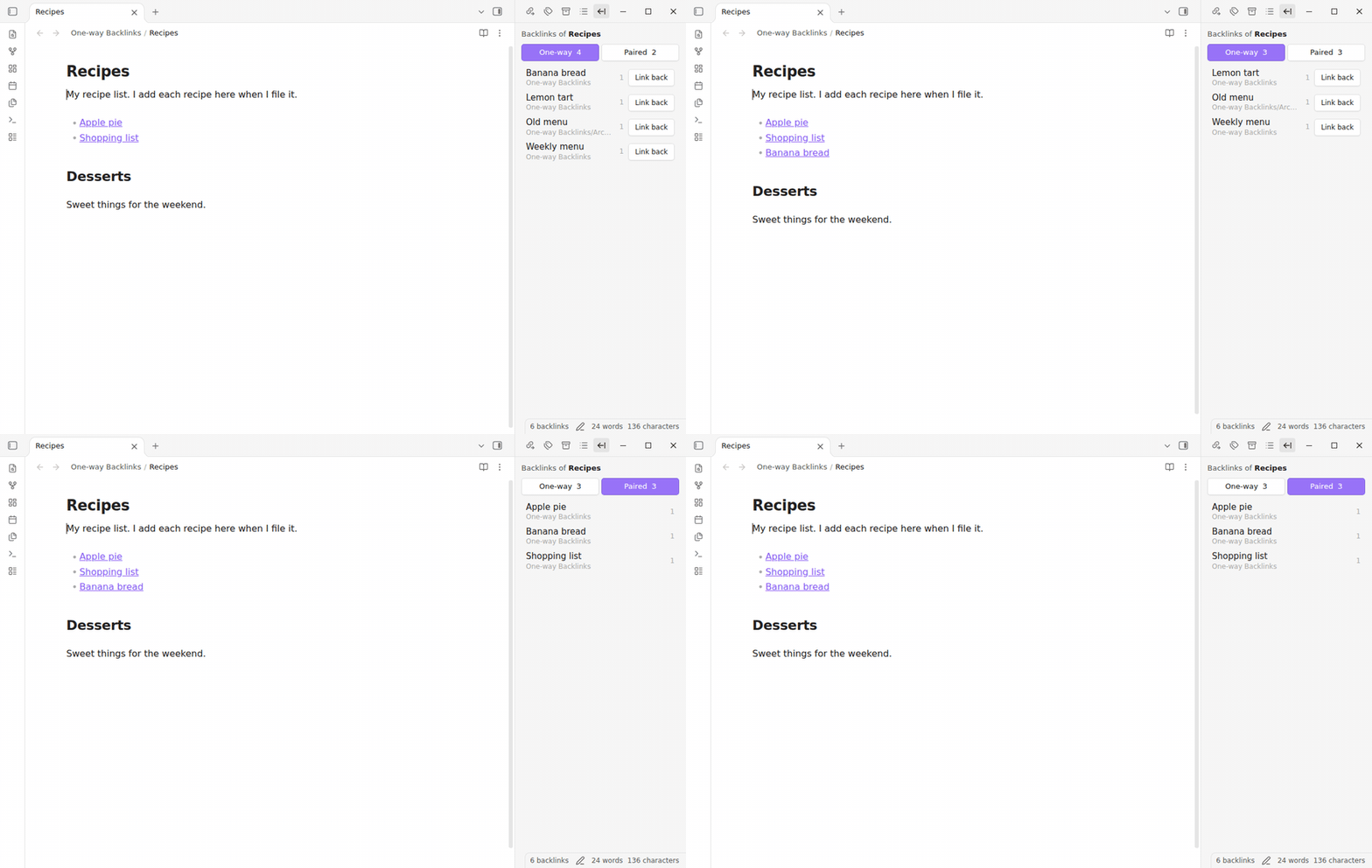
Each row shows the note name, its folder and the number of links from that note to the current note. Rows sort by name. Click a row to open the note. Hold Ctrl (Cmd on macOS) and click to open it in a new tab. Hold Ctrl or Cmd over a row to see the core page preview.
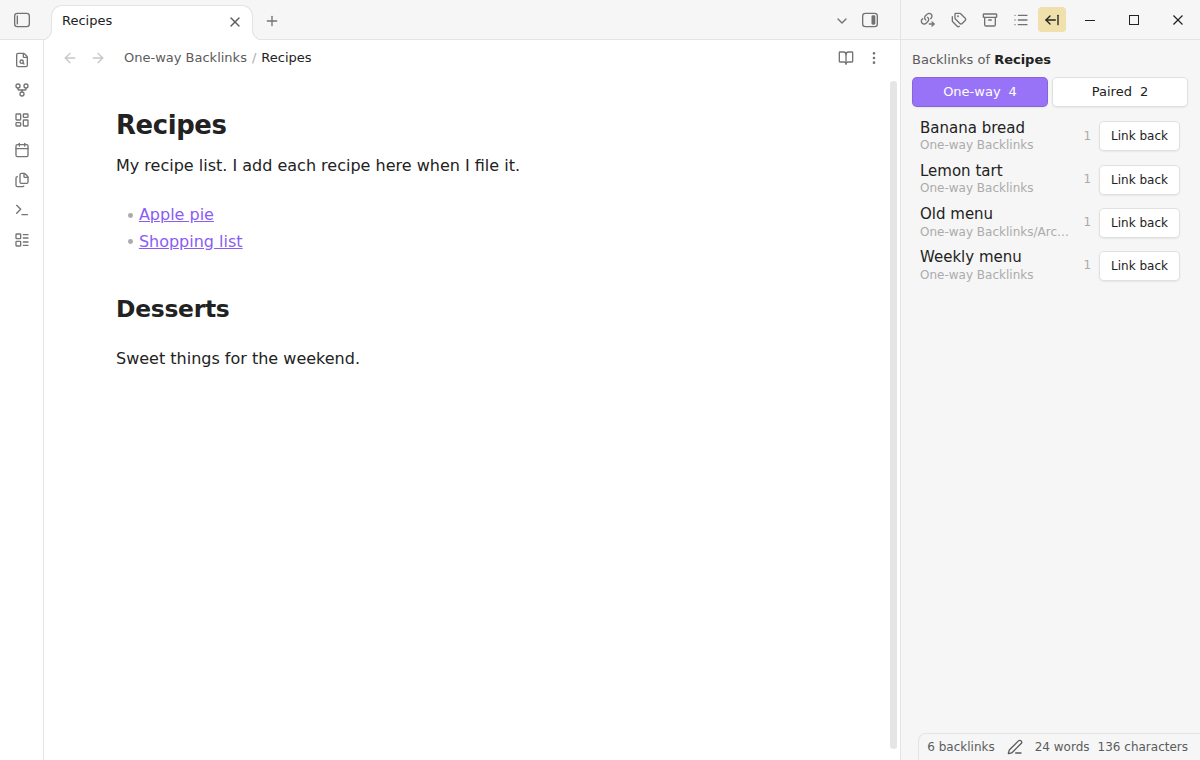
Paired backlinks
The two buttons at the top of the pane show the count of each list. Select Paired to see the notes that link to the current note and that the current note links to as well. Select One-way to go back. The pane keeps your choice while you open other notes.
Link back (Pro)
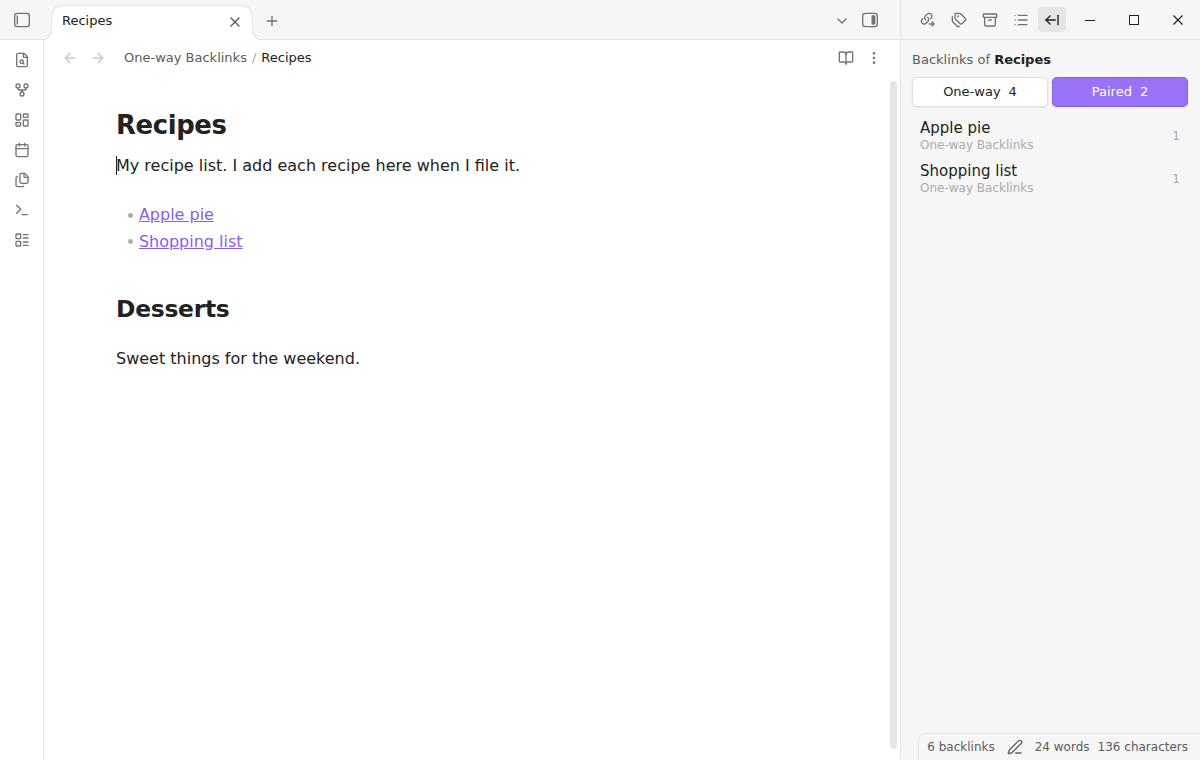
With Pro, each row of the One-way list has a Link back button. It adds the line - [[Banana bread]] at the end of the current note. The link follows the link format in "Settings → Files and links". When the note is open in an editor, the plugin writes through the editor, so text that you typed and that Obsidian did not save yet stays. The row moves to Paired after Obsidian indexes the note. A free user who selects Link back sees a notice that it is a Pro feature, and the note does not change.
Hidden folders (Pro)
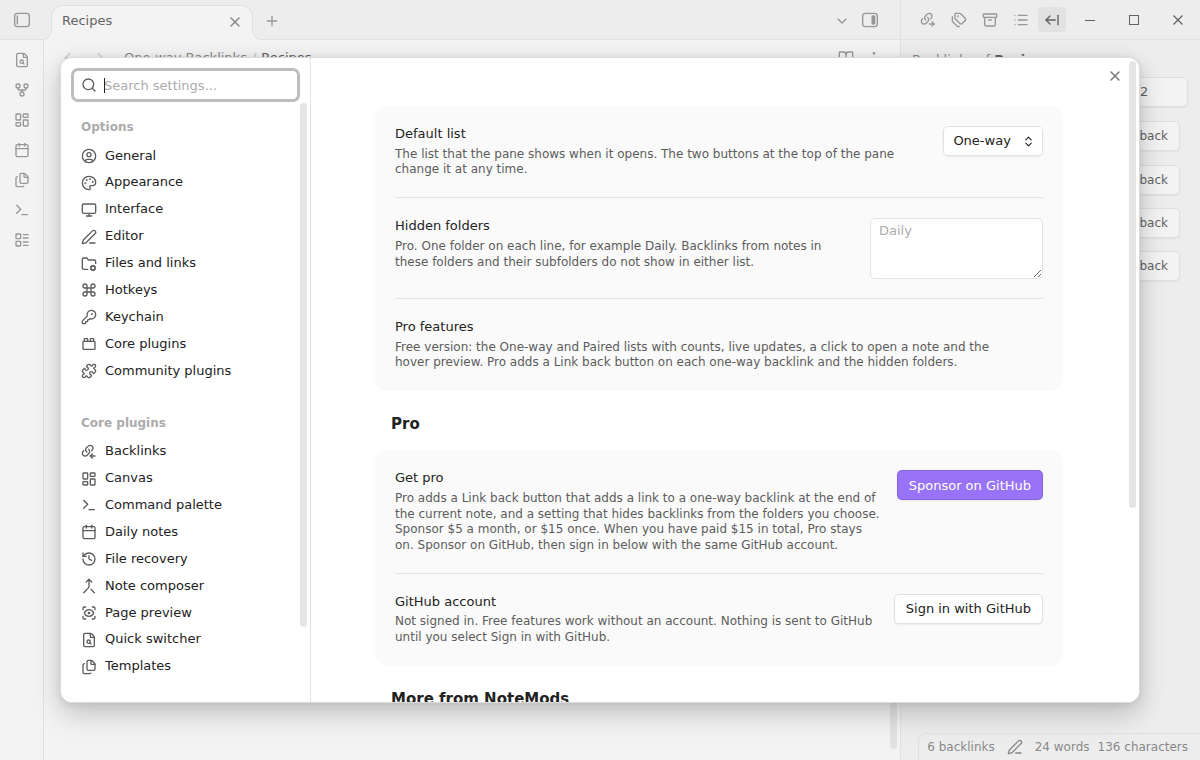
With Pro, the setting "Hidden folders" takes one folder on each line, for example Daily. Backlinks from notes in these folders and in their subfolders do not show in either list. Daily hides Daily/2026-11-01.md and Daily/2026/x.md, but not Daily notes/x.md.
Install
When One-way Backlinks is listed in the community directory, open Settings, then Community plugins, then Browse, and search for "One-way Backlinks". Select Install, then Enable.
To install by hand, download main.js, manifest.json and styles.css from the latest release. Put the three files in <vault>/.obsidian/plugins/one-way-backlinks/. Restart Obsidian or reload the list of community plugins, then turn on One-way Backlinks. You need desktop Obsidian 1.13.4 or later. The plugin is for desktop only: in the mobile test, the pane did not show in the right drawer.
Usage
The plugin adds its pane to the right sidebar one time, after you turn it on. If you close the pane, it stays closed. Run the command "One-way Backlinks: Open pane" to show it again.
Quick start
Make a note named
Recipeswith this text:- [[Apple pie]]Make a note named
Apple piewith this text:Part of [[Recipes]].Make a note named
Banana breadwith this text:From the [[Recipes]] list.Open
Recipes, then run the command "One-way Backlinks: Open pane".The One-way list shows Banana bread. Select Paired: it shows Apple pie.
Add
- [[Banana bread]]toRecipes. About two seconds later, Obsidian saves the note and Banana bread moves to Paired.
Which links count
The plugin uses the links that Obsidian resolves, the same set that the core Backlinks pane counts:
[[Note]],[[Note|alias]],[[Note#Heading]]and[[Note#^block]]- Markdown links such as
[text](Note.md) - Embeds such as
![[Note]] - Links in properties
A link from the note to itself is not a backlink. A link to a note that does not exist does not count. A note in both lists is not possible: a note that the current note links to is always Paired.
When the lists update
The pane follows the active note. For an image, a PDF or a canvas, it shows no lists. It updates when Obsidian indexes a change, and when you rename or delete a note. Events less than 250 ms apart give one update. For 10,000 new notes, CI measured 40 computes and 7 draws. As in the core Backlinks pane, a change counts after Obsidian saves the note, about two seconds after you stop typing. An update keeps the scroll position of the list.
The free version never writes to your notes.
Settings
After a minor or major update, this plugin opens one What's new tab in the background. The tab and settings card suggest other NoteMods plugins and Zovo Chat and link to notemods.com for feedback (privacy). The tab sends no data. Turn the tab off in Settings.
| Setting | What it does |
|---|---|
| Default list | The list that a new pane shows first: One-way or Paired. One-way by default. |
| Hidden folders | Pro. One folder on each line. |
FAQ
Does it change the core Backlinks pane?
No. The core pane has no setting or API for this filter, so the plugin adds its own pane. The core pane works as before.
Why does a note show in Paired when I only embed it?
An embed is a link for Obsidian, and the core Backlinks pane counts it too. A note that embeds the current note is a backlink, and a note that the current note embeds counts as linked.
Why does a note that I just linked still show in One-way?
Obsidian indexes a note after it saves the note, about two seconds after the last key. The row moves when the index has the new link.
Does it work in a large vault?
Each update reads the link index of Obsidian one time. The end-to-end test makes a vault of 10,000 notes in a real Obsidian. On CI, one update computed the lists in 5 to 7 ms, and the pane showed one change 365 to 579 ms after the write, with the 250 ms wait.
Can I see unlinked mentions in the same way?
Not in this version. The pane shows links only.
Payment, account and network
The core features are free. Pro features need a GitHub Sponsors sponsorship of theluckystrike: $5 a month or more, or $15 once. A total payment of $15 meets the payment requirement for Pro without further payment. Sign-in and the checks below still apply. Your notes stay readable and editable with or without Pro.
One payment turns on Pro in every NoteMods plugin.
GitHub handles the payment. Sponsor at https://github.com/sponsors/theluckystrike?frequency=one-time&metadata_source=one-way-backlinks. You need no account for the free features. Pro needs the GitHub account that sponsors.
Until you select "Sign in with GitHub" in the settings, One-way Backlinks makes no network requests. Sign in uses the GitHub device flow. One-way Backlinks sends its public client ID and the scope read:user to https://github.com/login/device/code and shows you a code. While you enter the code at https://github.com/login/device, it asks https://github.com/login/oauth/access_token every few seconds to check the sign-in status. The scope permits profile reads only. GitHub needs this access to show the sponsorship tier. It grants no repository scope and no write access.
After sign in, One-way Backlinks sends one query to https://api.github.com/graphql. It checks if the signed-in account sponsors theluckystrike. It asks for the tier and the total payment to theluckystrike. The plugin reuses a successful check for 7 days. Failed checks can retry after 6 hours. Select Refresh to request an earlier check. It sends no note content, file names or other vault data, and it has no telemetry.
After a successful check, Pro can work offline for up to 14 days. Sign out or a negative sponsorship answer turns Pro off. The plugin stores the GitHub token through the secret storage API of Obsidian. It does not put the token in its saved settings or its local sponsorship data. The local storage of this device keeps your GitHub login, the tier and the time of the last check. Sign out clears the token. You can also revoke the access in your GitHub settings, under Applications.
Support
Plugin page: one-way-backlinks.
Report bugs and ask for features in the GitHub issues of this repository. Add your Obsidian version and a small sample note.
Community
Questions, bugs or plugin ideas? Talk to me and other Obsidian users in Zovo Chat on Telegram. It has a topic for these plugins. You can also open an issue here.