Omd2Typst
 A.W. Alberts712 downloads
Export your notes to professional looking PDFs via Typst. Auto-adding a cover page, revision page, TOC and optional figure list.
- Overview
- Scorecard
- Updates55
Export your Obsidian notes to professionally typeset PDFs — with a structured cover page, auto-numbered table of contents, callout blocks, tables, images, and support for five languages — using Typst, a modern document compiler.
Desktop only — macOS, Windows, Linux. Not available on mobile.
Screenshots
Command palette
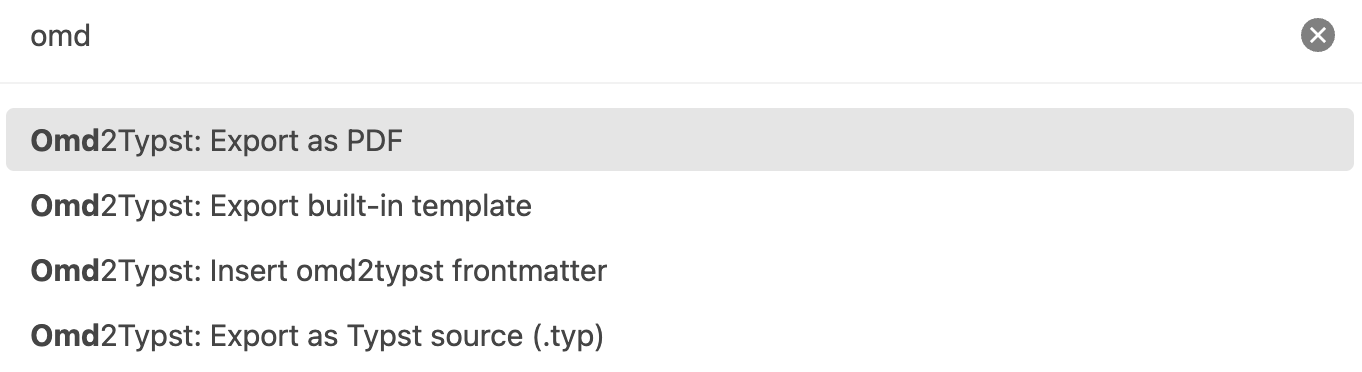
Command palette showing the four Omd2Typst commands:
Settings
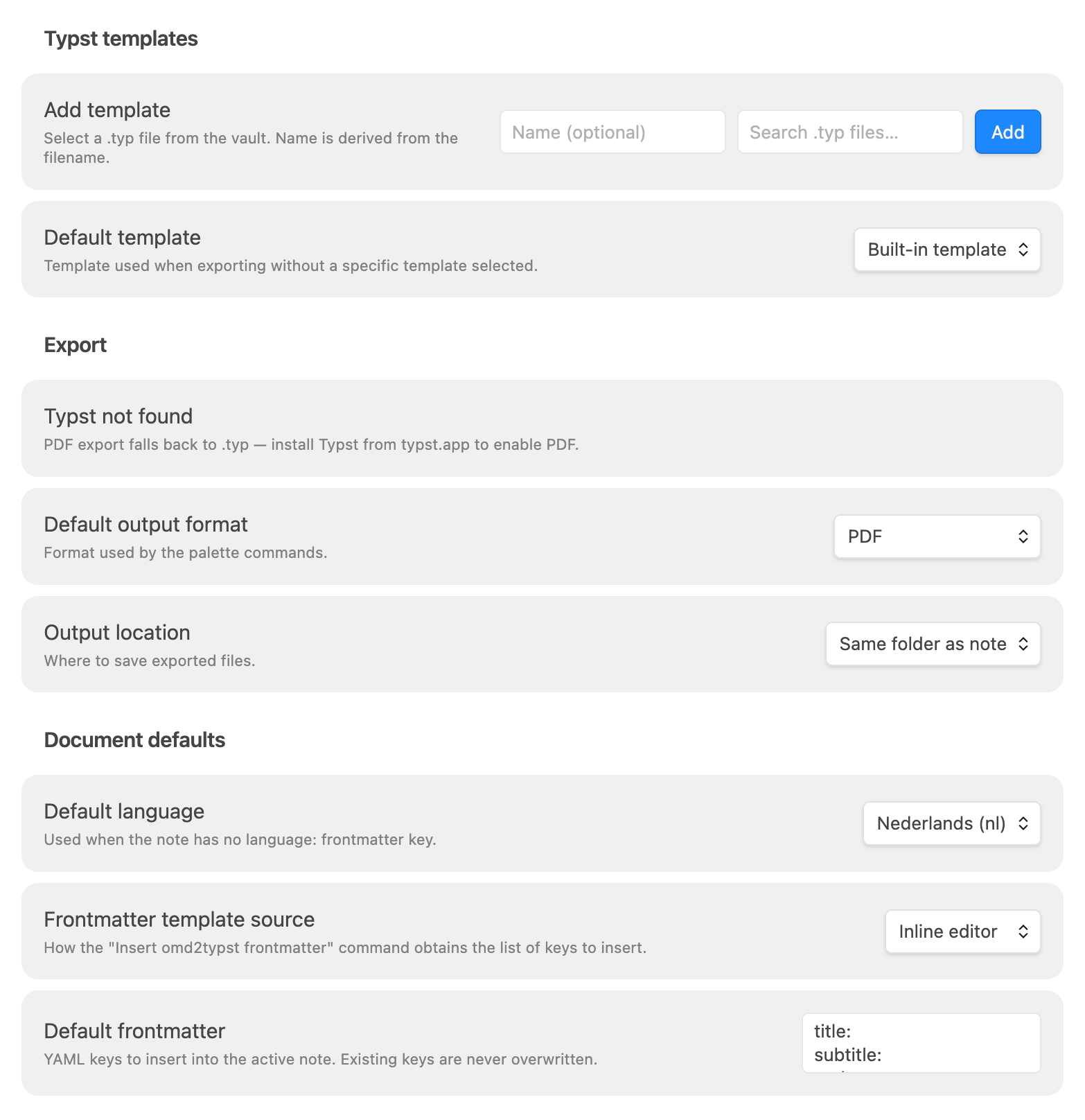
Default settings
Default settings, without Typst installed. No export to PDF, only export to .typ.
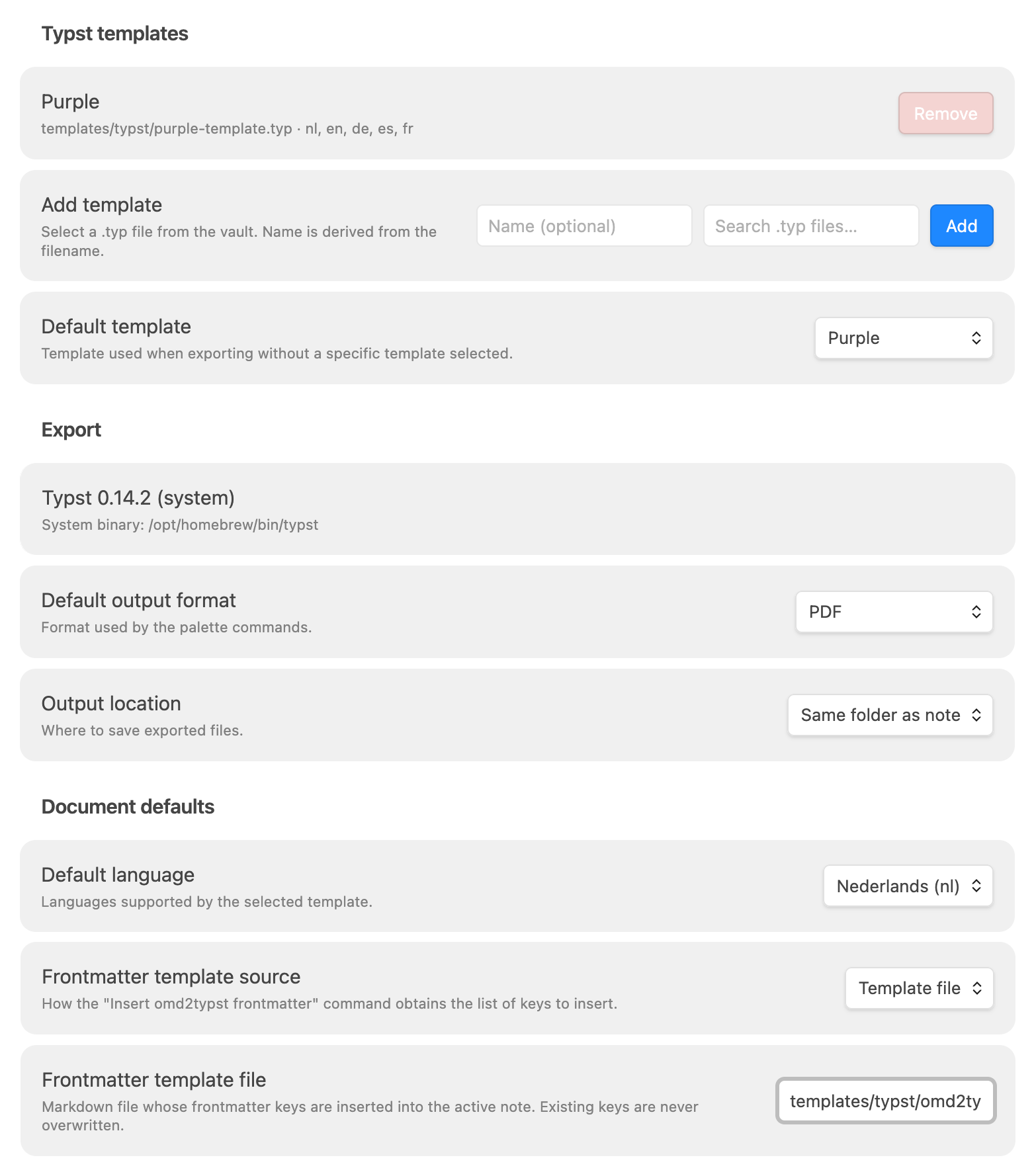
Configured settings
Configured settings with, sample template, installed Typst version and template for the frontmatter.
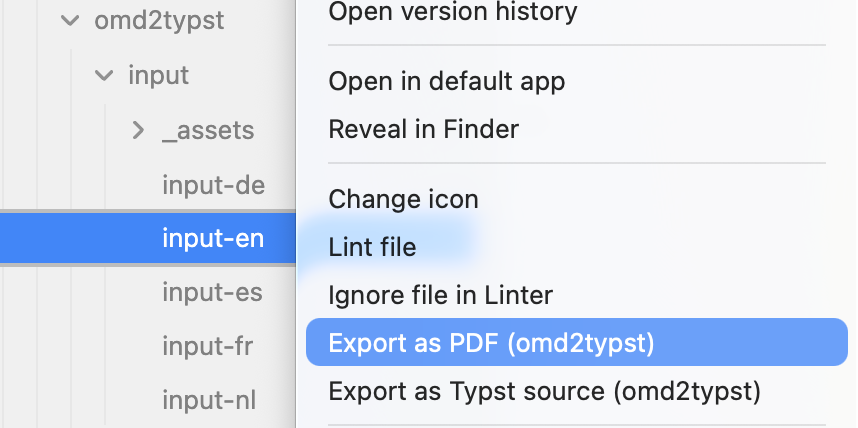
Context menu
The right-click context menu with the two options "Export as PDF" and "Export as Typst".
Frontmatter
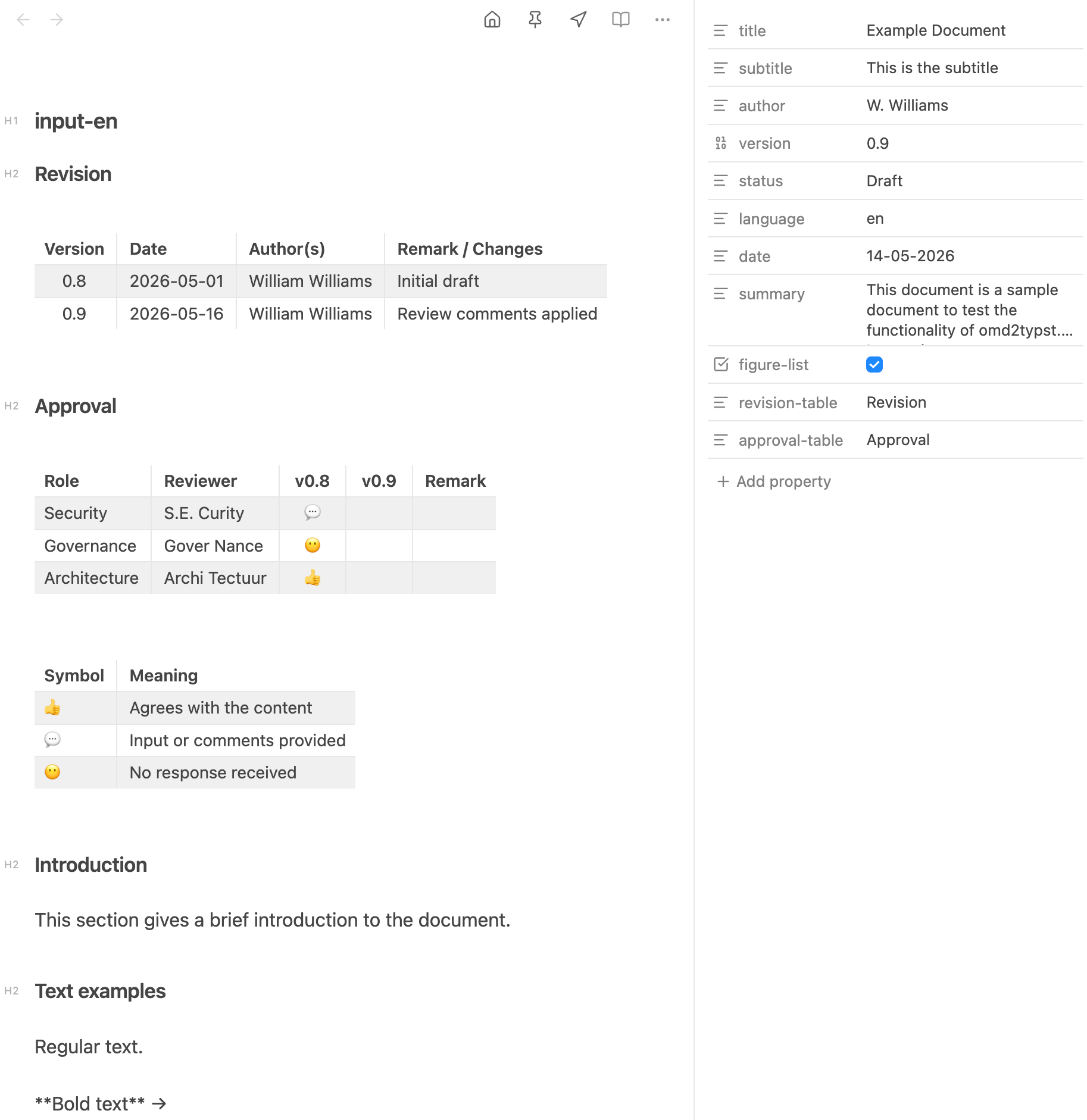
Frontmatter from the sample input file. with the
Sample input file with frontmatter
PDF output
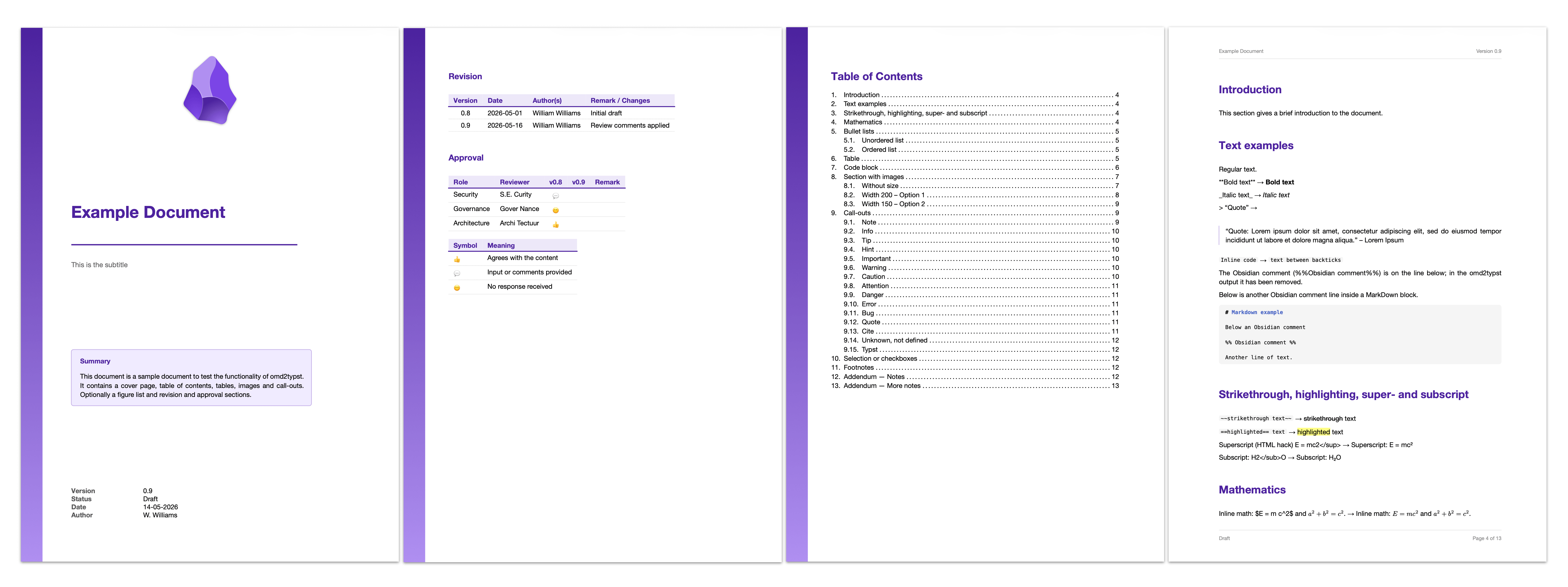
The sample PDF output, shows the Typst generated output from the input file. Download the example input files and templates to get started.
This partial PDF output shows the added front page, the added revision and approval page and the table-of-contents. The optional figure-list is not shown here.
Requirements
- Obsidian 1.4.0 or later
- Typst — required for PDF export
- Install:
brew install typst(macOS) ·winget install --id Typst.Typst(Windows) · or download from typst.app - The plugin searches common locations automatically; no path configuration needed in most cases
- Without Typst,
.typsource export still works — PDF export shows an install notice
- Install:
Installation
Via the Community Plugin browser (recommended)
- In Obsidian: Settings → Community plugins → Browse
- Search for Omd2Typst
- Click Install, then Enable
Manual install
- Download
main.jsandmanifest.jsonfrom the latest release - Create a folder
.obsidian/plugins/obsidian-omd2typst/inside your vault - Copy both files into that folder
- In Obsidian: Settings → Community plugins → enable Omd2Typst
Features
- Export the active note as PDF or Typst source (
.typ) from the command palette or the right-click file menu - Cover page — populated from YAML frontmatter (
title,subtitle,author,date,version,status,summary) - Table of contents with numbered headings
- Revision and approval tables — extracted from named sections and placed before the TOC
- 13 callout types with Lucide SVG icons (
note,tip,warning,danger,bug,quote, …) - 10 checkbox variants (
- [ ]to- [*]) - Custom templates — register any
.typfile in your vault;.typfiles are visible in the vault navigator and file pickers without enabling Show all file types; supported languages are detected automatically - Five languages —
nl·en·de·es·fr; the default language dropdown updates automatically when you switch templates - Frontmatter insertion — insert a configurable YAML frontmatter block; existing keys are never overwritten
- Output location — same folder as note, fixed folder (with vault autocomplete), or ask every time
Commands
| Command | Palette | Right-click menu |
|---|---|---|
| Export as PDF | ✓ | ✓ |
| Export as Typst source (.typ) | ✓ | ✓ |
| Insert omd2typst frontmatter | ✓ | — |
| Export built-in template | ✓ | — |
Settings
Typst templates
| Setting | Description |
|---|---|
| Template list | Each registered template shows its name, vault-relative path, and the languages detected from its _lang_strings dictionary. |
| Add template | Select a .typ file from the vault using the autocomplete picker. The name is auto-filled from the filename and can be edited before adding. |
| Default template | Used for right-click exports and as the pre-selected option in palette exports. Changing this also updates the available Default language options. |
Export
The top of the Export section shows the detected Typst version and path, or "Typst not found" with an install hint. This is a status indicator — not a configurable option.
| Setting | Description |
|---|---|
| Default output format | PDF or Typst source (.typ). |
| Output location | Same folder as note / Fixed folder (vault folder autocomplete) / Ask every time. |
Document defaults
| Setting | Description |
|---|---|
| Default language | Applied when the note has no language: frontmatter key. Options are limited to the languages supported by the selected default template. |
| Frontmatter template source | Controls how the Insert omd2typst frontmatter command works — see below. |
Frontmatter template source modes
| Mode | Behaviour |
|---|---|
| Inline editor | Edit key: value lines directly in settings. Running the command inserts any missing keys (with their default values) into the active note's frontmatter. Existing keys are never overwritten. |
| Template file | Select a .md file in the vault. The command reads that file's frontmatter and inserts missing keys (with their values) into the active note. |
| User defined | The built-in insert command is disabled. Use Templater, the Templates core plugin, or any other frontmatter tool of your choice. |
Supported Markdown features
Full coverage of standard Markdown plus the most-used Obsidian extensions:
| Feature | Notes |
|---|---|
Headings # H1 … ###### H6 |
Level offset applied automatically when document has a title |
| Bold, italic, strikethrough, highlight | **, *, ~~, == |
| Inline and display math | Typst math syntax — $…$ and $$…$$ |
| Code blocks with language tag | Language label preserved |
| Tables | Left / center / right alignment |
Images — standard  and wikilink ![[path|width]] |
Width in points |
Callouts > [!type] Title |
13 built-in types with Lucide SVG icons |
Block quotes > text |
Left accent bar |
| Checkbox lists | 10 variants: [ ] [x] [/] [-] [>] [!] [?] [i] [I] [*] |
Footnotes [^1] |
Rendered at page bottom |
Superscript <sup> / subscript <sub> |
HTML inline tags |
Obsidian wikilink images ![[…]] |
Converted automatically |
Thematic breaks --- |
Full-width rule |
| Mermaid diagrams | Rendered via Obsidian's Mermaid; embedded as SVG. Multi-line labels are preserved: explicit <br> in the source becomes a hard break, and long labels are auto-wrapped at word boundaries to fit the node — the wrap point matches Obsidian's preview ± ~1 word. Emoji codepoints in labels are stripped — resvg (Typst's SVG renderer) can't render color-emoji glyphs cleanly, so the plugin removes them and keeps the surrounding text (e.g. Foo 📊 Bar → Foo Bar). |
Obsidian Bases embeds ![[file.base]] |
Rendered via Obsidian's embed registry as a Markdown table |
For the complete feature reference including YAML frontmatter keys, callout icon colours, and checkbox meanings, see the omd2typst README.
Template authoring
Templates are standard Typst files that export a template function (document wrapper) and a callout function.
Declare supported languages by defining a _lang_strings dictionary:
#let _lang_strings = (
  "nl": ( toc: "Inhoudsopgave", ... ),
  "en": ( toc: "Table of Contents", ... ),
)
The plugin detects language support automatically — no annotation needed. Language codes appear as badges in the template list and limit the Default language dropdown.
To start from the built-in template, run Export built-in template — it writes omd2typst-template.typ to the vault root.
Privacy
The plugin makes no network requests and collects no data. All processing is local:
- Markdown-to-Typst conversion runs inside a WASM module bundled inside
main.js - PDF compilation runs the locally installed
typstbinary viachild_process - No analytics, no telemetry, no external services
Contributing
Project structure and build instructions
Project structure
src/
  main.ts           — plugin lifecycle, commands, context menus
  settings.ts       — settings types, defaults, and settings tab UI
  exporter.ts       — export pipeline: read note → WASM → write output / compile PDF
  frontmatter.ts    — frontmatter parse, merge, and insert logic
  template.ts       — template language detection and resolution
  output.ts         — output path resolution for all three output modes
  typst-cli.ts      — findTypstBinary, detectSystemTypst, compileToPdfViaCli
  wasm/
    omd2typst.ts    — lazy-init wrapper around omd2typst WASM
    omd2typst-pkg/  — generated by wasm-pack (gitignored; WASM bundled into main.js at build)
libs/
  omd2typst/        — git submodule: omd2typst Rust repo (pinned commit)
scripts/
  build-wasm.sh     — runs wasm-pack inside the submodule
Build
git submodule update --init       # pull omd2typst Rust source
./scripts/build-wasm.sh           # wasm-pack build → src/wasm/omd2typst-pkg/
npm install                        # dev dependencies
npm run build                      # esbuild → main.js (omd2typst WASM bundled in)
npm test                           # Jest unit tests
Install into a vault (development)
VAULT=~/path/to/your/vault
mkdir -p "$VAULT/.obsidian/plugins/obsidian-omd2typst"
cp main.js manifest.json "$VAULT/.obsidian/plugins/obsidian-omd2typst/"
Then enable the plugin in Obsidian → Settings → Community Plugins.