Word Comment Export
 theluckystrike1 downloads
Export inline note comments as native Word comments in a new DOCX file.
- Overview
- Scorecard
- Updates2
Export inline note comments as native Word comments in a new DOCX file.
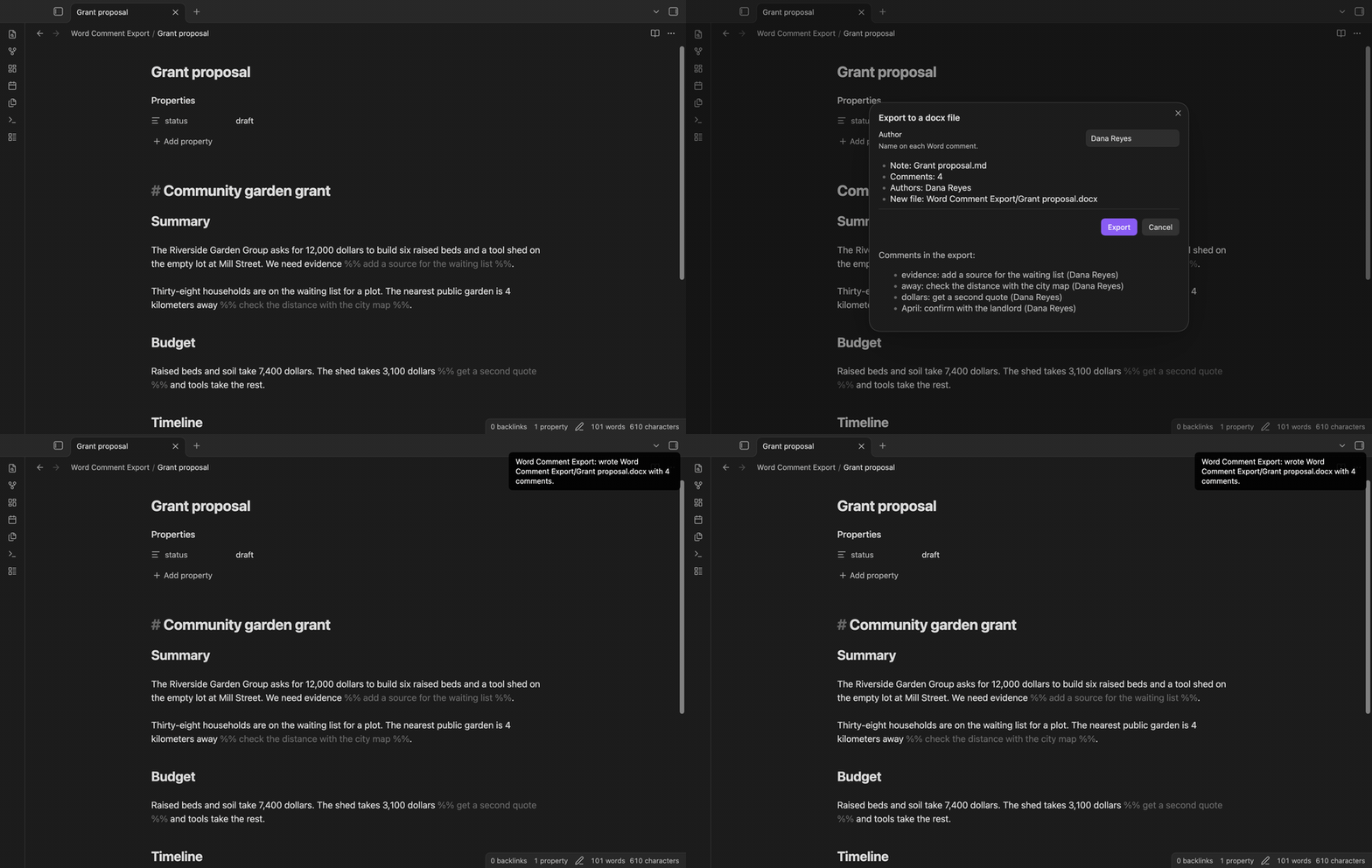
You write a draft in Obsidian and put review notes inside it as %% comments %%. Obsidian hides them in reading view. A Pandoc export leaves them in the body as plain text. Word Comment Export writes a new DOCX file in which each %% comment %% is a real Word comment, attached to the word just before it.
Features
Inline comments become Word comments
Write a comment right after the word it is about: We need evidence %% add a source %%. The DOCX body then reads "We need evidence." and one Word comment, "add a source", marks the word "evidence". Two comments in a row on the same word give two Word comments on that word. The comment text keeps characters such as <, & and >, and the anchor can be a word in a non-Latin script.
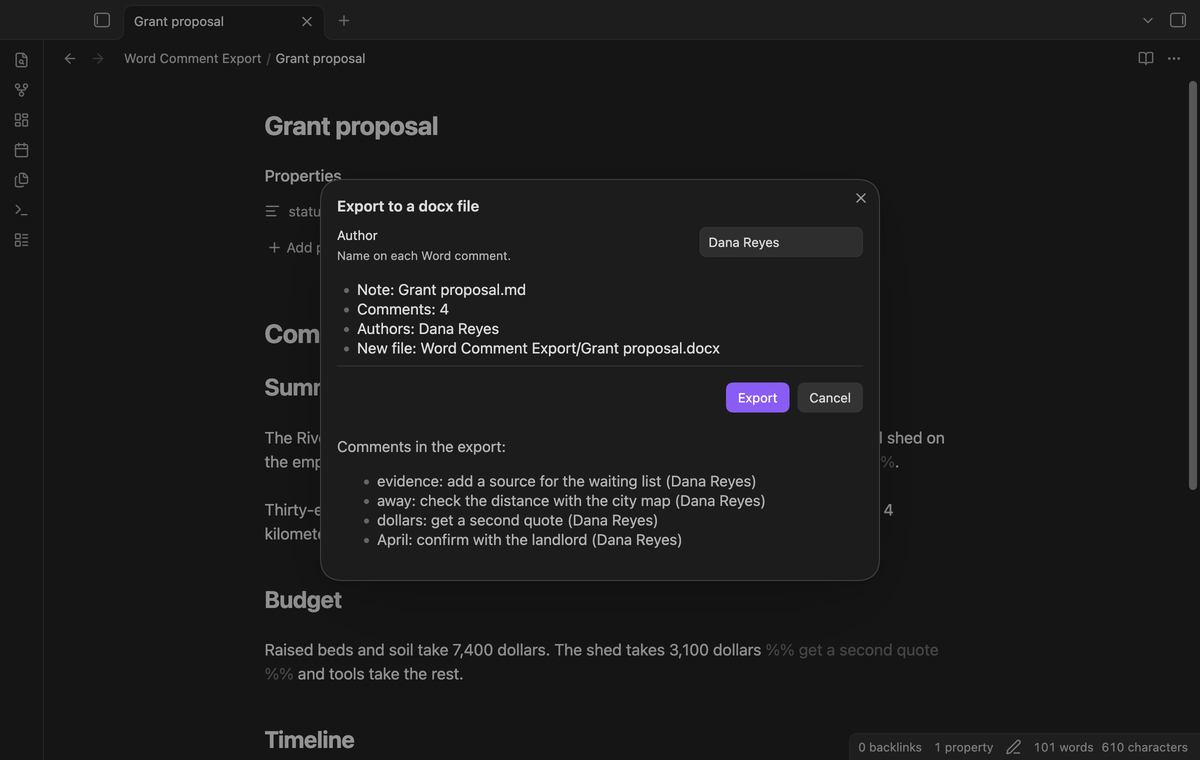
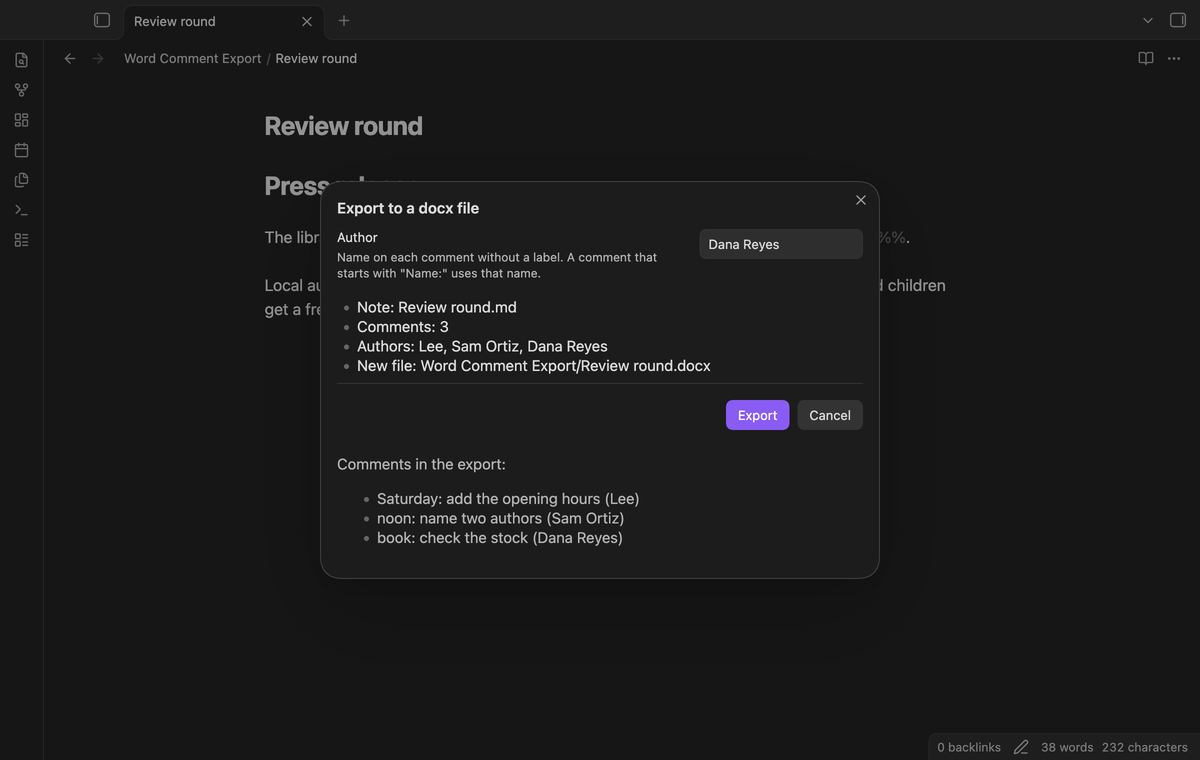
The export command opens a preview first. It shows the note, the number of comments, the author name, the path of the new file and the first eight comments. You can change the author name there. The plugin saves it for the next export.
A new file each time
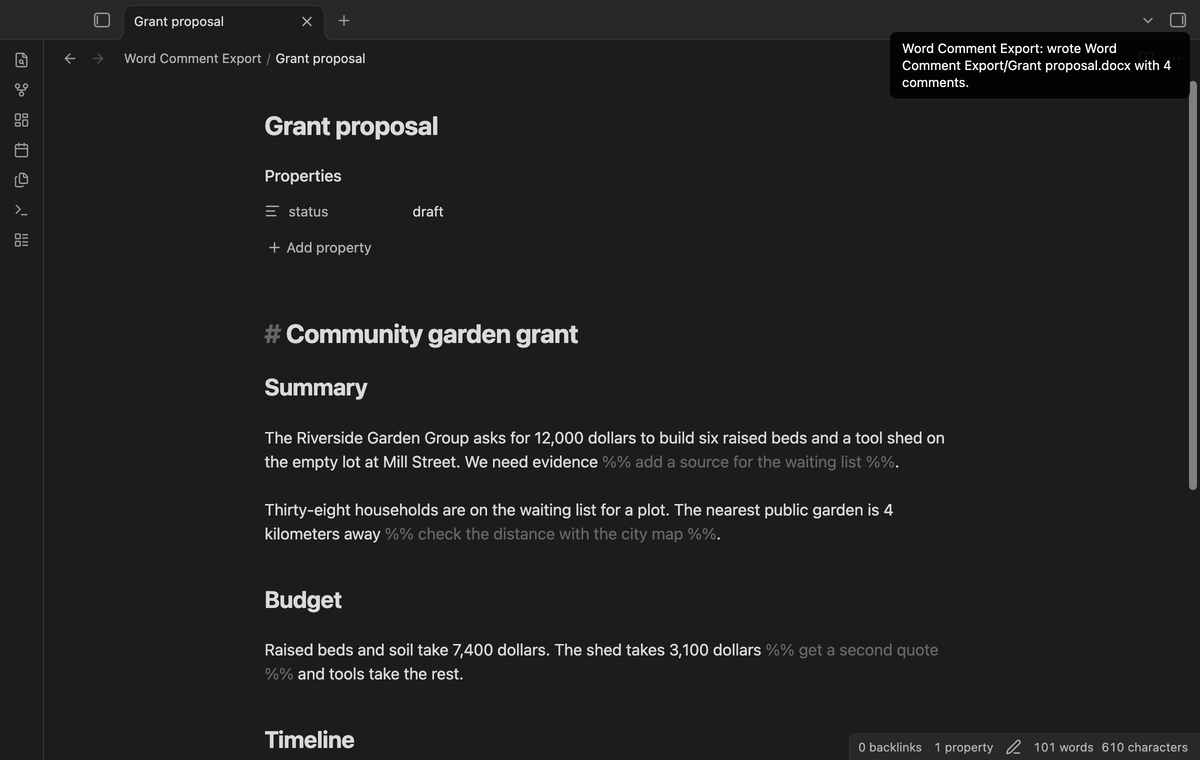
The plugin writes the DOCX file next to the note, with the name of the note. If Draft.docx exists, it writes Draft (2).docx, then Draft (3).docx. It does not replace an existing file, and it does not change the note.
Stops on Markdown it cannot convert
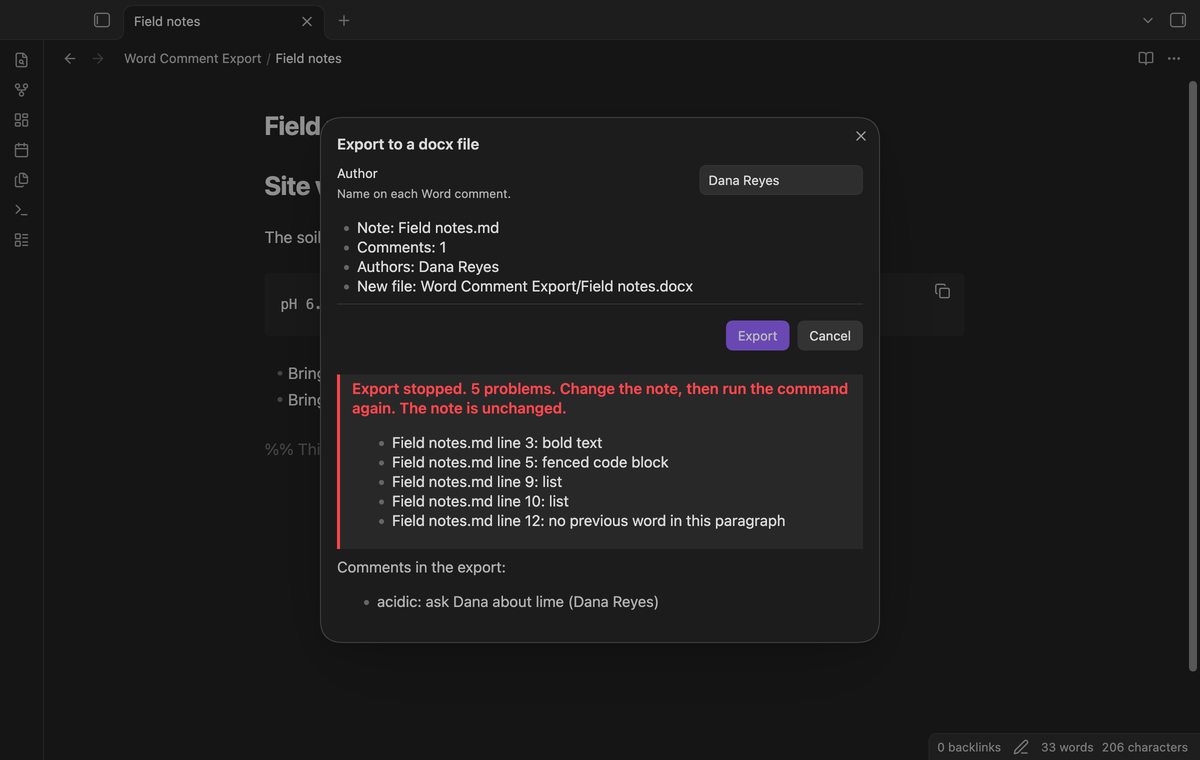
The export supports plain paragraphs and headings that start with #. It stops when the note has Markdown that it does not convert, instead of printing that Markdown as plain text. The preview names each problem and its line: fenced or indented code, lists, block quotes and callouts, horizontal rules, links, embeds, footnotes, bold, italic, highlight, strikethrough, inline code, math, backslash escapes, HTML, HTML entities such as & and HTML comments. It also stops on a comment with no word before it in the same paragraph, an empty comment, a comment that crosses a blank line, and a %% with no closing %%. The Export button is off while the preview lists a problem.
Authors from labels (Pro)
Start a comment with a name and a colon, such as %% Lee: add the opening hours %%. With Pro, that comment gets the author "Lee" and the text "add the opening hours". A comment without a label uses the author name from the settings. You can turn this off in the settings.
Tables and local images (Pro)
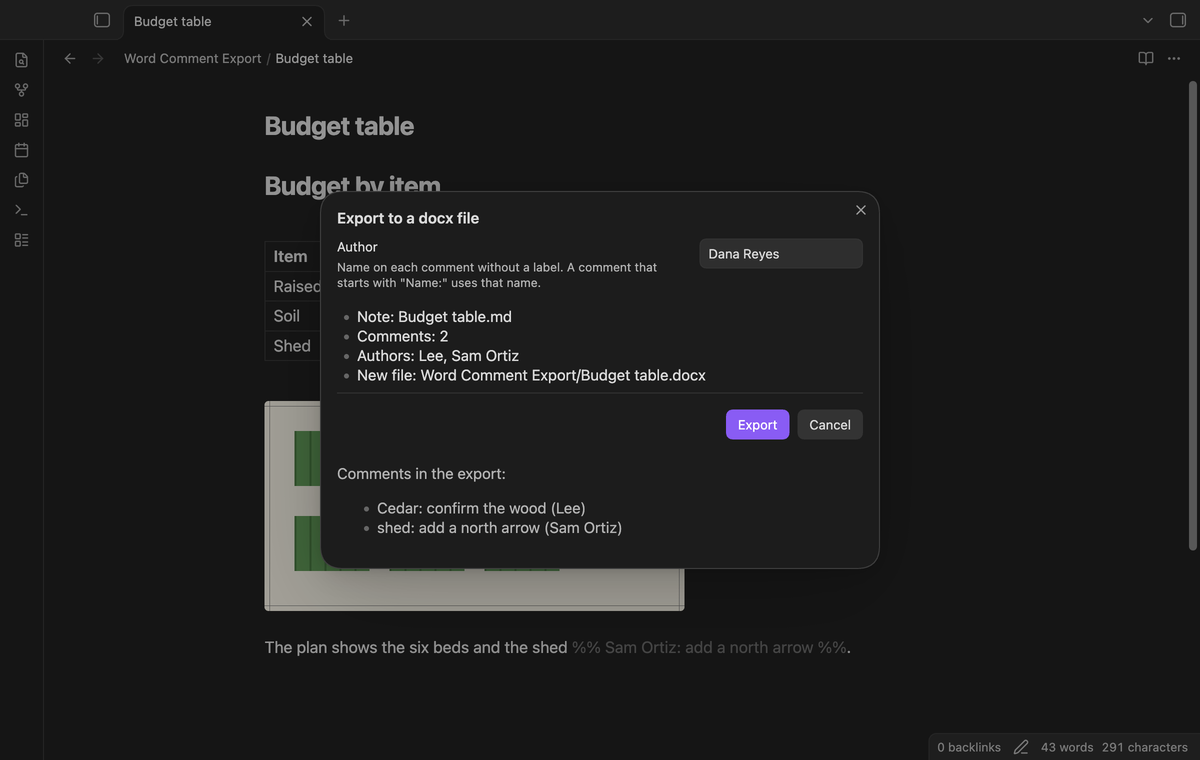
With Pro, a Markdown table with a header rule becomes a Word table with a bold header row. Comments inside table cells become Word comments too. An image embed on its own line, in wiki link or Markdown form, becomes an image in the document. The plugin reads PNG, JPEG, GIF and BMP files from the vault. A width in a wiki link embed, such as |420 after the file name, sets the image width in pixels. The largest width is 600 pixels. Images from a web address stop the export, because the plugin does not download files.
Join several notes (Pro)
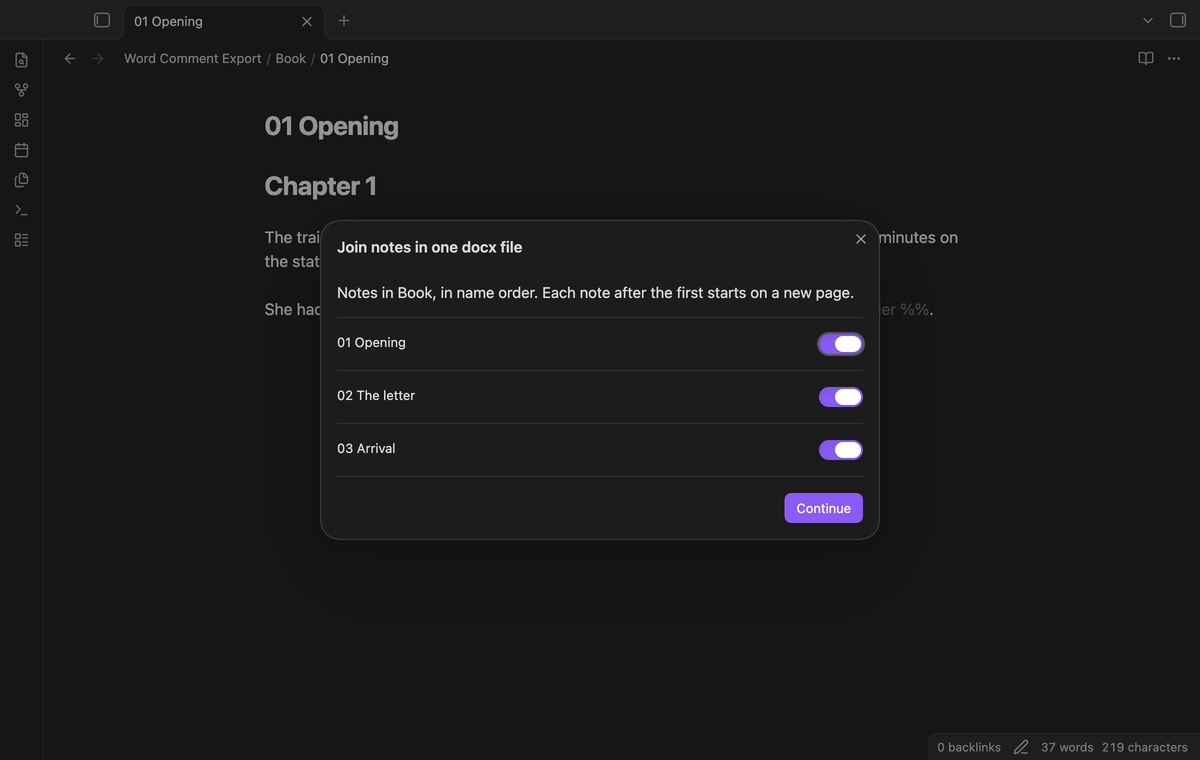
The command "Join notes of this folder in one docx file" lists the notes in the folder of the active note, in name order. Turn off the notes that you do not want and select Continue. The preview then checks the selected notes together. Each note after the first starts on a new page, and the file gets the name of the folder.
Install
- Open "Settings → Community plugins", select "Browse" and search for "Word Comment Export".
- Select "Install" and "Enable".
For manual installation, copy main.js, manifest.json and styles.css from the release into <vault>/.obsidian/plugins/note-word-comments/ and enable the plugin. You need Obsidian 1.13.4 or later.
Usage
- Open a note in the editor.
- Open the command palette and run "Word Comment Export: Export the active note to a docx file".
- Read the preview. If it lists problems, close it, change the note and run the command again.
- Select Export. A notice gives the path of the new file and the number of comments.
The export uses the text in the editor, so unsaved changes are in the file. YAML front matter at the top of the note is not exported. A single line break inside a paragraph becomes a line break in Word.
The comment goes on the word just before %%. Punctuation at the end of that word stays in the body text, outside the comment: in First, %% why %% then, the comment marks "First" and the body reads "First, then".
To join notes (Pro), open one note of the folder and run "Word Comment Export: Join notes of this folder in one docx file".
Settings
| Setting | Default | What it does |
|---|---|---|
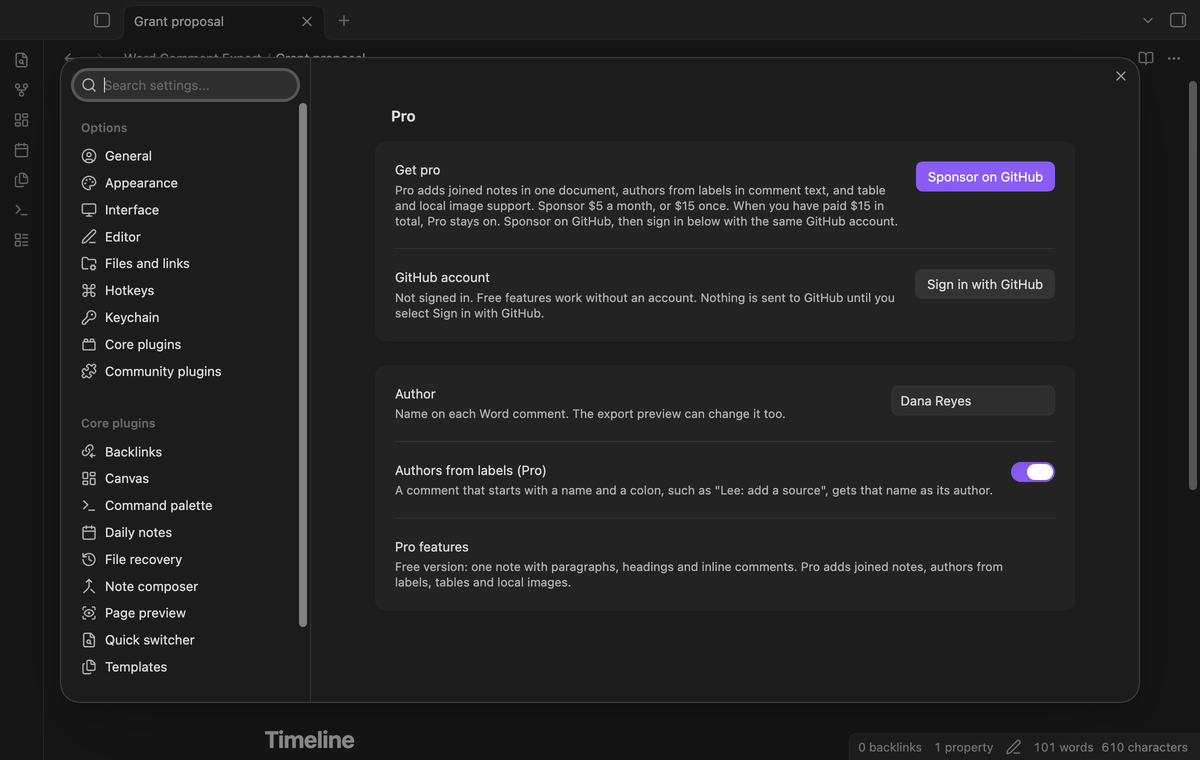
| Author | Writer | The name on each Word comment. The preview can change it too. |
| Authors from labels (Pro) | On | A comment that starts with Name: gets that name as its author. |
The Pro group at the top has the GitHub Sponsors link and the GitHub sign in.
FAQ
Does the plugin change my note?
No. It reads the note and writes one new DOCX file. The tests check that the note text and an existing DOCX file stay the same after an export.
Why does the export stop instead of skipping a list or a link?
A skipped or flattened structure would put text into the document that is different from your note, and you might not see it. The preview names the line, so you can decide what to do.
Can I use HTML comments or SideNote comments?
Not in this version. Only %% ... %% comments are converted. An HTML comment stops the export. SideNote keeps its comments outside the note, and this plugin does not read them.
Does it work on mobile?
The plugin uses no Node or Electron API, and the manifest permits mobile. It was not tested on a phone or tablet.
What was not tested?
The tests check the XML inside the DOCX files: the comment ranges, references, ids, authors and escaped text. We did not open the files in Microsoft Word, LibreOffice, Pages or Google Docs for this version. The plugin was not tested on a phone or tablet. Very large notes and very large images were not tested.
Which library writes the DOCX file?
The docx library (MIT licence), bundled into main.js with its licence comments. The build makes five exact edits in the library. Four remove code that makes functions from text at run time, and one renames an internal field. The plugin contains no code that makes functions from text. The file main.js contains web addresses such as schemas.openxmlformats.org. They are XML namespace names that a DOCX file needs, or text in licence comments and one error message. The plugin sends no request to them.
Payment, account and network
The core features are free. Pro features need a GitHub Sponsors sponsorship of theluckystrike: $5 a month or more, or $15 once. A total payment of $15 meets the payment requirement for Pro without further payment. Sign-in and the checks below still apply. Your notes stay readable and editable with or without Pro.
GitHub handles the payment. Sponsor at https://github.com/sponsors/theluckystrike. You need no account for the free features. Pro needs the GitHub account that sponsors.
Until you select "Sign in with GitHub" in the settings, Word Comment Export makes no network requests. Sign in uses the GitHub device flow. Word Comment Export sends its public client ID and the scope read:user to https://github.com/login/device/code and shows you a code. While you enter the code at https://github.com/login/device, it asks https://github.com/login/oauth/access_token every few seconds to check the sign-in status. The scope permits profile reads only. GitHub needs this access to show the sponsorship tier. It grants no repository scope and no write access.
After sign in, Word Comment Export sends one query to https://api.github.com/graphql. It checks if the signed-in account sponsors theluckystrike. It asks for the tier and the total payment to theluckystrike. The plugin reuses a successful check for 7 days. Failed checks can retry after 6 hours. Select Refresh to request an earlier check. It sends no note content, file names or other vault data, and it has no telemetry.
After a successful check, Pro can work offline for up to 14 days. Sign out or a negative sponsorship answer turns Pro off. The plugin stores the GitHub token through the secret storage API of Obsidian. It does not put the token in its saved settings or its local sponsorship data. The local storage of this device keeps your GitHub login, the tier and the time of the last check. Sign out clears the token. You can also revoke the access in your GitHub settings, under Applications.
Support
Report bugs and feature requests in this repository's issues. Add your Obsidian version and, if possible, a short sample note that shows the problem.