Note Purge
 Joel Reymon8 downloads
Delete every note in the current search results at once, for example all notes with a given tag.
- Overview
- Scorecard
- Updates1
Delete every note in the current search results at once, for example all notes with a given tag.
Usage
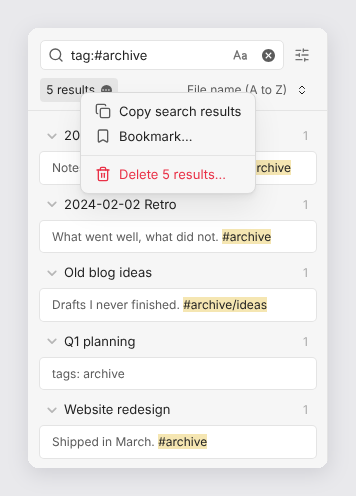
Search for the notes to delete, for example
tag:#archive, or click a tag in the Tags view.Click the result count (5 results) at the top of the search pane, then choose Delete 5 results….
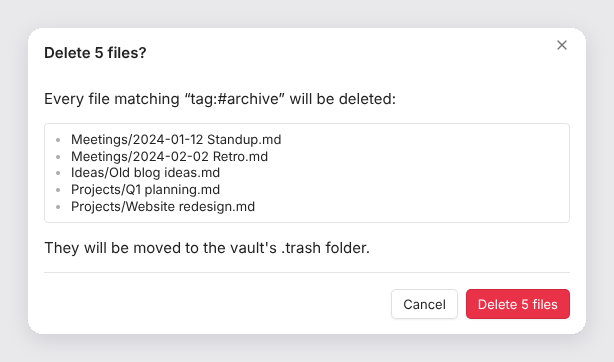
Check the files listed in the dialog, then select Delete 5 files. A notice confirms how many files were deleted.
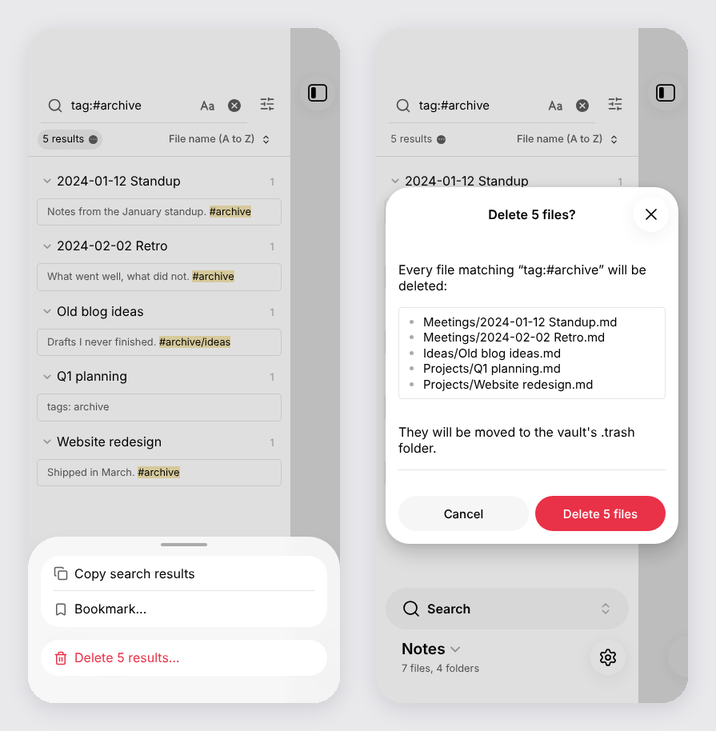
On a phone, the menu opens as a sheet at the bottom of the screen:
Behavior
- Exactly the files listed in the dialog are deleted. A tag search also matches
nested tags:
tag:#archiveincludes notes tagged#archive/ideas. - Files are deleted according to Settings → Files and links → Deleted
files: moved to the system trash, moved to the vault's
.trashfolder, or deleted permanently. The dialog says which, in red when it's permanent. - Attachments linked from the deleted notes are kept.
- The menu item is disabled while a search is still running, or when there are no results.
- Works on desktop and mobile, with Obsidian 1.6.6 or later.
Obsidian has no public API for the search results menu, so Note Purge uses the
internal search:results-menu event, the same one the core Bookmarks plugin
uses to add Bookmark.... If a future Obsidian version changes that event,
the Delete item stops appearing and nothing is deleted.
Installation
In Obsidian, open Settings → Community plugins → Browse, search for Note Purge, then select Install and Enable.
To install from GitHub instead, add joelreymont/obsidian-note-purge in
BRAT, or copy main.js,
manifest.json and styles.css from the
latest release
into <vault>/.obsidian/plugins/note-purge/. Release files are attested by
GitHub; check a download with
gh attestation verify main.js -R joelreymont/obsidian-note-purge.
Development
npm install
npm run build   # type-check, then bundle src/main.ts into main.js
To release, bump version in manifest.json, package.json and
versions.json, push to main, and run the Release workflow from the
Actions tab (or push a tag with the same version).