Search...Search plugins and themes...
⌘K
Sign in
  • Get started
  • Download
  • Pricing
  • Enterprise
  • Account
  • Obsidian
  • Overview
  • Sync
  • Publish
  • Canvas
  • Mobile
  • Web Clipper
  • CLI
  • Learn
  • Help
  • Developers
  • Changelog
  • About
  • Roadmap
  • Blog
  • Resources
  • System status
  • License overview
  • Terms of service
  • Privacy policy
  • Security
  • Community
  • Plugins
  • Themes
  • Discord
  • Forum / 中文论坛
  • Merch store
  • Brand guidelines
Follow us
DiscordTwitterBlueskyThreadsMastodonYouTubeGitHub
© 2026 Obsidian

Memodack

memodackmemodack482 downloads

Your second language memory tool

Add to Obsidian
  • Overview
  • Scorecard
  • Updates15

Forget expensive apps like Quizlet, Readlang, and others. Memodack is a simpler, free alternative built just for memorizing language parts. Learn anytime, anywhere — offline, on mobile or desktop.
alt text

Demo

Content

  • Installation
  • Hotkeys
  • Syntax
  • Practice
  • Settings
    • General
      • Provider
        • Google
          • Api Key
        • Custom
          • Api URL
      • Connection
    • Language
      • Native
      • Document
    • Voiceover
      • Playback
    • Actions
      • Pressing
    • Extra
      • Divider
      • Truncate
    • Optimization
      • Cache

Installation

  1. Launch Obsidian.
  2. Navigate to Settings > Community Plugins.
  3. Search for Memodack.
  4. Install and enable the plugin.

Hotkeys

For quick translation and conversion into the plugin’s syntax, set up hotkeys for the Memodack: Translate command. For example, you can assign Alt + T. After that, select a word or several words and activate the shortcut.

Syntax

The plugin uses its own syntax:

{value|translation}

If you want to provide multiple translations, separate them with a semicolon ;:

{value|translation; translation; translation}

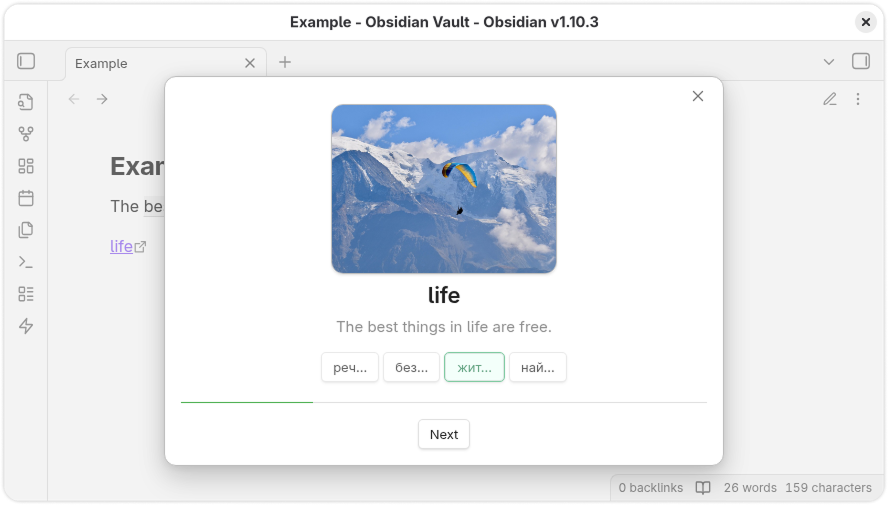
If you want to attach an image to a word, simply create a link to the image directly in the document, as shown in the Example. This can be either a file stored in Obsidian itself or a link to an external resource.

The link name must be exactly the same as the word:

[<value>](...)

Practice

To activate Practice mode, click the lightning icon in the left ribbon menu.

You can also select at least 4 words and then press the lightning icon to work exclusively with those words.

Settings

Open the plugin settings.

General

General settings are essential for translation and voiceover to function properly.

Provider

Providers supply translation and text-to-speech services.

Google

To use Google services, you need to register on GCP and enable the following APIs:

  • Cloud Translation API
  • Cloud Text-to-Speech API
Api Key

After registering in GCP, create an API Key in the Credentials section.
Paste it into the corresponding field in the plugin settings.

Custom

To connect your own free service, run Translator.

Api URL

Once Translator is running, copy its address and paste it into the appropriate field in the plugin settings (if it is not already there).

Connection

After configuring the connection, press the Check button to test it. Notification messages will inform you of the connection status.

Language

Configure the languages you want to work with.

Native

Select the language you understand.

Document

Choose the language of the document.

Voiceover

Sound settings.

Playback

Adjust the playback speed here.

Actions

Actions related to parts of speech.

Pressing

When clicking on a part of speech, you can enable voiceover.

Extra

Additional options.

Divider

Translations may include multiple variants separated by ;. When this option is enabled, only one translation will be randomly selected.

Truncate

Trim part of the translation output.

Optimization

All voiceovers are cached.

Cache

You can clear the cache by pressing the Clear button.

80%
HealthExcellent
ReviewCaution
About
Memorize vocabulary and phrases using a compact {value|translation} syntax and attach images by linking words. Convert selections with a hotkey, use translation and text-to-speech providers, and practice offline on desktop or mobile with a focused review mode.
FlashcardsLanguagesImages
Details
Current version
1.5.3
Last updated
6 months ago
Created
10 months ago
Updates
15 releases
Downloads
482
Compatible with
Obsidian 1.8.7+
Platforms
Desktop, Mobile
License
MIT
Report bugRequest featureReport plugin
Author
memodackmemodack
github.com/memodack/memodack
GitHubmemodack
  1. Community
  2. Plugins
  3. Flashcards
  4. Memodack

Related plugins

Spaced Repetition

Fight the forgetting curve by reviewing flashcards & entire notes.

Image Converter

Convert, compress, resize, annotate, markup, draw, crop, rotate, flip, align, drag-resize, rename with variables, and batch process images: WEBP, JPG, PNG, HEIC, TIF

Simplified Chinese Word Splitting

Adds Simplified Chinese word splitting support for the editor and Vim mode.

Image Context Menus

Image context menus (mostly on right click): Copy to clipboard, Open in default app, Show in system explorer, Reveal file in navigation, Open in new tab.

Easy Typing

Auto format when typing.

PlantUML

Generate PlantUML diagrams.

Ink

Hand write or draw directly between paragraphs using a digital pen, stylus, or Apple pencil.

Local Images Plus

A reincarnation of Local Images to download images in Markdown notes to local storage.

LanguageTool

Unofficial integration of the LanguageTool spell and grammar checker.

Obsidian_to_Anki

Anki integration designed for efficient bulk exporting. Previously known as Obsidian_to_Anki.