Load Image
 kaka18 downloads
Paste an image into a configurable folder: next to the note, a relative directory, or an absolute path from the vault root. Missing folders are created automatically.
- Overview
- Scorecard
- Updates5
English | 简体中文
Paste an image with Ctrl/Cmd+V and decide exactly where it lands — next to the note, in a ./assets folder beside it, or in a shared /assets/images folder at the vault root. Missing folders are created for you, and existing files are never overwritten.
Why
Obsidian's default is all-or-nothing: either everything goes into one global attachment folder, or images land next to the note. If you organize notes in folders, you usually want something in between — screenshots in a per-folder assets, diagrams in a shared assets/images, and so on.
Load Image takes over the paste only when the clipboard actually contains an image, so text and file pasting keep their native behavior.
Features
- Configurable destination — empty = next to the note,
./or../= relative to the note, anything else = relative to the vault root. - Folders are created automatically — missing parent folders are added level by level.
- Never overwrites — a colliding name gets a
-1,-2suffix instead. - Paste several images at once — all are saved and inserted on separate lines.
- Two link styles — Markdown
or Wiki embed![[assets/a.png]]. - Image name template — empty keeps the original clipboard name; supports
{name},{timestamp},{date},{time},{note}. - Bilingual UI — the Language setting offers Follow app (uses Obsidian's own language), English and 中文. Settings, notices and the command name all follow it.
Folder rules
How the Image folder for pasted images value is interpreted, for an example note at notes/daily/2026-11-12.md:
| Setting value | Where the image is saved |
|---|---|
| (empty) | notes/daily/ (next to the note) |
./assets (default) |
notes/daily/assets/ |
../assets |
notes/assets/ |
./img/pasted |
notes/daily/img/pasted/ |
/assets |
assets/ (vault root) |
assets/images |
assets/images/ (vault root) |
Rules behind it:
- A value starting with
./or../is resolved relative to the note's folder. - A value starting with
/, or with no prefix at all, is resolved relative to the Obsidian vault root. - So a folder beside the note must be written
./xxx; plainxxxgoes to the vault root. Keeping the two forms distinct means no ambiguity. - Paths cannot escape the vault root (e.g.
../xfrom the root raises an error). - The settings page previews the resolved location live, using the fixed example note
a/b/c.mdso the preview stays short.
Install
Manual
- Download
main.js,manifest.jsonandstyles.cssfrom the latest release. - Put them in
<your vault>/.obsidian/plugins/load-image/. - Enable Load Image under Settings → Community plugins.
From npm
cd <your vault>/.obsidian/plugins
mkdir -p load-image && cd load-image
npm init -y && npm i @njuptlzf/obsidian-load-image
cp node_modules/@njuptlzf/obsidian-load-image/{main.js,manifest.json,styles.css} .
From source
npm install
npm run build      # produces main.js
npm run dev        # watch mode
Settings
| Setting | Default | Description |
|---|---|---|
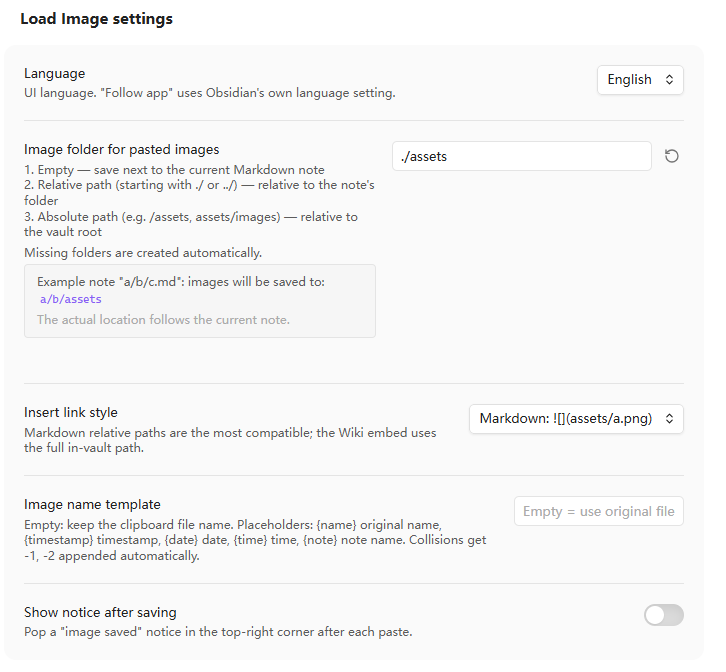
| Language | Follow app | Follow app inherits Obsidian's language; or force English / 中文 |
| Image folder for pasted images | ./assets |
See folder rules; previewed live in settings |
| Insert link style | Markdown |  or ![[assets/a.png]] |
| Image name template | (empty) | Empty = keep the clipboard file name. Supports {name} {timestamp} {date} {time} {note}; illegal characters become -, collisions get -1 |
| Show notice after saving | Off | Pop a short "image saved" notice in the top-right corner |
Commands
- Paste image from clipboard — for binding a hotkey. Plain
Ctrl/Cmd+Valready works; this command covers edge cases where theeditor-pasteevent does not fire.
Development
npm run typecheck   # tsc --noEmit
npm run test        # vitest, 68 unit tests
npm run smoke       # loads the real main.js and simulates a full Ctrl+V paste
npm run verify      # all of the above + production build
Code layout:
main.ts— controller: event registration, settings tab, adapts the Obsidian API toVaultPort.src/paths.ts— pure path resolution, unique naming, link building (no Obsidian dependency, easy to test).src/saver.ts— service layer: folder creation, writing, link assembly; depends only on theVaultPortinterface.src/settings.ts— settings contract and defensive normalization.src/i18n.ts— en/zh dictionaries,t(), locale detection (the app language is passed in by the plugin).
Releasing
Bump the version in manifest.json, versions.json and package.json, then push a tag that is exactly the version:
git tag 1.1.2 && git push origin 1.1.2
No v prefix. Obsidian matches the release tag against manifest.json literally, so v1.1.2 is reported as "no GitHub release with that version has been published yet". The release workflow builds the plugin, attaches main.js / manifest.json / styles.css, signs them with a build provenance attestation, and fails early when the tag and the manifest version diverge.
versions.json is committed to the repository but not attached to the release: Obsidian reads it from the repository, and the plugin review rejects a release that carries extra files.
License
MIT