LLM Hub
 TAKESHI MORITA10k downloads
AI assistant with chat, workflow automation, and semantic search (RAG). Supports Gemini, OpenAI, Anthropic, OpenRouter, Grok, local LLMs, and CLI backends.
- Overview
- Scorecard
- Updates115
Free and open-source AI assistant for Obsidian with Chat, Workflow Automation, and Semantic Search (RAG). Supports multiple LLM providers — use whichever AI fits your needs.
Use any LLM provider: Gemini, OpenAI, Anthropic, OpenRouter, Grok, OpenCode Zen / Go, local LLMs (Ollama, LM Studio, vLLM, OpenCode), or CLI tools (Antigravity CLI, Claude Code, Codex CLI).
Highlights
- Multi-Provider LLM Chat - Use Gemini, OpenAI, Anthropic, OpenRouter, Grok, OpenCode Zen/Go, local LLMs, or CLI backends
- Vault Operations - AI reads, writes, searches, and edits your notes with function calling (Gemini, OpenAI, Anthropic, OpenCode Zen/Go, and tools-capable local LLMs via LM Studio / vLLM / AnythingLLM)
- Workflow Builder - Automate multi-step tasks with visual node editor and 25 node types
- Dashboard Hub Integration - Supply AI models, Chat, Base generation, and Workflow execution to the separate Dashboard Hub plugin
- Semantic Search (RAG) - Local vector search with dedicated search tab, PDF preview, and result-to-chat flow
- Discussion Hub Integration - Supply API, CLI, and local models to the separate multi-provider Discussion Hub plugin
- Edit History - Track and restore AI-made changes with diff view
- Web Search - Access current information with source links through Tavily or Brave Search
- Image Generation - Create images with Gemini or DALL-E
- LLM Connect Hub Integration - Connect to Discord and Kakeratta and use LLM Hub models and RAG
- Encryption - Password-protect chat history and workflow execution logs
Supported Providers
| Provider | Chat | Vault Tools | Web Search | Image Gen | RAG |
|---|---|---|---|---|---|
| Gemini (API) | ✅ Streaming | ✅ Function calling | ✅ Tavily / Brave Search | ✅ Gemini Image models | ✅ |
| OpenAI (API) | ✅ Streaming | ✅ Function calling | ✅ Native / Tavily / Brave Search | ✅ DALL-E | ✅ |
| Anthropic (API) | ✅ Streaming | ✅ Tool use | ✅ Native / Tavily / Brave Search | ❌ | ✅ |
| OpenRouter (API) | ✅ Streaming | ✅ Function calling | ✅ Tavily / Brave Search | ❌ | ✅ |
| Grok (API) | ✅ Streaming | ✅ Function calling | ✅ Native / Tavily / Brave Search | ❌ | ✅ |
| OpenCode Zen / Go (API) | ✅ Streaming | ✅ Function calling | ✅ Tavily / Brave Search | ❌ | ✅ |
| Local LLM (LM Studio, vLLM, AnythingLLM) | ✅ Streaming | ✅ Function calling (auto-fallback) | ❌ | ❌ | ✅ |
| Local LLM (Ollama, OpenCode) | ✅ Streaming | ❌ (marker mode) | ❌ | ❌ | ✅ |
| CLI (Antigravity, Claude, Codex) | ✅ Streaming | ❌ | ❌ | ❌ | ✅ |
Web search defaults to built-in search for supported official OpenAI, Anthropic, and Grok APIs. Select Tavily or Brave Search for external search, including compatible gateways. Gemini requires a configured external provider; otherwise Web search stays off. Enable Web search in the chat search menu to use it alongside RAG.
[!TIP] Multiple providers can be configured simultaneously. Switch models freely during chat — each provider has its own API key and settings.
[!TIP] CLI Options let you use flagship models with just an account - no API key needed!
- Antigravity CLI: Install Antigravity CLI, run
agyand authenticate- Claude CLI: Install Claude Code (
npm install -g @anthropic-ai/claude-code), runclaudeand authenticate- Codex CLI: Install Codex CLI (
npm install -g @openai/codex), runcodexand authenticate
Gemini Free API Key Tips
- Rate limits are per-model and reset daily. Switch models to continue working.
- Gemma 4 cannot combine function calling with RAG in a single request. When RAG is active, vault tools are automatically disabled. CLI models, Ollama, and the OpenCode local server don't support vault tools (use Workflows with
note,note-read, etc., or{content}/{selection}variables). LM Studio / vLLM / AnythingLLM local LLMs DO support vault tools when the underlying model supports OpenAI-style function calling — incompatible models are auto-detected on first use and downgraded to marker-based skill mode.
AI Chat
The AI Chat feature provides an interactive conversation interface with your chosen LLM provider, integrated with your Obsidian vault.
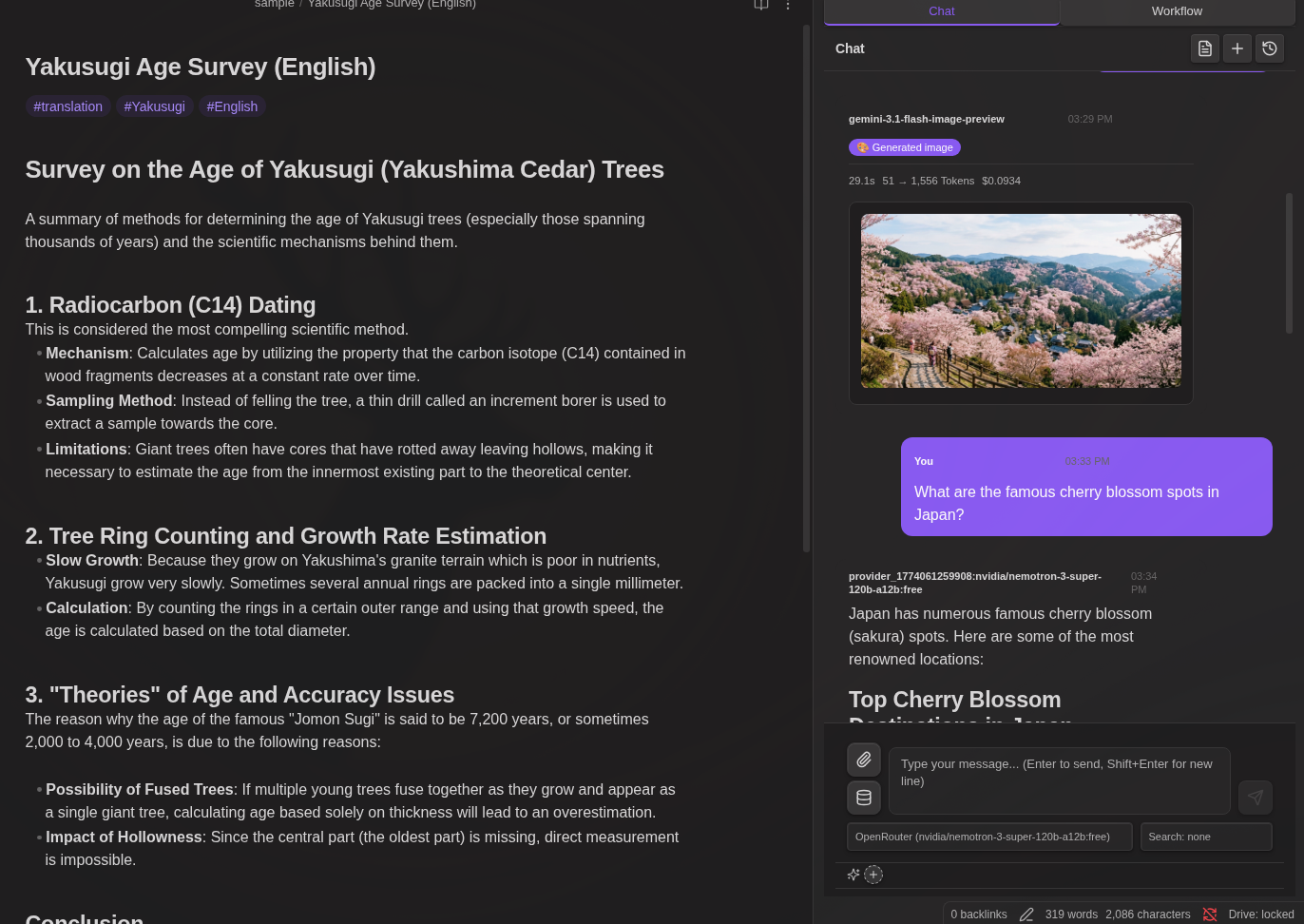
Opening Chat:
- Click chat icon in ribbon
- Command: "LLM Hub: Open chat"
- Toggle: "LLM Hub: Toggle chat / editor"
Chat Controls:
- Enter - Send message
- Shift+Enter - New line
- Stop button - Stop generation
- + button - New chat
- History button - Load previous chats
- Expand / shrink button - Toggle the sidebar between normal and expanded widths
- Save as note button - Export compact Markdown; saving the same chat again overwrites its exported note
- ↑ / ↓ in the input - Recall up to 100 sent prompts across chats and Obsidian restarts. Up recalls history only from the first line and Down advances only from the last line, preserving normal multiline cursor movement. Advancing past the newest entry restores the unsent draft.
Voice Input and Read-Aloud
Read answers aloud — Turn on Read responses aloud in the Vault tool menu. While it is on, a chip above the input says so and its ✕ switches it off. Each assistant bubble also has a speaker button to read that answer on demand, or stop one mid-sentence. Reading speed is adjustable right under the switch, and in Settings → Chat (0.5x to 5x; how fast a voice actually goes varies by voice - Windows voices typically stop speeding up past about 4x). While reading is on, the system prompt asks the model for a short spoken answer instead of Markdown, headings, lists, code or URLs.
Send dictated text — Turn on Send dictated text automatically in Settings to submit when pasted or dictated text ends with the send phrase (send it in English, editable per language). It works with OS dictation, Aqua Voice and similar tools.
Voice conversation — Install speech-popup and a microphone button appears above the send button. It always just opens the popup, so a popup you closed is one click away. While a conversation runs:
- Speak, then send from the popup. speech-popup marks what it pastes with
⟦voice-chat⟧(show --append), so the chat submits it as your message; an ordinary clipboard paste is left in the composer, and so is one that arrives while an answer is still being generated. - The answer is read aloud (turned on with the conversation), and the popup reopens about 2.5 seconds after the reading stops, so your own speech is not recorded back.
- Turning read-aloud off with its chip keeps the conversation going: the popup still reopens after each answer, silently.
- To finish: say the send phrase without dictating anything else (
I'm done speakingby default). speech-popup closes as it always does, the chat receives an empty turn and reads it as "I'm done", so nothing has to be clicked. Pressing Enter on an empty popup, the ✕ on the voice conversation chip, and opening another chat end it too. - Finishing leaves the popup open. What it pastes afterwards keeps its words and loses the marker: the text lands in the composer without being sent, which is how you dictate a long message in several parts and send it yourself.
- If Obsidian's PATH does not find the app, set the full path in Settings → Chat → speech-popup command. Failures are reported with the command and its own error.
- On Flatpak Obsidian, allow the host portal once with
flatpak override --user --talk-name=org.freedesktop.Flatpak md.obsidian.Obsidian, then set the binary's full host path (for example/home/you/.local/bin/speech-popup) as the command above; the plugin sends its commands throughflatpak-spawn --host. Snap has no equivalent portal - use the AppImage or the Flatpak.
Watch the voice conversation demo on YouTube
Web Search
In Settings → Web search, choose Built-in search (default), Tavily, or Brave Search. Existing Tavily/Brave selections are preserved; old empty settings default to built-in search. API keys are retained when switching and follow the credential storage preference. Built-in search uses the official OpenAI, Anthropic, or Grok API. Gemini never uses Google Search: without a selected external provider and its API key, the Web search toggle is disabled and shown as off. Chat, Workflow command nodes (ragSetting: __websearch__), Dashboard and Connect Hub use the same selection. External search uses the web_search function tool and never falls back to built-in search. Gemini image generation with external search first retrieves references using a text model (up to three searches), including its token usage in the total. Tavily uses basic search; both external providers return up to five results.
API references: Tavily, Brave Search.
Enable Web search in the search menu before sending a prompt. It can be combined with a RAG setting. The model decides when to call the tool. Source links are retained in chat history. External search fees are billed by Tavily or Brave Search and are separate from AI token-cost estimates.
Slash Commands
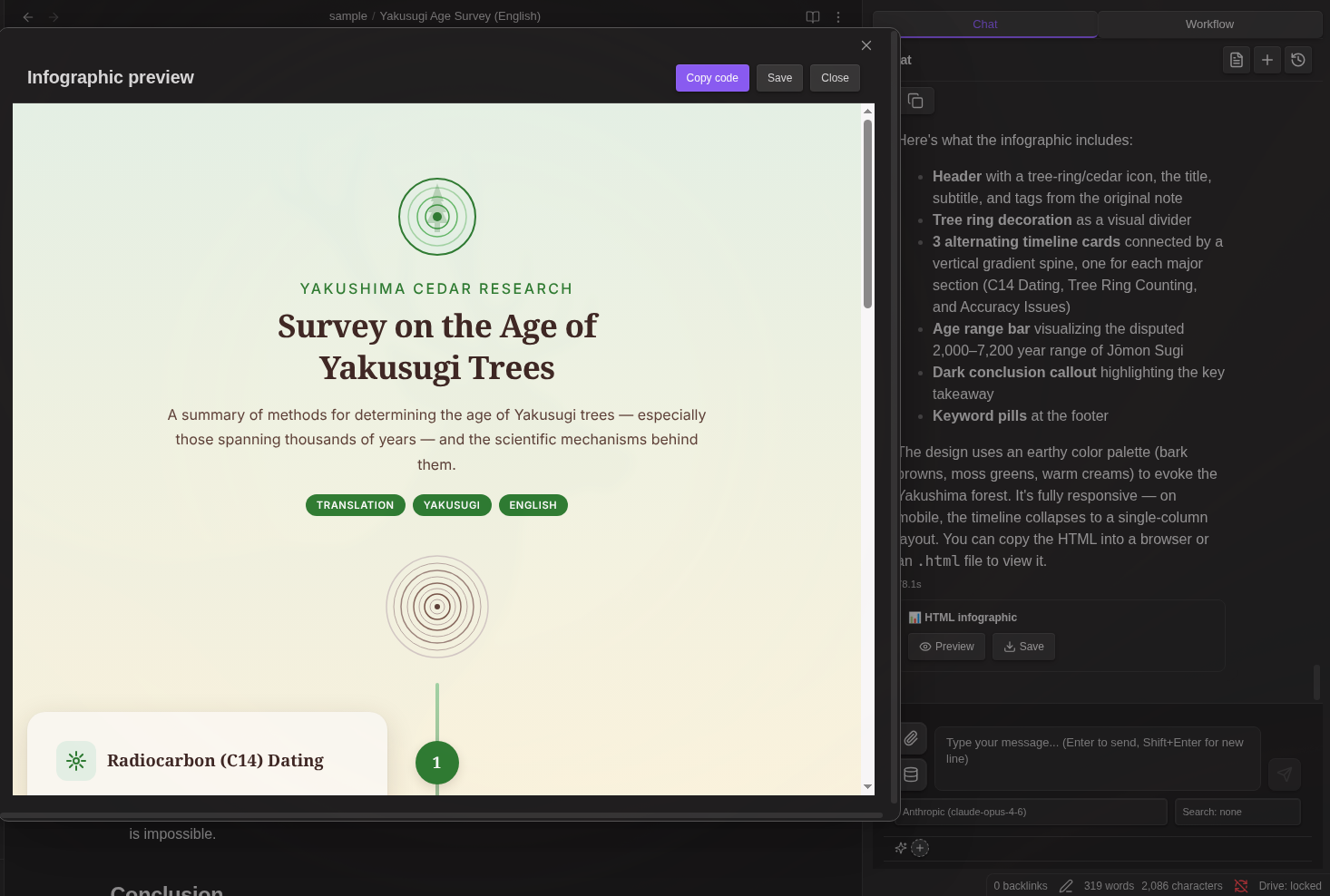
Create reusable prompt templates triggered by /:
- Define templates with
{selection}(selected text) and{content}(active note) - Optional model and search override per command
- Type
/to see available commands
Default: /infographic - Converts content to HTML infographic
@ Mentions
Reference files and variables by typing @:
{selection}- Selected text{content}- Active note content- Vault notes and PDFs - Browse and insert as
[[vault-relative/path]]
[!NOTE] How
{selection}and{content}work: When you switch from Markdown View to Chat View, the selection would normally be cleared due to focus change. To preserve your selection, the plugin captures it when switching views and highlights the selected area with a background color in the Markdown View. The{selection}option only appears in @ suggestions when text was selected.Both
{selection}and{content}are intentionally not expanded in the input area—since the chat input is compact, expanding long text would make typing difficult. The content is expanded when you send the message, which you can verify by checking your sent message in the chat.
[!NOTE] Selecting a file with
@inserts a visible wikilink. Sent chat messages retain the original references, including paths with spaces and multiple files. Only the model request adds type and byte size beside each tool-readable reference; file contents and reading instructions are not added to the displayed message. You can also type[[Note]],[[folder/Note.md]], or@folder/Note.md(full vault-relative path). On send, references are resolved to exact paths, with file type and byte size taken from vault metadata without reading the body. With Vault tools enabled, the model is instructed to fetch contents usingread_note; this requires tool calling support. Avoiding automatic full-file expansion prevents large files from consuming excessive tokens and keeps chat history readable instead of filling messages with long file contents. The model can read text by line range (startLine/endLine) or PDFs by page range (startPage/endPage). When Vault tools are disabled or a CLI mode restricts vault tools, the text is included directly instead. Explicit references outside the allowed vault tool folders are also inlined. References do not appear as attachment chips. Use the attachment button to supply content directly regardless of Vault tool settings.
read_note accepts inclusive, 1-based startLine / endLine ranges for text files, for example {"fileName":"Notes/Large Note.md","startLine":100,"endLine":150}. Results include the selected range and total line count so the model can request additional lines as needed. Omitting startLine starts at line 1; omitting endLine reads to the end. Omitting both preserves full-text reads subject to the configured note character limit. PDFs use startPage / endPage; line and page ranges cannot be combined.
File Attachments
Attach files directly: Images (PNG, JPEG, GIF, WebP), PDFs, Text files
Function Calling (Vault Operations)
The AI can interact with your vault using these tools:
| Tool | Description |
|---|---|
read_note |
Read note content |
create_note |
Create new notes |
propose_edit |
Edit with confirmation dialog |
propose_delete |
Delete with confirmation dialog |
bulk_propose_edit |
Bulk edit multiple files with selection dialog |
bulk_propose_delete |
Bulk delete multiple files with selection dialog |
search_notes |
Search vault by name or content |
list_notes |
List notes in folder |
rename_note |
Rename/move notes |
create_folder |
Create new folders |
list_folders |
List folders in vault |
get_active_note_info |
Get info about active note |
bulk_propose_rename |
Bulk rename multiple files with selection dialog |
Vault Tool Mode
When the AI handles notes in Chat, it uses Vault tools. Control which vault tools the AI can use via the Database icon (📦) below the attachment button:
| Mode | Description | Tools Available |
|---|---|---|
| Vault: All | Full vault access | All tools |
| Vault: No search | Exclude search tools | All except search_notes, list_notes |
| Vault: Read only | Search and read without file changes | read_note, read_timeline, search_notes, list_notes, list_folders, get_active_note_info |
| Vault: Off | No vault access | None |
The same Database icon menu also has Previous messages (0-99). This controls how many messages before the current prompt are sent to the model as conversation context. Set it to 0 to send only the current prompt, such as when processing unrelated files one at a time. The value is saved for the workspace.
When to use each mode:
- Vault: All - Default mode for general use. The AI can read, write, and search your vault.
- Vault: No search - Use when you already know the target file. This avoids redundant vault searches, saving tokens and improving response time.
- Vault: Read only - Search and read notes without creating, editing, deleting, or renaming files. External MCP and skill tools retain their own permissions.
- Vault: Off - Use when you don't need vault access at all.
Automatic mode selection:
| Condition | Default Mode | Changeable |
|---|---|---|
| CLI models (Antigravity/Claude/Codex CLI) | Vault: Off | No |
| Local LLM | Vault: Off | No |
| Gemma 4 + RAG/Web Search | Vault: Off | Yes (disabling RAG/Web Search re-enables tools) |
| Normal | Vault: All | Yes |
Why some modes are forced:
- CLI models, Ollama, OpenCode (Local): These do not expose OpenAI-style function calling, so Vault tools cannot be used. LM Studio / vLLM / AnythingLLM local LLMs CAN use Vault tools when the loaded model supports tool calling; if a model rejects the first tools request, it is auto-flagged and falls back to marker mode for subsequent turns (clear the flag in Settings → Local LLM → Re-enable tools).
- Gemma 4: Function calling and RAG cannot be combined in a single request. When one is active, the other is automatically disabled.
LLM vault tool folders:
In Settings → Workspace → LLM vault tool folders, you can limit which vault folders LLM-driven vault tools may access. This applies to API providers and tools-capable Local LLMs, including LLM-triggered skill workflows. Leave the list empty to allow the whole vault. CLI models are not restricted by this setting because they do not use these vault tools.
Safe Editing
When AI uses propose_edit:
- A confirmation dialog shows the proposed changes
- Click Apply to write changes to the file
- Click Discard to cancel without modifying the file
Changes are NOT written until you confirm.
Edit History
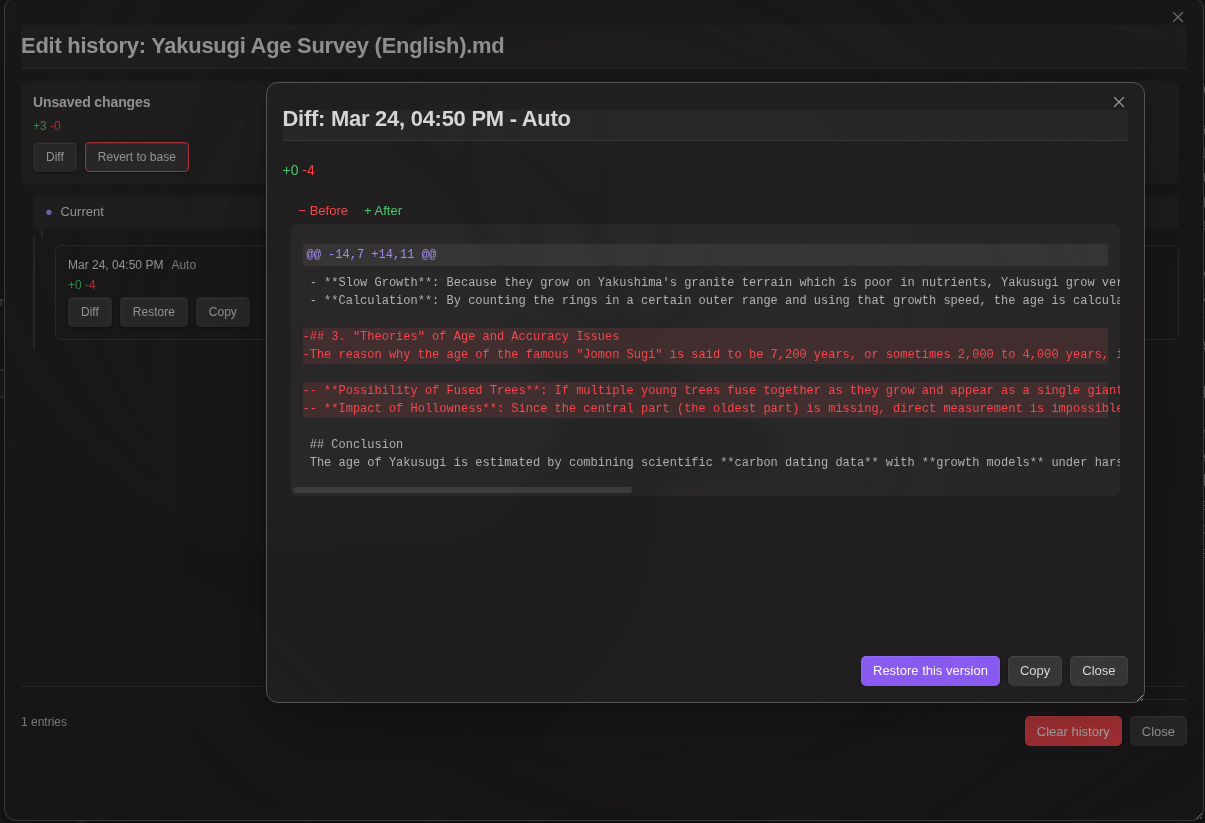
Track and restore changes made to your notes:
Automatic tracking - All AI edits (chat, workflow) and manual changes are recorded
File menu access - Right-click on a markdown file to access:
- Snapshot - Save current state as a snapshot
- History - Open edit history modal
Command palette - Also available via "Show edit history" command
Diff view - See exactly what changed with color-coded additions/deletions
Restore - Revert to any previous version with one click
Copy - Save a historical version as a new file (default name:
{filename}_{datetime}.md)Resizable modal - Drag to move, resize from corners
Diff display:
+lines existed in the older version-lines were added in the newer version
How it works:
Edit history uses a snapshot-based approach:
- Snapshot creation - When a file is first opened or modified by AI, a snapshot of its content is saved
- Diff recording - When the file is modified, the difference between the new content and the snapshot is recorded as a history entry
- Snapshot update - The snapshot is updated to the new content after each modification
- Restore - To restore to a previous version, diffs are applied in reverse from the snapshot
When history is recorded:
- AI chat edits (
propose_edittool) - Workflow note modifications (
notenode) - Manual saves via command
- Auto-detection when file differs from snapshot on open
Storage: Edit history is stored in memory and cleared on Obsidian restart. Obsidian's built-in file recovery covers persistent version tracking.
MCP Servers
MCP (Model Context Protocol) servers provide additional tools that extend the AI's capabilities beyond vault operations.
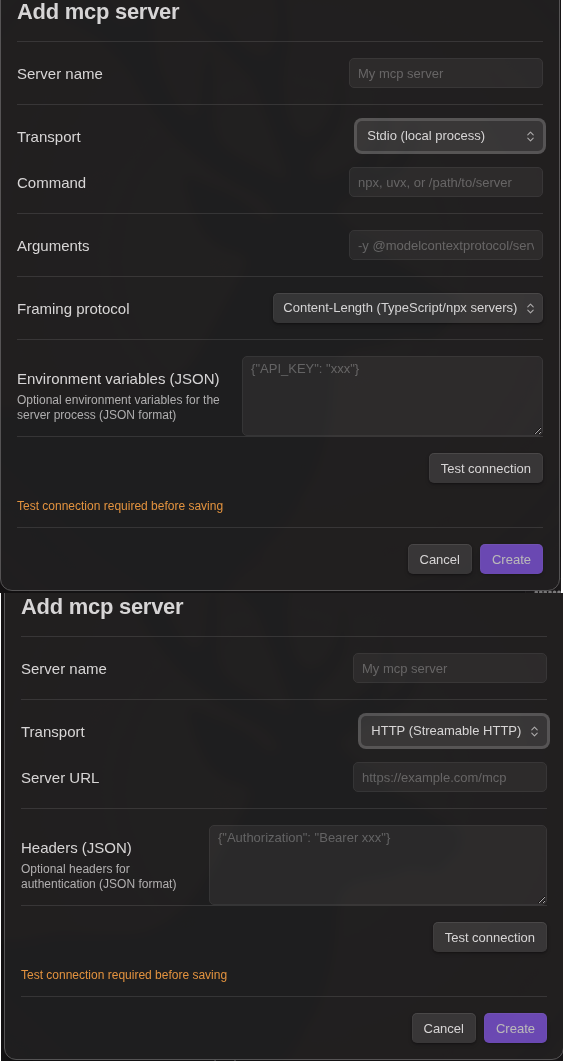
Two transport modes are supported:
HTTP (Streamable HTTP):
- Open plugin settings → MCP Servers section
- Click Add server → select HTTP
- Enter server name and URL
- Configure optional headers (JSON format) for authentication
- Click Test connection to verify and retrieve available tools
- Save the server configuration
Stdio (Local process):
- Open plugin settings → MCP Servers section
- Click Add server → select Stdio
- Enter server name and command (e.g.,
npx -y @modelcontextprotocol/server-filesystem /path/to/dir) - Configure optional environment variables (JSON format)
- Click Test connection to verify and retrieve available tools
- Save the server configuration
You can paste a full command line into Command; inline arguments are prepended to the Arguments field. Quote paths or arguments containing spaces, for example "C:\Program Files\nodejs\node.exe" "C:\my app\server.js". Backslashes in Windows paths are preserved. During Test connection, editing and saving are disabled. Failed checks keep the dialog open with the launch or connection error; timeout errors include recent stderr output. Failed handshakes stop the child process.
Note: Stdio transport launches a local process and is desktop-only. Test connection is required before saving.
Using MCP tools:
- In Chat: Click the Database icon (📦) to open tool settings. Enable/disable MCP servers per conversation.
- In Workflows: Use the
mcpnode to call MCP server tools.
Tool approval: By default, each call shows the server name, tool name, and arguments. Choose Allow once, Always allow this tool, or Deny; closing the dialog denies the call. In each server’s settings, enable Always approve to skip all confirmations, or remove a tool from the allowed list and save to require approval again. Unsaved servers only support one-time approval.
Workflow mcp and command nodes can set confirm: "false" to skip MCP approval for that node, including automatic execution. The node editor exposes this as Confirm MCP tool calls. Later interactive calls from MCP Apps still follow server approval settings. For command nodes, vaultTools: "readOnly" limits built-in Vault tools to search and reading; it does not control external MCP permissions.
Tool hints: After successful connection test, available tool names are saved and displayed in both settings and chat UI for easy reference.
MCP Apps (Interactive UI)
Some MCP tools return interactive UI that allows you to interact with the tool results visually. This feature is based on the MCP Apps specification.
How it works:
- When an MCP tool returns a
ui://resource URI in its response metadata, the plugin fetches and renders the HTML content - The UI is displayed in a sandboxed iframe for security (
sandbox="allow-scripts allow-forms") - Interactive apps can call additional MCP tools and update context through a JSON-RPC bridge
In Chat:
- MCP Apps appear inline in assistant messages with an expand/collapse button
- Click ⊕ to expand the app to full screen, ⊖ to collapse
In Workflows:
- MCP Apps are displayed in a modal dialog during workflow execution
- The workflow pauses to allow user interaction, then continues when the modal is closed
Security: All MCP App content runs in a sandboxed iframe with restricted permissions. The iframe cannot access the parent page's DOM, cookies, or local storage. Only
allow-scriptsandallow-formsare enabled.
Agent Skills
Extend the AI with custom instructions, reference materials, and executable workflows. Skills follow the industry-standard agent skills pattern (e.g., OpenAI Codex .codex/skills/).
- Built-in skills - Obsidian-specific knowledge (Markdown, Canvas, Bases) included out of the box. Based on kepano/obsidian-skills
- Custom instructions - Define domain-specific behavior via
SKILL.mdfiles - Reference materials - Include style guides, templates, and checklists in
references/ - Workflow integration - Skills can expose workflows as function calling tools
- Script execution - Skills can expose scripts (
.sh,.py,.js,.ts,.rb) as function calling tools (desktop only) - Slash command - Type
/folder-nameto instantly invoke a skill and send - CLI mode support - Skills work with Antigravity CLI, Claude CLI, and Codex CLI backends
- Selective activation - Choose which skills are active per conversation
Create skills the same way as workflows — select + New (AI), check "Create as agent skill", and describe what you want. The AI generates both the SKILL.md instructions and the workflow.
For setup instructions and examples, see Agent Skills
Discord Integration
Connect your Obsidian vault's LLM to Discord as a chat bot. Users can chat with the AI, switch models, use RAG search, and activate slash commands — all from Discord.
Setup
1. Create a Discord Bot
- Go to the Discord Developer Portal
- Click New Application → enter a name → Create
- Go to Bot in the left sidebar
- Click Reset Token → copy the bot token (you'll need this later)
- Under Privileged Gateway Intents, enable Message Content Intent (required to read message text)
2. Invite the Bot to Your Server
- Go to OAuth2 in the left sidebar
- Under OAuth2 URL Generator, select the bot scope
- Under Bot Permissions, select:
- Send Messages
- Read Message History
- Copy the generated URL and open it in your browser
- Select a server and authorize the bot
3. Configure in Obsidian
- Open LLM Connect Hub settings → Discord
- Paste the bot token and click Verify token
- Enable the connection and click Save and reconnect
Configuration Options
| Setting | Description | Default |
|---|---|---|
| Enabled | Toggle Discord bot on/off | Off |
| Bot Token | Discord bot token from Developer Portal | — |
| Respond to DMs | Whether the bot responds to direct messages | On |
| Require @mention | In server channels, only respond when @mentioned (DMs always respond) | On |
| Allowed Channel IDs | Comma-separated channel IDs to restrict (empty = all channels) | empty |
| Allowed User IDs | Comma-separated user IDs to restrict (empty = all users) | empty |
| Model Override | Specify which model to use for Discord (empty = current selected model) | empty |
| System Prompt Override | Custom system prompt for Discord conversations | empty |
| Max Response Length | Maximum characters per message (1–2000, Discord's limit) | 2000 |
[!TIP] Finding Channel/User IDs: In Discord, enable Developer Mode (Settings → Advanced → Developer Mode). Then right-click a channel or user and select Copy ID.
Bot Commands
Users can interact with the bot using these commands in Discord:
| Command | Description |
|---|---|
!model |
List available models |
!model <name> |
Switch to a specific model for this channel |
!rag |
List available RAG settings |
!rag <name> |
Switch to a specific RAG setting for this channel |
!rag off |
Disable RAG for this channel |
!skill |
List available slash commands |
!skill <name> |
Activate a slash command (may require follow-up message) |
!research <query> |
Run Gemini Deep Research (background, may take several minutes) |
!discuss <theme> |
Start AI Discussion with configured participants (background) |
!reset |
Clear conversation history for this channel |
!help |
Show help message |
Features
- Multi-provider support — Works with all configured LLM providers (Gemini, OpenAI, Anthropic, OpenRouter, Grok, CLI, Local LLM)
- Per-channel state — Each Discord channel maintains its own conversation history, model selection, and RAG setting
- Vault tools — AI can read, write, and search notes based on your plugin settings, including the Workspace LLM vault tool folder limit
- RAG integration — Semantic search can be enabled per channel via
!ragcommand - Slash commands — Activate plugin slash commands via
!skill - Deep Research — Run Gemini Deep Research via
!researchcommand. Runs in the background so you can continue chatting while it works. Results are posted to the channel when complete (requires Gemini API key) - Long message splitting — Responses exceeding Discord's 2000-char limit are automatically split at natural break points
- Conversation memory — Per-channel history (max 20 messages, 30-minute TTL)
- Auto-reconnect — Recovers from connection drops with exponential backoff
[!NOTE] Conversation history is kept in memory only and is cleared when the bot disconnects or Obsidian restarts.
Workflow Builder
Build automated multi-step workflows directly in Markdown files. No programming knowledge required - just describe what you want in natural language, and the AI will create the workflow for you.
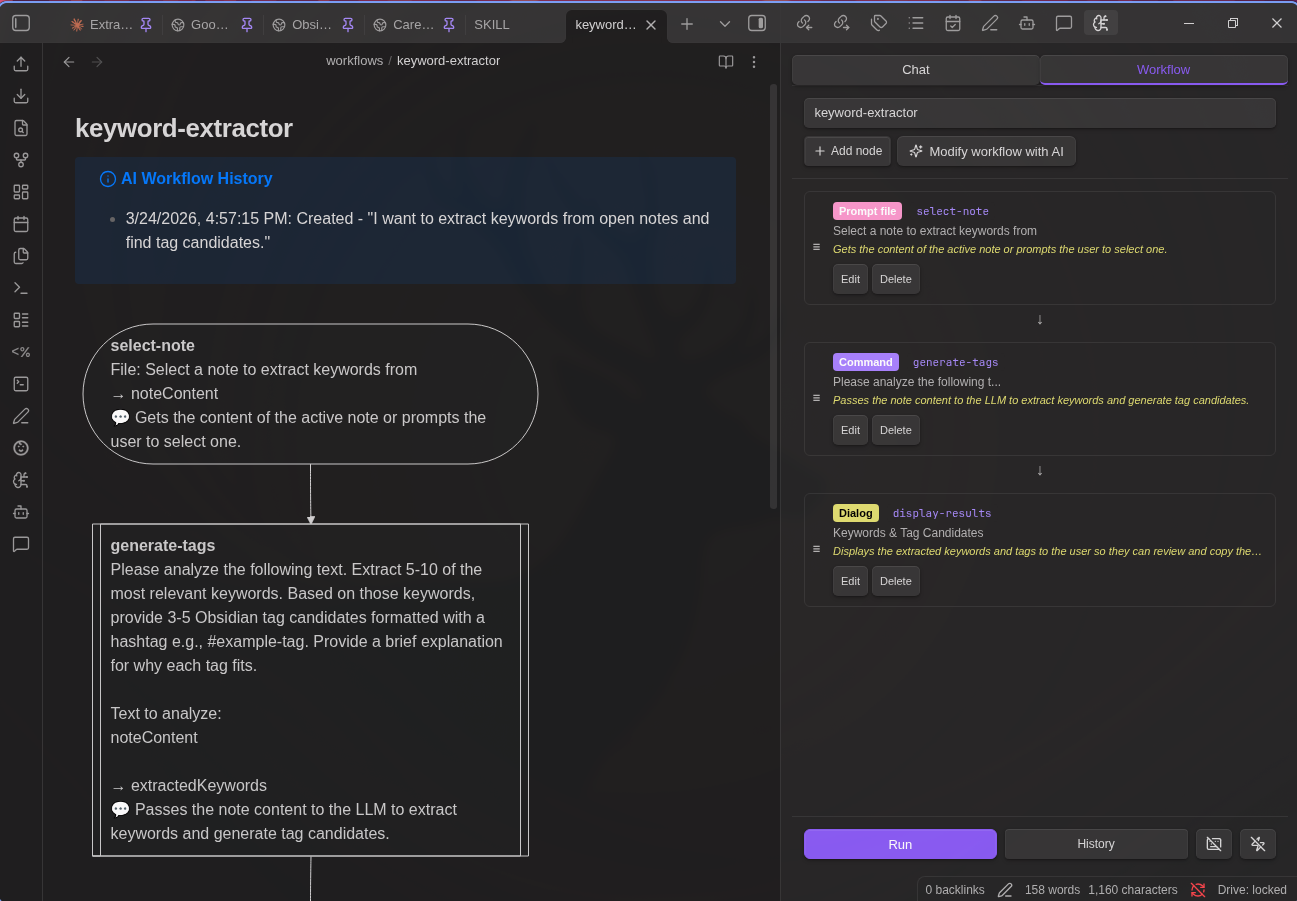
AI-Powered Workflow & Skill Creation
You don't need to learn YAML syntax or node types. Simply describe your workflow in plain language:
- Open the Workflow tab in the plugin sidebar
- Select + New (AI) from the dropdown
- Describe what you want: "Create a workflow that summarizes the selected note and saves it to a summaries folder"
- Check "Create as agent skill" if you want to create an agent skill instead of a standalone workflow
- Click Generate - the AI creates the complete workflow
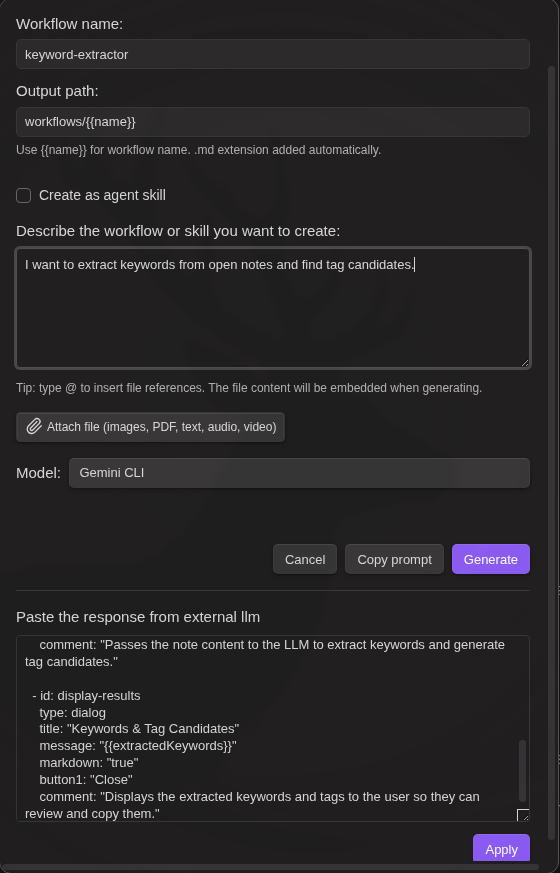
Modify existing workflows the same way:
- Load any workflow
- Click the AI Modify button
- Describe changes: "Add a step to translate the summary to Japanese"
- Review and apply
Available Node Types
25 node types are available for building workflows:
| Category | Nodes |
|---|---|
| Variables | variable, set |
| Control | if, while |
| LLM | command |
| Data | http, json, script, shell |
| Notes | note, note-read, note-search, note-list, folder-list, open |
| Files | file-explorer, file-save |
| Prompts | prompt-file, prompt-selection, dialog |
| Composition | workflow |
| External | mcp, obsidian-command |
| RAG | rag-sync |
| Utility | sleep |
For detailed node specifications and examples, see Workflow Nodes
Hotkey Mode
Assign keyboard shortcuts to run workflows instantly:
- Open the workflow file (the filename becomes the hotkey's display name)
- Click the keyboard icon (⌨️) in the Workflow panel footer
- Go to Settings → Hotkeys → search "Workflow: [filename]"
- Assign a hotkey (e.g.,
Ctrl+Shift+T)
When triggered by hotkey:
prompt-fileuses the active file automatically (no dialog)prompt-selectionuses the current selection, or full file content if no selection
Event Triggers
Workflows can be automatically triggered by Obsidian events:
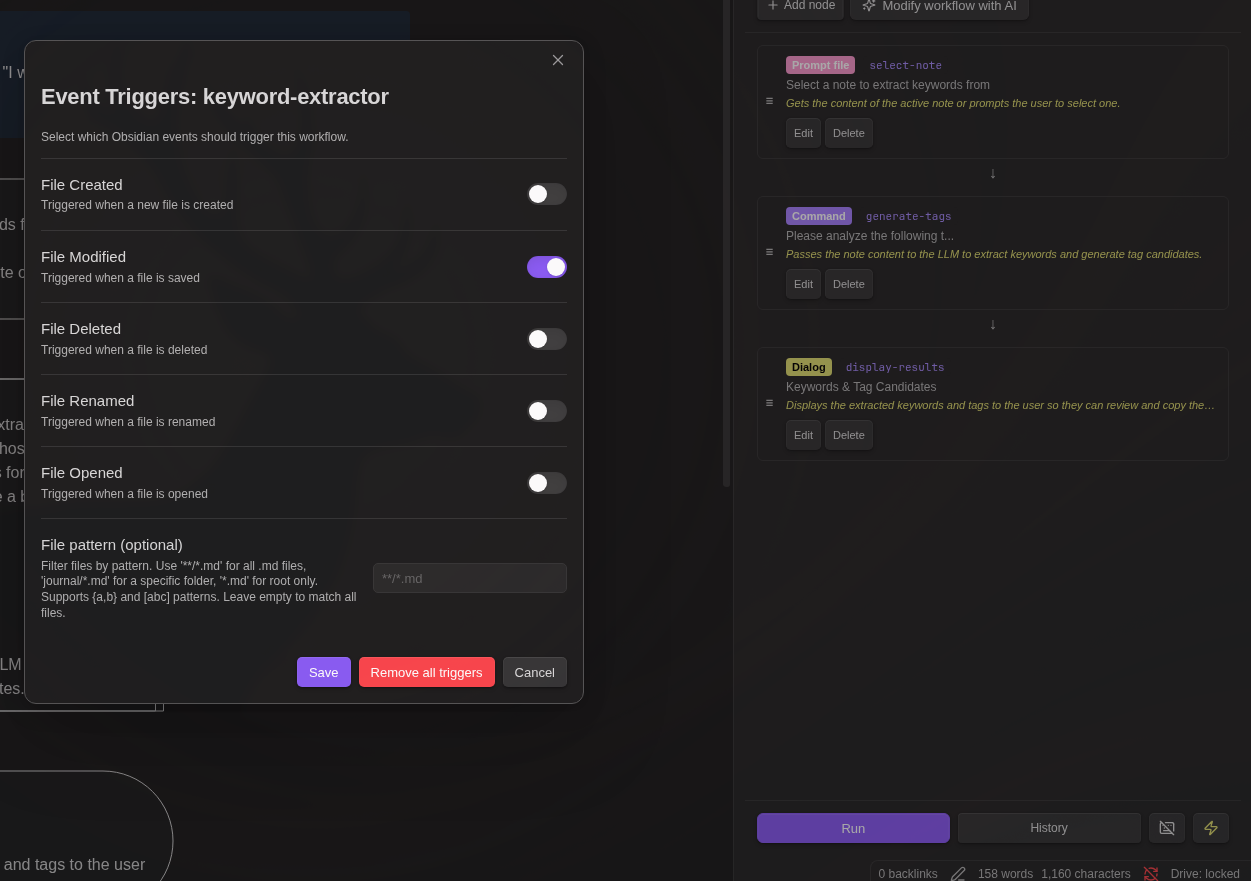
| Event | Description |
|---|---|
| Startup | Triggered once when the Obsidian workspace is ready |
| File Created | Triggered when a new file is created |
| File Modified | Triggered when a file is saved (debounced 5s) |
| File Deleted | Triggered when a file is deleted |
| File Renamed | Triggered when a file is renamed |
| File Opened | Triggered when a file is opened |
Event trigger setup:
- Open the workflow file (the filename is used as the trigger's display name)
- Click the zap icon (⚡) in the Workflow panel footer
- Select which events should trigger the workflow
- Optionally add a file pattern filter
File pattern examples:
**/*.md- All Markdown files in any folderjournal/*.md- Markdown files in journal folder only*.md- Markdown files in root folder only**/{daily,weekly}/*.md- Files in daily or weekly foldersprojects/[a-z]*.md- Files starting with lowercase letter
Event variables: When triggered by an event, these variables are set automatically:
| Variable | Description |
|---|---|
_eventType |
Event type: startup, create, modify, delete, rename, file-open |
_eventFilePath |
Path of the affected file |
_eventFile |
JSON with file info (path, basename, name, extension) |
_eventFileContent |
File content (for create/modify/file-open events) |
_eventOldPath |
Previous path (for rename events only) |
Note:
prompt-fileandprompt-selectionnodes automatically use the event file when triggered by events.prompt-selectionuses the entire file content as the selection.
Startup triggers have no event file, and their optional file pattern is ignored.
Example: Sync Local RAG on Startup
Use a rag-sync node with a Startup event trigger to refresh a Local RAG index automatically whenever the Obsidian workspace becomes ready. The node performs a full incremental sync using the target folders, exclusion patterns, and embedding configuration from the selected RAG setting.
- Create a workflow containing a
rag-syncnode and select the RAG setting to sync. - Open the event trigger settings from the zap icon (⚡), enable Startup, and save.
- Restart or reload Obsidian. Open the workflow history to confirm the sync result, including embedded, skipped, removed, and failed files.


LLM Connect Hub (Discord and Kakeratta)
Discord integration has been separated from LLM Hub into the LLM Connect Hub Obsidian plugin. LLM Connect Hub connects to Discord and Kakeratta, using the models, RAG, skills, and Vault tools exposed by LLM Hub. Enable both plugins.
On first connection, LLM Connect Hub copies any legacy Discord and Kakeratta settings and credentials, saves them, then stops the old connections. Review the migrated values in LLM Connect Hub settings.
For Kakeratta, each persona ID can select an answer model, Vault folders to read, a RAG setting, and folder skills. Vault tools are limited to the selected folders and disabled when the list is empty. Scoped Vault research requires an API model. RAG searches the selected index independently of the Vault folder list. Skill scripts and workflows are disabled for Kakeratta. See the LLM Connect Hub setup guide.
Dashboard Hub Integration
Dashboard functionality is provided by the separate Dashboard Hub plugin. When both plugins are enabled, LLM Hub supplies Dashboard Hub with its configured AI models, Chat handoff, Base generation, text rewriting, and Workflow generation/execution. Dashboard Hub also contributes its dashboard Agent Skill to LLM Hub at runtime.
See the Dashboard Hub documentation for dashboard features, widgets, storage, and schema details.
Discussion Hub Integration
AI Discussion is provided by the separate Discussion Hub plugin. When both plugins are enabled, LLM Hub supplies Discussion Hub with its configured API, CLI, and local text models. Models contributed by Gemini Helper and Local LLM Hub can participate in the same discussion.
See the Discussion Hub documentation for discussion features, configuration, and usage details.
Common
Supported Models
Gemini
| Model | Description |
|---|---|
| Gemini 3.1 Pro Preview | Latest flagship model, 1M context (recommended) |
| Gemini 3.1 Pro Preview (Custom Tools) | Optimized for agentic workflows with custom tools and bash |
| Gemini 3.8 Flash | Latest fast model, 1M context (recommended) |
| Gemini 3.5 Flash Lite | Latest fast, low-cost model with 1M context |
| Gemini 3 Pro (Image) | Pro image generation, 4K |
| Gemini 3.1 Flash (Image) | Fast, low-cost image generation |
| Gemma 4 | Free, function calling and RAG/Web Search are mutually exclusive |
Thinking mode: For supported OpenAI and Gemini API models, choose the reasoning effort beside the model picker.
defaultleaves the choice to the provider, whilenoneis available when the model can disable reasoning. Gemini models that cannot fully disable thinking expose their lowest supported effort instead. Prompts no longer change the effort automatically.
OpenAI
| Model | Description |
|---|---|
| GPT-6 Astra | Most capable model for complex end-to-end work |
| GPT-5.6 Sol | Highest-quality GPT-5.6 tier; web search live-tested |
| GPT-5.6 Terra | Balanced GPT-5.6 tier |
| GPT-5.6 Luna | Fast, economical GPT-5.6 tier |
| GPT-5.4 | Earlier flagship model |
| GPT-5.4-mini | Cost-effective mid-tier model |
| GPT-5.4-nano | Lightweight, fast model |
| O3 | Reasoning model |
| DALL-E 3 / DALL-E 2 | Image generation |
Anthropic
| Model | Description |
|---|---|
| Claude Opus 5 | Complex agentic coding and enterprise work; adaptive thinking |
| Claude Opus 4.8 | Advanced reasoning and agentic work; web search live-tested |
| Claude Sonnet 5 | Balanced frontier model; web search live-tested |
| Claude Fable 5 | Advanced model; web search live-tested |
| Claude Opus 4.6 | Most capable model, extended thinking |
| Claude Sonnet 4.6 | Balanced performance and cost |
| Claude Haiku 4.5 | Fast, lightweight model; web search live-tested |
OpenRouter / Grok / Custom
Configure any OpenAI-compatible endpoint with custom base URL and models. OpenRouter provides access to hundreds of models from various providers.
OpenCode Zen / Go
OpenCode offers two hosted gateways from the same account, both selectable from the provider dropdown:
- OpenCode Zen (
https://opencode.ai/zen) — pay-per-use, includes several free models (Big Pickle, MiniMax M2.5 Free, etc.) and a broad model catalog (Claude, GPT-5.x, and more). Exposes OpenAI-compatible/v1/models+/v1/chat/completions, so models are listed automatically. - OpenCode Go (
https://opencode.ai/zen/go) — $5/first month, $10/month subscription with curated coding models (Grok, GLM, Kimi, DeepSeek, MiMo, MiniMax, Qwen, and more). The plugin fetches its live/v1/modelscatalog during Verify, so newly added and retired models are reflected automatically.
Local LLM
Connect to locally running models via Ollama, LM Studio, vLLM, AnythingLLM, or the OpenCode local server. Models are auto-detected from the running server.
Installation
Community Plugins (Recommended)
- Open Settings → Community plugins in Obsidian
- Select Browse and search for LLM Hub
- Select Install, then Enable
Manual
- Download
main.js,manifest.json,styles.cssfrom releases - Create
llm-hubfolder in.obsidian/plugins/ - Copy files and enable in Obsidian settings
From Source
git clone https://github.com/takeshy/obsidian-llm-hub
cd obsidian-llm-hub
npm install
npm run build
Configuration
API Providers
Add one or more API providers in plugin settings. Each provider has its own API key and model selection.
| Provider | Get API Key |
|---|---|
| Gemini | ai.google.dev |
| OpenAI | platform.openai.com |
| Anthropic | console.anthropic.com |
| OpenRouter | openrouter.ai |
| Grok | console.x.ai |
| OpenCode Zen | opencode.ai |
| OpenCode Go | opencode.ai |
You can also add custom OpenAI-compatible endpoints.
Proxy
Route all API requests through an HTTP CONNECT proxy for corporate gateway environments. See Proxy Settings for details.
Local LLM
Connect to locally running LLM servers:
- Start your local server (Ollama, LM Studio, vLLM, AnythingLLM, or OpenCode)
- Enter the server URL in plugin settings
- Click "Verify" to detect available models
[!NOTE] LM Studio / vLLM / AnythingLLM local LLMs use OpenAI-style function calling for vault tools — enabled by default for tools-capable models. If a model rejects the first tools request it is auto-flagged and downgraded to marker-based skill mode for subsequent turns; clear the flag in Settings → Local LLM → Re-enable tools to retry.
These tools follow Settings → Workspace → LLM vault tool folders, the same folder limit used for API providers and LLM-triggered skill workflows.
Ollama and OpenCode (Local) still use marker mode only. Use workflows or RAG for note operations with those frameworks.
OpenCode Local Server
The OpenCode framework connects to a local opencode serve instance, which exposes its own HTTP API instead of the OpenAI-compatible /v1/chat/completions shape. Streaming uses the server's /global/event SSE endpoint.
macOS / Linux
- Install the OpenCode CLI:
curl -fsSL https://opencode.ai/install | bash - Start the server:
It listens onopencode servehttp://localhost:4096by default. - In plugin settings → Local LLM, select OpenCode (Local), keep the default URL (
http://localhost:4096), and click Fetch models. - Models are listed as
<providerID>/<modelID>(e.g.google/gemini-flash-lite-latest). Pick one and save.
Windows (WSL)
OpenCode recommends WSL on Windows for file-system performance and tool compatibility. Since Obsidian runs on the Windows host, the server must be bound to a reachable interface and — because it becomes accessible from outside WSL — protected with a password.
Install WSL (Microsoft's official guide) and open a WSL terminal.
Inside WSL, install OpenCode:
curl -fsSL https://opencode.ai/install | bashStart the server bound to all interfaces, with a password:
OPENCODE_SERVER_PASSWORD='your-password' opencode serve --hostname 0.0.0.0 --port 4096WSL2 forwards
localhostto the Windows host automatically, so from Obsidian the URL ishttp://localhost:4096. If that doesn't resolve, runhostname -Iin WSL and usehttp://<wsl-ip>:4096instead.In plugin settings → Local LLM → OpenCode (Local):
- Base URL:
http://localhost:4096(or the WSL IP) - Username:
opencode(default; override withOPENCODE_SERVER_USERNAMEif you set one) - Password: the value of
OPENCODE_SERVER_PASSWORD
Click Fetch models, pick a
<providerID>/<modelID>model, and save.- Base URL:
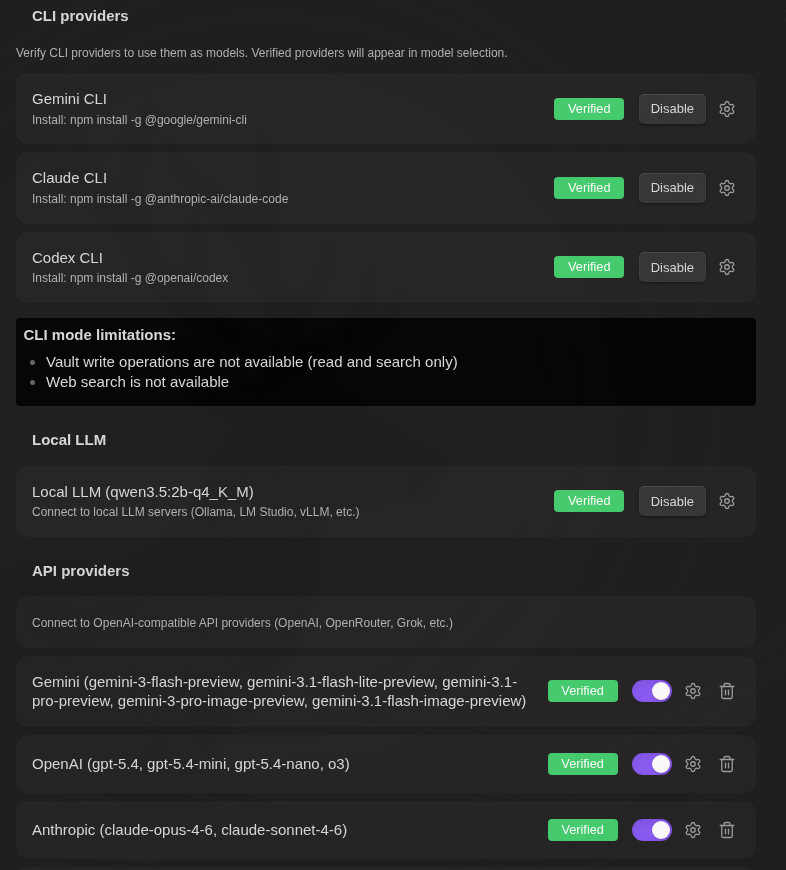
CLI Mode (Antigravity / Claude / Codex)
Antigravity CLI:
- Install Antigravity CLI
- Authenticate with
agy - Click "Verify" in Antigravity CLI section
Claude CLI:
- Install Claude Code:
npm install -g @anthropic-ai/claude-code - Authenticate with
claude - Click "Verify" in Claude CLI section
Codex CLI:
- Install Codex CLI:
npm install -g @openai/codex - Authenticate with
codex - Click "Verify" in Codex CLI section
CLI Limitations: No vault tool support, no web search, desktop only
TTY terminal: Run “LLM Hub: Open CLI terminal” from the command palette to open an in-Obsidian CLI terminal view. In desktop environments where node-pty and @xterm/xterm are available, the view starts a full TTY session for Antigravity / Claude / Codex with the vault root as the working directory.
[!NOTE] CLI-only usage: You can use CLI mode without any API key. Just install and verify a CLI tool.
Custom CLI Path: If automatic CLI detection fails, click the gear icon (⚙️) next to the Verify button to manually specify the CLI path. The plugin searches common installation paths automatically, including version managers (nodenv, nvm, volta, fnm, asdf, mise).
Windows: How to find the CLI path
Leave the CLI path empty and click Verify — the plugin looks for agy on PATH. Claude's standalone installer at %LOCALAPPDATA%\Programs\claude\claude.exe is also picked up automatically.
Only set a custom CLI path if auto-detection fails. Any of the following works, listed from safest to most permissive:
.exeexecutable — e.g.C:\Users\YourName\AppData\Local\Programs\Antigravity\agy.exe. Runs directly..cmd/.batwrapper — e.g. anagy.cmdwrapper on PATH. Must go throughcmd.exe, so prompts containing&,|,>,^, or%VAR%may misbehave.
Use Get-Command agy / Get-Command claude / Get-Command codex in PowerShell to find the wrapper path; then either enter it directly or navigate to the sibling .exe when available.
macOS / Linux: How to find the CLI path
- Open a terminal and run:
which agy - Enter the displayed path (e.g.,
/home/user/.local/bin/agy) in the CLI path settings
For Claude CLI, use which claude. For Codex CLI, use which codex.
If detection fails, specify the CLI executable path directly (e.g., ~/.local/bin/agy).
[!TIP] Claude CLI tip: Chat sessions from LLM Hub are stored locally. You can continue conversations outside of Obsidian by running
claude --resumein your vault directory to see and resume past sessions.
Workspace Settings
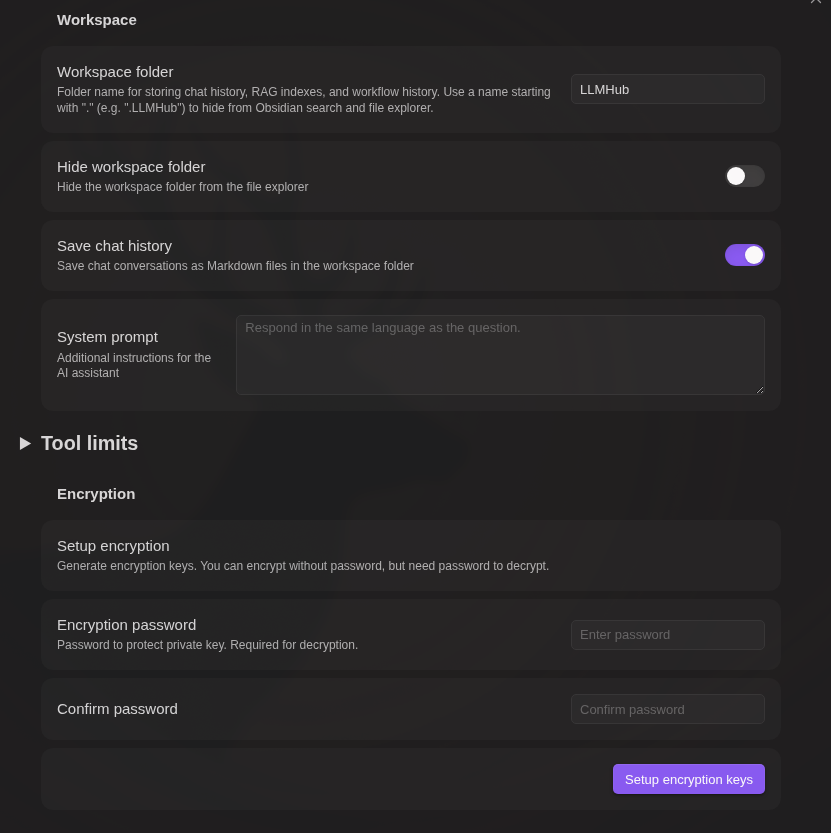
- Workspace Folder - Chat history and settings location
- Automatically save chat history - Keep restorable histories in the workspace folder
- Maximum saved chat histories - Oldest automatic histories are deleted above the limit;
0is unlimited - System Prompt - Additional AI instructions
- Tool Limits - Control function call limits
- Edit History - Track and restore AI-made changes
Chat Settings
- Manual chat save folder - Vault-relative destination for the Save as note button; blank uses the vault root
- Exports use
YYYYMMDD-HHmmss_Chat title.mdand omit frontmatter and restoration metadata
Encryption
Password-protect your chat history and workflow execution logs separately.
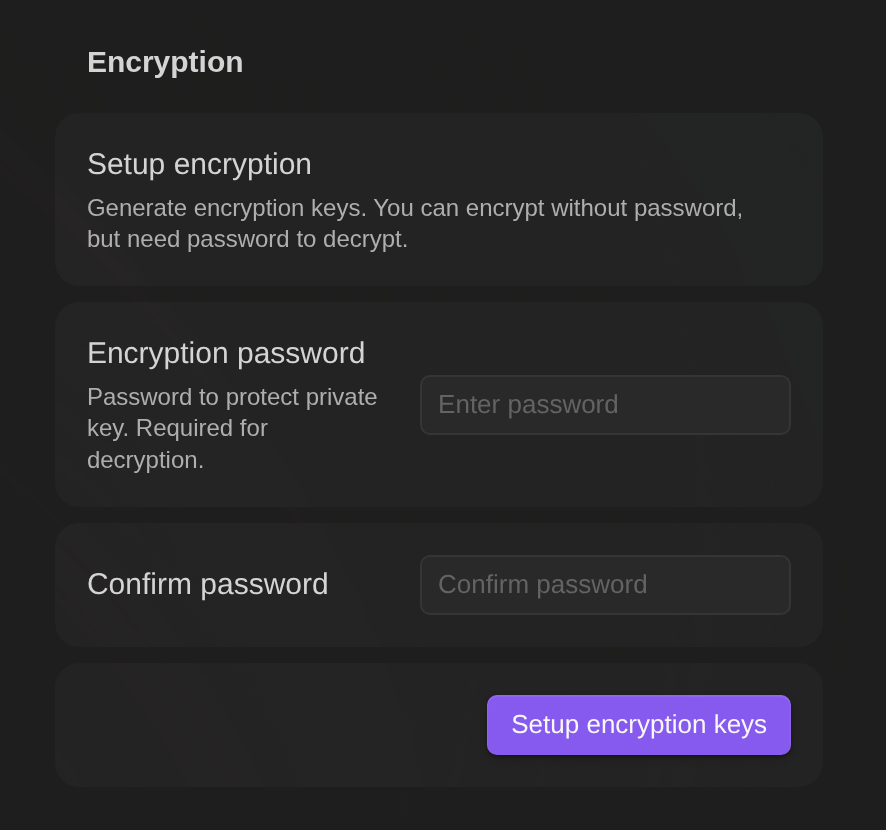
Setup:
- Set a password in plugin settings (stored securely using public-key cryptography)
- After setup, toggle encryption for each log type:
- Encrypt AI chat history - Encrypt chat conversation files
- Encrypt workflow execution logs - Encrypt workflow history files
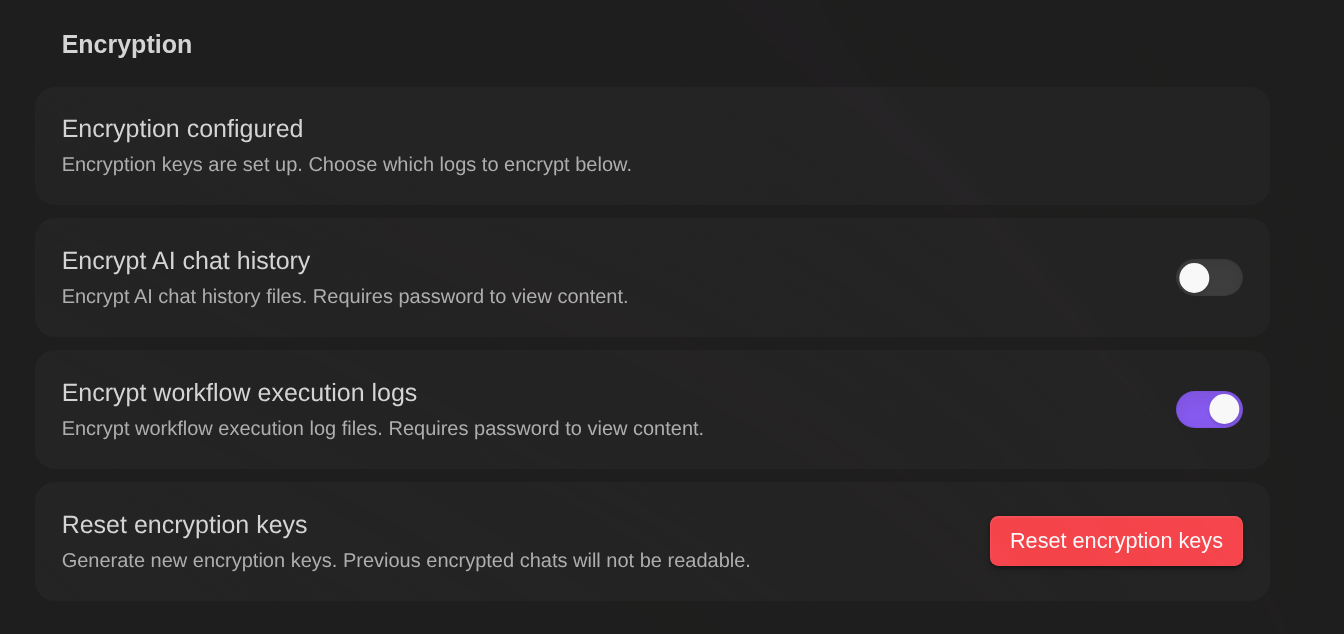
Each setting can be enabled/disabled independently.
Features:
- Separate controls - Choose which logs to encrypt (chat, workflow, or both)
- Automatic encryption - New files are encrypted when saved based on settings
- Password caching - Enter password once per session
- Dedicated viewer - Encrypted files open in a secure editor with preview
- Decrypt option - Remove encryption from individual files when needed
How it works:
[Setup - once when setting password]
Password → Generate key pair (RSA) → Encrypt private key → Store in settings

[Encryption - for each file]
File content → Encrypt with new AES key → Encrypt AES key with public key
→ Save to file: encrypted data + encrypted private key (from settings) + salt

[Decryption]
Password + salt → Restore private key → Decrypt AES key → Decrypt file content
- Key pair is generated once (RSA generation is slow), AES key is generated per file
- Each file stores: encrypted content + encrypted private key (copied from settings) + salt
- Files are self-contained — decryptable with just the password, no plugin dependency
Python decryption script (click to expand)
#!/usr/bin/env python3
"""Decrypt LLM Hub encrypted files without the plugin."""
import base64, sys, re, getpass
from cryptography.hazmat.primitives import hashes, serialization
from cryptography.hazmat.primitives.kdf.pbkdf2 import PBKDF2HMAC
from cryptography.hazmat.primitives.ciphers.aead import AESGCM
from cryptography.hazmat.primitives.asymmetric import padding

def decrypt_file(filepath: str, password: str) -> str:
    with open(filepath, 'r') as f:
        content = f.read()

    # Parse YAML frontmatter
    match = re.match(r'^---\n([\s\S]*?)\n---\n([\s\S]*)$', content)
    if not match:
        raise ValueError("Invalid encrypted file format")

    frontmatter, encrypted_data = match.groups()
    key_match = re.search(r'key:\s*(.+)', frontmatter)
    salt_match = re.search(r'salt:\s*(.+)', frontmatter)
    if not key_match or not salt_match:
        raise ValueError("Missing key or salt in frontmatter")

    enc_private_key = base64.b64decode(key_match.group(1).strip())
    salt = base64.b64decode(salt_match.group(1).strip())
    data = base64.b64decode(encrypted_data.strip())

    # Derive key from password
    kdf = PBKDF2HMAC(algorithm=hashes.SHA256(), length=32, salt=salt, iterations=100000)
    derived_key = kdf.derive(password.encode())

    # Decrypt private key
    iv, enc_priv = enc_private_key[:12], enc_private_key[12:]
    private_key_pem = AESGCM(derived_key).decrypt(iv, enc_priv, None)
    private_key = serialization.load_der_private_key(base64.b64decode(private_key_pem), None)

    # Parse encrypted data: key_length(2) + enc_aes_key + iv(12) + enc_content
    key_len = (data[0] << 8) | data[1]
    enc_aes_key = data[2:2+key_len]
    content_iv = data[2+key_len:2+key_len+12]
    enc_content = data[2+key_len+12:]

    # Decrypt AES key with RSA private key
    aes_key = private_key.decrypt(enc_aes_key, padding.OAEP(
        mgf=padding.MGF1(algorithm=hashes.SHA256()), algorithm=hashes.SHA256(), label=None))

    # Decrypt content
    return AESGCM(aes_key).decrypt(content_iv, enc_content, None).decode('utf-8')

if __name__ == "__main__":
    if len(sys.argv) != 2:
        print(f"Usage: {sys.argv[0]} <encrypted_file>")
        sys.exit(1)
    password = getpass.getpass("Password: ")
    print(decrypt_file(sys.argv[1], password))
Requires: pip install cryptography
Warning: If you forget your password, encrypted files cannot be recovered. Keep your password safe.
Tip: To encrypt all files in a directory at once, use a workflow. See the "Encrypt all files in a directory" example in Workflow Nodes.
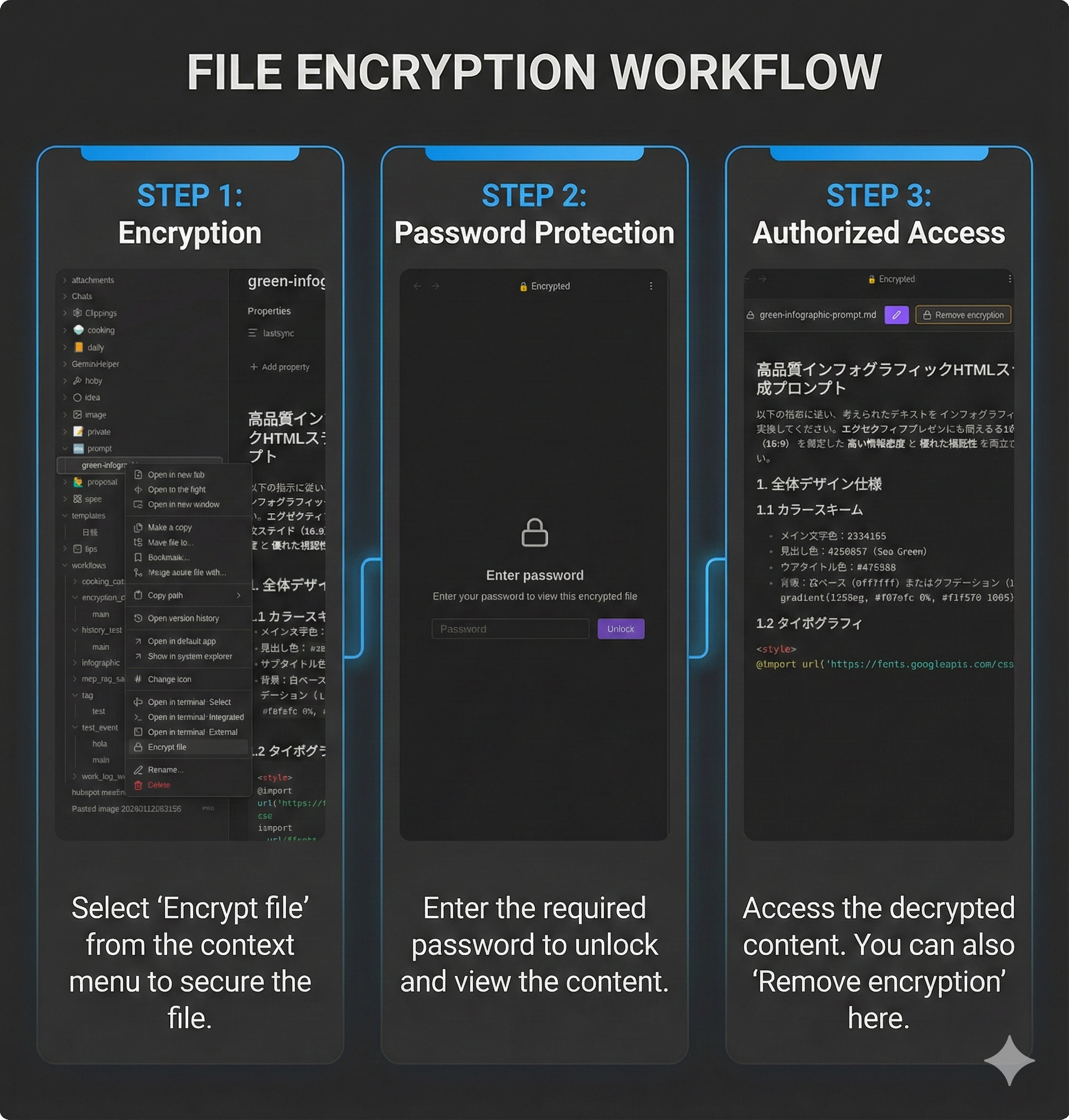
Security benefits:
- Protected from AI chat - Encrypted files cannot be read by AI vault operations (
read_notetool). This keeps sensitive data like API keys safe from accidental exposure during chat. - Workflow access with password - Workflows can read encrypted files using the
note-readnode. When accessed, a password dialog appears, and the password is cached for the session. - Store secrets safely - Instead of writing API keys directly in workflows, store them in encrypted files. The workflow reads the key at runtime after password verification.
Semantic Search (RAG)
Local vector-based search that injects relevant vault content into LLM conversations. No external RAG server required — embeddings are generated and stored locally.
Setup:
- Go to Settings → RAG section
- Create a new RAG setting (click
+) - Configure embedding:
- Default (Gemini): Leave Embedding Base URL empty — uses Gemini Embedding API with your Gemini API key
- Custom server (Ollama etc.): Set Embedding Base URL and select a model
- Click Sync to build the vector index from your vault
- Select the RAG setting in the search menu to activate it; Web Search can remain checked at the same time
| Setting | Description | Default |
|---|---|---|
| Embedding Base URL | Custom embedding server URL (empty = Gemini API) | empty |
| Embedding API Key | API key for custom server (empty = Gemini key) | empty |
| Embedding Model | Model name for embedding generation | gemini-embedding-2-preview |
| Chunk Size | Characters per chunk | 500 |
| Chunk Overlap | Overlap between chunks | 100 |
| PDF Chunk Pages | Number of PDF pages per embedding chunk (1–6) | 6 |
| Top K | Max chunks to retrieve per query | 5 |
| Score Threshold | Minimum similarity score (0.0–1.0) to include in results | 0.5 |
| Target Folders | Limit indexing to specific folders (empty = all) | empty |
| Exclude Patterns | Regex patterns to exclude files from indexing | empty |
Multimodal indexing (images, PDFs, audio, video) is automatically enabled when using Gemini native embedding models (
gemini-embedding-*). No manual configuration needed.
Large vaults and multiple indexes:
For large vaults, create multiple RAG settings for separate folders, sync each one, then create another RAG setting and choose Combine internal. Select the synced source settings to search them together from one chat/search selector. Combined settings use the embedding server, API key, and model from the first selected source setting.
During sync, changed files are processed and saved in small file batches. This is separate from the RAG chunk size setting. If Obsidian crashes during a large first-time sync, the next sync can continue from the saved index state instead of starting from scratch.
If PDF text extraction fails, the failed PDF paths are listed after sync, their checksums are saved, and they appear in the indexed file list with 0 chunks. They will not be retried on later syncs unless the PDF file changes. To force re-import, rename the PDF, modify the file, or clear/rebuild the RAG index.
External Index:
Use a pre-built index instead of syncing from the vault:
- Set Index mode to External
- Enter one absolute index directory per line. Each directory must contain
index.jsonandvectors.bin - Optionally set Embedding Base URL for query embedding (empty = Gemini API)
- The embedding model is auto-detected from the index file
How it works: When RAG is active, each chat message triggers a local vector search. Relevant chunks are injected into the system prompt as context. Sources are shown in the chat UI — click to open the referenced note.
Filtering RAG results with Jev
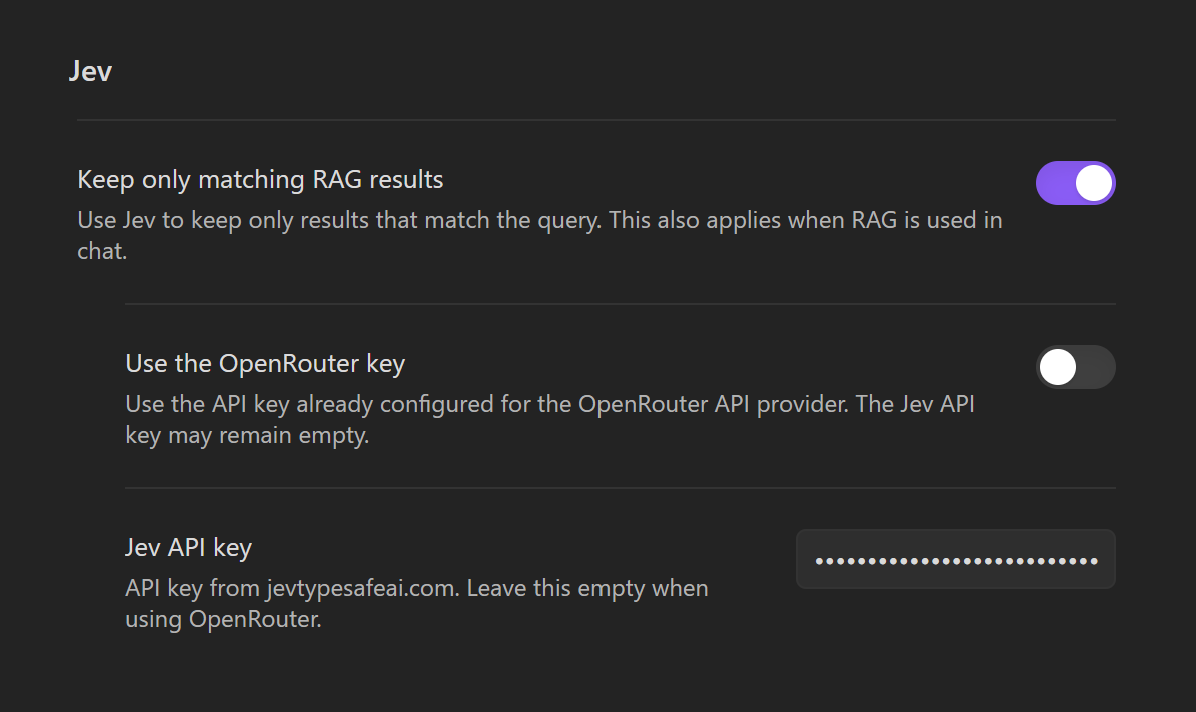
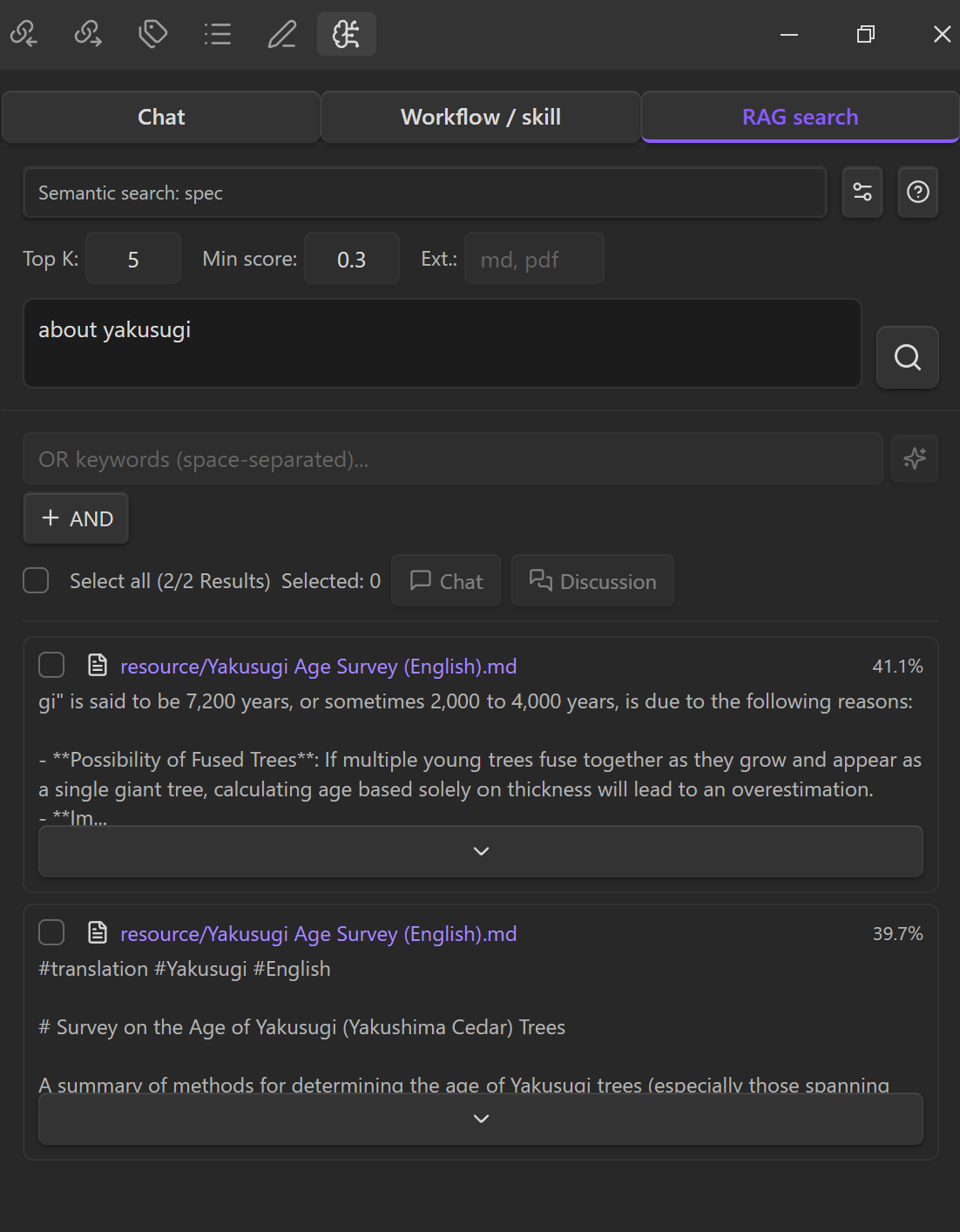
Vector search returns semantically similar chunks, so its results can include text that shares related wording without actually matching the question. Configure shared credentials under Jev in Settings, then toggle Keep only matching RAG results separately for each RAG setting. For example, enable it for notes and disable it for PDFs. Jev filtering also applies when that RAG index is used from Chat, Workflows, or Discord. For a combined index, its own toggle applies to the combined results.
New RAG settings default to ON; existing settings retain the previous global ON/OFF value when upgrading. Filtering is inactive until Jev credentials are configured. In RAG Search, Top K is the number of candidates checked per round. With Jev active, enable Search until an answer is found to check Top K batches in similarity order until matching results are found or no candidates meet the score threshold. All matches from the first successful batch are returned. Leave it off to check Top K candidates once. Repeated checks can increase API usage and search time.
In Chat, select a RAG index and set RAG Top K next to the search selector. Chat uses this many candidate chunks per rag_search call, before Jev filtering, with at most three calls per turn. With Jev active, Search until an answer is found appears beside Top K. Both values are saved per RAG setting, remembered after restarting, and shared with RAG Search, Workflows, and Discord. Workflow command nodes also offer this checkbox when the selected index has Jev active; a node can override the saved preference with ragSearchUntilFound: true or false. Omit this property to follow the index preference.
You can also toggle Filter with Jev in the settings card opened with the settings icon in RAG Search. This saves the selected index's setting and applies from the next search.
For PDFs indexed with Gemini's native embeddings, Jev uses text extracted from the matched pages. If no text can be extracted, the matched pages are rendered as images for Jev to judge, including scanned PDFs without a text layer. This works with both OpenRouter and a direct Jev key. Each scanned chunk uses a separate image request. Results are retained without filtering if rendering fails or exceeds the limits (16 pages or 12 MiB of base64 image data per chunk).
Jev can be configured in either of these ways:
- Enter an official TypeSafe API key created in the TypeSafe console. Direct requests use
https://api.typesafe.ai/v1/systemone, as documented in the official API reference. - If an OpenRouter key is already configured under API providers, enable Use the OpenRouter key; no separate Jev API key is required
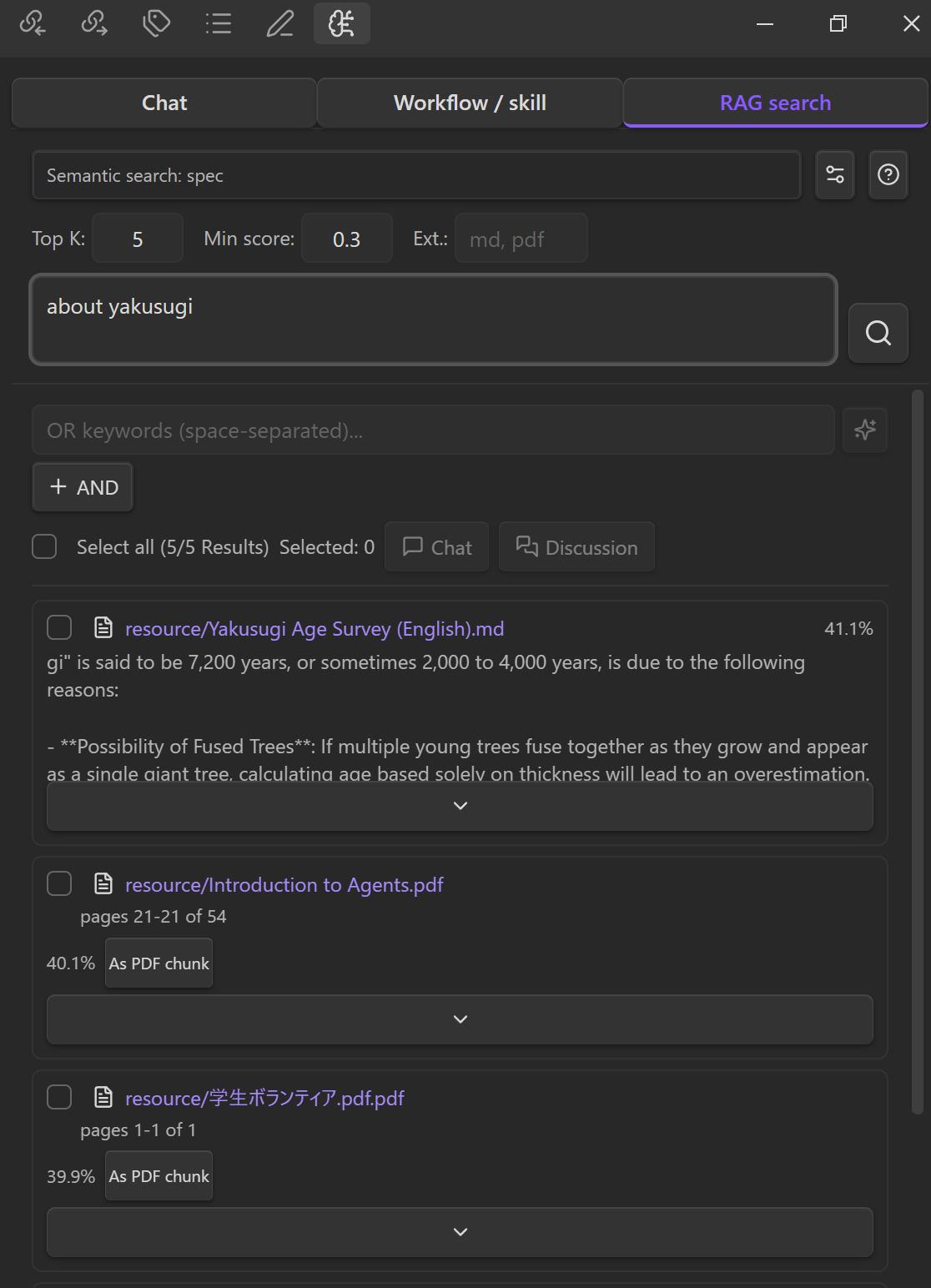
Without Jev, all five results from vector similarity search are displayed for this query.
With Jev enabled, only the two results judged to match the query remain.
RAG Search Tab
The RAG Search tab provides a dedicated interface for searching, filtering, editing, and sending RAG results to Chat or Discussion.
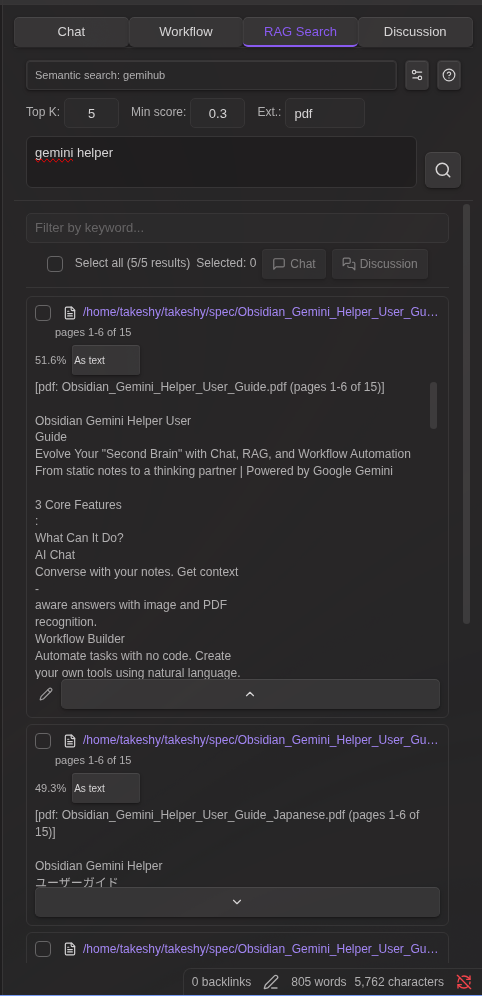
- Semantic search with adjustable Top K and score threshold
- Keyword filter to narrow results after search
- Chunk editor with adjacent chunk loading (prev/next) and overlap removal
- Send to Chat or Discussion — selected results become editable attachments
- Index settings (gear icon) — configure chunk size, overlap, target folders, sync, and more
For full details, see RAG Search Documentation
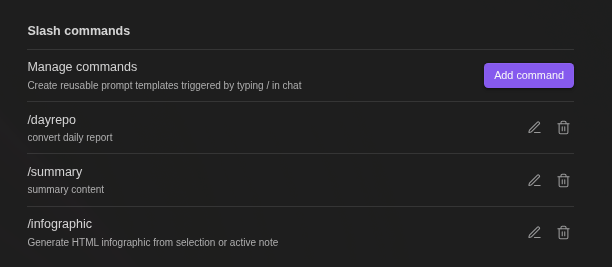
Slash Commands
- Define custom prompt templates triggered by
/ - Optional model and search override per command
Requirements
- Obsidian v0.15.0+
- At least one of: API key (Gemini, OpenAI, Anthropic, OpenRouter, Grok), local LLM server, or CLI tool
- Desktop only (for mobile, see Gemini Helper)
Privacy
Data stored locally:
- API keys (stored in Obsidian settings)
- Chat history (as Markdown files, optionally encrypted)
- Workflow execution history (optionally encrypted)
- RAG vector index (stored in workspace folder)
- Encryption keys (private key encrypted with your password)
Data sent to LLM providers:
- Chat messages and file attachments are sent to the configured API provider (Gemini, OpenAI, Anthropic, OpenRouter, Grok, or custom endpoint)
- Web search uses the selected model provider for built-in search. With Tavily or Brave Search selected, queries go to that service and results are sent to the model as tool context. Gemini requires external search.
- Local LLM providers send data only to your local server
Data sent to third-party services:
- Workflow
httpnodes can send data to any URL specified in the workflow
CLI providers (optional):
- When CLI mode is enabled, external CLI tools (gemini, claude, codex) are executed via child_process
- This only occurs when explicitly configured and verified by the user
- CLI mode executes external CLI tools via child_process
Discord bot (optional):
- When enabled, the plugin connects to Discord via WebSocket Gateway and sends user messages to the configured LLM provider
- Bot token is stored in Obsidian settings
- Message content from Discord channels is processed by the LLM — configure allowed channels/users to restrict access
MCP servers (optional):
- MCP (Model Context Protocol) servers can be configured in plugin settings for workflow
mcpnodes - MCP servers are external services that provide additional tools and capabilities
Security notes:
- Review workflows before running -
httpnodes can transmit vault data to external endpoints - Workflow
notenodes show a confirmation dialog before writing files (default behavior) - Slash commands with
confirmEdits: falsewill auto-apply file edits without showing Apply/Discard buttons - Sensitive credentials: Do not store API keys or tokens directly in workflow YAML (
httpheaders,mcpsettings, etc.). Instead, store them in encrypted files and usenote-readnode to retrieve them at runtime. Workflows can read encrypted files with password prompt.
See each provider's terms of service for data retention policies.
License
MIT
Links
Support
If you find this plugin useful, consider buying me a coffee!
Web search usage: the selected external provider has a usage row in Settings → Web search. Tavily fetches plan, API-key and pay-as-you-go credits only when Show remaining credits is clicked. Brave displays the last observed request quota and timestamp from real searches, without sending an extra search. Values are kept in memory, isolated by API key; they are cleared on plugin reload. Brave quota is a request allowance, not a monetary balance.