
- Overview
- Scorecard
- Updates8
Create customized callouts in any list or highlighted text in Obsidian.
[!NOTE] This project is a fork of obsidian-list-callouts by @mgmeyers, who deserves all the credit for the original plugin and its design. Unfortunately that project has seen no activity since September 2024 and appears to be abandoned by the author.
This fork picks up maintenance and feature development so the plugin keeps working with current versions of Obsidian.
Typing a configurable character at the beginning of a list item turns the item into a highlighted callout:
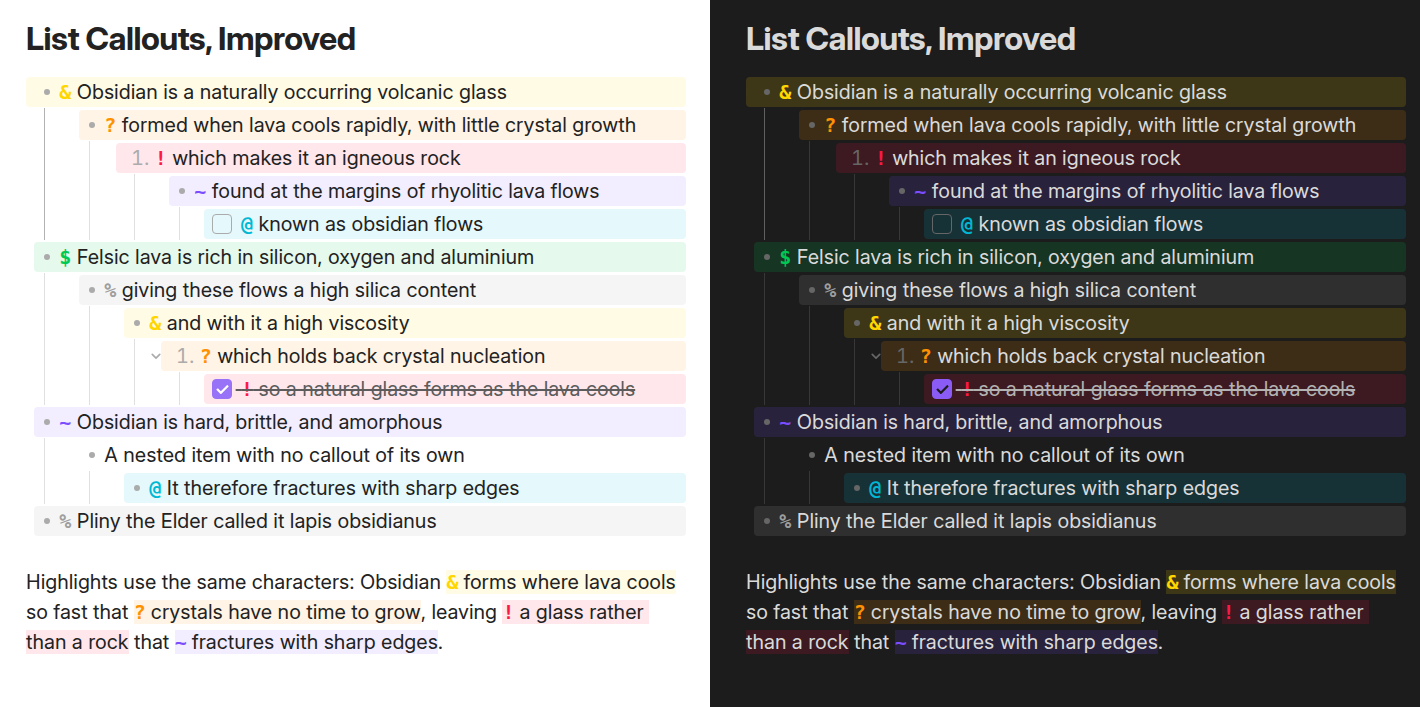
The characters can be replaced with icons:

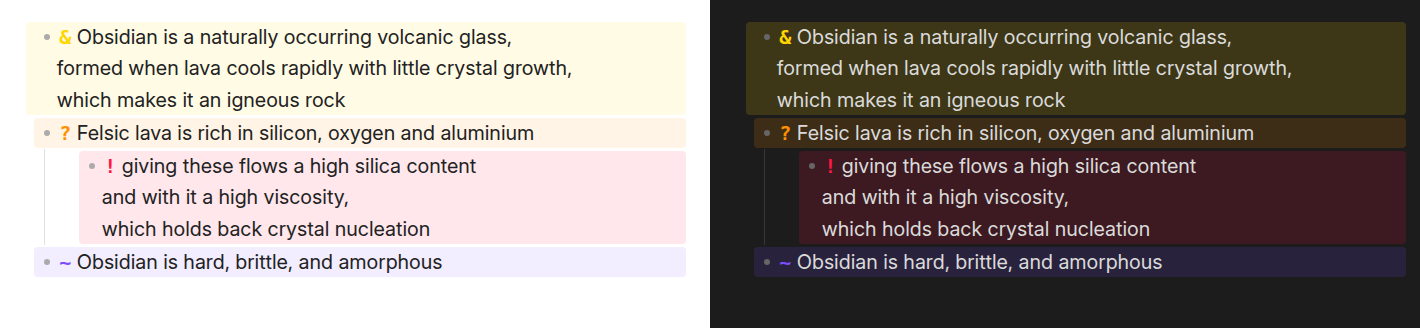
An item whose text runs onto further lines is one callout: the band covers every line of the item, in the editor as in reading view, nested items included:
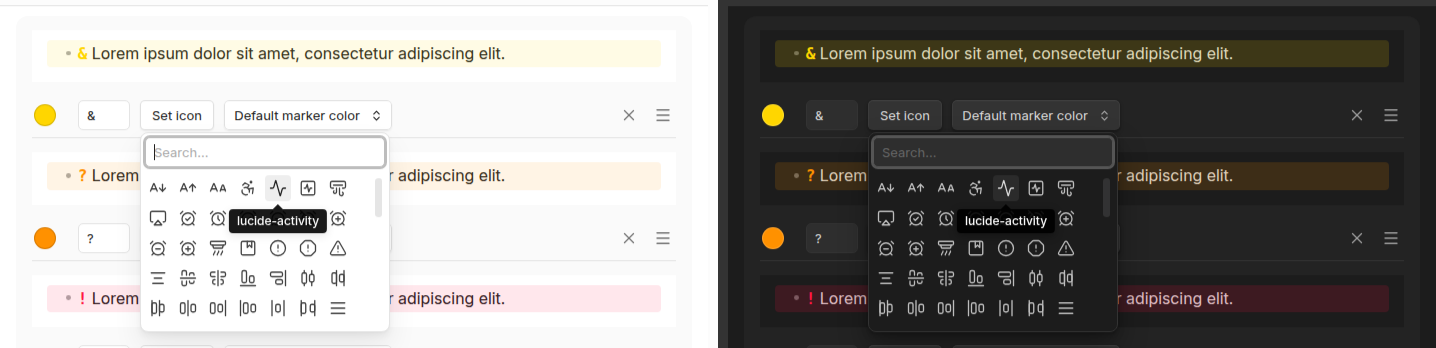
Characters, icons, and colors are all configurable, and you can add your own callouts:
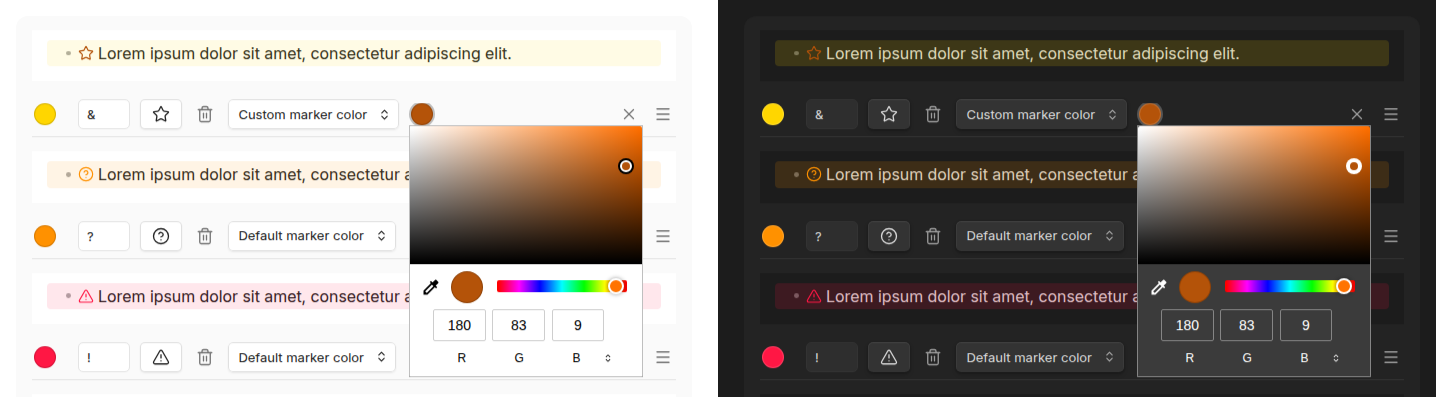
A callout's color paints both its marker and its background. If the marker is hard to read against a faint background, switch Default marker color to Custom marker color and pick a color for the marker alone. The background keeps the callout's color, and the marker color also applies to that callout's highlights:
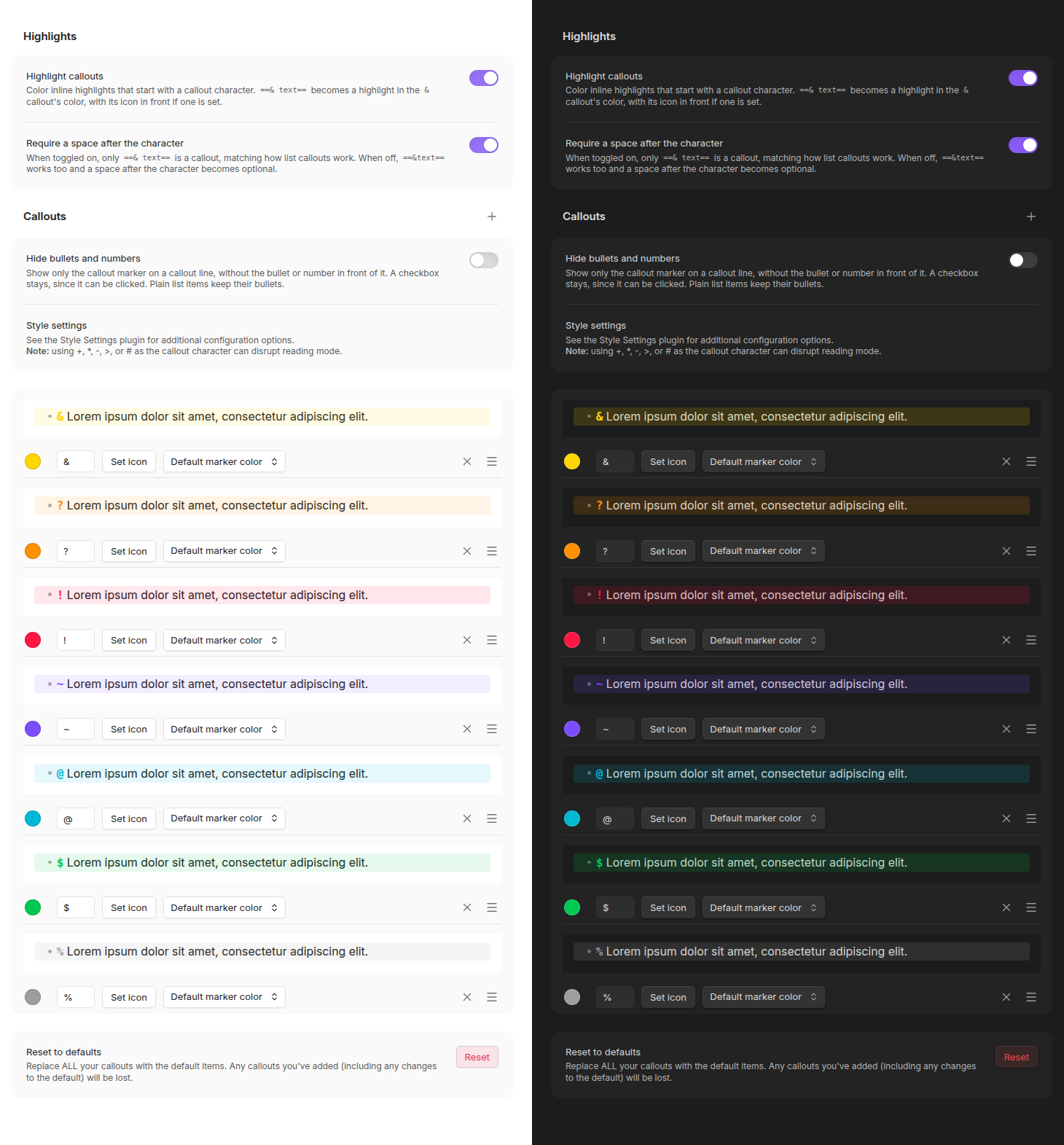
A callout line shows two markers by default: the list's own bullet or number, then the callout's. Turn on Hide bullets and numbers in the settings tab and the callout marker stands in for the bullet, the way a checkbox does. A checkbox stays, since it can be clicked, and plain list items keep their bullets:

The previews in the settings tab follow the toggle, so each callout shows how it will look:
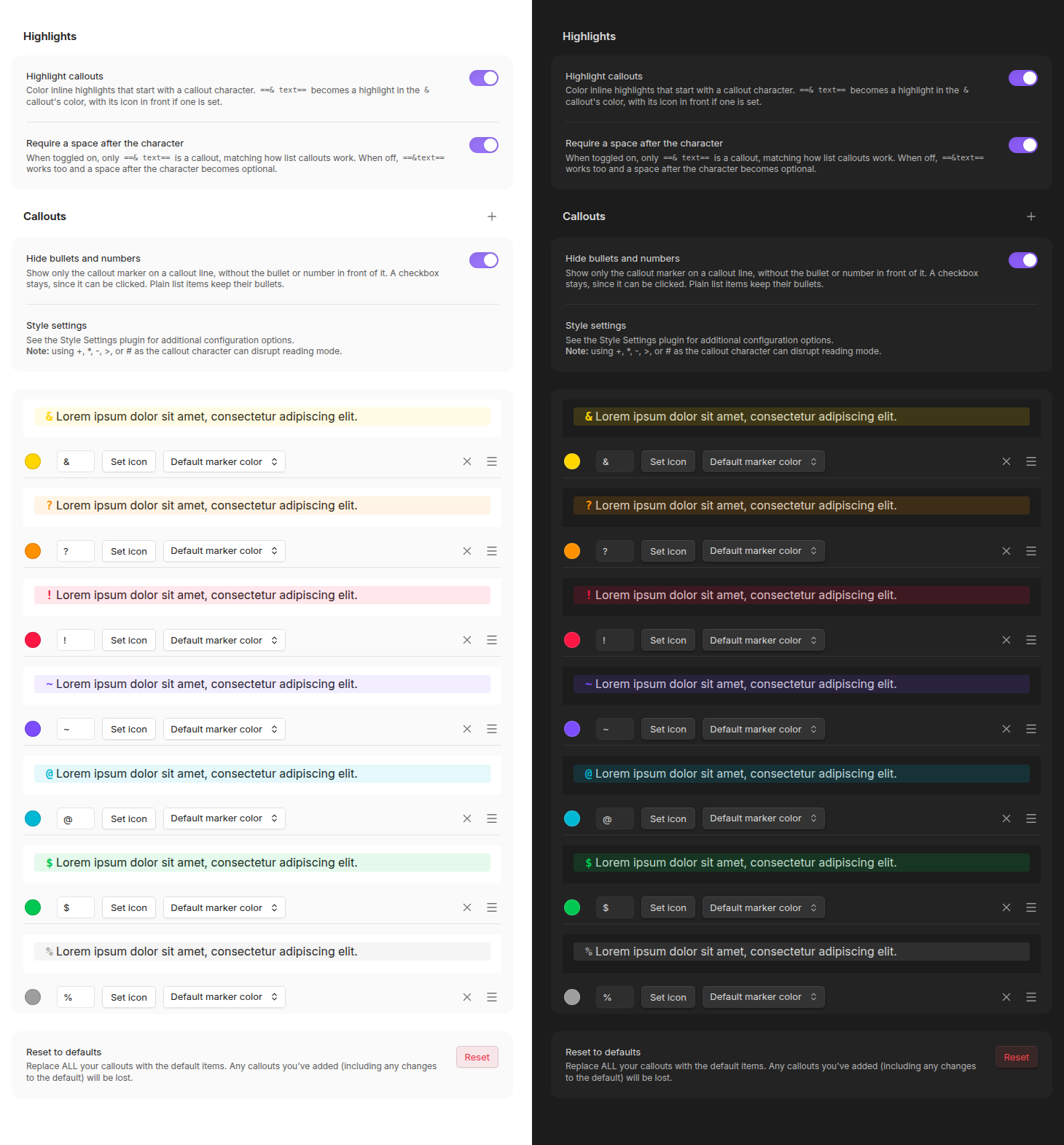
Callouts are drawn in Live Preview and reading view. Source mode shows the raw markdown, - & Important and so on, with no marker, band or highlight color over it, so the callout character is there to see and edit.
Callout padding and background intensity can be adjusted with the Style Settings plugin.
Highlights
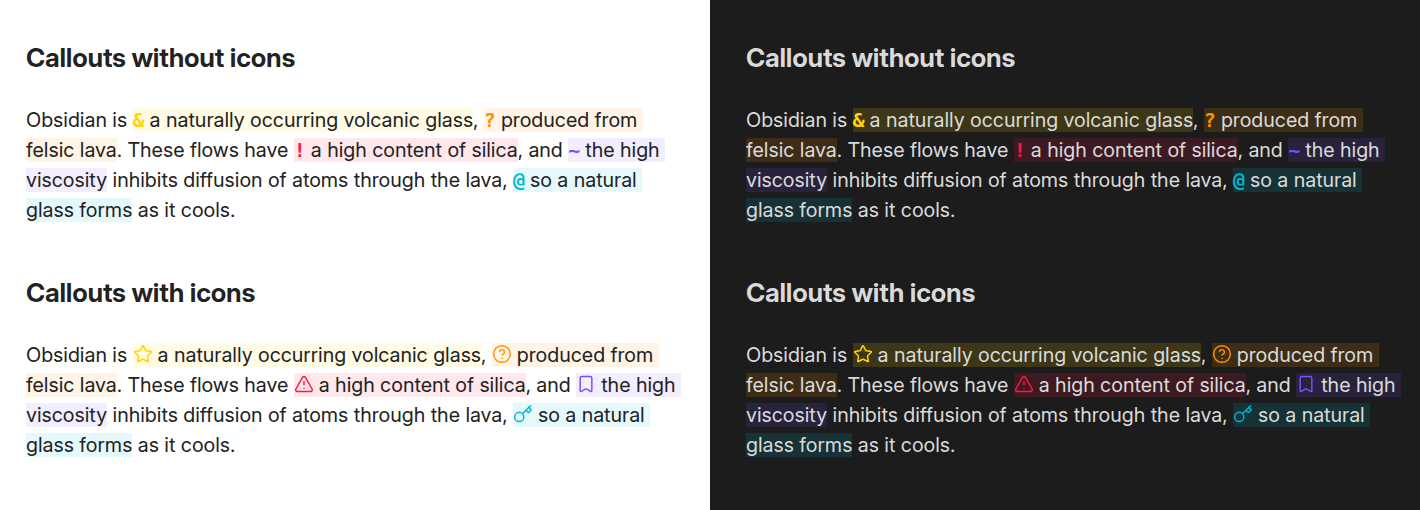
The same callout triggers work inside Obsidian's ==highlight== syntax. Start a highlight with a callout trigger and a space ==* Highlighted text==, and it takes that callout's color, led by the character, or by the icon if one is set:
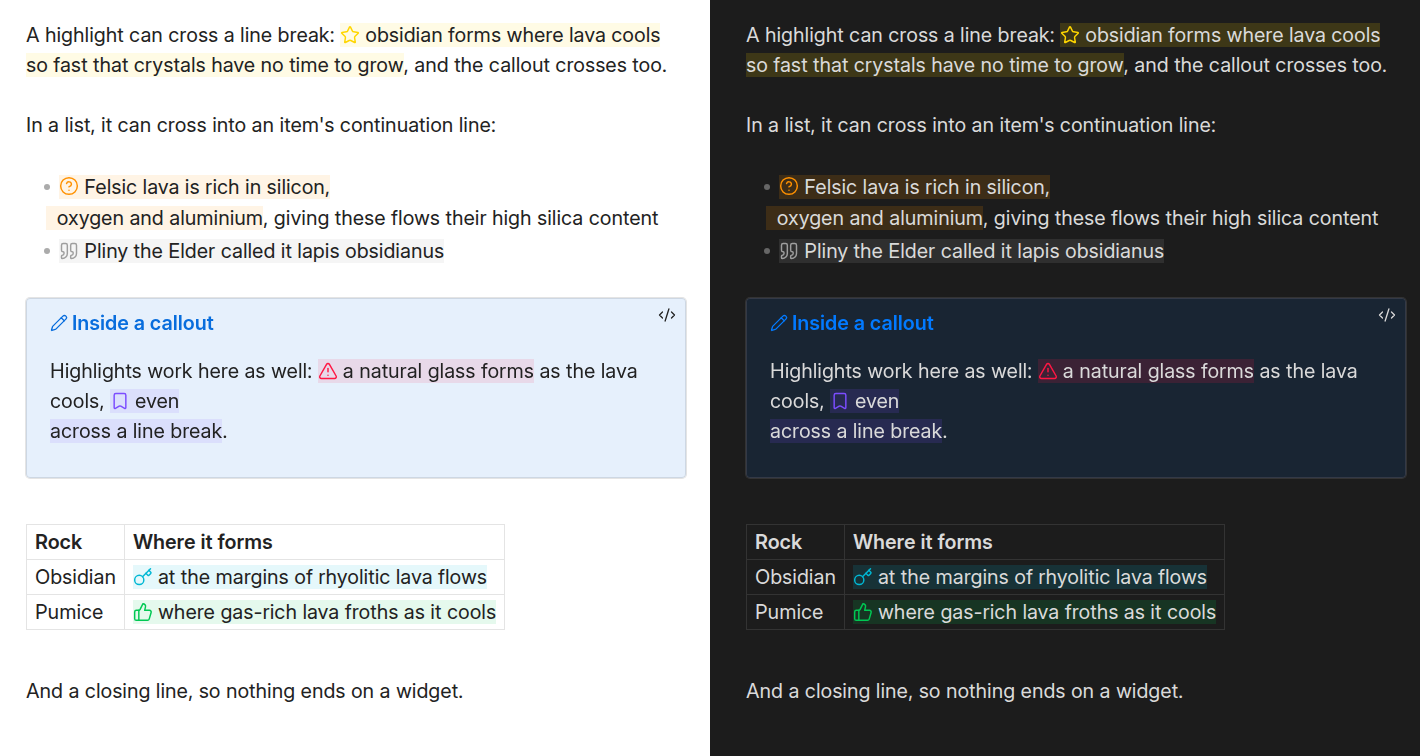
A highlight that runs across a line break is colored as one in both the editor and reading view, including a list item's continuation line. Highlights inside callout blocks and tables work too:
Managing callouts
Callouts are defined in one list. A new vault starts with the seven shown above, and any of them can be edited, reordered by dragging, or deleted, built-in ones included.
Reset to defaults, at the bottom of the settings tab, restores the original seven. It replaces everything currently configured, so added callouts and edits to the built-in ones are lost. It asks for confirmation first and can't be undone.
The order matters: it is the order the cycling commands below step through.
Commands
Each command can be given a hotkey from Settings → Hotkeys. All three act on every line a selection touches, skipping lines that aren't list items, and one undo reverts them all.
| Command | What it does |
|---|---|
| Next callout / Previous callout | Steps the line through the callout list in the order the settings tab shows. A plain list item is part of the cycle: stepping off either end leaves a plain list item, so overshooting wraps around instead of stranding the line, and the two directions are exact inverses. |
| Remove callout | Strips the callout character from the current line, leaving the list item behind. |
Support for custom icons
Any SVG in your vault's .obsidian/icons folder is registered as an icon and appears in the picker alongside the ones Obsidian ships. A file named My Fancy Icon.svg gets the icon name my-fancy-icon.
This is the same folder Iconize uses, so a vault already keeping icons there needs no changes.
Icons are read when the plugin loads, so restart Obsidian or toggle the plugin after adding files. A name that an Obsidian icon already uses is skipped rather than replaced, and a file that is not usable SVG is skipped with a note in the console.
Migrating from List Callouts
This fork uses a new plugin id, so Obsidian treats it as a separate plugin and your existing List Callouts settings won't carry over on their own.
If the original plugin's settings are still in your vault, the settings tab offers an Import from List Callouts button that copies them over.

Once migrated, disable or delete the old plugin.
Development
See docs/DEVELOPMENT.md for building the plugin and docs/TESTING.md for running the test suite.
License
If this plugin is useful to you, please consider buying me a coffee.