Link Link
 Artie Tsoy3k downloads
Link Link! finds semantically similar notes and shows them in a side panel. Click to open, drag into the editor to paste a [[link]], or batch-interconnect your entire vault in one command!
- Overview
- Scorecard
- Updates18
Semantically related notes — right in your sidebar.
Obsidian native graph view is an amazing tool to see connections between your notes and find relevant links. But it requires constant manual link embedding. When a vault grows, many notes may become connected by spirit but lost from each other by actual native Obsidian connections — hence the graph view will display them as orphans.
Link Link! finds semantically similar notes and shows them in a live side panel — ranked, color coded, and ready to link. Click to open, drag into the editor to paste a [[link]], or batch-connect your entire vault in one command!
No cloud services, no subscriptions, no data leaving your machine. Private by default.
Same amount of notes on examples below. More semantic connections between related notes on the right!
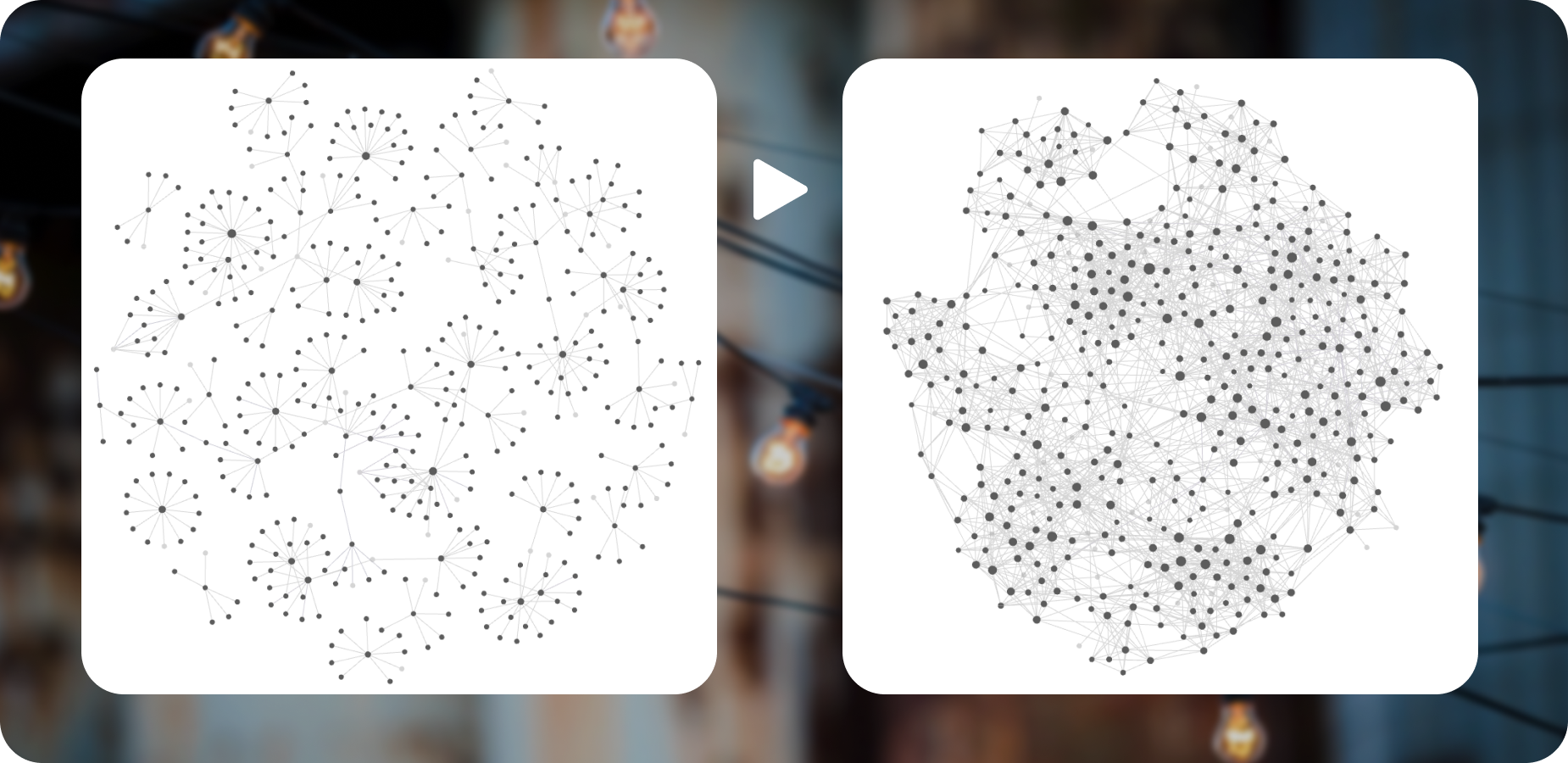
Features overview
- Live similarity panel — updates automatically as you switch notes. Similar notes are ranked by a
0.00–1.00similarity score, where 0 is not similar at all and 1 is an identical note. - List view — notes ranked by similarity score, most relevant on top. Each result has a color coded marker — green for the closest match, grey for the weakest, yellow in between. Spot a note worth linking? Drag it straight into the editor to paste a [[link]], or hit the connection icon to add or remove it from your related: field in one click.
- Graph view — everything in list view, visualised as a graph in native Obsidian style. Connected notes cluster around the current one, unconnected but semantically similar notes float at the edges — ready to be pulled in. Drag a floating node onto the central note to connect it, or drag a connected node to central to disconnect it.
- Multiple embedding backends — use what you already have:
- Built-in (lightweight) — uses
bge-small-en-v1.5via Transformers.js. Downloads automatically the first time you index your vault (~25 MB), then runs fully offline, with no additional setup required. - Local model (Ollama) — connect any locally-running Ollama embedding model for full control and more powerful models. Add as many models as you like. Each gets its own index file, so you can compare and pick the one that works best for you.
- Existing index file — it reads the existing index file if you have one and have set its path in the settings. Zero extra work if you already use an embedding model any where in your vault.
- Built-in (lightweight) — uses
- Interlink Current Note — writes a
related:frontmatter field to the currently open note only, connecting it to its most semantically similar notes. Available as a panel button and a command palette entry. - Interlink Vault — performs semantic search across the entire index, finds the top N similar notes for each one, and populates a
related:field with native Obsidian[[links]]. That way every note finds its connections with other notes that share similar concepts and ideas, even if they were never connected manually. Available as a command palette entry. - Selection Mode — run a semantic search on any selected text passage: select 5 or more words in any note, click the button, and the panel switches to showing notes semantically related only to that passage.
- Live Mode — tracks either your current paragraph or the last N words before the cursor, and re-embeds it automatically a short pause after you stop typing. The panel switches to showing notes semantically related only to that segment.
- Link Suggester — as you type, a small suggestion appears whenever your text matches an existing note's title or alias — no need to type
[[ ]]yourself. Click it, or press Enter right after it, to turn the match into a[[link]]. Multiple suggestions can stay on screen at once, so you can write freely and link things up afterward. - Commands — all major actions are available from the command palette:
- Open related notes panel
- Index Vault
- Interlink Current Note
- Interlink Vault
- Fully configurable:
- Exceptions — list folders and files you don't want affected. You can make some notes referenceable but not modifiable. For example, if you have a Wiki folder, other notes can add wiki pages to their
related:field, but the wiki pages themselves won't be edited. - Similarity threshold — a higher threshold filters similarity more aggressively, while a lower one may surface fewer relevant notes.
0.5is the default and a good starting point. Experiment to find your own sweet value. - Top N results — if your vault is large, you may want to limit how many related notes are shown.
- Auto-index — choose when the index updates: manually only, on Obsidian startup, or automatically on every file save.
- Changes detection — by default the plugin uses the OS file modification timestamp to skip unchanged notes. If your sync tool (Dropbox, iCloud, OneDrive etc.) overwrites timestamps on transfer, you can point it at a custom frontmatter date field combined with Linter plugin.
- Graph view — adjust node colors for similarity groups, their size, link thickness, and forces applied.
related:frontmatter — if you already use that field name in your vault you can configure to use a new custom field name.related:is default and will be used as a reference in this README file.- Link Suggester delay — how long an unclicked suggestion stays on screen before disappearing; set to
0to keep suggestions on screen until you act on them or press Esc.
- Exceptions — list folders and files you don't want affected. You can make some notes referenceable but not modifiable. For example, if you have a Wiki folder, other notes can add wiki pages to their
Requirements
- Obsidian
1.7.2or later - Desktop only (Windows, macOS, Linux)
- For the Local model (Ollama) backend: Ollama installed, running, and the desired embedding model pulled (
ollama pull <model-name>) - For the Existing index backend: an embeddings index file must be present in the vault directory. The plugin will attempt to read and normalize it. Full compatibility is not guaranteed.
Installation
Community Plugins (recommended)
- Open Obsidian Settings → Community Plugins
- Click Browse and search for Link Link
- Click Install, then Enable
Manual
- Download
main.js,manifest.json, andstyles.cssfrom the latest release - Copy them into your vault at
.obsidian/plugins/link-link/ - Reload Obsidian
- Enable Link Link in Settings → Community Plugins
Quick Start
Link Link!: Run setup Wizardvia command palette and go through the brief guided course.- Navigate to any note — the panel updates automatically.
- Click any result to open it, or drag and drop a node outside the panel into the editor to paste a
[[link]]
Related notes side panel presentation
List view
All features on the list view have a tooltip with a description of what this is, and what it does. Just hover your mouse over an element.
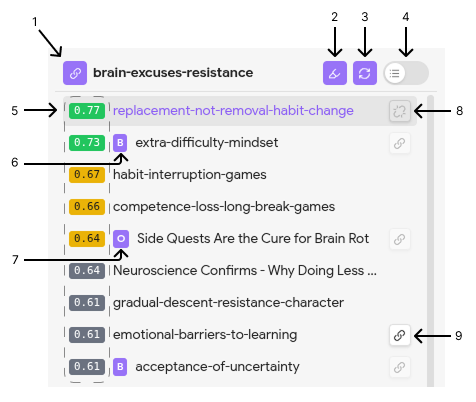
- Interlink current note — updates your frontmatter
related:field with semantically similar notes from the index file. - Selection mode — runs a semantic search on any selected text passage: select 5 or more words in any note, click the button, and the panel switches to showing notes semantically related only to that passage.
- Live Mode — tracks either your current paragraph or the last N words before the cursor, and re-embeds it automatically a short pause after you stop typing. The panel switches to showing notes semantically related only to that segment.
- Update panel — side panel should update in a real time, but in case it would not pick up your recent action, you can force update it right now.
- Switch display mode — hop from list view to graph back and forth with this toggle.
- Similarity score — the closer the value is to 1, the more similar this note is to your current note.
Bbadge — B stands for Backlink. Notes in the list with this badge have current note referenced in them.Obadge — O stands for Outgoing links. Notes in the list with this badge are referenced in the current note's text.- Remove from
related:— removes this note from current note'srelated:frontmatter field. Basically removes a connection. Keep in mind that a note can still be connected if it hasBorObadges. - Add to
related:— add this note to current note'srelated:frontmatter field. Basically creates a connection.
Notes with B or O badges are already connected to current note in their way. That's why their Add button is transparent — so unconnected notes stand out.
Remove button only appears when you hover over a note in the list.
Graph view
A non-obvious feature: drag and drop nodes onto the central node in the Graph view to link or unlink the grabbed note:
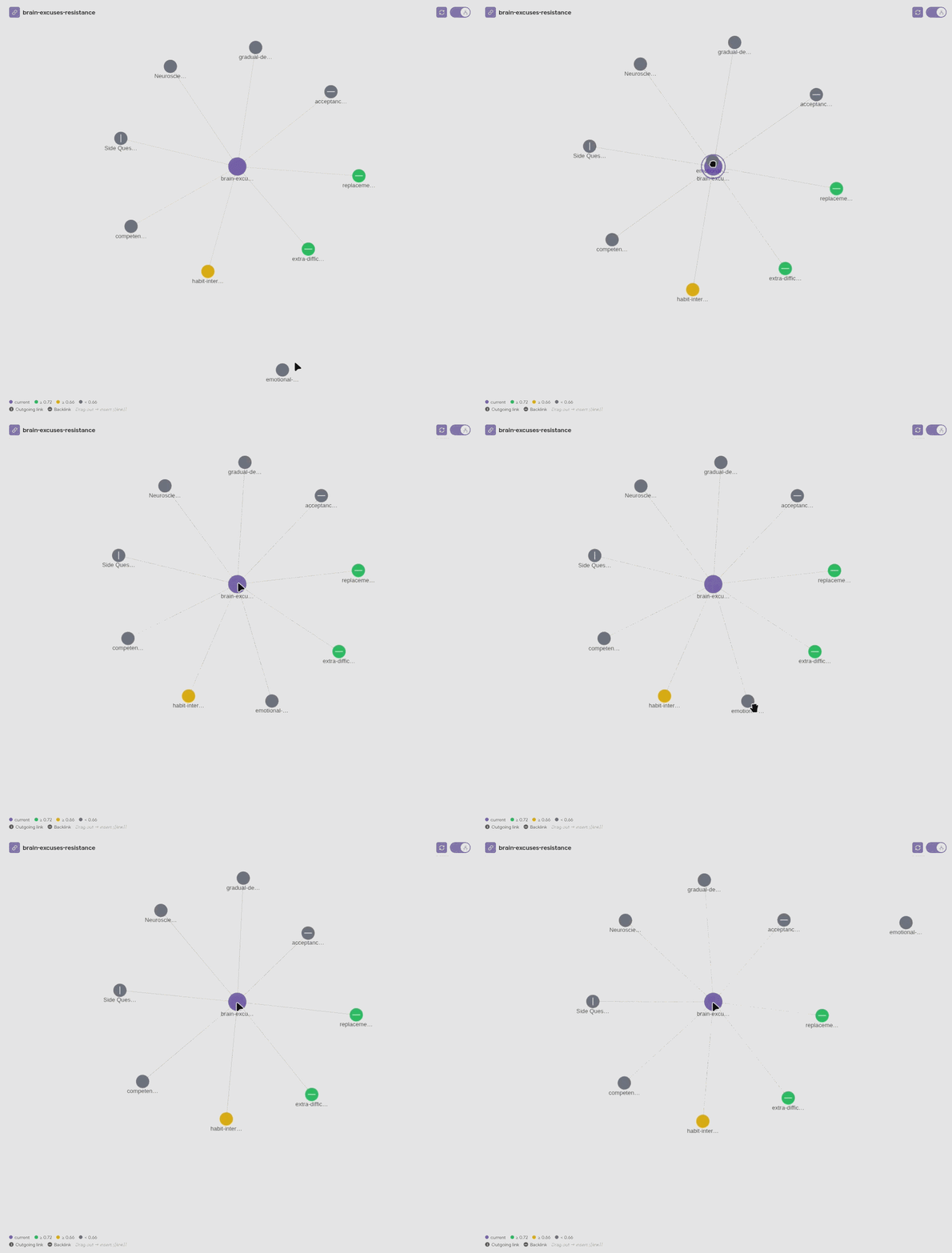
Link Link! graph view replicates Obsidian's native Graph. It was intended to replace Local Graph View by showing more info and expanding linking functionality.
How It Works
Link Link! represents each note as a vector — a list of numbers that encodes its meaning. Notes that are semantically similar end up with vectors that point in similar directions. The similarity score is the cosine of the angle between two vectors: 1.0 means identical, 0.0 means unrelated.
The index stores one embedding vector per note. The notes themselves are not modified by indexation process. On subsequent runs, only notes whose modification timestamp has changed are re-embedded — so incremental indexing is fast even for large vaults.
Interlink command:
- reads the index
- compares its entry with each note (or only the current one)
- finds semantically similar notes based on similarity score
- modifies notes'
related:frontmatter field by adding [[wiki-links]] list of similar notes. ONLYrelated:FIELD IS MODIFIED. Other notes' content stays untouched.
Privacy
Everything runs on your machine. No notes, embeddings, or metadata are ever sent anywhere. The only network activity, by embedding source:
- Built-in (default): on first index, downloads the model (~25 MB, from Hugging Face) and the ONNX WASM runtime (from the jsDelivr CDN). Both are cached locally after that — no network connection is needed again, the plugin runs fully offline.
- Local model (Ollama): sends requests only to the Ollama server URL you configure (
http://localhost:11434by default) — never leaves your machine. - Existing index file: reads a file already inside your vault. No network activity at all.
No file system access outside your vault.
Contributing
I'm not a software engineer — I created this plugin for myself with the help of Claude Code. Since it worked very well for me, I wanted to share it with people who might need the same tool.
Bug reports and feature suggestions are welcome.
Feel free to initiate issues and pull requests github.com/Artieficr/link-link.
Plugin pricing
Link Link! will stay free forever, no matter what features are added in the future.
If my plugin helped you, consider tipping me on Ko-fi as a sign of your gratitude. Tips are unnecessary but much appreciated.