Library Shelf
 toyotathief67 downloads
Library shelves for books and movies. Entries live as rows in a ledger note — no file per title unless it earns one.
- Overview
- Scorecard
- Updates5
Library shelves for books and movies. Entries live as rows in a ledger note with an optional note attached
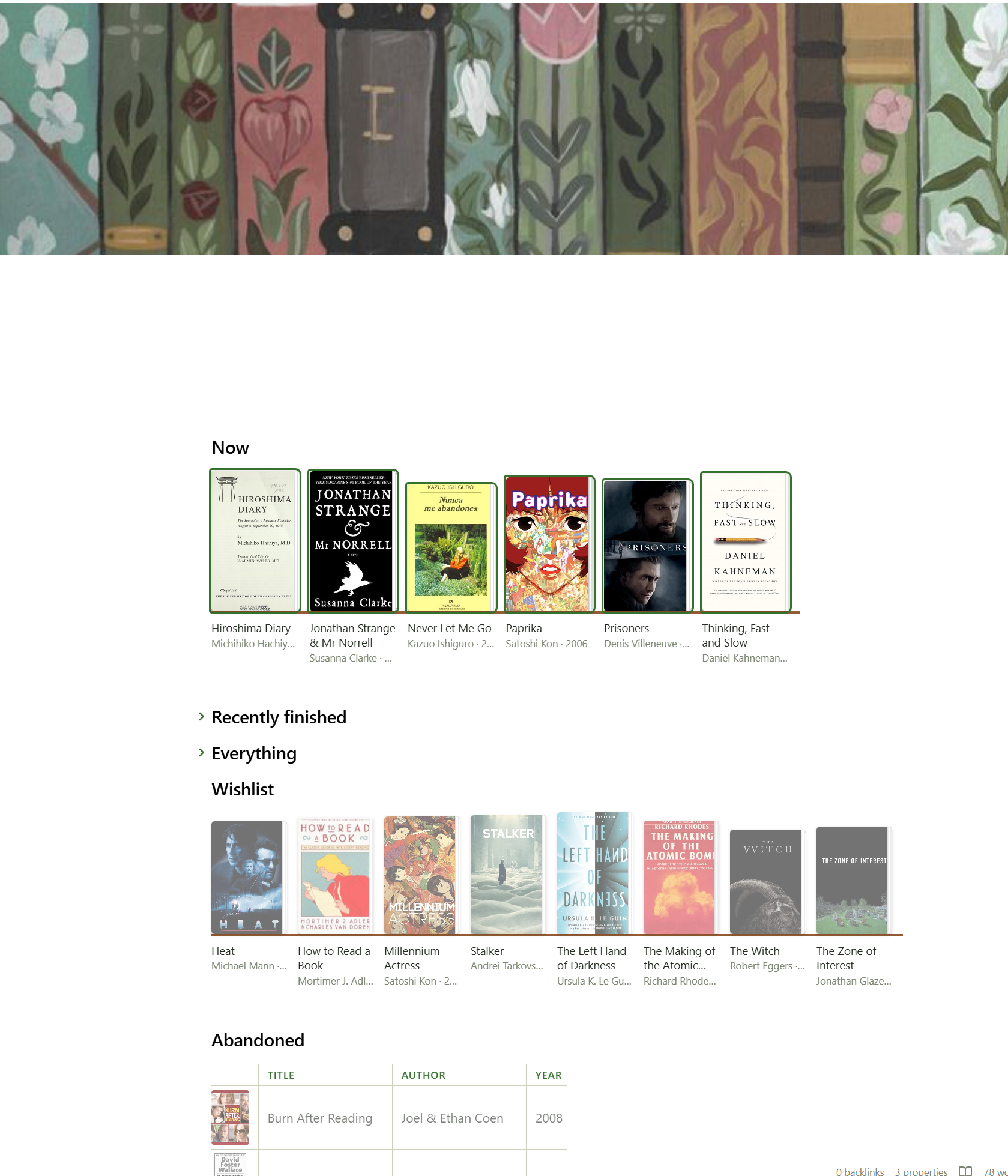
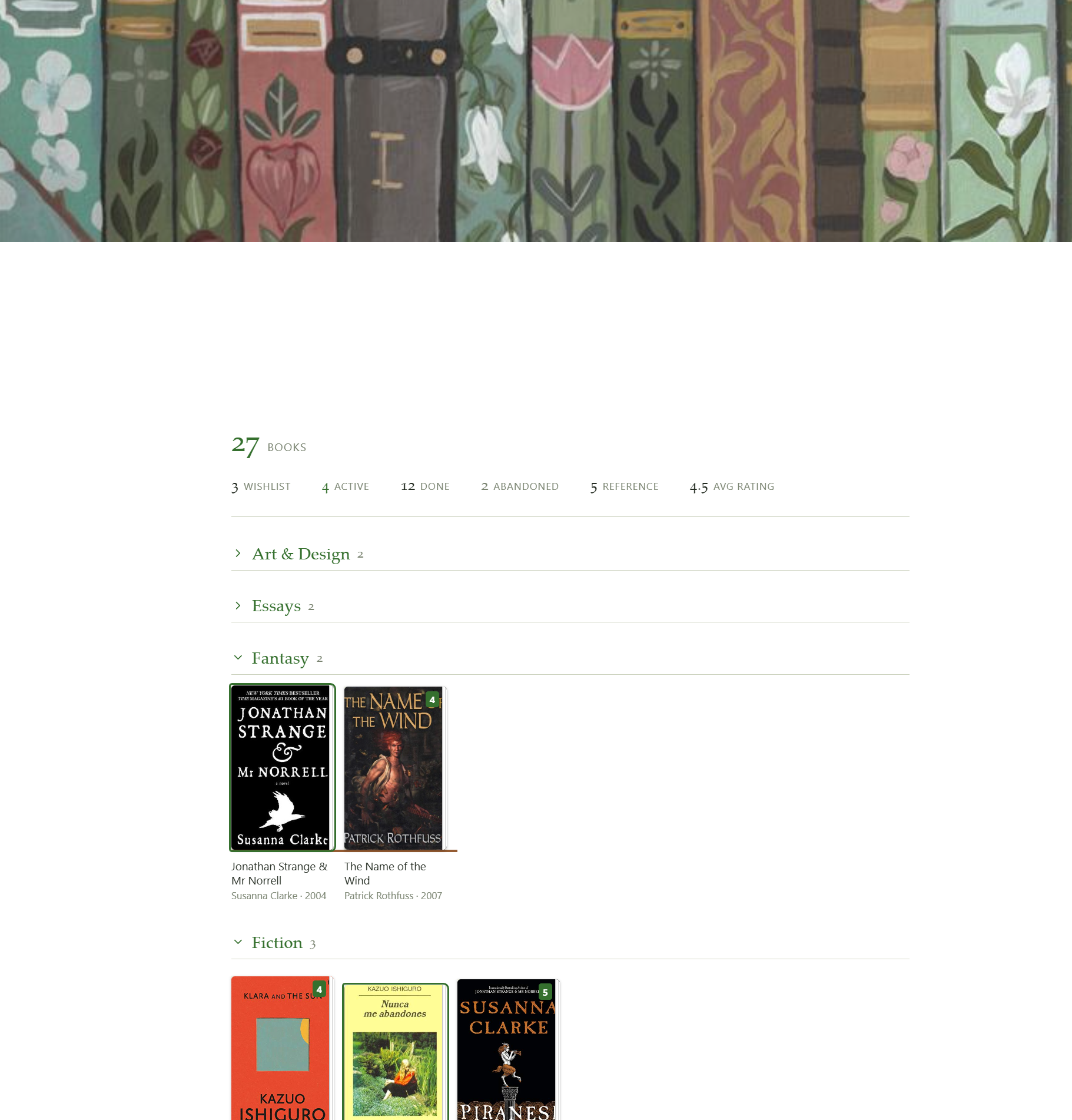
The ledger
Any note with a fenced json or yaml block shaped { library: [ … ] }. The
rest of the note is left alone, so a ledger can carry prose and render its own
shelf.
```yaml
library:
  - title: Hiroshima Diary
    author: Michihiko Hachiya
    shelf: Non-Fiction
    isbn: "9780807845479"
    status: active
  - title: Arrival
    director: Denis Villeneuve
    year: 2016
    shelf: Sci-Fi
    status: done
    rating: 5
    finished: [2024-08-19, 2026-01-04]
```
Only title is required, it will sort with any category.
Fields
| Field | |
|---|---|
title |
Required |
author / director |
Whichever is set is displayed |
year |
|
status |
wishlist · active · done · abandoned · reference |
rating |
A number. Halves are fine |
finished |
A list of dates — a reread is another entry, not an overwrite |
shelf |
Free-text grouping |
cover |
Image URL. Overrides derivation |
isbn / asin |
Derives a cover when cover is unset |
note |
Path to a real note, once one exists |
Adding entries
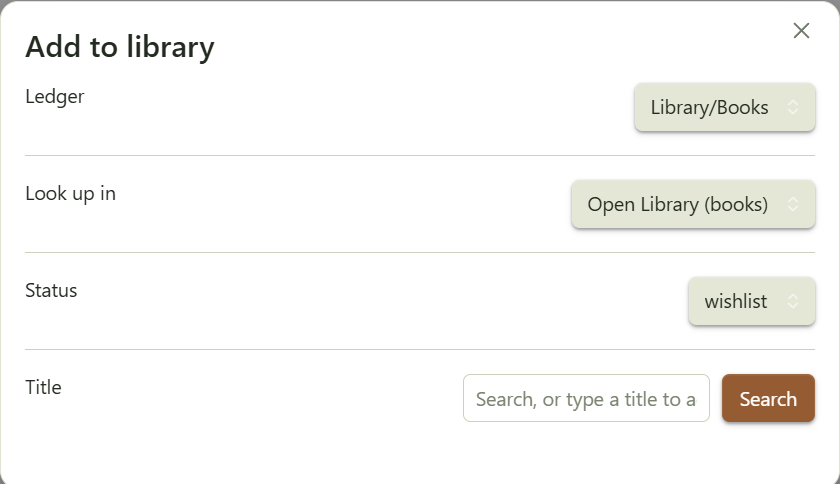
Command palette → Add to library. Pick a ledger, search, click a result; the entry is appended to the ledger's data block in whatever format that block already uses. "Don't look up" adds a bare title.
Books search Open Library. No API key. Films search TMDB. Needs a free key in settings.
1. Make a Books and Movies note, seed with:
```library-shelf
group: shelf
total: books
stats: true
```

```yaml
library:
  - title: Everything Is F*cked
    author: Mark Manson
    shelf: Non-Fiction
    isbn: "9780062888433"
    status: done
    rating: 3.5
  - title: Miss Sunflower
    author: Sugano Manami
    shelf: Fiction
    isbn: "4840137390"
    status: wishlist
```
The Movies note is the same with
total: movies. Droptotalandstatsand the grid still renders, but you lose the count and the clickable status breakdown above it.
2. Make Library hub note and seed with:
## Now

```library-shelf
from: [Library/Books, Library/Movies]
where:
  status: active
size: 96
empty: Nothing on the go.
```
3. Lookup and append. Command palette → Add to library. Ledger
Library/Books.md, status wishlist, search your book.
- you get the entry instead of a second row — with its status, rating and sitting count — and three choices: record another sitting (appends today to
finished), change its status, or add it as a separate entry anyway.
Giving media its own note
Command palette → Create note for a library entry.
- Pick a ledger, click a title: it makes the note, drops a
library-cardblock in it and writesnote:inot ledger row. Entries that already have a note aren't listed.
By hand: create the note, add note: <path> to the corresponding ledger entry, and add the block below to the start of the note:
A library-card block renders the entry at the top of its own note:
```library-card
```
Library Hub View
A hub is one note of library-shelf blocks reading across every ledger, each under
its own heading. The whole thing, in one paste:
## Now

```library-shelf
from: [Library/Books, Library/Movies]
where:
  status: active
size: 96
empty: Nothing on the go.
```

## Recently finished

```library-shelf
from: [Library/Books, Library/Movies]
where:
  status: done
sort: -finished
limit: 12
size: 96
```

## Everything

```library-shelf
from: [Library/Books, Library/Movies]
group: medium
size: 88
```

## Wishlist

```library-shelf
from: [Library/Books, Library/Movies]
where:
  status: wishlist
size: 88
```

## Abandoned

```library-shelf
from: [Library/Books, Library/Movies]
where:
  status: abandoned
layout: table
columns: [cover, title, author, year]
empty: Nothing abandoned. Suspicious.
```
With no from, the block reads the note it's in.
Which entries to show
| Option | |
|---|---|
from |
Which ledgers to read — from: [Library/Books, Library/Movies] |
where |
Only entries matching these fields — where: {status: active} |
sort |
What order — sort: -finished puts the most recent first |
limit |
Show at most this many |
How to arrange them
| Option | |
|---|---|
group |
Split into sections, each with a heading and a count — group: shelf. Entries missing the field land under "Unshelved" |
total |
The big number above the shelf — total: books prints "27 books" |
stats |
The status breakdown under that number. Click one to filter the shelf. Needs total |
How it looks
| Option | |
|---|---|
size |
How wide each cover is, in px |
layout |
grid (default) or table |
columns |
Which columns a table shows. Default: cover, title, author, year, rating |
empty |
What to say when nothing matches |
activegets an accent outlinewishlistdims until hoverabandoneddesaturates. Editing a ledger repaints every open shelf that reads it.totalcounts everythingwherematched, beforelimittrims the display — a number that shrinks when you cap the grid isn't a total.Group headers fold. Click one to collapse its shelf.
Appearance
Four CSS variables are the tuning knobs, settable on .lib-shelf in a snippet:
| Variable | |
|---|---|
--lib-plinth |
Shelf board colour. Defaults to the theme's third accent |
--lib-paper |
Fore-edge colour |
--lib-book-gap |
Space between books |
--lib-display |
Serif face for shelf names and counts |
Covers
An explicit cover always wins. Otherwise, with Derive covers enabled:
isbn→ Open Library. Free, no key, but coverage is patchy — it misses a lot of manga and older printings.asin→ Amazon's image CDN. Unofficial, but it resolves.
Anything that fails to load falls back to a titled card in the theme's accent colour. Misses are common enough that this is a normal state, not an error.
Settings
Ledger folder · notes folder · default layout · cover width · derive covers · TMDB API key.
Logic checks without Obsidian
main.js requires obsidian at load, so testing outside the app means stubbing
it. The parser, query layer, cover resolution and append round-trip are all
covered that way, with recorded output.
Licence
MIT.