Lectern
 Jared Winslow2 downloads
Preview docx/xlsx/pptx and 130+ code files. Selectable pptx text, zoom, edit and save, and Word-style margin comments stored as markdown in your vault, on PDFs too.
- Overview
- Scorecard
- Updates4
Read your lecture files inside Obsidian, select and copy the text, and leave margin comments that live in your vault as plain markdown.
What it does
- Opens Office and code files.
.pptx,.docx,.xlsx,.xls, and 130+ code and text formats, with syntax highlighting, zoom and pan. - Slide text is real text. Drag-select and
Ctrl+Cwork on slides. Other preview plugins draw slides to a canvas, which is just pixels. - Copies a deck out as markdown.
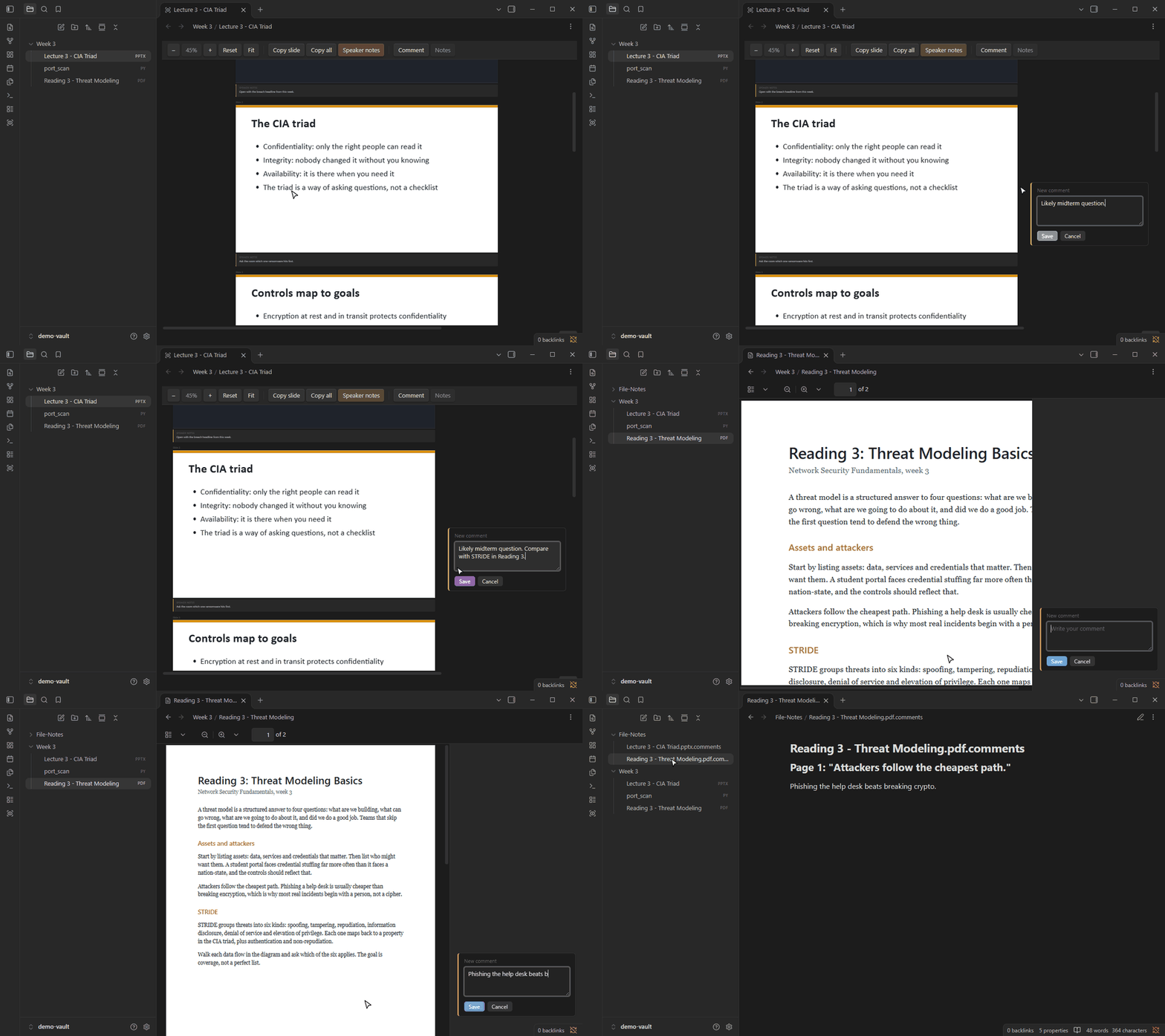
Copy slidegrabs one slide;Copy allexports the whole deck with one heading per slide. Speaker notes show under each slide. - Word-style margin comments. Select text, run Comment on selection (or your hotkey for it), write a note. Cards sit in a right-hand margin with a line to the highlight.
- Comments on PDFs too, inside Obsidian's own PDF viewer. Right-click a selection and pick Highlight and comment. Page links, search and thumbnails keep working.
- Your files are never modified. Comments go to a sidecar note in
File-Notes/, so they show up in search, backlinks and sync like any other note.
Install
From a release (recommended). Download main.js, manifest.json and styles.css from the latest release into:
<your vault>/.obsidian/plugins/lectern/
Then fully quit and reopen Obsidian, and enable Lectern under Settings → Community plugins. A plugin reload is not enough the first time, because Obsidian only registers new file types at startup.
Set a hotkey. Lectern ships without one so it can't clash with yours. Go to Settings → Hotkeys, search "Lectern: Comment on selection", and bind it. Ctrl+Alt+M is the one the author uses, and the one Word uses for a new comment.
Desktop only. Lectern needs Obsidian 1.14 or later on Windows, macOS or Linux.
From source.
git clone https://github.com/Sqxirts/lectern.git
cd lectern
npm install
npm approve-scripts esbuild   # npm blocks postinstall scripts by default
cp .env.example .env.local    # set LECTERN_OUT to <vault>/.obsidian/plugins/lectern
npm run build
Without LECTERN_OUT the build goes to ./dist.
Usage
| To | Do |
|---|---|
| Comment on a selection | The Comment toolbar button, or the Comment on selection command |
| Comment on a PDF selection | Right-click → Highlight and comment, or the same command |
| Copy one slide / the whole deck | Copy slide / Copy all in the toolbar |
| Zoom / pan | Ctrl+scroll or the toolbar; middle-drag to pan |
| Hide a finished comment | Resolve on the card |
| Edit a text or code file | Edit, then Save in the toolbar |
Settings cover the comment folder, default zoom, speaker notes, showing resolved comments, PDF comments on or off, and per-file-type toggles for when another plugin already handles a format.
A comment card and its sidecar entry look like this:
## Slide 2: "The triad is a way of asking questions, not a checklist"

Likely midterm question. Compare with STRIDE in Reading 3.
Each comment remembers the exact quote plus the text around it. If the file changes, Lectern finds the quote again; if it can't, the card is flagged orphaned instead of disappearing. Details in docs/comments.md.
What it touches outside your vault
On Windows only, slides that contain old Windows vector images (EMF/WMF), which browsers can't display, are converted to PNG through PowerShell and the built-in .NET imaging library. Each image is written to a temporary folder in your system temp directory (lectern-emf-*), converted, and the folder is deleted straight away. On macOS and Linux those images show a labelled placeholder instead. Nothing else leaves the vault, and Lectern makes no network requests.
Known limits
- Slide fidelity is practical, not pixel-perfect. No SmartArt, animations, embedded media or 3D, and fonts are not embedded. That is the trade for selectable text.
- PDF comments need a text layer, so scanned PDFs can't be commented. One comment can't span two pages, and PDF embeds inside notes (
![[x.pdf]]) aren't covered. - PDF comments use Obsidian internals that aren't public API (tested on Obsidian 1.14.4). If an update breaks them, the feature switches itself off with a notice and the viewer keeps working. It also stays off while PDF++ is enabled.
- Code files can be commented in read mode only.
- Spreadsheets are capped at 5,000 rows and 256 columns per sheet.
Development
npm run dev        # rebuild on save
npm test           # vitest
npm run typecheck
After the first launch you can pick up a rebuild by toggling the plugin off and on. Test fixtures are generated, not committed: python fixtures/make_fixtures.py (needs python-pptx, python-docx, openpyxl).
- docs/architecture.md: how the code is laid out, the PDF internals, HTML sanitising, dependencies
- docs/comments.md: the sidecar format and how anchors are resolved
- tools/demo/: re-records the GIF above