
- Overview
- Scorecard
- Updates3
→ English (en) | 中文
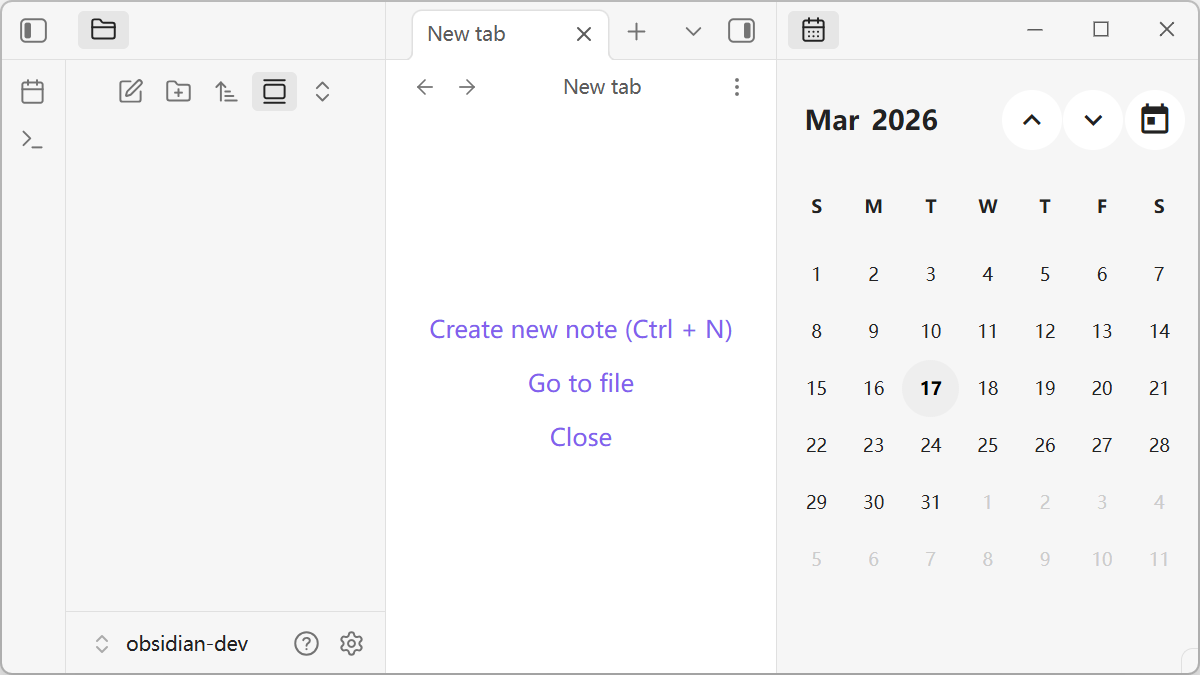
Just a calendar which works with the "daily notes" core plugin.
Features
- Bidirectional linkage: Sync between calendar and daily notes.
- Quick jump: Easily navigate between years and months.
- Keyboard support: Fully operable via keyboard shortcuts.
- Scroll navigation: Support for page turning using the mouse wheel.
Installation
From Obsidian Community Plugins (Recommended)
- Open Obsidian settings.
- Navigate to Community plugins -> Explore.
- Search for "Just Calendar".
- Click Install, then Enable.
Manual Installation
- Download the latest release (
main.js,manifest.json,styles.css) from the GitHub Releases. - Create a folder named
just-calendarin your vault's plugin folder:<vault>/.obsidian/plugins/just-calendar/. - Copy the downloaded files into that folder.
- Open Obsidian, go to Settings -> Community plugins, and enable Just Calendar.
Building from Source
- Clone this repository.
- Install dependencies by running
pnpm install. - Build the plugin by running
pnpm run build. - Copy
main.js,manifest.json, andstyles.cssto<vault>/.obsidian/plugins/just-calendar/.
Usage
- Open Calendar View:
- Open the Command Palette (
Ctrl/Cmd + P), search forJust Calendar: Open calendar viewand press Enter. - Or configure a hotkey for it in Settings.
- Open the Command Palette (
- Create/Open Daily Notes: Click on any date on the calendar. If the daily note for that day doesn't exist, you will be prompted to create one.
- Navigate: Use keyboard arrows or the mouse scroll wheel to change months or years.
Acknowledges
- CalendarJS: https://calendarjs.com/
Obsidian 插件:Just Calendar
→ 中文文档 (zh) | En
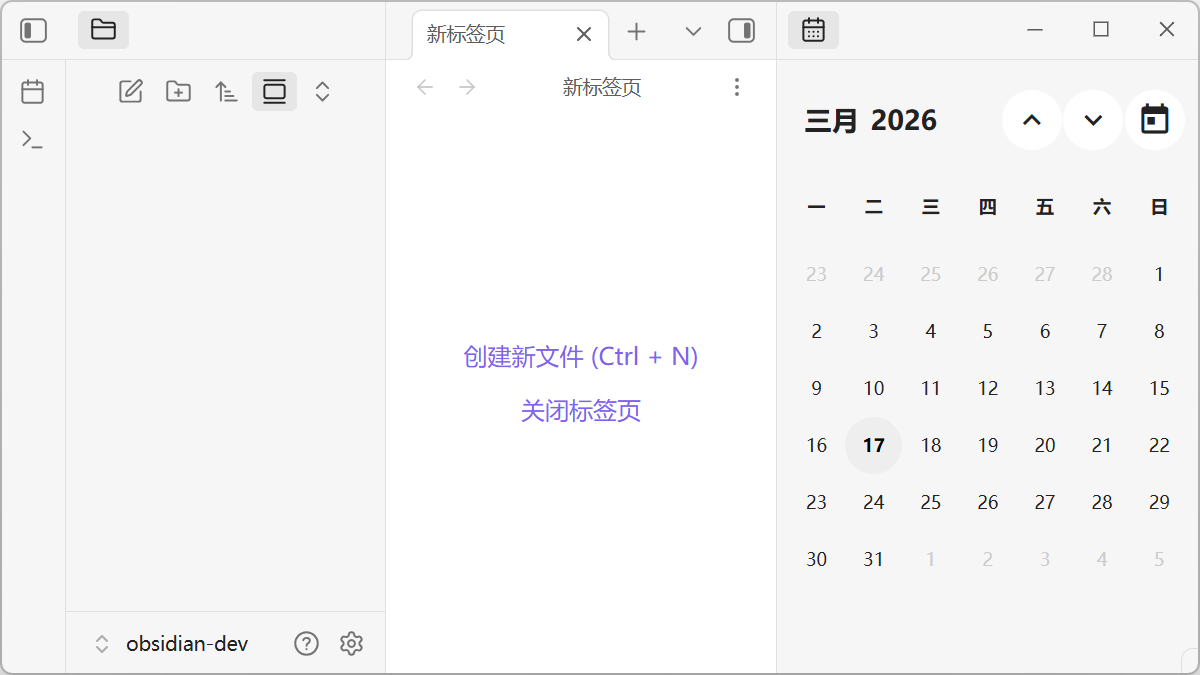
一个配合“日记”核心插件使用的简单日历,仅此而已。
特点
- "日历-日记"双向联动
- 年/月快速跳转
- 支持键盘操作
- 支持滚轮翻页
安装
插件市场(推荐)
- 打开 Obsidian 设置。
- 导航至 第三方插件 (Community plugins) -> 浏览 (Explore)。
- 搜索 "Just Calendar"。
- 点击 安装 (Install),然后点击 启用 (Enable)。
手动安装
- 从 GitHub Releases 下载最新版本的发布文件(包括
main.js、manifest.json、styles.css)。 - 在您的保管库插件目录中创建文件夹
just-calendar:<vault>/.obsidian/plugins/just-calendar/。 - 将下载的文件复制到该文件夹中。
- 打开 Obsidian,进入 设置 -> 第三方插件,然后启用 Just Calendar。
源码构建
- 克隆该仓库。
- 运行
pnpm install安装依赖。 - 运行
pnpm run build进行构建。 - 将
main.js、manifest.json和styles.css复制到<vault>/.obsidian/plugins/just-calendar/。
使用
- 打开日历视图:
- 打开命令面板(快捷键
Ctrl/Cmd + P),搜索Just Calendar: 打开日历视图并回车。 - 或者在设置中为此命令配置快捷键。
- 打开命令面板(快捷键
- 创建/打开日记:点击日历上的任何日期。如果当天的日记不存在,系统会提示您是否创建。
- 导航:使用键盘方向键或鼠标滚轮进行翻页(切换月份和年份)。
致谢
- CalendarJS: https://calendarjs.com/
HealthExcellent
ReviewCaution
About
Display a compact calendar synced bidirectionally with Obsidian's Daily Notes. Jump quickly between months and years and navigate entirely via keyboard or mouse-wheel scrolling.Details
Current version
0.4.4
Last updated
Last month
Created
6 months ago
Updates
3 releases
Downloads
411
Compatible with
Obsidian 1.12.0+
Platforms
Desktop, Mobile
License
MIT