Inkstone PDF
 virkiin18 downloads
Handwrite and annotate PDF pages with pressure, layers and a boolean eraser. Your PDF is never modified.
- Overview
- Scorecard
- Updates2
English | 中文
Handwrite, sketch and annotate directly on PDF pages inside Obsidian — with pressure, layers, undo/redo, and annotations stored separately so your PDF is never modified.
Inkstone PDF (id
inkstone-pdf) · desktop only · Obsidian 1.8.0+
⚠️ Early preview
0.1.2is an early preview, not a finished product. The code is written by DSH (DeepSeek Harness). I test it, use it and pass the problems back. Expect rough edges.If something crashes, draws wrong, or simply does not do what you expect, email
[email protected]with what you did and what happened instead. No template needed; a screenshot helps.Back up
附件/Ink 标注/before you keep anything important in it.

Why another PDF annotator?
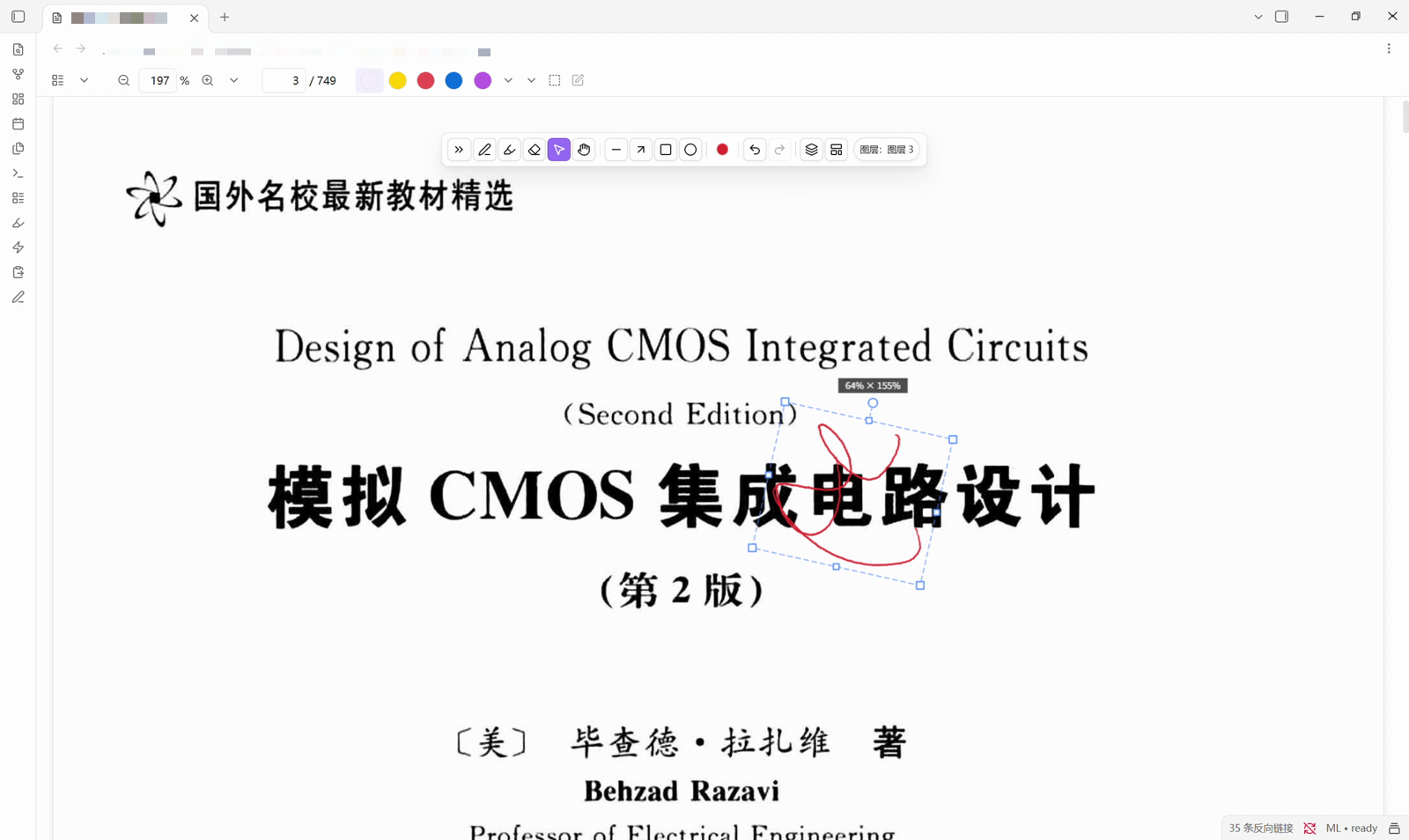
Most PDF readers only highlight; handwriting lives on a tablet; and then you export screenshots and retype your notes. Inkstone PDF closes that seam: the PDF view inside Obsidian becomes a page you can write on, and the ink lives in your vault next to your notes.
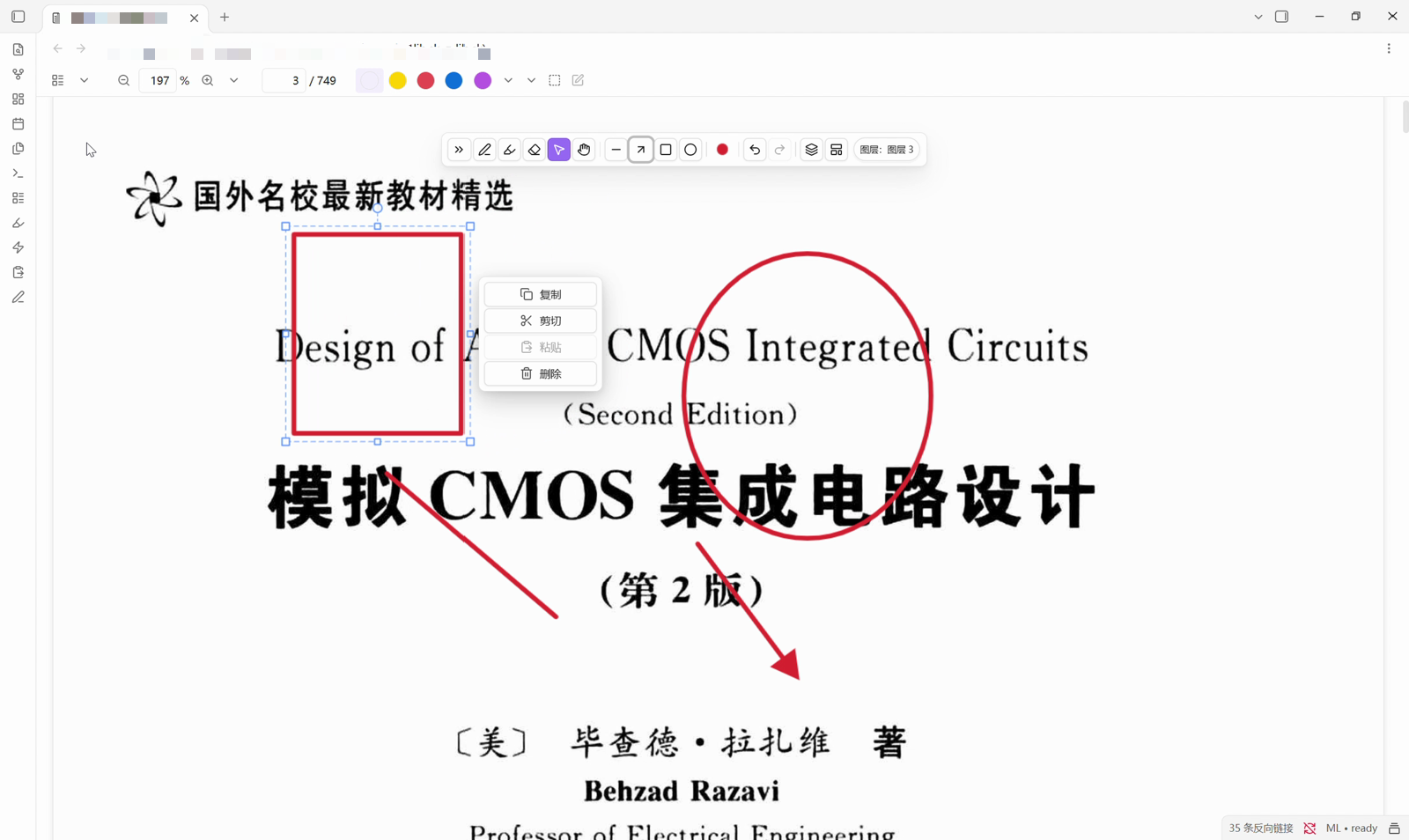
- Pen down, ink down. No mode switch. Pressure is per point.
- Boolean eraser. Erasing carves ink away instead of painting over it, so erased parts never come back when you move the stroke.
- Real selection. Free X/Y scaling, single-axis handles, rotation with 15° snapping, arrow-key nudging, copy / cut / paste.
- Document layers. Annotate on one layer, answers on another, hide one to test yourself.
- Screenless tablet support. Hold a key for a temporary eraser, hold Shift and drag to resize the brush, rebindable keyboard shortcuts for every tool.
- Your PDF stays untouched. Strokes are stored in a sidecar JSON inside your vault, so they sync with it and undo still works.
Install
Preview build: back up
附件/Ink 标注/before you annotate anything you care about.
From the community directory
Settings → Community plugins → Browse → search Inkstone PDF → Install → Enable.
Manually
- Download
main.js,manifest.jsonandstyles.cssfrom the latest release. - Put them in
<your vault>/.obsidian/plugins/inkstone-pdf/. - Restart Obsidian (or press
Ctrl/Cmd+R), then enable Inkstone PDF in Settings → Community plugins.
Usage (the short version)
| Action | How |
|---|---|
| Write | Pick the pen and write on any PDF page |
| Tools | P pen · H highlighter · E eraser · S select · L line · A arrow · R rect · O ellipse · G pan |
| Brush panel | Double-click (or right-click / long-press) a brush button |
| Temporary eraser | Hold F, release to get the previous pen back |
| Resize the brush | Hold Shift and drag the pen on the page: left/right = size, up/down = opacity |
| Select ink | Select tool, drag a box; then drag, scale, rotate, or nudge with arrow keys |
| Text selection | Select tool + Alt (gives the page back to the PDF text layer) |
| Undo / redo | Ctrl/Cmd+Z · Ctrl/Cmd+Shift+Z |
Every shortcut above is rebindable in Settings → Inkstone PDF → Key map.
Privacy & permissions
- No network requests. The plugin never phones home and has no telemetry.
- Vault access goes through the Obsidian API: it reads the PDF you opened and reads/writes its
annotation file (
附件/Ink 标注/<path>.json). - System clipboard: write-only, once. The
Show performance summarycommand copies the summary text to the clipboard so you can paste it into a bug report. The plugin never reads the clipboard.
Feedback
A preview build lives or dies on bug reports, so they are the most useful thing you can send.
- Email:
[email protected] - Please include: your Obsidian version, the plugin version (Settings → Community plugins), what you did, and what happened instead.
- Useful extras: whether the PDF is a scan, how many pages it has, and whether it reproduces.
- Number to attach: command palette →
导出诊断信息(export diagnostics) writesdebug.jsonnext to the plugin. It holds performance counters, the plugin list and the paths of open files — skim it before you attach it.
Data
- Annotations:
<vault>/附件/Ink 标注/<path of the PDF>.json(folder configurable). - The PDF itself is never written to.
- Legacy eraser masks from very old builds are deleted on load (one
.bakis written first); the ink those masks covered becomes visible again.
Known limitations
- Desktop only; not tested on mobile.
- Rotated rectangles/ellipses are baked into polygons (visually identical, no longer a "shape").
- Annotations of a PDF live in the vault that contains that PDF.
- The annotation file only ever gains fields, so old data stays readable — but behaviour can still change between preview builds.
What is still being built
Roughly the order it will be worked on. None of it is a promise; any item can move, shrink or disappear.
In progress
- Input smoothing. An optional jitter filter (off / light / medium) for shaking hands. It costs 0.5–2 frames of latency, so the default has to be measured on a real tablet instead of guessed.
- Pan tool. Hold
Shifton the pan tool to zoom vertically, and a rebindable key that toggles between pen and pan. - More rebindable actions. Eraser region/mode, brush presets 1–3, brush size ±, layer up/down, page next/previous. The key-map structure already exists; the actions are not wired up yet.
- Brush panel finish. Reorder presets, restore defaults, and keep the panel in step when the tool changes.
Planned, shape not fixed
- Selection on big pages. Dragging a selection repaints the whole page every frame; on a viewport-sized page that can drop frames.
- Annotation file size. A 749-page book with ~500 strokes comes to about 650 KB. Per-page files and stronger point quantisation are the candidates.
- Wanted but undecided. A highlighter that sits over existing ink, ink that works as an internal link between pages, stickers and pasted images.
Not planned
- Page-level layers, a zoom-in writing mode, a separate brush box, writing real PDF annotations back into the file, rich text.
Development
npm install
npm run build          # tsc --noEmit + esbuild
npm test               # node --import tsx --test tests/*.test.ts
If the environment forbids spawning child processes (some sandboxes), bundle each test with esbuild
and run it with plain node; see docs/handoff-*.md for the exact commands used in this project.
src/                 TypeScript sources
tests/               unit tests + jsdom end-to-end
scripts/deploy.mjs   copy the build into <vault>/.obsidian/plugins/inkstone-pdf
main.js styles.css   build output (committed so any tag is installable)
License
MIT — see LICENSE. Bundled dependencies and their notices: THIRD_PARTY_NOTICES.md.
中文说明
在 Obsidian 里直接手写批注 PDF:压感、图层、布尔裁剪橡皮、撤销/重做;笔迹存在库内的独立文件里,原 PDF 一个字节都不改。
插件名 Inkstone PDF(id
inkstone-pdf),仅桌面端,Obsidian 1.8.0+。
⚠️ 先行测试版
0.1.2是先行测试版,不是成品。 代码由 DSH(DeepSeek Harness)开发,测试、实测和问题反馈由我来做,小毛病在所难免。崩溃、笔迹画错、操作不符合预期——发邮件到
[email protected],写清"做了什么 / 出现了什么现象"就行,不需要任何模板,有截图更好。重要批注请先备份
附件/Ink 标注/。
解决什么问题
PDF 阅读器只能高亮,手写要去 iPad,写完还得导出、截图、手动誊回笔记——批注和笔记永远是两套东西。Inkstone PDF 把 Obsidian 的 PDF 视图变成一张可以直接写的纸,笔迹和你的笔记待在同一个库里。
- 落笔即写,压感逐点生效,不需要先切"绘制模式";
- 布尔裁剪橡皮:擦过的地方是真的被挖掉,移动笔迹也不会重新冒出来;
- 有向选区:四角自由缩放、边中点单轴缩放、圆点旋转(15° 吸附)、方向键微移、复制/剪切/粘贴;
- 文档级图层:批注写一层、答案写一层,隐藏一层就能自己考自己;
- 数位板适配:按住键临时橡皮、Shift 贴页面拖动改粗细、所有工具键位可重绑;
- 原 PDF 不动:笔迹存在库内的侧车 JSON,跟随库同步,可撤销。
安装
先行测试版:正式拿来记东西之前,先备份
附件/Ink 标注/。
社区目录:设置 → 第三方插件 → 浏览 → 搜索 Inkstone PDF → 安装 → 启用。
手动:下载最新 Release 里的 main.js、manifest.json、styles.css,放到 <你的库>/.obsidian/plugins/inkstone-pdf/,重启 Obsidian(或 Ctrl/Cmd+R),再到 设置 → 第三方插件 启用。
用法速查
| 操作 | 方式 |
|---|---|
| 书写 | 选钢笔,直接在 PDF 页面上写 |
| 工具 | P 钢笔 · H 荧光笔 · E 橡皮 · S 选择 · L 直线 · A 箭头 · R 矩形 · O 椭圆 · G 拖拽页面 |
| 笔刷面板 | 双击(或右键/长按)笔刷按钮 |
| 临时橡皮 | 按住 F,松手回到原来那支笔 |
| 调笔刷 | 按住 Shift,让笔贴着页面移动:左右改粗细、上下改不透明度 |
| 选中笔迹 | 选择工具拖框;之后拖动、缩放、旋转、方向键微移 |
| 文本选择 | 选择工具 + Alt(把页面交还给 PDF 文本层) |
| 撤销/重做 | Ctrl/Cmd+Z · Ctrl/Cmd+Shift+Z |
以上键位都能在 设置 → Inkstone PDF → 键位映射 里改。
隐私与权限
- 不联网:没有任何网络请求,也没有遥测。
- 库内读写:通过 Obsidian API 读取你打开的 PDF,读写它的批注文件(
附件/Ink 标注/<路径>.json)。 - 系统剪贴板:只写不读,且只在一个地方写——「显示性能摘要」命令会把摘要文本复制到剪贴板,方便你贴进反馈里。插件从不读取剪贴板内容。
反馈
先行测试版最缺的就是问题报告,所以那是你能给出的最有用的东西。
- 邮箱:
[email protected] - 请写上:Obsidian 版本、插件版本(设置 → 第三方插件)、你做了什么、实际发生了什么。
- 加分信息:PDF 是不是扫描件、多少页、能不能稳定复现。
- 想带上数据:命令面板 →「导出诊断信息」会在插件目录生成
debug.json,里面是性能计数、插件列表和打开文件的路径,发之前自己扫一眼。
数据
- 批注:
<库>/附件/Ink 标注/<PDF 路径>.json(文件夹可改)。 - 不写入原 PDF。
- 更早版本的橡皮蒙版会在加载时被删除(先写一份
.bak),被它们盖住的墨迹会重新显示。
已知限制
- 仅桌面端,未在移动端测试。
- 旋转过的矩形/椭圆会被烘焙成多边形(外观一致,但不再是"形状")。
- 同一个 PDF 的批注只存在于该 PDF 所在的那个库里。
- 批注文件只会增量加字段,旧数据始终可读——但测试版之间的行为仍可能变化。
后续在做什么
大致按动手顺序排,都不是承诺,任何一项都可能提前、推迟或砍掉。
正在做
- 输入抖动修正:可选的抖动滤波(关 / 轻 / 中),照顾手不稳的情况;代价是 0.5–2 帧延迟,所以默认档要实测后再定,不拍脑袋。
- 拖拽工具收尾:拖拽工具下按住
Shift纵向缩放页面,外加一个可重绑的「笔 / 拖拽」切换键。 - 更多可重绑动作:橡皮区域/方式、笔刷预设 1–3、笔宽 ±、图层上/下、翻页。键位表结构已就绪,动作还没接上。
- 笔刷面板收尾:预设排序、恢复默认预设、切工具时面板跟着换。
计划中,形态未定
- 大页面上的选区变换:拖动选区时每帧整页重绘,页面大时会掉帧。
- 批注文件体积:749 页的书、约 500 笔就到 650KB 左右;候选方案是按页拆分 + 更强的点量化。
- 想加但没定:能盖住已有墨迹的荧光笔、笔迹当页内链接跳转、贴纸与图片插入。
明确不做
页面级图层、放大书写模式、独立笔盒、写回 PDF 注释、富文本。
许可
MIT,见 LICENSE;打包的第三方代码与声明见 THIRD_PARTY_NOTICES.md。